Technical Manual for Drilling Works for Technical Support Plan for the Drillers in DDCA (2013) - page 4
compare the contract conditions and work results. It will be installed in the
data entry room as the Client Computer No.3. Figure 4shows the networking of
these four computers.
Figure 4: Computer Network
7. TECHNICAL SUPPORT FOR UPDATE AND MAINTENACE
OF DATABASE
The following technical support for DDCA to acquire the necessary skills on WID is for the
smooth implementation of the preparation of well completion report forms, update,
maintenance and information retrieval of the WID.
(1)
Preparation of the guideline on how to enter the drilling record form
With the support by JICA Expert, DDCA will prepare this guideline. The guideline facilitates
each drilling team to fill up the revised drilling record form.
(2)
Preparation of the operation manual of WID
The operation manual of the WID will be prepared by the Contractor.
The manual shall include the database structure, description of the attributes, folder structure,
data entry operation, modification of attributes, backup, setting and change of password and
information retrieval etc.
(3)
Guidance of the data entry
The Contractor will give guidance on the data entry with using the operation manual for the
staffs in the registry room.
(4)
Guidance of the database maintenance and information retrieval
Output (5) System Analysis Completed
The Contractor will give guidance on the database maintenance and information retrieval with
using the operation manual for the Head of Drilling Section together with the Assistant
Database Manager of WID to be appointed.
10
Appendices
Appendix 1:
DDCA Well Database Entry Sheet Index Label List (Draft)
LOCAIDES GENERAL SUPPLY LIMITED
P.O. Box 33333, Dar es Salaam. Survey, Kinondoni
Tel:2700096 Fax: 2700096
email: locaides@gmail.com,bertharicky@yahoo.com
GROUNDWATER DEVELOPMENT AND MANAGEMENT
CAPACITY DEVELOPMENT PROJECT
DDCAP
OUTPUT (7)
OPERATION MANUAL FOR A DATABASE OF WELLS
DRILLED BY DDCA
FEBRUARY 2013
LOCAIDES GENERAL SUPPLY LIMITED
1
Index
1.
INTRODUCTION
6
2.
DATABASE COMPOSITION
6
3.
DATA ENTRY
7
4.
DATA SEARCH
8
(1) Use “Find”
8
(2) Use “Filter”
8
5.
REPORT MAKING
9
(1) Borehole Completion Report
9
(2) Pumping Test Report
10
(3) Water Quality Analysis Report
11
6.
DATA COUNTING AND SUMMARISING
11
7.
SHEET PROTECTION
11
(1) Method-1: Use Excel Tab
11
1) Sheet protection
11
2) Book protection
12
(2) Method-2: Use Macro Command button only for Sheet protection
12
8.
Data Export
12
9.
MODIFICATION OF REPORT FORM AND EXTRACTION FORM
15
(1) Basic MS-Excel Function used in a Database of Wells Drilled by DDCA
15
1) LOOKUP (VLOOKUP: Vertical LOOKUP) Function
16
2) MATCH Function
17
3) Combination of VLOOKUP&MATCH Function
18
5) IF Function
19
6) ISERROR Function
20
5.4.2 Form of Pumping Test
22
5.5 Database Repository
23
GRlist sheet
24
CT list sheet
24
AT list sheet
25
RAT list sheet
26
Steps for addition of new attributeto repository and data entry sheet
26
Table of Contents
5.2 How to Start the DDCADB
21
5.4 How to Make Report
22
Tables
Table 2: LOOKUP function
16
3
Table 3: MATCH function
18
Table 4: Combination of VLOOKUP and MATCH function
19
Table 5: IF function 1
19
Table 6: IF function 2
20
Table 7: ISERROR function 1
21
Table 8: ISERROR function 2
21
Figures
Figure 1 Folder and file composition of DDCA Well Database
6
Figure 2: Data entry sheet
8
Figure 3: Well Completion Report Form
10
Figure 4: Command button of Export Data at “ExportData” sheet
13
Figure 5: Control panel for export
13
Figure 6: Enter specific range of Database ID
14
Figure 7: Completion of data exporting
14
Figure 8: Exported data for Well Database in African Countries (WDAF)
15
Figure 9: Composition of database files
22
Figure 10: Pumping Test Form
23
Figure 11: Group List (GR list)
24
Figure 7: Category List (CT list)
25
Figure 12: Attribute List (AT list)
25
5
1. INTRODUCTION
The DDCA Well Database was established as a part of DDCAP project. The database is
assumed to be provided to any private drilling company on demand.
This Operation Manual has been prepared to explain how to use the application of DDCA
database. The database has 9997 borehole data and several functions. Users can add new
borehole data and use them, like report making, data search, data counting and summarizing.
The database made by using Microsoft Excel. User can modify the report form and make new
extraction form.
2. DATABASE COMPOSITION
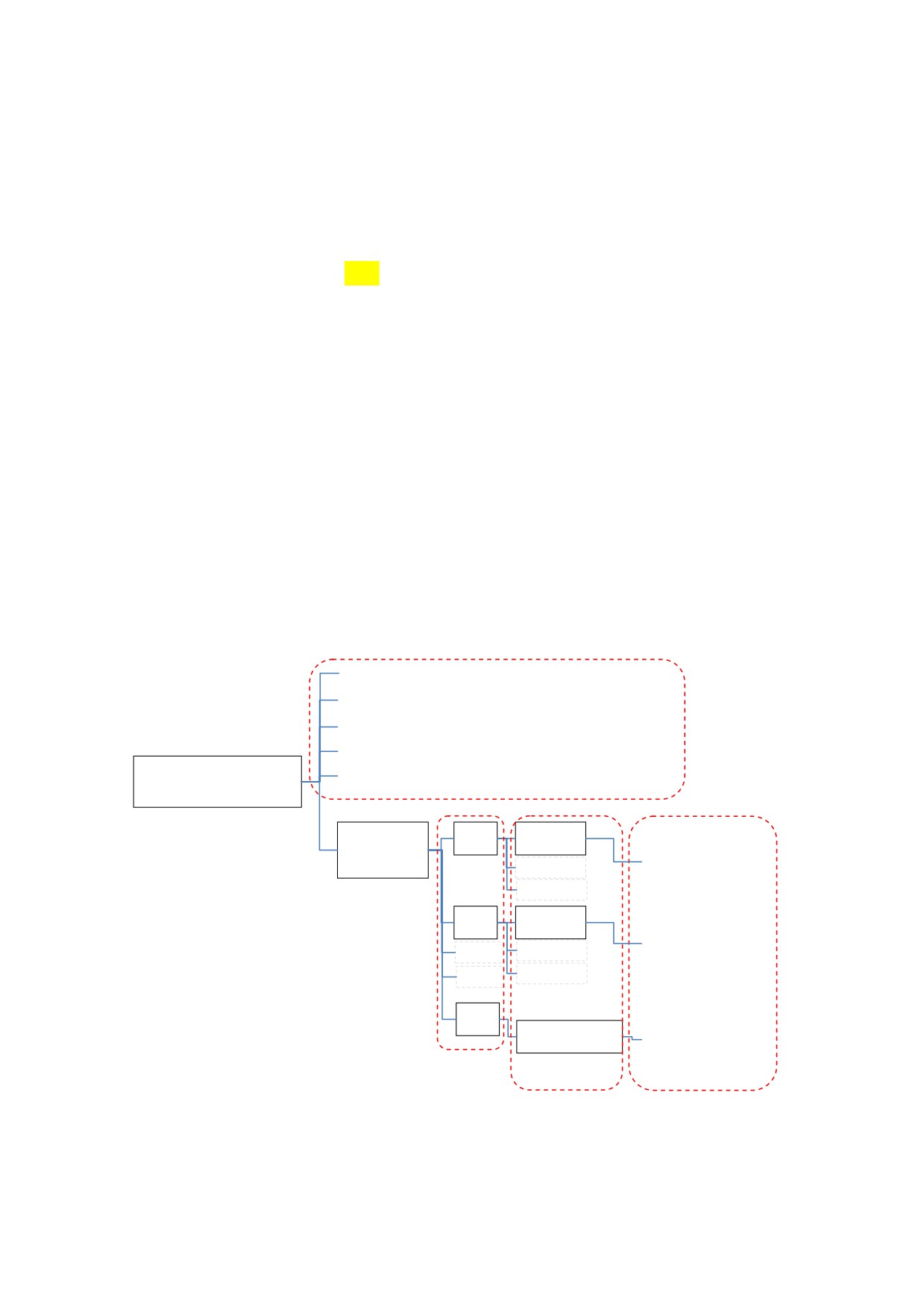
The root folder is “DDCA Well Database” which consists of database main unit and scan data
(see Figure 1). The database main unit is made up of 5 books of Microsoft Excel which are
“010 Well Database.xlsm”, “020 Water Well Completion Form for Print.xls”, “030 Pumping Test
Form for Print.xlsm”, “040 Pumping Test Existing Data.xlsm” and “050 Water Quality for
Print.xlsm”.
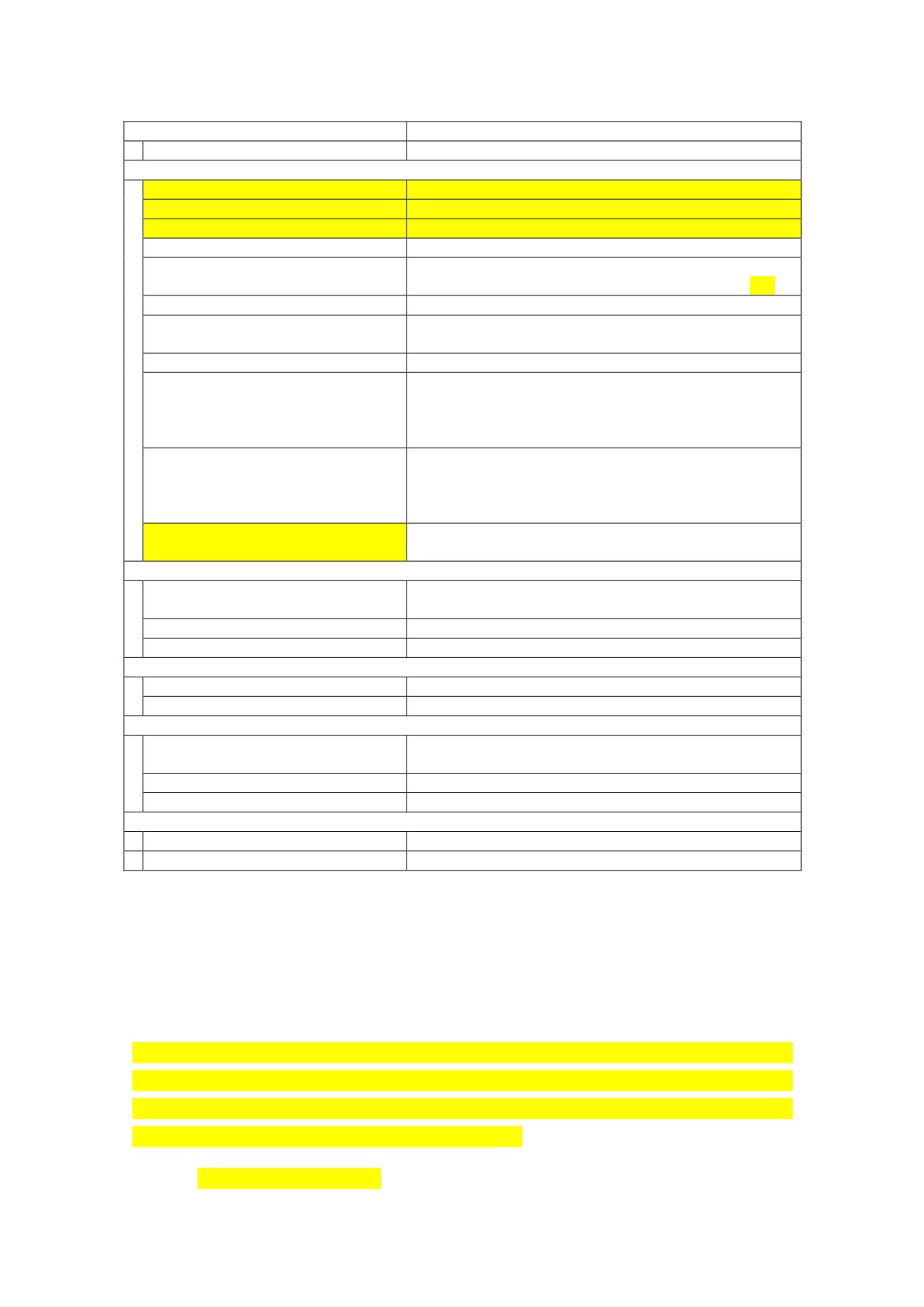
Table 1 shows the components of the database main unit.
<Database Main Unit>
010 Well Database.xlsm
020 Water Well Completion Form for Print.xls
030 Pumping Test Form for Print.xlsm
<Root Folder>
040 Pumping Test Existing Data.xlsm
050 Water Quality for Print.xlsm
DDCA Well Database
<Scanned Image Data>
DDCA
1931
BH-4-31
Borehole Report
Scan Data
JPEG image
~
<Folder of scanned borehole completion report>
1932
BH-1-32
Borehole Report
JPEG image
~
~
2013
Borehole Report
LND-98-2013
<Folder by Financial Yearly>
JPEG image
<Folder by Borehole No.>
Figure 1 Folder and file composition of DDCA Well Database
Table 1 Components of the database main unit
Book Name
Sheet Name
Sheet Contents
010 Well Database.xlsm
DataEntryForm2
Data entry form for borehole completion report
PumpingTestSummaryEntryForm
Data entry form for pumping test summary
WaterQualityEntryForm
Data entry form for Water quality analysis
DDCADB main
Data storage of this database
ExportData
Control form of data exporting function. User can
export stored data to other database form (see xxx)
Welldata_africa
“Well database in African Country” form of JICA
Catalogue
Form of Water Resource Management Office in
Dodoma
WamiRuvuDB
Form of WamiRuvu Basin Water Office
rat
Table of data attribute. Attribute name displayed
in this database is linked to the table. Revision of
the table demands a lot of attention because it
affects to all books and sheets in this database
Unit
Unit list which are used in DDCADB main sheet.
Revision of this sheet affect DDCADB main sheet.
Revision of the unit list demands a lot of attention
because it affects to data storage
EntrySheetProtect
This sheet has a command button to unprotect and
protect sheets
020 Water Well Completion Form for Print.xls
OLD
Well completion report form which had been used
from the 1930s to the 1950s
FORM1
Well completion report form in use at the year 2013.
FORM2
Revised well completion report form
030 Pumping Test Form for Print.xlsm
ConstantDD
Report form of constant discharge rate test
ConstantRecovery
Report form of water level recovery test
040 Pumping Test Existing Data.xlsm
pumptest
Data ID of pumping test etc., necessary data for data
correction and display
waterleveldrowdown
Store of constant discharge test data
waterlevelrecovery
Store of water level recovery test data
050 Water Quality for Print.xlsm
WaterQuality
Report form for water quality data
3. DATA ENTRY
For entering the data into the database, double click to open “010 Well Database.xlsm”. The
book has a main data storing sheet “DDCADB_main”. All data will be entered into this sheet.
The well data submitted by Rig in Charge to the registry will be entered into the
“DDCADB_main” sheet. The attributes in the sheet are ranged based on the order of items in
the completion report form. The borehole No. should be entered first at the left side column.
From the next column, the other data will be entered.
Step-1 Open the Data Entry sheet
7
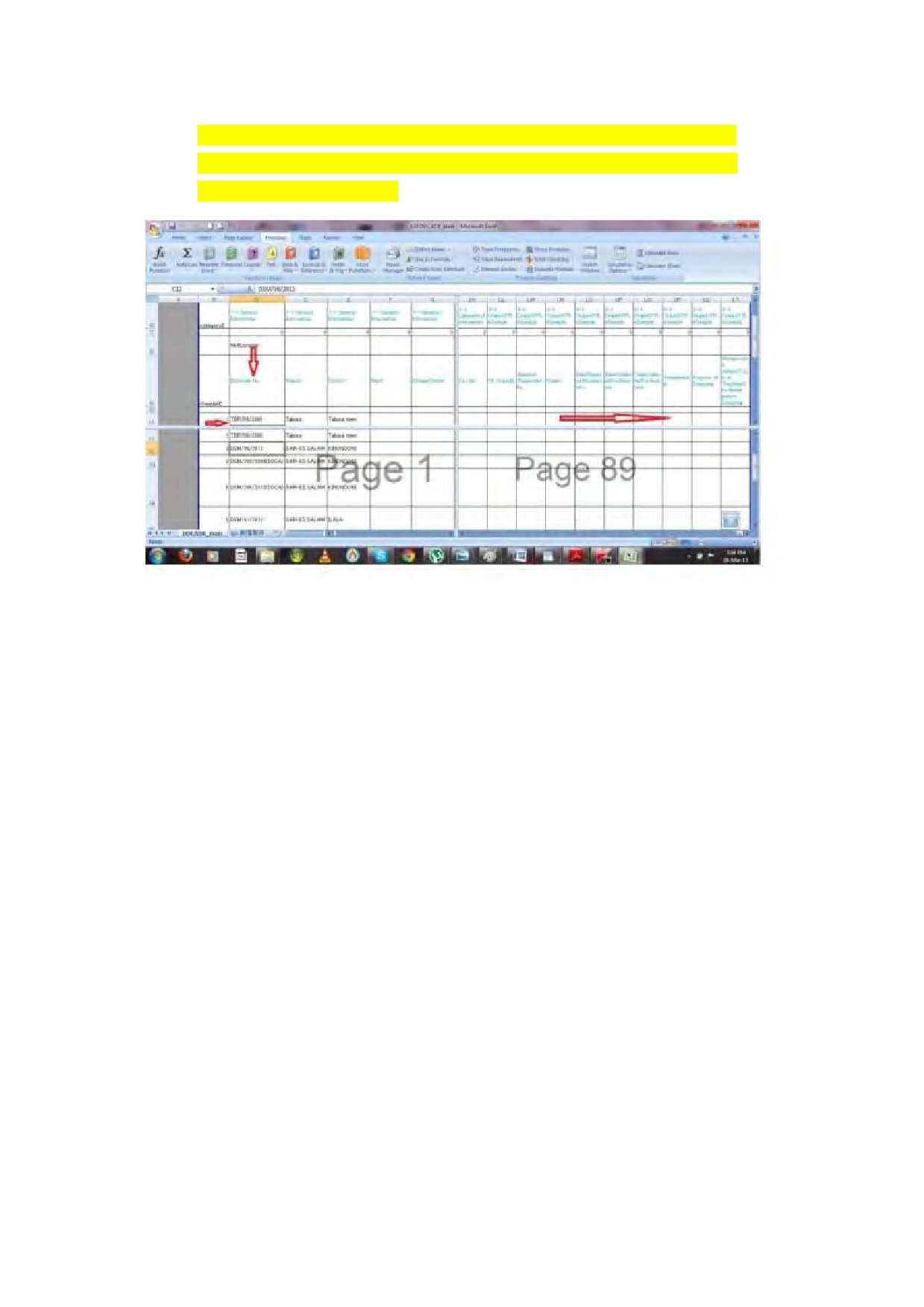
Step-2 Enter the borehole number into the left end column under the attributes row.
Step-3 Start entering the data from the left column next to borehole No. horizontally.
Step-4 Cross check the data entered
Figure 2: Data entry sheet
4. DATA SEARCH
Data are stored in the sheet of “DDCDB_main” of “010 Well Database.xlsm” book. User can
search a target borehole data by using several search methods of EXCEL. User can select any
method as its convenience. In this manual, two methods are introduced as followings.
(1) Use “Find”
Step-1 Open “DDCADB_main” and select arbitrary a column.
Step-2 Select Home Tab and select function as following.
[Home Tab]
>>
[Find and Select]
>>
[Find]
Step-3 Search box will open. Enter the words into the text box
Step-4 Click the search button. If the word is exists it will be fund.
(2) Use “Filter”
Step-1 Open “DDCADB_main” and Unprotect the sheet as following.
[Review Tab]
>>
[Unprotect sheet]
>> Enter a password “ddcadb” >> Click OK or tap
Enter Key
Step-2 Select the row 10 and use filter function as following.
[Data Tab]
>>
[Filter]
Then an inverted triangle is shown in each cell of the row 10. The inverted triangle is a pull
down menu for filtering.
Step-3 Click pull down menu of necessary attribute column and select necessary data. For
example, if a user wants borehole data of the financial year of 1995, click pull down menu
of “Year BH” column and select only 1995 (selected all in default). Click “OK”. Only the
borehole data of year 1995 are shown.
Step-4 For reset filter function. Click “Filter” of Data Tab.
Step-5 For protecting sheet again. Open “Sheet Protect” and click a command button of
“Unprotected”. The comment “Unprotected” changes to “Sheets are protected” and a
message box “Sheets are protected” is shown. Click “OK” of the message box and sheet
protection is completed properly.
5. REPORT MAKING
(1) Borehole Completion Report
Open “010 Well Database.xlsm” and “020 Water Well Completion Form for Print.xls”.
“020
Water Well Completion Form for Print.xls” includes 3 types of report forms which are “Old
“ form sheet, “Form1” sheet and “Form2” sheet. User can choose as the need.
The Figure 3 shows a part of well completion report form. The borehole No. is entered into
the top of the sheet. The data stored in “DDCADB_main” sheet will be shown up in the form
by referring to the borehole No.
9
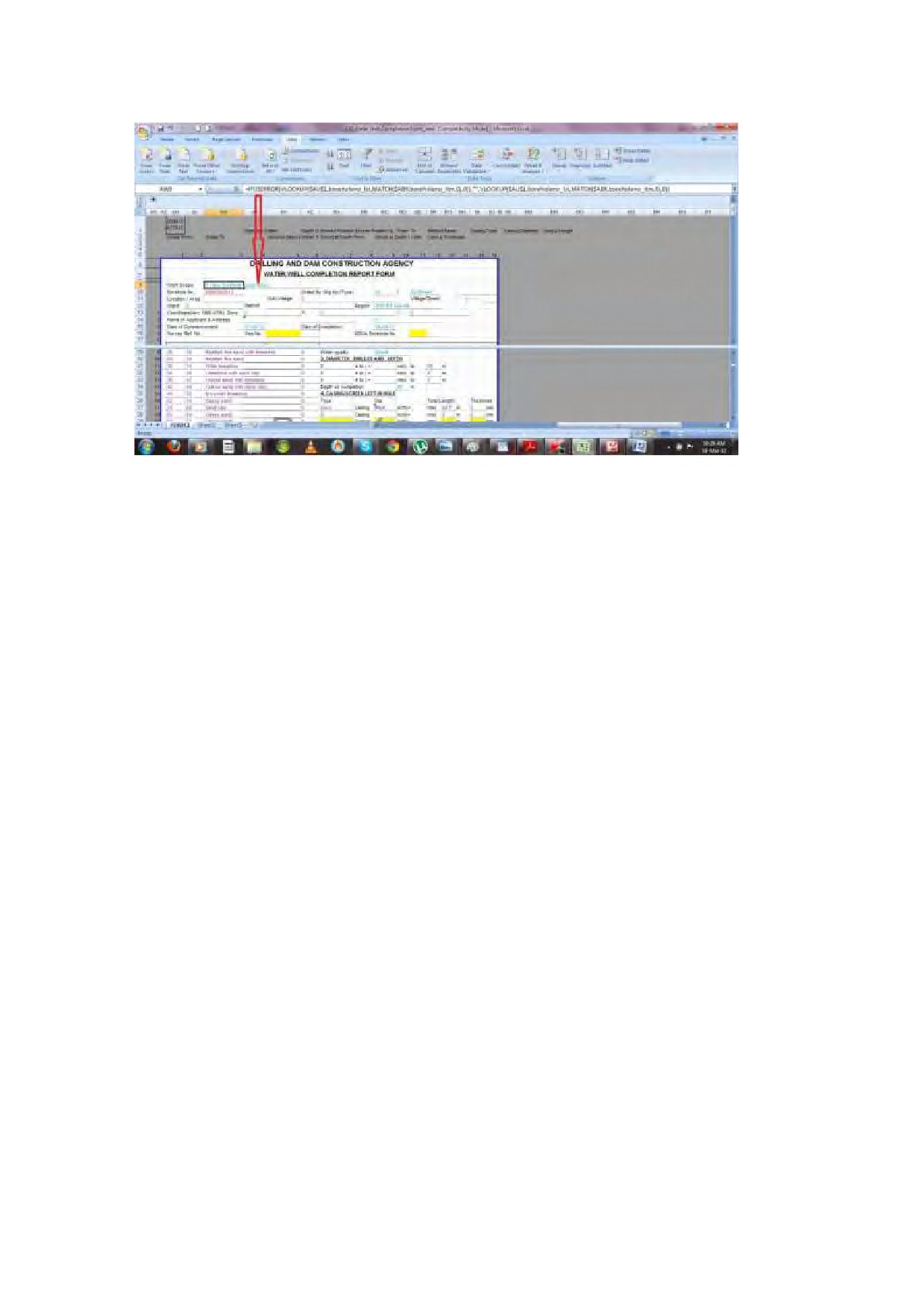
Figure 3: Well Completion Report Form
Step-1 Open “010 Well Database.xlsm” and “020 Water Well Completion Form for Print.xls”.
Step-2 Choose a sheet from Old, Form1 and Form2 which are in the book of “020 Water Well
Completion Form for Print.xls”.
Step-3 Copy borehole No. of the target borehole from “DDCADB_main” and paste to the top
of the form of each sheet.
Step-4 The data which had been entered into the “DDCADB_main” are shown by referring
(LOOKUP function).
Step-5 Print out the form
If the data are not shown proper, check each formula, borehole No., rat No. and
“DDCADB_main” original data. For correction of the formula, refer to 9 in this manual.
(2) Pumping Test Report
Step-1 Open “010 Well Database.xlsm”, “030 Pumping Test Form for Print.xlsm” and “040
Pumping Test Existing Data.xlsm”.
Step-2 Choose a sheet from ConstantDD and ConstantRecovery.
Step-3 Copy borehole No. of the target borehole from “DDCADB_main” and paste to the top
of the form of the chosen sheet.
Step-4 The data which had been entered into the
“DDCADB_main” and the
“040
PumpingTestExistingData.xlsm” are shown by referring. (Lookup Function)
Step-5 Print out the form
If the data are not shown proper, check each formula, borehole No., and original data of
related files. For correction of the formula, refer to 9 in this manual.
(3) Water Quality Analysis Report
Step-1 Open “010 Well Database.xlsm” and “050 Water Quality for Print.xlsm”
Step-2 Copy borehole NO. of the target borehole from “DDCADB_main” and paste to the top
of the water quality analysis form
Step-3 The data which a had been entered into the “DDCADB_main” are shown by referring
function (Lookup Function).
Step-4 Print out the form
If the data are not shown proper, check each formula, borehole No., and original data of
related files. For correction of the formula, refer to 9 in this manual.
6. DATA COUNTING AND SUMMARISING
7. SHEET PROTECTION
In order to avoid modify “010 Well Database.xlsm” by mistake, the sheets and book are
protected by password. Modification and data correction are restricted by this protection.
Table 2 shows the detail of the protection. The protection consists of Sheet protection and
Book protection.
There are two methods to unprotect and re-protect.
(1) Method-1: Use Excel Tab
1) Sheet protection
Step-1 Open “DDCADB_main” sheet
Step-2
[Review Tab]
>>
[Unprotect Sheet]
>> Enter password “ddcadb” and click OK to
unprotect sheet
Step-3 After editing,
[Review Tab]
>>
[Protect Sheet]
>> Enter password “ddcadb” and click OK to
re-protect *Don’t change check boxes
*Unprotect and re-protect should be done for each sheet. If any sheet is unprotected,
export function is disabled.
11

2) Book protection
Step-1 Open “DDCADB_main” sheet
Step-2
[Review Tab]
>>
[Protect Workbook]
>> Click “Protect Structure and Windows”
>> Enter password “ddcadbbook” and click OK to unprotect this book
Step-3 After editing,
[Review Tab]
>>
[Protect Workbook]
>> Enter password
“ddcadbbook” to
re-protect book.
* Don’t change check box.
(2) Method-2: Use Macro Command button only for Sheet protection
Step-1 Open “Sheet protection” sheet
Step-2 Click a command button named “Protected”.
Step-3 A message box “Unprotect?” appears. Click OK to unprotect.
Step-4 After editing, click the command button to re-protect. If any sheet is not protected,
export function does not work.
Table 2 Detail of sheet and book protection
Protecting Target
Sheet protection
Book protection
Restricting editing Data Entry
Restricting changing Sheet
Interface,
Data
Storage
composition (move, add, delete
( DDCADB_main ) and Attribute
sheet).
sheet
(rat). The cells of the
For changing sheet composition,
Protecting
interfaces and command buttons
this protection should be
contents
are enabled.
disabled.
For correction of registered data
and revision of interfaces, this
protection should be disabled.
Password
ddcadb
ddcadbbook
Restricted
Interfaces for data entry and data export function do not work.
functions while
unprotected
8. Data Export
The storing data in DDCADB_main can be exported to the other database form. This database
is mounted an export function for three types of other database forms. Those forms are
“Well database of Africa”, Dodoma water resource office form and WamiRuvu basin office form.
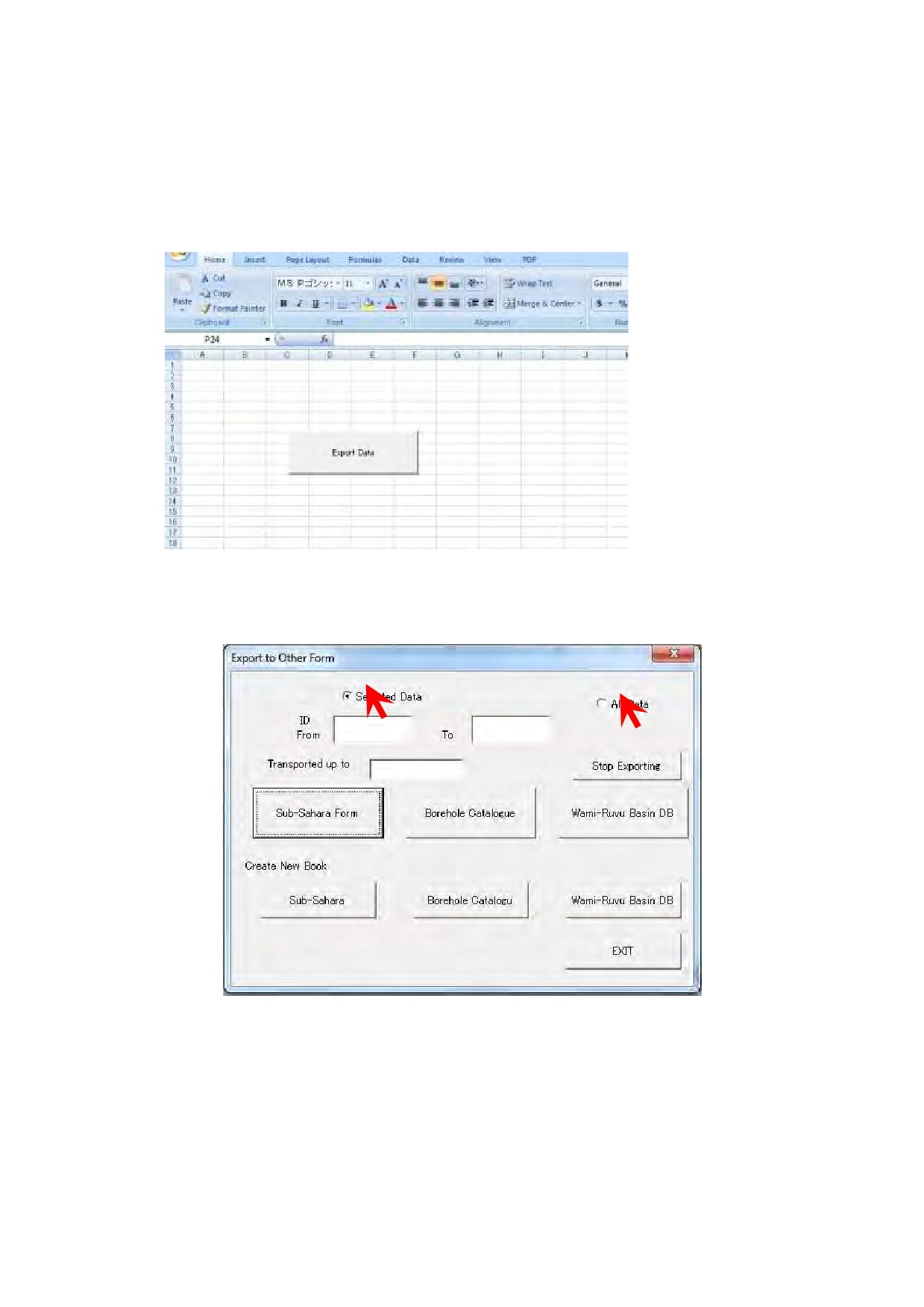
Export function is build up with VBA Macro. The process of exporting is as following.
Step-1 Open “ExportData” sheet.
Step-2 Click a command button to open a control panel for export.
Figure 4: Command button of Export Data at “ExportData” sheet
Figure 5: Control panel for export
Step-3 Select “Selected Data” or “All Data” as need.
“Selected Data” is for partial exporting.
“All Data” is for exporting all data at once. In the case of “Selected Data”, enter range of
ID, like “from _____ to_____”.
13
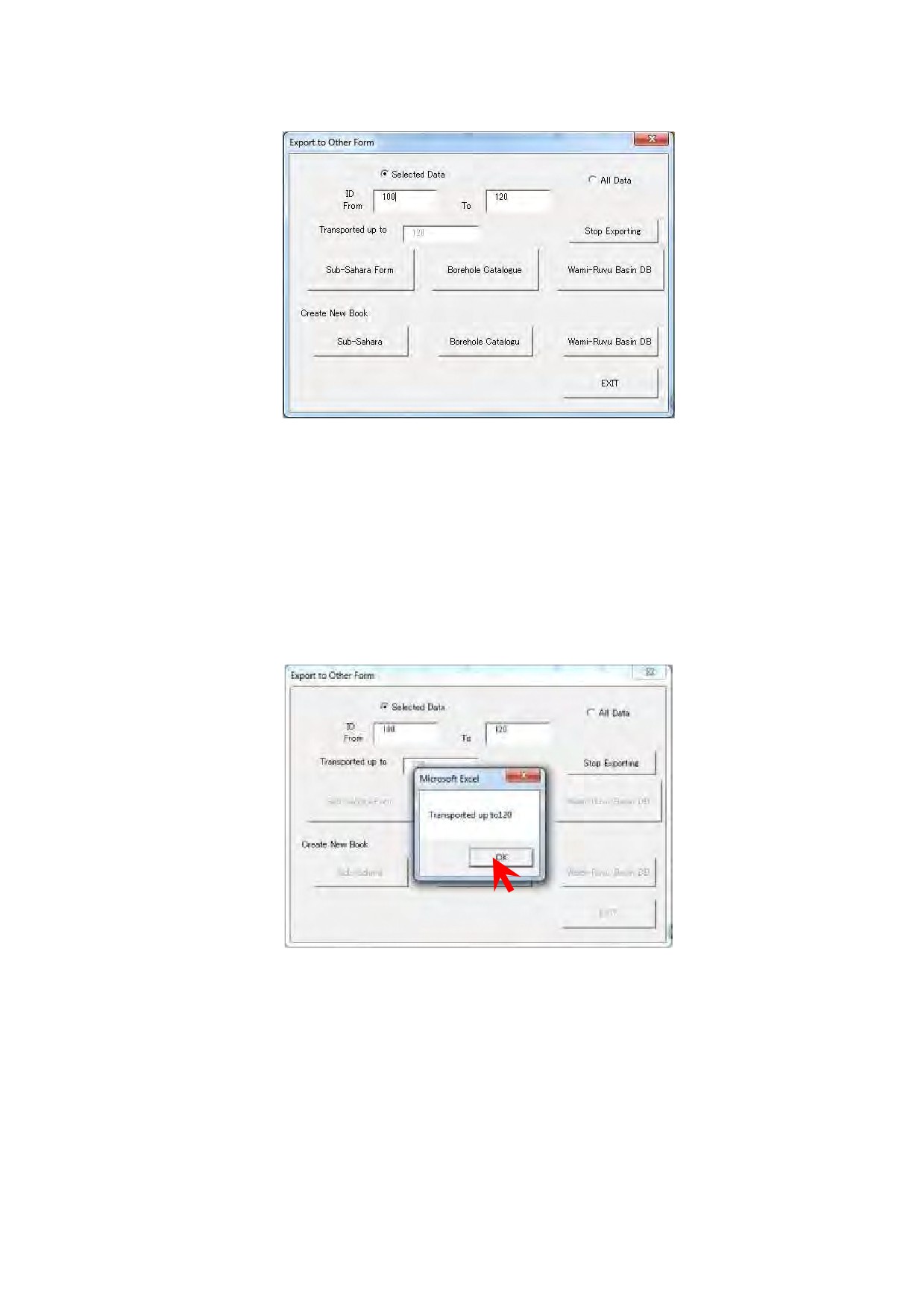
Figure 6: Enter specific range of Database ID
Step-4 Click “Sub-Sahara Form” for JICA form, “Borehole Catalogue” for Dodoma water
resource office or “Wami-Ruvu Basin DB” for WamiRuvu basin office. If user wants to
abort exporting, click a command button of “Stop Exporting”.
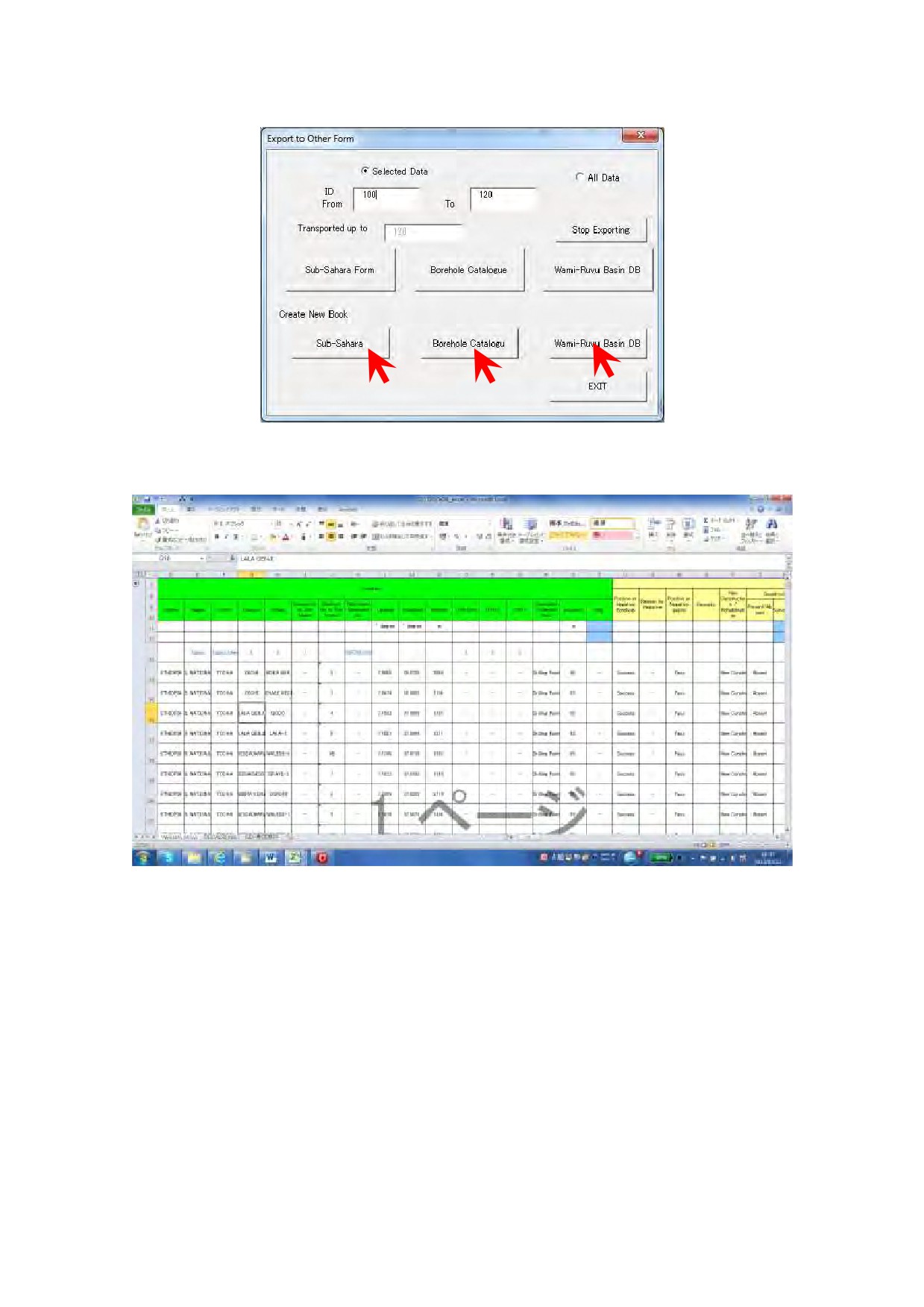
Step-5 Upon the completion, a message box appears. Click OK.
Figure 7: Completion of data exporting
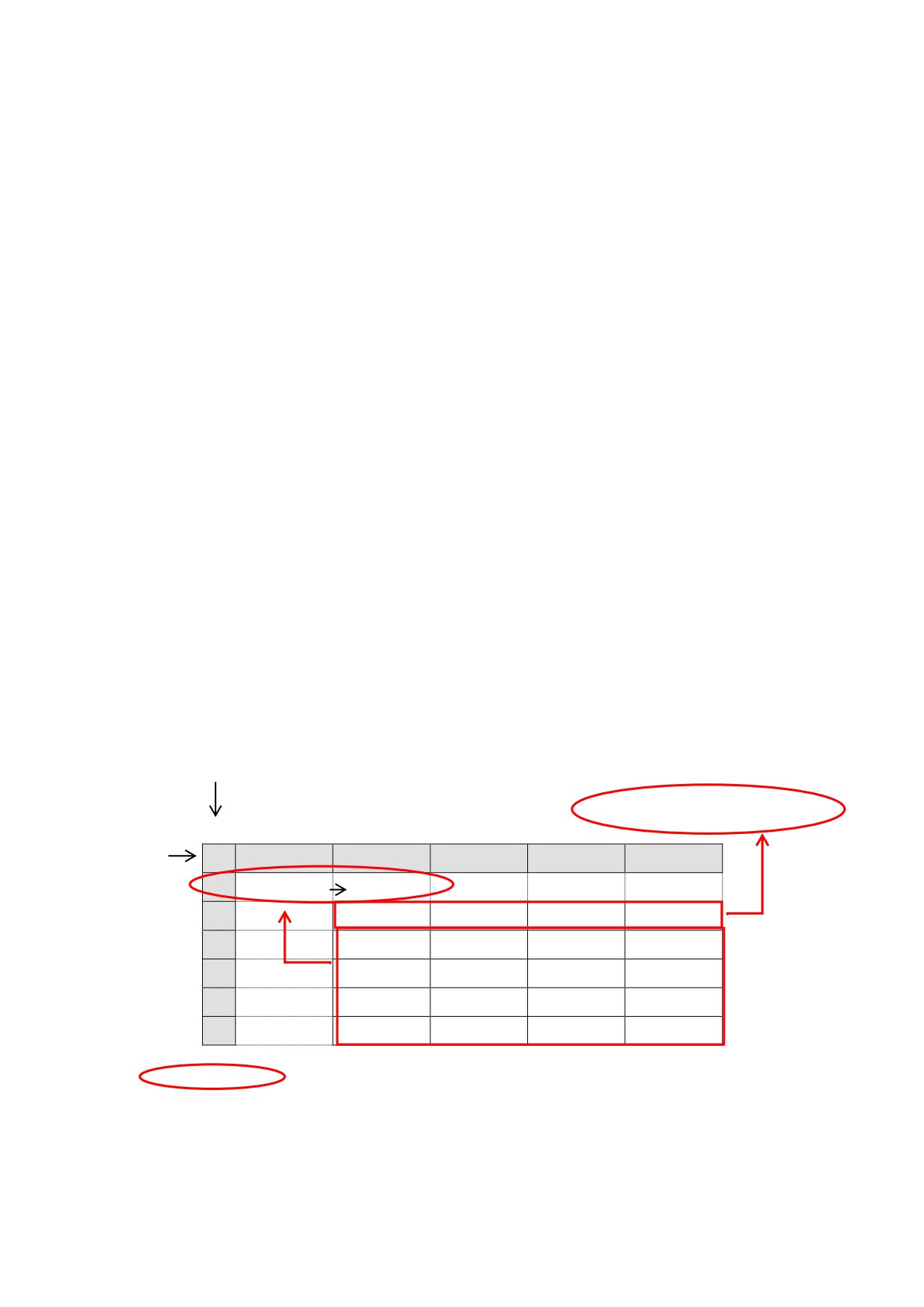
Step-6 If user wants to create new book of exported data, click a command button below
“Create New Book” as needed.
Step-7 After completion, click “EXIT” to close the control panel.
Figure 8: Exported data for Well Database in African Countries (WDAF)
9. MODIFICATION OF REPORT FORM AND EXTRACTION FORM
(1) Basic MS-Excel Function used in a Database of Wells Drilled by DDCA
Some useful MS-Excel functions are applied in the database. LOOKUP function is mainly used
for making the well completion report. LOOKUPfunction isto referto the information filled in
othercolumn, sheet or book. Once the formula is set, there is no need to retype up. The
other functions such as MATCH, ISERROR and IF functions are also used in the database. As
15
the introductory step to handle the database, this Section describes the MS-Excel functions to
be mastered, which are needed for data entry.
1) LOOKUP (VLOOKUP: Vertical LOOKUP) Function
Purpose
Refer to data from other sell, sheet and book.
Formula
=Vlookup(lookup_value,table array,Col_index_number, Approximate match)
How to set VLOOKUP formula in the column
1
Put equal then write “vlookup”
2
Put open brackets
3
Click the lookup value and put comma
4
Select and put the range of table in which the data to be referred is included, then put
comma
5
Put number of column in which the data to be referred is located, then put comma
6
Select Zero, then put close brackets
7
Press enter
Example
Table 3: LOOKUP function
Column
$B$2:$E$2→Nauli_itm
Row
A
B
C
D
E
1
$B$3:$E$6
Nauli_lst
2
Region
DSM
Arusha
Mwanza
3
Morogoro
5000
30000
65000
4
Mbeya
40000
80000
100000
5
Tanga
60000
35000
55000
6
Kagera
70000
45000
50000
: Naming of table by using “Name Manager”as instructed in *1 Box
Tanga-DSM
=vlookup($B$5, nauli_lst, 2, 0)
=60000
Morogoro-Mwanza
=vlookup($B$3, nauli_lst, 4, 0)
=65000
Kagera-Arusha
=vlookup($B$6, nauli_lst, 3, 0)
=45000
*1
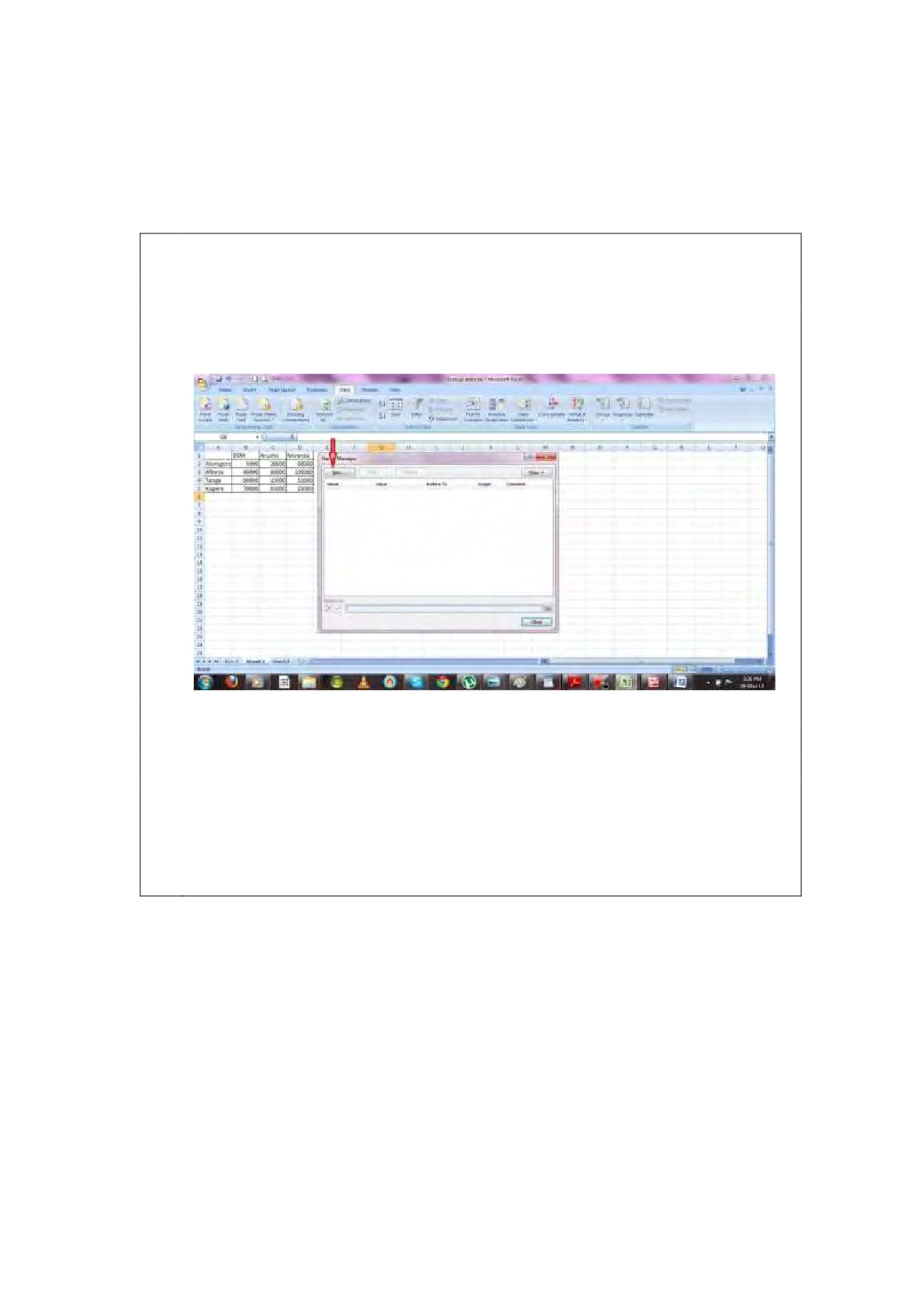
Name Manager
1
With pressing “ LT”, press “I”, “N”, “D”
2
Name manager box will be appeared
3
Click “New” to name
4
Write the name “ nauli_lst” as example table shows
5
Select the range “$B$3:$E$6” to refer
6
Refer to selected nauli list or nauli item then press ok
7
Close name manager box
Note: $ means fixedrow or column. There are three types of $ usage, which is
either $B$3 (absolute), $B3 (relative column) or B$3 (relative row).
$ Position is
changed with pressing “F4”.
2) MATCH Function
Purpose
To find the No. of column which the data locates
Formula
=match(value,table array,approximate match)
How to set MATCH formula in the column
1
Put equal then write “match”
2
Open brackets
3
Click the value from the data celland put comma
17
4
Select and put the range of table in which the data to be referred is included, then put
comma
5
Select approximate match 0 (complete), then put close brackets
6
Press enter
Example
Table 4: MATCH function
Column 1
Column 2 Column 3
Column 4
Column 5
A
B
C
D
E
1
Nauli_lst
2
Region
DSM
Arusha
Mwanza
3
Morogoro
5000
30000
65000
4
Mbeya
40000
80000
100000
5
Tanga
60000
35000
55000
6
Kagera
70000
45000
25000
DSM
=match(C2, nauli_lst, 0)
=3
Arusha
=match(D2, nauli_lst, 0)
=4
Mwanza
=match(E2, nauli_lst, 0)
=5
3) Combination of VLOOKUP&MATCH Function
Formula
=volookup(looup_value,table array, match(value, table_array, approximate match)
How to set VLOOKUP&MATCH formula in the column
1
Put equal then write “vlookup”
2
Open brackets
3
Click the lookup value and put comma
4
Select and put the range of table in which the data to be referred is included, then put
comma
5
As “Col_index_number”put MATCH formulain which the data to be referred is located,
then put comma
6
Select Zero, then put close brackets
7
Press enter
Example
Table 5: Combination of VLOOKUP and MATCH function
A
B
C
D
E
1
Nauli_lst
2
Region
DSM
Arusha
Mwanza
3
Morogoro
5000
30000
65000
4
Mbeya
40000
80000
100000
5
Tanga
60000
35000
55000
6
Kagera
70000
45000
25000
Tanga-DSM
=vlookup($B$5, nauli_lst, match(C$2, nauli_itm, 0), 0)
=60000
Morogoro-Mwanza
=vlookup($B$3, nauli_lst, match(E$2, nauli_itm, 0), 0)
=65000
Kagera-Arusha
=vlookup($B$6, nauli_lst, match(D$2, nauli_itm, 0), 0)
=45000
5) IF Function
Purpose
To return the deduced value as defined in case of TRUE and FALSE
Formula
=if(value,TRUE,FALSE)
How to set IF formula in the column
Table 6: IF function 1
A
B
C
D
E
1
Score_lst
2
Name
Math
Average
Pass/Fail
3
Ali
90
50
4
Juma
45
30
5
Michel
30
45
6
Maria
90
50
7
Godfrey
10
20
19
Ali
=if(C3>D3,"pass","fail")
=Pass
Juma
=if(C4>D4,"pass","fail")
=Pass
Michel
=if(C5>D5,"pass","fail")
=Fail
Maria
=if(C6>D6,"pass","fail")
=Pass
Godfrey
=if(C7>D7,"pass","fail")
=Fail
Table 7: IF function 2
A
B
C
D
E
1
Score_lst
2
Name
Math
Average
Pass/Fail
3
Ali
90
50
Pass
4
Juma
45
30
Pass
5
Michel
30
45
Fail
6
Maria
90
50
Pass
7
Godfrey
10
20
Fail
6) ISERROR Function
Purpose
To check the error such as #NULL!, #DIV/0, #VALUE!,
#REF!, #NAME?, #NUM!, #N/A,
#GETTING_DATA and return TRUE or FALSE.
Formula
=iserror(value)
How to set ISERROR formula in the column
The formula to refer to the transport fee Mwanza-Mbeya is as follows;
=VLOOKUP($A4,nauli_lst,MATCH(E$2,nauli_itm,0),0)
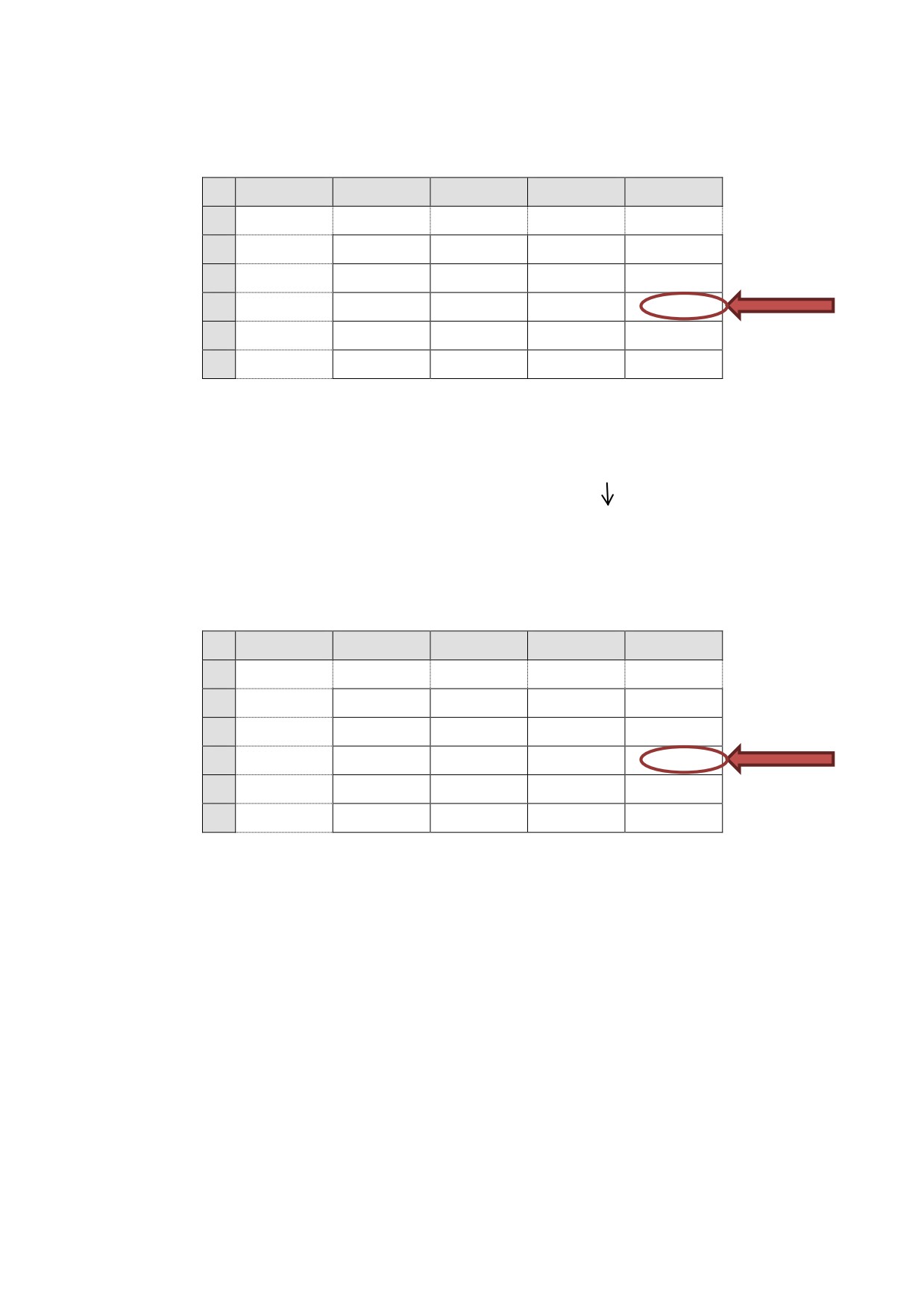
Table 8: ISERROR function 1
A
B
C
D
E
1
Nauli_lst
2
Region
DSM
Arusha
Mwanza
3
Morogoro
5000
30000
65000
4
Mbeya
40000
80000
#DIV/0
5
Tanga
60000
35000
55000
6
Kagera
70000
45000
25000
In case the error is happened for the cell of E4, the following formula makes the error show as
defined by IF function.
“To show
blank”
Mwanza-Mbeya
=IF(ISERROR(VLOOKUP($A3,nauli_lst,MATCH(D$3,nauli_itm,0),0)),"",VLOOKUP($A3,nauli_lst,
MATCH(D$3,nauli_itm,0),0)
Table 9: ISERROR function 2
A
B
C
D
E
1
Nauli_lst
2
Region
DSM
Arusha
Mwanza
3
Morogoro
5000
30000
65000
4
Mbeya
40000
80000
5
Tanga
60000
35000
55000
6
Kagera
70000
45000
25000
5.2 How to Start the DDCADB
As the programme of the database is MS-EXCEL software, ensure that the programme is
installed into your computer.To start the database the user should double click the icon of file.
The application of database consists of the following 4 files.
21
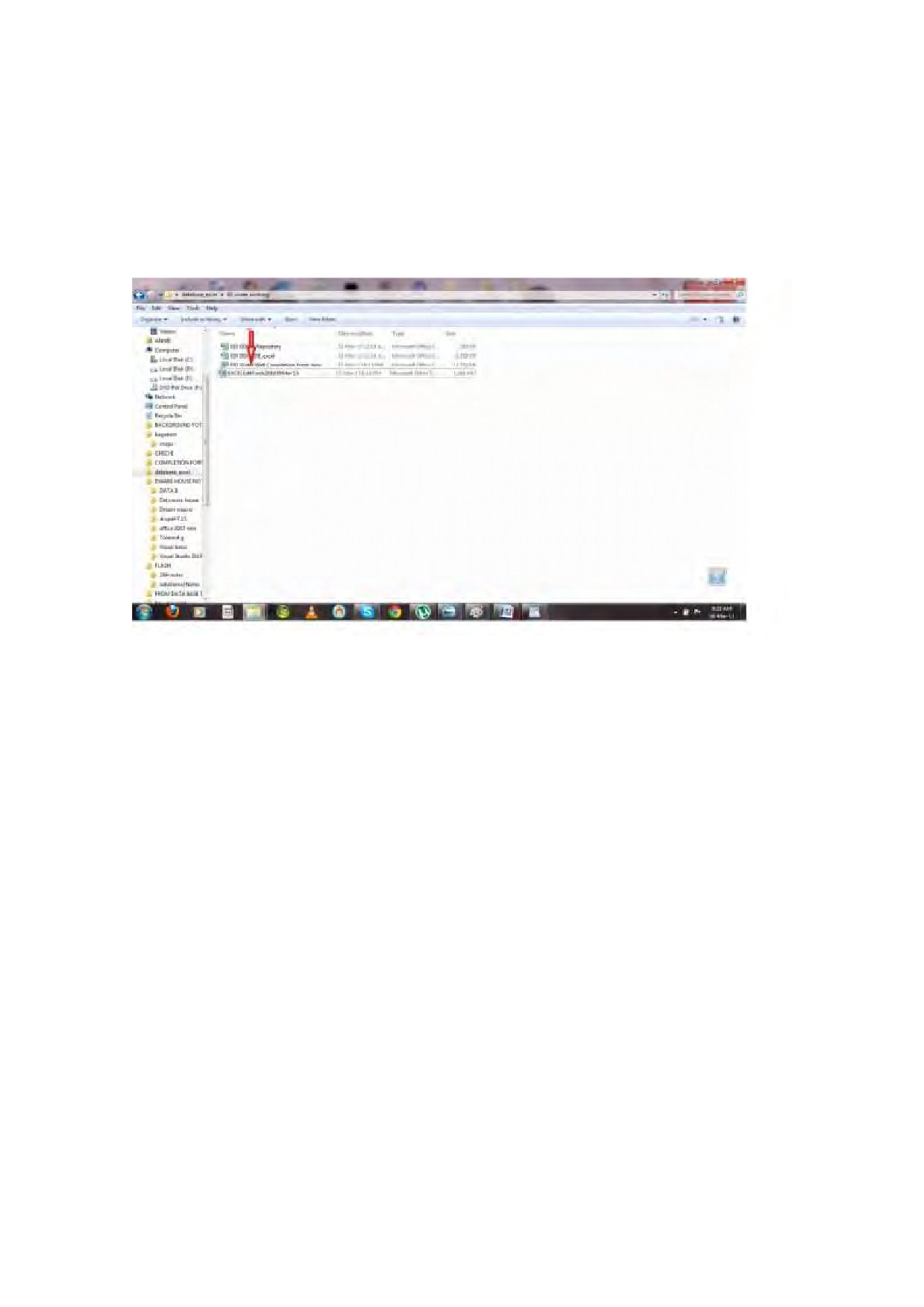
1.
DDCADB
2.
DDCA Repository
3.
Water Well Completion Form
4.
Constant PumpTest Form
Figure 9: Composition of database files
5.4 How to Make Report
Principally, the Water Well Completion Report is prepared by referring to the data entry sheet
with LOOKUP function. When the data entry is completed, the report is ready for print out
and submission. It means that the form will not be saved but printed out. There are three
types ofwater well completionform which are Old Form, Form1 and Form2 includingthe
general information on drilled place, person in charge and drilled borehole information such as
drilled diameter, depth and yield etc. For another form such as pumping test is filled by
typing up. The data on pumping test entered into the data sheet is referred by the form of
pumping test.
5.4.2 Form of Pumping Test
There are four records of water level drawdown and water recovery for both constant pumping
test and step pumping test. The following window shows the form of constant water recovery
pumping test.
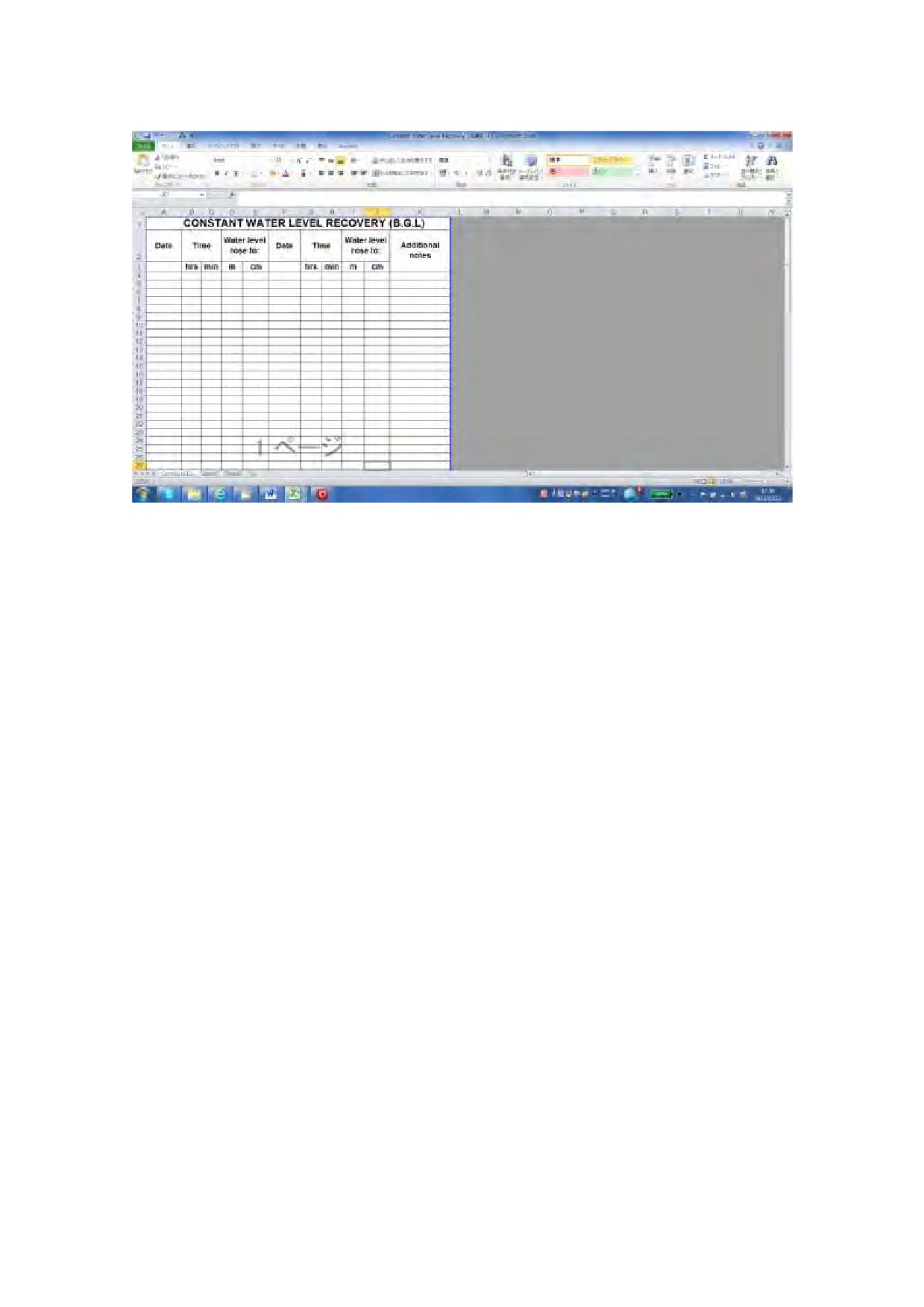
Figure 10: Pumping Test Form
5.5 Database Repository
Database repository is prepared for storing the attributes.In case new attribute addition is
added, the new attribute will be stored into the repository first and then reflected to the data
entry sheet. The attributes stored into the repository are sorted bygroup and category.
Each attribute, group and category has data No. with the item codeas below.
GROUP→GR
CATEGORY→CT
ATTRIBUTE→AT
ATTRIBUTE→RAT
There are three types of sheet of “GR”, “CT” and “AT”. The followings describe details of each
sheet.
23
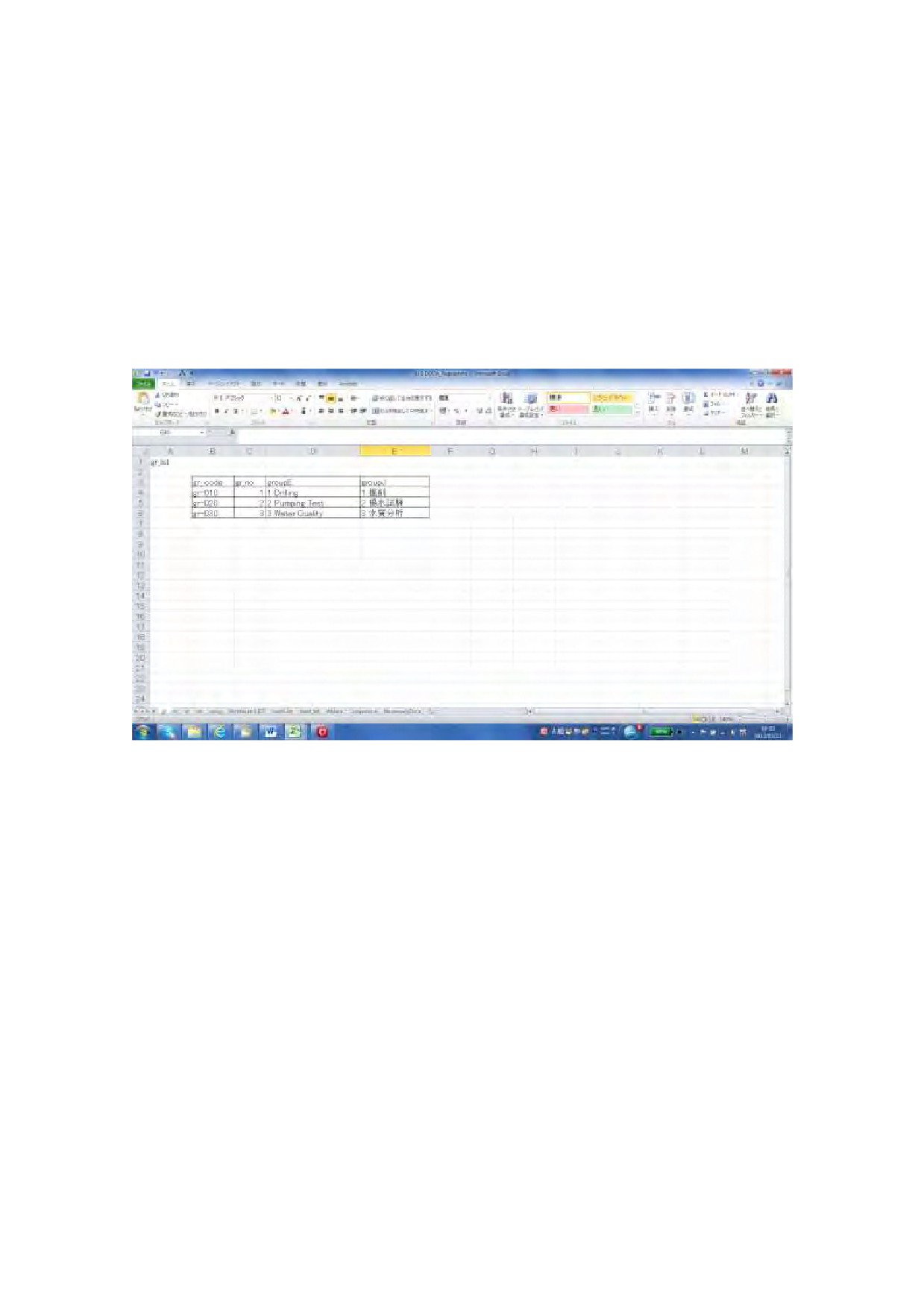
GRlist sheet
GR list sheet shows the groups with GR No. As the following window shows, there are three
groups. In case new group is added, make sure to re-range and rename the table.
1.
Drilling
2.
Pumping Test
3.
Water Quality
Figure 11: Group List (GR list)
CT list sheet
CT list sheet shows the categories under the group. Each category has coded the CT No. and
refers to the group in the GR list sheet with using the LOOKUP function (the cells with blue
color). In case that new category is added, make sure to expand the range of list (re-range
and rename). There are 14 categories as the following window shows.
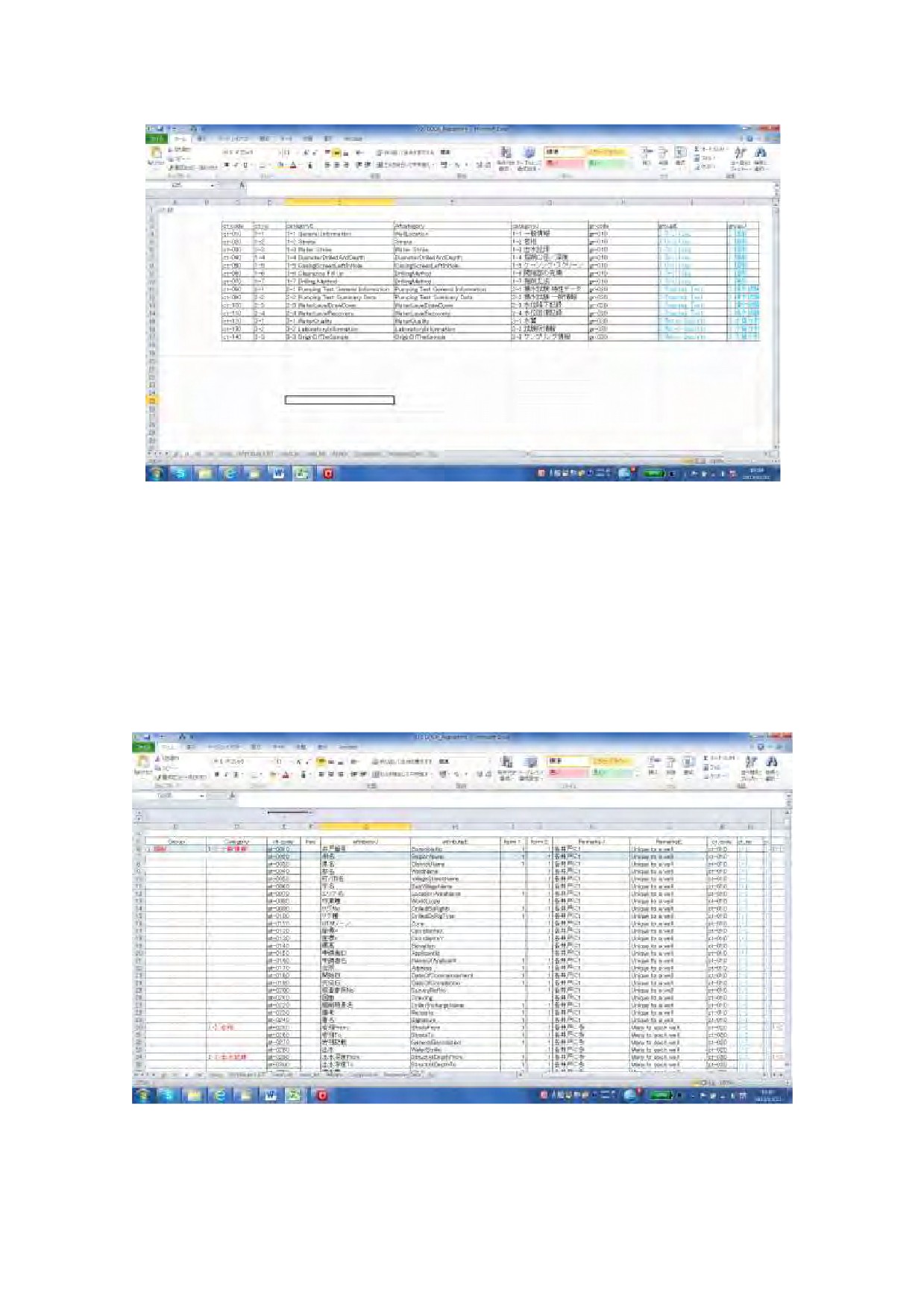
Figure 7: Category List (CT list)
AT list sheet
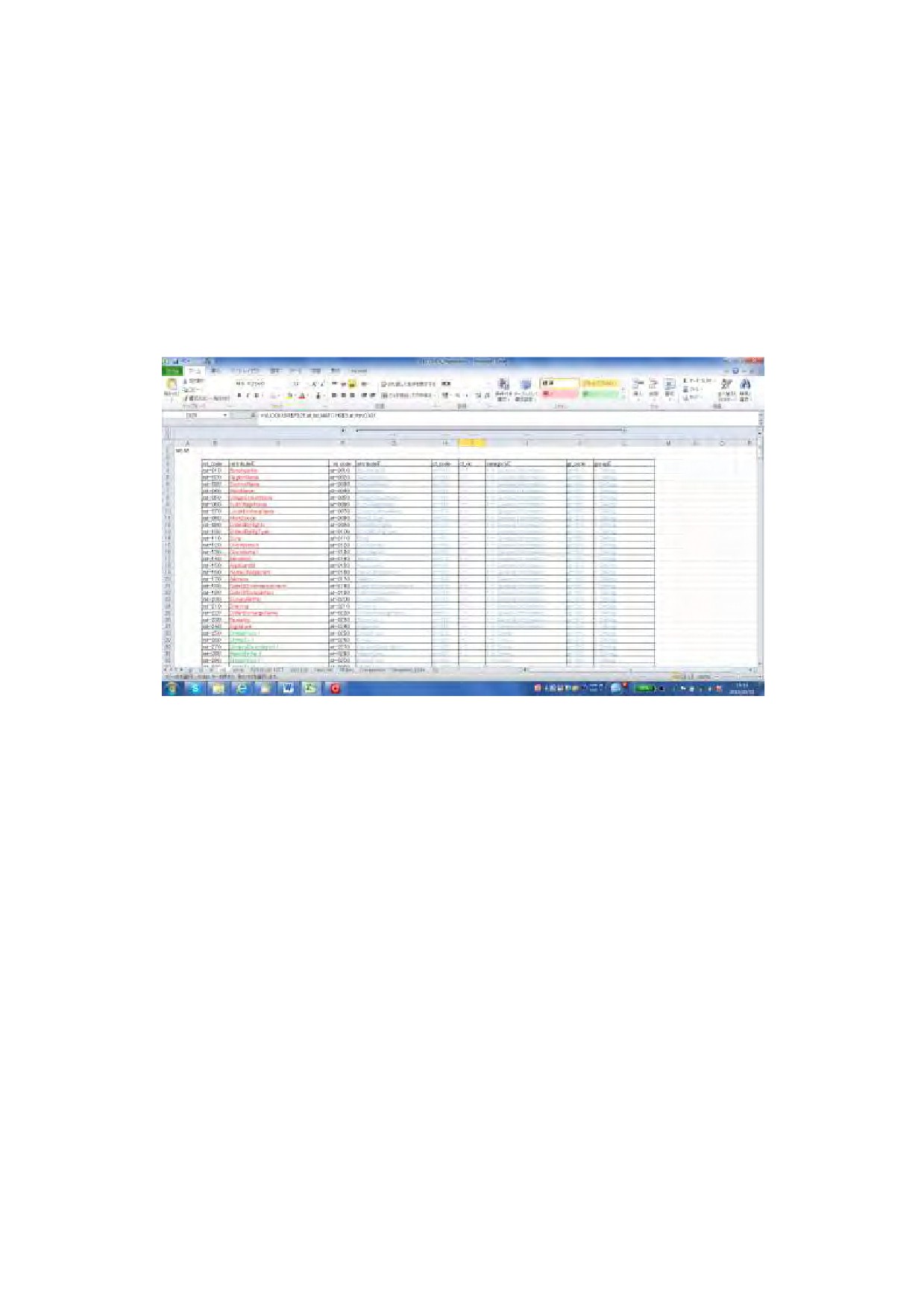
AT list sheet shows the attributes which is under each category and group. Each category has
coded the AT No. and refers to the group in the CT list sheet with using the LOOKUP function
(the cells with blue color). In case that new category is added, make sure to expand the range
of list (re-range and rename). There are 190 attributes as the following window shows.
Figure 12: Attribute List (AT list)
25
RAT list sheet
RAT list sheet shows the all attributes unfolding the repeating items. Each data has been
coded the RAT No. The group, category and attribute before unfolding the repeating items
are also shown by referring to the AT list with using the LOOKUP function. Make sure to
re-range and rename the list after addition of the new attribute. RAT No. is stored into the
top row in the data entry sheet so as to store the attributes into the data entry sheet from RAT
list sheet in the repository by referring to the RAT No.
Figure 13: Attribute List (RAT list)
Steps for addition of new attributeto repository and data entry sheet
1.
In AT list sheet, insert the row where the new attribute will be stored.
2.
Code new AT No and enter the new attribute.
3.
The VLOOKUP formula is set into the category column.
4.
Shift to the RAT list sheet and insert the row where the new attribute will be stored.
5.
Enter the new RAT No.
6.
The VLOOKUP formulas of group and category for new RAT items are set.
7.
The formula for the RAT item is set as set in the cells up and down cells.
8.
In case the new attribute is repeating items, the formula is set like that of green color.
In case of not repeating items, the formula is set as that of red color.
9.
Shift to the data entry sheet and insert the column in which the new attribute is
stored.
10. Set the formula of VLOOKUPso as to quote the attribute from the repository into the
data entry sheet.
LOCAIDES GENERAL SUPPLY LIMITED
P.O. Box 33333, Dar es Salaam. Survey, Kinondoni
Tel:2700096 Fax: 2700096
email: locaides@gmail.com,bertharicky@yahoo.com
GROUNDWATER DEVELOPMENT AND MANAGEMENT
CAPACITY DEVELOPMENT PROJECT
DDCAP
OUTPUT (8)
COMPLETION REPORT OF PHASE 1 DATABASE
DESIGN AND CONSTRUCTION
APRIL 2013
LOCAIDES GENERAL SUPPLY LIMITED
Table of Contents
1. DATABASE DESIGN
3
(1)
Review of existing report
3
(2)
Collection of Electrical data of village coordinates
3
(3)
Hardware and software installation
3
(4)
Equipment preparation
3
(5)
Requirement analysis of the client
3
(6)
System Analysis and System Design
4
2. SYSTEM CONSTRUCTION AND INTEGRAL TASTE
4
3. REPORT SCANNING AND DATA ENTRY
4
4. USER MANUAL
4
5. TRAINING
4
6. REPORTING
4
Figure
Figure 1: DDCA MySQL database Interface
5
1. DATABASE DESIGN
(1)
Review of existing report
Recent borehole reports are stored in the Dar es Salaam DDCA office. Old reports are stored
in the Dodoma DDCA office and Dodoma water resource office. After the reports stored in the
Dodoma DDCA office are brought to Dar es Salaam, LOCAIDES reviewed existing reports.
Important features are observed through the review of existing borehole reports.
For example, the well completion Report includes two types of form. The one is the old form
which had been used from 1931 to 1946 and the other one is existing form current used form
one. The units of length and discharging rate have several description such as feet, meter for
length, gal/h, m3/h, L/h, L/sec for discharging rate.
The information of the number of drilled boreholes per year was supplied by DDCA.
The review of existing report was completed in September, 2012. The result of the review was
reported by the weekly report and “Output (2) List of number of drilled boreholes per year”.
(2)
Collection of Electrical data of village coordinates.
The village coordinates are submitted as a GIS data. The collection of electrical data of village
coordinates was completed in September, 2012.
(3)
Hardware and software installation
The equipment for data base will be procured by the client. LOCAIDES will setup the system
and install the database up to the direction of the client.
(4)
Equipment preparation
LOCAIDES has prepared necessary equipment and system to construct the database and enter
the borehole data. The equipment includes several computer, printer, scanner, photocopy
machine, MS-Office.
(5)
Requirement analysis of the client
LOCAIDES, the client and DDCA had meeting frequently and discussed the requirement for the
database. The client explained details of the borehole reports and their requirement. Mainly
the requirement consists of the attributes to be stored for form one and two, Major components
of the system,DDCA organization and management data entry, form one data entry, form two
data entry.
The client requirement includes some database function such as exporting to other database
form, data entry interface and output form. The data attributes of the other database form
requested by the client were compiled. The requirement analysis of the client was completed
in September, 2012. The result of the requirement analysis of the client was reported as
“Output (4) Requirement completed” and submitted already.
(6)
System Analysis and System Design
The necessary data to be stored in the database and the data for database management such as Id
number and the relationship between entities were analyzed. The E.R.Diagram of the database
for data entry was established. The system analysis was completed in September, 2012.
The database system had been designed based on the system analysis after the discussion among
LOCAIDES, the client and DDCA. System design had been completed in October, 2012, and
data entry was started. The result of system design was reported in October, 2012.
2. SYSTEM CONSTRUCTION AND INTEGRAL TASTE
This database construction shall include data coding, group, attribute and category to complete
the proper database system.
3. REPORT SCANNING AND DATA ENTRY
Scanning all the existing boreholes completion reports and store all the data of them into electric
file.
4. USER MANUAL
The operation manual shall describe how to select the menu ,how to input, the detailed
construction of the system shall be also described in the operation manual for the database
manager to manage ,maintain and modify the database system.
5. TRAINING
Training of the use and the management of the modified database system.
6. REPORTING
All the activities of works shall be described and recorded in the work report.
Figure 1: DDCA MySQL database Interface
LOCAIDES GENERAL SUPPLY LIMITED
P.O. Box 33333, Dar es Salaam. Survey, Kinondoni
Tel:2700096 Fax: 2700096
email: locaides@gmail.com,bertharicky@yahoo.com
GROUNDWATER DEVELOPMENT AND MANAGEMENT
CAPACITY DEVELOPMENT PROJECT
DDCAP
OUTPUT (11) OPERATION MANUAL MODIFIED
JUNE 2013
LOCAIDES GENERAL SUPPLY LIMITED
1
DDCADB USER MANUAL
INTRODUCTION
This operation manual has been prepared to explain about how to use the application of DDCA
database .The manual consist of five section .From section 1 to section 5describe on the
specification of database agreed among DDCA ,JICA Expert team and contractor while section
5demonstrate on how to use the database including brief explanation on excel function applied
in the database, start and input of database ,making well completion and other forms.
2. REQUIREMENT
3.SYSTEM ANALYSIS
4.SYSTEM DESIGN
5.DATABASE MANUAL
1. How to start the DDCADB
As the program of the database is MS-EXCEL soft ware, ensure that the program is installed
into your computer. Tostart the database the user should click the icon of file.
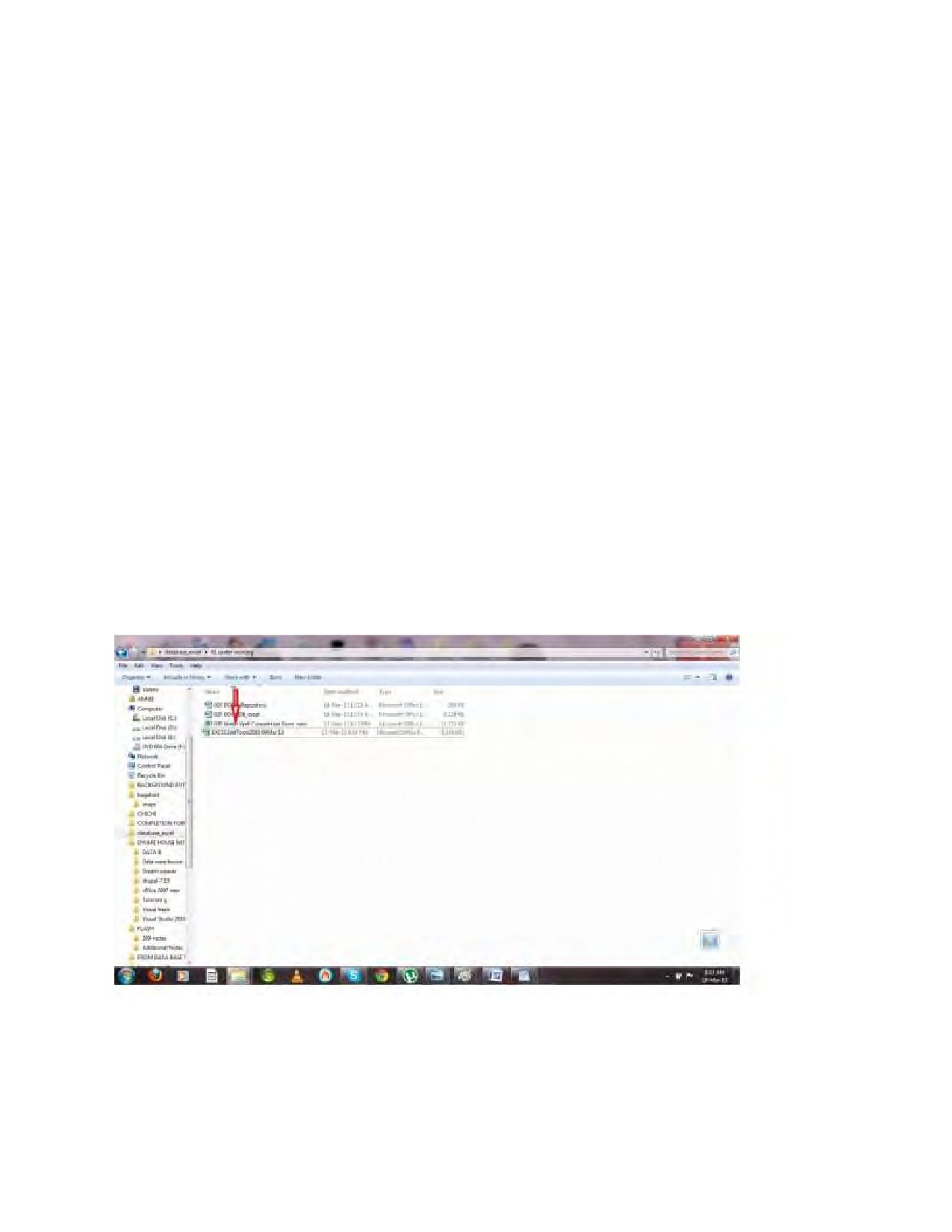
The application of the database consist of the following 4 files
1.DDCA Repository
2.DDCADB Excel Database
3.Water Well Completion Form
4.Pump Test Form
Figure :.Composition of database file
2. How To Enter Data into Data Entry Sheet
For entering data in the database,Double click data entry sheet file. This file is Main database
2
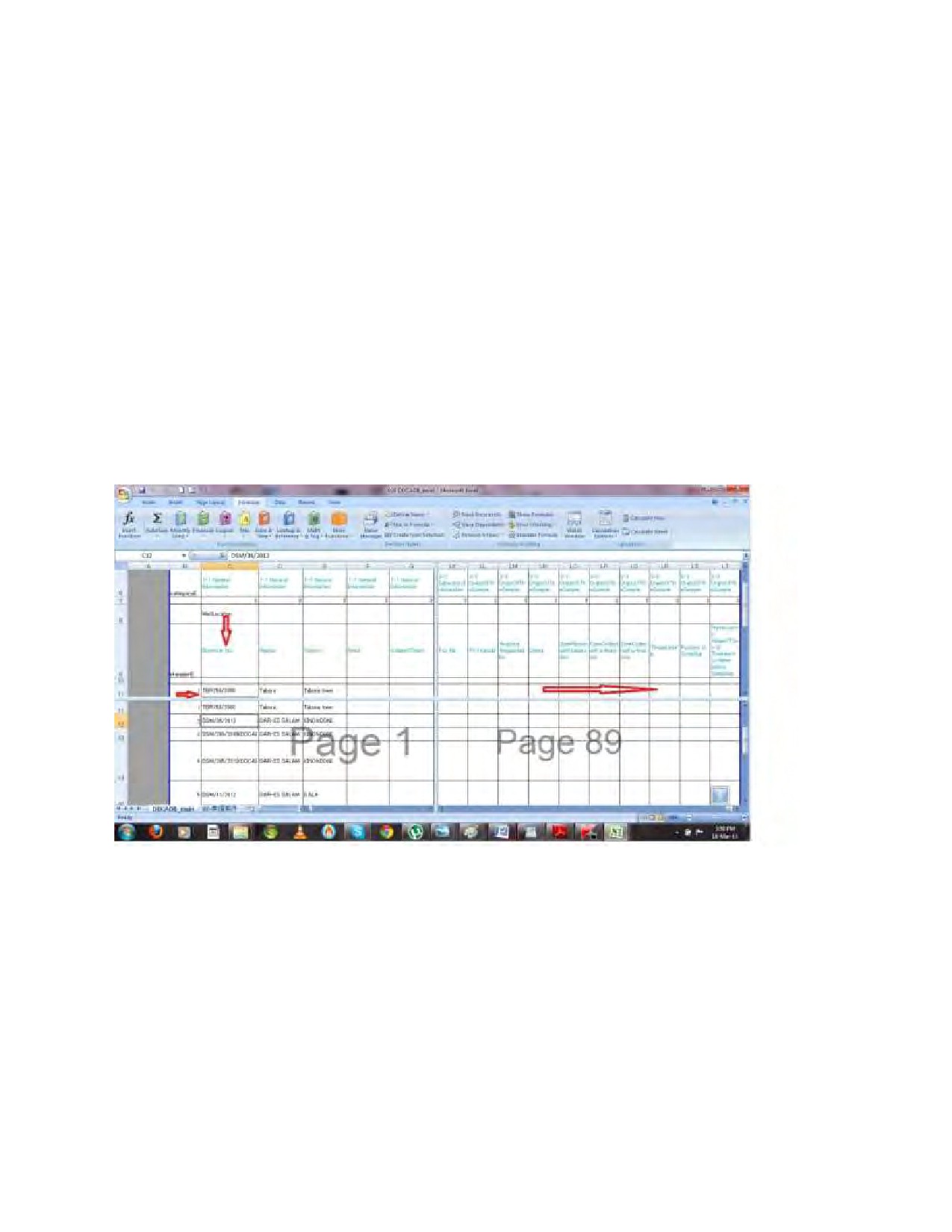
The main data base include two sheets”DDCADB_main” and “welldata_africa” Basically, the
data will be entered to the “DDCADB_ main”.
2.1 Data entry into the “DDCADB_main” sheet
The well data submitted by rig incharge to the registry will be entered into the “DDCADB_main”
sheet. The attributes in the sheet area ranged base on the order of items in the completion
report form. The borehole No should be entered first at the left side column, the other data will
be entered
Steps For Entering Data To Data Entry Sheet
1. Open the data entry sheet
2. Entering the borehole number into the left end column under the attribute row
3. Start entering the data from the left column next to the borehole no horizontally
4. Cross check the data entered
Figure: 2 Data Entry Sheet
3
2.2.Data Entry into Water Well Completion Report form
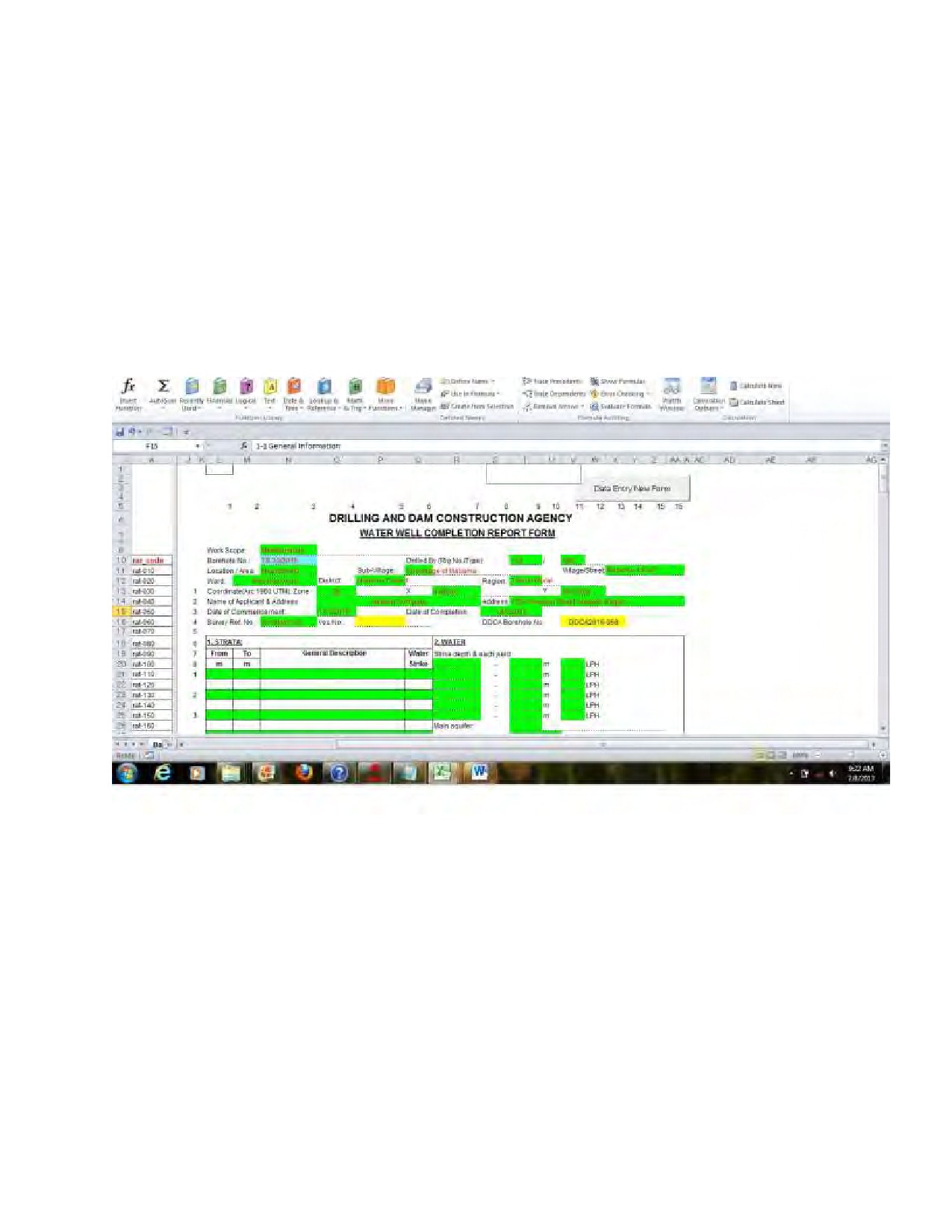
The well data submitted by rig incharge to the registry will be entered into the water well
completion report form and data will referred direct to the “DDCADB_main” sheet .
Steps For Entering Data To Water well Completion Form
5. Open the water well completion report entry sheet
6. Entering the data to each attribute.
7. After entering data click data entry new form
8. Cross check the data entered into “DDCADB_main” sheet
Figure 3: Water Well Completion Entry Sheet.
2.3 Well Database in Africa Countries(WDAF)
Many attributes in WDAF are same as or can be converted from those in the DDCA database.
The data of WDAF will be entered by referring to the data entered in the DDCA database with
using lookup function.
4
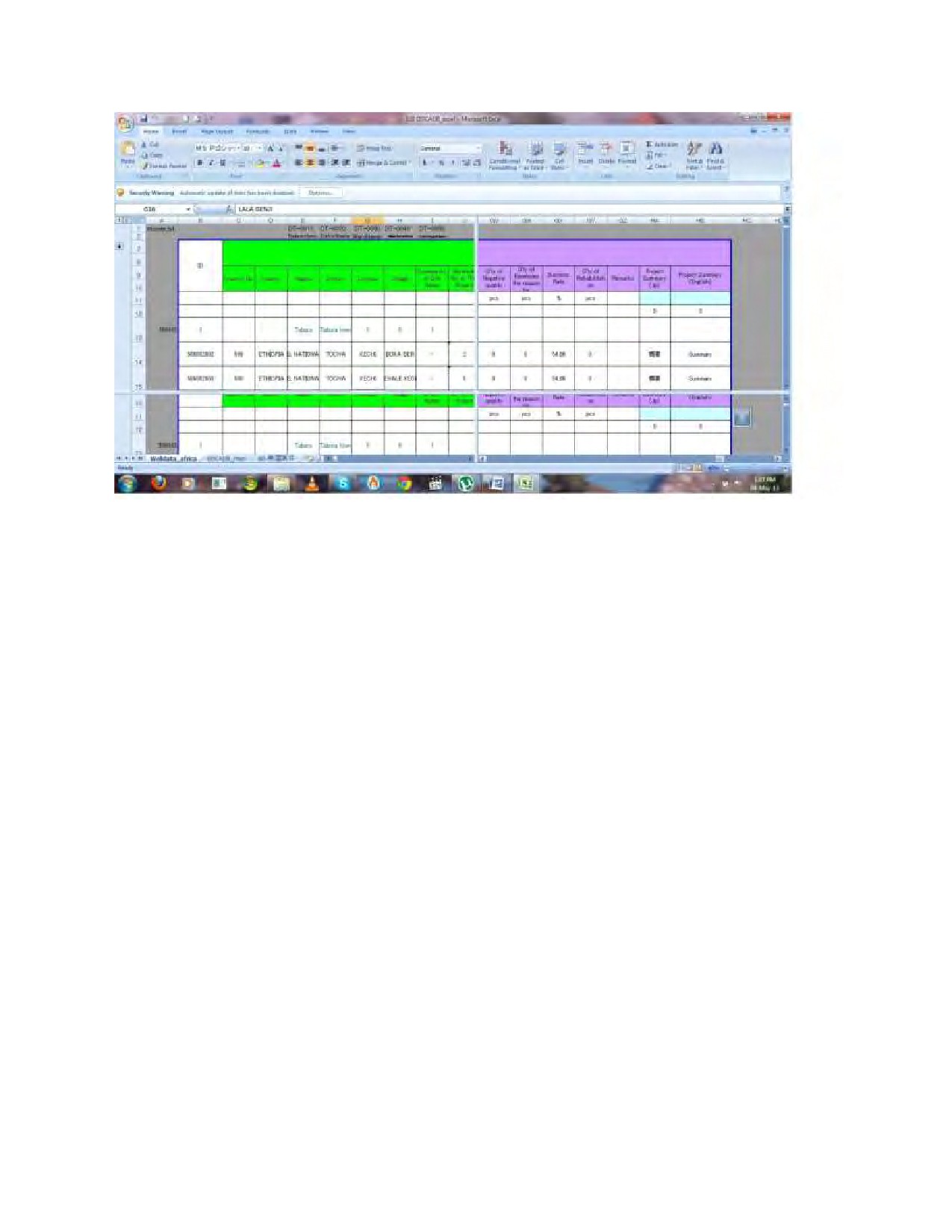
Figure 4: Well Database in Africa Countries
3. How To Make Report
Principally ,The water well completion report is prepared by referring to the data entry sheet with
lookupfunctions. When the data entry is completed, the report is ready for print out and
submission. I means that the form will not be saved but printed out. There are three types of
water well completion form which are old form, form
1and form 2 including the general
information on drilled places, person incharge and drilled borehole information such as drilled
diameter, depth and yield etc.For another form such as pimp test is filled by typing up. The data
of pumping test entered to the data sheet isreferred by the form of pumping test
3.1 Well completion Report Form
The following windows shows one sheet of well completion report form. the borehole no is
entered into the top of the sheet. The data entered into the data entry sheet will be shown up in
the form by referring to the borehole no.
5
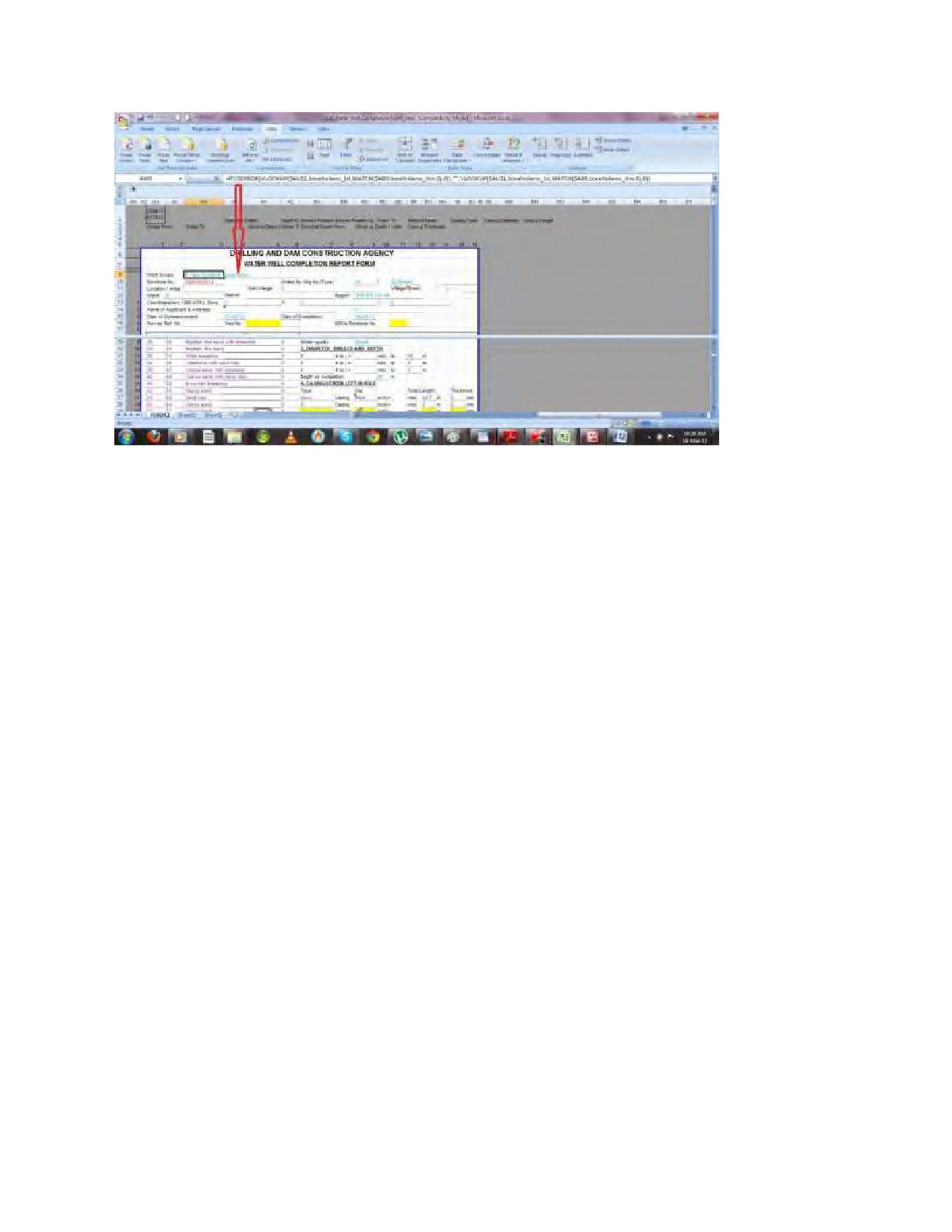
Figure 5: well completion report form
Steps for print out of well completion report form
1. Open well completion form folder
2. Old form, form1 and form 2 are in each sheet
3. Copy borehole no from main database and Paste to the top of the form for each sheet of
the form
4. All data are shown by referring to the data entered to the main database(LOOKUP
functions).
5. Print out the form required to submit
3.2 Form of Pump Test
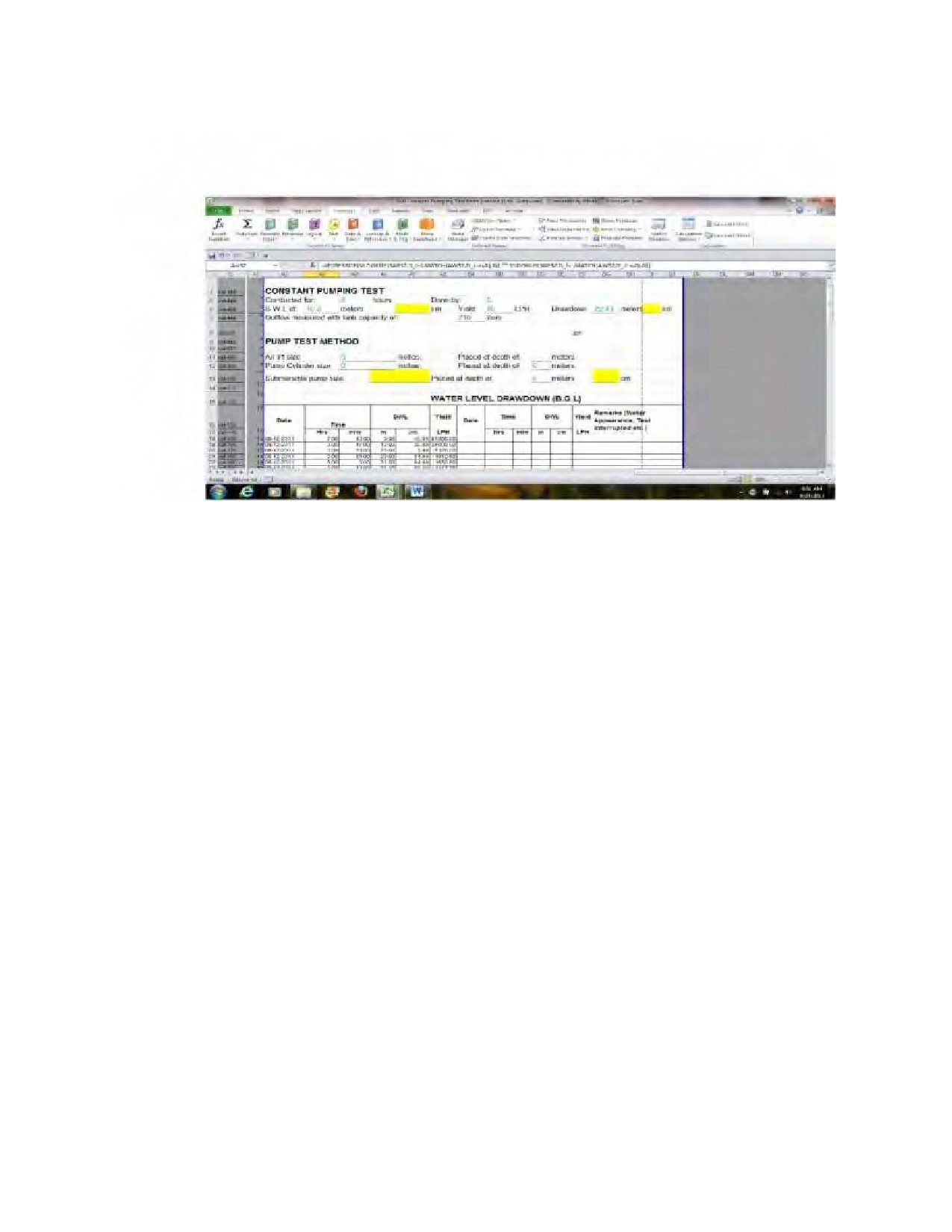
There are four records of water level drawdown and water recovery for both constant pump test
and step pumping test. The following windows shows the form of constant water recovery
6
pumping test
Figure 6: Pumping Test Form
3.3 Data Entry into Summary of pump Test
The well data submitted by rig incharge to the registry will be entered into Summary of pump
test and data will referred direct to the “DDCADB_main” sheet .
Steps For Entering Data To Summary of pump Test
1. Open the summary of pump test entry sheet
2. Search the borehole number
3. Start entering the data into colored area
4. Cross check the data entered into “DDCADB
7
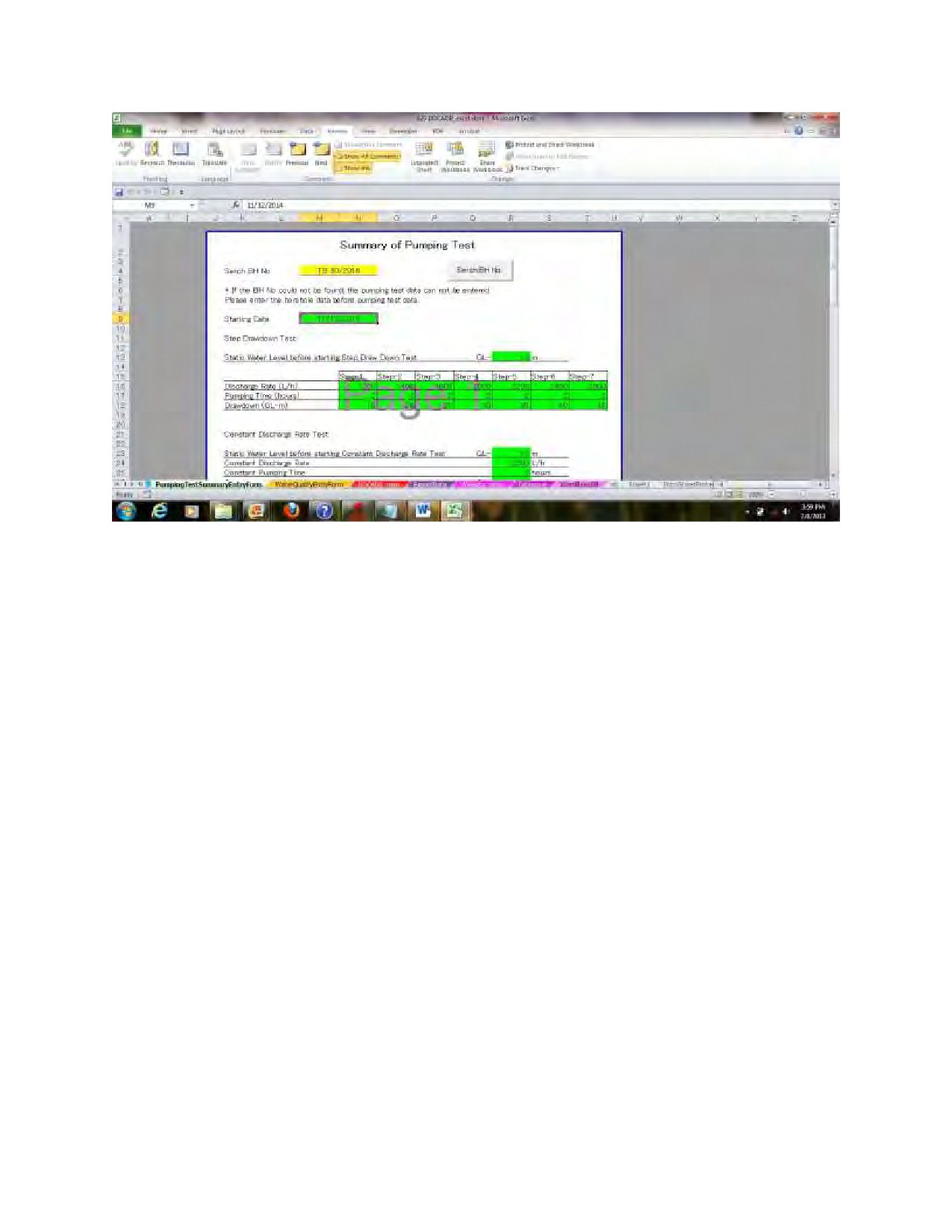
Figure 7: Summary of PumpTest Form
3.4 Data Entry into Water Quality Form
The well data submitted by rig incharge to the registry will be entered into Water quality form
and data will referred direct to the “DDCADB_main” sheet .
Steps For Entering Data Water Quality Form
1. Open the summary of water quality entry sheet
2. Search the borehole number
3. Start entering the data into colored area
4. Cross check the data entered into “DDCADB
8
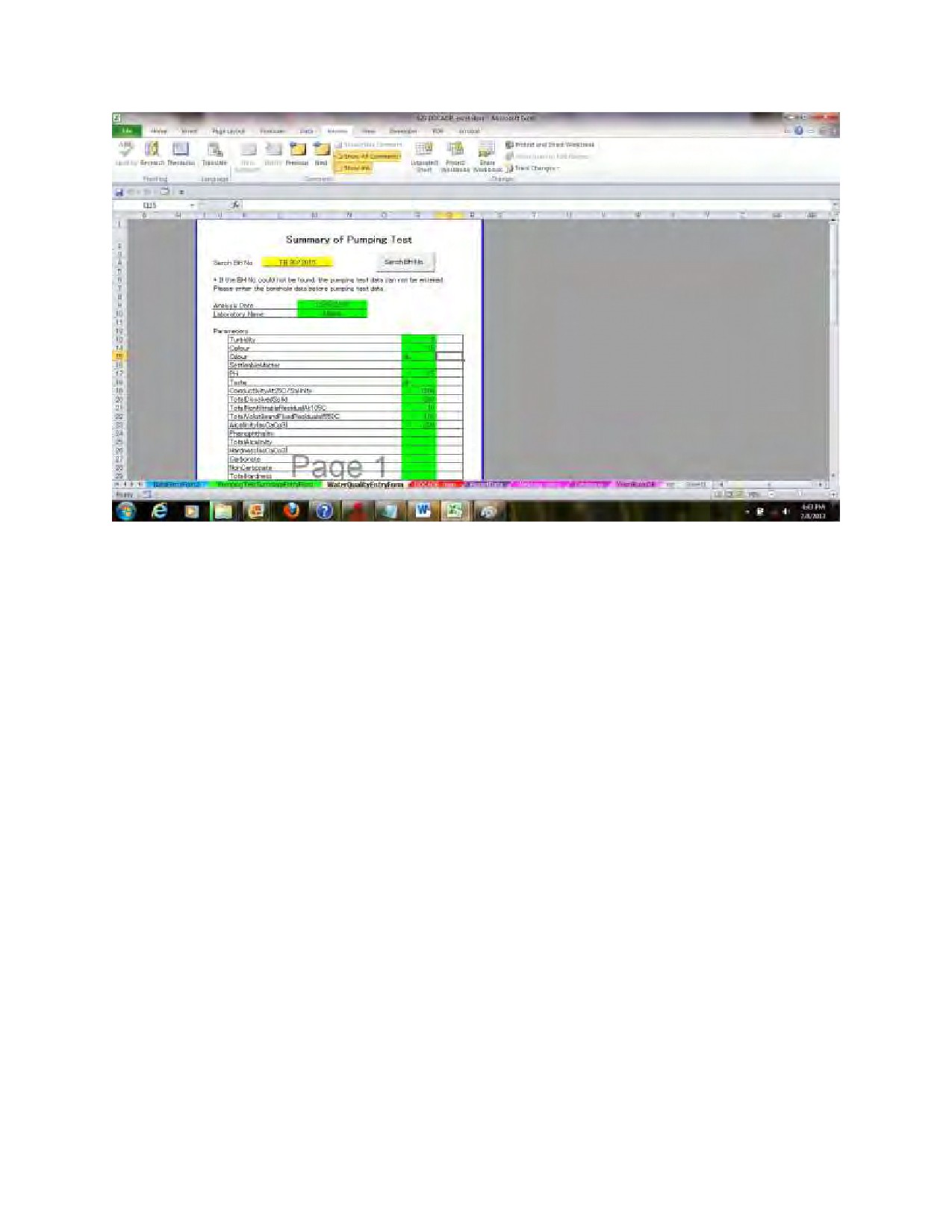
Figure 7.Summary of Water quality Form
4 EXPORT DATA.
These include three forms
1. SUB SAHARAN FORM
2. BOREHOLE CATALOGUE
3. WAMI_RUVU BASIN DB.
Steps on how to export the data
1. Clickexport data book
2. Select the data either using ID( From-To) or clicking all the data.
3. Select data limit (transported up to) or click stop exporting
4. Select the form you want to export between three above that are sub saharan form,
borehole catalogue and wami_ruvu basin DB.
5. Create new book for exported data
6. Cross check the data in a new book
9
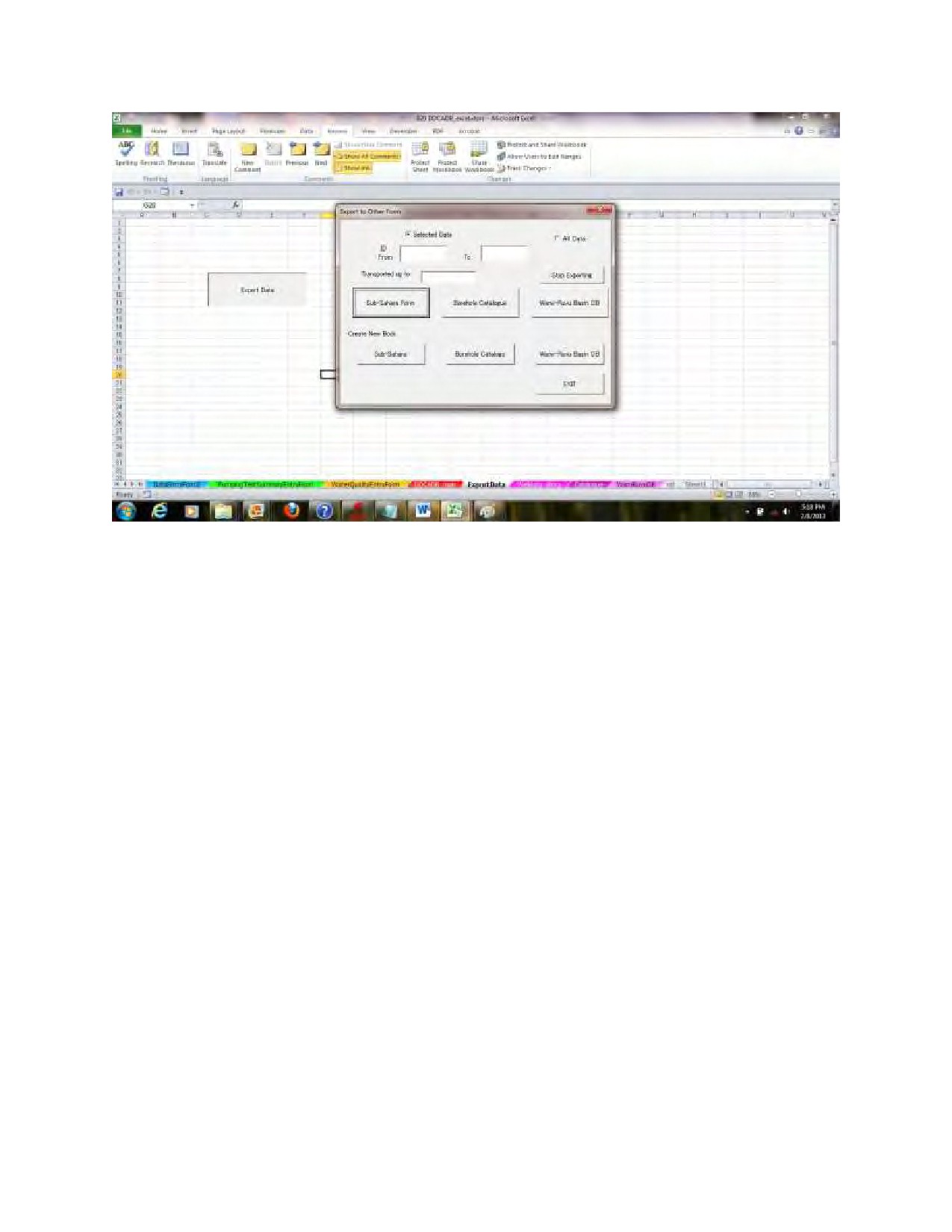
Figure 8: .Export Data Sheet
5 Basicms-EXCEL Functions used in a Database of Well Drilled by DDCA
Some useful ms-Excel functions are applied in the database .LOOKUP functions is Mainly
usedfor making the well completion report .LOOKUP functions refer to the information filled in
the column, sheet or book. once the formula is set, there is no need to retype up. The other
functions such as MATCH,ISERROR and IF functions are also used in the database. As the
introductory step to handle the database, this section describes the Ms-Excel functions to be
mastered, which are needed for data entry.
5.1 LOOKUP(VLOOKUP; Vertical lookup) Functions
Purpose
Refer to data from other sell, sheet and book
Formula
=vlookup(lookup_value,table array,Col_index,Approximate match)
How to set VLOOKUP formula in the column
1. Put equal then write “vlookup”
2. Put open brackets
3. Click the lookup value and put comma
4. Select and put the range of table in which the data to be referred is included, then put
coma
5. Put number of column in which the data to referred is located, then put comma
6. Select zero, then put close brackets
7. Press enter
10
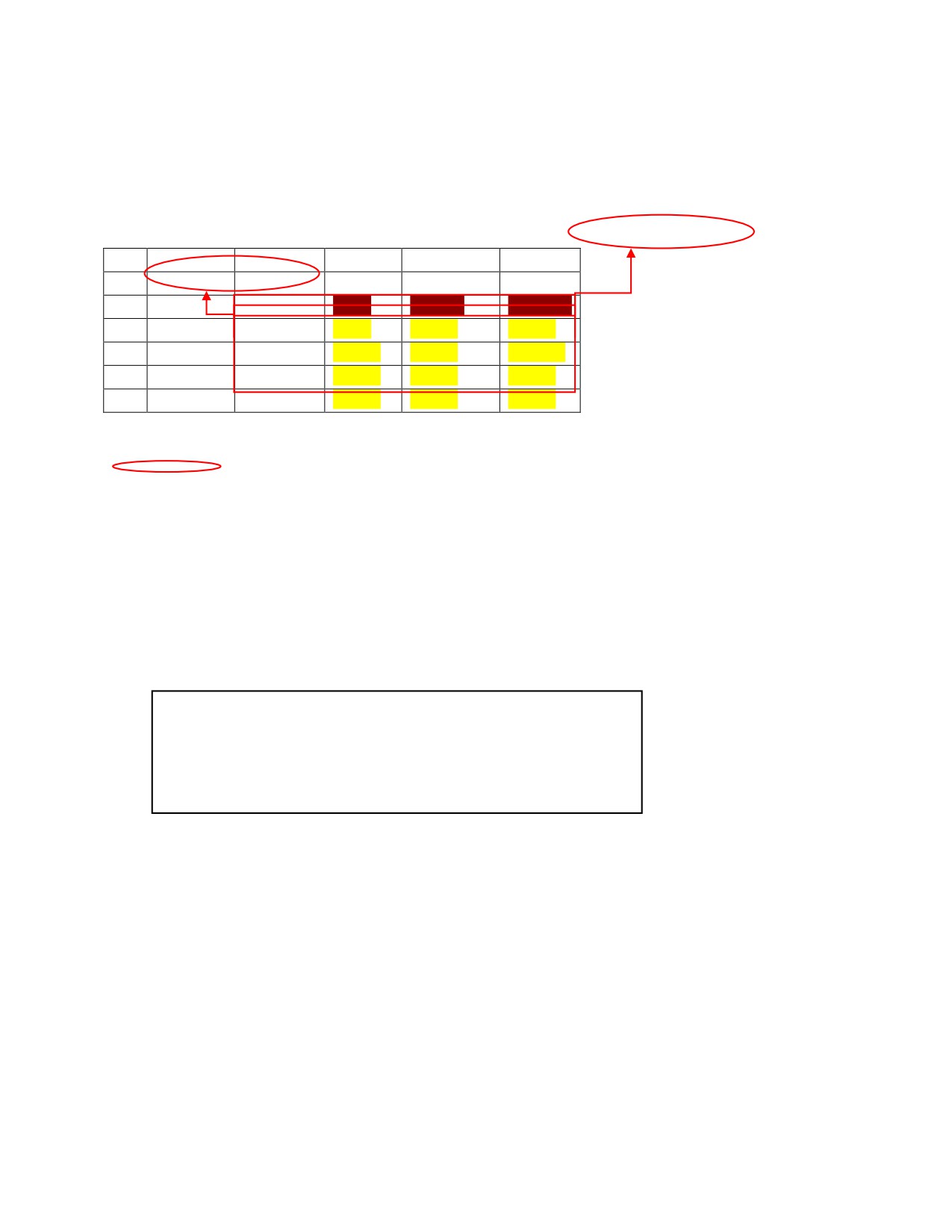
Example
Table 1 LOOKUP function
Column
A2:D2-Nauli_itm
A
B
C
D
1
B3:D6
nauli_lst
2
Region
DSM
Arusha
Mwanza
3
Morogoro
5000
30000
60000
4
Mbeya
40000
80000
100000
5
Tanga
60000
35000
55000
6
Kagera
70000
65000
25000
:Naming of table by using “Name manager” as instructed in*Box
Tanga-DSM
=vlookup($B$5,nauli_lst,2,0)
=60000
Morogoro-Mwanza
=vlookup($B$3,nauli_lst,4,0)
=65000
Kagera-Arusha
=vlookup($B$6,nauli_lst,3,0)
=45000
*Name Manager
1. With pressing “ LT”,Press”1”,”N”,”D”
2. Name manager box will be appeared
11
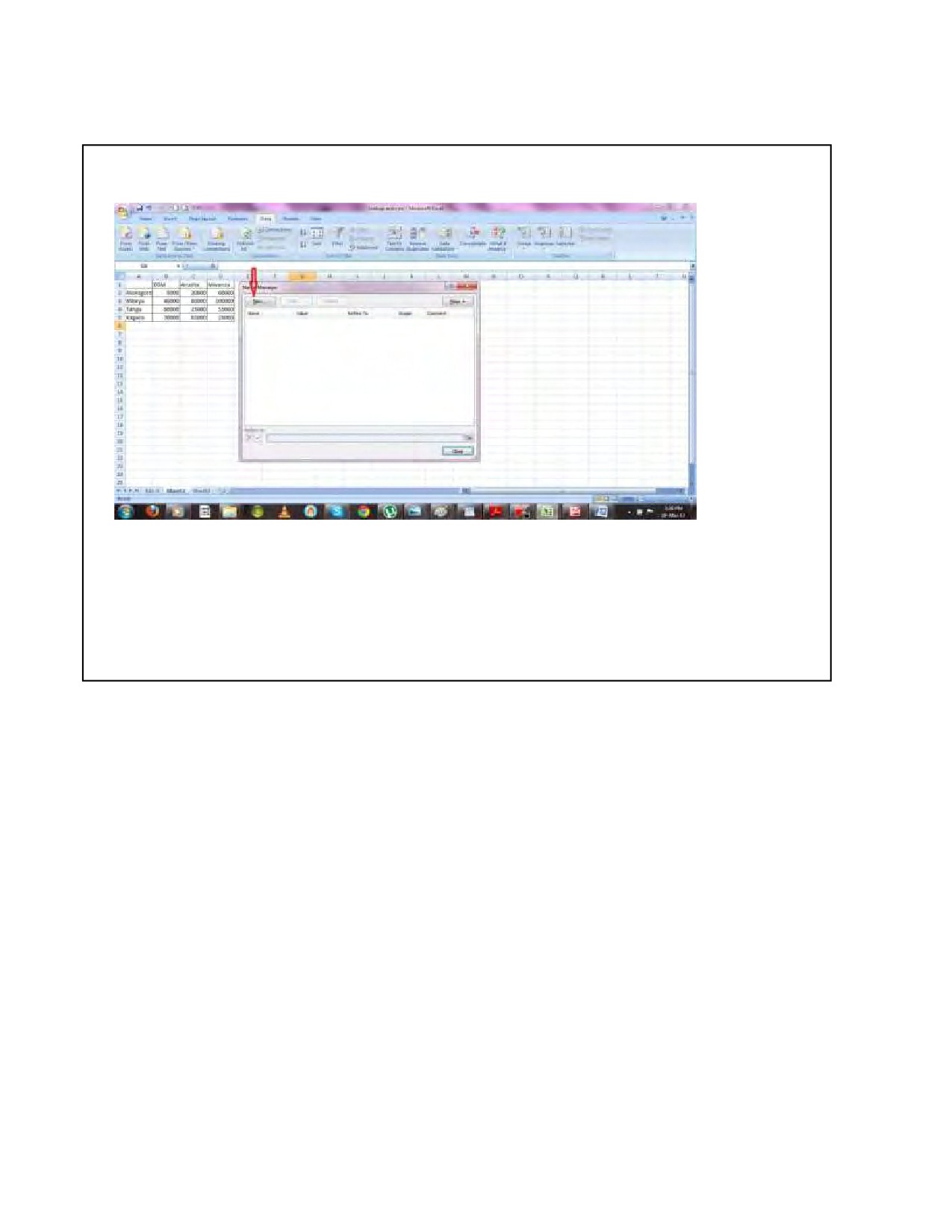
3 Click “New” to name
4.Write the name”Nauli_lst” as example table shows
5.Select the range “$B$3:$E$6” to refer
6.Refer to the selected nauli list or nauli item then press ok
7.Close name manager box
Note:$means fixed roworcolumn.There are three types of $ usage,which is either
Either $B$3(absolute),$B3(relatively column)or B$3(relatively row).
5.2 MATCH functions
Purpose
To find the no. of column which the data locates
Formula
=match(value,tablearray,approximate match)
How to set MATCH formula in the column
1. Put equal then write “match”
2. Open brackets
3. Click the value from the cell and put comma
4. Select and put the rangeof table in which the data to be refffered is
included, then put comma
5. Select approximate match 0(complete), then put close blackets
6. Press enter
Example
12
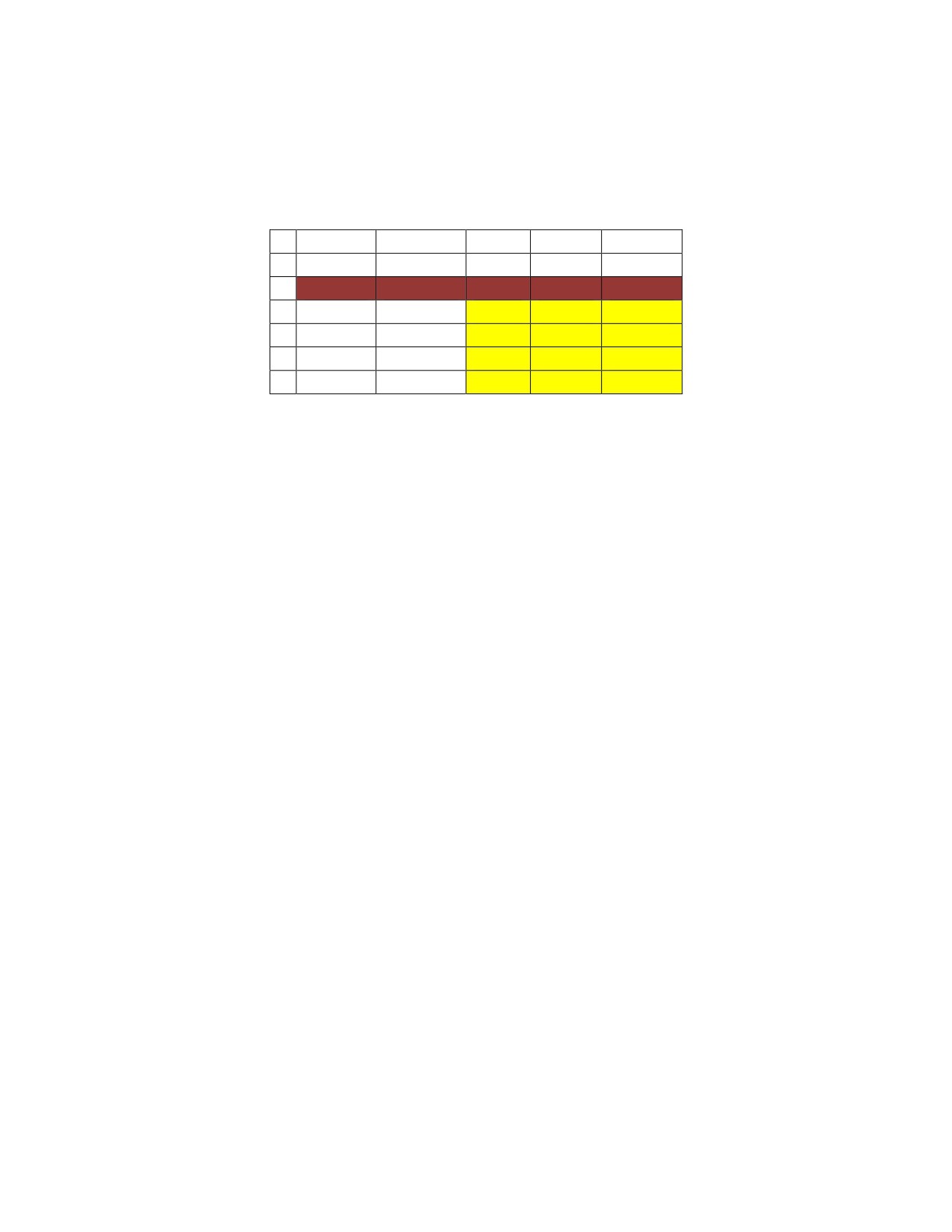
Table 2: MATCH functions
A
B
C
D
E
1
nauli_lst
2
Region
DSM
Arusha
Mwanza
3
Morogoro
5000
30000
60000
Mbeya
40000
80000
100000
5
Tanga
60000
35000
55000
6
Kagera
70000
65000
25000
DSM=match(C2,nauli_lst,0)
=3
Arusha=match(D2,nauli_lst,0)
=4
Mwanza=match(E2,nauli-lst,0)
=5
5.3 Combination of VLOOKUP&MATCCH Function
Formula
=vlookup(lookup_value,table array,match(value,table_array,approximate
match)
How to set VLOOKUP&MATCH formula in the column
1. Put equal then write “vlookup”
2. Open brackets
3. Click the lookup value and put comma
4. Select and put the range of table in which the data to be referred is
included, then put comma
5. As “Col_index_number” put match formula in which the data to be
referred is located. Then put coma
6. Select Zero, then put close brackets
7. Press enter
Example
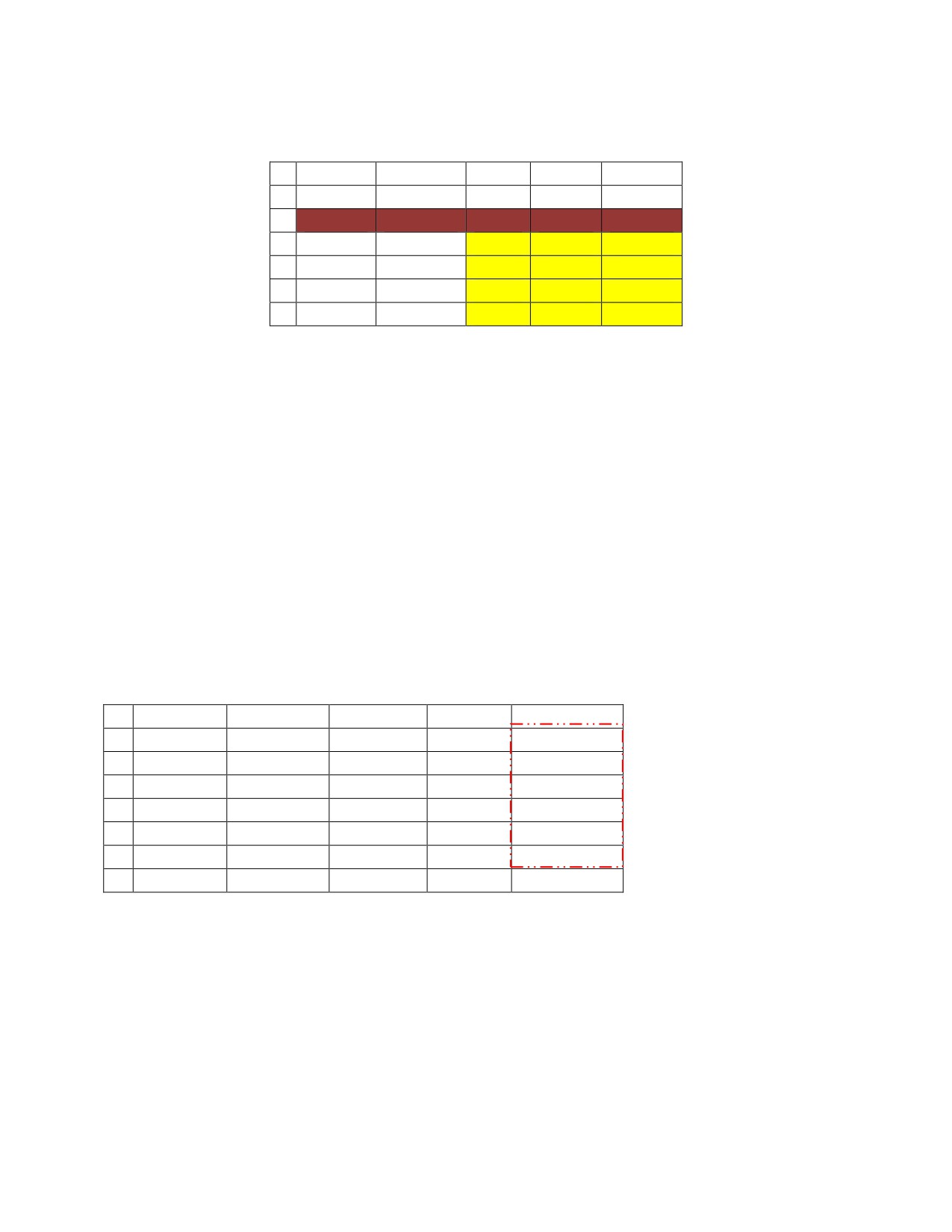
Table 3 Combination of VLOOKUP and MATCH function
13
A
B
C
D
E
1
nauli_lst
2
Region
DSM
Arusha
Mwanza
3
Morogoro
5000
30000
60000
4
Mbeya
40000
80000
100000
5
Tanga
60000
35000
55000
6
Kagera
70000
65000
25000
Tanga-DSM
=vlookup($B$5,nauli_lst,match(C$2,nauli_itm,0),0)
=60000
Morogoro-Mwanza=vlookup($B$5,nauli_lst,match(E$2,nauli_itm,0),0)
=65000
Kagera-Arusha =vlookup($B$6,nauli_lst,match(D$2,nauli_itm,0),0)
=45000
5.4 IF Function
Purpose
To return the deduced as defined in case of TRUE and FALSE
Formula
=If(value,True,FALSE)
How To Set IF Formula in the column
Table 4 IF function 1
A
B
C
D
E
1
Score_lst
2
Name
Math
Average
Pass/fail
3
Ali
90
50
4
Juma
45
30
5
Michael
30
45
6
Maria
90
50
7
Godfrey
10
20
Ali =If(C3>D3,”PASS”,”fail”
=Pass
Juma
=If(C4>,”PASS”,”FAIL”
=PASS
Michael =If(C5>D5,”PASS,”FAIL”)
=FAIL
Maria
=if(C6>D7,”PASS”,FAIL”)
=PASS
Godfrey =if(C7>D7,”PASS”,”FAIL”
14
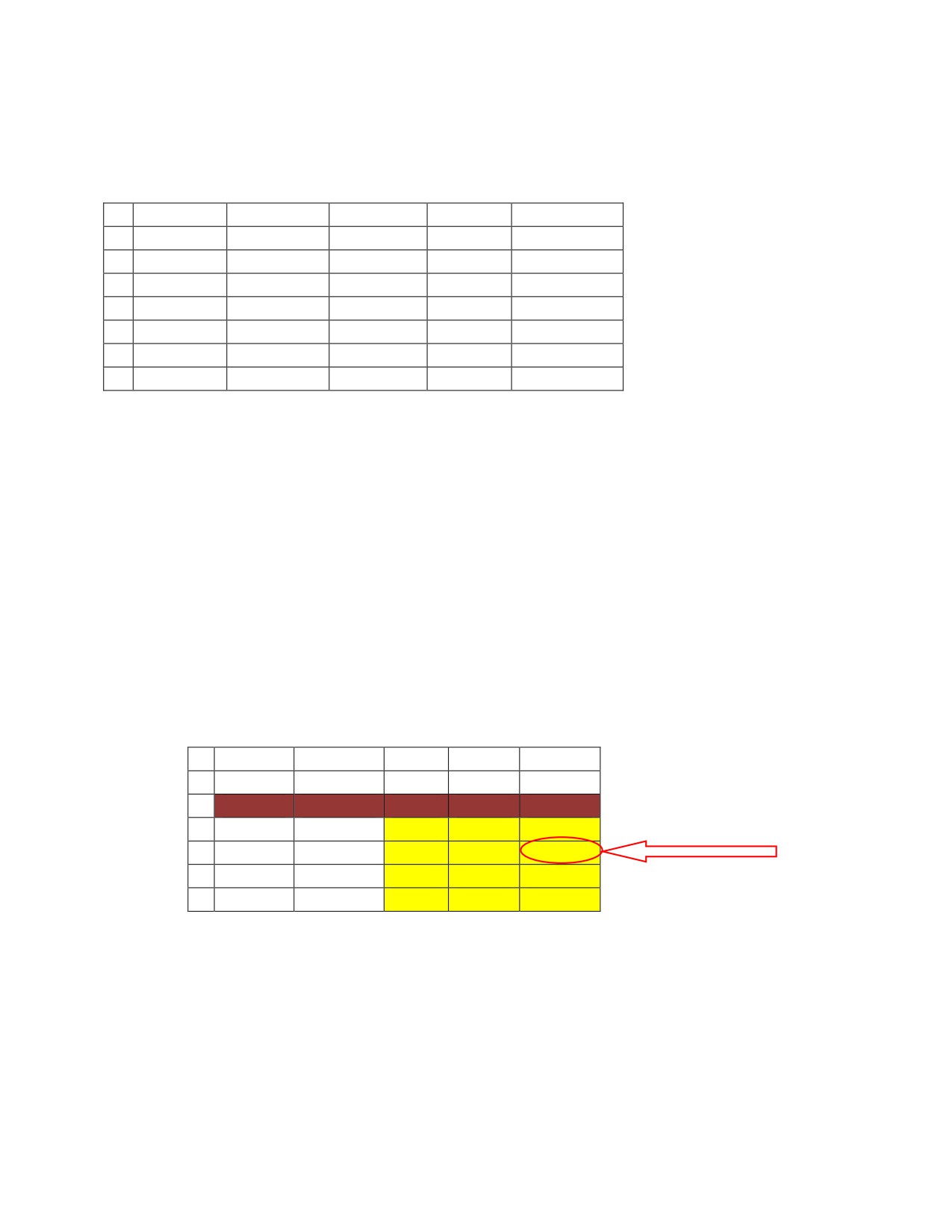
=FAIL
Table 5 IF Functions 2
A
B
C
D
E
1
Score_lst
2
Name
Math
Average
Pass/fail
3
Ali
90
50
pass
4
Juma
45
30
pass
5
Michael
30
45
fail
6
Maria
90
50
pass
7
Godfrey
10
20
fail
5.5 ISERROR Function
Purpose
To check the error such as
#NULL?,#DIV/0,#VALUE?,#REF?,#NAME?,#NUM?,#N/A,#GETTING_DATA and
return TRUE or FALSE.
Formula
=iserror(value)
How To Set ISERROR formula in the column
The formula to refer to to the transport fee Mwanza-Mbeya is as follows;
=VLOOKUP($A4,nauli_lst,MATCH(E$2,nauli_itm,0),0)
Table 6 ISERROR functions 1
A
B
C
D
E
1
nauli_lst
2
Region
DSM
Arusha
Mwanza
3
Morogoro
5000
30000
60000
4
Mbeya
40000
80000
#DIV/0
5
Tanga
60000
35000
55000
6
Kagera
70000
65000
25000
In case the isserror is happened for the cell of E4,the following formula makes the error
show as defined by IF function.
Mwanza-Mbeya
=IF(ISERROR(VLOOKUP($A3,nauli_lst,MATCH(D$3,nauli-
ITM,0),0)),””,VLOOKUP($A3,nauli_lst,MATCH(nauli_itm,0),0)
15
Table 7 ISERROR function 2
A
B
C
D
E
1
nauli_lst
2
Region
DSM
Arusha
Mwanza
3
Morogoro
5000
30000
60000
4
Mbeya
40000
80000
5
Tanga
60000
35000
55000
6
Kagera
70000
65000
25000
5.6 DDCA_Repository
Database repository’s prepared for storing the attributes. In case new attribute addition is added,
the new attribute will be stored into the repository first and then reflected to the data entry sheet.
The attribute stored into the repository are sorted by groups and category. Eachattributes, group
and category has data No.With the item code as below.
GROUP-GR
CATEGORY-CT
ATTRIBUTE-AT
?ATTRIBUTE-RAT
There are three types of sheet of “GR”,”CT” and “AT”. The following describe details of each
sheet
GR list sheet
GR list sheet show the groups with Gr NO.As the following window shows, there are three
groups. In case new group is added make sure to re-range rename the table.
1. Drilling
2. Pump test
3. Water quality
16