PL7 JUNIOR/PRO Operate modes manual (Operate modes manual eng V4.0) - page 4
Programming in rung language
Moving an
Carry out the following actions:
element in a
Step
Action
network (Rung)
1
Using the keyboard:
Position the cursor over the cell containing the element to be moved.
Using the mouse:
Select the element to be moved, and maintain the selection.
2
Using the keyboard:
Select Move using keyboard from the Edit menu or CTRL+L then move the
cursor by means of the arrow keys towards the destination cell(s) and confirm
using ENTER.
Using the mouse:
Move the element’s ghost to the required cell.
3
Confirm using ENTER or select the command Edit/Confirm (CTRL+W) or
click on the icon
Cutting/Copying/
Carry out the following operations:
Pasting one or
To…
you must…
the selection…
several graphical
copy one or several
select the element(s) to be copied and select
is placed on the Win-
elements
consecutive objects
the command Edit/Copy (CTRL+C)
dows clipboard.
paste one or several
select the cell which is the start point from
is kept on the Win-
consecutive ele-
which the element(s) contained on the clip-
dows clipboard.
ments contained on
board are to be pasted and select the com-
the clipboard
mand Edit/Paste (CTRL+V)
cut one or several
select the element(s) to be cut and select the
is placed on the Win-
consecutive ele-
command Edit/Cut (CTRL+X)
dows clipboard.
ments and place
them on the clip-
board
125
Programming in rung language
Cutting/Copying/
Carry out the following operations:
Pasting one or
To…
you must…
the selection…
several
copy one or several
select the Rung(s) to be copied and select the
is placed on the Win-
consecutive
consecutive Rungs
command Edit/Copy (CTRL+C)
dows clipboard.
networks
(Rungs)
paste one or several
select the Rung which is the start point from
is kept on the Win-
consecutive Rungs
which the Rung(s) contained on the clipboard
dows clipboard.
contained on the
are to be pasted and select the command
clipboard
Edit/Paste (CTRL+V)
cut one or several
select the Rung(s) to be cut and select the
is placed on the Win-
consecutive Rungs
command Edit/Cut (CTRL+X)
dows clipboard.
and place them on
the clipboard
Note:
The Cut/Copy/Paste function works in the same way for a selection of multi-Rungs
and between program modules.
Inserting a
To insert a rung between two networks of contacts (the inserted network is placed
network (Rung)
on top) or to place a rung at the top of the program module (TOP), after displaying
the program module carry out the following actions:
Step
Action
1
Select the command Edit/Select rung or point directly to an element of the
rung using the mouse.
2
Select the command Edit/Insert rung (CTRL+l).
3
Enter the rung and confirm using CTRL+W or click on the icon
126
Programming in rung language
Displaying variables as symbols or addresses
Procedure
Carry out the following actions:
Step
Action
1
Open the program module with right click + Open or with a double click.
2
Select the command:
l View/Addresses to display the variables as addresses.
l View/Symbols to display the variables as symbols.
l View/Symbols&addresses to display the variables as symbols/addresses
(Ladder editor only).
Note:
It is possible to run the language editor from the Options menu in:
l addresses view,
l symbols view,
l symbols&addresses view (for the Ladder editor only).
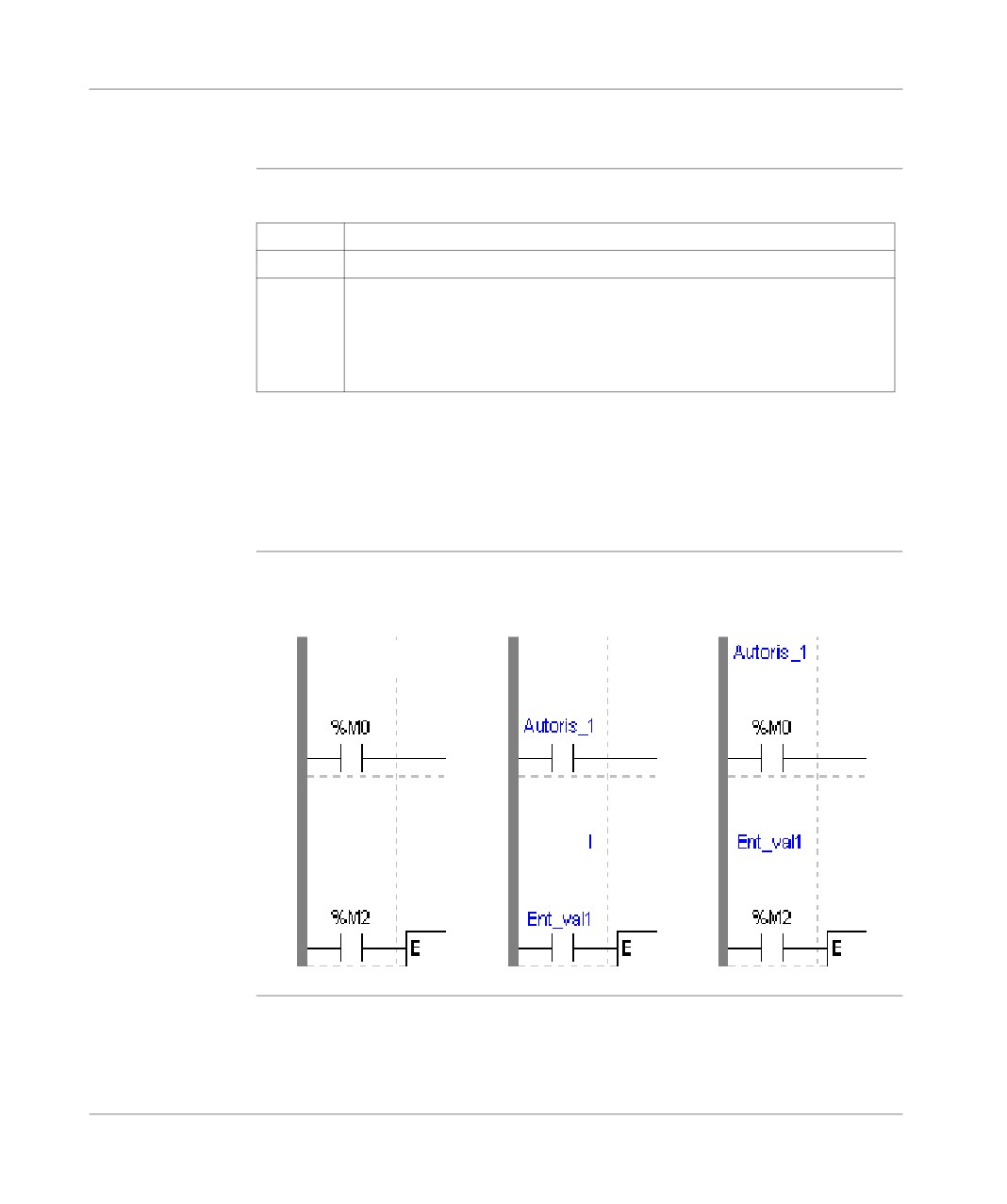
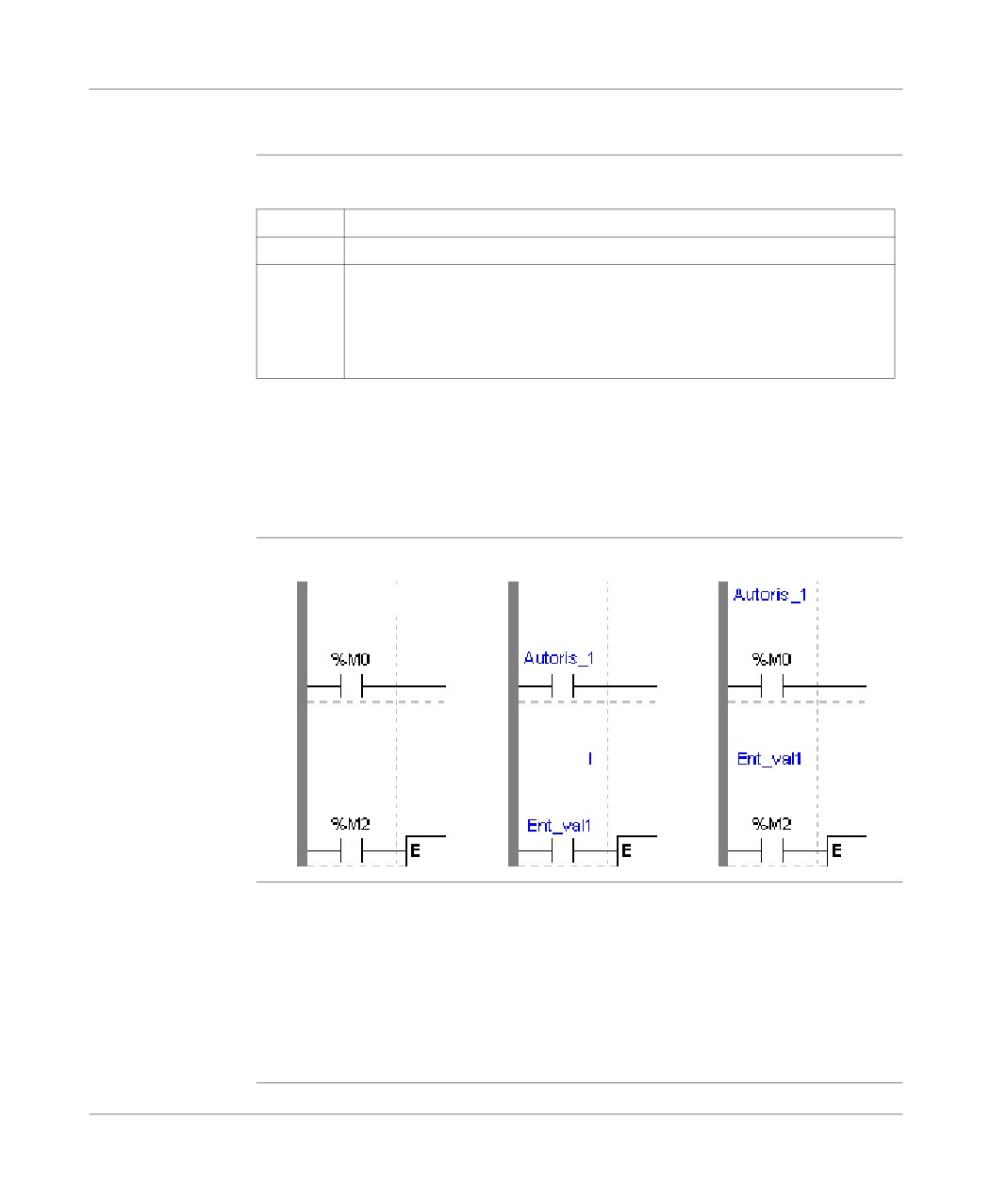
Example of
Ladder editor used with the 3 views.
display
127
Programming in rung language
Note
If a symbol or address has more than 8 characters, the display can be truncated.
Select the element, which is then displayed in full in the status bar. You can also use
the Information box.
The View/Collapsed command is used to reduce the size of the window whilst
maintaining the same level of information.
The View/Normal command allows you to return to the normal sized window.
128
Programming in rung language
Information box
Functions
This box, which can be accessed from all language objects, displays the symbols,
address and comments for the selected object (except for the operate blocks and
horizontal comparison) in an integrated format.
Display table according to object:
Single object
Complex object (operate
block, comparison and hori-
zon block)
l symbolic format in blue
l symbolic format in blue
l constructor name in black,
l constructor address in black,
l associated comments in
green.
How to access
Carry out the following steps:
the object
Step
Action
information box
1
In the LD language editor, select the object.
2
Click on the right mouse button (contextual menu) and then select Informa-
tion, or select theView → Informationcommand.
Note
The information box remains visible when it is not explicitly closed by the user. The
contents of the Information box is updated according to the current selection.
129
Programming in rung language
Online symbolization
Principal
Online symbolization allows you, at the time of input of a Ladder, List, Structured
Text program, to immediately (without opening the data editor) associate:
l an address to a new symbol,
l a symbol to a non symbolized address.
Procedure
With the Ladder editor, start at Step 1, with the Structured Text or List editors, go
straight to step 2.
Step
Action
1
Select the cell where the variable is situated.
2
Select the variable (highlight it).
3
Right mouse click on the variable and select Associate Symbol&Address.
4
Enter the address or symbol and the comment.
130
Programming in rung language
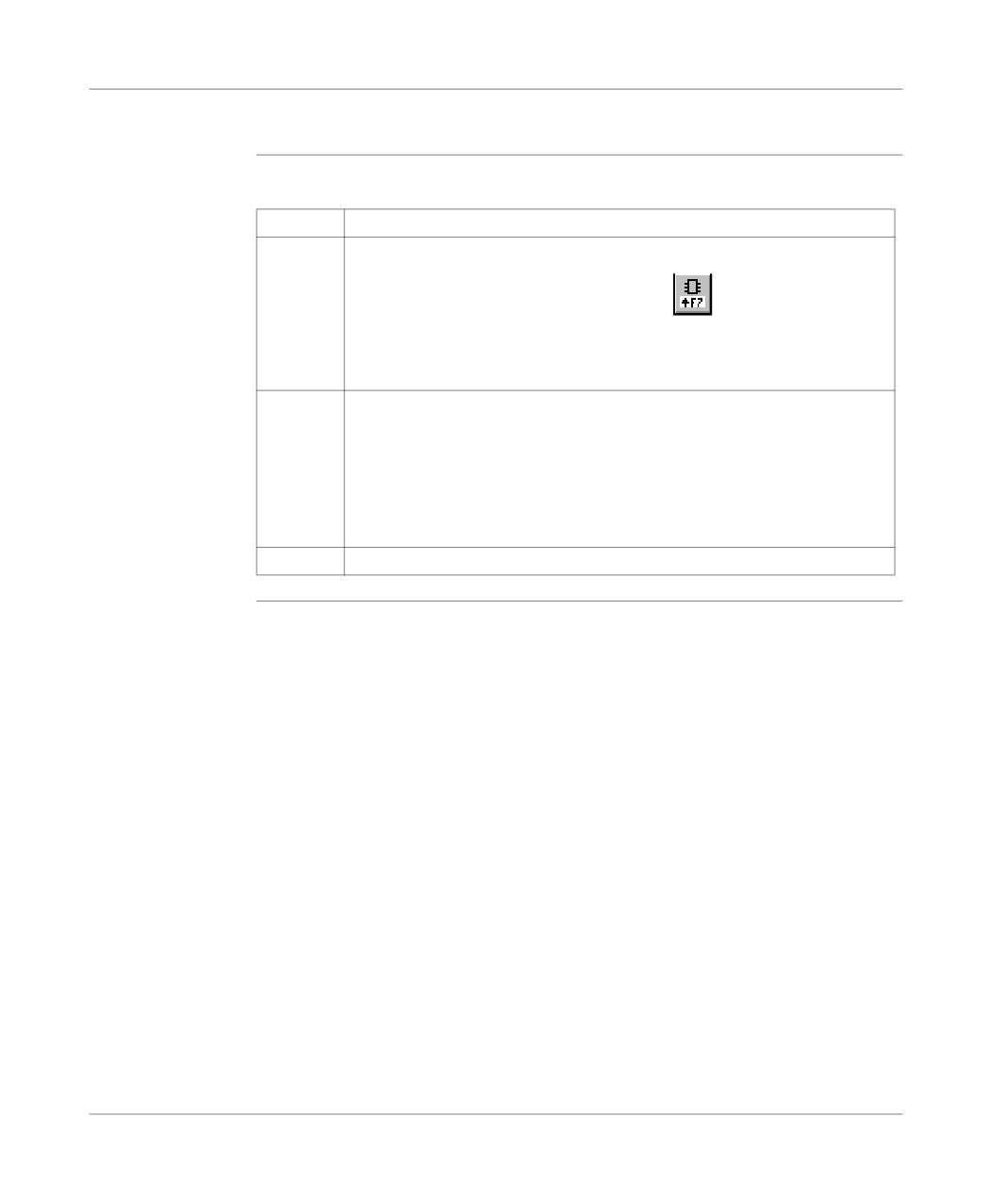
Input of a predefined function block (Ladder editor)
Procedure
From within the language editor, carry out the following actions:
Step
Action
1
Using the mouse:
From the graphical palette, select the element
Using the keyboard:
Select the destination cell with the help of the arrow keys, and press the keys
(Shift+F7).
2
Using the mouse:
Select the item SFB (only TSX Premium), and select the required function
block, then click in the destination cell (Test zone) to position the function block.
Using the keyboard:
Select the item SFB with the help of the arrow keys and accept with ENTER
(only TSX Premium), then select the function block using the arrow keys and
accept with ENTER.
3
Input the number of the function block and confirm with ENTER .
131
Programming in rung language
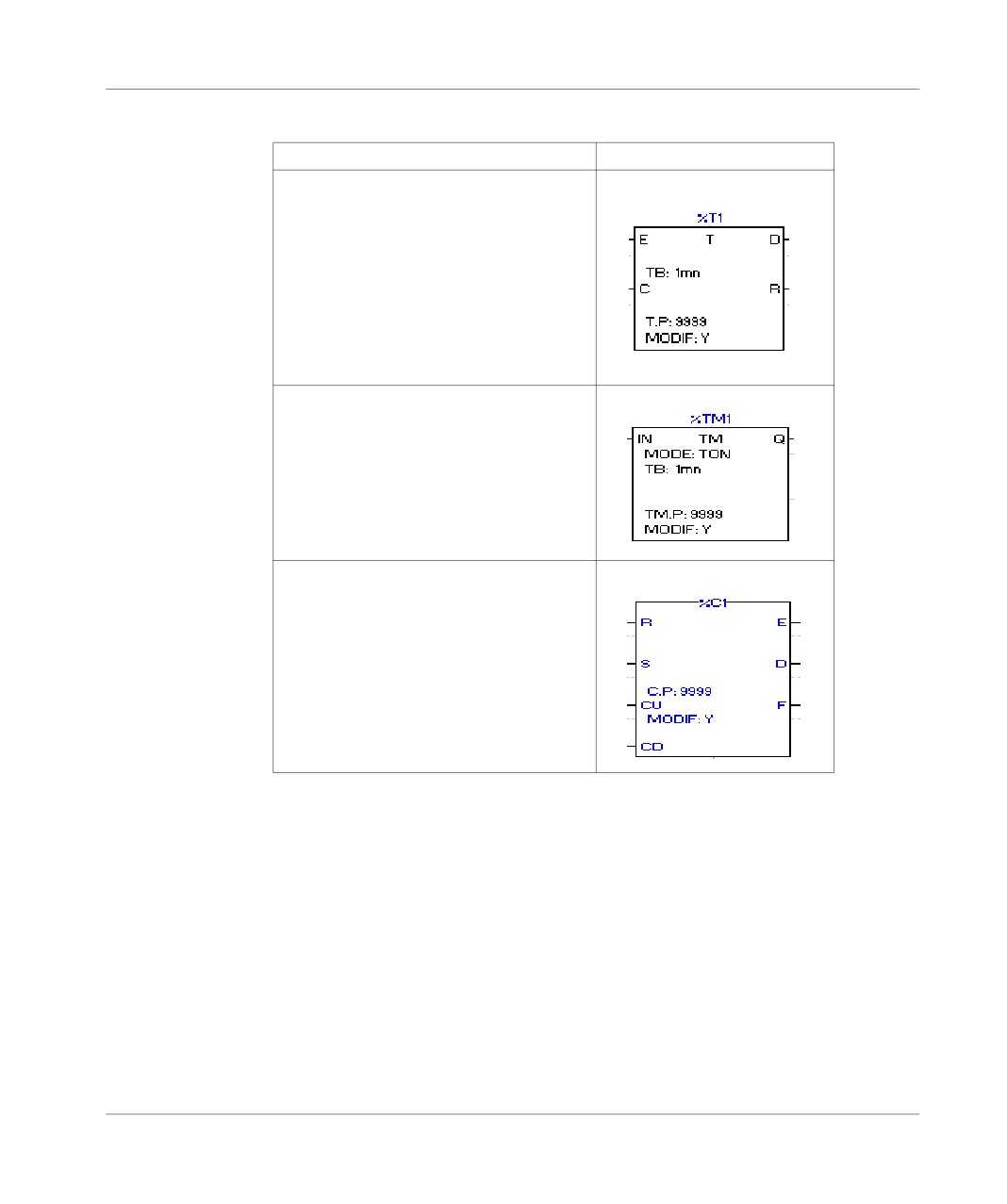
Function blocks The different function blocks are:
Function blocks
Syntax
PL7-3 timer (%Ti)
Timer block:
TP/TON/TOF timer (%TMi)
Timer block:
Up/Down counter (%Ci)
Block Up/down counter
132
Programming in rung language
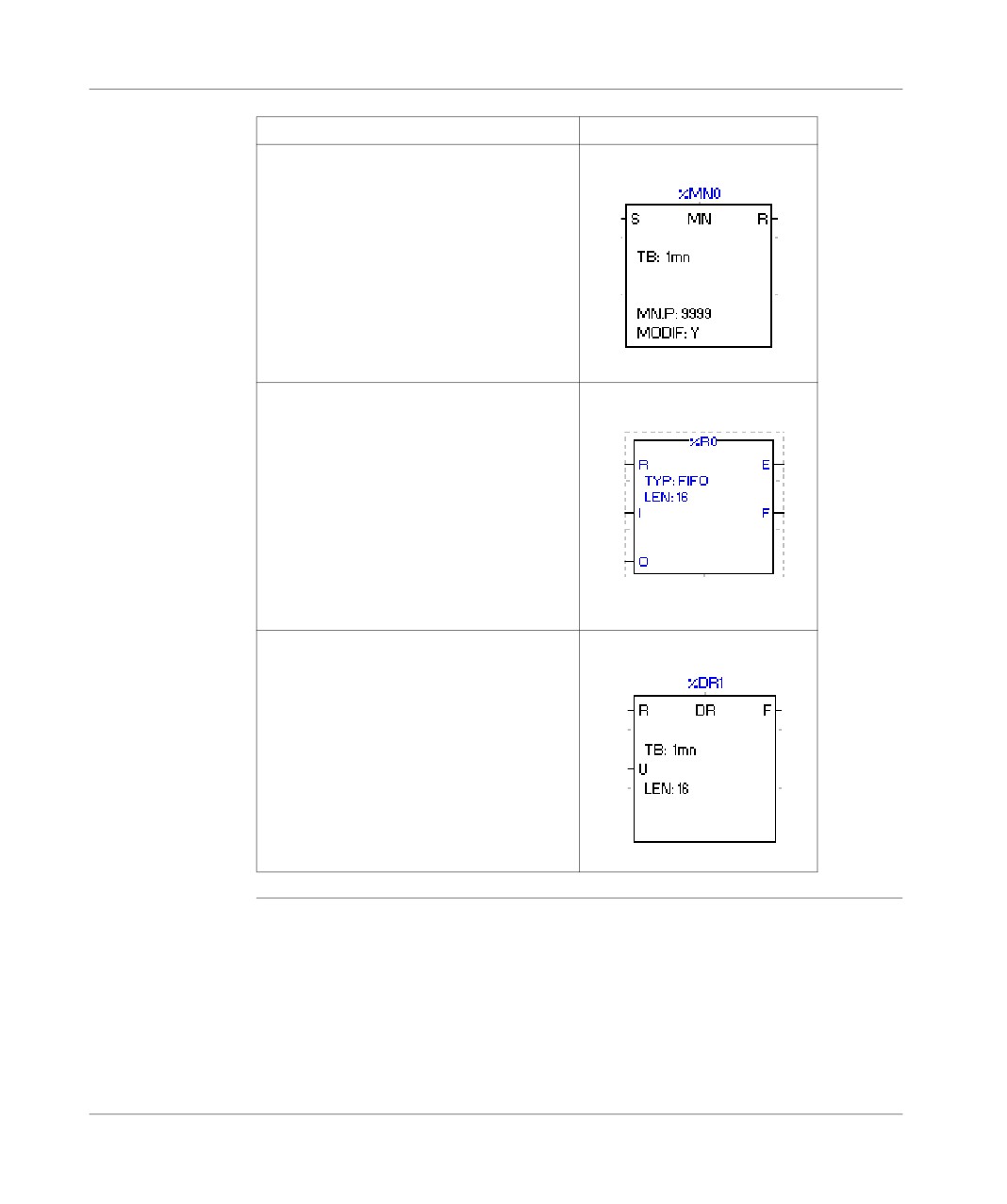
Function blocks
Syntax
Monostable (%MNi)
Monostable block:
Register of FIFO/LIFO words (%Ri)
Register block:
Drum-DRUM (%Dri)
Drum controller block:
133
Programming in rung language
Function library
Introduction
The functions library brings together all the associated information and utilities con-
cerning functional elements (EFtab) and DFB function blocks (DFB tab).
Two access modes exist:
l in consult mode,
l by calling a function from the editor.
Consulting an EF
To access the library, select Library from the Tools menu then choose the EF tab
(default selection).
The functions library screen presents:
l The list of available families defined by:
l family name,
l the library version Lib.V,
l the version of families used in the current application App V (open station
only).
l The list of functions associated with each family defined by:
l function name,
l comments.
Note: In order to display an entire set of truncated comments (>>symbol at the end
of the line), double click on the function or place the cursor above and use the
Space bar.
l The parameters of the selected function, defined by:
l name,
l type (eg: DWORD),
l kind,
l comments,
l the result of a function (if there is one).
Note: In order to display the parameters of a function and its possible result, select
Parameters in the Function Information field.
134
Programming in rung language
Consulting a
DFB
Note: It is only possible to consult a DFB with TSX Premiums.
To access the library, select Library from the Tools menu then choose the DFB
tab.
For each DFB instance, the library screen presents:
l The list of DFBs in the application and defined by:
l the DFB name,
l the version (which is automatically incremented with the confirmation of each
modification),
l comments.
l The list of the instance for a given DFB(Select the instance),
l The DFB parameters selected defined by:
l the nameof the parameters,
l type (eg: DWORD),
l kind,
l comments.
Note: A new instance can be created from the screen for The list of the instance
for a given DFB.
135
Programming in rung language
Operate block entry
Introduction
There are various ways of selecting an operate block:
l using the mouse,
l using the keyboard,
With PL7 there is also help to enter the contents of an operate block.
Select an operate
Carry out the following steps:
block with the
Step
Action
mouse
1
Click on the graphics element which corresponds to the operate block in the
graphics palette at the bottom of the editor.
2
Click in the target cell ( Action zone) to position the operate block.
3
Enter the instruction string and confirm with Enter.
Select an operate
Carry out the following steps:
block using the
Step
Action
keyboard
1
Select the target cell with the arrow keys.
2
Press the key combination Shift+F3.
3
Enter the instruction string and confirm with Enter.
Operate block
The principles described below are illustrated using an example:
entry help
%MWO:=ABS(%MW1).
To enter a function call, carry out the following steps:
Step
Action
1
Enter the instruction as far as the function call (example %MWO=).
2
Select the contextual menu Enter a function call (right click or SHIFT+F8).
The "Parameters" option must be selected from the Function Information head-
ing.
3
Select the EF group using the mouse or Tab and arrow keys (example: Single
length integer).
4
Select thefunction name (example: ABS).
5
Enter the function variables and the entered function is displayed in the Call
Display field.
136
Programming in rung language
Note:
l some functions have additional entry screens which are accessed using the De-
tail button,
l when the function syntax is known, enter the syntax directly into the editor,
l it is possible to directly enable assisted entry on a given function by selecting
the function name and then selecting the Service → Enter the function call
command or right click,
l Tabulation and line feed characters are represented by $T and $N respectively,
they must be entered in $$T and $$N format.
Modifying the
Carry out the following steps:
function call
Step
Action
1
Place the cursor on the function (example ABS).
2
Select the context menu (right click) Modify the call.
137
Programming in rung language
Horizontal and vertical block entry
Introduction
There is the option of entering the comparison blocks in different ways:
l using the mouse,
l using the keyboard,
Entering a
Carry out the following steps:
comparison
Step
Action
block with the
mouse
1
Click on the required graphic element in the graphics palette.
2
Click on the target cell ( Test zone) in order to position the selected comparison
block.
3
Enter the comparison instruction and then confirm with Enter.
Entering a
Carry out the following steps:
comparison
Step
Action
block using the
1
Select the target cell with the arrow keys.
keyboard
2
Press the key combination Shift+F4 or Shift+F5.
3
Enter the comparison instruction and then confirm with Enter.
138
Programming in rung language
Assisted entry of a library function or of an instance of DFB type (Ladder editor)
Entry procedure
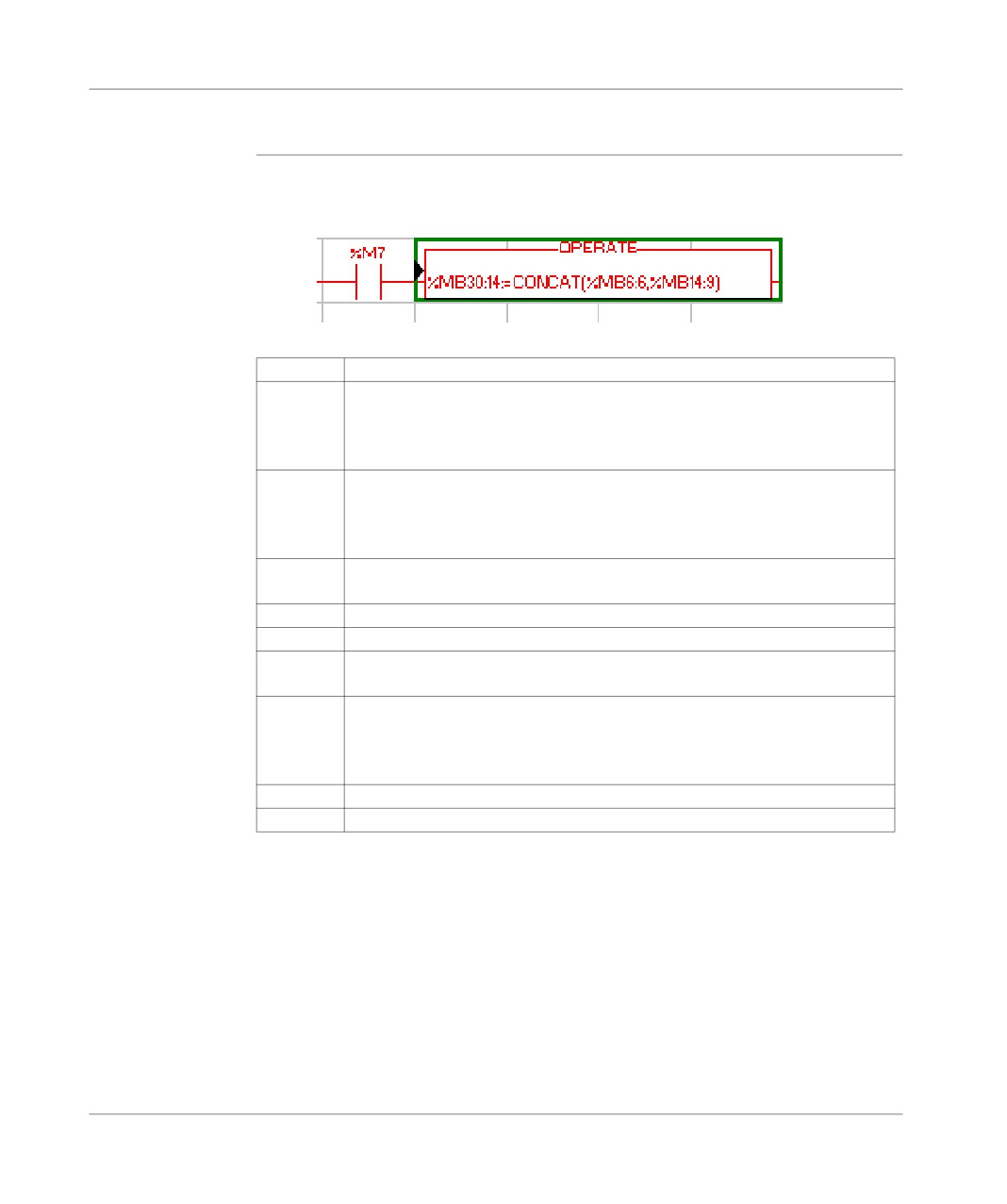
The instruction to be entered is:
for a library
Example below:
function
Perform the following actions to make an entry:
Step
Action
1
Using the mouse:
Select the command SHIFT+F8.
Using the keyboard:
Select the destination cell with the arrow keys (Action zone).
2
Using the mouse:
Click in the destination cell (Action zone) to position the text function block.
Using the keyboard:
Press SHIFT+F8.
3
Select the tab EF (selection by default). The "Parameters" option must be se-
lected under the heading Function Information.
4
Select the (EF) function family required (e.g.: Character string).
5
Select the (EF) function name (e.g. CONCAT).
6
Enter the (EF) function variables (%MB4:6; %MB14:9). The function entered
can be viewed in the Display the call field.
7
Using the mouse:
Confirm the selection with OK or ENTER .
Using the keyboard:
Select OK then confirm the selection with ENTER
8
With EFs, enter the variable to be associated with the function.%MB30:14:=
9
Click on ENTER.
139
Programming in rung language
Notes:
Certain functions offer extra screens for parameter entry (e.g.: human-machine in-
terface functions). These parameters are accessed with the Detail button that then
appears at the bottom of the screen.
When the function syntax is known, enter syntax directly into the editor.
It is possible to directly enable assisted entry on a given function by selecting the
function name then selecting the command Service/Enter function call
(SHIFT+F8).
Procedure for an
Perform the following actions to make an entry:
instance of DFB
Step
Action
type
1
Using the mouse:
In the graphics palette click on the element
Using the keyboard:
Select the destination cell
(Test Zone) with the arrow keys.
2
Using the mouse:
Select DFB.
Using the keyboard:
Press on the key combination, (SHIFT+F7).
3
Using the mouse:
Select the DFB type required.
Using the keyboard:
Select DFB using the arrow keys then enable with ENTER.
4
Using the mouse:
Select the required instance from Choice of instance or create a new instance
(name + possible comment) and confirm with Create.
Using the keyboard:
Using the Tab or arrow keys, select the required function block.
5
Using the mouse:
Click on OK.
Using the keyboard:
Select the required instance in Choice of instance or create a new instance
(name + possible comment), select Create then confirm withENTER.
6
Using the mouse:
Click in the destination cell (Test zone) to position the DFB type.
Using the keyboard:
Select OK then confirm with ENTER.
140
Programming in rung language
Note:
Two instances of the DFB type connected in series must be separated by at least
2 columns.
WARNING
For EFs displayed in red:
EFs which are displayed in red in the function entry help screen cannot
be used in the application. This limitation is encountered in the following
instances:
l when an earlier version of the EF is already used in the application,
l when the EF name is used as a variable linked symbol, and only con-
cerns the EF ROUND (family of single precision reals).
Failure to observe this precaution can result in severe injury or
equipment damage.
141
Programming in rung language
Direct access to a subroutine
Procedure
To access the input/display window of a sub-routine during the input/display of a
sub-routine call, carry out the following.
Step
Action
1
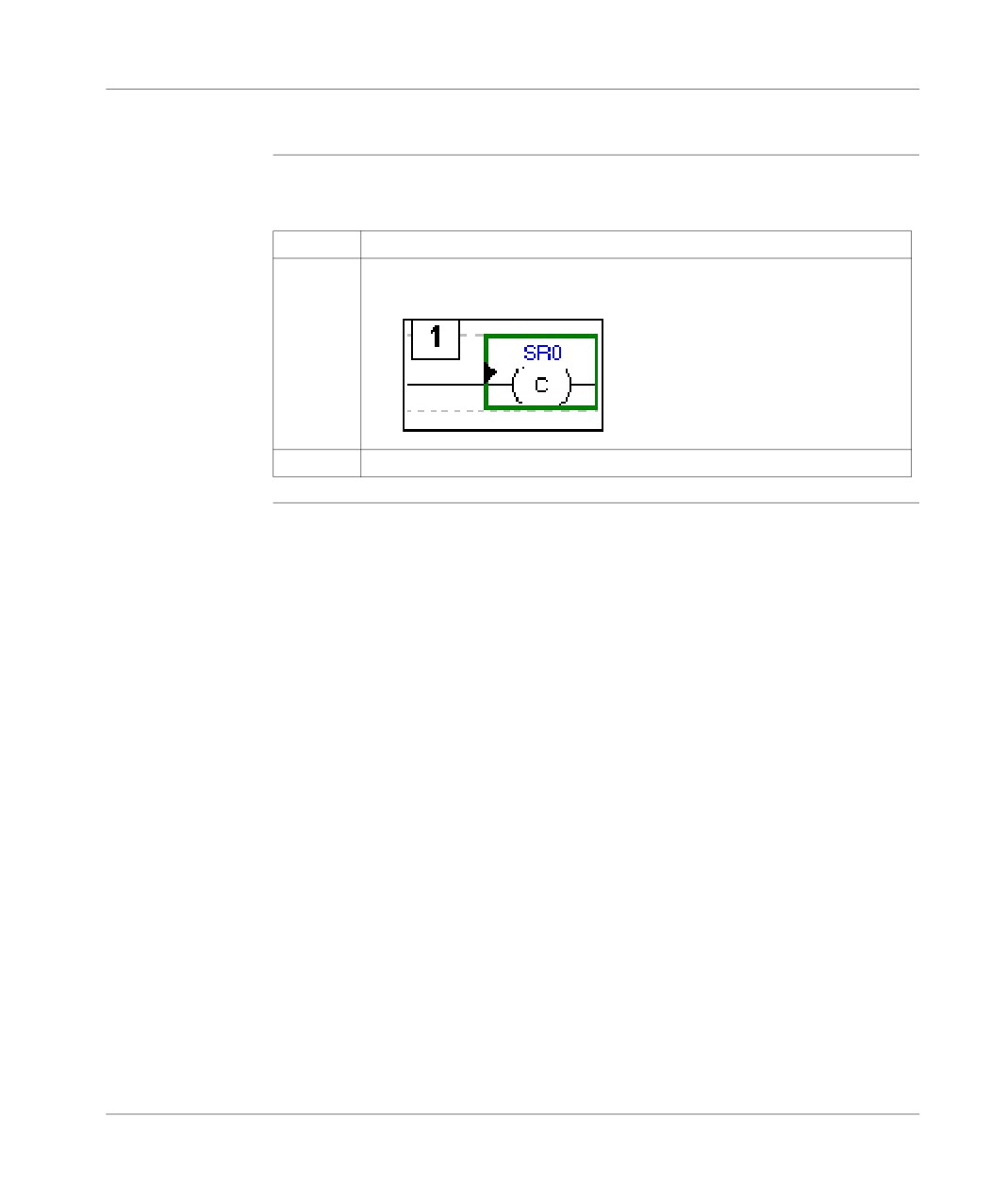
Select the subroutine call coil: SRi.
2
Select the command Facility/Open or select in the Contextual menu Open.
142
Programming in rung language
Replacing a variable in the application
Introduction
Finding and replacing an application variable as an address or a symbol (excluding
variables used in operating screens). The replacement in the application may be to-
tal or partial, automatic or manual.
Replacement affects the indicated variable and its dependent objects as well (word
extract bits…).
Exception: for Grafcet steps bits the associated activity times (e.g. %Xi.T) are not
replaced.
Replacement is carried out at the following levels:
l Application (in all tasks).
l Tasks (MAST, FAST, Evti).
l Complete section.
l Partial section (from address i to address j).
l Replacement is also carried out at functional module level (complete functional
module, sub-modules included).
Procedure
Carry out the following actions:
Step
Action
1
Select the command Tools/Replace variables or position the cursor over the
Station directory and select Replace variables from the contextual menu.
2
Put the variable to be replaced (as an address or a symbol) in the Findfield and
confirm with ENTER or TAB.
3
Put the variable to be replaced (as an address or a symbol) in the Replacefield
and confirm with ENTER.
4
Select the view:
l Structure view
l Function view
5
Select one or more modules:
l if replacing in all the application, go to point 8,
l if replacing in some of the modules, deselect the whole and select the mod-
ules, go to point 6,
l if replacing in one of the modules, deselect the whole and select the mod-
ule, go to point 6.
143
Programming in rung language
Step
Action
6
Select the label (if LD, ST, IL) or the page (if G7) at the beginning of the re-
placement by positioning the pointer on the list From.
If more precision is required, use the up and down arrow keys.
7
Select the label (if LD, ST, IL) or the page (if G7) at the end of the replacement
by positioning the pointer on the listTo.
If more precision is required, use the up and down arrow keys.
8
Select the type of replacement:
l if Replace, the replacement is carried out occurrence by occurrence,
l if Replace All, the replacement is carried out on all occurrences.
Notes:
l The status bar indicates the number of replacements carried out, and a re-
port on the replacements not carried out.
l The ESC key allows you to abort the function Replace, but the replace-
ments already carried out are kept.
144
Programming in rung language
Cross Referencing a variable in an application
Introduction
This function allows you to locate in the application:
l variables in the form of labels or symbols (except those used in operating
screens),
l DFB types (only on TSX Premium with Pl7 Junior and Pro),
l DFB instances (only on TSX Premium with Pl7 Junior and Pro),
l and to open modules/tasks/DFB types.
Principals of
The user realizes that the variable X is not the right value. To identify the cause he
using debugging
must therefore:
l find the places where this variable is used,
l obtain a list of statements, rungs and expressions,
l to display and verify the activation conditions of the variable.
Note:
In order to record the path of this search, the list elements thus visited are marked
with an asterisk (*).
Operational
A variable can be a read variable (R), a write variable (W) or a read/write variable
mode for objects
(R/W).
- "R" groups together the read operational modes, indexed read, indexed word, in-
put or input/output parameter of a indexed or non-indexed function.
- "W" groups together the write operational modes, indexed write, output or input/
output parameter of indexed or non-indexed function and execution of Block Func-
tions (SFB and DFB).
Search source
Table of variables:
variables
Bit
%Ixi; %QXi; %Mi; %Si
Word
%MWi; %MDi; %MFi; %KBi; %KWi; %KDi; KFi; %MBi; %SWi; %QWi;
%QDi; %IWi; %IDi; %NWi
Instruction
SRi; HALT
Other retrievable variables:
Byte variables
Word extract bits
Bit table
Grafcet bit table
Character string
145
Programming in rung language
Table of words and constants
Table of double words and constants
Constant character string
Standard Block Function
Standard Block Function element
Step status
Step activity time
NANET variables
Search options
For an indexed variable, the variable and the index are taken into account in the list.
Table of options:
Extract Bit
This option is for variables of types %MW, %KW, %IW, %NW,
%QW.It adds to the list the variable and the referenced bits.
Table Object
This option is for bit tables, word tables and immediate indexed vari-
ables.It adds to the list the immediate indexed table variables
whose first element is the input variable.
Channel Object
This option is for channel objects.It adds to the list all the objects of
the same referenced channel, including the tables and the extract
bits.
Network Objects
This option is for the network variables.It allows you to obtain all the
variables from the same remote module (NANET object).
FB Object
This option allows you to expand the list of SFB block function ele-
ments and the DFB type elements.
FB Instance
Only on TSX Premium with PL7 Junior and Pro.
This option is for DFB types.It allows you to obtain from the name
of a DFB type the sections using its instances.
146
Programming in rung language
Searching for
Carry out the following actions:
cross references
Step
Action
1
Select the icon
2
Enter the search source variable as an address or a symbol (E.g. %M10) and
the possible options then confirm via Search.
3
To display a module, select the module, via the Contextual menu, select Open
or double click on the module.
Selecting a variable from the list:
l Select the variable from the list, the list of tasks, modules, labels is updated.
Deleting a variable from the list:
l Select the variable, enable the contextual menu (right click) then click on Delete.
Displaying in structural view or in functional view:
l Use the View menu or the Function button.
147
Programming in rung language
Animation of the Ladder program elements
At a Glance
Refer to the "Debugging" Chapter of the Part "Debugging, Adjustment, Docu-
mentation and Appendices"-> (see Animating program elements, p. 285 ).
148
Programming in rung language
Printing of a program
Procedure
Carry out the following steps:
Step
Action
1
Open the module with right click + Open or a double click.
2
Select the command File/Print (Ctrl+P) or click on the icon
3
Select a print range:
l if for the entire module, go to step 6.
l if for part of a module, go to step 4.
4
Select %Li/TOP/BOTTOM (if LD, ST, IL) or start page (if G7).
If more precision is required, use the up and down arrow keys.
5
Select %Li/TOP/BOTTOM (if LD, ST, IL) or endpage (if G7).
If more precision is required, use the up and down arrow keys.
6
Confirm with OK or ENTER.
Notes
The print type depends on the type of display selected in the View menu.
l Addresses: prints variables with addresses,
l Symbols: prints variables with symbols,
l Symbols&Addresses: prints variables with symbols/addresses.
149
Programming in rung language
Export/Import of source files
Refer to the "Import/Export" (See Import/Export, p. 341) Chapter of the Part "De-
bugging, Adjustment, Documentation and Appendices".
150
Programming instruction list in
LIST language
7
Introduction
Subject of this
This chapter reminds you of the structure of a program in instruction list language.
chapter
It describes:
l How to create a program.
l How to use the different functions offered by the editor.
l How to manage the different modules making up the application.
What’s in this
This Chapter contains the following Maps:
Chapter?
Topic
Page
Structure of an Instruction List program
152
Creating a program in Instruction List
153
Accessing a statement or instruction (Instruction List)
154
Displaying variables as symbols or addresses
157
Information box
158
Online symbolization
159
Input of a predefined function block (List editor)
160
Assisted entry of a library function (List editor)
161
Direct access to a subroutine
163
Replacing a variable in the application
164
Cross Referencing a variable in an application
166
Animation of List program elements
169
Printing of a program
170
Export/Import of source files
171
151
Programming instruction list in language
Structure of an Instruction List program
Principal
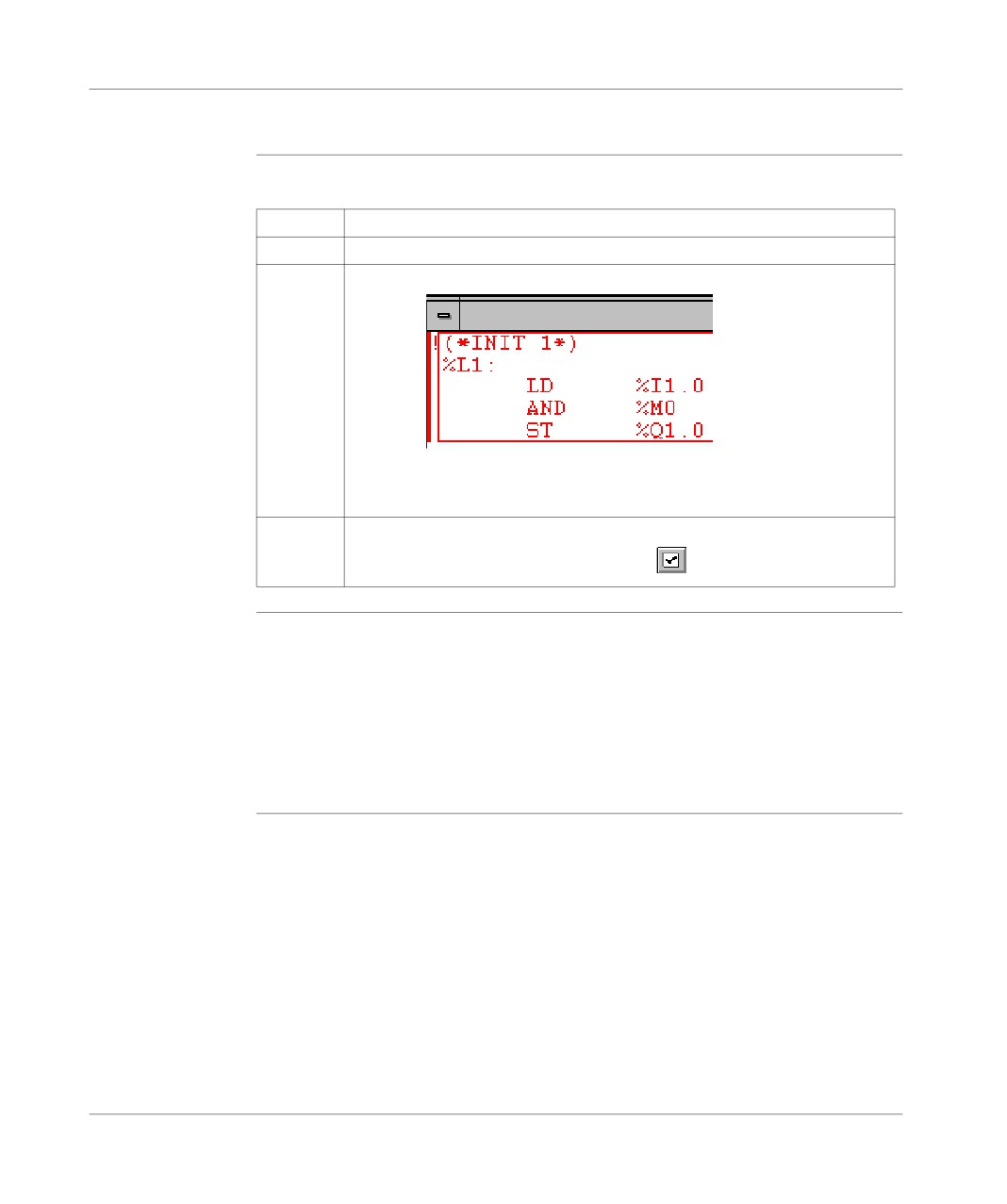
A program written in instruction list language is composed of a series of instructions
executed sequentially by the PLC.
l An instruction takes up a maximum of one line.
l The instructions are organized into instruction statements (equivalent to a con-
tacts network). Each instruction statement is made up of one or several instruc-
tions.
l Each instruction statement begins with an exclamation mark (generated automat-
ically), it can include a comment and can be labeled with a label.
l A statement contains a maximum of 128 lines (instruction, comment, label).
l In the editor a statement being input is displayed in red.
l A selected statement is surrounded by a green frame.
l The current statement is surrounded by a black frame.
l The number of the current instruction (instruction line or label) as well as the total
number of instructions in the module are indicated in the bottom panel of the win-
dow (status bar).
Example
! (*Drying wait*)
%L2:
->Label
LD
%I1.0 ->Start of statement
AND %M10
->Instruction
ST
%Q2.5 ->End of statement
Notes:
Key-words (LD, AND, ST…) are colored blue.
Comments are colored green.
The remainder is colored black.
152
Programming instruction list in language
Creating a program in Instruction List
Procedure
Carry out the following actions:
Step
Action
1
Create a List section (See Creating or importing an LD, IL, ST section, p. 105).
2
1. Enter the first statement. As input begins, the statement is displayed in red.
2. Accept each line with ENTER.
3. Use the TAB key to separate the code from the operand.
4. On line symbolization (See Online symbolization, p. 159).
3
Confirm the input of the statement with the command Edit/Confirm
(CTRL+W)/SHIFT+ENTER) or via the icon
Rules
They are:
l At the time of confirmation, the input text is formatted giving you automatically in-
dented source code.
l If an error is detected at confirmation, the cursor is positioned over the first error
detected, the error message is displayed at the bottom of the window.
l In the editor, a statement is displayed in redwhile being entered.
l A selected statement is surrounded by a green frame.
l The current statement is surrounded by a black frame.
153
Programming instruction list in language
Accessing a statement or instruction (Instruction List)
Accessing a
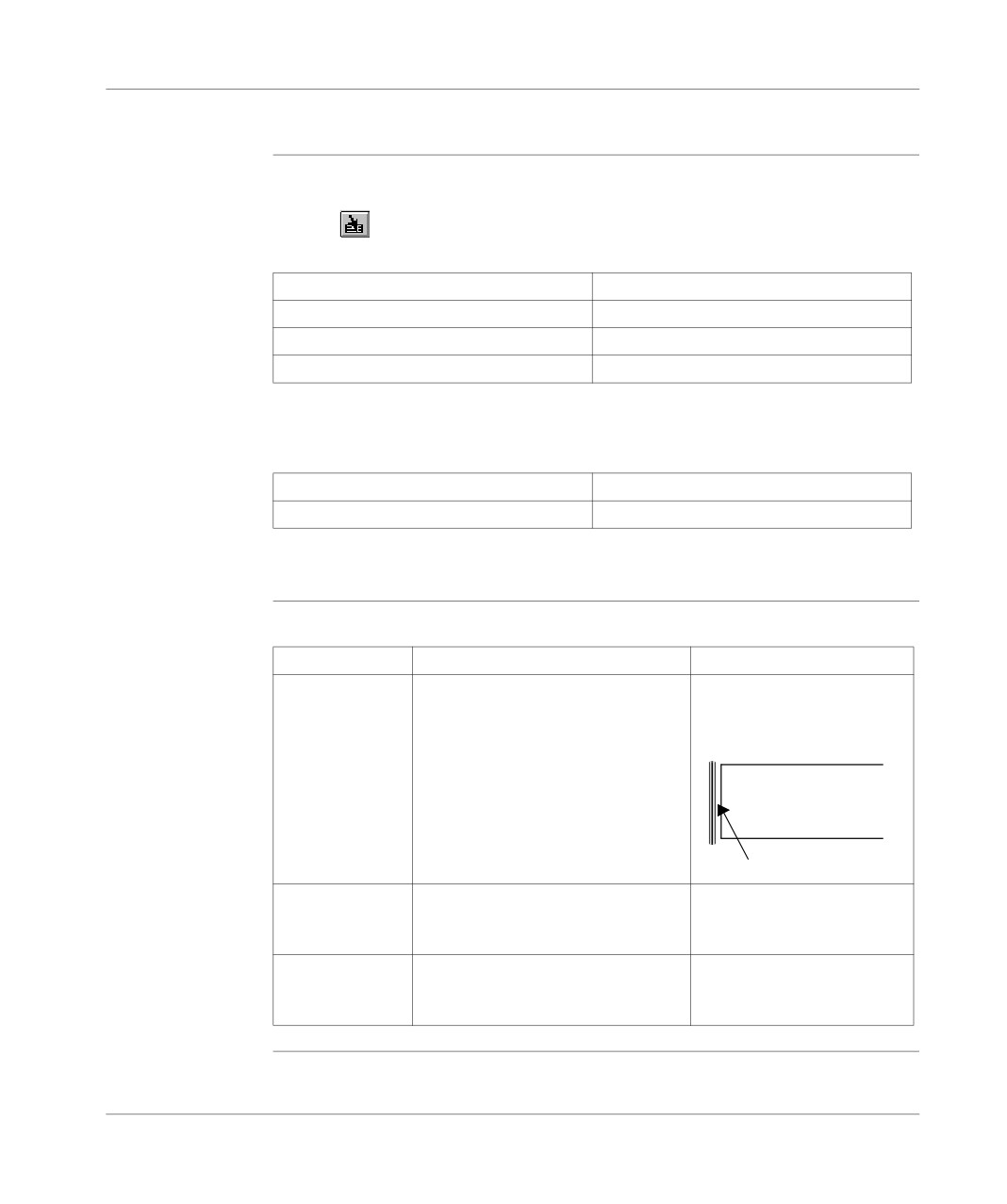
When the program module is displayed, select the Edit/Go to (Ctrl+A) command or
statement or an
instruction
the icon
Access by label -> select "Label":
In the label zone, select…
position…
TOP
at the start of program module.
BOTTOM
at the end of program module.
%Li
at the corresponding label number.
The Move zone is used to make a movement relative to TOP/BOTTOM/%Li.
Access by instruction -> select "instruction":
In the instruction zone, select…
position…
instruction number
on the corresponding instruction.
The Edit/Go to current modification command allows you to position the cursor
on the current modification.
Selecting one or
The possible choices are as follows:
several
Select…
by…
or…
statements
one statement
positioning the cursor over the state-
by clicking in this zone, it is
ment and selecting the Edit/Select
framed in green.
statement from the menu
Example:
!
( * INIT
1 * )
%L2:
LD
% I1. 0
OR
%M0
ST
%Q1 .0
several state-
by selecting the different statements
using the keys (Shift+Arrow).
ments
while holding down the left mouse but-
ton
part of a state-
by moving the cursor over the text to
ment
be selected while holding down the left
mouse button (Shift+Arrow)
154
Programming instruction list in language
Modifying a
Carry out the following actions:
statement
Step
Action
1
Position the cursor over the point where the modification is to be made.
2
Make the modification.
3
Confirm the modification with the keys (Ctrl+W) or (Shift+Enter) or
the Icon
The deletion possibilities are as follows:
Delete…
by…
then by…
one statement
selecting the statement to be deleted
pressing the Delete key.
part of a state-
selecting the part of the statement to
pressing the Delete key.
ment
be deleted
a piece of text and
selecting the text to be cut
selecting the Edit/Cut
place it on the clip-
(Ctrl+X) command.
board
Inserting a
Carry out the following actions:
statement before
Step
Action
the current
1
Position the cursor on the statement before which the insertion must be made.
statement
2
Select the Edit/Insert Statement command or (Ctrl+I).
Cut/Copy/Paste
Carry out the following operations:
part of a program
To…..
you must…
the text…
module
copy part of a
select the text to be copied and select
is placed on the Windows Clip-
statement
the command Edit/Copy (Ctrl+C)
board.
paste the contents
select the point from where the text
is kept on the Windows Clip-
of the Clipboard
must be pasted and select the Edit/
board.
into a document
Paste (Ctrl+V) command
cut a piece of text
select the text to be cut and select the
is placed on the Windows Clip-
and place it on the
command Edit/Cut (Ctrl+X)
board.
clipboard
155
Programming instruction list in language
Note:
The Cut/Copy/Paste function works in the same way for a selection of statement(s)
and between program modules.
Canceling a
To cancel a modification carried out on an unconfirmed statement, select the Edit/
modification
Undo changes command or the icon
This command allows you to return the sequence to its last confirmed state.
156
Programming instruction list in language
Displaying variables as symbols or addresses
Procedure
Carry out the following actions:
Step
Action
1
Open the program module with right click + Open or with a double click.
2
Select the command:
l View/Addresses to display the variables as addresses.
l View/Symbols to display the variables as symbols.
l View/Symbols&addresses to display the variables as symbols/addresses
(Ladder editor only).
Note:
It is possible to run the language editor from the Options menu in:
l addresses view,
l symbols view,
l symbols&addresses view (for the Ladder editor only).
Example of
Ladder editor used with the 3 views.
display
Note
If a symbol or address has more than 8 characters, the display can be truncated.
Select the element, which is then displayed in full in the status bar. You can also use
the Information box.
The View/Collapsed command is used to reduce the size of the window whilst
maintaining the same level of information.
The View/Normal command allows you to return to the normal sized window.
157
Programming instruction list in language
Information box
Functions
This box, which can be accessed from all language objects, displays the symbols,
address and comments for the selected object (except for the operate and horizontal
comparison blocks) in an integrated format.
Display table according to object:
Single object
Complex object (operate
block, horizon comparison
block)
l symbol format in blue
l symbol format in blue
l constructor name in black,
l constructor address in black.
l associated comments in
green.
How to access
Carry out the following steps:
the object
Step
Action
information box
1
In the LIST language editor, select the object.
2
Click on the right mouse button (contextual menu) and then select Informa-
tion, or select theView → Informationcommand.
Note
The information box remains visible if it the user does not specifically close it. The
contents of the Information box is updated according to the current selection.
158
Programming instruction list in language
Online symbolization
Principal
Online symbolization allows you, at the time of input of a Ladder, List, Structured
Text program, to immediately (without opening the data editor) associate:
l an address to a new symbol,
l a symbol to a non symbolized address.
Procedure
With the Ladder editor, start at Step 1, with the Structured Text or List editors, go
straight to step 2.
Step
Action
1
Select the cell where the variable is situated.
2
Select the variable (highlight it).
3
Right mouse click on the variable and select Associate Symbol&Address.
4
Enter the address or symbol and the comment.
159
Programming instruction list in language
Input of a predefined function block (List editor)
Procedure
From within the language editor, carry out the following actions:
Step
Action
1
From the Contextual or the Service menu, select the command Input a block
function call (Shift+F7).
2
Select the SFB type (counter, monostable…) using a double click (selection
via the keyboard is done using the Arrow keys and ENTER). The input mask is
displayed.
Function blocks The different function blocks and their instructions are:
Function blocks
Instruction
Syntax
TP/TON/TOF timer (%TMi)
Start
IN %TMi (Rising edge)
Initialize
IN %TMi (Falling edge)
Up/Down counter (%Ci)
Reset to 0
R %Ci
Set to Preset value
S %Ci
Increment by 1
CU %Ci
Decrement by 1
CD %Ci
Monostable (%MNi)
Start
S %MNi
Register of FIFO/LIFO words
Reset contents
R %Ri
(%Ri)
Saving in %Ri;I
I %Ri
Removing from %Ri,O
O %Ri
Drum-DRUM (%DRi)
Position at step 0
R %DRi
Change step
U %DRi
160
Programming instruction list in language
Assisted entry of a library function (List editor)
Entry procedure
The instruction to be entered is:
for a library
[%MW5:=%MW30 + 100 + ROL(%MW8,2)]
function
To enter a function, perform the following actions
Step
Action
1
Enter the instruction as far as the ROL function call.
2
Via the Contextual or Service menu, select the Enter call for a function com-
mand.
3
Select the required tab (default selection). For an elementary function (EF) the
"Parameters" option must be selected in the Function Information menu.
4
Select the (EF) function family (e.g.: Single length integer), or the required
DFB block (only on TSX Premium with PL7 Junior and Pro).
5
Select the (EF) function name (e.g. ROL), or the name of the DFB instance.
An instance can be created for a DFB:
1. Select Create.
2. Enter the name.
3. Enter a comment.
4. Confirm using Create.
6
Enter the (EF) function variables or DFB type parameters in the parameter
entry field. The function entered can be viewed in the Display the call field.
7
Confirm the selection with OK.
8
End the instruction entry (end character ]).
9
Confirm the entry with ENTER.
Notes
Certain functions offer extra screens for parameter entry (e.g.: human-machine in-
terface functions). These parameters are accessed with the Detail button that then
appears at the bottom of the screen.
When the function syntax is known, enter syntax directly into the editor.
It is possible to directly enable assisted entry on a given function by selecting the
name of the function then selecting the Service/Enter call for a function command
or performing a RIGHT MOUSE CLICK.
161
Programming instruction list in language
WARNING
For EFs displayed in red:
EFs which are displayed in red in the function entry help screen cannot
be used in the application. This limitation is encountered in the following
instances:
l When an earlier version of the EF is already used in the application,
l when the EF name is used as a variable linked symbol, and only con-
cerns the EF ROUND (family of single precision reals).
Failure to observe this precaution can result in severe injury or
equipment damage.
162
Programming instruction list in language
Direct access to a subroutine
Procedure
To access the subroutine’s input/viewing window during the input/viewing of a sub-
routine call, carry out the following actions:
Step
Action
1
Select the subroutine call object: SRi
%L1:
LD%M0
SR1
2
Select the command Facility/Open or in the Contextual menu select Open.
163
Programming instruction list in language
Replacing a variable in the application
Introduction
Finding and replacing an application variable as an address or a symbol (excluding
variables used in operating screens). The replacement in the application may be to-
tal or partial, automatic or manual.
Replacement affects the indicated variable and its dependent objects as well (word
extract bits…).
Exception: for Grafcet steps bits the associated activity times (e.g. %Xi.T) are not
replaced.
Replacement is carried out at the following levels:
l Application (in all tasks).
l Tasks (MAST, FAST, Evti).
l Complete section.
l Partial section (from address i to address j).
l Replacement is also carried out at functional module level (complete functional
module, sub-modules included).
Procedure
Carry out the following actions:
Step
Action
1
Select the commandTools/Replace variables or position the cursor over the
Station directory and select Replace variables from the contextual menu.
2
Put the variable to be replaced (as an address or a symbol) in the Findfield and
confirm with ENTER or TAB.
3
Put the variable to be replaced (as an address or a symbol) in the Replacefield
and confirm with ENTER.
4
Select the view:
l Structure view
l Function view
5
Select one or more modules:
l if replacing in all the application, go to point 8,
l if replacing in some of the modules, deselect the whole and select the mod-
ules, go to point 6,
l if replacing in one of the modules, deselect the whole and select the mod-
ule, go to point 6.
164