Peugeot 208 (2017 year). Manual - part 13
 

  Index      Peugeot     Peugeot 208 - service manual 2017 year in english


Search            


Content   ..  11  12  13  14   ..


Peugeot 208 (2017 year). Manual - part 13


191

9

Technical data

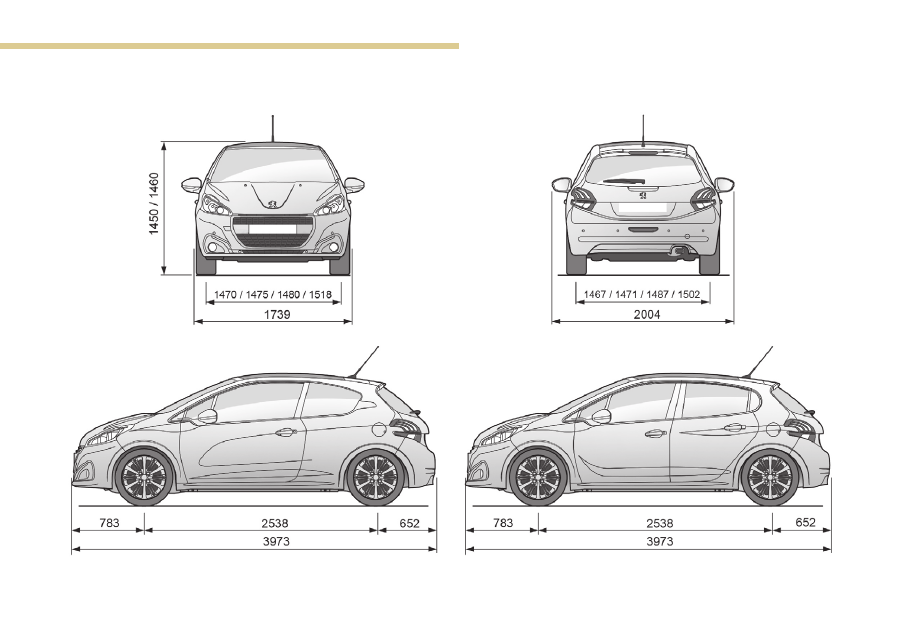
Dimensions (in mm)

These dimensions have been measured on an unladen vehicle.

3-door

5-door

192

Technical data

Commercial version

Number of seats: 2 people.
Effective boot volume: 1.062 m

3

Effective floor length: 1.335 m.
Effective width for wheel arches: 1.042 m.
Effective width in the centre: 1.061 m.
Effective height in the centre: 0.857 m.

Identification markings

Different visible markings for the identification 
and localisation of your vehicle.

A.

Vehicle Identification Number (VIN) 
under the bonnet.
This number is engraved on the bodywork 
near the suspension damper mounting.

B.

Vehicle identification number (VIN), on 
the dashboard.
This number is recorded on a label, visible 
through the windscreen.

3-door

5-door

C.

Manufacturer's label.
This tamper proof label is affixed to the 
front pillar, driver’s side.

193

9

Technical data

It bears the following information:
-  the name of the manufacturer,
-  the European Whole Vehicle Type Approval 

number,

-  the vehicle identification number (VIN),
-  the maximum authorised vehicle weight (the 

Gross Vehicle Weight or GVW),

-  the maximum authorised vehicle + trailer 

weight (the Gross Train Weight or GTW),

-  the maximum weight on the front axle,
-  the maximum weight on the rear axle.

D.

Tyre/paint label.

This label is affixed to the centre pillar on the 
driver’s side.
It bears the following information on the tyres:
-  the tyre inflation pressures with and without 

load,

-  the tyre specification, made up of the 

dimensions and type as well as the load and 
speed indices,

-  the spare tyre pressure.
It also indicates the paint colour code.

The vehicle may be originally equipped 
with tyres with higher load and speed 
indices than those indicated on the label, 
without affecting inflation pressure.

Checking tyre pressures
The tyre pressures should be checked when 
cold at least monthly.
The pressures given on the label are valid for 
cold tyres. If you have driven for more than 
10 minutes or more than 6 miles (10 kilometres) 
at more than 30 mph (50 km/h), the tyres will be 
warm; in this case 0.3 bar (30 kPa) should be 
added to the pressures given on the label.

Never reduce the pressure of a warm tyre.

Low tyre pressures increase fuel 
consumption.

1

.

PEUGEOT Connect Nav

PEUGEOT Connect Nav

GPS satellite navigation – 
Applications – Multimedia 
audio system – Bluetooth

®


telephone

Contents

First steps 

2

Steering mounted controls 

3

Menus 4
Voice commands 

5

Navigation 11
Connected navigation 

15

Applications 18
Radio 23
DAB radio (Digital Audio Broadcasting) 

25

Media 26
Telephone 28
Configuration 33
Frequently asked questions 

37

The different functions and settings 
described vary according to the version 
and configuration of your vehicle.

As a safety measure and because it 
requires sustained attention by the 
driver, the pairing of a Bluetooth mobile 
telephone with the Bluetooth hands-free 
system of your audio system must be 
done with the vehicle stationary and the 
ignition on.

The system is protected in such a way that 
it will only operate in your vehicle.
The display of the Energy Economy 
Mode
 message signals that a change to 
standby is imminent.

The link below gives access to OSS (Open 
Source Software) codes for the system.
https://www.groupe-psa.com/fr/oss/
https://www.groupe-psa.com/en/oss/

2

12:13

18,5

21,5

23 °C

PEUGEOT Connect Nav

First steps

With the engine running, a press 
mutes the sound.
With the ignition off, a press turns 
the system on.

Adjustment of the volume.

Use the buttons either side of or below the 
touch screen for access to the menus, then 
press the virtual buttons in the touch screen.

Depending on the model, use the "Source" or 
"Menu" buttons either side of the touch screen 
for access to the menus, then press the virtual 
buttons in the touch screen.

You can display the menu at any time by 
pressing the screen briefly with three fingers.

All of the touch areas of the screen are white.
Press the cross to go back a level.
Press "OK" to confirm.

The touch screen is of the "capacitive" 
type.
To clean the screen, use a soft, non-
abrasive cloth (spectacles cloth) with no 
additional product.
Do not use sharp objects on the screen.
Do not touch the screen with wet hands.

*  Depending on equipment. 

Certain information is displayed permanently in 
the upper band of the touch screen:
-  Repeat of the air conditioning information 

(depending on version), and direct access to 
the corresponding menu.

-  Go directly to the selection of the audio 

source, to the list of radio stations (or list of 
titles depending on the source).

-  Go to the message notifications, emails, 

map updates and, depending on the 
services, the navigation notifications.

-  Go to the settings for the touch screen and 

the digital instrument panel.

Selecting the audio source (depending on 
version):
-  FM / DAB radio stations* / AM*.
-  USB key.
-  CD player (depending on model).
-  Media player connected via the auxiliary 

socket (depending on model).

-  Telephone connected via Bluetooth 

and Bluetooth multimedia broadcast* 
(streaming).

3

.

PEUGEOT Connect Nav

In the "Settings" menu you can create 
a profile for just one person or a group 
of people with common points, with the 
possibility of entering a multitude of 
settings (radio presets, audio settings, 
navigation history, contact favourites, 
etc.); these settings are taken into account 
automatically.

In very hot conditions, the volume may 
be limited to protect the system. It may go 
into standby (screen and sound off) for at 
least 5 minutes
The return to normal takes place when 
the temperature in the passenger 
compartment has dropped.

Steering mounted controls

Depending on model.

Voice commands:
This control is located on the 
steering wheel or at the end of the 
lighting control stalk (depending on 
model).
Short press, system voice 
commands.
Long press, smartphone voice 
commands via the system.

 or 

Increase volume.

 or 

Mute / Restore the sound.
Or
Mute by pressing the volume 
increase and decrease buttons 
simultaneously.
Restore the sound by pressing one 
of the two volume buttons.

 or 

Decrease volume.

 or 

Media (short press): change the 
multimedia source.
Telephone (short press): start 
telephone call.
Call in progress (short press): 
access telephone menu.
Telephone (long press): reject an 
incoming call, end call; when no call 
is in progress, access telephone 
menu.

 or 

Radio (rotate): automatic search for 
the previous / next station.
Media (rotate): previous / next track, 
move in a list.
Short press: confirm a selection; if 
nothing selected, access to presets.

Radio: display the list of stations.
Media: display the list of tracks.
Radio (press and hold): update the 
list of stations received.

4

FM/87.5 MHz

87.5MHz

12:13

18,5

21,5

23 °C

12:13

18,5

21,5

23 °C

12:13

18,5

21,5

23 °C

21,5

18,5

12:13

23 °C

PEUGEOT Connect Nav

Menus

Depending on model / Depending on version

Air conditioning

Manage the different temperature 
and air flow settings.

Connected navigation

 or 

Enter navigation settings and 
choose a destination.
Use services available in real time, 
depending on equipment.

Applications

 or 

Operate certain applications on 
a smartphone connected via 
CarPlay

®

, MirrorLink

TM

 or Android 

Auto.
Check the state of the Bluetooth

®


and Wi-Fi connections.

Radio Media

 or 

Select an audio source, a radio 
station, display photographs.

5

.

12:13

18,5

21,5

23 °C

12:13

18,5

21,5

23 °C

12:13

18,5

21,5

23 °C

PEUGEOT Connect Nav

Telephone

 or 

Connect a telephone via Bluetooth

®

read messages and emails and send 
quick messages.

Configuration

 or 

Configure a personal profile and/
or configure the sound (balance, 
ambience, etc.) and the display 
(language, units, date, time, etc.).

Vehicle

 or 

Activate, deactivate or configure 
certain vehicle functions.

Voice commands

Steering mounted controls

Pressing this button activates the 
voice commands function.

To ensure that voice commands are 
always recognised by the system, please 
observe the following recommendations:
-  speak in a normal tone without 

breaking up words or raising your 
voice.

-  always wait for the "beep" (audible 

signal) before speaking.

-  for best operation, it is recommended 

that the windows and sunroof 
be closed to avoid extraneous 
interference (according to version).

-  before making a voice command, ask 

other passengers not to speak.

6

PEUGEOT Connect Nav

First steps

Example of a "voice command" for 
navigation:
"Navigate to address, 11 Regent 
Street, London"
.
Example of a "voice command" for 
the radio and media:
"Play artist" "Madonna".
Example of a "voice command" for 
the telephone:
"Call David Miller".

The voice commands, with a choice of 
12 languages (English, French, Italian, 
Spanish, German, Dutch, Portuguese, 
Polish, Turkish, Russian, Arabic, 
Brazilian), are made using the language 
previously chosen and set in the system.
For some voice commands, there are 
alternative synonyms.
Example: Guide to / Navigate to / Go to /...
The voice commands in Arabic for 
"Navigate to address" and "Display POI in 
the city" are not available.

Information – Using the 
system

Press the Push To Talk voice 
control button and tell me 
what you'd like after the tone. 
Remember you can interrupt 
me at any time by pressing this 
button. If you press it again 
while I'm waiting for you to 
speak, it'll end the conversation. 
If you need to start over, say 
"cancel". If you want to undo 
something, say "undo". And to 
get information and tips at any 
time, just say "help". If you ask 
to me do something and there's 
some information missing 
that I need, I'll give you some 
examples or take you through 
it step by step. There's more 
information available in "novice" 
mode. You can set the dialogue 
mode to "expert" when you feel 
comfortable. 

Global voice commands

These commands can be made from any 
screen page after pressing the "Voice 
command" or "Telephone" button located 
on the steering wheel, as long as there is 
no telephone call in progress.

7

.

PEUGEOT Connect Nav

"Navigation" voice 
commands

These commands can be made from any 
screen page after pressing the "Voice 
command" or "Telephone" button located 
on the steering wheel, as long as there is 
no telephone call in progress.

Voice commands

Help messages

Help

There are lots of topics I can help you with. 
You can say: "help with phone", "help with 
navigation", "help with media" or "help with 
radio". For an overview on how to use voice 
controls, you can say "help with voice controls". 

Voice command help

Navigation help

Radio help

Media help

Telephone help

Set dialogue mode as <...> 

Choose "beginner" or "expert" mode.

Select profile <...>

Select profile 1, 2 or 3.

Yes

Say "yes" if I got that right. Otherwise, say "no" 
and we'll start that again. 

No

8

PEUGEOT Connect Nav

Voice commands

Help messages

Navigate home

To start guidance or add a stopover, say 
"navigate to" and then the address or contact 
name. For example, "navigate to address 11 
Regent Street, London", or "navigate to contact, 
John Miller". You can specify if it's a preferred 
or recent destination. For example, "navigate 
to preferred address, Tennis club", "navigate to 
recent destination, 11 Regent Street, London". 
Otherwise, just say, "navigate home". To see 
points of interest on a map, you can say things 
like "show hotels in Banbury" or "show nearby 
petrol station". For more information you can 
ask for "help with route guidance". 

Navigate to work

Navigate to preferred address <...>

Navigate to contact <…>

Navigate to address <...>

Show nearby POI <...>

Remaining distance

 To get information about your current route, 
you can say "tell me the remaining time", 
"distance" or "arrival time". Try saying "help 
with navigation" to learn more commands. 

Remaining time

Arrival time

Stop route guidance

Depending on the country, give the 
destination instructions (address) in the 
language used by the system.

"Radio Media" voice 
commands

These commands can be made from any 
screen page after pressing the "Voice 
command" or "Telephone" button located 
on the steering wheel, as long as there is 
no telephone call in progress.

9

.

PEUGEOT Connect Nav

Voice commands

Help messages

Tune to channel <…>

You can pick a radio station by saying "tune 
to" and the station name or frequency. For 
example "tune to channel Talksport" or "tune to 
98.5 FM". To listen to a preset radio station, say 
"tune to preset number". For example "tune to 
preset number five". 

What's playing

To display the details of the current "track", 
"artist" and "album", you can say "What's 
playing".

Play song <...>

Use the command "play" or "listen to" to select 
the type of music you'd like to hear. You can 
pick by "song", "artist", or "album". Just say 
something like "play artist, Madonna", "play 
song, Hey Jude", or "play album, Thriller". 

Play artist <...>

Play album <...>

Media voice commands are available only 
for a USB connection.

"Telephone" voice 
commands

If a telephone is connected to the system, 
these voice commands can be issued 
from any main screen page after pressing 
the "Telephone" button on the steering 
wheel, as long as there is no telephone 
call in progress.
If there is no telephone connected by 
Bluetooth, a voice message announces: 
"Please first connect a telephone" and the 
voice session will be closed.

10

PEUGEOT Connect Nav

Voice commands

Help messages

Call contact <...>*

To make a phone call, say "call" followed by 
the contact name, for example: "Call David 
Miller". You can also include the phone type, 
for example: "Call David Miller at home". To 
make a call by number, say "dial" followed 
by the phone number, for example, "Dial 
107776 835 417". You can check your voicemail 
by saying "call voicemail". To send a text, 
say "send quick message to", followed by 
the contact, and then the name of the quick 
message you'd like to send. For example, "send 
quick message to David Miller, I'll be late". To 
display the list of calls, say "display calls". For 
more information on SMS, you can say "help 
with texting". 

Dial <...>*

Display contacts*

Display calls*

Call (message box | voicemail)*

"Text message" voice 
commands

*  This function is available only if the 

telephone connected to the system supports 
downloading of contacts and recent calls and 
if the download has been done.

If a telephone is connected to the system, 
these voice commands can be issued 
from any main screen page after pressing 
the "Telephone" button on the steering 
wheel, as long as there is no telephone 
call in progress.
If there is no telephone connected by 
Bluetooth, a voice message announces: 
"Please first connect a telephone" and the 
voice session will be closed.

11

.

PEUGEOT Connect Nav

Voice commands

Help messages

Send text to <...> 

To hear your messages, you can say "listen to 
most recent message". When you want to send 
a text, there's a set of quick messages ready 
for you to use. Just use the quick message 
name and say something like "send quick 
message to Bill Carter, I'll be late". Check the 
phone menu for the names of the supported 
messages. 
Please say "call" or "send quick message to", 
and then select a line from the list. To move 
around a list shown on the display, you can 
say "go to start", "go to end", "next page" or 
"previous page". To undo your selection, say 
"undo". To cancel the current action and start 
again, say "cancel". 

Listen to most recent message*

The system only sends pre-recorded 
"Quick messages".

Navigation

Choice of destination

To a new destination

 or 

Press Navigation to display the 
primary page.

Press the "MENU" button to go to the 
secondary page.

Select "Enter address".

Select the "Country".

Enter the "City", the "Street
and the "Number" and confirm 
by pressing on the suggestions 
displayed.

*  This function is available only if the 

telephone connected to the system supports 
downloading of contacts and recent calls and 
if the download has been done.

12

PEUGEOT Connect Nav

Press "OK" to select the "Guidance 
criteria
".

And / Or

Select "See on map" to select the 
"Guidance criteria".

Press "OK" to start navigation.

Zoom out / zoom in using the touch 
buttons or with two fingers on the screen.

In order to be able to use the navigation, 
it is necessary to fill in the "City", the 
"Street" and the "Number" on the 
virtual keyboard or take it from the 
list in "Contact" or in the "History" of 
addresses.

Without confirmation of the street number, 
you will be guided to one end of the street.

To a recent destination

 or 

Press Navigation to display the 
primary page.

Press the "MENU" button to go to the 
secondary page.

Select "My destinations".

Select the "Recent" tab.

Select the address chosen in the list to display 
the "Guidance criteria".

Press "OK" to start navigation.

Select "Position" to visualise the arrival 
point geographically.

To "My home" or "My work"

 or 

Press Navigation to display the 
primary page.

Press the "MENU" button to go to the 
secondary page.

Select "My destinations".

Select the "Preferred" tab.

Select "My home".

Or

Select "My work".

Or

Select a preset favourite destination.


Content   ..  11  12  13  14   ..