Lexus NX450H+ (2024 year). Manual in english - page 11
 

  Index      Manuals     Lexus NX450H+ (2024 year). Manual in english


Search            copyright infringement  


Content      ..     9      10      11      12     ..


Lexus NX450H+ (2024 year). Manual in english - page 11


 Related Links 

Customizable features(P. 783)

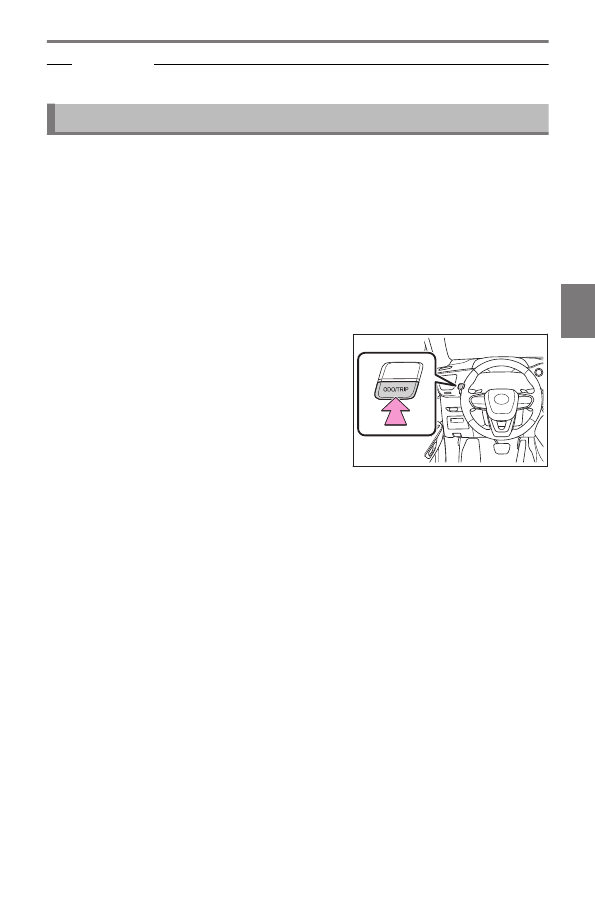
Changing the distance driven display/resetting the distance driven

The display can be changed between the following items.

Odometer

Displays the total distance the vehicle has been driven.

Trip meter A/trip meter B

Displays the distance the vehicle has been driven since the meter was last reset. Trip
meters A and B can be used to record and display different distances independently.

Distance until next engine oil change

Displays the distance the vehicle can be driven until an oil change is necessary.

Each time the switch is pressed, the displayed
item will be changed.
When the trip meter is displayed, pressing and
holding the switch will reset the trip meter.

5-1. Functions and displays of the meter

343

5

Vehicle st

at

us information and indicator

s

Gauges and meters (F SPORT models)

Depending on the shift position or current drive mode, the meter displays or
position of some gauges will change.

▶ 

Ring display state

A

SOC (State of Charge) gauge

Displays the amount of charge remaining in the traction battery.
When the gauge is in the green zone, EV driving is possible. When the gauge is in the
blue zone, EV driving is no longer possible (in this situation, the vehicle switches to HV
mode). Charge the hybrid battery (traction battery) to allow EV driving.

B

Clock

Automatically adjusts the time by using the GPS time information (GPS clock). For
details, refer to "MULTIMEDIA OWNER'S MANUAL".

C

Navigation system estimated time of arrival display

Displays the estimated time of arrival according to the navigation system.

D

Tachometer

Displays the engine speed in revolutions per minute

Rev indicator

Rev peak

Hybrid System Indicator
Displays hybrid system output or regeneration level.
Analog speedometer
Depending on the selected drive mode or certain settings, the display will change.

E

Shift position/shift range

F

Digital speedometer

5-1. Functions and displays of the meter

344

G

Outside temperature

Displays the ambient temperature within the range of -40°F (-40°C) to 140°F
(60°C).

H

Fuel gauge

Displays the quantity of fuel remaining in the tank.

I

Odometer and trip meter display

J

Multi-information display

Presents the driver with a variety of vehicle data and displays warning messages if a
malfunction occurs.

K

Background color of driving mode

Background color changes according to the driving mode.

L

EV driving range

Displays the EV driving range with charge remaining in the hybrid battery (traction
battery).

M

Distance to empty

Displays the driving range with remaining fuel.

▶ 

Bar display state

A

SOC (State of Charge) gauge

Displays the amount of charge remaining in the traction battery.
When the gauge is in the green zone, EV driving is possible. When the gauge is in the
blue zone, EV driving is no longer possible (in this situation, the vehicle switches to HV
mode). Charge the hybrid battery (traction battery) to allow EV driving.

B

Clock

Automatically adjusts the time by using the GPS time information (GPS clock). For
details, refer to "MULTIMEDIA OWNER'S MANUAL".

5-1. Functions and displays of the meter

345

5

Vehicle st

at

us information and indicator

s

C

Navigation system estimated time of arrival display

Displays the estimated time of arrival according to the navigation system.

D

Tachometer

Displays the engine speed in revolutions per minute

Rev indicator

Rev peak

Hybrid System Indicator
Displays hybrid system output or regeneration level.
Depending on the selected drive mode or certain settings, the display will change.

E

Shift position/shift range/digital speedometer

F

Outside temperature

Displays the outside temperature within the range of -40°F (-40°C) to 140°F (60°C).

G

Fuel gauge

Displays the quantity of fuel remaining in the tank.

H

Odometer and trip meter display

I

Multi-information display

Presents the driver with a variety of vehicle data and displays warning messages if a
malfunction occurs .

J

Background color of driving mode

Background color changes according to the driving mode.

K

EV driving range

Displays the EV driving range with charge remaining in the hybrid battery (traction
battery).

L

Distance to empty

Displays the driving range with remaining fuel.

INFORMATION

The meters and display illuminate when

The power switch is in ON.

Engine speed

On hybrid electric vehicles, engine speed is precisely controlled in order to help improve
fuel efficiency and reduce exhaust emissions etc.
There are times when the engine speed that is displayed may differ even when vehicle
operation and driving conditions are the same.

5-1. Functions and displays of the meter

346

Outside temperature display

In the following situations, the correct outside temperature may not be displayed, or
the display may take longer than normal to change:

When stopped, or driving at low speeds (less than 16 mph [25 km/h])

When the outside temperature has changed suddenly (at the entrance/exit of a
garage, tunnel, etc.)

When "--" or "E" is displayed, the system may be malfunctioning.
Take your vehicle to your Lexus dealer.

EV driving range

When the air conditioning system is operating, 

 is displayed next to the

EV driving range and the EV driving range with the air conditioning system on is
displayed.

The EV driving range may shorten even when not driving due to power consumption
by the system.

Distance to empty

This distance is computed based on your average fuel consumption. As a result, the
actual distance that can be driven may differ from that displayed.

When only a small amount of fuel is added to the tank, the display may not be updated.
When refueling, turn the power switch off. If the vehicle is refueled without turning the
power switch off, the display may not be updated.

Liquid crystal display

Small spots or light spots may appear on the display.
This phenomenon is characteristic of liquid crystal displays, and there is no problem
continuing to use the display.

Free/Open Source Software Information

This product contains Free/Open Source Software (FOSS). The license information
and/or the source code of such FOSS can be found at the following URL.

https://www.denso.com/global/en/opensource/meter/toyota/

WARNING

Allow the interior of the vehicle to warm up before using the liquid crystal information
display. At extremely low temperatures, the information display monitor may respond
slowly, and display changes may be delayed.
For example, there is a lag between the driver’s shifting and the new gear number
appearing on the display. This lag could cause the driver to downshift again, causing rapid
and excessive engine braking and possibly an accident resulting in death or injury.

5-1. Functions and displays of the meter

347

5

Vehicle st

at

us information and indicator

s

NOTICE

To prevent the engine or components from being damaged, observe the following
precautions.

Do not let the indicator needle of the tachometer enter the red zone, which indicates
the maximum engine speed.

The engine may be overheating if "Engine Coolant Temp High Stop in a Safe Place
See Owner's Manual" is shown on the multi-information display. In this case, imme-
diately stop the vehicle in a safe place, and check the engine after it has cooled
completely.

 Related Links 

Hybrid system indicator(P. 341)
Changing between the tachometer/hybrid system indicator/speedometer displays(P.
341)
Changing the distance driven display/resetting the distance driven(P. 343)
Customizable features(P. 783)

Rev indicator/Rev peak display

Rev indicator

When the engine speed reaches a set speed or the red zone, the tachometer will
be highlighted.

The indicators will be displayed in amber when the engine speed reaches a set speed, and
in red when the engine speed reaches the red zone.

The engine speed at which the Rev indicator is displayed can be changed on the
center display.

Rev peak

When the engine speed reaches or exceeds 4000 rpm, an afterimage of the
tachometer will be displayed at the highest engine speed for approximately 1
second.

 Related Links 

Customizable features(P. 783)

5-1. Functions and displays of the meter

348

Functions of the displays

Multi-information display (vehicles without a head-up display)

A variety of driving-related information can be displayed. Depending on the
situation, warning or advice pop-up displays will also be displayed.

Display area


A

Content display area

B

Driving support system information display
area

When a menu icon other than 

 is se-

lected, if the driving support system operates,
the system operating state will be displayed.

Items displayed in the content display area

By selecting menu icons on the multi-information display, the following items can
be displayed.

Driving information display

Navigation system-linked display

Audio system-linked display

Driving support system information display

Warning message

INFORMATION

Liquid crystal display

Small spots or light spots may appear on the display. This phenomenon is characteristic of
liquid crystal displays, and there is no problem continuing to use the display.

5-2. Functions of the displays

349

5

Vehicle st

at

us information and indicator

s

WARNING

Caution for use while driving

When operating the multi-information display while driving, pay extra attention to the
safety of the area around the vehicle.

Do not look continuously at the multi-information display while driving as you may fail
to see pedestrians, objects on the road, etc. ahead of the vehicle.

The information display at low temperatures

Allow the interior of the vehicle to warm up before using the liquid crystal information
display. At extremely low temperatures, the information display monitor may respond
slowly, and display changes may be delayed.
For example, there is a lag between the driver’s shifting and the new gear number
appearing on the display. This lag could cause the driver to downshift again, causing rapid
and excessive engine braking and possibly an accident resulting in death or injury.

Cautions during setting up the display

As the hybrid system needs to be operating during setting up the display, ensure that
the vehicle is parked in a place with adequate ventilation. In a closed area such as a
garage, exhaust gases including harmful carbon monoxide (CO) may collect and enter
the vehicle. This may lead to death or a serious health hazard.

NOTICE

To prevent 12-volt battery discharge, ensure that the hybrid system is operating while
setting up the display features.

 Related Links 

Displayed content(P. 356)
Changing the instrument panel light brightness(P. 369)

5-2. Functions of the displays

350

Multi-information display (vehicles with a head-up display)

A variety of driving-related information can be displayed. Depending on the
situation, warning or advice pop-up displays will also be displayed.

Display area


A

Driving support system information display
area

When driving support system information is not
displayed in the content display area, if the driv-
ing support system operates, the system operat-
ing state will be displayed.

B

Navigation system-linked display area

If the navigation system linked-display is not dis-
played in the content display area, route guid-
ance will be displayed.

C

Content display area

Items displayed in the content display area

The following items can be displayed.

Drive information 1

Drive information 2

Energy monitor/EV driving ratio

Audio system-linked display

Navigation system-linked display

*1

G-force

Driving support system information display

*1

Blank (No items)

INFORMATION

Liquid crystal display

Small spots or light spots may appear on the display. This phenomenon is characteristic of
liquid crystal displays, and there is no problem continuing to use the display.

*1 : 

Displayed on the head-up display when the display mode is set to display the maxi-

mum.

5-2. Functions of the displays

351

5

Vehicle st

at

us information and indicator

s

WARNING

Caution for use while driving

When operating the multi-information display while driving, pay extra attention to the
safety of the area around the vehicle.

Do not look continuously at the multi-information display while driving as you may fail
to see pedestrians, objects on the road, etc. ahead of the vehicle.

The information display at low temperatures

Allow the interior of the vehicle to warm up before using the liquid crystal information
display. At extremely low temperatures, the information display monitor may respond
slowly, and display changes may be delayed.
For example, there is a lag between the driver’s shifting and the new gear number
appearing on the display. This lag could cause the driver to downshift again, causing rapid
and excessive engine braking and possibly an accident resulting in death or injury.

Cautions during setting up the display

As the hybrid system needs to be operating during setting up the display, ensure that
the vehicle is parked in a place with adequate ventilation. In a closed area such as a
garage, exhaust gases including harmful carbon monoxide (CO) may collect and enter
the vehicle. This may lead to death or a serious health hazard.

NOTICE

To prevent 12-volt battery discharge, ensure that the hybrid system is operating while
setting up the display features.

 Related Links 

Displayed content(P. 356)
Changing the instrument panel light brightness(P. 369)

5-2. Functions of the displays

352

Head-up display

*

The head-up display projects a variety of driving-related information and the
operating state of the driving support systems on the windshield.
The content displayed will differ according to the driving conditions and display
mode of the head-up display. Depending on the situation, pop-up displays will also
be displayed.

A

Main display area

Displays the following items:

Driving support system information display

Hybrid System Indicator/tachometer

Compass

Speed limit of the current road (linked to the navigation system) (U.S.A. only)

B

Driving information display area

Displays the following items:

Speedometer

Shift position/shift range

C

 : Master warning icon

Displayed when a warning message is displayed.

INFORMATION

Head-up display will operate when

The power switch is in ON.

* : 

If equipped

5-2. Functions of the displays

353

5

Vehicle st

at

us information and indicator

s

When using the head-up display

The head-up display may seem dark or hard to see when viewed through sunglasses,
especially polarized sunglasses. Adjust the brightness of the head-up display or remove
your sunglasses.

The tachometer/hybrid system indicator is displayed when

When the following conditions are met, the tachometer or hybrid system indicator will be
displayed on the head-up display.

The head-up display is set to display the maximum. (

 P.784

)

LTA (Lane Tracing Assist) is disabled. (

 P.408

)

LDA (Lane Departure Alert) is disabled. (

 P.793

)

The cruise control, selected by pressing the driving assist mode select switch, is
canceled. (

 P.445,447

)

WARNING

Do not continuously look at the head-up display while driving as you may fail to see
pedestrians, objects on the road, etc. ahead of the vehicle.

NOTICE

Observe the following precautions.

Do not place any drinks near the head-up display
projector. If the projector gets wet, electrical mal-
functions may result.

Do not place anything on or put stickers onto the head-up display projector.
Doing so could interrupt head-up display indications.

Do not touch the inside of the head-up display projector or thrust sharp edges or the
like into the projector.
Doing so could cause mechanical malfunctions.

 Related Links 

Hybrid system indicator(P. 341)
Changing between the tachometer/hybrid system indicator/speedometer displays(P.
341)
Displayed content(P. 356)

5-2. Functions of the displays

354

Changing settings for the head-up display(P. 370)
Customizable features(P. 783)

5-2. Functions of the displays

355

5

Vehicle st

at

us information and indicator

s

Displayed content

Operating the meters/displays


▶ 

Vehicles without a head-up display

A

 /

 : Select menu icons

 /

 : Change displayed content, scroll

up/down the screen and move the cursor
up/down

B

Enter/Set

C

Return to the previous screen

D

Start/receive call

Linked with the hands-free system, sending or
receiving call is displayed. For details regarding
the hands-free system, refer to the "MULTIME-
DIA OWNER'S MANUAL".

▶ 

Vehicles with a head-up display

A

The function of each switch differs depending on the conditions and settings.

When a switch is touched, the function of each switch is displayed. If the head-up
display is off, check functions on the multi-information display.
Also, preferred functions for each switch can be set on the center display.

B

Each time this switch is pressed, the functions will change.

C

Switch icon display

The icon of each switch will be displayed. The touched switch will be highlighted. (

 )

D

Switch function guide display

5-2. Functions of the displays

356

The function guide for the touched switch will be displayed.

INFORMATION

If the steering wheel switches do not respond when touched

It is easier to make the steering wheel switches respond by moving your thumb while
touching them.

If the surface of a steering wheel switch is dirty, turn the power switch off and then
clean the switches.

By turning winter glove mode on, the sensitivity of the switch sensors can be increased.

 Related Links 

Customizable features(P. 783)

Switching the display of the multi-information display (vehicles without a
head-up display)

Press 

 or 

 of the meter control switch.

Switching driving information (vehicles without a head-up display)

Press the 

 or 

 meter control switch to select 

 . Then press 

 or 

 .

Switching the display of the multi-information display (vehicles with a head-
up display)

INFORMATION

Switching with the steering wheel switches

If 

 /

 is set as a favorite steering wheel switch function, the display can be

switched by pushing 

 or 

 .

1

Select 

 on the center display.

2

Select [Vehicle customize].

3

Select [Meter].

4

Select 

 or 

 of "Display switching".

The display changes each time the switch is selected.

Display of drive information

Driving related information is displayed on the following displays.

5-2. Functions of the displays

357

5

Vehicle st

at

us information and indicator

s

Multi-information display

Head-up display

*

Center display

The items displayed will differ depending on the display.

Drive information 1

The following items can be displayed on the multi-information display.
Use the displayed values as a reference only.
The display contents are different in EV mode or AUTO EV/HV mode, and HV
mode.

EV mode or AUTO EV/HV mode

Current electricity consumption

Displays the instantaneous current electricity consumption.

Average electricity consumption

HV mode or hybrid battery (traction battery) charge mode

Current fuel consumption

Displays instantaneous current fuel consumption

Average fuel consumption

INFORMATION

Electricity consumption

When the unit is set to "MPH":
Electricity consumption is the consumption rate of the electricity when EV driving is
performed and equivalent to the fuel consumption for the gasoline vehicles. For this
vehicle, driven distance per kWh of electricity consumed ("miles/kWh") is displayed
as electricity consumption on each screen.

When the unit is set to "km/h":
Electricity consumption is the consumption rate of the electricity when EV driving is
performed and equivalent to the fuel consumption for the gasoline vehicles. For this
vehicle, electricity consumed per 100 km ("kWh/100 km") is displayed as electricity
consumption on each screen.

Drive information 2

The following items can be displayed on the multi-information display.

* : 

If equipped

5-2. Functions of the displays

358

Average vehicle speed

Total driving time

Drive information 3 (vehicles without a head-up display)

The following items can be displayed on the multi-information display.

EV mode or AUTO EV/HV mode

EV driving range

Displays the EV driving range with charge remaining in the hybrid battery (traction
battery).

Distance to empty

Displays the driving range with remaining fuel.

Average electricity consumption since starting

Displays the average electricity consumption since starting.

HV mode or hybrid battery (traction battery) charge mode

EV driving range

Displays the EV driving range with charge remaining in the hybrid battery (traction
battery).

Distance to empty

Displays the driving range with remaining fuel.

Average fuel consumption since starting

Displays the average fuel consumption since starting.

INFORMATION

EV driving range

When the air conditioning system is operating, 

 is displayed next to the

EV driving range and the EV driving range with the air conditioning system on is
displayed.

The EV driving range may shorten even when not driving due to power consumption
by the system.

Distance to empty

This distance is computed based on your average fuel consumption. As a result, the
actual distance that can be driven may differ from that displayed.

When only a small amount of fuel is added to the tank, the display may not be updated.
When refueling, turn the power switch off. If the vehicle is refueled without turning the
power switch off, the display may not be updated.

5-2. Functions of the displays

359

5

Vehicle st

at

us information and indicator

s

Electricity consumption

When the unit is set to "MPH":
Electricity consumption is the consumption rate of the electricity when EV driving is
performed and equivalent to the fuel consumption for the gasoline vehicles. For this
vehicle, driven distance per kWh of electricity consumed ("miles/kWh") is displayed
as electricity consumption on each screen.

When the unit is set to "km/h":
Electricity consumption is the consumption rate of the electricity when EV driving is
performed and equivalent to the fuel consumption for the gasoline vehicles. For this
vehicle, electricity consumed per 100 km ("kWh/100 km") is displayed as electricity
consumption on each screen.

G-force

Displays lateral G-forces on the vehicle on the multi-information display.
Displays around the periphery of the G-force display, the left and right steering
amount, accelerator pedal input, and brake fluid pressure.


A

Acceleration G-force on the vehicle

B

Current G-force value (analyzed value of
front/rear and left/right G-forces)

C

Record of the maximum G-forces

The display is reset each time the hybrid system
is started.

D

Accelerator pedal input

E

Brake fluid pressure

F

Left steering amount

G

Right steering amount

If lateral G-forces of 0.5 G or greater are generated, the G-force value display will
turn amber and be held for 2 seconds. (Peak hold function)
This display is intended for use as a guideline. Depending on factors such as the
road surface condition, temperature and vehicle speed, the display may not show
the actual condition of the vehicle.

INFORMATION

The G-force values may not be zero even when the vehicle is parked, such as when it
is parked on an incline.

Depending on the vehicle usage conditions, the brake fluid pressure display may not
reach its maximum reading even though the brake pedal is fully depressed.

5-2. Functions of the displays

360

If a 12-volt battery terminal is disconnected and reconnected, the steering amount
display may be disabled temporarily. After driving the vehicle for a while, the display
will be enabled.

Energy monitor/EV driving ratio

*

The energy monitor and EV can be displayed on the multi-information display.
The energy monitor screen can be displayed on the center display.

Energy monitor

The energy monitor can be used to check the vehicle drive status, hybrid system
operation status and energy regeneration status.
The arrows will appear in accordance with the energy flow. When there is no
energy flow, arrows will not be displayed.
The color of the arrows will change as follows

Blue: When the hybrid battery (traction battery) is regenerated or charged.

Orange: When the hybrid battery (traction battery) is in use.

Red: When the gasoline engine is in use.


▶ 

Multi-information display

The image shows all the arrows as an example.
The actual display will vary depending on condi-
tions.

A

Gasoline engine

B

Tires

C

Hybrid battery (traction battery)

This illustration is for explanation only and may differ
depending on the specifications of the vehicle.


▶ 

Center display (except when charging)

The image shows all the arrows as an example.
The actual display will vary depending on condi-
tions.

A

Gasoline engine

B

Front electric motor (traction motor)

C

Hybrid battery (traction battery)

D

Rear electric motor (traction motor)

E

Rear tires

* : 

If equipped

5-2. Functions of the displays

361

5

Vehicle st

at

us information and indicator

s

F

Front tires


▶ 

Center display (when charging)

The image shows all the arrows as an example.
The actual display will vary depending on condi-
tions.

A

Gasoline engine

B

Front electric motor (traction motor)

C

Charging connector

D

Rear electric motor (traction motor)

E

Hybrid battery (traction battery)

F

Power outlet (120 VAC)

*

INFORMATION

Color of the hybrid battery (traction battery) on the center display

It will be green when the hybrid battery (traction battery) is being charged, and yellow
when the hybrid battery (traction battery) is being used.

Remaining charge amount warning of hybrid battery (traction battery)

The buzzer sounds intermittently when the hybrid battery (traction battery) remains
without charging while the shift position is in N, or the remaining charge amount drops
below a certain level. If the remaining charge amount drops further, the buzzer sounds
continuously.

When a warning message is shown on the multi-information display and the buzzer
sounds, follow the instructions displayed on the screen to perform troubleshooting.

Color of the gasoline engine on the center display

It will be blue when the engine is warming up, and it will turn to red when the warming up
is finished.

EV driving ratio since starting

*

Displays the percentage of EV driving since starting.
It is reset each time the hybrid system stops.

Displaying Energy monitor screen on the center display

1

Select 

 on the main menu.

2

Select [Energy flow].

5-2. Functions of the displays

362

Blank (No items)

Displays no drive information contents on the multi-information display.

Current fuel consumption/history screen

Fuel consumption information can be displayed on the center display.

Current fuel consumption screen


A

Resetting the history data

B

Fuel consumption in the past 15 minutes

C

Current fuel consumption

D

Average vehicle speed since the hybrid sys-
tem was started.

E

Trip range

F

Elapsed time since the hybrid system was
started.

Use the displayed average fuel consumption as a reference. The image is an
example only, and may vary slightly from actual conditions.

History fuel consumption screen


A

Latest fuel consumption

B

Best recorded fuel consumption

C

Previous fuel consumption record

D

Resetting the history data

E

Updating the latest fuel consumption data

Use the displayed average fuel consumption as a reference. The image is an
example only, and may vary slightly from actual conditions.

INFORMATION

Updating the history data

Update the latest fuel consumption by selecting [Update] to measure the current fuel
consumption again.

Resetting the data

The fuel consumption data can be deleted by selecting [Clear data].

5-2. Functions of the displays

363

5

Vehicle st

at

us information and indicator

s

Trip range

Displays the estimated maximum distance that can be driven with the quantity of fuel
remaining. This distance is computed based on your average fuel consumption. As a
result, the actual distance that can be driven may differ from that displayed.

Displaying fuel consumption/history screen on the center display

1

Select 

 on the main menu.

2

Select [Trip information].

3

Select [Current] or [History].

AWD operation status display

AWD operation status display can be displayed
on the center display.
The illustration used is intended as an example,
and may differ from the image that is actually
displayed on the center display.
Torque distribution display:
Displays the drive status of each wheel in 6 steps
from 0 to 5.

Displaying AWD operation status display on the center display

1

Select 

 on the main menu.

2

Select [All wheel drive].

Tire pressure

The tire pressure detected by the tire pressure warning system can be displayed on
the center display.

INFORMATION

It may take a few minutes to display the tire inflation pressure after the power switch is
turned to ON.
It may also take a few minutes to display the tire inflation pressure after inflation
pressure has been adjusted.

"---" may be displayed if the tire position information cannot be determined due to
unfavorable radio wave conditions.

Tire inflation pressure changes with temperature. The displayed values may also be
different from the values measured using a tire pressure gauge.

5-2. Functions of the displays

364

 Related Links 

Operation of the tire pressure warning system(P. 620)

Displaying the tire pressure on the center display

1

Select 

 on the main menu.

2

Select [Tire pressure].

Driving support system information display

The operating state of the following systems can be displayed on the multi-informa-
tion display or head-up display

*

.

Dynamic radar cruise control

Cruise control

LTA (Lane Tracing Assist)

LDA (Lane Departure Alert)

LCA (Lane Change Assist)

*

RSA (Road Sign Assist)

PCS (Pre-Collision System)

INFORMATION

Display position (vehicles with a head-up display)

When the display mode of the head-up display is set to display the maximum, driving
support system information will be displayed on the head-up display and not in the
content display area of the multi-information display.

Audio system-linked display

The audio system-linked display displays the operating state of the audio system on
the multi-information display.
Operations such as selecting the audio source or track, etc. can be performed.

Navigation system-linked display

The following information is displayed on the multi-information display.

Route guidance to destination

Speed limit of the current road (linked to the navigation system) (U.S.A. only)

Street name

* : 

If equipped

5-2. Functions of the displays

365

5

Vehicle st

at

us information and indicator

s

Compass

INFORMATION

Display position (vehicles with a head-up display)

Depending on the display settings of the head-up display, some content may be displayed
on the head-up display and not in the content display area of the multi-information
display.

Pop-up display information

Pop-up displays will be displayed on the multi-information display or the head-up
display

*

 when necessary.

When a pop-up display is displayed, a current display may no longer be displayed. In this
case, the display will return after the pop-up display disappears.

Driving support systems

Displays a warning/suggestion/advice message or the operating state of a relevant
system.

Dynamic radar cruise control

Cruise control

LTA (Lane Tracing Assist)

LDA (Lane Departure Alert)

LCA (Lane Change Assist)

*

PCS (Pre-Collision System)

RSA (Road Sign Assist)

Safe Exit Assist (with door opening control)

FCTA (Front Cross Traffic Alert)

*

Warning message

Some warning messages are displayed when necessary, according to certain
conditions.

Hands-free system status

Displayed when the hands-free system is operated.

* : 

If equipped

5-2. Functions of the displays

366

Suggestion function

Displays suggestions to the driver in the following situations. To select a response
to a displayed suggestion, use the steering switches.

Suggestion to enable the power back door

If the power back door system is disabled (setting on the center display set to off)
and the power back door switch on the instrument panel is operated, a suggestion
message will be displayed asking if you wish to enable the power back door
system.
To enable the power back door system, select [Yes].
After enabling the power back door system, press the power back door switch
again to open or close the power back door.

 Related Links 

Customizable features(P. 783)

Steering wheel switch operation display

Vehicles without a head-up display

Displayed when an audio remote control switch on the steering wheel is operated.

Vehicles with a head-up display

When a steering wheel switch is touched, the icon of each switch and a function
guide is displayed.

 Related Links 

Operating the meters/displays(P. 356)

Navigation system-linked information

In certain situations, the following items which are linked to the navigation system
will be displayed:

Route guidance to destination

Items displayed when the power switch is turned off

The following items will be displayed on the multi-information display when the
power switch is turned off.

Charging schedule

Average fuel consumption since starting

*1

Distance driven since starting

*1

5-2. Functions of the displays

367

5

Vehicle st

at

us information and indicator

s

Driving time since starting

*1

EV driving ratio since starting

*1

Displays the percentage of EV driving since starting.

*1 : 

It is reset each time the hybrid system stops.

5-2. Functions of the displays

368

Changing the settings of the displays

Changing the instrument panel light brightness

The brightness of the instrument panel lights can be adjusted.

INFORMATION

The instrument panel brightness levels when the tail lights are on and off can be adjusted
individually.
However, when the surroundings are bright (daytime, etc.), turning on the tail lights will
not change the instrument panel brightness.
At this time, any adjustments made to the instrument panel brightness levels will be
applied to both settings at once.


1

Darker

2

Brighter

5-3. Changing the settings of the displays

369

5

Vehicle st

at

us information and indicator

s

Changing settings for the head-up display

*

WARNING

Check that the position and brightness of the head-up display image does not inter-
fere with safe driving.
Incorrect adjustment of the image’s position or brightness may obstruct the driver’s
view and lead to an accident, resulting in death or serious injury.

As the hybrid system needs to be operating while changing the settings of the head-up
display, ensure that the vehicle is parked in a place with adequate ventilation. In a
closed area such as a garage, exhaust gases including harmful carbon monoxide
(CO) may collect and enter the vehicle. This may lead to death or a serious health
hazard.

NOTICE

To prevent 12-volt battery discharge, ensure that the hybrid system is operating while the
changing the settings of the head-up display.

INFORMATION

Changing settings with the steering wheel switches

If any of the following items have been set as a favorite steering wheel switch function,
settings of the head-up display can be changed using the steering wheel switches.

 : Display on/off

 : Display mode

 /

 : Height

 /

 : Brightness

Enabling/disabling of the head-up display

If the head-up display is disabled, it will remain disabled when the power switch is turned
off then back to ON.

Display brightness

In addition to the brightness setting, the brightness of the display will change automatical-
ly according to the ambient brightness.

* : 

If equipped

5-3. Changing the settings of the displays

370

Head-up display automatic position adjustment

If the display position is recorded into memory, the head-up display will be automatically
adjusted to the desired position.

1

Select 

 on the center display.

2

Select [Vehicle customize].

3

Select [Head up display].

The following settings for the head-up display can be changed.

Display on/off

Display mode

Height

Brightness

Angle

 Related Links 

Customizable features(P. 783)

5-3. Changing the settings of the displays

371

5

Vehicle st

at

us information and indicator

s

5-3. Changing the settings of the displays

372

6

Driving support system

6-1. Features of the safe driving sup-

port functions

Driving assist systems............

374

Lexus Safety System + 3

software update ....................

381

Lexus Safety System + 3......

384

6-2. Using the safe driving support

functions

Pre-Collision System .............

393

Lane Tracing Assist................

405

Lane Change Assist................

410

Lane Departure Alert.............

414

Proactive driving assist..........

420

Front Cross Traffic Alert.......

426

Road Sign Assist ......................

429

Dynamic radar cruise con-

trol...............................................

432

Cruise Control .........................

444

Emergency Driving Stop

System......................................

450

Blind Spot Monitor .................

453

Safe Exit Assist .........................

459

Intuitive parking assist ...........

465

Rear Cross Traffic Alert........

477

Rear Camera Detection......

485

Parking Support Brake.........

490

Lexus Teammate Advanced

Park ...........................................

504

Hybrid system output re-

striction when the acceler-
ator pedal and brake

pedal are depressed at the
same time
................................

548

Sudden start restraint con-

trol...............................................

549

6-3. Reducing impact to the occu-

pants in a collision

Reducing impact to passen-

gers in a collision..................

550

Front passenger occupant

classification system .............

561

373

6

Driving suppor

t s

ystem

Features of the safe driving support functions

Driving assist systems

To keep driving safety and performance, the following systems operate automat-
ically in response to various driving situations. Be aware, however, that these
systems are supplementary and should not be relied upon too heavily when
operating the vehicle.

ECB (Electronically Controlled Brake System)

The electronically controlled system generates braking force corresponding to the
brake operation.

ABS (Anti-lock Brake System)

Helps to prevent wheel lock when the brakes are applied suddenly, or if the brakes
are applied while driving on a slippery road surface.

Brake assist

Generates an increased level of braking force after the brake pedal is depressed
when the system detects a panic stop situation.

VSC (Vehicle Stability Control)

Helps the driver to control skidding when swerving suddenly or turning on slippery
road surfaces.

Enhanced VSC (Enhanced Vehicle Stability Control)

Provides cooperative control of the ABS, TRAC, VSC and EPS.
Helps to maintain directional stability when swerving on slippery road surfaces by
controlling steering performance.

Trailer Sway Control

Helps the driver to control trailer sway by selectively applying brake pressure for
individual wheels and reducing driving torque when trailer sway is detected.

TRAC (Traction Control)

Helps to maintain drive power and prevent the drive wheels from spinning when
starting the vehicle or accelerating on slippery roads

Active Cornering Assist (ACA)

Helps to prevent the vehicle from drifting to the outer side by performing inner
wheel brake control when attempting to accelerate while turning.

Hill-start assist control

Helps to reduce the backward movement of the vehicle when starting on an uphill.

6-1. Features of the safe driving support functions

374


Content      ..     9      10      11      12     ..