Harley Davidson 2009 Goldwing GL1800 Navigation Supplement. Manual - page 6
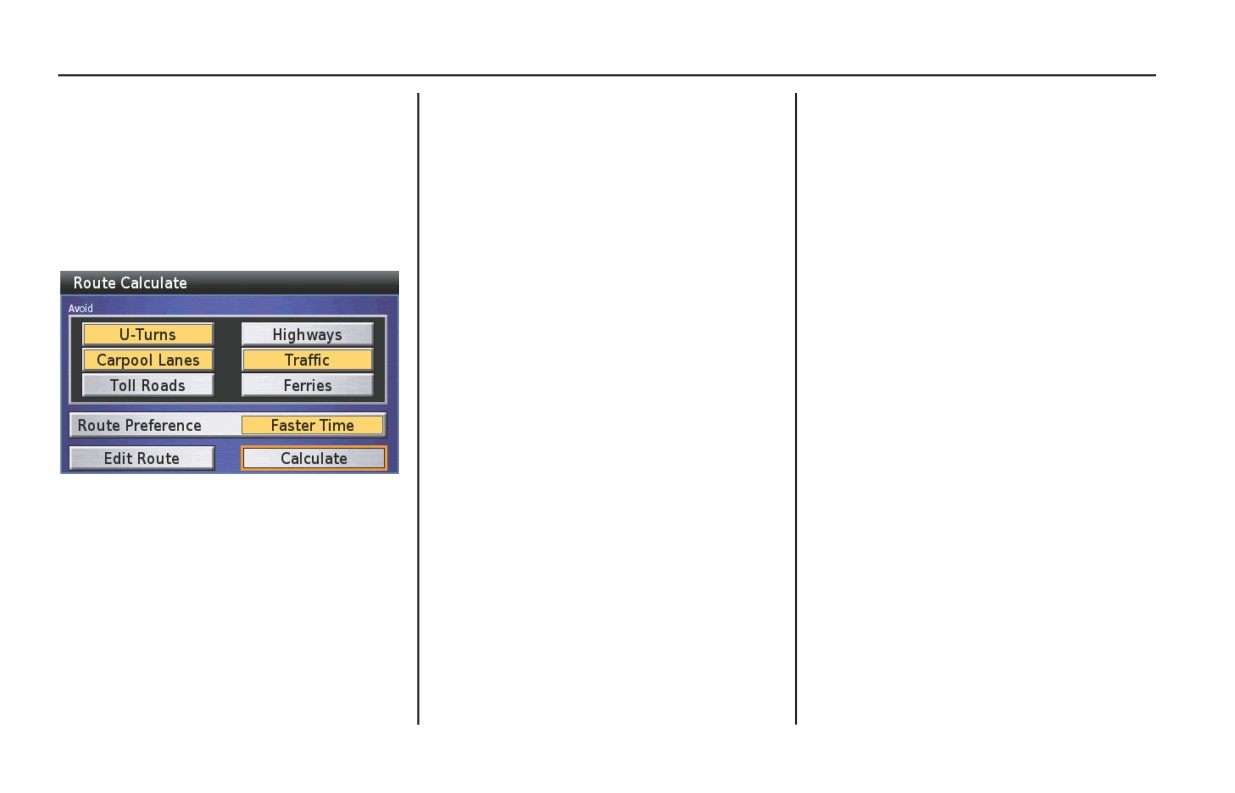
Recalculate Route
The Recalculate Route option lets you
After entering your preferences,
modify your current route to shorten the
highlight Calculate and press ENT.
time or distance, as well as enter up to
The system calculates the route to the
four “avoid” preferences.
destination and starts the voice and route
guidance.
On the Route menu, highlight
Recalculate Route and press ENT.
A Route Calculate Screen appears.
NOTE:
For more information about the Route
Calculate Screen, see page 71.
Route
115
Edit Route
The Edit Route option on the Route
If you have already entered more than
NOTE:
menu lets you edit an existing route in
one destination into the system, the
Selecting “Edit Route” in the Route
the system to add (or delete) one or more
Delete Stop and Sort Stops options
menu initiates the same process as
locations on the way to your destination.
appear.
selecting “Edit Route” on the Route
Calculate screen.
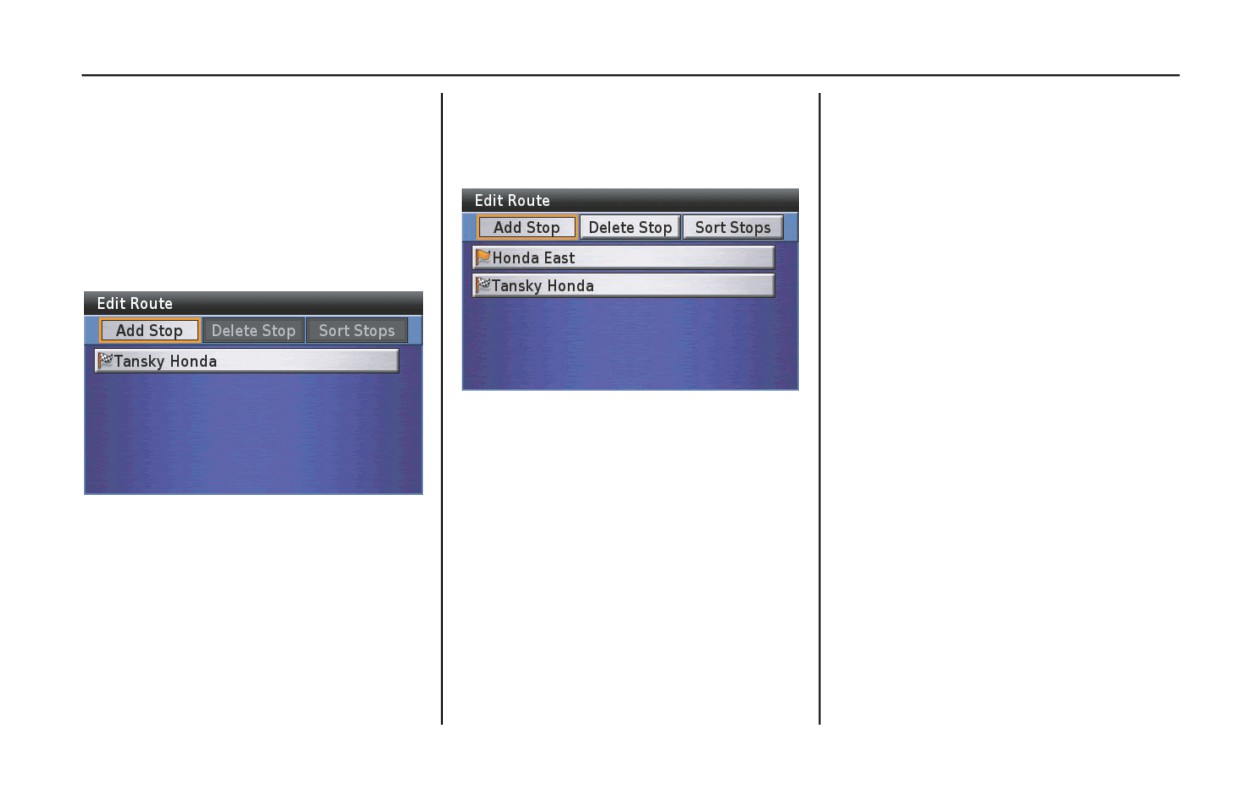
On the Route menu, highlight Edit Route
and press ENT. The Edit Route screen
appears, identifying the destination of
your current route.
116
Route
Edit Route
The following options are available from the Edit Route screen.
Adding a Location as a Via
Add Stop
To add another location to the current route. With Add Stop
highlighted, press ENT to bring up the Add Stop (Find) menu. See
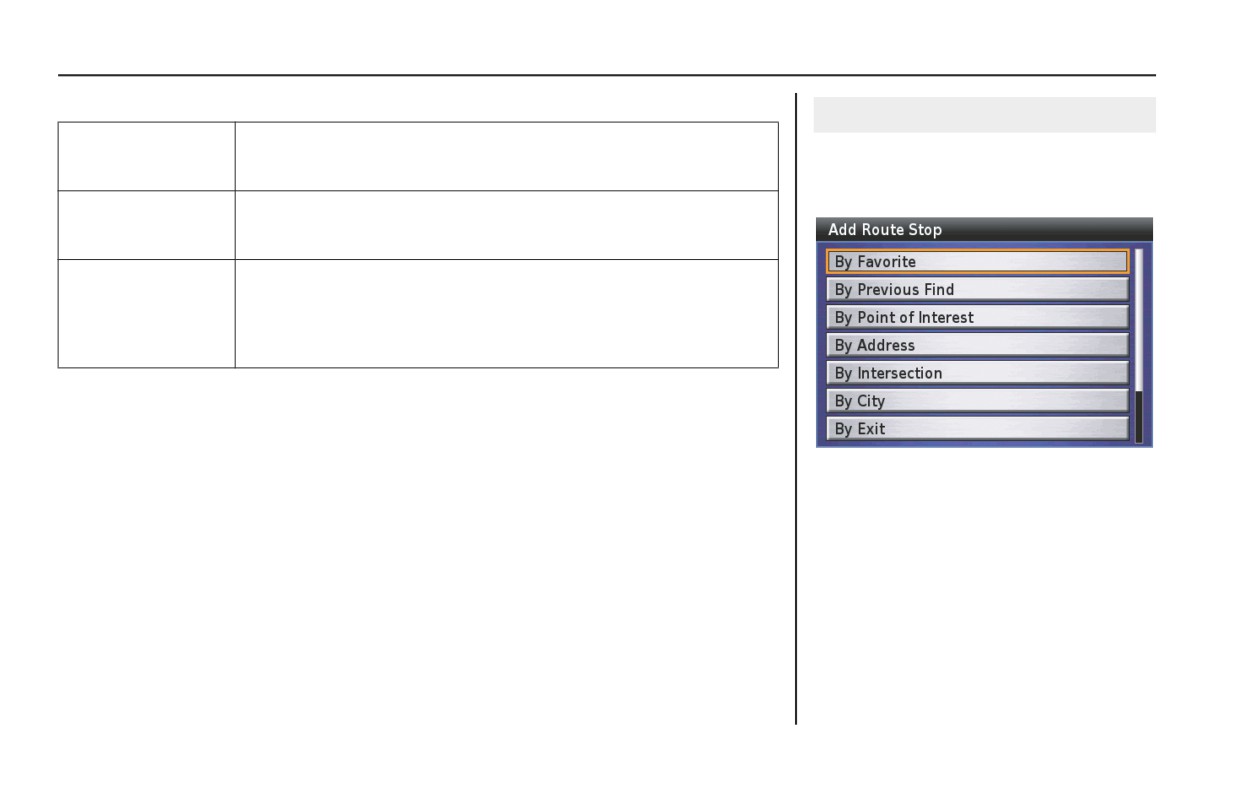
On the Edit Route screen, highlight Add
Adding a Location as a Via on this page.
Stop and press ENT. The following
screen appears.
Delete Stop
To remove a location from the current route. With Delete Stop
highlighted, press ENT. Highlight the item to be deleted and press
ENT. (This option appears after selecting Add Stop.)
Sort Stops
To rearrange the order of the locations on the Edit Route list. This
includes switching a current via with the current destination. To sort,
highlight the item to be repositioned. Press ENT. Use the up and down
directional arrows to move the item up or down the list. (This option
appears after selecting Add Stop.)
The Add Route Stop menu offers the
seven Find menu selections.
(cont’d)
Route
117
Edit Route
See Find Destination on page 81 for
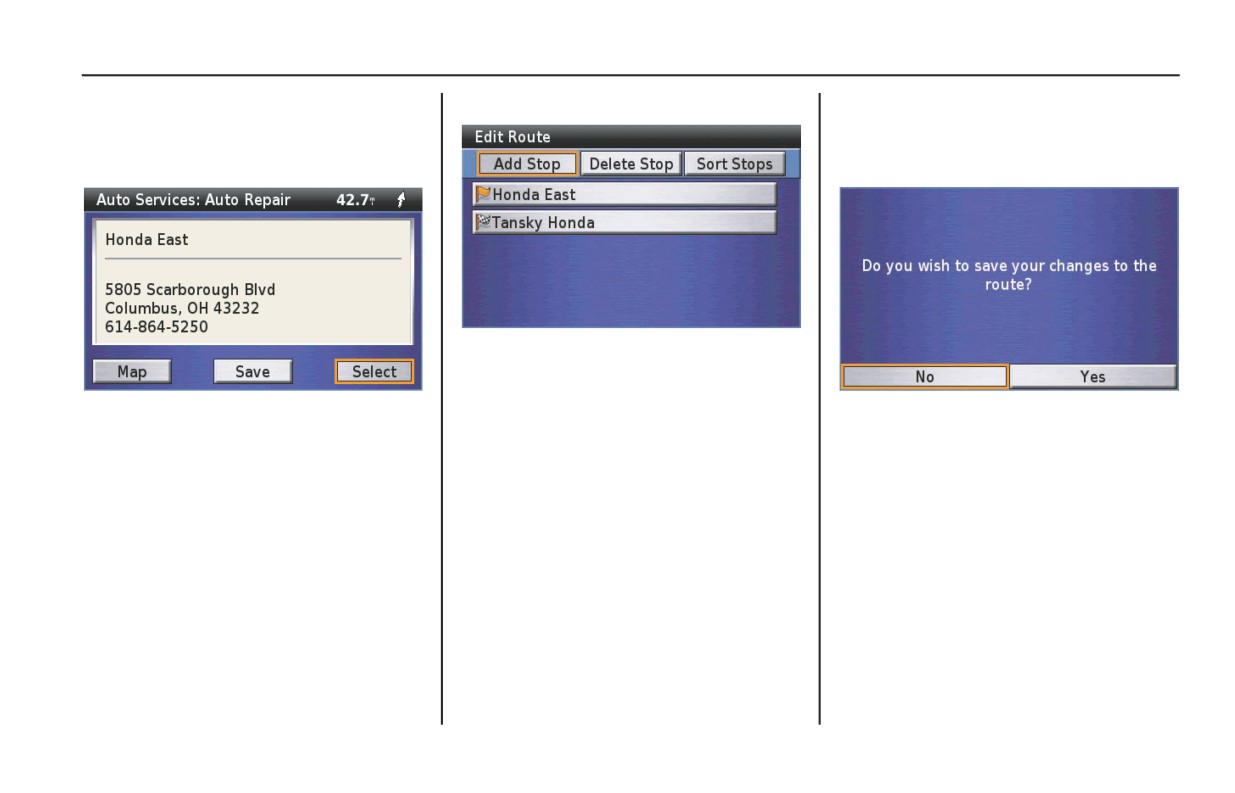
With Select highlighted, press ENT.
Press the MAP button if you completed
information about adding a location to
adding or removing a location from the
the route. A Point Review Screen will
current route and rearranging the order
appear.
of the locations.
If you want to add another via stop,
highlight Add Stop, press ENT, and
repeat the procedure. The second added
NOTE:
via stop will become your first stop on
Highlight Yes and press ENT.
For more information about the Point
your route.
The system calculates the route to the
Review Screen, see page 68.
destination(s) and starts the voice and
NOTE:
route guidance.
When you enter two or more via stops,
add them in the reverse order of your
travel plan (enter the final via before
your destination first). Otherwise, use
the “Sort” option to change the order of
via stops.
118
Route
Edit Route
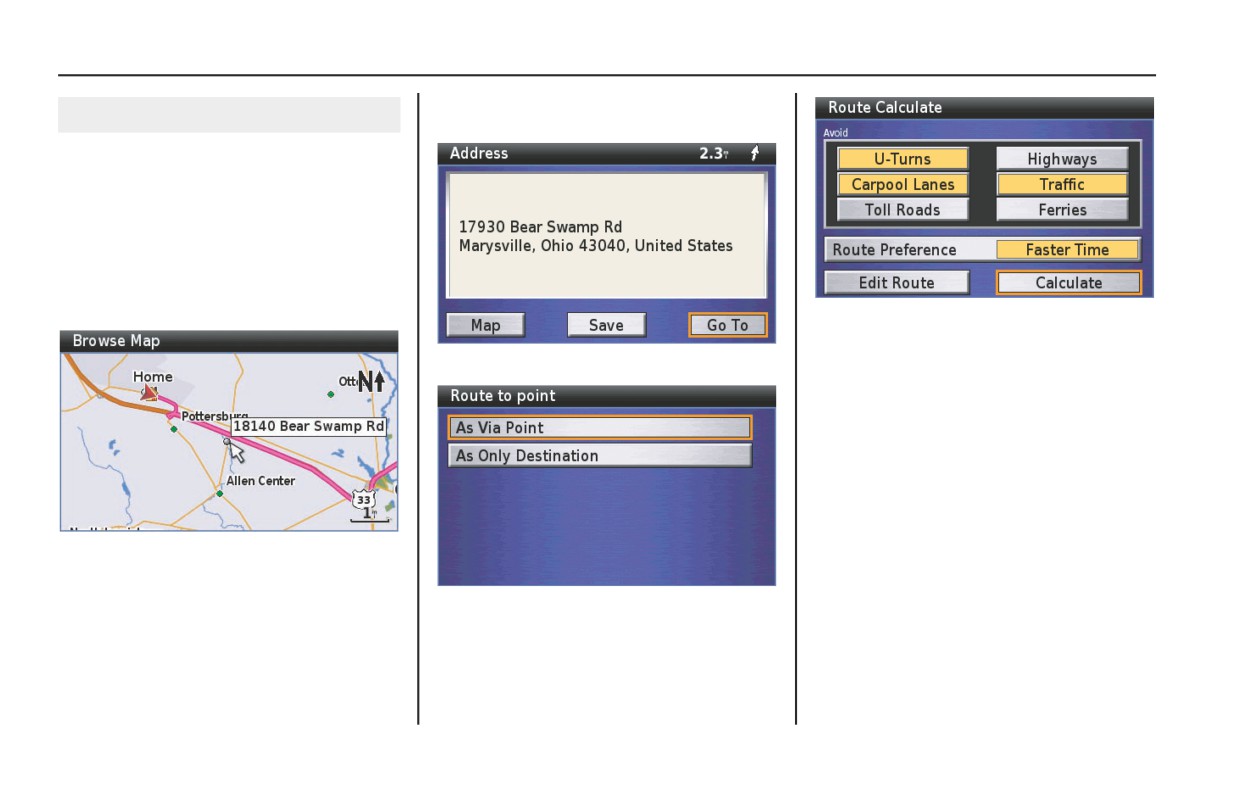
2. Bring up the Point Review Screen by
Adding a Road as a Via
pressing ENT.
You may enter a section of a road (such
as a scenic ride) as a via to your route by
using the White Arrow Point Locator
feature.
1. Position the white arrow where you
want to end riding the road on the
map screen.
5. With Calculate highlighted, press
ENT. The system recalculates the
3.
With Go To highlighted, press ENT.
route to the destination and displays
the map screen.
6. Position the white arrow point locator
where you want to start your ride on
the road and repeat the process to add
it as a via.
It may be necessary to create additional
points along the road to make sure the
NOTE:
system does not route you off the
For more information about the White
selected road to calculate what it
Arrow Point Locator, see page 54.
considers a more direct route.
4.
With As Via Point highlighted, press
ENT.
(cont’d)
Route
119
Edit Route
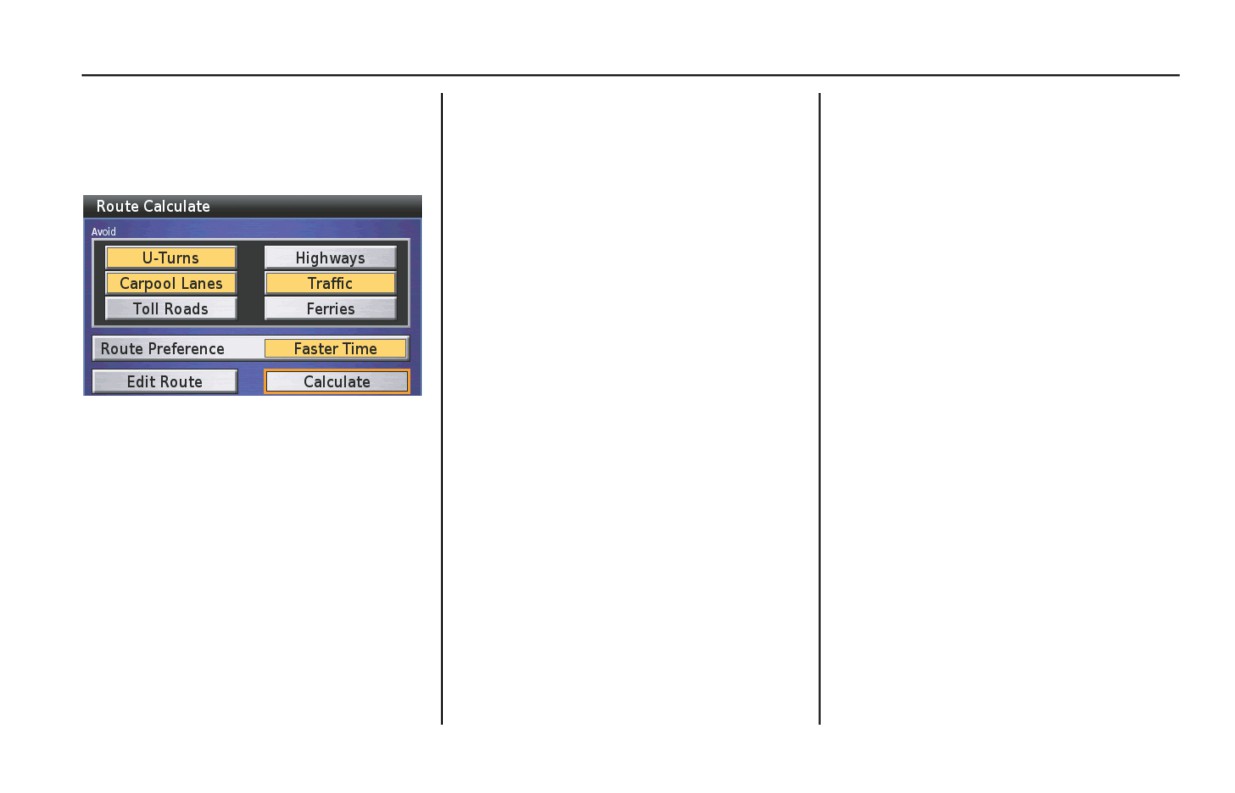
7. With Go To highlighted, press ENT.
8. With As Via Point highlighted, press
ENT. A Route Calculate Screen
appears.
NOTE:
For more information about the Route
Calculate Screen, see page 71.
With Calculate highlighted, press ENT.
The system calculates the route to the
destination and starts the voice and route
guidance.
120
Route
Detour
The system calculates the route to the
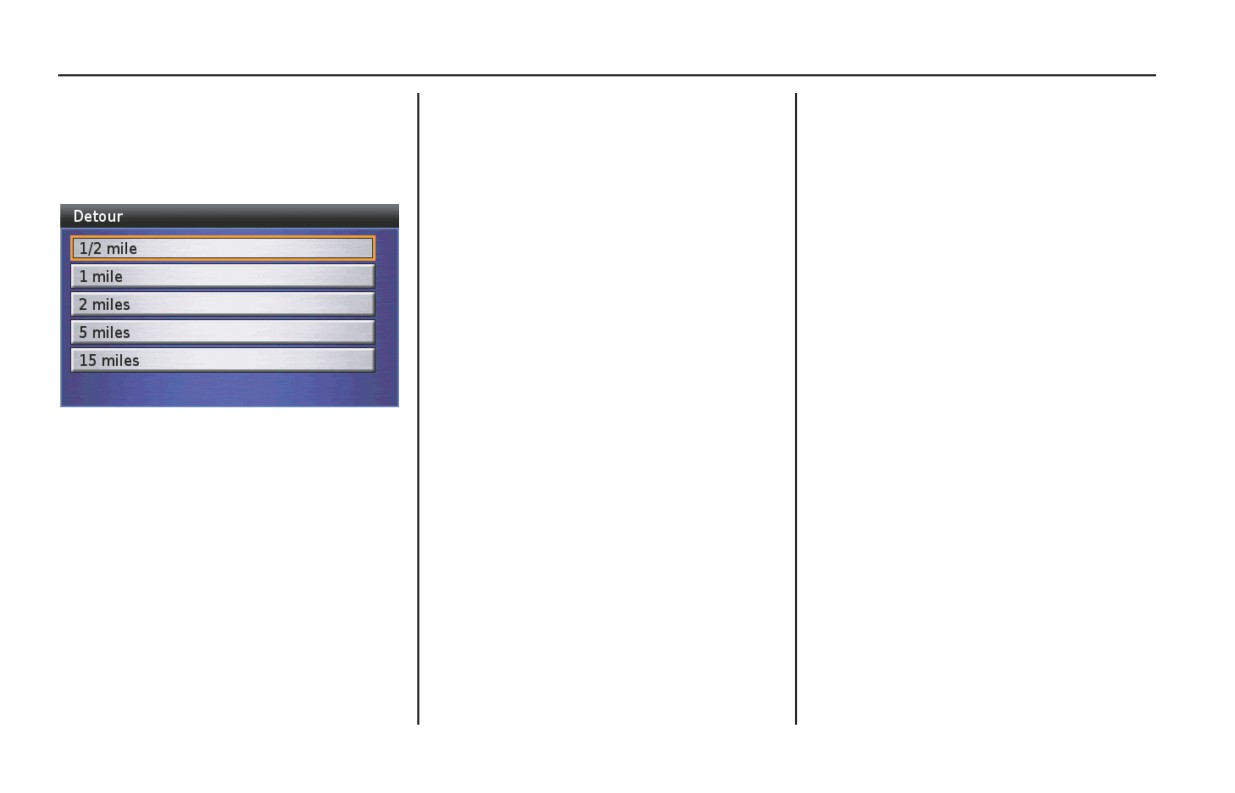
Detour
destination and starts the voice and route
On the Route menu, highlight Detour
guidance.
and press ENT. The following screen
appears.
Highlight the distance you want to
detour, and press ENT.
NOTE:
To cancel your entry, press the BACK
button. The original route display
returns.
Route
121
Route to Home
Route to Home
124
Calculating a Route Home
125
Checking Your Home Location
125
Deleting Your Home Location
126
Route to Home
123
Route to Home
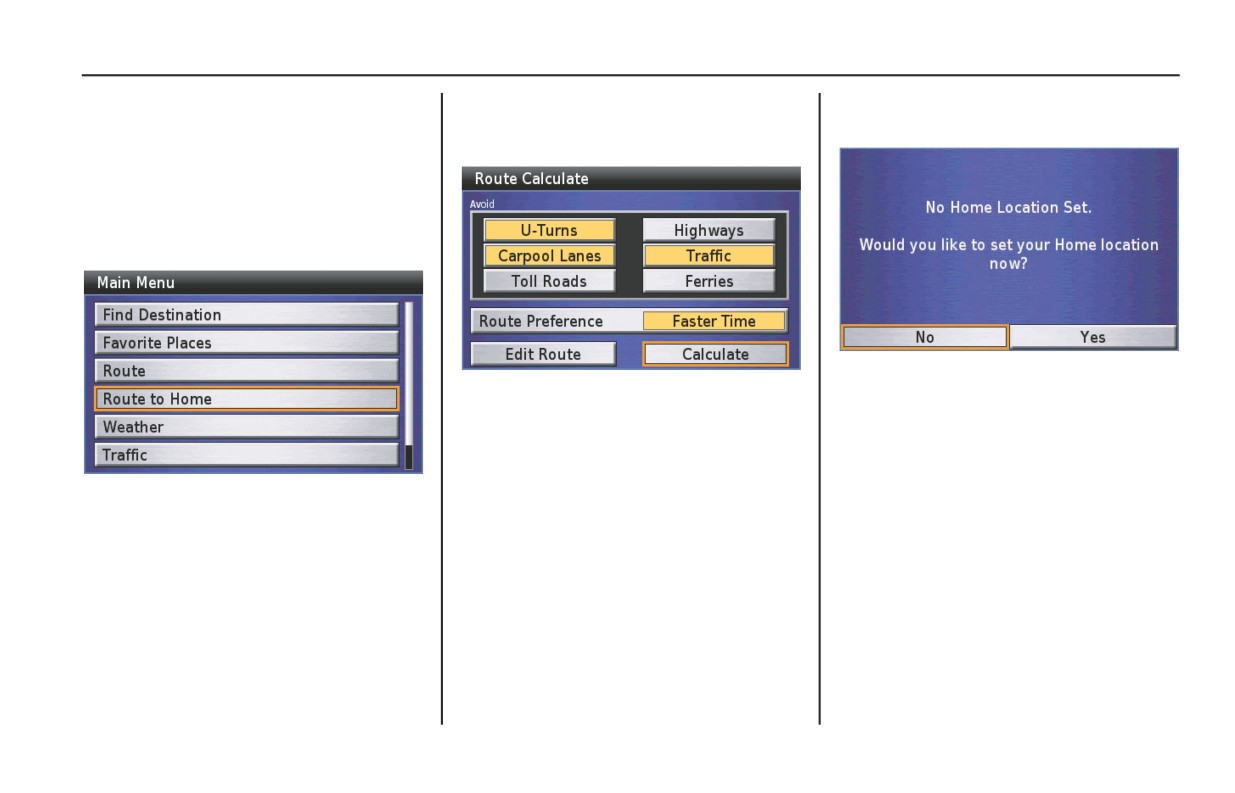
Once you store a Home location using
If you have previously entered a Home
If there is no Home in the system, you
Set Home using Find Menu (see page
location, a Route Calculate Screen
will be directed to Setup System 2 screen.
154) or Set Home using Vehicle Position
appears.
(see page 155), Route to Home offers a
quick method to route there.
On the Main Menu, highlight Route to
Home.
For storing a Home location, see Set
Home using Find Menu on page 154 or
Set Home using Vehicle Position on page
155.
NOTE:
Press ENT.
Once you save a “Home” location, the
map screen will display a “Home” icon
for 120 miles or smaller map scale.
124
Route to Home
Route to Home
Calculating a Route Home
Checking Your Home
Location
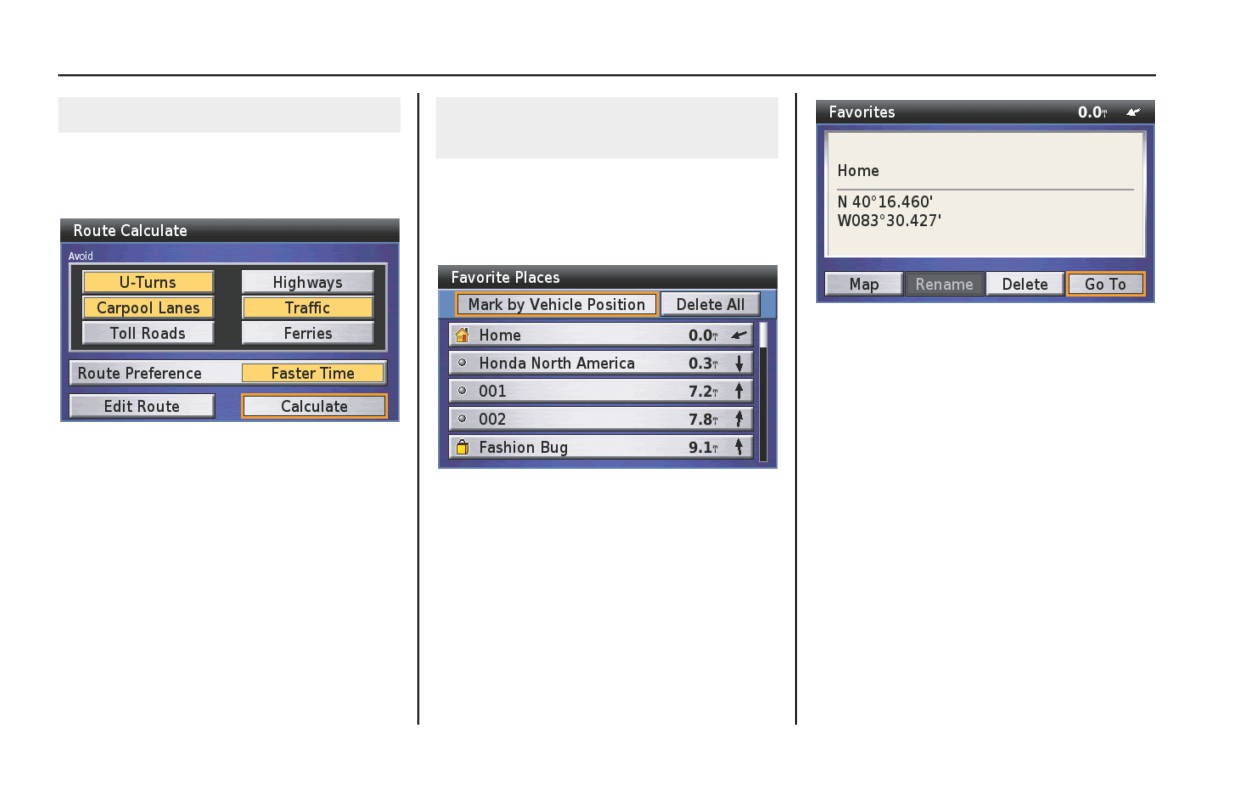
If you have already entered a Home
location in the system, the screen will
If you forget what location you have
display a Route Calculate screen.
designated as Home, go to the Main
Menu, and with Favorite Places
highlighted, press ENT.
NOTE:
If you want to change your Home
location, you may do so with the Find
menu or by Vehicle Position. See page
154.
With Calculate highlighted, press ENT.
The system calculates the route to the
destination and starts the voice and route
Home will appear in the Favorite Places
guidance.
list. To see the Point Review Screen for
your Home selection, highlight Home
and press ENT.
Route to Home
125
Route to Home
Deleting Your Home
Location
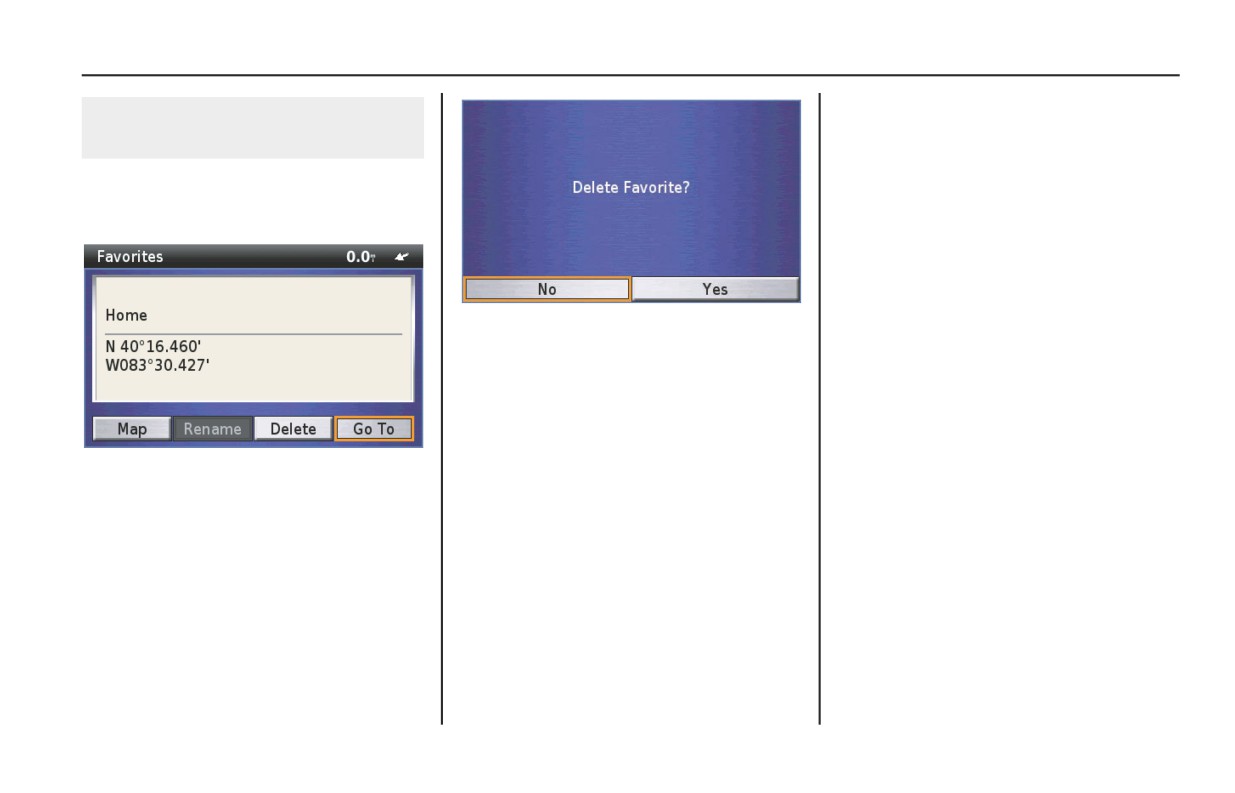
On the Favorite Places screen, highlight
Home and press ENT. A Point Review
Screen appears.
The screen asks you to confirm your
selection. Highlight Yes and press ENT.
The display returns to the Favorite
Places screen with your Home deleted.
NOTE:
For information about the Point Review
Screen, see page 68.
Highlight Delete and press ENT.
126
Route to Home
Weather
Weather
128
Viewing Weather Map
129
Viewing Weather for Other City
129
Viewing Weather Forecast
130
Weather
127
Weather
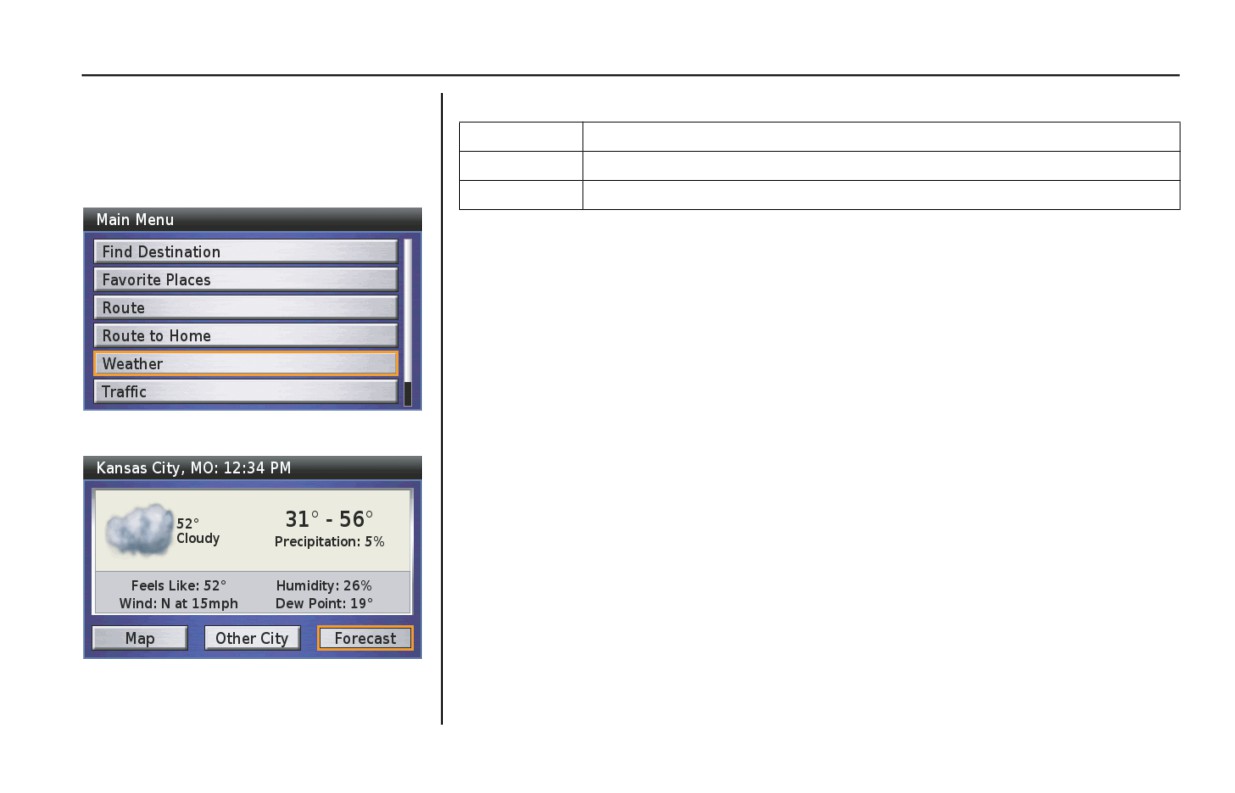
The Weather option allows you to review
The following options are available from the weather information screen.
weather information, such as weather
Map
to review four kinds of weather maps for the current location.
forecasts and four kinds of weather maps.
Other City
to select the city for which you want to get weather information.
On the Main Menu, highlight Weather.
Forecast
to review the weather forecast for the current location.
NOTE:
• To use this feature, you may need to subscribe to XM NavTraffic/NavWeather
services. See page 159.
• XM service only available in the 48 contiguous United States.
• You can also see the weather information map on the Traffic/Weather Review
screen. For information about the Traffic/Weather Review screen, see page 79.
Press ENT.
The weather information for the current
location will be displayed.
128
Weather
Weather
Viewing Weather Map
Viewing Weather for Other
City
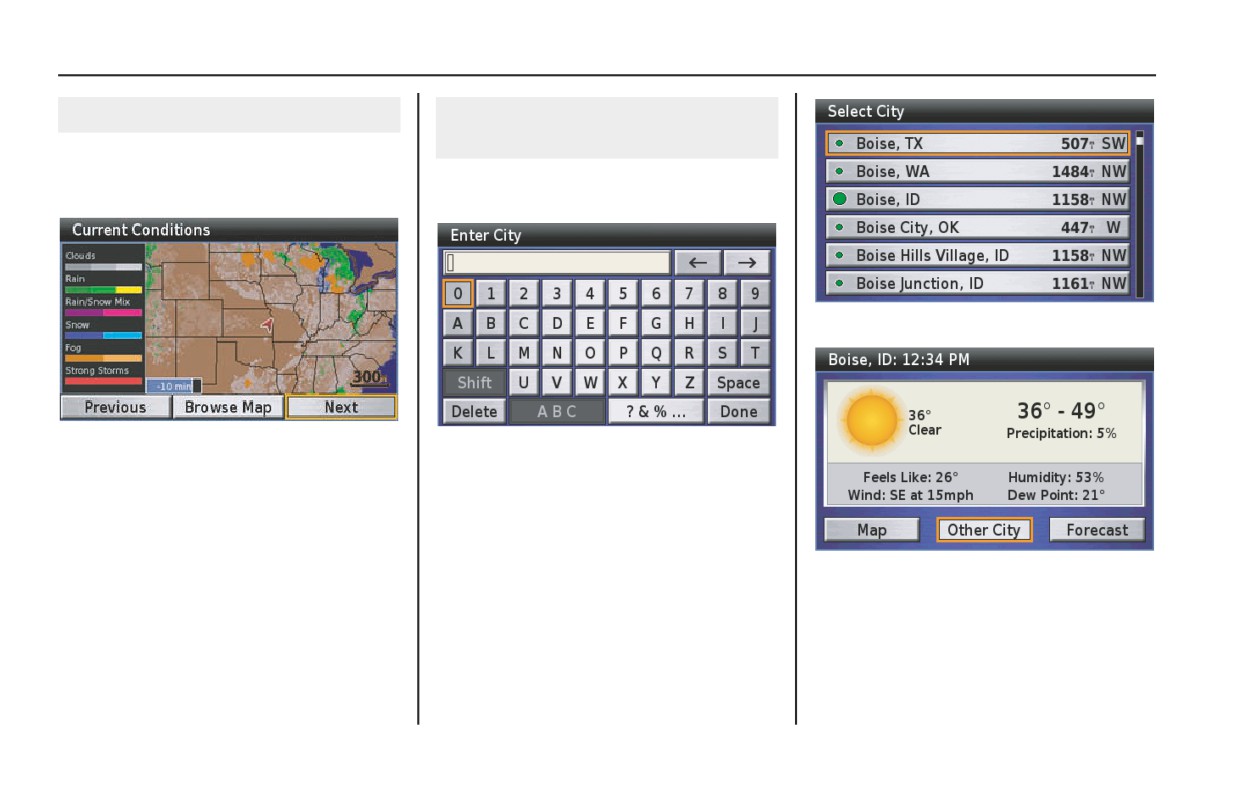
On the weather information screen,
highlight Map and press ENT. A Current
On the weather information screen,
Conditions map will be displayed.
highlight Other City and press ENT.
Highlight your choice and press ENT.
Highlight Previous or Next to switch
Use the keyboard to type the name of the
other weather maps. Press the BACK
city you want.
button to return to the weather
information screen.
NOTE:
For information about the keyboard
NOTE:
screen, see page 64.
For more information about viewing
The weather information for the selected
weather maps, see page 76.
After typing, highlight Done and press
city will be displayed. Highlight Map or
ENT.
Forecast to review the weather map or
the forecast for the selected city. Press
the BACK button to return to the
weather information screen.
Weather
129
Weather
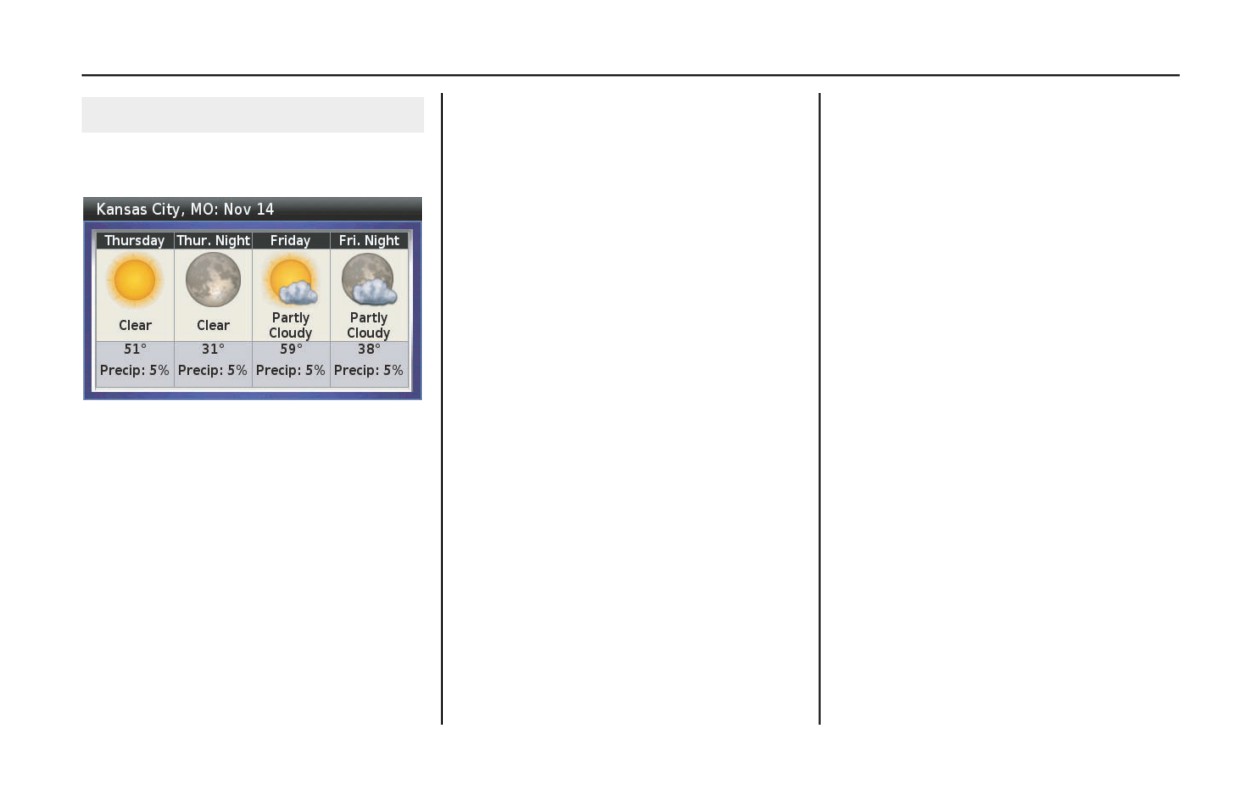
Viewing Weather Forecast
On the weather information screen,
highlight Forecast and press ENT.
Press the BACK button to return to the
weather information screen.
130
Weather
Traffic
Traffic
132
Viewing Traffic on Full Map
133
Viewing Traffic by Road
133
Viewing Traffic on Current Route
134
Traffic Avoidance
135
Traffic
131
Traffic
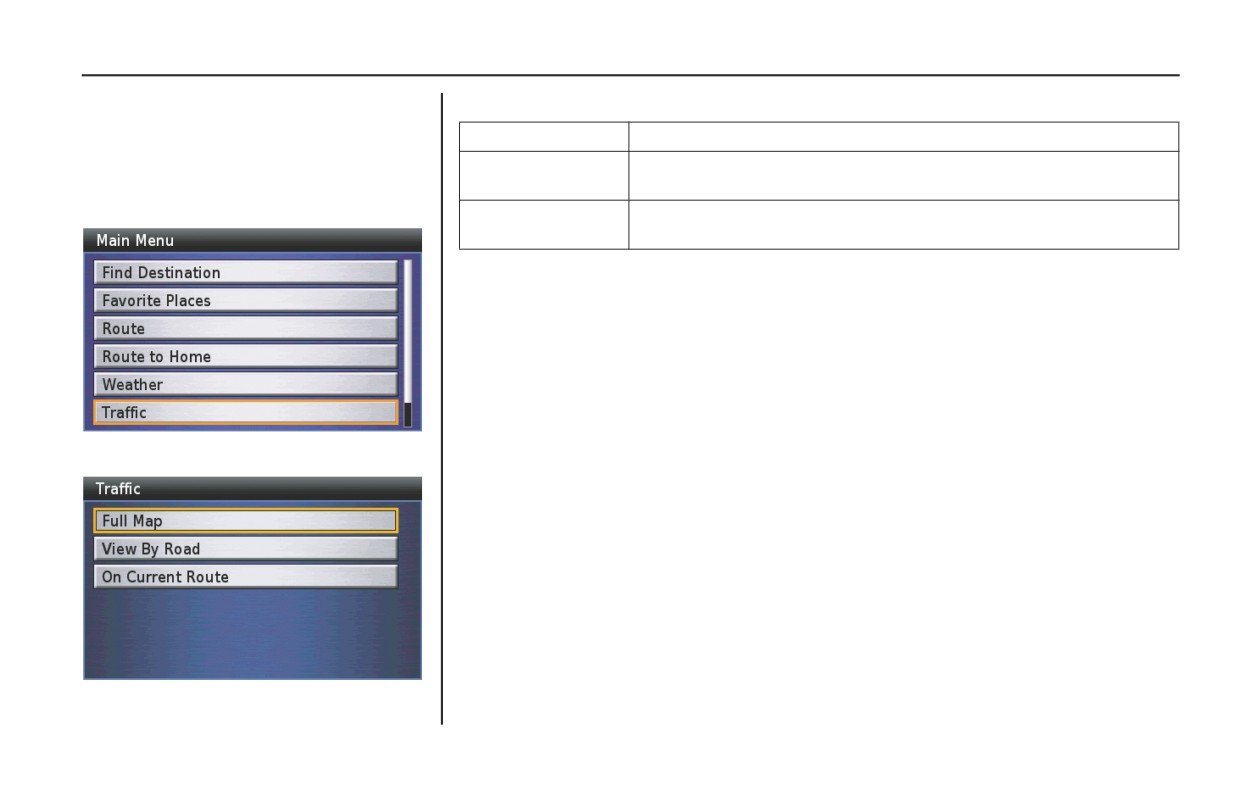
The Traffic option allows you to review
The following options are available from the traffic information screen.
traffic information, such as traffic flow and
Full Map
to review all traffic incidents close to your current location.
traffic incident, or to recalculate your
current route to avoid the traffic incident.
View By Road
to review traffic incidents by selecting the road close to your current
location.
On the Main Menu, highlight Traffic.
On Current Route
to review traffic incidents along your current route, and to recalculate
your current route to avoid the traffic incident.
NOTE:
• To use this feature, you may need to subscribe to XM NavTraffic/NavWeather
services. See page 159.
• XM service only available in the 48 contiguous United States.
• You can also see the traffic information map on the Traffic/Weather Review screen.
For information about the Traffic/Weather Review screen, see page 79.
Press ENT.
The Traffic screen will be displayed.
132
Traffic
Traffic
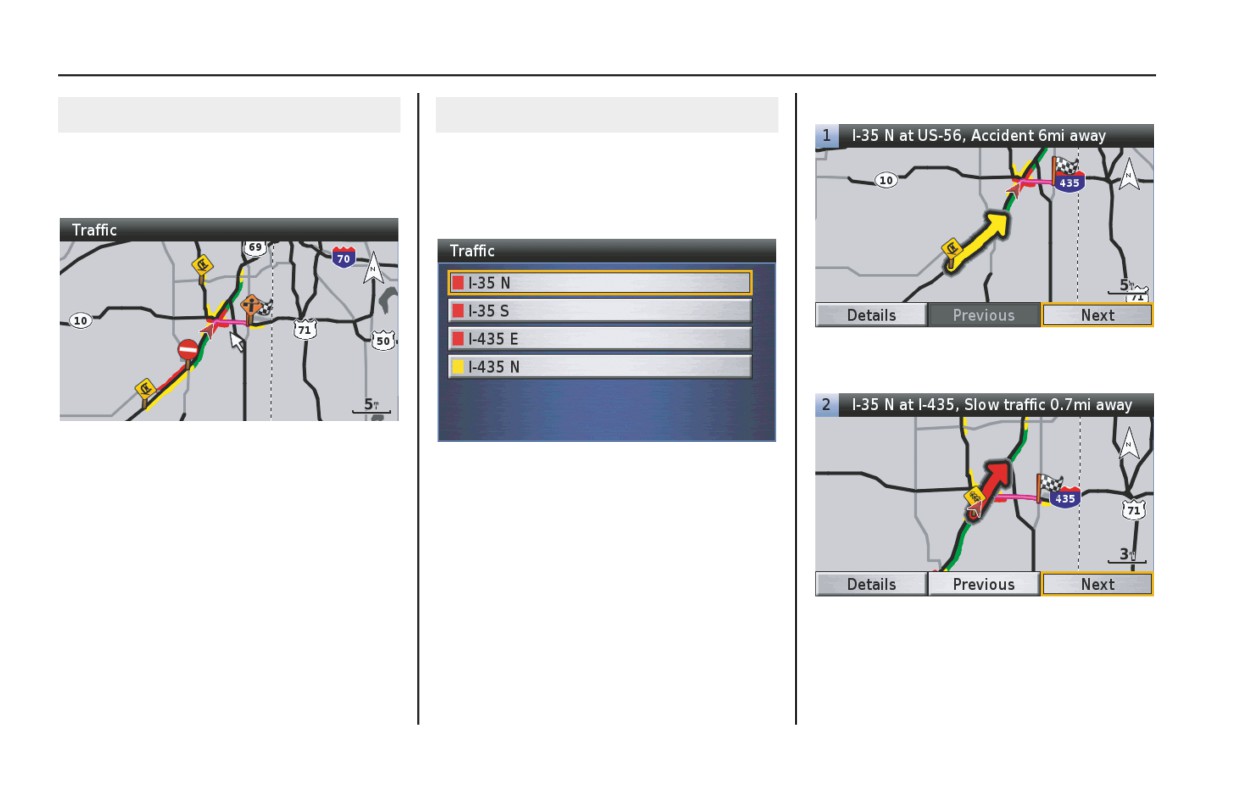
Highlight your choice and press ENT.
Viewing Traffic on Full Map
Viewing Traffic by Road
On the Traffic screen, highlight Full Map
On the Traffic screen, highlight View By
and press ENT. The following screen
Road and press ENT. The system will
will be displayed.
display the list of the roads near your
current location
Highlight Previous or Next and press
ENT to switch to another road screen.
You can scroll the map using the four
directional arrow buttons, and zoom in or
The color box (red, yellow, or green) to
out on the map.
the left of the road name indicates the
traffic event severity.
NOTE:
For more information about viewing
NOTE:
traffic map, see page 78.
• When you select the “View By Road”
option, traffic incidents other than
traffic flow will be displayed.
• For more information about the
traffic event severity, see page 78.
(cont’d)
Traffic
133
Traffic
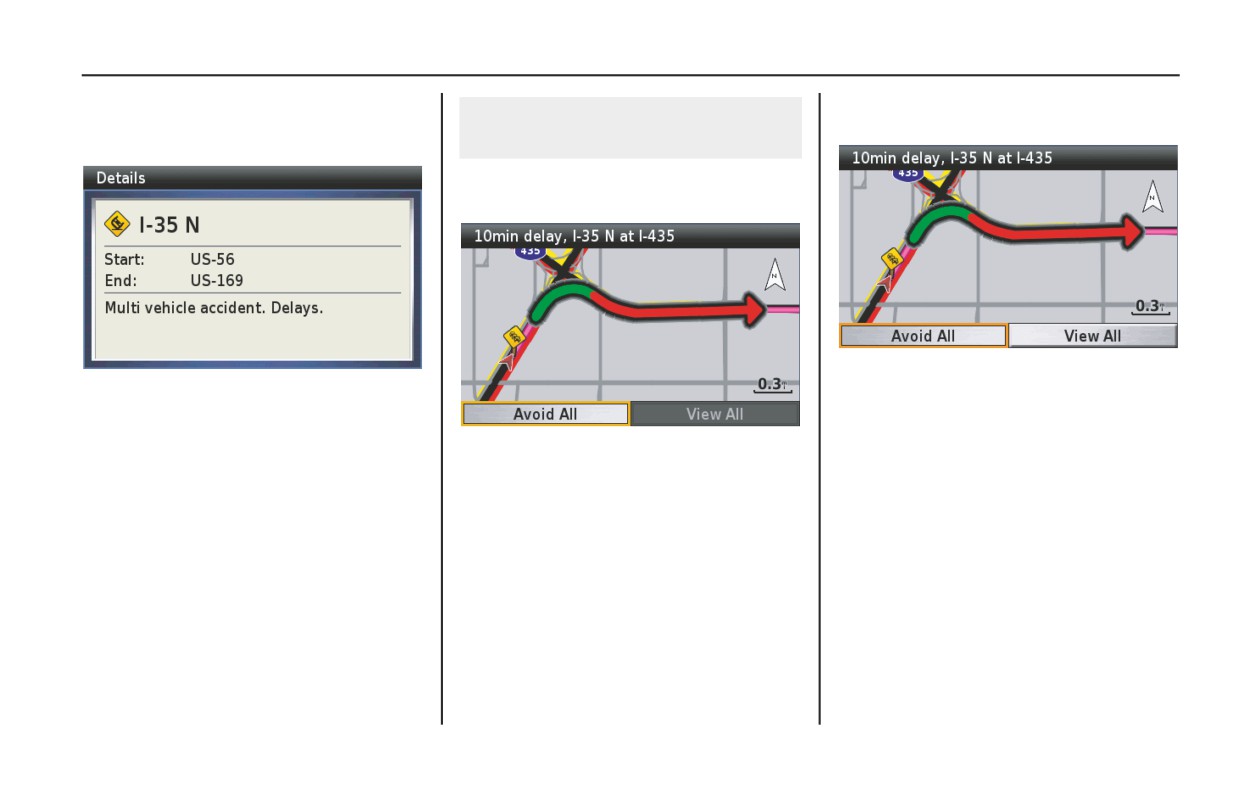
Highlight Details and press ENT to
When you select View All, the following
review the detailed information for the
Viewing Traffic on Current
screen will be displayed.
selected road.
Route
On the Traffic screen, highlight On
Current Route and press ENT.
Highlight Previous or Next and press
Press the BACK button to return to the
ENT to view traffic incidents. To avoid a
previous screen.
traffic incident, hightlight Avoid and
press ENT. The system will recalculate
To avoid all traffic incidents on your
your route avoiding the selected traffic
current route, highlight Avoid All and
incident.
press ENT. The system will recalculate
your current route.
134
Traffic
Traffic
Traffic Avoidance
Automatic Traffic Avoidance
The system periodically tries to find the
best route available, taking in factors
such as traffic speed, road speed, road
closures and other traffic congestion.
When updated traffic information is
received and it affects the current route,
the system will find a better route and
avoid the traffic congestion.
Manual Traffic Avoidance
If you select On Current Route when a
traffic incident is on your route, you can
avoid traffic incidents manually. See
Viewing Traffic on Current Route on
page 134.
Traffic
135
Setup / Info
Setup / Info
138
Setup Screen 1
139
Setup Screen 1
139
Setup Screen 2
143
Setup Screen 2
143
Setup System 1
150
Setup System 1
150
Setup System 2
152
Setup System 2
152
Setup Voice
158
Info Screens
159
GPS Info
159
System Info
159
XM Info
159
Setup / Info
137
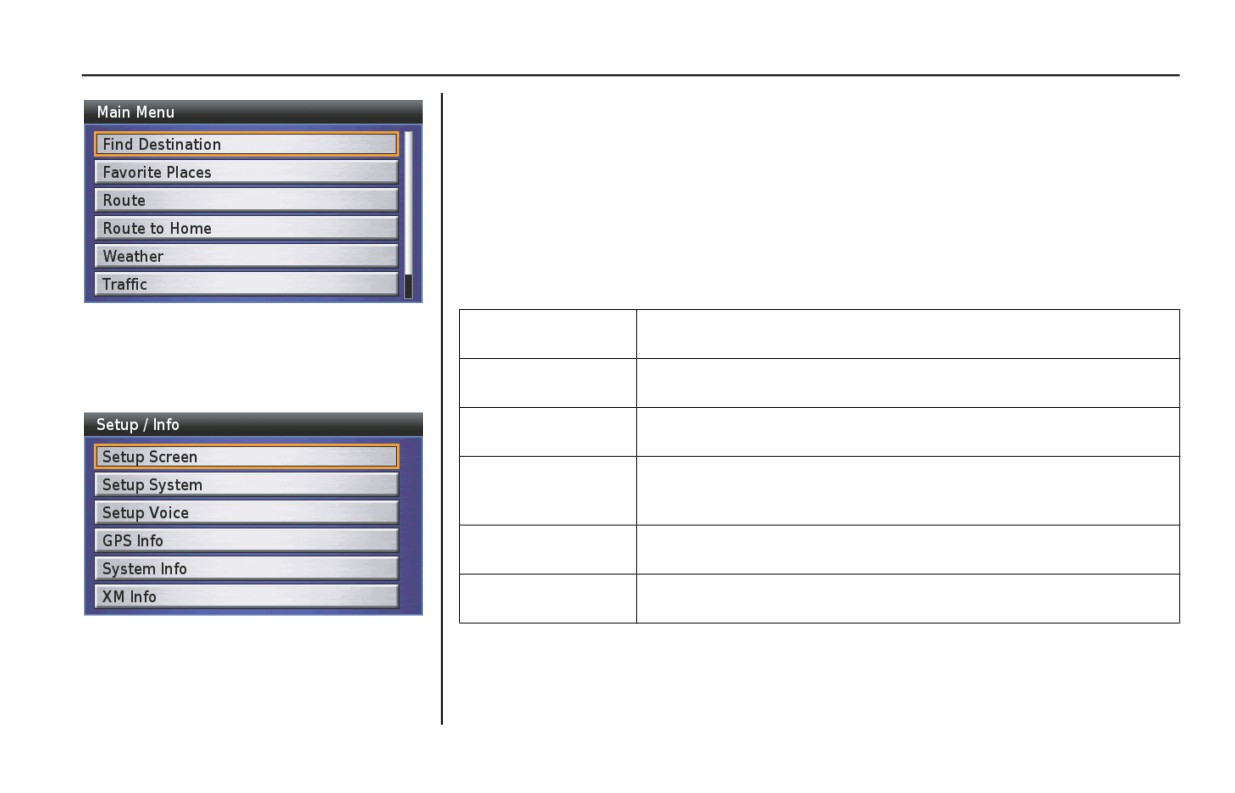
Setup / Info
These options let you set up what will or will not appear on your screen as well as
when and how it will look. There are three Setup categories for Screen, System, and
Voice functions. Each function has a default setting from the factory. For a complete
list, see Factory Default Settings on page 156. To change any default setting, highlight
a category and press ENT. Use the right panel controls to highlight the option you
want and press ENT. The field will turn yellow, indicating your choice is now
operative. When you have completed your changes, press the BACK button.
The screen will return to the Setup / Info menu.
The following items are available from the Setup / Info menu:
On the Main Menu, highlight Setup / Info
Setup Screen
To select how your screen will appear, including color, intensity, and
and press the ENT button on the right
map orientation, pop-ups, and other features.
fairing panel. The Setup / Info menu
Setup System
To select time elements, designate a home base for routing, and return
appears.
all optional settings to the initial settings selected by the factory.
Setup Voice
To select the pre-recorded voice or text-to-speech (TTS) voice for the
system’s voice guidance.
GPS Info
To check your GPS status, display the time and date, see the
coordinates of your current location and check the accuracy range of
the GPS signal.
System Info
To check the software operating your system and the unit ID number
and identify the maps used in the system.
XM Info
To check the software used in the system, available channels and data
services, and your Radio ID.
138
Setup / Info