Harley Davidson 2009 Goldwing GL1800 Navigation Supplement. Manual - page 5
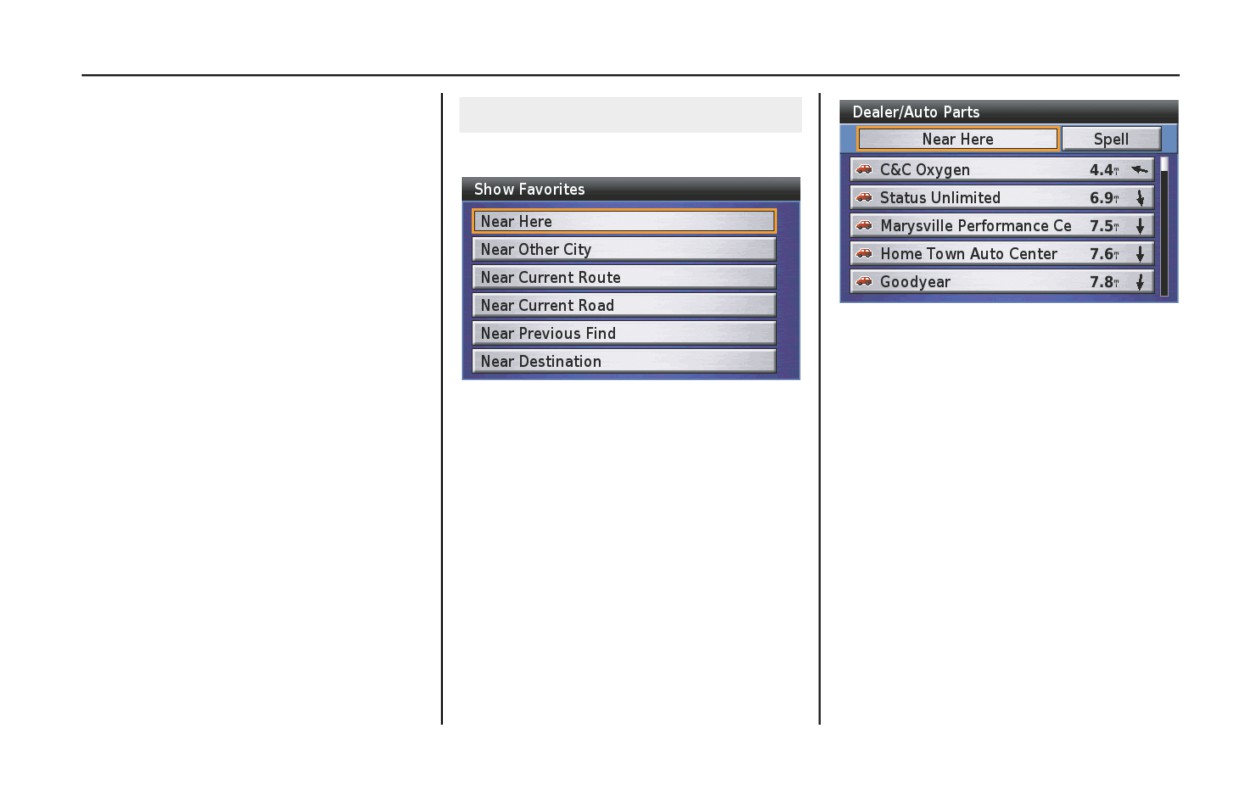
By Point of Interest
Community
All Categories
Finding Nearest
Library
With Near Here highlighted, press ENT.
School
Place of Worship
Police Station
City Hall
Court House
Community Center
Border Crossing
Government Office
Fire Department
NOTE:
Post Office
If the system database does not find any
Bank/ATM
POI within 200 miles, the pop-up says:
Utility
“None Found.” Select another search
Highlight your desired search option and
option or press the BACK button to
press ENT.
Others
return to the Point of Interest screen.
All Categories
NOTE:
Marina/Repair & Storage
• If you do not have a route in the
Garmin Dealer
system, the “Near Current Route”
Personal Service
and “Near Destination” options will
Business Service
be grayed out.
Communications
• For more information about the Near
Repair Service
search option, see page 83.
Social Service
92
Find Destination
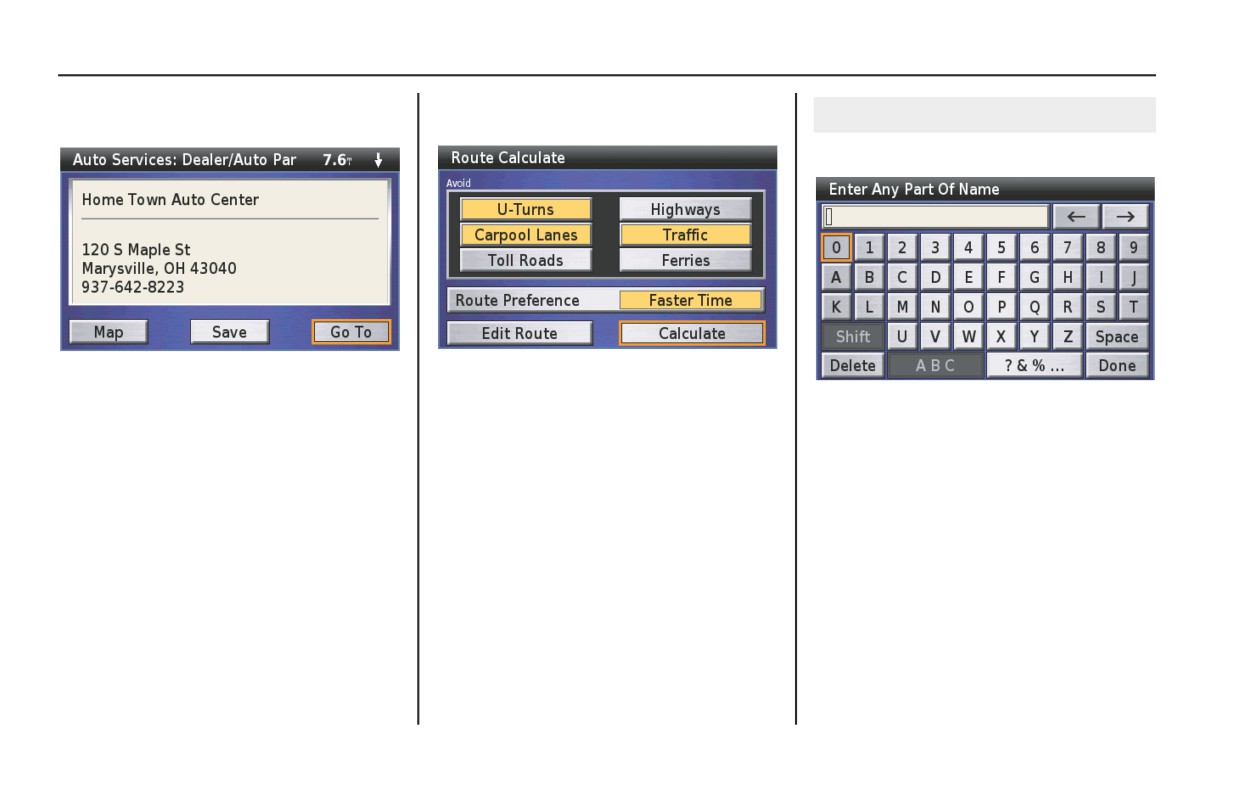
By Point of Interest
With your choice highlighted, press
With Go To highlighted, press ENT.
ENT. A Point Review Screen appears.
A Route Calculate Screen appears.
Finding by Name
With Spell highlighted, press ENT.
NOTE:
NOTE:
For more information about the Point
For more information about the Route
Use the keyboard to type the name.
Review Screen, see page 68.
Calculate Screen, see page 71.
NOTE:
With Calculate highlighted, press ENT.
For more information about the
The system calculates the route to the
keyboard screen, see page 64.
destination and starts the voice and route
guidance.
After typing, highlight Done and press
ENT.
(cont’d)
Find Destination
93
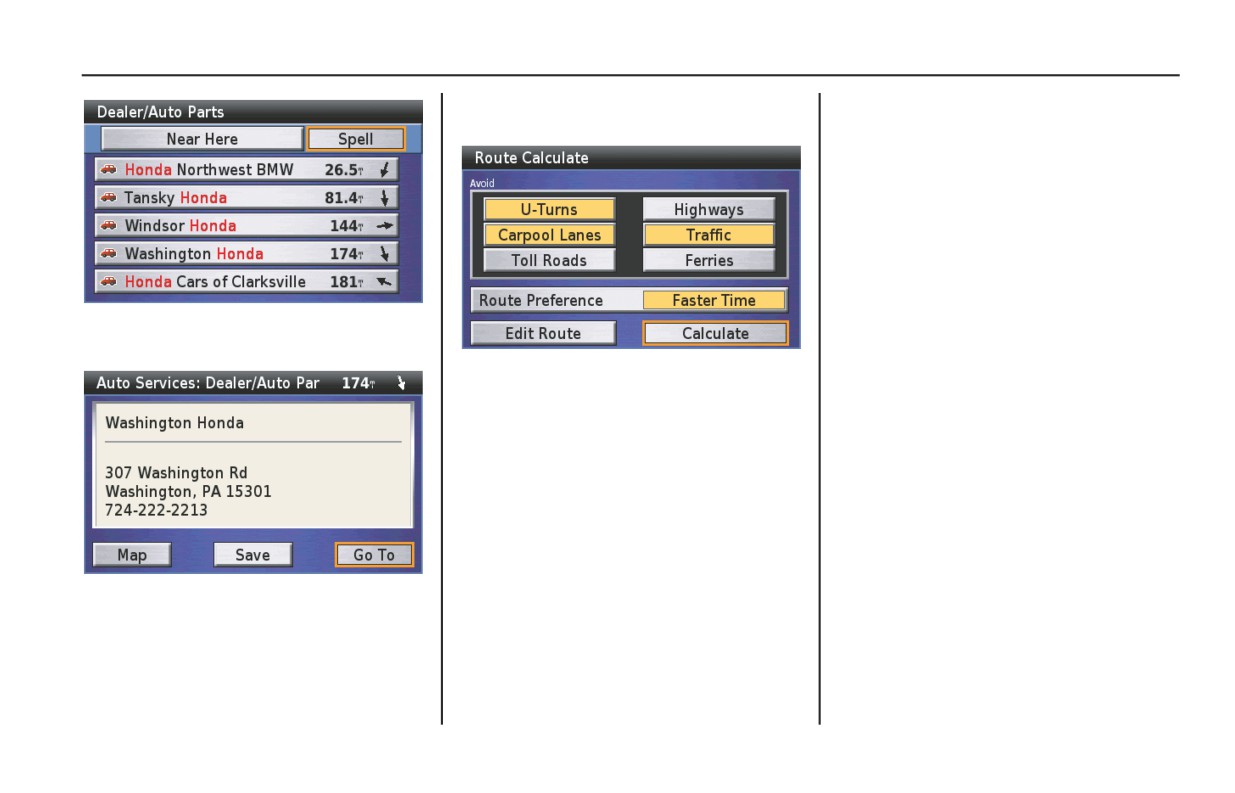
By Point of Interest
With Go To highlighted, press ENT.
A Route Calculate Screen appears.
Highlight your choice and press ENT.
A Point Review Screen appears.
NOTE:
For more information about the Route
Calculate Screen, see page 71.
With Calculate highlighted, press ENT.
The system calculates the route to the
destination and starts the voice and route
guidance.
NOTE:
For more information about the Point
Review Screen, see page 68.
94
Find Destination
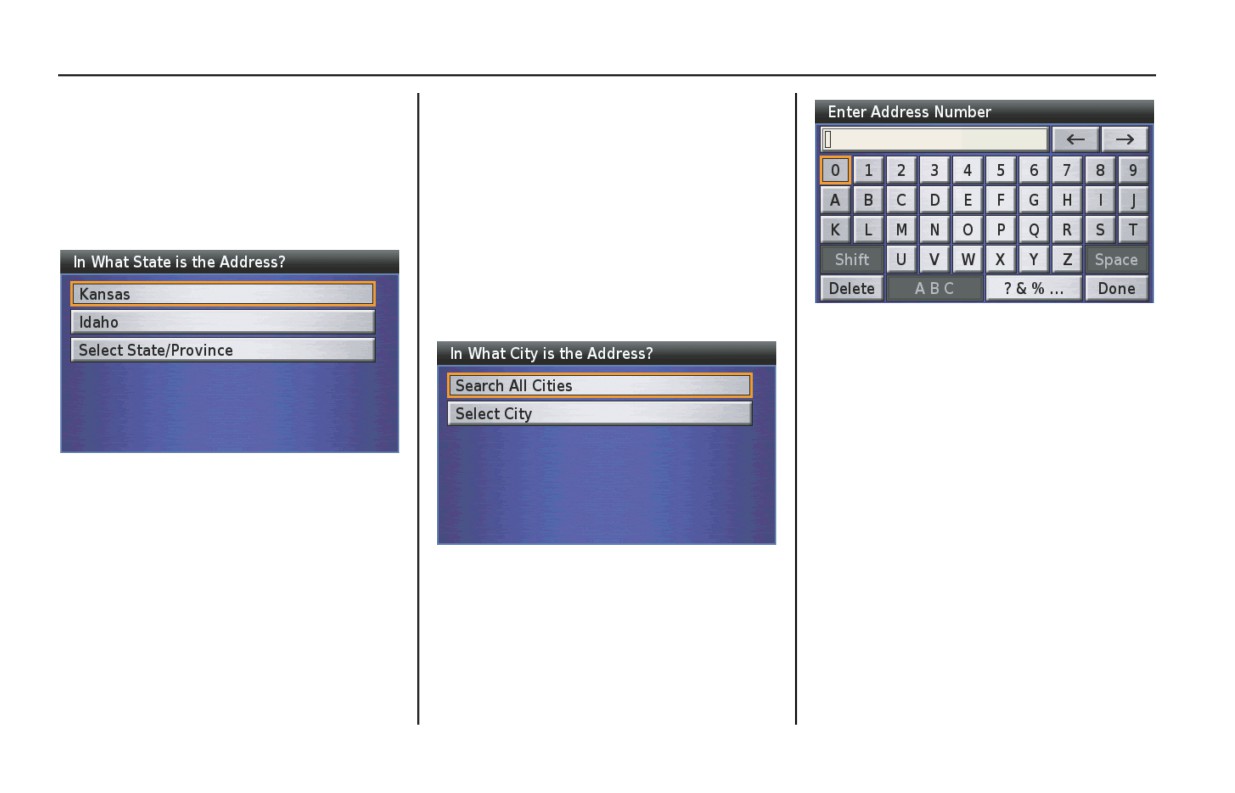
By Address
The By Address option lets you put an
If you choose the Select State/Province
address into the system so you may route
option, the keyboard screen will appear.
to it.
Type the name of state/province. After
typing, highlight Done and press ENT.
On the Find Destination menu, highlight
The Select State/Province screen will
By Address and press ENT.
appear. Highlight your desired state/
The following screen appears.
province and press ENT.
NOTE:
For information about the keyboard
screen, see page 64.
Use the keyboard to type in the number.
NOTE:
For more information about the
keyboard screen, see page 64.
After typing, highlight Done and press
ENT.
The system shows your current state,
recently selected state. If you use the
Select State/Province option, you can
search for an address in another state.
Highlight your choice and press ENT.
Highlight Search All Cities and press
ENT.
NOTE:
The Select City option will narrow your
search. If you use this option, you will
need to type the city name you want on
the keyboard screen.
(cont’d)
Find Destination
95
By Address
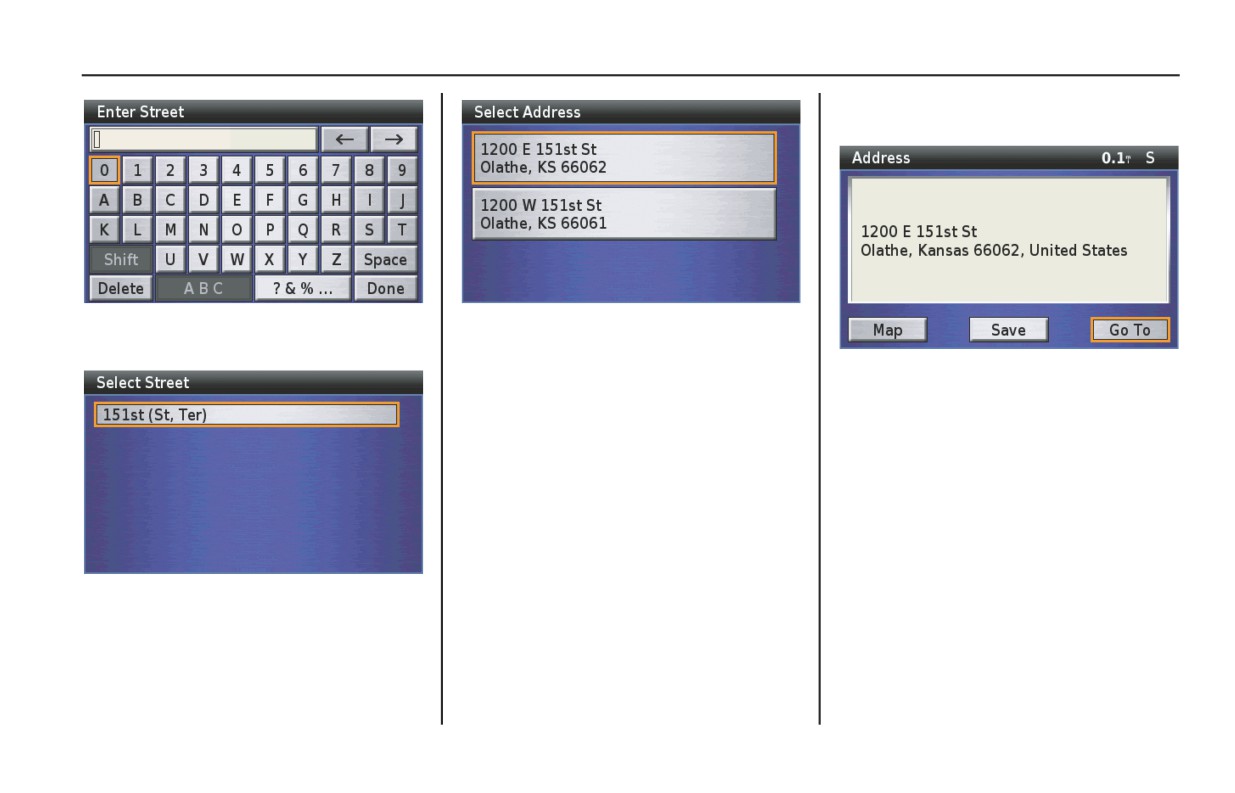
Highlight the address you want and press
ENT. A Point Review Screen appears.
Type in the Street. After typing,
NOTE:
highlight Done and press ENT.
If the system database does not find the
address you are looking for, the pop-up
NOTE:
says: “None Found.” Press the BACK
For more information about the Point
button to return to the Find Address
Review Screen, see page 68.
screen.
Highlight your choice and press ENT.
96
Find Destination
By Address
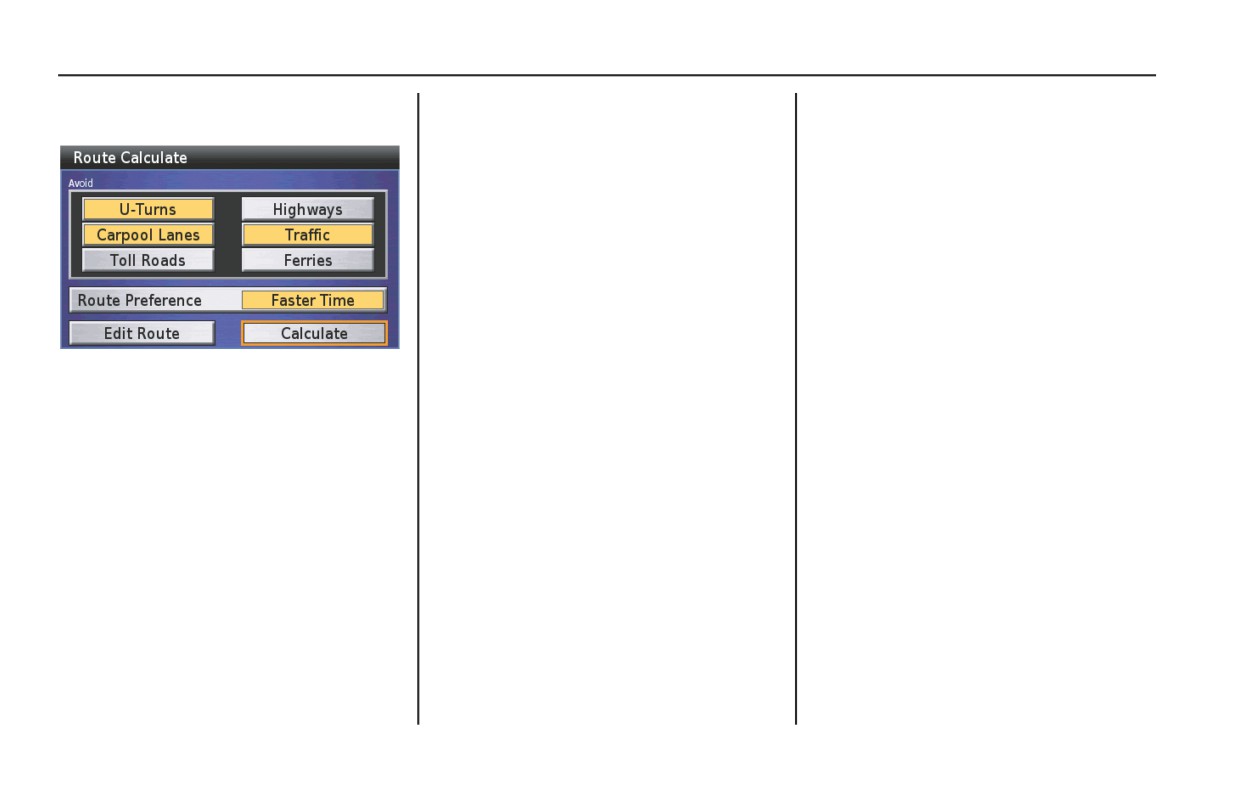
With Go To highlighted, press ENT.
A Route Calculate Screen appears.
NOTE:
For more information about the Route
Calculate Screen, see page 71.
With Calculate highlighted, press ENT.
The system calculates the route to the
destination and starts the voice and route
guidance.
Find Destination
97
By Intersection
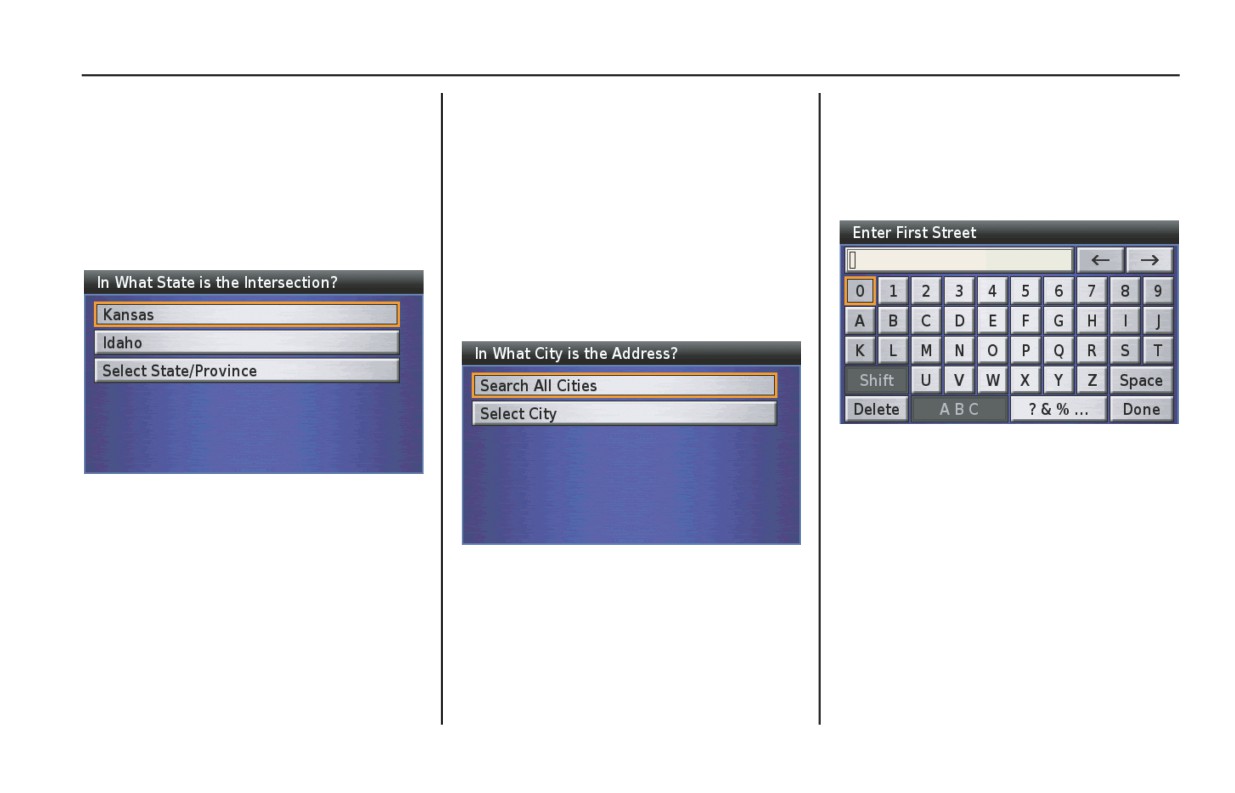
You may know an intersection, but not
If you choose the Select State/Province
NOTE:
know the street address (example: Main
option, the keyboard screen will appear.
The Select City option will narrow your
and E Vine St). This option lets you
Type the name of state/province. After
search. If you use this option, you will
locate the intersection.
typing, highlight Done and press ENT.
need to type the city name you want on
The Select State/Province screen will
the keyboard screen.
On the Find Destination menu, highlight
appear. Highlight your desired state/
By Intersection and press ENT.
province and press ENT.
The following screen appears.
NOTE:
For information about the keyboard
screen, see page 64.
Use the keyboard to type the first street
name. After typing, highlight Done and
press ENT.
The system shows your current state,
recently selected state. If you use the
NOTE:
Select State/Province option, you can
For more information about the
search for an address in another state.
Highlight Search All Cities and press
keyboard screen, see page 64.
Highlight your choice and press ENT.
ENT.
98
Find Destination
By Intersection
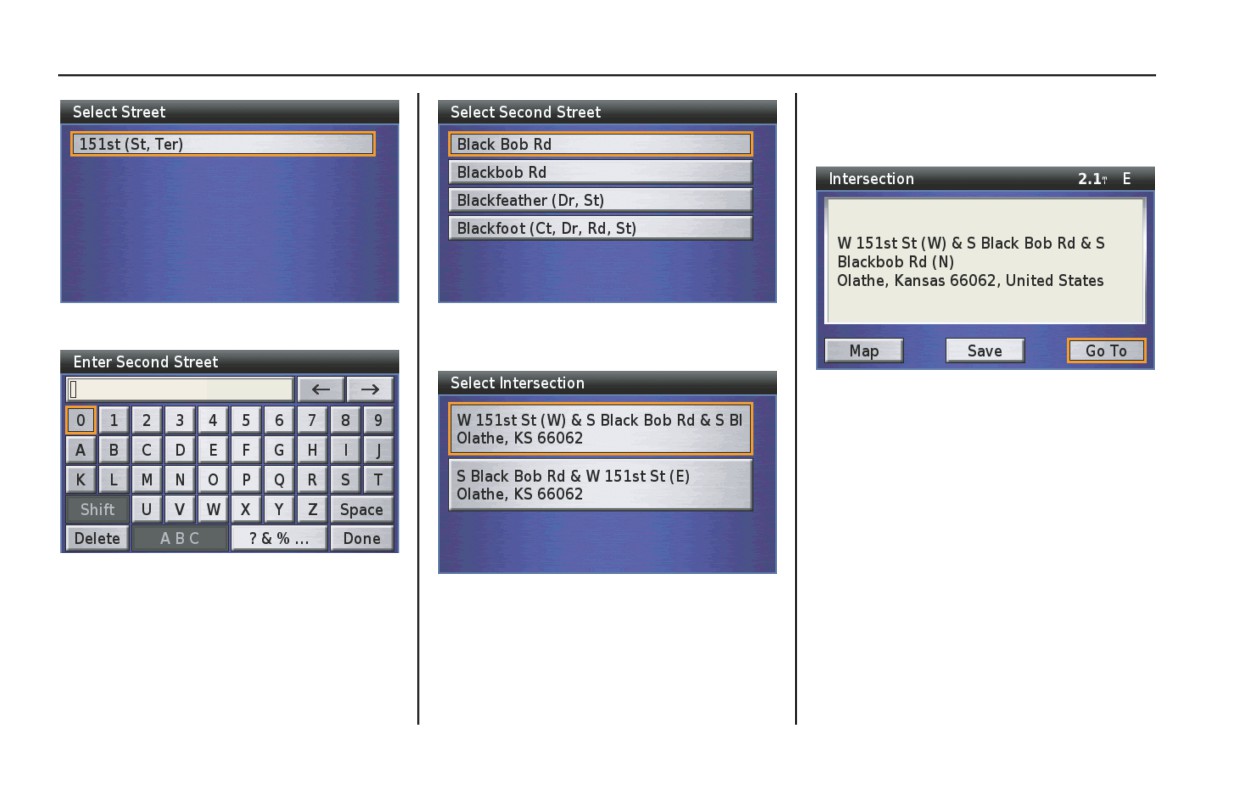
If you find the intersection you want,
highlight it and press ENT. A Point
Review Screen appears.
Highlight your choice and press ENT.
With your choice highlighted, press
ENT.
NOTE:
For more information about the Point
Review Screen, see page 68.
Repeat the keyboard process for the
Second Street.
NOTE:
If the system database does not find the
intersection you are looking for, the
pop-up says: “None Found.” Press the
BACK button to return to the Find
Intersection screen.
(cont’d)
Find Destination
99
By Intersection
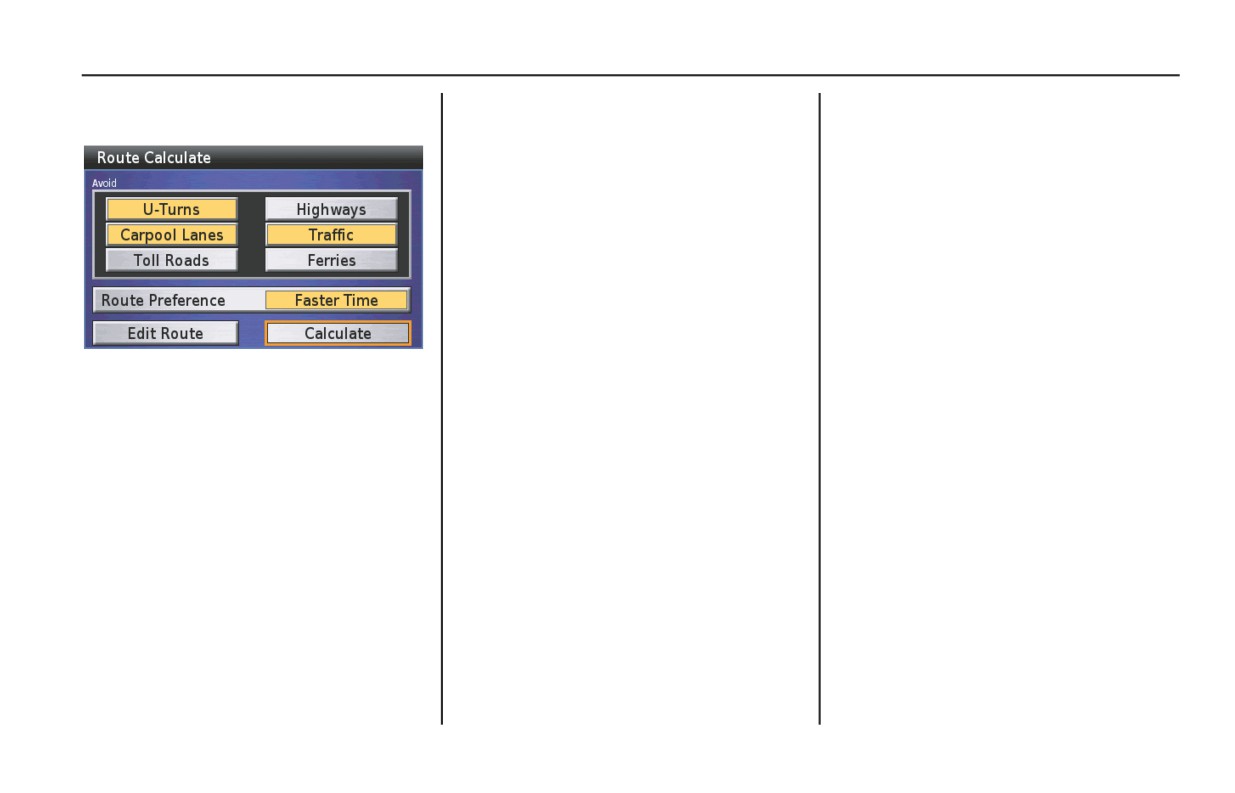
With Go To highlighted, press ENT.
A Route Calculate Screen appears.
NOTE:
For more information about the Route
Calculate Screen, see page 71.
With Calculate highrighted, press ENT.
The system calculates the route to the
destination and starts the voice and route
guidance.
100
Find Destination
By City
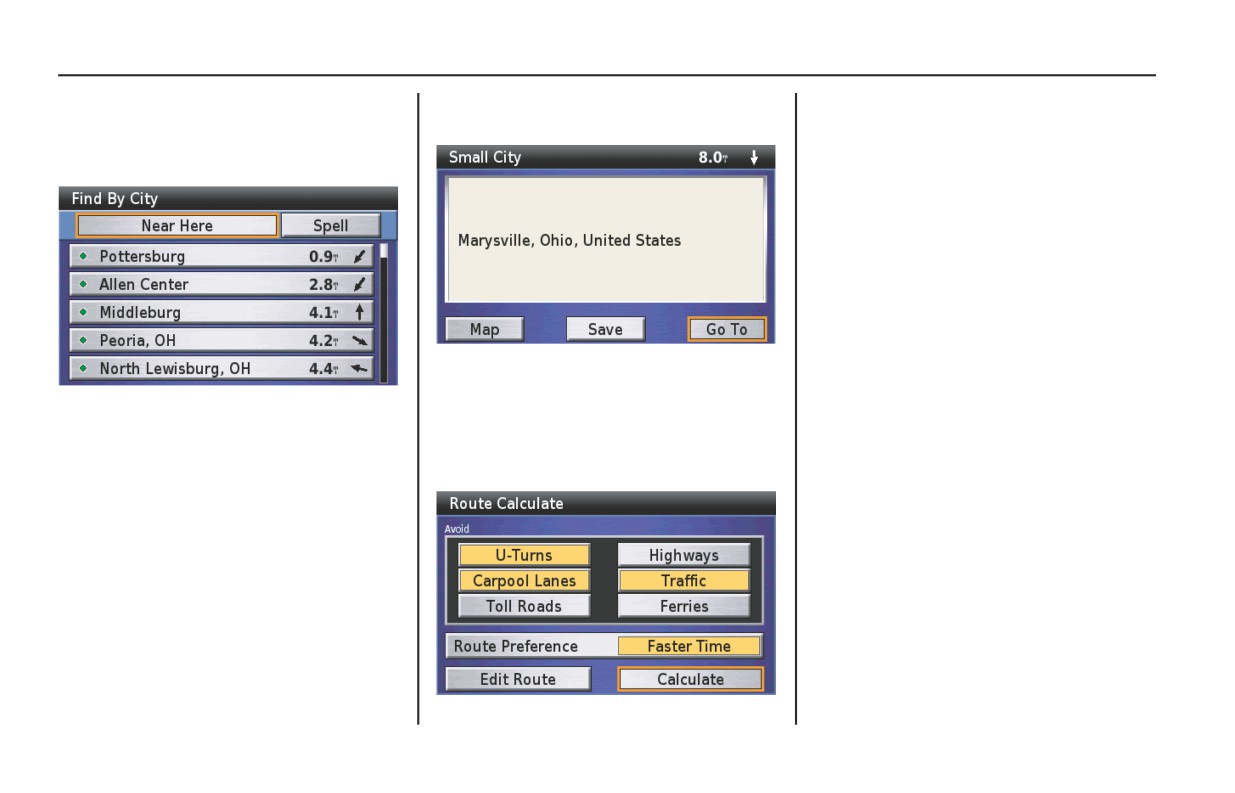
You can locate a city as your destination.
Highlight your desired city and press
NOTE:
On the Find Destination menu, highlight
ENT. A Point Review Screen appears.
For information about the Route
By City and press ENT. The following
Calculate screen, see page 71.
screen appears.
With Calculate highlighted, press ENT.
The system calculates the route to the
destination and starts the voice and route
guidance.
NOTE:
For information about the Point Review
To find a closest city to your current
Screen, see page 68.
location, current road, destination, etc.,
select Near Here and see page 83. To
With Go To highlighted, press ENT.
find a city by its name, select Spell and
A Route Calculate Screen appears.
see page 93.
Find Destination
101
By Exit
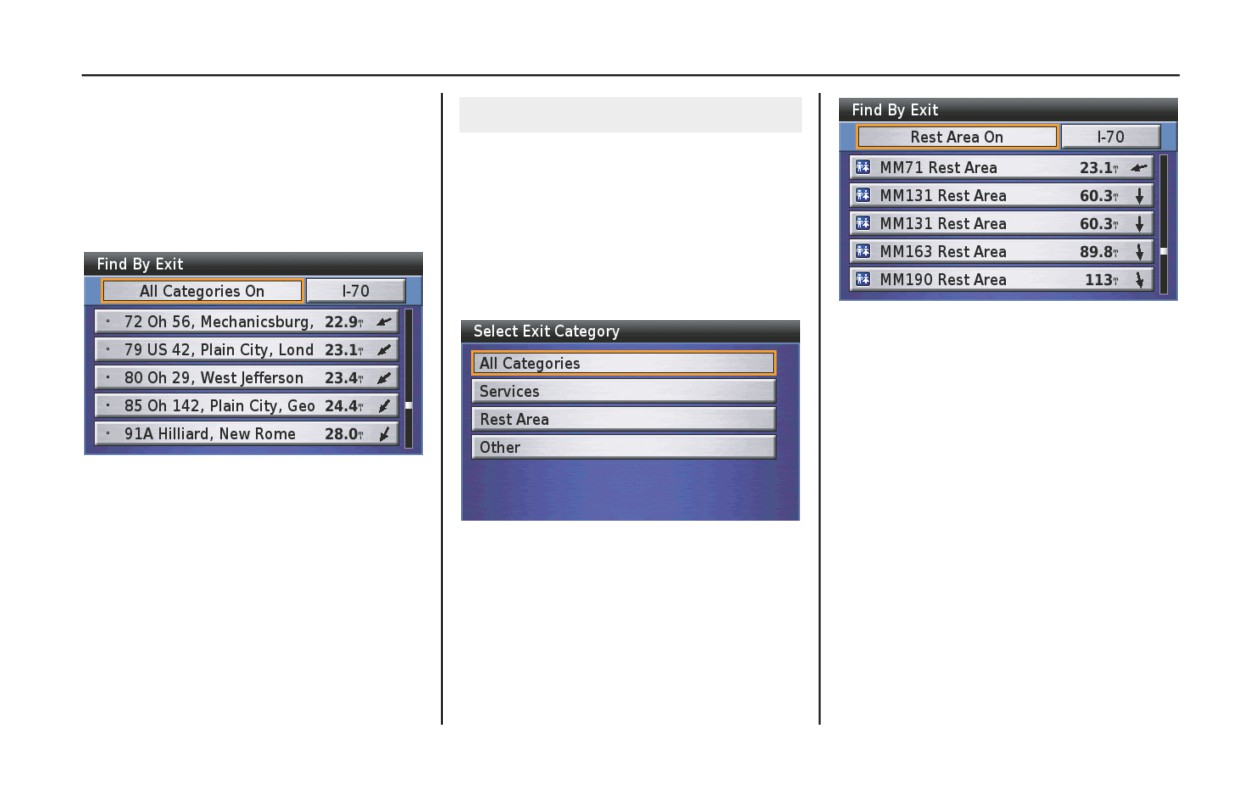
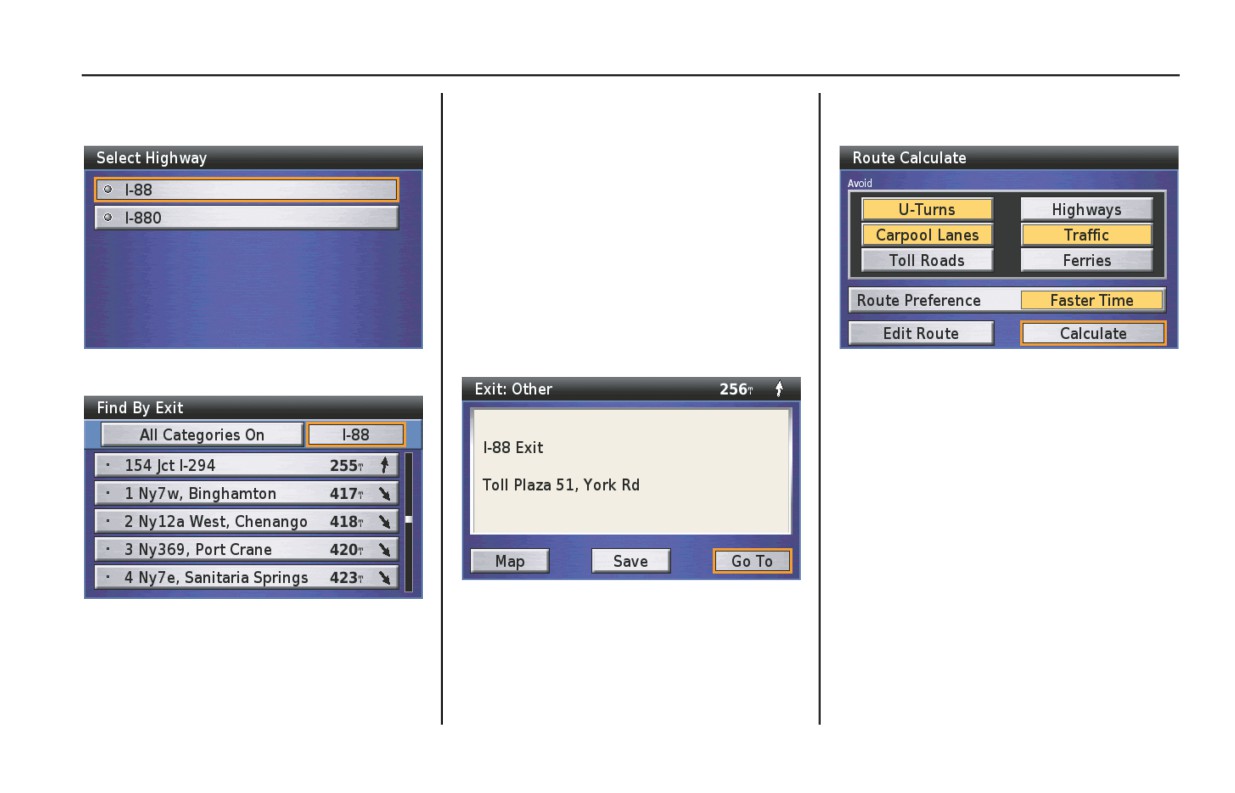
Use the By Exit option to locate the
nearest highway exits or exits on a
Finding Nearest Exits
highway you choose.
You will see the All Categories On
option at the top of the screen.
On the Find Destination menu, highlight
The default All Categories On includes
By Exit and press ENT. The following
the all exits of the closest road from your
screen appears.
current location. You may change the list
by selecting one of the other three
categories. To do that, highlight All
Categories On and press ENT.
Highlight your choice and press ENT.
A Point Review Screen appears.
Highlight your choice and press ENT.
102
Find Destination
By Exit
Selecting Exit Road
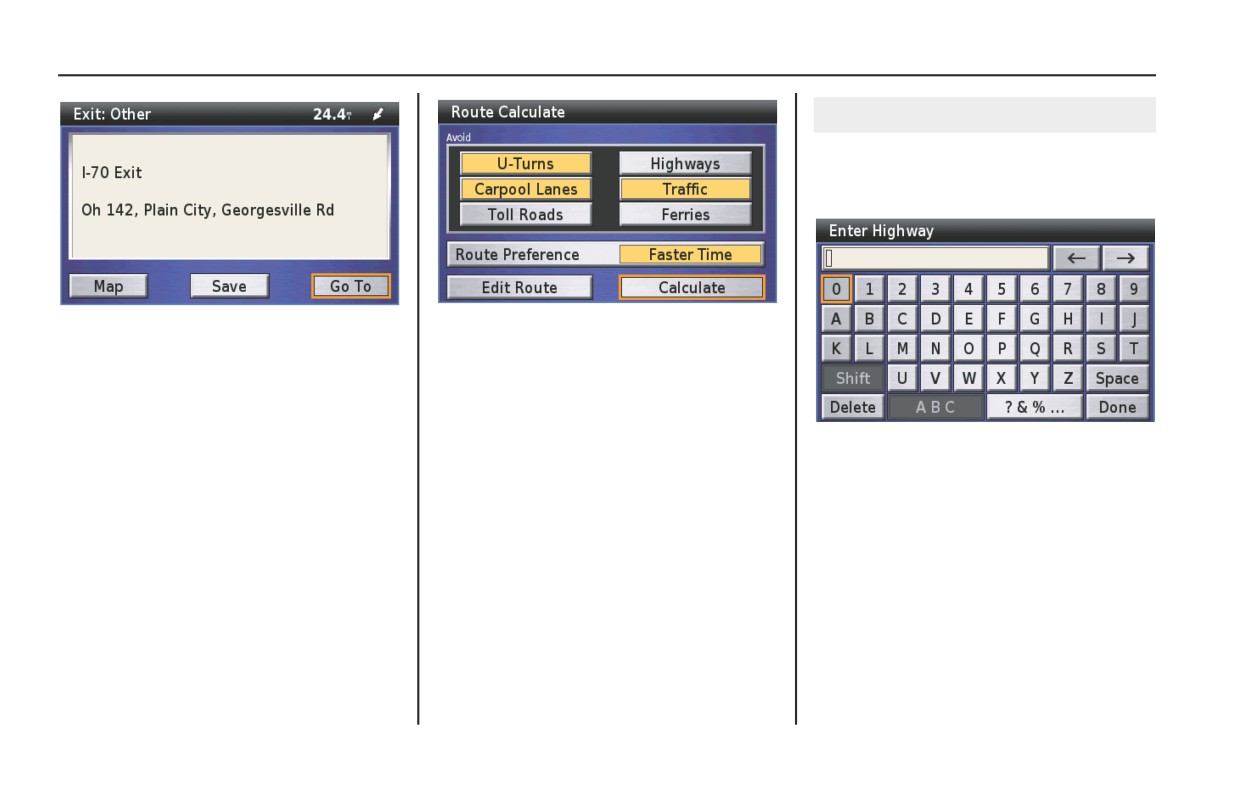
Highlight the exit road box at the upper-
right corner of the Find By Exit screen
and press ENT.
The Point Review Screen shows the exit
NOTE:
on its map and offers menu routing
For more information about the Route
choices.
Calculate Screen, see page 71.
NOTE:
With Calculate highlighted, press ENT.
For more information about the Point
The system calculates the route to the
Review Screen, see page 68.
destination and starts the voice and route
Use the keyboard to type in the number
of the exit road. For example, 88 (for
guidance.
With Go To highlighted, press ENT.
Interstate 88).
A Route Calculate Screen appears.
NOTE:
For more information about the
keyboard screen, see page 64.
(cont’d)
Find Destination
103
By Exit
After typing, highlight Done and press
NOTE:
With Go To highlighted, press ENT.
ENT.
• The system will narrow your search
A Route Calculate Screen appears.
when you select the exit category. For
information about the exit category,
see page 102.
• If the system database does not find
the match, the pop-up says: “None
Found.” Select another category or
press the BACK button to return to the
Find Exits screen.
Highlight your choice and press ENT.
A Point Review Screen appears.
Highlight your choice and press ENT.
NOTE:
For more information about the Route
Calculate Screen, see page 71.
With Calculate highlighted, press ENT.
The system calculates the route to the
destination and starts the voice and route
guidance.
The Point Review Screen shows the exit on
Highlight your choice and press ENT.
its map and offers menu routing choices.
NOTE:
For more information about the Point
Review Screen, see page 68.
104
Find Destination
Favorite Places
Favorite Places
106
Storing Favorite Places
107
Renaming Favorite Places
108
Deleting Favorite Places
109
Favorite Places
105
Favorite Places
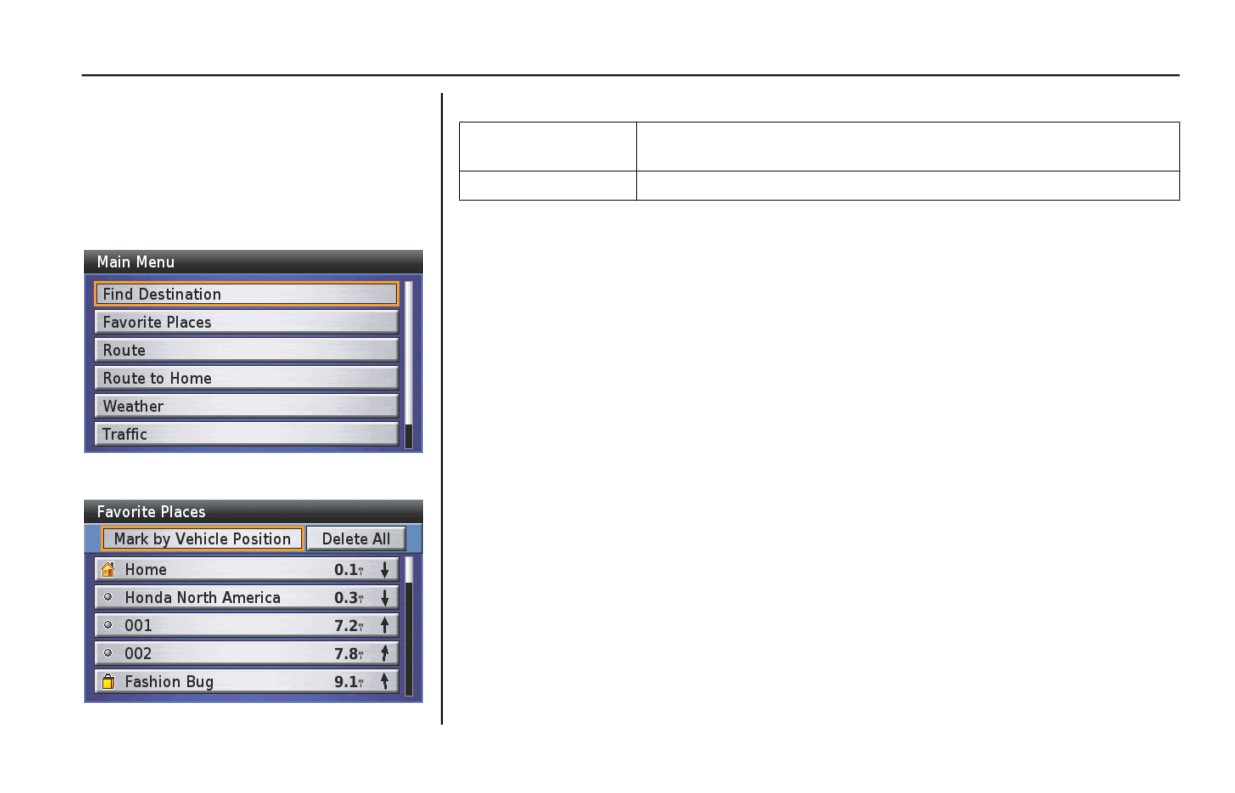
The Favorite Places option allows you
The following options are available from the Favorite Places screen.
to designate your current location as a
Mark by Vehicle
To add your current location to your favorites list.
favorite place for future navigation or to
Position
select a stored favorite from the system.
Delete All
To remove all locations from your saved favorites.
On the Main Menu, highlight Favorite
Places.
NOTE:
If you have saved a “Home” location, it will appear in the “Favorite Places” list even
if you have not saved any “Favorite Places.”
Press ENT.
106
Favorite Places
Favorite Places
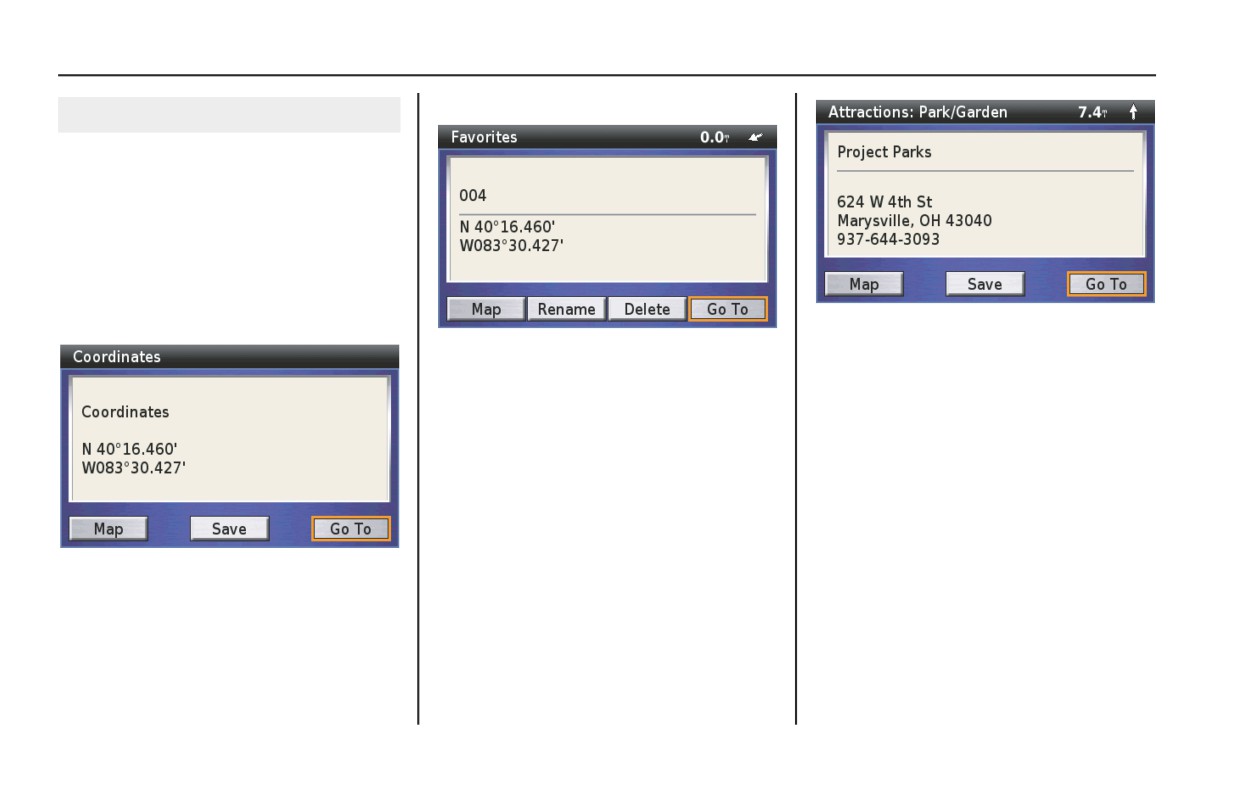
Highlight Save and press ENT.
Storing Favorite Places
The Favorite Places screen offers the
Mark by Vehicle Position option to store
favorite locations.
Mark by Vehicle Position
On the Favorite Places screen, highlight
Mark by Vehicle Position and press
ENT. The Point Review Screen then
appears.
The screen will assign an ID number to
The screen will assign an ID number to
your selection and offer several options.
your selection and offer several options.
Highlight Save and press ENT.
The current vehicle position is saved in
The current cursor position is saved in
the system.
the system.
NOTE:
Mark by Cursor Position
For more information about the Point
Follow steps 1 to 3 on page 54 to move a
Review Screen, see page 68.
cursor to the location you want to save.
Press ENT. A Point Review Screen then
appears.
NOTE:
For more information about the Point
Review Screen, see page 68.
Favorite Places
107
Favorite Places
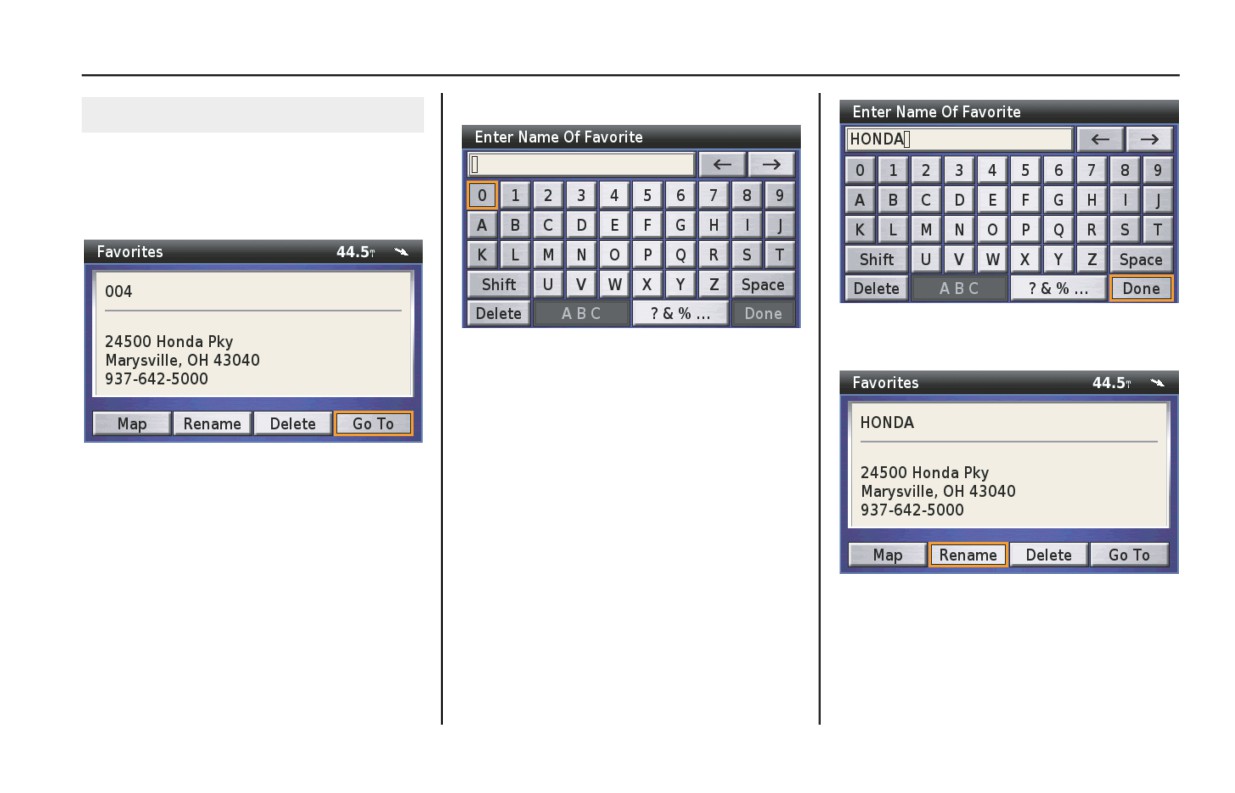
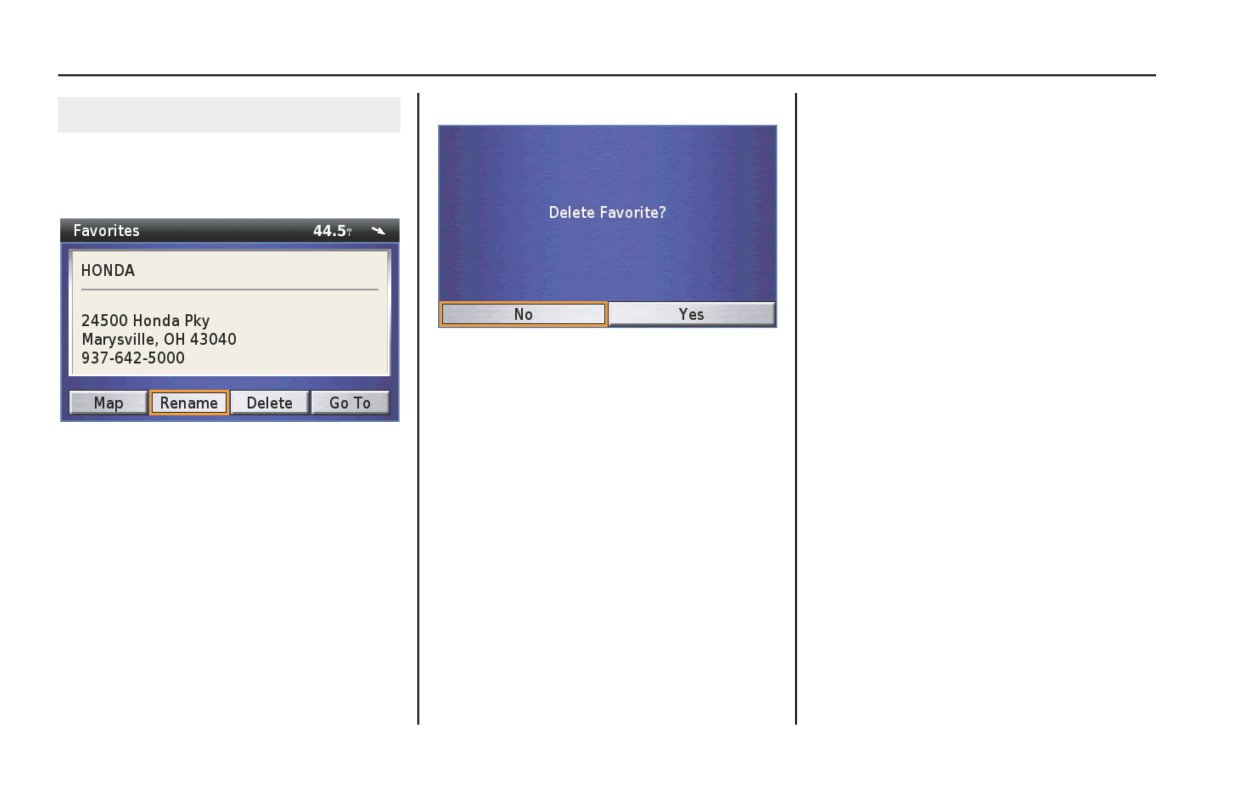
Highlight Rename and press ENT.
Renaming Favorite Places
On the Favorite Places screen, highlight
the location you want to rename and
press ENT. A Point Review Screen
appears.
After typing, highlight Done and press
Use the keyboard to type in the name
ENT.
you selected for the new favorite place.
NOTE:
For more information about the
keyboard screen, see page 64.
NOTE:
For more information about the Point
Review Screen, see page 68.
Press the BACK button to return to the
Favorite Places screen.
108
Favorite Places
Favorite Places
Highlight Delete and press ENT.
Deleting Favorite Places
On the Favorite Places screen, highlight
the location you want to delete and press
ENT. A Point Review Screen appears.
The screen asks you to confirm your
selection. Highlight Yes and press ENT.
The display returns to the Favorite
Places screen with your selection
NOTE:
deleted.
For more information about the Point
Review Screen, see page 68.
To delete all Favorite Places from the
list, highlight Delete All. Press ENT to
execute the deletion.
Favorite Places
109
Route
Route
112
Route to New Destination
114
Edit Route
116
Adding a Location as a Via
117
Adding a Road as a Via
119
Recalculate Route
115
Detour
121
Route
111
Route
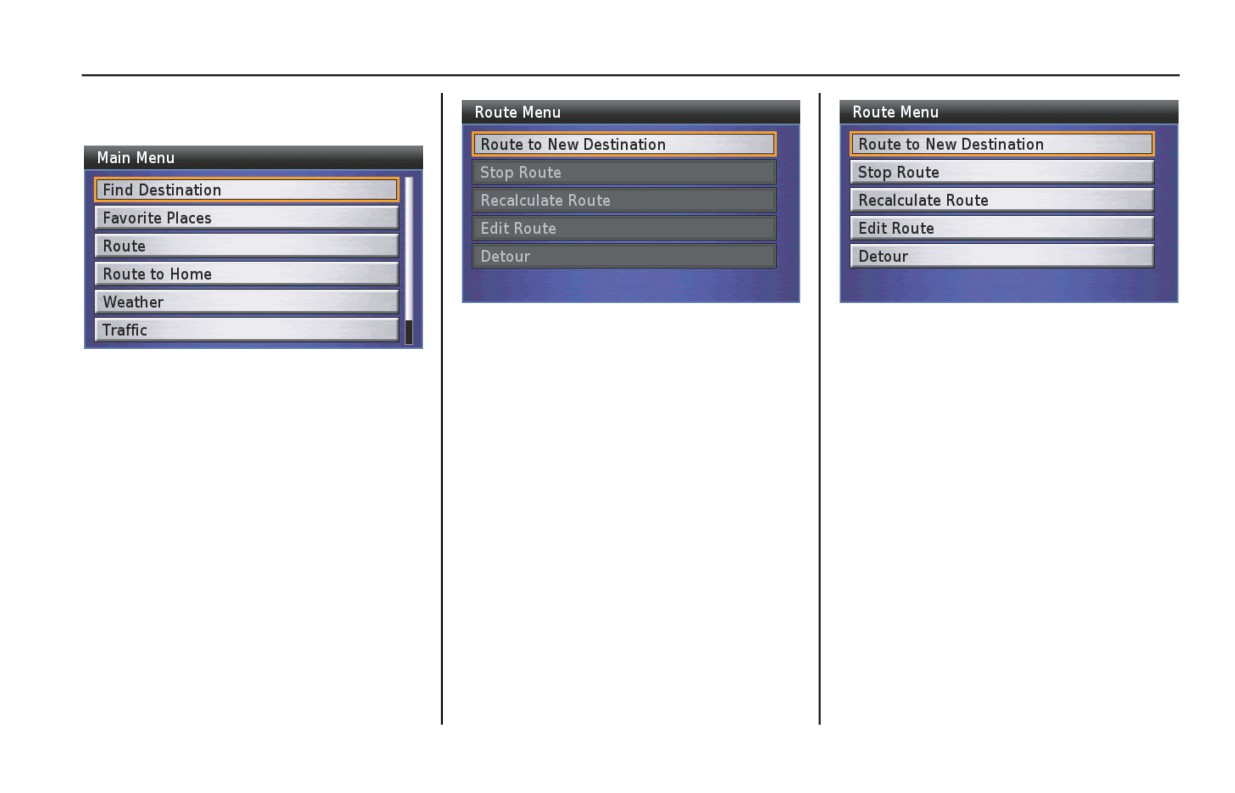
To access the Route menu, highlight
Route on the Main Menu.
Use Route to New Destination to create a
NOTE:
route to a destination. Anytime you have
•
“Detour” will not appear on the menu
Press ENT. The first time you select the
a route entered in the system, you will
if you go off route or do not have
Route option, or any time you do not
see the following screen.
satellite reception.
have a route in the system, you will see
• If the system calculates a route but
the following screen.
does not have satellite reception, the
voice guidance will not operate until
reception is acquired.
112
Route
Route
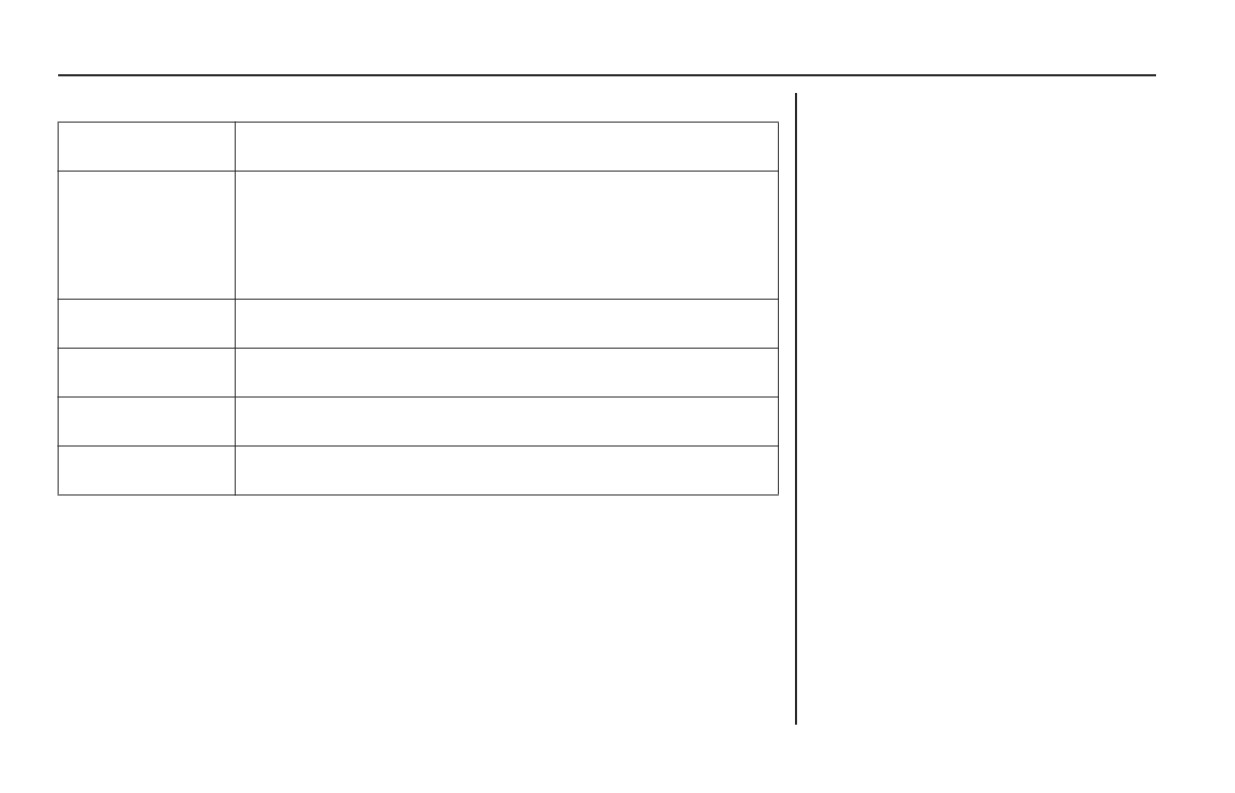
The following options are available from the Route menu.
NOTE:
The “Route to New Destination” and
Route to New
To create a route to a destination.
“Edit Route” selections take you to the
Destination
seven Find Destination functions. In this
Stop Route
To suspend your current route for an intentional “detour” so you do
“Route” section of the manual, the
not lose your current route or receive off-route messages. You may
instructions will refer you to the “Find
also use Stop Route if you reach the vicinity of your destination
Destination” step-by-step sequences.
(example: large parking lot) but the route does not terminate. To return
to your route, go to the Main Menu, select Route, and then Resume
Route.
Resume Route
To resume your current route after stopping it. This function does not
appear on the Route menu until after you use the Stop Route function.
Recalculate Route
To modify an existing route by picking a route preference (either faster
time or shorter distance) and entering up to four “avoid” preferences.
Edit Route
To review your route and add (or delete) one or more locations en
route to your destination.
Detour
To recalculate your route because of an unexpected detour of from ½
to 15 miles.
Route
113
Route to New Destination
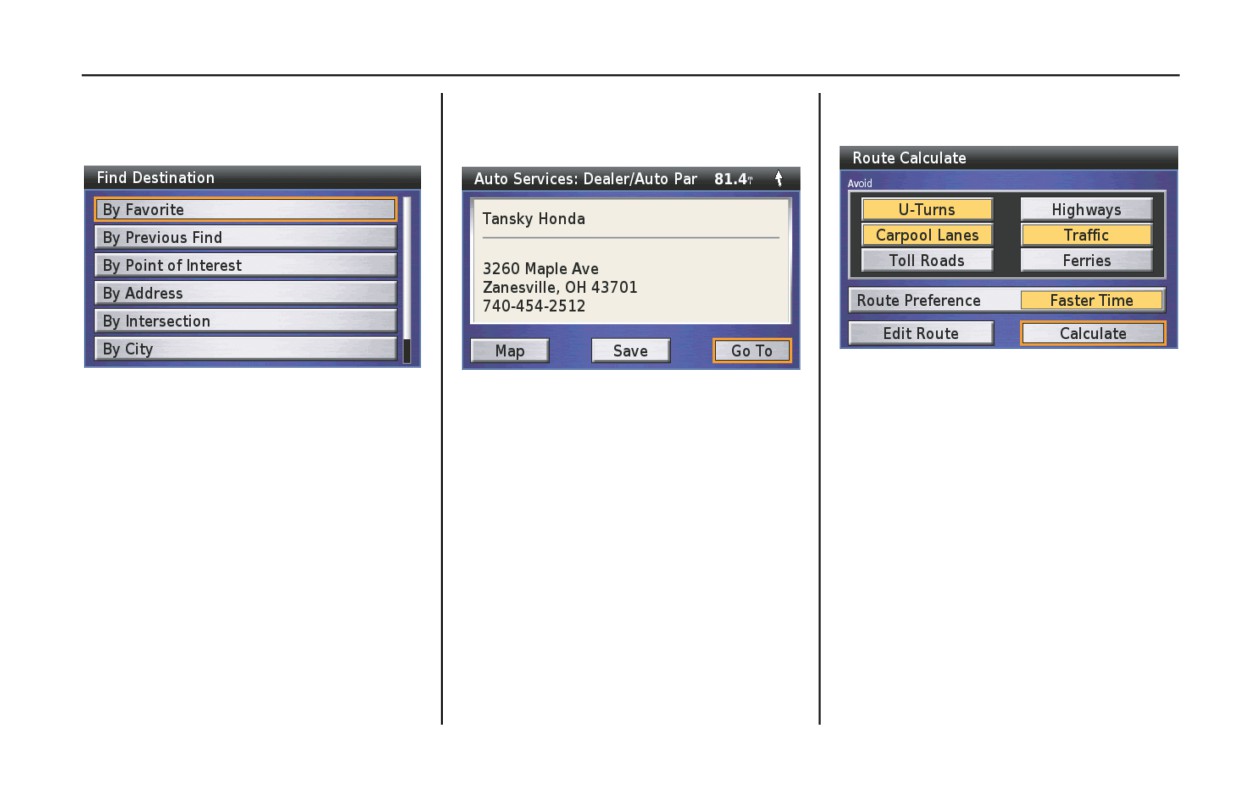
On the Route menu, highlight Route to
See Find Destination on page 81 for
With Go To highlighted, press ENT.
New Destination and press ENT.
information about designating a location.
A Route Calculate Screen appears.
The following screen appears.
A Point Review Screen will appear.
NOTE:
The system offers the seven Find
NOTE:
For more information about the Route
Destination menu choices.
For more information about the Point
Calculate Screen, see page 71.
Review Screen, see page 68.
With Calculate highlighted, press ENT.
The system calculates the route to the
destination and starts the voice and route
guidance.
114
Route