Citroen C4 Dag (2013 year). Manual - part 18
 

  Index      Citroen     Citroen C4 Dag - service manual 2013 year in english


Search            


Content   ..  16  17  18  19   ..


Citroen C4 Dag (2013 year). Manual - part 18


08

271

 MUSIC MEDIA PLAYERS 

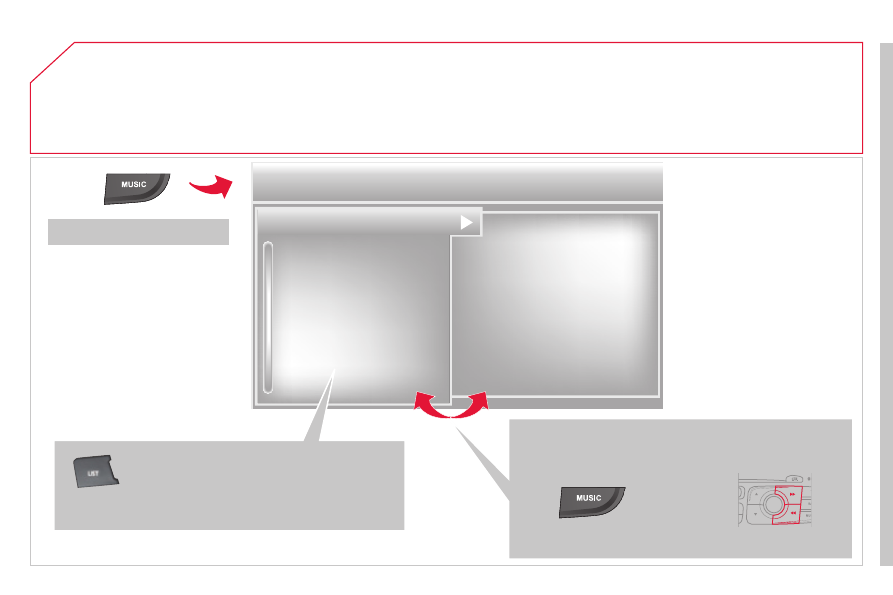
       Access to the "MUSIC MEDIA PLAYER" menu 

  " MEDIA "  

  " Change Media " 
 " Eject USB device " (if USB 

connected) 
 " Play mode " (" Normal ", 

Random ", " Random on all 

media ", " Repetition ") 
 " Audio settings " (see this section) 
 " Activate / Deactivate AUX input "  

 List of the current media 

tracks.  

  This list can also be displayed by pressing  LIST  

at the steering mounted controls.  

  Go from the list to the menu (left/right). 

 or   

  Press  MUSIC . 

08

272

 MUSIC MEDIA PLAYERS 

  CD, MP3 CD / USB player 

  The audio equipment will only play audio fi les with ".wma, .aac, .fl ac, 

.ogg and .mp3" fi le extensions and with a bit rate of between 32 Kbps 

and 320 Kbps. 
 It also supports VBR (Variable Bit Rate) mode. 
 No other type of fi le (.mp4, .m3u…) can be played. 
 WMA fi les must be of the standard wma 9 type. 
 The sampling rates supported are greater than 32 KHz.  

  It is advisable to restrict fi le names to 20 characters, without using of 

special characters (e.g.: " " ? ; ù) to avoid any playing and displaying 

problems.  

  In order to be able to play a recorded CDR or CDRW, when recording 

it is preferable to select the ISO 9660 level 1, 2 or Joliet standard. 
 If the disc is recorded in another format (udf, …), it may not be played 

correctly. 
 It is recommended that the same recording standard is always used 

for an individual disc, with as low a speed as possible (4x maximum) 

for optimum sound quality. 
 In the particular case of a multi-session CD, the Joliet standard is 

recommended.  

  Information and advice  

  The system supports USB mass storage or iPod 

devices via the USB port (suitable cable not supplied). 
 If a partitioned USB memory key is connected to the 

system, only the fi rst partition is recognised. 
 Control of the peripheral device is with the audio 

system controls. 
 The number of tracks is limited to 2000 maximum, 

999 tracks per folder. 
 If the current consumption at the USB port exceeds 

500 mA, the system goes into protection mode and 

deactivates the port. 
 Other peripherals, not recognised on connection, must 

be connected to the auxiliary socket using a Jack cable 

(not supplied).  

  In order to be read, a USB memory stick must be formatted FAT 16 or 32.   

   The system does not support the operation of an Apple 

®

  player and a 

USB memory stick connected at the same time.  

  It is recommended that offi cial Apple 

®

  USB cables are used to ensure 

correct operation.   

08

273

 MUSIC MEDIA PLAYERS 

   Sources  

  Insert the CD in the player, insert the USB memory 

stick in the USB player or connect the USB 

peripheral to the USB port using a suitable cable 

(not supplied) .
 The system builds playlists (in temporary memory), 

an operation which can take from a few seconds to 

several minutes at the fi rst connection. 
 Reduce the number of non-music fi les and the 

number of folders to reduce the waiting time. 
 The playlists are updated every time the ignition is 

switched off or connection of a USB memory stick. 

However, the system memorises these lists and 

if they are not modifi ed, the loading time will be 

shorter. 
 Play starts automatically after a period which 

depends on the capacity of the USB memory stick.   

   Selection of source 

 The  SOURCE  button on the steering mounted controls allows a 

direct change to the next media source. 

 " CD / CD MP3 " 

 " USB, iPod " 

 " AUX " 

 " STREAMING " 

 " RADIO "  

  Press  MUSIC  to display the " MEDIA " 

menu.  

  Select " Following media source " and 

confi rm.  

  Repeat the operation as many times as necessary to obtain the 

desired media source (except for radio which is accessible either 

with  SOURCE  or  RADIO ).   

08

/

/

/

/

/

/

/

/

+

/

274

   SELECTING A TRACK  

 MUSIC MEDIA PLAYERS 

  Previous track.  

  Next track.  

  Previous folder.  

  Next folder.  

  Fast forward. 

  Fast backward. 

  Pause: long press on  SRC .    

  LIST: List of USB or CD tracks

or folders  

  Up or down in the list.  

  Confi rm, next menu level.  

  Up one menu level.   

 Long press  

 Long press  

08

275

       Audio streaming 

  Streaming allows audio fi les on your telephone to be played via the 

vehicle's speakers.  

  Connect the telephone: see " USING THE TELEPHONE ". 
 Select " Audio " or " All " profi le.  

  If play does not start automatically, it may be necessary to start the 

audio playback from the telephone. 
 Control is from the peripheral device or by using the audio system 

buttons.  

  Once connected in streaming mode, the telephone is considered to be 

a media source. 
 It is recommended that you activate " Repeat " on the Bluetooth 

peripheral.   

 MUSIC MEDIA PLAYERS 

  Connecting APPLE 

®

  players 

  Connect the Apple 

®

  player to the USB port using a suitable cable (not 

supplied). 
 Play starts automatically.  

  Control is via the audio system.  

  The classifi cations available are those of the portable device 

connected (artists / albums / genres / playlists / audiobooks / 

podcasts). 
 The default classifi cation used is by artist. To modify the classifi cation 

used, return to the fi rst level of the menu then select the desired 

classifi cation (playlists for example) and confi rm to go down through 

the menu to the desired track. 
 The "Shuffl e tracks" mode on an iPod 

®

  corresponds to the "Random" 

mode on the audio system. 
 The "Shuffl e albums" mode on an iPod 

®

  corresponds to the "Random 

all" on the audio system. 
 "Shuffl e tracks" is restored by default on each connection.  

  The version of software in the audio system may not be compatible 

with the generation of your Apple 

®

  player.   

08

276

 MUSIC MEDIA PLAYERS 

                USING THE AUXILIARY INPUT (AUX)  
JACK/RCA AUDIO CABLE NOT SUPPLIED 

  Connect the portable device (MP3, WMA player…) to the RCA audio 

sockets (white and red) using a JACK-RCA audio cable.  

  Press  MUSIC  to display the " MUSIC " 

menu.  

  Select " Activate / Deactivate AUX 

input " and confi rm. 
 First adjust the volume of your portable 

device (to a high level). Then adjust the 

volume of your audio system.  

  Display and management of the controls are via the portable device.   

09

277

 AUDIO SETTINGS 

   They are accessible by the  MUSIC  

button in the control panel or by a long 

press on  RADIO  according to the source 

in use.  

    -  " 

Equalizer " (choice of 6 musical ambiences) 

  -  " 

Bass " 

  -  " 

Treble " 

  -  " 

Loudness " (Activate/Deactivate) 

  -  " 

Distribution " (" Driver ", " All passengers ") 

  -  " 

Le-Ri balance " (Left/Right) 

  -  " 

Fr-Re balance " (Front/Rear) 

  -  " 

Auto. Volume " depending on road speed (Activate/Deactivate)   

  The distribution (or spatialisation using the Arkamys

©

 system) of sound 

is an audio process that allows the audio quality to be adapted to the 

number of listeners in the vehicle.  

   On-board audio: Arkamys 

©

  Sound Staging.  

With Sound Staging, the driver and passengers are immersed in an 

"audio scene" recreating the natural atmosphere of an auditorium: 

truly a part of the scene and its surroundings.  
This new sensation is made possible by software in the audio system 

which processes the digital signals from the media players (radio, 

CD, MP3…) without changing the audio settings. This processing 

takes account of the characteristics of the passenger compartment to 

produce optimum results. 
 The Arkamys

©

 software installed in your audio system processes 

the digital signal from the media players (radio, CD, MP3, …) and 

recreates a natural musical scene, with harmonious placement of 

instruments and voices in the space in front of passengers, level with 

the windscreen.   

  The audio settings ( Equalizer ,  Bass ,  Treble  and  Loudness ) are 

different and independent for each sound source. 
 The settings for distribution and balance are common to all sources.   

10

278

 CONFIGURATION 

  Press  SETUP  to display the 

Confi guration " menu.  

  Select " Choose colour " and confi rm to 

select the screen colour harmony and 

the map presentation mode: 
   -  day 

mode, 

  -  night 

mode, 

  -  

automatic day/night mode, 

according to whether the 

headlamps are on.   

  Select " Adjust luminosity " and confi rm 

to adjust the screen brightness. 
 Press " OK " to save the changes. 
 The settings for day and night are 

independent.   

  Select " Display confi guration " and 

confi rm.  

  Display configuration 

11

279

 SCREEN MENU MAP(S) 

  "NAVIGATION - GUIDANCE" 

MENU 

   Enter an address  

 Select destination 

  Directory  

  GPS coordinates    

  Journey leg and route 

   Add a stage  

  Enter an address  

  Directory  

  Previous destinations  

  Order/delete journey legs  

  Divert route  

  Chosen destination    

  Guidance options 

   Defi ne calculation criteria  

  Delete last destinations  

  Map management 

   Map orientation  

          MAIN FUNCTION 

   Option A1  

 Option A11   

 Option A 

  Option B…  

  Map details  

  Move the map  

  Mapping and updating  

  Description of risk areas database    

  Stop / Restore guidance 

1

2

3

1

3

3

2

2

2

2

1

3

1

1

2

2

2

2

2

2

2

2

2

2

1

1

  Set parameters for risk areas    

2

   Fastest route  

2

  Shortest route  

  Distance/Time  

  With tolls  

2

2

2

  With Ferry  

2

  Traffi c info    

2

  Set speech synthesis  

  Fastest route  

  Shortest route  

3

3

2

  Distance/Time  

  With tolls  

3

3

  With Ferry  

  Traffi c info  

3

3

3

3

3

 North direction 

 Vehicle direction 

 Perspective view 

11

280

 SCREEN MENU MAP(S) 

  Select TMC station 

   Automatic TMC  

  Manual TMC  

  List of TMC stations    

  Display / Do not display 

messages  

  "TRAFFIC INFORMATION" 

MENU 

 Geographic filter 

   Retain all the messages:  

  Retain the messages:  

  Around the vehicle  

  On the route    

1

2

2

2

1

2

2

3

3

1

 Dial 
 Directory of contacts 

   Call  

  Open  

  Import  

  "TELEPHONE" MENU 

1

2

2

2

1

2

2

2

2

1

2

3

3

3

2

2

2

1

1

1

3

3

3

2

3

2

2

3

   List of the paired peripherals  

  Connect  

  Disconnect  

  Delete  

  Delete all  

  Contact mem. status    

  Phone functions 

   Ring options  

  Delete calls log    

  Bluetooth functions 

  Peripherals search  

  Rename radiotelephone    

  Hang up  

  Display all phone contacts  

  Delete  

  Contacts management 

   New contact  

  Delete all contacts  

  Import all the entries  

  Synchronization options  

  Display telephone contacts  

  No synchronization  

  Display SIM card contacts  

2

  Cancel    

2

  Sort by Name/First name  

3

  Cancel  

11

281

 SCREEN MENU MAP(S) 

1

1

2

2

2

2

2

3

3

2

2

2

1

  "MUSIC" MENU 

 Change Media 

  Audio settings  
  Activate / Deactivate AUX 

input  

 All passengers 

  Le-Ri balance  

  Fr-Re balance  

  Auto. Volume  

  Update radio list  

  Bass  

  Treble  

  Loudness  

  Distribution  

 Driver 

1

2

2

1

1

3

3

3

3

3

3

2

   Equalizer  

  "RADIO" MENU 

 Change Waveband 

  Guidance options 

   TA  

  RDS options  

  Audio settings 

  None  

  Classical  

  Jazz  

  Rock  

  Techno  

  Vocal  

2

2

2

2

  USB/iPod  

  AUX    

   CD  

  BT Streaming  

2

   FM / DAB / AM    

3

 Activated / Deactivated 

3

 Activated / Deactivated   

2

2

  FM/DAB  (auto tracking) 

  Video mode    

11

282

 SCREEN MENU MAP(S) 

2

1

2

2

  Crystal symphony  

  Urban rythmik  

  "SETUP" MENU 

 Sound choice 

   Classic  

2

  Jungle fantasy    

  *   Depending on vehicle equipment.  

1

  Alert log  

2

   Guidance instructions volume  

1

  Speech synthesis setting 

2

  Select male voice/Select female voice    

2

1

2

2

  Adjust luminosity  

  Set date and time  

  Display configuration 

   Choose colour  

2

  Select units    

1

  Select language 

1

 Define vehicle parameters *   

283

 FREQUENTLY ASKED QUESTIONS 

  The following table groups together the answers to the most frequently asked questions concerning your audio system. 

   QUESTION   

   ANSWER   

   SOLUTION   

 The route calculation is 

not successful. 

 The guidance criteria may confl ict with the current location (exclusion of 

toll roads on a toll motorway). 

 Check the guidance criteria on the Navigation 

Menu, "Guidance options"\ "Defi ne calculation 

criteria". 

 I am unable to enter my 

post code. 

 The system only accepts post codes of up to 5 characters. 

 The POIs do not appear. 

 The POIs have not been selected. 

 Select the POIs in the list of POIs. 

 The risk areas audible 

warning does not work. 

 The audible warning is not active. 

 Activate audible warnings in the Guidance options 

menu, "Navigation - guidance", "Set parameters 

for risk areas". 

 The system does not 

suggest a detour around 

an incident on the route. 

 The guidance criteria do not take account of TMC messages. 

 Select the "Traffi c info" function in the list of 

guidance criteria. 

 I receive a Risk area alert 

which is not on my route. 

 Other than guidance, the system announces all Risk areas positioned in a 

cone located in front of the vehicle. It may provide an alert for a Risk area 

located on nearby or parallel roads. 

 Zoom in on the map to view the exact position of 

the Risk area. Select "On the route" to no longer 

receive alerts other than guidance or to reduce the 

time for the announcement. 

284

 FREQUENTLY ASKED QUESTIONS 

   QUESTION   

   ANSWER   

   SOLUTION   

 Certain traffi c jams 

along the route are not 

indicated in real time. 

 On starting, it is several minutes before the system begins to receive the 

traffi c information. 

 Wait until the traffi c information is being received 

correctly (display of the traffi c information icons on 

the map). 

 The fi lters are too restrictive. 

 Modify the "Geographic fi lter" settings. 

 In certain countries, only major routes (motorways…) are listed for the 

traffi c information. 

 This phenomenon is normal. The system is 

dependent on the traffi c information available. 

 The altitude is not 

displayed. 

 On starting, the initialisation of the GPS may take up to 3 minutes to 

receive more than 4 satellites correctly. 

 Wait until the system has started up completely. 

Check that there is a GPS coverage of at least 

4 satellites (long press on the SETUP button, then 

select "GPS coverage"). 

 Depending on the geographical environment (tunnel…) or the weather, 

the conditions of reception of the GPS signal may vary. 

 This phenomenon is normal. The system 

is dependent on the GPS signal reception 

conditions. 

 I am unable to connect 

my Bluetooth telephone. 

 The telephone's Bluetooth function may be switched off or the telephone 

may not be visible. 

   -  

Check that your telephone's Bluetooth 

function is switched on. 

  -  

Check in the telephone settings that it is 

"visible to all".  

 The Bluetooth telephone is not compatible with the system. 

 You can check the compatibility of your telephone 

on www.citroen.co.uk (services) 

 The volume of the 

telephone connected 

in Bluetooth mode is 

inaudible. 

 The volume depends both on the system and on the telephone. 

 Increase the volume of the audio system, to 

maximum if required, and increase the volume of 

the telephone if necessary. 

 The ambient noise level has an infl uence on the quality of telephone 

communication. 

 Reduce the ambient noise level (close the windows, 

reduce the booster fan speed, slow down, …). 

285

 FREQUENTLY ASKED QUESTIONS 

   QUESTION   

   ANSWER   

   SOLUTION   

 Some contacts are 

duplicated in the list. 

 The options for synchronizing contacts are synchronizing the contacts 

on the SIM card, the contacts on the telephone, or both. When both 

synchronizations are selected, some contacts may be duplicated. 

 Select "Display SIM card contacts" or "Display 

telephone contacts". 

 Contacts are not shown 

in alphabetical order. 

 Some telephones offer display options. Depending on the settings 

chosen, contacts can be transferred in a specifi c order. 

 Modify the display setting in the telephone 

directory. 

 The system does not 

receive SMS text messages. 

 The Bluetooth mode does not permit sending SMS text messages to the 

system. 

 The CD is ejected 

automatically or is not 

played by the player. 

 The CD is inserted upside down, is unplayable, does not contain any 

audio data or contains an audio format which the player cannot play. 

   -  

Check that the CD is inserted in the player the right 

way up. 

  -  

Check the condition of the CD: the CD cannot be 

played if it is too damaged. 

  -  

Check the content in the case of a recorded CD: 

refer to the information and advice in the "MUSIC 

MEDIA PLAYERS" section. 

  -  

The audio system's CD player does not play DVDs. 

  -  

Some recorded CDs will not be played by the audio 

system because they are not of the correct quality.  

 The CD has been recorded in a format that is not compatible with the 

player (udf, …). 

 The CD is protected by an anti-pirating protection system which is not 

recognised by the audio system. 

 There is a long waiting period 

following the insertion of a CD 

or connection of a USB memory 

stick. 

 When a new medium is inserted, the system reads a certain amount of 

data (directory, title, artist, etc.). This may take from a few seconds to a 

few minutes. 

 This phenomenon is normal. 

 The CD player sound is 

poor. 

 The CD used is scratched or of poor quality. 

 Insert good quality CDs and store them in suitable 

conditions. 

 The audio equipment settings (bass, treble, ambiences) are unsuitable. 

 Set the treble or bass level to 0, without selecting 

an ambience. 

286

 FREQUENTLY ASKED QUESTIONS 

   QUESTION   

   ANSWER   

   SOLUTION   

 Some characters in the 

media information are not 

displayed correctly while 

playing. 

 The audio system does not display some types of characters. 

 Use standard characters to name tracks and 

folders. 

 Playing of streaming fi les 

does not start. 

 The peripheral device connected does not support automatic play. 

 Start the playback from the device. 

 The names of tracks and 

the track length are not 

displayed on the screen 

when streaming audio. 

 The Bluetooth profi le does not allow the transfer of this information. 

 The quality of reception 

of the radio station 

listened to gradually 

deteriorates or the stored 

stations do not function 

(no sound, 87.5 Mhz is 

displayed…). 

 The vehicle is too far from the transmitter used by the station listened 

to or there is no transmitter in the geographical area through which the 

vehicle is travelling. 

 Activate the "RDS" function by means of the 

short-cut menu to enable the system to check 

whether there is a more powerful transmitter in the 

geographical area. 

 The environment (hills, buildings, tunnels, basement car parks…) block 

reception, including in RDS mode. 

 This phenomenon is normal and does not indicate 

a fault with the audio system. 

 The aerial is absent or has been damaged (for example when going 

through a car wash or into an underground car park). 

 Have the aerial checked by a CITROËN dealer. 

 I cannot fi nd some radio 

stations in the list of 

stations received. 

 The station is not received or its name has changed in the list. 

 Some radio stations send other information in place of their name (the 

title of the song for example). 
 The system interprets this information as the name of the station. 

 The name of the radio 

station changes. 


Content   ..  16  17  18  19   ..