Citroen C4 Dag (2013 year). Manual - part 17
 

  Index      Citroen     Citroen C4 Dag - service manual 2013 year in english


Search            


Content   ..  15  16  17  18   ..


Citroen C4 Dag (2013 year). Manual - part 17


05

255

 TRAFFIC INFORMATION 

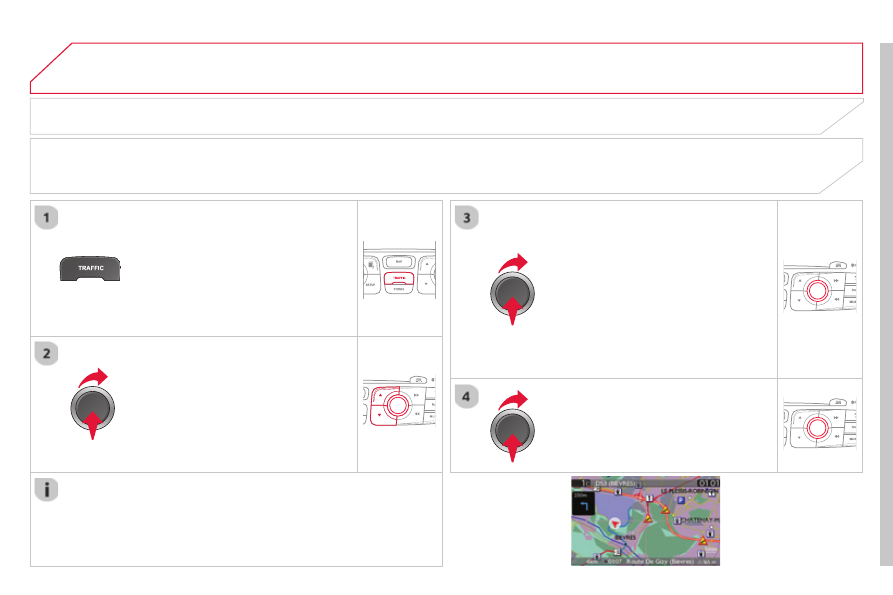
          Configure the filtering and display of TMC messages 

  TMC (Traffi c Message Channel) messages contain information on traffi c and weather conditions, received in real time and transmitted to the 

driver in the form of audible announcements and symbols on the navigation map. 
 The navigation system can then suggest an alternative route to avoid a traffi c problem.  

  Press the  TRAFFIC  button to display the 

Traffi c information " menu.  

  Select the " Geographic fi lter " function 

and confi rm.  

  The system offers a choice of: 
   -  " 

Retain all the messages ",  

 or 
  -  " 

Retain the messages " 

   ●  " 

Around the vehicle ", (confi rm 

the mileage to modify and select 

the distance), 

  ●  " 

On the route ".    

  Confi rm " OK " to save the modifi cations.   

  We recommend: 
   -  a 

fi lter on the route and 

  -  a 

fi lter around the vehicle of: 

   -   12 miles (20 km) in urban areas, 
  -   30 miles (50 km) on motorways.    

05

256

 TRAFFIC INFORMATION 

       Principal TMC symbols 

  Red and yellow triangle: traffi c information, for example: 

  Black and blue triangle: general information, for example: 

 Weather reports 

 Modifi ed signage 

 Risk of explosion 

 Traffi c reports 

 Narrow carriageway 

 Road closed 

 Wind 

 Slippery surface 

 Demonstration 

 Fog 

 Accident 

 Danger 

 Parking 

 Delay 

 No entry 

 Snow / ice  

 Roadworks 

 Traffi c jam   

       Receiving TA messages 

  The TA (Traffi c Announcement) function gives priority to TA alert 

messages. To operate, this function needs good reception of a 

radio station transmitting this type of message. When a traffi c report 

is transmitted, the current audio source (Radio, CD, USB, …) is 

interrupted automatically to play the TA message. Normal playback 

of the audio source resumes at the end of the transmission of the 

message.  

  Press  RADIO  to display the " FM / AM 

band " menu.  

  Select " Guidance options " then 

confi rm.  

  Activate or deactivate " TA " then confi rm.  

  The volume setting for TA messages can be adjusted only during the 

transmission of this type of alert.  

  Activate or deactivate the function at any time by pressing 

the button. 
 During a message, press the button to interrupt it.   

06

257

 USING THE TELEPHONE 

  Access to the "TELEPHONE" menu 

  " Telephone "  

  " Dial  " 
 " Directory of contacts " 
  "Contacts management " 
 " Phone functions " 
 " Bluetooth functions " 
 " Hang up "  

  Go from the list to the menu (left/right). 

 or   

  List of recent calls sent and 

received with the telephone 

connected to the system.  

  Press  PHONE .  

  To make a call, select a number in the list and confi rm " OK " 

to start the call.  

  Connecting a different telephone deletes the list of 

recent calls.  

 No telephone connected. 

 Telephone connected. 

 Incoming call. 

 Outgoing call. 

 Synchronisation 

of address book in 

progress. 
 Telephone call in 

progress.  

  In the top bar of the permanent 

display 

06

258

                Pairing a Bluetooth telephone  
First connection 

  For reasons of safety and because they require prolonged attention 

on the part of the driver, the operations for pairing the Bluetooth 

mobile telephone to the hands-free system of the audio unit must be 

carried out with the  vehicle stationary . 

  In the Bluetooth menu of your telephone, select 

the name of the system from the list of devices 

detected.  

  Press this button.  

  Select " Bluetooth functions " and 

confi rm.  

  Select " Peripherals search " and 

confi rm. 
 The list of peripheral devices detected 

is displayed. Wait until the " Connect " 

button is available.  

 USING THE TELEPHONE 

 You can check the compatibility of your telephone at 

www.citroen.co.uk (services).  

  Activate the telephone's Bluetooth function 

and ensure that it is "visible to all" (telephone 

confi guration).  

  Quick procedure from the telephone  

  Enter a minimum 4 fi gure code in the telephone and 

confi rm.  

  Enter the same code in the system, 

select " OK " and confi rm.  

  Procedure from the system  

06

259

  Select " Connect " and confi rm.  

  The system offers to connect the 

telephone: 
   -  in 

Hands-free mode " (telephone 

only), 

  -  in 

Audio " mode (streaming: playing 

music fi les on the telephone), 

  -  or 

All " (for selection of both 

modes).  

 Select " OK " and confi rm.  

  Then accept automatic connection on the telephone to allow the 

telephone to reconnect automatically every time the vehicle is 

started.  

  The ability of the system to connect in only one mode depends on 

the telephone. The two modes may both connect by default.  

 USING THE TELEPHONE 

  The " Hands-free mode " should be used in preference if 

"Streaming" is not desired.  

  The services available depend on the network, the SIM card and the compatibility of the Bluetooth telephone used. Check the telephone 

manual and with your network provider for details of the services available to you.  

  Depending on the type of telephone, the system will ask you to 

accept or not the transfer of your contacts.  

  On return to the vehicle, the last telephone connected 

automatically reconnects, within around 30 seconds after 

switching on the ignition (Bluetooth activated and visible). 
 To modify the automatic connection mode, remove the pairing 

and pair the telephone again with the desired mode.   

  Enter a minimum 4 fi gure code in the telephone 

and confi rm.  

  Enter the same code in the system, 

select " OK " and confi rm.  

  Select the name of the desired 

peripheral from the list of devices 

detected then confi rm  

06

260

 USING THE TELEPHONE 

  Directory configuration / Synchronisation with the telephone 

  Press  PHONE  then select " Contacts 

management " and confi rm.  

  Select " New contact " to enter a new 

contact.  

  Select " Delete all contacts " to delete 

the contacts saved in the system.  

  Select " Import all the entries " to import 

all the contacts in the telephone and 

save them in the system. 
 Once imported, a contact remains visible 

whatever telephone is connected.  

  Select " Synchronization options ": 
   -  

No synchronization: only the 

contacts saved in the system 

(always present). 

  -  

Display telephone contacts: only the 

contacts saved in the telephone. 

  -  

Display SIM card contacts: only the 

contacts saved on the SIM card. 

  -  

Display all phone contacts: 

contacts on the SIM card and in the 

telephone.   

  Select " Contact mem. status " to see the 

number of contacts saved in the system 

or imported, and the free memory.   

  Select " Sort by Name/First name " to 

choose the order in which they appear.  

06

261

  Editing, importing or deleting a contact 

  Press  PHONE  then select " Directory of 

contacts " and confi rm.  

  Select the desired contact and confi rm.  

  Select " Import " to copy a contact from 

the telephone to the system.  

  Select " Delete " to delete a contact 

recorded in the system.  

  Select  OK  or press the back button to exit 

this menu.   

  Once the contact has been imported, the Bluetooth symbol 

disappears, replaced by the telephone symbol which shows that the 

contact has been saved in the system.  

 USING THE TELEPHONE 

  It is not possible to modify or delete contacts in the telephone or the 

SIM card via the Bluetooth connection.  

  Select " Open " to view a contact on the 

telephone or modify a contact saved in 

the system.  

  In the " Directory of contacts " menu, the import and deletion of 

contacts is done one by one.  

06

262

 USING THE TELEPHONE 

  Press  PHONE  twice.  

  Select " Dial " then confi rm.  

  Select " Directory of contacts " then 

confi rm.  

  Dial the telephone number using the 

virtual keypad selecting each number 

in turn. 
 Confi rm " OK " to make the call.   

  Press  TEL  or twice on  PHONE .  

  Calling a new number  

   Calling a contact  

  Select the desired contact and confi rm. 
 If access was via the  PHONE  button, 

select " Call " and confi rm.  

  Select the number and confi rm to start 

the call.   

       Making a call 

  Use of the telephone is not recommended while driving. We 

recommended that you park safely or make use of the steering 

mounted controls.  

06

263

 USING THE TELEPHONE 

   Calling a recently entered number  

  Press  TEL , select " Call list " and 

confi rm, 

  Select the desired number and confi rm.  

  To erase the calls log, press  PHONE  twice, select " Phone 

functions " and confi rm then select " Delete calls log " and 

confi rm.  

  Ending a call 

  Press  PHONE  then select " OK " to end 

the call.  

  Or make a long press on  TEL  at the 

steering mounted controls.  

  Or make two short presses on  TEL  at 

the steering mounted controls.  

  Or press the  MODE  button, as many 

times as necessary, until the telephone 

screen is displayed. 

 press  PHONE  to display the calls log.  

 or 

 Press " OK " to display the contextual 

menu then select " Hang up " and 

confi rm.   

  It is always possible to start a call directly from the telephone; 

park the vehicle as a safety measure.   

06

264

 USING THE TELEPHONE 

  Receiving a call 

  An incoming call is announced by a ring and a superimposed display 

on the screen.  

   "Yes " to accept the call is selected by 

default. 
 Press " OK " to accept the call. 
 Select " No " and confi rm to reject the 

call.  

  A short press on  TEL  accepts an 

incoming call. 
 A long press on  TEL  rejects an incoming 

call.   

06

265

 USING THE TELEPHONE 

  Options during a call *  

  During a call, press the  MODE  button 

several times to select display of the 

telephone screen, then press " OK " to 

open the contextual menu.  

  Select " Private mode " and confi rm to 

take the call on the handset. 
 Or select " Hands-free mode " and 

confi rm to take the call via the vehicle's 

speakers.  

  Select " Put call on hold " and confi rm to 

put the current call on hold. 
 Or select " Resume the call " and 

confi rm to resume the call on hold.  

  Select " DTMF ring tones " to use the 

numerical keypad, so as to navigate 

through the menu of an interactive vocal 

server.  

  Select " Hang up " to end the call.  

  *   Depending on the compatibility of the phone and your service plan.  

  it is possible to hold a 3-way conference 

call by making 2 calls in succession*. 

Select " Conference   mode call " in the 

contextual menu accessible using this 

button.   

  Or make a short press on this button.  

06

266

  Press  PHONE  twice.  

  Select " List of the paired peripherals " 

and confi rm.  

  It is possible to: 
   -  " 

Connect " or " Disconnect " the 

selected telephone, 

  -  

delete the pairing of the selected 

telephone.  

 It is also possible to select all pairings.   

 USING THE TELEPHONE 

  Managing paired telephones 

  Changing the ringtone 

  Press  PHONE  twice.  

  Select " Phone functions " and confi rm.  

  Select " Ring options " and confi rm.  

  You can adjust the volume and the type 

of ringtone.  

  Select " Bluetooth functions ".  

  Select " OK " and confi rm to save the 

changes.   

07

267

 RADIO 

       Access to the "RADIO" menu 

   " FM / AM band / DAB "  

  " Change waveband " (" AM / FM / 

DAB ") 
 " Guidance options " (" TA, RDS, 

FM alternative frequencies / 

DAB ") 
 " Audio settings " (see this section) 
 " Update radio list "   

  Alphabetical list of stations 

received.  

  Press    or    or use the rotary control to select the 

previous or next station in the list.  

  This list can also be displayed by pressing  LIST  on the 

steering mounted controls.  

  Go from the list to the menu (left/right). 

 or   

  A long press on  LIST  refreshes 

the list of stations received.  

  Press  RADIO .  

07

268

 RADIO 

  By alphabetical list 
 Press  RADIO  or  LIST , select the station 

of your choice and confi rm.  

  By automatic frequency search 
 Press    or    for the automatic search 

for a lower or higher radio frequency. 
 Or turn the thumb wheel at the steering 

mounted controls.  

  By manual frequency search 
 Press    or    to adjust the radio 

frequency step by step.   

       Selecting a station 

  The external environment (hill, building, tunnel, underground car park…) may interfere with the reception, including in RDS station tracking mode. 

This phenomenon is a normal result of the way in which radio waves are transmitted and does not in any way indicate a fault with the audio system.  

  The quality of reception is represented by the number of 

active waves in this symbol.  

  Press  RADIO  or  OK  to display the 

contextual menu.  

      Changing waveband 

  Select " Change waveband ".  

  Select " AM / FM " and confi rm.   

07

269

  Press the button on the numerical 

keypad to recall a preset station. 
 Or press then turn the thumb wheel at 

the steering mounted controls.   

  Presetting a station 

  After selecting a station, press one of 

the buttons on the numerical keypad for 

2 seconds to preset the current station. 
 An audible signal confi rms that the 

station has been preset.  

  Press  RADIO .  

       Activate / Deactivate RDS 

  RDS, if activated, allows you to continue listening to the same 

station by automatic retuning to alternative frequencies. However, 

in certain conditions, coverage of an RDS station may not be 

assured throughout the entire country as radio stations do not 

cover 100 % of the territory. This explains the loss of reception of 

the station during a journey.  

  Select " Guidance options " then 

confi rm.  

  Activate or deactivate " RDS " then 

confi rm.   

 RADIO 

07

270

 RADIO 

  Press " RADIO ".  

      DAB (Digital Audio Broadcasting)   

Digital radio 

  Digital radio provides a higher quality reception and also the 

graphical display of information for the radio station, by selecting 

"Video mode" in "Radio favourites" (Options). 
 The different radio multiplex services offer a choice of stations 

displayed in alphabetical order.  

  Select " Change band " and confi rm.  

  Selection " DAB " and confi rm.  

       Digital radio - DAB/FM auto tracking 

  "DAB" does not have 100% coverage of the country. 
 When the digital signal is weak, "DAB / FM auto tracking" allows you 

to continue listening to the same station, by automatically switching 

to the corresponding analogue "FM" station (if one exists).  

  Change of station in the same "multiplex".  

  Manual search for a "multiplex".   

  Press " RADIO ".  

  Select " Options " and confi rm.  

  Select " FM/DAB " and confi rm.  

  If "DAB / FM auto tracking" is on, there will be a difference of a few 

seconds in the programme when the system changes to analogue 

"FM" radio with sometimes a variation in volume. 
 Display of the "DAB" band then becomes "DAB (FM)". 
 When the strength of the digital signal is good again, the system 

automatically switches back to "DAB".  

  If the "DAB" station you are listening to is not available on "FM" 

(" DAB/FM " option greyed out), or if "DAB / FM auto tracking" is not 

on, the sound will be cut when the digital signal is too weak.   


Content   ..  15  16  17  18   ..