Citroen C4 Cactus (2016 year). Manual - part 17
 

  Index      Citroen     Citroen C4 Cactus - service manual 2016 year in english


Search            


Content   ..  15  16  17  18   ..


Citroen C4 Cactus (2016 year). Manual - part 17


.

Audio and Telematics

255

Level 1

Level 2

Level 3

Comments

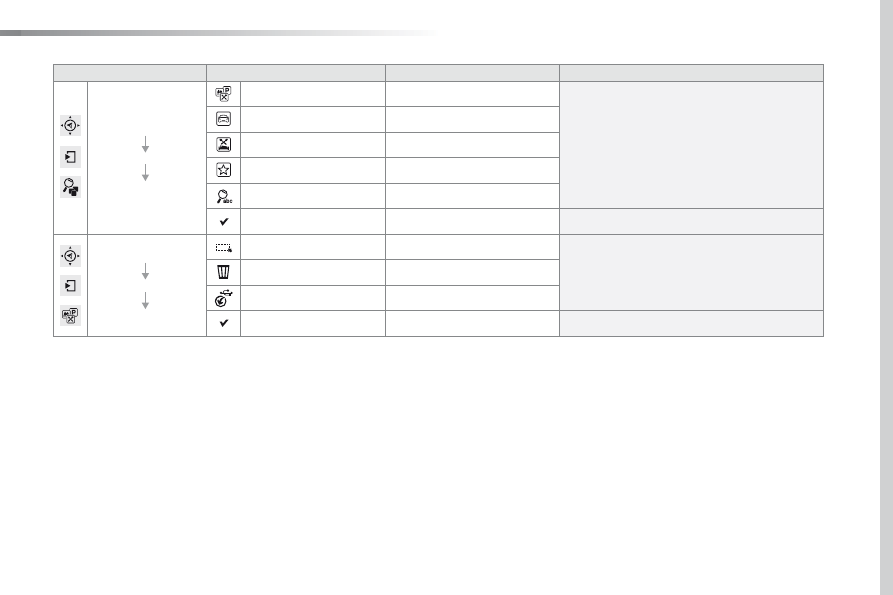
Navigation

Secondary page

Search for POI

All POIs

List of categories available.
After choosing the category, select the points of 
interest.

Motor

Dining/hotels

Personal

By name

Search

Save the settings.

Navigation

Secondary page

Show POIs

Select all

Choose the display settings for POIs.

Delete

Import POIs

Confirm

Save the options.

Audio and Telematics

256

Moving 
between 
the two 
menus.

Level 1

Level 2

Level 3

Traffic messages

Settings

Diversion

Map settings

Navigation

Map settings

Settings

Settings

"Navigation"

Secondary page

.

Audio and Telematics

257

Level 1

Level 2

Level 3

Comments

Navigation

Secondary page

Traffic messages

On the route

Settings for the choice of messages and the 
filter radius.

Around vehicle

Near destination

Detour

Detour over a distance

Recalculate route

Finish

Save your selections.

Navigation

Secondary page

Map settings

Orientation

Flat view north heading

Choose the display and orientation of the 
map.

Flat view vehicle heading

Perspective view

Maps

Aspect

"Day" map colour

"Night" map colour

Automatic day/night

Confirm

Save the settings.

Navigation

Secondary page

Settings

Route settings

Enter settings and choose the volume for the 
voice and announcement of street names.

Voice

Alarm!

Traffic options

Confirm

Save your selections.

Audio and Telematics

258

Navigation - Guidance

Choosing a new destination

Select "Enter destination

".

Select "Save

" to save the address 

entered as a contact entry.
The system allows up to 200 entries.

Select "Confirm

".

Press "Show route on map" to start 
navigation.

Select "Address

".

Select the "Country:

" from the 

list offered, then in the same 
way the "City:" or its post 
code, the "Road:", the "N°:".
Confirm each time.

Select "Navigate to

".

Choose the restriction criteria: 
"Tolls", "Ferries", "Traffic", "Strict", 
"Close

".

Choose the navigation criteria: 
"Fastest" or "Shortest" or "Time/
distance
" or "Ecological

".

To delete navigation information, 
press "Settings

".

Press "Stop navigation

".

To resume navigation 
press "Settings

".

Press "Resume guidance

".

Press on Navigation

 to display the 

primary page.

Press on the secondary page.

Towards a new destination

Or

.

Audio and Telematics

259

Towards a recent destination

Select "Enter destination

".

Select an address from 
the list offered.

Press on Navigation

 to display the 

primary page.

Press on the secondary page.

Select "Navigate to

".

Towards a contact

Select "Enter destination

".

Select "Contacts

".

Press on Navigation

 to display the 

primary page.

Press on the secondary page.

Select a destination from 
the contacts in the list 
offered.

Select "Navigate to

".

Select the criteria then "Confirm" to 
start navigation.

To be able to use navigation "towards 
a contact in the directory", it is first 
necessary to enter the address for your 
contact.

Select the criteria then "Confirm" or 
press "Show route on map" to start 
navigation.

Audio and Telematics

260

Towards GPS coordinates

Select "Enter destination

".

Select "Address

".

Enter the "Longitude:
then the "Latitude:

".

Select "Navigate to

".

Select the criteria then "Confirm" or 
press "Show route on map" to start 
navigation.

Press on Navigation

 to display the 

primary page.

Press on the secondary page.

Towards a point on the map

Select "Enter destination

".

Select "On the map

".

Press on Navigation

 to display the 

primary page.

Press on the secondary page.

Zooming in on the map shows points with 
information.

A long press on a point opens its content.

Towards points of interest (POI)

Points of Interest (POI) are listed in different 
categories.

Press on Navigation

 to display the 

primary page.

Press on the secondary page.

Select "Search for POI

".

Select "All POIs",

Or

"Motor",

Or

"Dining/hotels

".

.

Audio and Telematics

261

An annual mapping update allows new 
points of interest to be presented to 
you.
You can also update the Risk areas / 
Danger areas every month.
The detailed procedure is available on:
http://citroen.navigation.com.

Audio and Telematics

262

Risk areas / Danger zone 
alert settings

Press on Navigation

 to display the 

primary page.

Press on the secondary page.

Select "Settings

".

Select "Alarm!

" (Alert).

It is then possible to activate Risk areas alerts 
then:
-  "Audible warning"
-  "Alert only when navigating"
-  "Alert only for overspeed"
-  "Display speed limits"
-  Timing: the choice of timing allows the 

time before giving a Risk areas alert to be 
defined.

Select "Confirm

".

This series of alerts and displays is 
only available if Risk areas have first 
been downloaded and installed on the 
system.

Traffic

Traffic information

Display of messages

Press on Navigation

 to display the 

primary page.

Press on the secondary page.

Select "Traffic messages

".

Choose filter settings for:

"On the route",

"Around",

"Near destination

", filters to fine-

tune the list of messages.

Press again to remove the filter.

.

Audio and Telematics

263

Select the message from 
the list offered.

Select the magnifying glass to have 
voice information.

Setting filters

Press on Navigation

 to display the 

primary page.

Press on the secondary page.

Select "Settings

".

Select "Traffic options

".

Select:
-  "Be advised of new messages",
-  "Speak messages".
Then enter the filter radius.

Select "Confirm

".

We recommend a filter radius of:
-  12 miles (20 km) in urban areas,
-  30 miles (50 km) on motorways.

TMC (Traffic Message Channel) 
messages on GPS-Navigation contain 
traffic information transmitted in real 
time.

The TA (Traffic Announcement) 
function gives priority to TA alert 
messages. To operate, this function 
needs good reception of a radio station 
transmitting this type of message. 
When a traffic report is transmitted, 
the current audio source is interrupted 
automatically to play the TA message. 
Normal playback of the audio source 
resumes at the end of the transmission 
of the message.

Receiving TA messages

Press on Navigation

 to display the 

primary page.

Press on the secondary page.

Select "Settings

".

Select "Voice

".

Activate / Deactivate "Traffic 
(TA)

".

Audio and Telematics

264

Level 1

Configuration

Level 2

Level 3

Audio settings

Audio settings

Audio settings

"Configuration"

Primary page

.

Audio and Telematics

265

Level 1

Level 2

Level 3

Comments

Configuration

Audio settings

Ambience

Choose the sound ambience.

Balance

Set the position of the sound in the vehicle using 
the Arkamys

®

 system.

Sound effects

Set the volume or activate the link to vehicle 
speed.

Ringtones

Set the telephone ringtone and volume.

Voice

Set the volume and voice for speaking street 
names

Confirm

Save the settings.

Configuration

Turn off screen

Turn off the display (black screen). A press on the 
black screen restores the display.

Configuration

Interactive help

Back

Consult the Interactive help.

Driving assistance 
Equipment

Warning lamps

Audio communication

GPS Navigation

Previous page

Next page

Audio and Telematics

266

Units

Display screen

Configuration

Adjust date and time

Factory settings

Level 1

Level 2

"Configuration"

Secondary page

.

Audio and Telematics

267

Level 1

Level 2

Comments

Configuration

Secondary page

System Settings

Units

Set the units used to display distance, fuel 
consumption and temperature.

Delete data

Select the desired data in the list then press 
Delete.

Factory settings

Return to factory settings.

Confirm

Save the settings.

Configuration

Secondary page

Time/Date

Confirm

Set the date and time then confirm.

Configuration

Secondary page

Screen settings

Activate automatic text scrolling

Make the setting then confirm.

Activate animations

Confirm

Audio and Telematics

268

Choice of language

Calculator

Configuration

Calendar

Level 1

Level 2

"Configuration"

Secondary page

.

Audio and Telematics

269

Level 1

Level 2

Comments

Configuration

Secondary page

Languages

Confirm

Select the language then confirm.

Configuration

Secondary page

Calculator

Select the calculator.

Configuration

Secondary page

Calendar

Select the calendar.

Audio and Telematics

270

Audio settings

Press on Configuration

 to display 

the primary page.

Select "Audio settings

".

Select "Ambience" or "Balance" or 
"Sound effects" or "Ringtones" or 
"Voice

".

On-board audio: Arkamys

©

 Sound 

Staging optimises sound distribution in 
the the passenger compartment.

The "Interactive help" included in 
the system is not intended to be a 
substitute for the more complete 
content of the printed handbook.

The distribution (or spatialisation using 
the Arkamys

©

 system) of sound is an 

audio process that allows the audio 
quality to be adapted to the number of 
listeners in the vehicle.
Available only with the 6-speaker 
configuration.

The audio settings (AmbienceBass:
Treble:

 and Loudness) are different 

and independent for each sound 
source.
The settings for Distribution and 
Balance

 are common to all sources.

As a safety measure, consultation of 
the handbook is only possible with the 
vehicle stationary.

-  "Ambience" (choice of 6 musical 

ambiences)

-  "Bass:"
-  "Treble:"
-  "Loudness" (Activate/Deactivate)
-  "Balance" ("Driver", "All 

passengers", "Front only")

-  "Audible response from touch screen"
-  "Volume linked to speed

(Activate/Deactivate)

Press on Configuration

 to display 

the primary page.

Select "Interactive help

".

Interactive help


Content   ..  15  16  17  18   ..