PL7 JUNIOR/PRO Operate modes manual (Operate modes manual eng V4.0) - page 11
Configuring the FIPWAY link
CAUTION
Significant risks
The other advanced parameters may only be modified by special in-
struction from the software using the FIP FPC10 driver or under the su-
pervision of the technical support department of Schneider
Automation SA.
Failure to observe this precaution can result in injury or equip-
ment damage.
407
Configuring the FIPWAY link
408
OS Loader
20
Introduction
Subject of this
This chapter presents the standard functions of the OS Loader.
chapter
What’s in this
This Chapter contains the following Maps:
Chapter?
Topic
Page
The OS Loader: At a Glance
410
Displaying the PLC OS version
412
Downloading an OS
413
Communication error during downloading
414
Limitations of the OS Loader
415
409
OS Loader
The OS Loader: At a Glance
Introduction
This software is used to update the operating system on the TSX Micro and TSX
Premium PLCs by a download via the terminal port.
It also gives the option of reinstalling a previous version of the OS.
The functions of The OS Loader is used:
the OS Loader
l to display the OS version installed on the PLC,
l to download the operating system into a PLC memory system.
CAUTION
The download operation includes a delicate phase during which any
PLC power outage is likely to render it unusable.
Failure to observe this precaution can result in injury or equip-
ment damage.
410
OS Loader
How to access
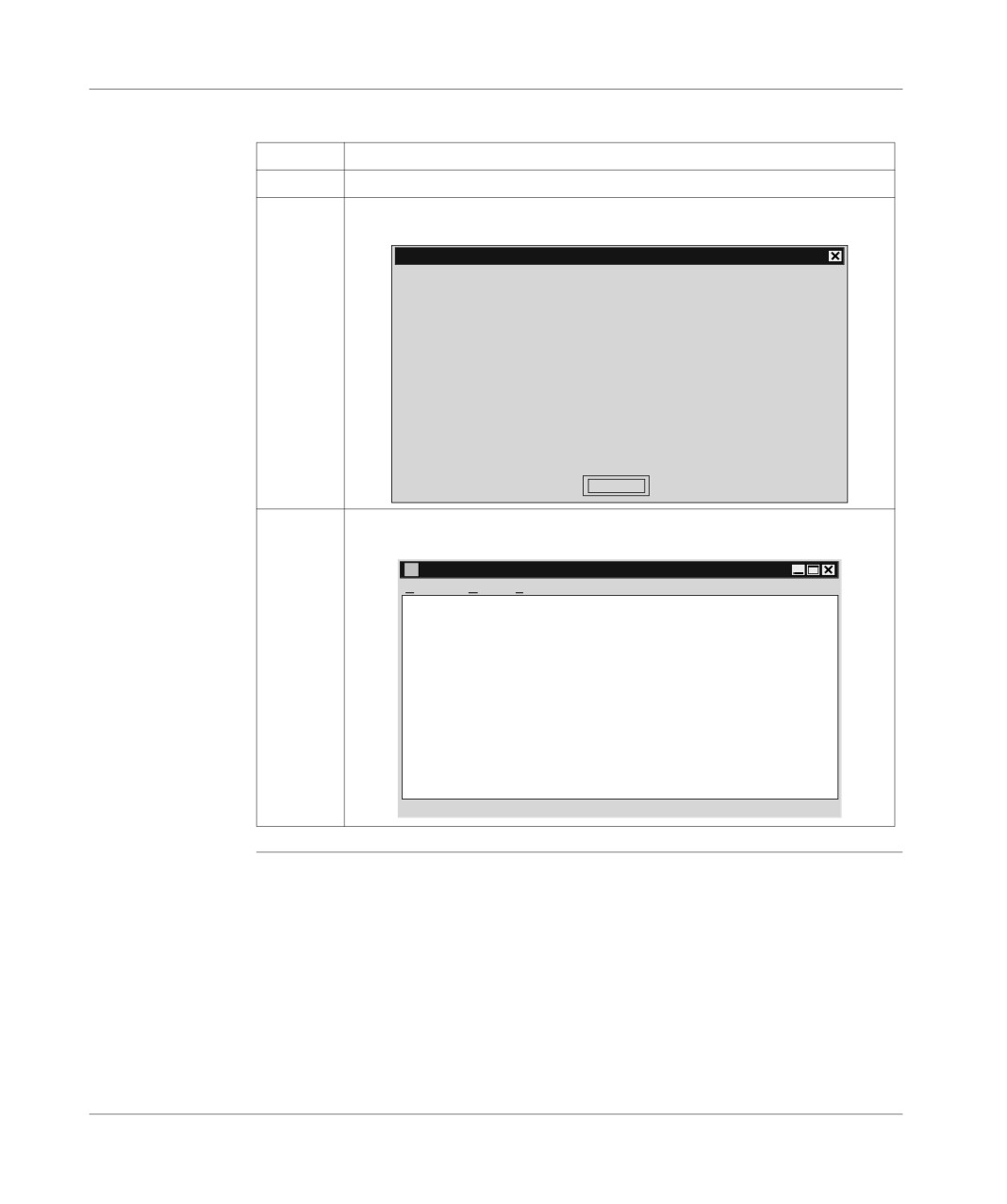
Carry out the following steps:
the OS Loader
Step
Action
1
Click on Start → Program.
2
Select the Modicon Telemacanique menu.
Result:
Avertissement
Prendre les précautions nécessaires pour qu’aucune coupure secteur n’ait lieu sur l’au-
tomate pendant toute la durée du téléchargement (plusieurs minutes).
Si une coupure secteur intervient pendant ce téléchargement,l’automate peut passer dé-
finitivement hors service.
Vérifier que l’on dispose d’une sauvegarde du programme applicatif de l’automate, si le
programme est exécuté en RAM interne de l’automate.
(l’opération de téléchargement de l’Operating System peut provoquer l’effacement du
programme applicatif dans la RAM interne de l’automate)
Les fichiers Operating System automate(*.bin) sont livrés sur la disquette “Disquette OS
OK
3
Next, click on OK.
Result:
Untitled - DS - LOADER
Fichier
AP
?
Prêt
411
OS Loader
Displaying the PLC OS version
Introduction
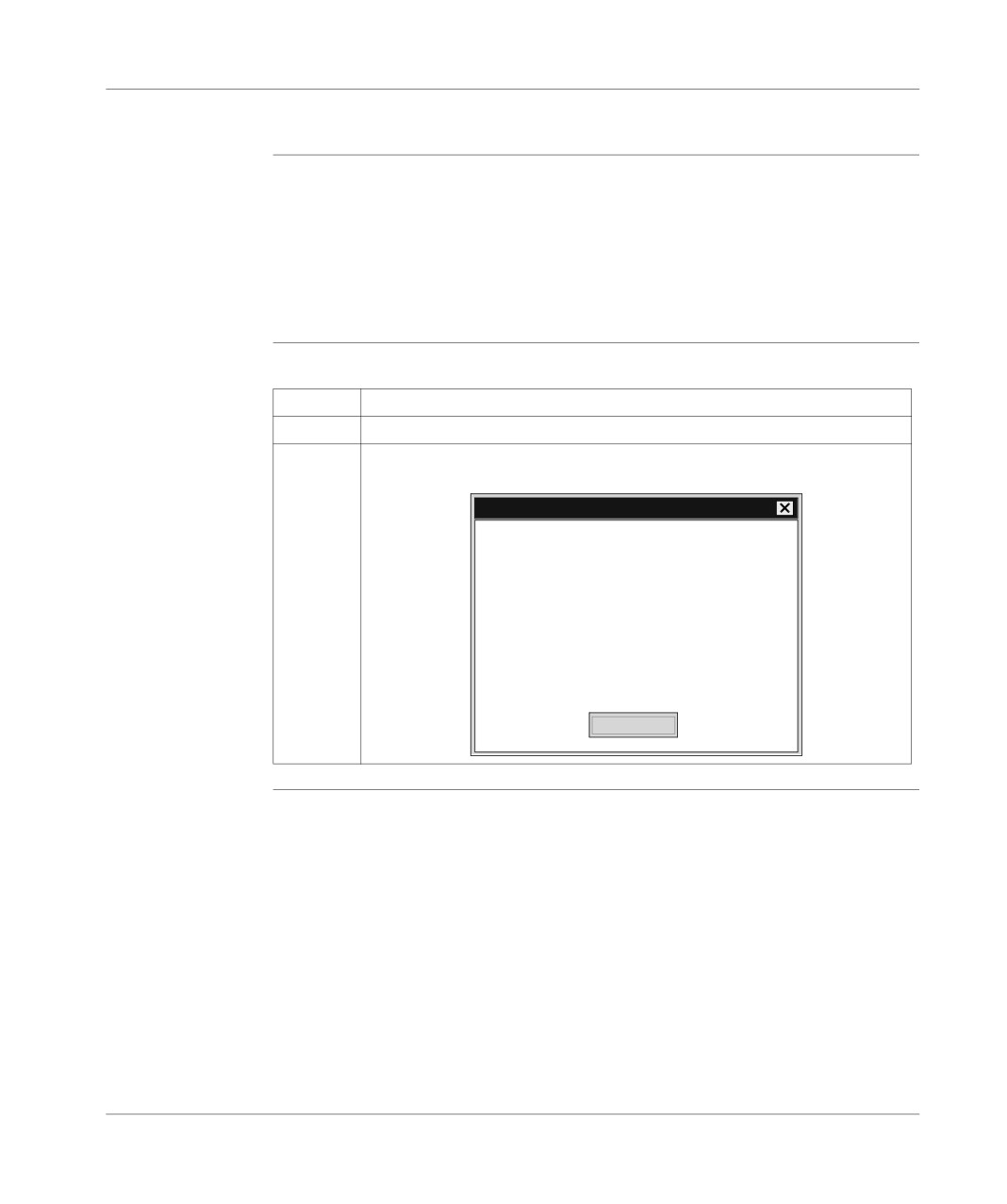
The OS Loader is used to display various information on the OS version installed on
the PLC:
l the product reference,
l the specific-application type,
l the hardware variant,
l the software version (SV) of the operating system,
l the development index (DI) of the operating system.
How to access
Carry out the following steps:
the OS version
Step
Action
display
1
In the OS Loader window, click on the PLC menu.
2
Click on Display version.
Result:
Version de L’Operating System de l’automate
Référence Commerciale
:
TSX 57352
Type Métier
:
CPU
Variante Matérielle
:
9
VL
:
3.7
IE
:
88
OK
412
OS Loader
Downloading an OS
Preliminary
Before installing the new operating system on the PLC, you are advised to:
operations
l copy the contents of the CD-ROM containing the OS into a hard disk directory
and work from this directory (downloading time optimized),
l consult the Readme.txt file document on the CD-ROM.
Disconnect the PLC from all networks before downloading.
The Uni-telway driver must be installed on the terminal and must be the only resident
driver.
Dedicated features of the TSX Micro: set the "Write Project" micro-switch (situat-
ed in the battery recess), into the OFF position. When the download is complete, put
the micro-switch back into the ON position.
How to select an Carry out the following steps:
OS
Step
Action
1
Select the File → Select command from the OS Loader window.
2
Select the drive containing the OS CD-ROM (or the hard disk directory to which
it has been copied).
3
Select the file which relates to the type of processor in question.
Downloading a
Carry out the following steps:
new OS
Step
Action
1
Select the PLC → Load Operating System command.
A dialog box displays the information concerning:
l the operating system on the PLC,
l the new operating system to be installed.
A warning message indicates:
l the risks in the event of a power outage,
l that the PLC has switched to STOP mode.
2
Click on the Load button.
Once the download has been completed, there are two possible scenarios:
l PLC without application or in STOP mode prior to downloading:
close the dialog box by double clicking on the system box.
l PLC in RUN mode prior to downloading:
a dialog box offers to switch the application to RUN mode; confirm your
choice by clicking on YESorNO.
3
Close the dialog box by double clicking on the system box.
413
OS Loader
Communication error during downloading
Introduction
Communication errors are caused by certain events (loss of connection, power out-
age…).
These errors can be classified into two types:
l minor,
l fatal.
Minor errors
Example: disconnection of the terminal port.
A dialog box offers whether to continue or to stop the download :
l select the Repeat command after having fixed whatever was causing the down-
load to be interrupted or,
l select the Abort load command : the PLC passes into "loading" mode, so you
will have to restart a new download of the operating system in order to use the
PLC,
l click on OK to return to the main window.
Fatal errors
Example: power outage.
The PLC then becomes unusable. The leds RUN, I/O and ERR are constantly lit and
the terminal/PLC dialog is impossible.
414
OS Loader
Limitations of the OS Loader
The limitations of An operating system cannot be downloaded in the following cases :
the OS Loader
Carry out these actions in the event of these cases:
Case
Action
the PLC is out of service
Impossible to establish the connection!
or does not respond any
Check that the PLC has not suffered a power outage, that it is al-
more
ways connected to console and that no other tool is connected to
the terminal port.
The PLC is still reserved
Cannot load
by another tool
Disconnect the unit which is reserving the PLC.
the binary file to be loaded
Cannot load
is incompatible with the
Check the type of PLC then select the adapted binary file.
target processor
The selected file is not
Use a (*.Bin) type file.
(*.Bin) type
the binary file to be loaded
Warning : the application will be lost when the OS is loaded.
is incompatible with the
application in the PLC
415

Windows
21
Presentation
Subject of this
This chapter deals specifically with Windows.
chapter
What’s in this
This Chapter contains the following Maps:
Chapter?
Topic
Page
PL7 online help
418
Help Topics Browser
419
PL7 contextual Help
421
General points relating to Windows
422
Equivalent Windows keyboard: Basic principle
423
The menu keys
424
Windows dialogue box keys
425
Keys for modifying text
427
Text selection keys
428
Work station and Windows Explorer keys
429
Print management in Windows
430
417
Windows
PL7 online help
At a glance
PL7 online help describes the set up of various software editors in a sequential fash-
ion. It provides detailed information on:
l users access rights,
l PL7 general information (setting up an application, addressing bit objects and
words, memory management, etc.)
l PL7 language instructions (functions, syntaxes, operands),
l using PL7 (programming, debugging, diagnostics),
l TSX Micro and Premium application-specific functions (Process control, Up-
counting, Weighing, etc.).
Access mode
There are two access modes:
using PLC
l from a helpbrowser,
l directly from a context sensitive Help PL7 screen.
418
Windows
Help Topics Browser
At a Glance
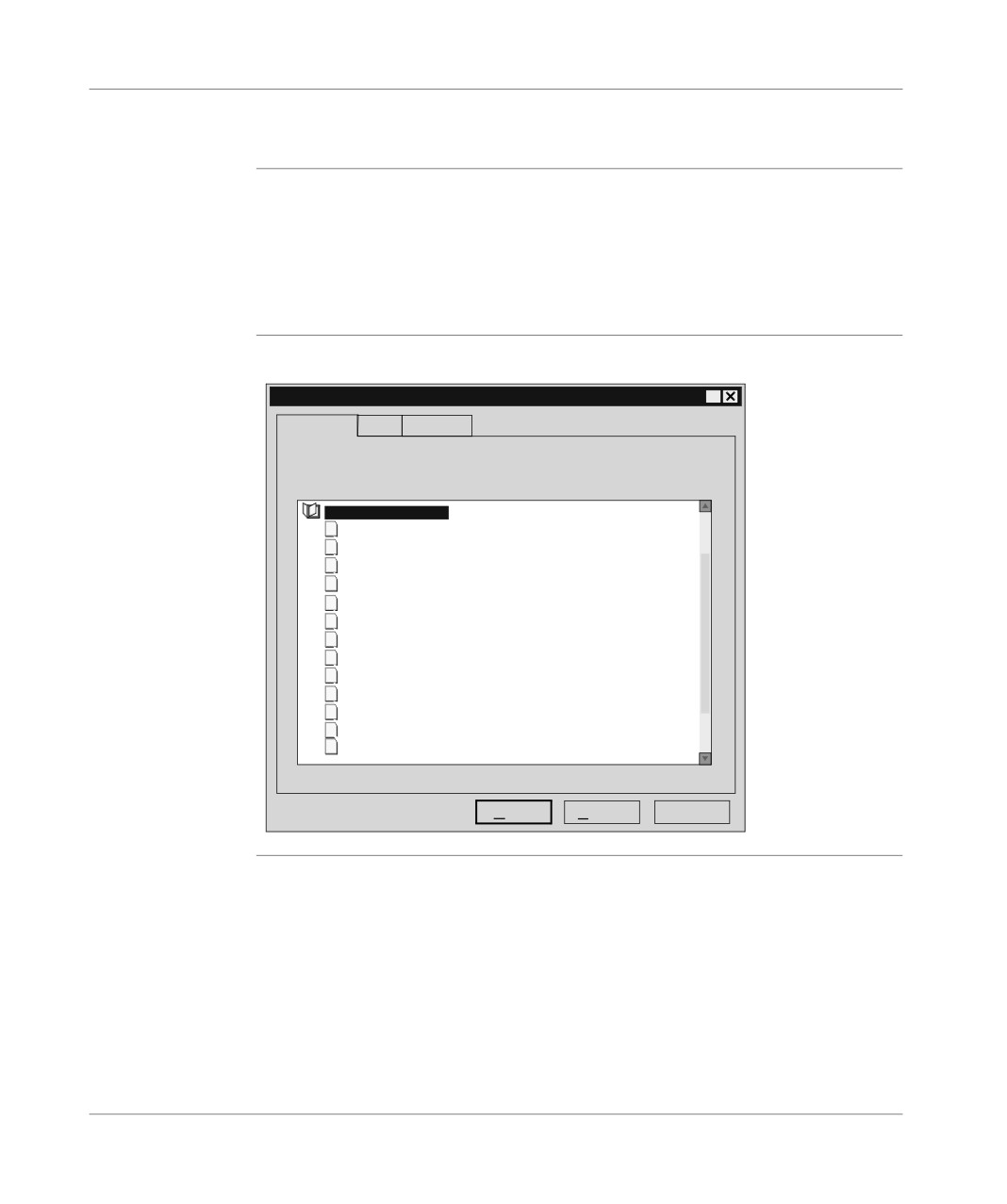
The Help Topics browser provides for three types of search:
l from the Contents, which displays a view of the all the different chapters of the
Help system,
l using the Index, which displays an alphabetical list of key words,
l using the Find mode, which displays all the words used in the on-line Help in al-
phabetical order.
Illustration of the
The following illustration shows the browser open at Contents
browser
Help topics: PL7 Help
?
Contents
Index
Find
Click on a topic, then on Display Or click on another tab, e.g. Index
Using the software
?
Application management
?
Application browser
?
Functional modules
?
Application configuration
?
Editing variables
?
Programming in Ladder Language (LD)
?
Programming in Instruction List Language (IL)
?
Programming in Structured Text Language (ST)
?
Programming in Grafcet Language (GR7)
?
DFB function blocks
?
Debugging
?
Diagnostics
? Documentation
Close
Print…
Cancel
419
Windows
Accessing the
Contents tab
browser
Step
Action
1
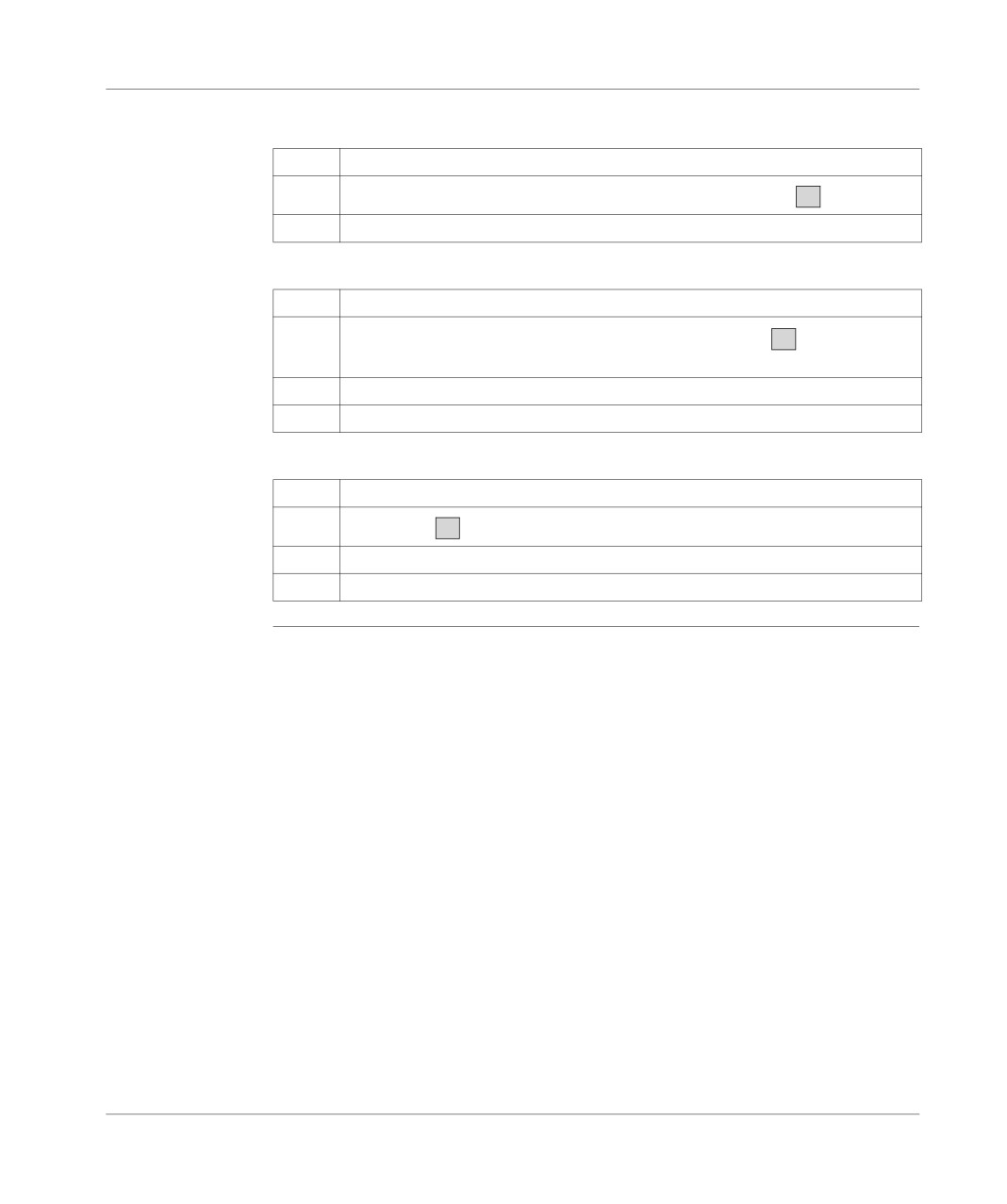
Select the Index command from the ? menu or click on the icon
?
2
Select then open the required directory.
Index tab
Step
Action
1
Select the Find ... command from the ? menu or click on the
?
icon then select
the Index tab.
2
Enter the key word.
3
Select then open the required topic.
Find tab
Step
Action
1
Click on the
?
icon then select the Find tab.
2
Enter the word to be found.
3
Select then open the required topic.
420
Windows
PL7 contextual Help
At a Glance
Contextual Help is used to directly access information from the selected element.
Accessing the
Two exclusive modes of access are used to access Contextual Help.
Contextual Help
Standard screens
Step
Action
1
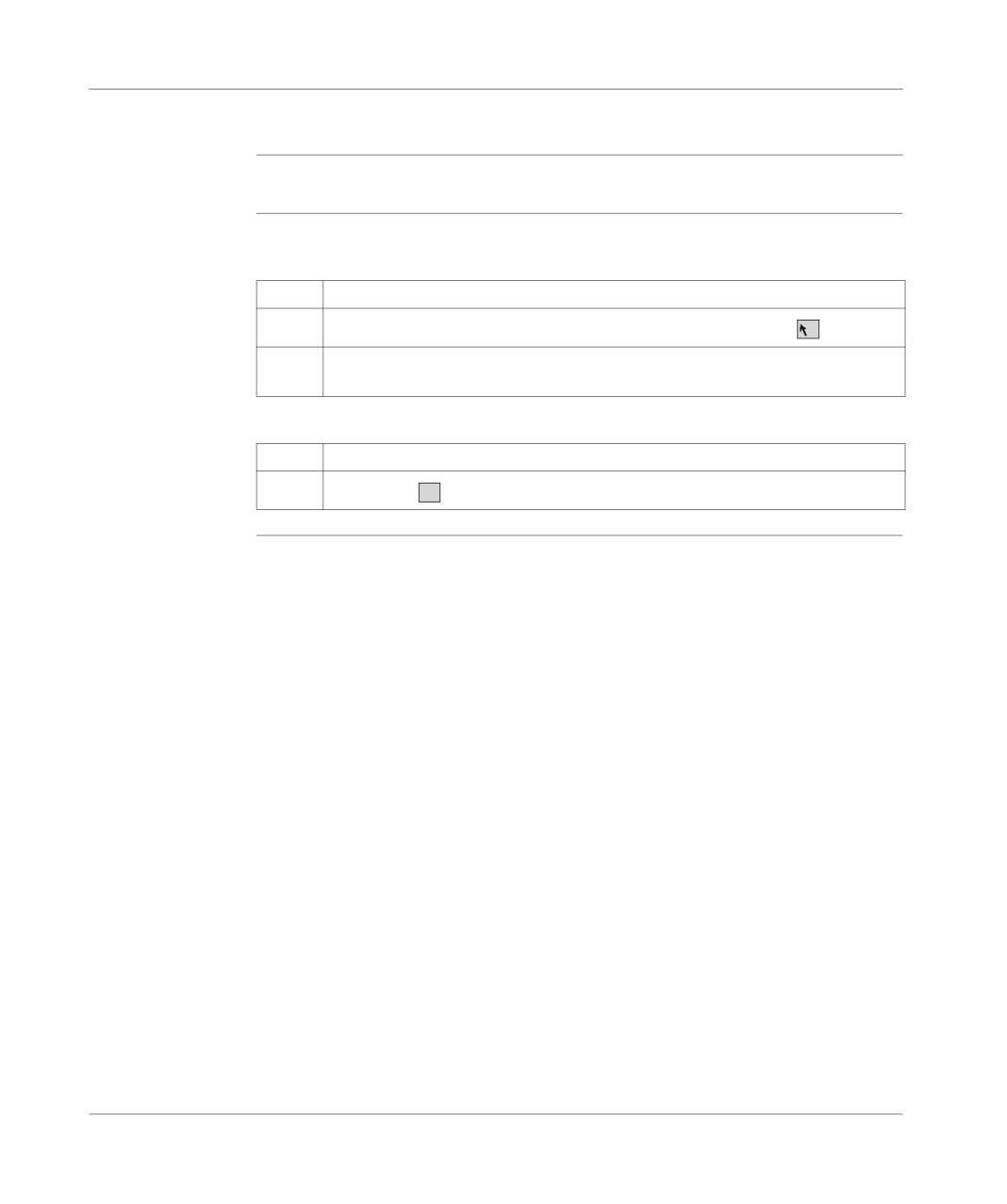
Select the What’s this? command from the ? menu or click on the
?
icon,
2
Select the element for which you require technical information (menu, screen, tool-
bar, etc.).
Modal dialog boxes
Step
Action
1
Click on the
?
icon of the current element.
421
Windows
General points relating to Windows
Introduction
Some general points relating to Windows are explained below:
l organization of workspace windows,
l modification of the applications directory and the working directory.
Organization of
You can open several windows at the same time on your PC.
workspace
Example: Configuration editor, MAST task section, FAST task section, etc.
windows
In order to quickly reorganize all the open windows on the screen, select the PL7
Window menu and click on the appropriate sub-menu.
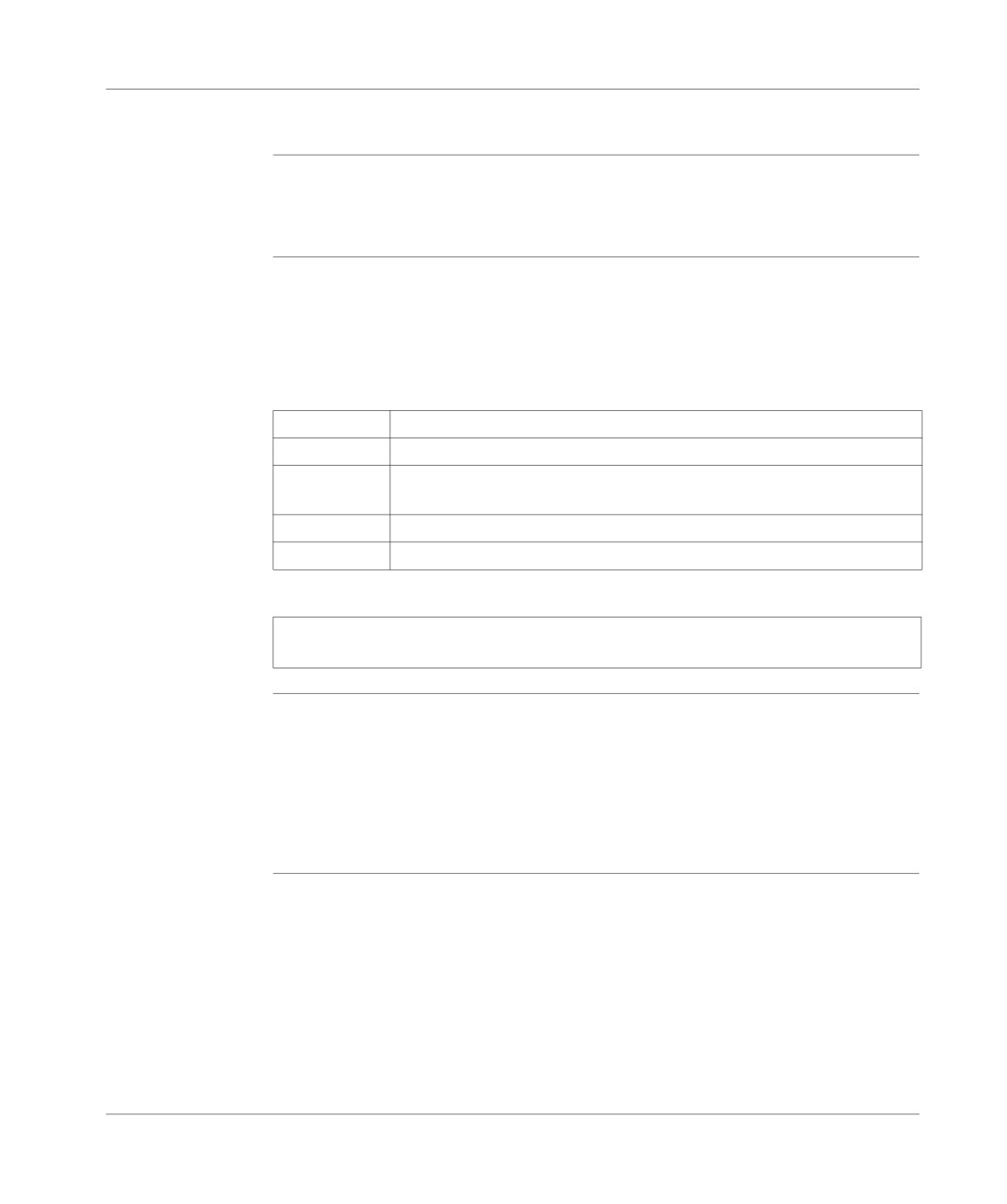
The following table shows you the different sub-menus and their functions:
Sub-menu
Function
Cascade
Arranges the open windows so that the title bar of each of them is visible.
Tile Horizontal-
Tiles the open windows side by side so that they are all visible horizontally.
ly
Tile Vertically
Tiles the windows side by side so that they are all visible vertically.
Arrange Icons
Aligns all the window icons.
Note: To quickly access one of the open windows, select its name at the bottom of
the Windowmenu.
Modification of
When PL7 opens an existing application, it copies it into the working directory; all
the applications
modifications are made on this copy which must be saved using the File → Save
directory and the
command in the application archive directory.
working
directory
The working directory disk and the application directory are defined at installation
and can be modified with the Option → Custom command. The modifications will
take effect after the next PL7 session.
422
Windows
Equivalent Windows keyboard: Basic principle
Presentation
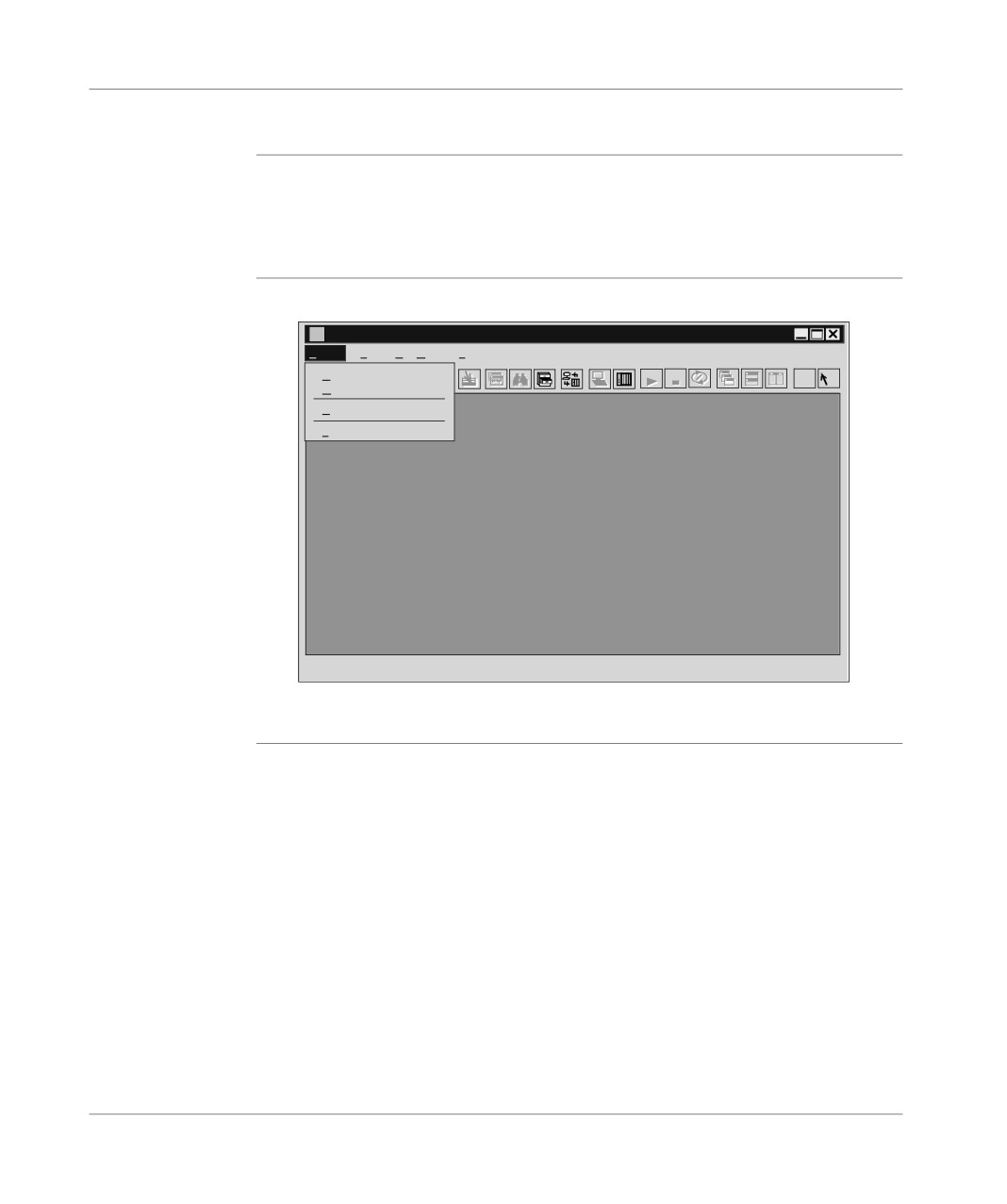
Combination of keys producing the same effect as a command using the mouse.
The screen displays the keys to press to activate the required function from the key-
board: you just need to type ALT + the underlined letter for the menus and the but-
tons and only the underlined letter for the sub-menus.
Illustration
The following window is an example:
PL7 PRO
File
Tools
PL Options
?
New...
RUN
STOP
?
?
Open…
Exit
Ctrl+Q
1 Demo5725.stx
To open the File menu you must type ALT+F, and to open the sub-menu New... type
N.
423

Windows
The menu keys
Introduction
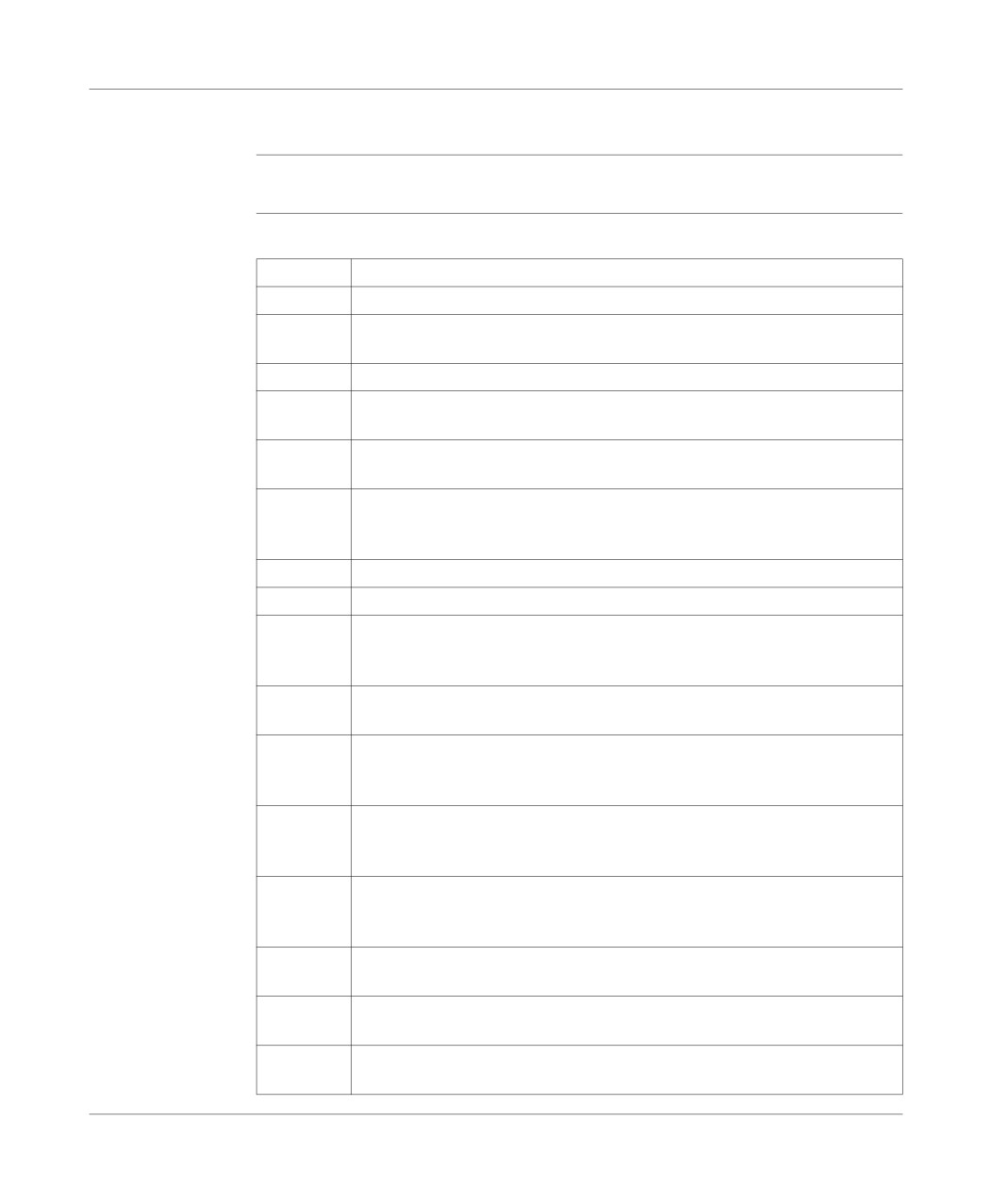
The following keys or combination of keys can be used to select the menus and the
commands.
The keys and
This table shows the keys or combinations of keys and their functions:
their functions
Press…
to…..
ALT or
Select the first menu from the menu bar or cancel the selection.
F10
ALT +
Choose the menu whose number or underlined letter corresponds to the one
character
that you are typing.
key
Right and
go from one menu to another
left arrows
Up and
go from one command to another.
down ar-
rows
ENTER
Choose the menu name or the command selected.
A charac-
Choose the command whose number or underlined letter corresponds to the
ter key
one that you are typing.
ESC
l cancel the name of the menu selected,
l or close the open menu.
424
Windows
Windows dialogue box keys
Introduction
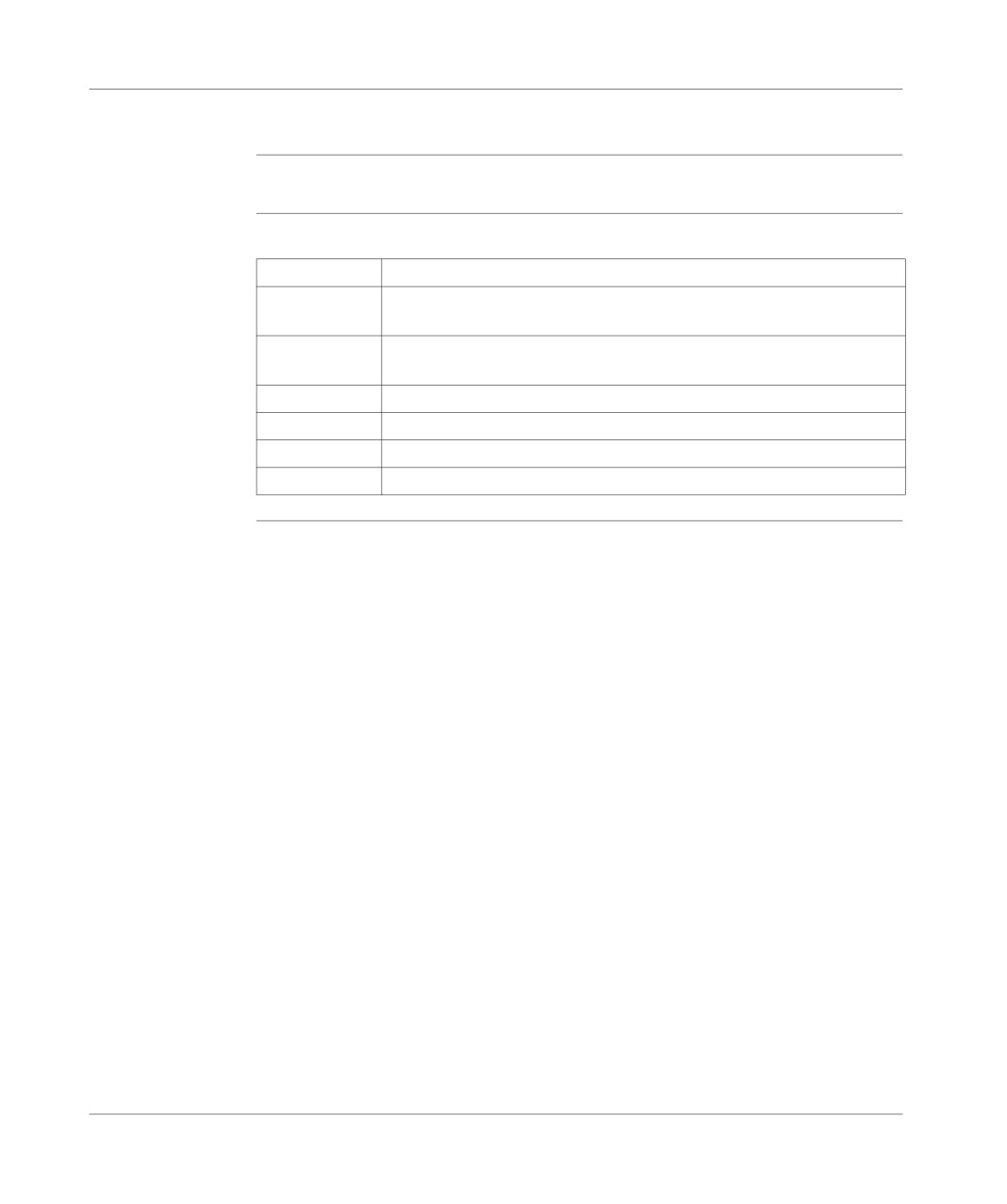
To work in a dialogue box you can use various keys or combinations of keys.
The keys and
The following table shows the keys or combinations of keys and their functions:
their functions
Press…
to…..
TAB
Go from one option to another (from left to right and from top to bottom).
SHIFT+TA
Go from one option to another in the opposite direction.
B
CTRL+TAB
Go to the next tab.
CTRL+SHI
Go to the previous tab.
FT+TAB
ALT + char-
Select the option or the group whose number or underlined letter corresponds
acter key
to the one you are typing.
An arrow
l move the cursor from selecting one option (e.g.: button) to another in a
key
group of options,
l or move the cursor to the left, right, up or down in a list or text field.
HOME
Select the first element or character in a list or text field.
END
Select the last element or character in a list or text field.
Page Up
Scroll up or down a screen list.
and Page
Down
ALT+Page
Open a list.
Down
SPACE
l select an element or cancel a selection in a list,
l confirm the button in question,
l activate or deactivate a box to be checked.
CTRL+/
Select all the elements in a list field.
(forward
slash)
CTRL+\
Cancel all the selections except the current selection.
(back
slash)
SHIFT+ ar-
Delete or cancel the selection character by character in a text field.
rows
SHIFT+HO
Delete or cancel the selection up to the first character in a text field.
ME
SHIFT+EN
Delete or cancel the selection up to the last character in a text field.
D
425
Windows
Press…
to…..
ENTER
l carry out a command,
l choose the selected element from a list, then carry out the command,
l click on the button with the bold border.
ESC or
Close a dialogue box without carrying out the command.
ALT+F4
Arrow keys
Moving the cursor or insert point into the text fields or entry fields.
426
Windows
Keys for modifying text
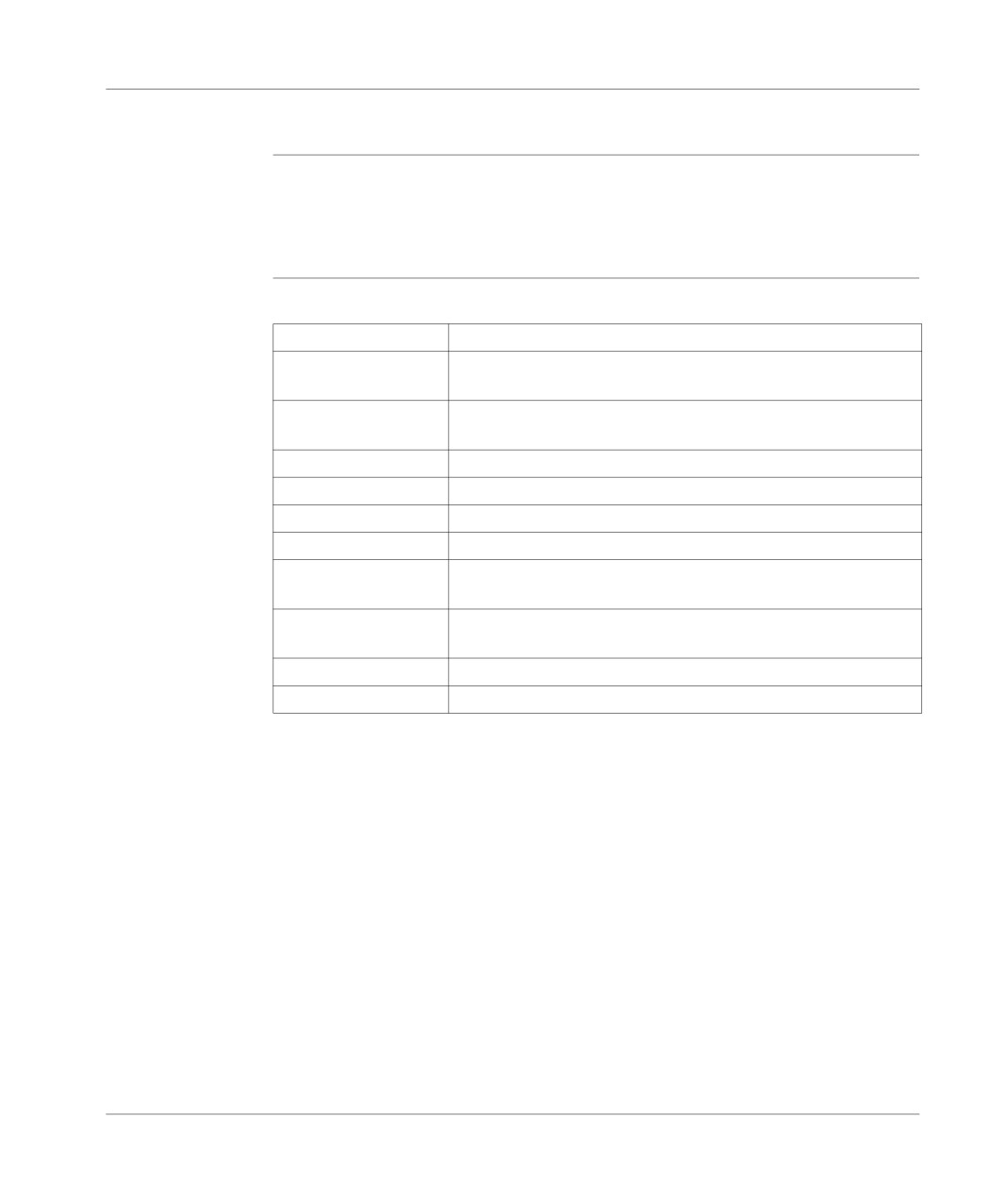
Introduction
You can modify text with keys or a combination of keys.
The keys and
The following table shows the keys or combinations of keys and their functions:
their functions
Press…
to…..
Go back
l delete the character to the left of the insert point,
l or delete the selected text.
DEL
l delete the character to the right of the insert point,
l or delete the selected text.
SHIFT+DEL
Delete the selected text and put it in the clipboard.
SHIFT+INS
Paste the text from the clipboard into the active window.
CTRL+INS
Copy the selected text and put it in the clipboard.
SHIFT+Z
Cancel the last modification.
427
Windows
Text selection keys
Introduction
The following keys can be used in most Windows applications, but they do not nec-
essarily work everywhere you can select text or in all applications. All the following
selections start at the insert point. If a text is already selected, the keys cancel the
selection.
The keys and
The following table shows the keys or combinations of keys and their functions:
their functions
Press…
To select or deselect…..
SHIFT+ left and right
One character at a time to the left or right.
arrow
SHIFT+ up and down
A text line up or down.
arrow
SHIFT+Page Up
All the test from the previous screen.
SHIFT+Page Down
All the test from the following screen.
SHIFT+HOME
The text up to the beginning of the line.
SHIFT+END
The text up to the end of the line.
CTRL+SHIFT+ left ar-
The word before.
row
CTRL+SHIFT+ right ar-
The word after.
row
CTRL+SHIFT+HOME
The text up to the beginning of the document.
CTRL+SHIFT+END
The text up to the end of the document.
428
Windows
Work station and Windows Explorer keys
Introduction
To work in the windows or theProgram management group, you can use various
keys and combinations of keys.
The keys and
The table below shows the keys or combinations of keys and their functions:
their functions
Press…
to…..
F2
Rename an element.
F3
Search for a file or data set.
CAP + DEL
Delete the element directly without putting it in the recycle bin.
ALT+Enter
Display the properties of the selected element.
CTRL+A
Select all.
F5
Update the information in a window.
CAP while click-
Close the selected file and all its parent files.
ing on the Close
button
429
Windows
Print management in Windows
Introduction
Print management is a Windows application that manages print works.
When you print a document from a Windows application this transmits to the print
manager all the information on the printing, the fonts and the document file.
Description
Print management:
l takes care of printing the document while you continue to work on other Windows
applications,
l indicates problems if an error occurs,
l prints the documents on a local or network printer.
Note: It is possible to print several documents at a time or one document after the
other. The documents are then placed in a queue which is used to verify printing
information.
How to install a
Carry out the following steps:
printer
Step
Action
1
Click on Run.
2
Click on Parameters.
3
Click on Printers.
4
Click on add a printer and follow the instructions of the Add printer assistant.
430
Glossary
A
Animation table
Table created by the user or created contextually from within a language editor or
an operating screen.
In connected mode allows you to view the development of the PLC’s variables and
to force the values when debugging.
ASCII
American Standard Code for Information Interchange.
Is pronounced "aski".This is an American code (but has become an international
standard) which allows by means of 7 bits the definition of all the alphanumeric char-
acters used in English, punctuation marks, certain graphical characters as well as
various commands.
Auto Run
Function which allows you to automatically execute the application program on the
PLC at initialization.
B
BIT
Contraction of the English words Binary Digit.
This is the binary unit of information which can represent two distinct values (or
states) :0 or 1. A field of 8 bits makes up what we call 1 Byte or 1 octet.
Block functions
Blocks contained in the PL7 product (defined by Schneider).
The user has only to parameterize these blocs in the variables editor heading "Pre-
defined FB".
These blocks are:
431
Glossary
l Timer,
l Monostable,
l Up/down counter,
l Drum,
l Register.
Breakpoint
Used in "debug" mode in the application.
It is unique (only one at a time) and once reached, signals to the processor to stop
the execution of the program.
Used in connected mode, it can be positioned in one of the following program ele-
ments:
l Ladder rung,
l Structured Text or Instruction List statement,
l Structured Text line (line mode).
C
Comment
A comment of 508 characters can be associated to each address even if the latter
does not have a symbol, from within the variables editor.
Comment for ST
The comment (optional) can be integrated anywhere in a statement.It is separated
language
at both ends by the characters (*and *)and can occupy a maximum of 128 lines.Its
size is limited to 256 characters (new lines are included in the count).
The comments are stored in the PLC and can be accessed at any time by the us-
er.They therefore use up program memory.
Constants
Memory unit (Bit, Word, Dword, etc.) whose contents cannot be modified by the pro-
gram being executed.
CPU
Central Processing Unit
This is the microprocessor.It is made up of the control unit and the arithmetic logic
unit.The purpose of the control unit is to extract from the central memory the instruc-
tion to be executed as well as the data necessary for the execution of this instruction,
to establish the electric connections in the arithmetic logic unit and to start the data
processing in this unit.You can sometimes find ROM or RAM memories included
on the same chip, or even I/O interfaces or buffers.
CU
Central Unit: generic name for Schneider Automation processors.
432
Glossary
D
DFB
The DFB types (Derived Function Blocks) are function blocks which can be pro-
grammed by the user in ST or LD language.
Using these DFB types in an application:
l simplifies the design and input of the program,
l improves the readability of the program,
l facilitates its debugging,
l decreases the amount of code generated.
PL7 Pro software is needed to create a DFB type.
DFB instance
This regards a copy of a DFB type when the latter is called from within a language
editor.
The instance has a name. Input/output interfaces, public and private variables are
duplicated (one duplication per instance, the code is not duplicated)
A DFB type can have several instances.
Documentation
Contains all the information on the application, the documentation is printed after be-
ing put together and is used for maintenance purposes.
It contains information regarding:
l hardware and software configuration,
l the program,
l the DFB types,
l the variables and the animation tables,
l the cross references.
When putting the documentation together, it is possible to include only certain head-
ings, if the user so wishes.
Driver
Program which informs the operating system of the presence and characteristics of
a peripheral.
E
Events
Software or hardware initiated modules (module operation).
Events have priority over MAST or FAST tasks, they are executed as soon as they
are detected.
Event EVT0 has the highest priority, the others have the same level of priority.
433
Glossary
F
FAST task
Task activated periodically (the period controlled in the configuration of the proces-
sor) used to execute a part of an application with superior priority to a MAST (mas-
ter) task.
Flash EPROM
PCMCIA memory cards:
l internal (TSX37) containing program, constants, memory %MW,
l external (TSX37-57) containing program and constants.
FNES
Fichiers Neutres d’Entrées Sorties (Input/Output Neutral Files).The FNES format
describes the PLCs in terms of rack, cards and channels using a tree structure.
It is based on the CNOMO standard (Comité de Normalisation des Outillages de Ma-
chines Outils).
Function
Functions delivered with PL7 and accessed from the Tools/Library menu.
The user has only to parameterize these functions. He can develop others with the
help of a development kit SDKC which is an option of PL7.
Function view
View allowing you to see the program part of the application by means of functional
modules created by the user (see definition Functional module).
Functional
A functional module is a grouping together of program elements (sections, subrou-
module
tines, macro-steps, animation tables, operating screens…) intended to carry out an
automation function.
A functional module can itself be broken up into functional modules of a lower level,
these modules taking on, in relation to the main function, one or several automation
sub-functions.
G
Grafcet
Grafcet language.
Grafcet language conforms to "Sequential Function Chart" language (SFC) of the
IEC 1131-3 standard.
Grafcet allows the operation of sequential automation to be represented graphically
and in a structured manner.This graphical description of the automated sequential
performance and the different situations which arise is carried out with the help of
simple graphical symbols.
434
Glossary
I
Instructions for
An instruction can be either simple (Assign, Increment, Call SR…) or control struc-
ST language
ture (IF, WHILE, FOR, REPEAT...). The character ; is obligatory at the end of each
instruction.
L
Label
A label (optional) allows you to find a statement or a rung in a program module and
is required to allow a jump after a GOTO instruction.The following syntax %Li:with i
between 0 and 999.
The label is positioned at the beginning of the statement or rung and can only be
assigned to a single statement or rung within the same program module.The order
of label address is not important, it is the input order of the statements or rungs which
is taken into account by the system at scanning.
Ladder
Rung language.
A program written in rung language is composed of a series of rungs executed se-
quentially by the PLC.
LIST
Instruction list language.
A program written in instruction list language is composed of a series of instructions
executed sequentially by the PLC.Each instruction is composed of an instruction
code and an operand.
M
Macro-step
A macro-step is the symbolic representation of a unique set of steps and transitions,
which starts with an input step (IN) and terminates with an output step (OUT).
A macro-step can call another macro-step (nesting).
Mono task
Application made up of a single task, has to be a MAST task (master task).
Multi task
Application made up of several tasks (MAST, FAST, event).
An order of priority for task execution is defined by the PLC’s operating system.
435
Glossary
O
Operating screen This is a tool integrated into software applications PL7-PRO and PL7-PRODYN from
version 3.0 onwards. It is intended to facilitate the operation of an automated pro-
cess. The end-user controls and monitors the operation of the installation and in
case of a problem, he can act quickly and easily.
P
Protection
Function preventing the reading of the contents of a program module (read protec-
tion), or the reading and modifying of the contents of a program module (read/write
protection).
Protection is confirmed by a password.
R
RS 232C
Communication series standard which defines among others the following service
voltage:
l a signal of +12V indicates a digital 0,
l a signal of -12V indicates a digital 1.
However detection to thresholds of +3V and -3V is allowed in case of a weakened
signal.
Between these two bounds, the signal will be considered invalid.
RS 232 links are quite sensitive to interference.The standard recommends not ex-
ceeding 15metres in distance and 9600 bauds (bits/sec) maximum.
RS 485
Communication series standard which works differentially at 10V/+5V.It uses 2
wires for sending and receiving.Its "3-state" output allows it to go into listening mode,
when the transmission has finished.
Run
Function which allows you to execute the application program on the PLC.
436
Glossary
Rung
A rung is entered between two potential bars in a Ladder editor and is composed of
a group of graphical elements joined to each other by horizontal or vertical links.The
maximum dimensions of a rung are 16 lines and 11 columns (for PLCs TSX/PMX/
PCX 57), or 7 lines and 11 columns (for PLCs TSX 37) split into two zones:the test
zone and the editing zone.
S
Section
Program module belonging to a task (MAST, FAST) which can be written in a lan-
guage chosen by the programmer (Structured Text, Ladder, List, Grafcet).
A task can be made up of several sections, the order of execution of the sections
within the task corresponds to the order in which they were created. This order can
be modified.
ST
Structured text language.
Structured text language allows you to create programs by writing lines of code com-
posed of alpha-numeric characters.This language can only be used for the software
PL7 Junior and PL7 Pro on PLCs TSX/PMX/PCX 57. In the version PL7 Pro, this
language allows the creation of user function blocks DFB.
Statement
Basic unit of List language or Structured Text language.
A statement is made up of lines, which are themselves made up of instructions.
It begins with an exclamation mark, can include a comment and can be marked with
a label.
Step
A Grafcet step designates a state of sequential operation of automation.
Initial step defines the initial automation situation.
Single step defines a stable automation situation.
Actions can be associated.These can be expressed in Ladder, Structured Text or
List language.
Stop
Function which allows you to stop the execution of the application program on the
PLC.
Subroutine
Program module belonging to a task (MAST, FAST) which can be written in a lan-
guage chosen by the programmer (Structured Text, Ladder, List).
A subroutine can only be called by a section or another subroutine (nesting) belong-
ing to the task in which it is registered.
Symbol
A symbol is a string of a maximum of 32 alpha-numeric characters, of which the first
character is alphabetic.
437
Glossary
It allows you to personalize a PLC object in such a way as to facilitate the maintain-
ability of the application, it is used on the PLC if the user wants to.
T
Task
Group of sections and subroutines, executed cyclically or periodically for the MAST
task or periodically for the FAST task.
A task has a level of priority which is linked to the input and output.
Time Out
Exceeding delay.
Stopping of the application or deconnection following a too-long period of inactivity.
Transition
A transition indicates the possibility of development between several steps.
A transition condition called Receptivity is associated with it.
The transition is valid if :
l the upstream steps (directly linked to this step) are active,
l the associated receptivity is true.
The releasing of a transition provokes the change of status for the steps which are
linked to it.
The receptivities are expressed in Ladder, Structured Text or List language.
V
Variable
Memory unit of a type (Bit, Word, Dword, etc.) whose contents cannot be modified
by the program being executed.
438