Kia Niro Hybrid / Plug-in Hybrid (2022 year). Manual in english - page 15
Driving your vehicle
In traffic situation
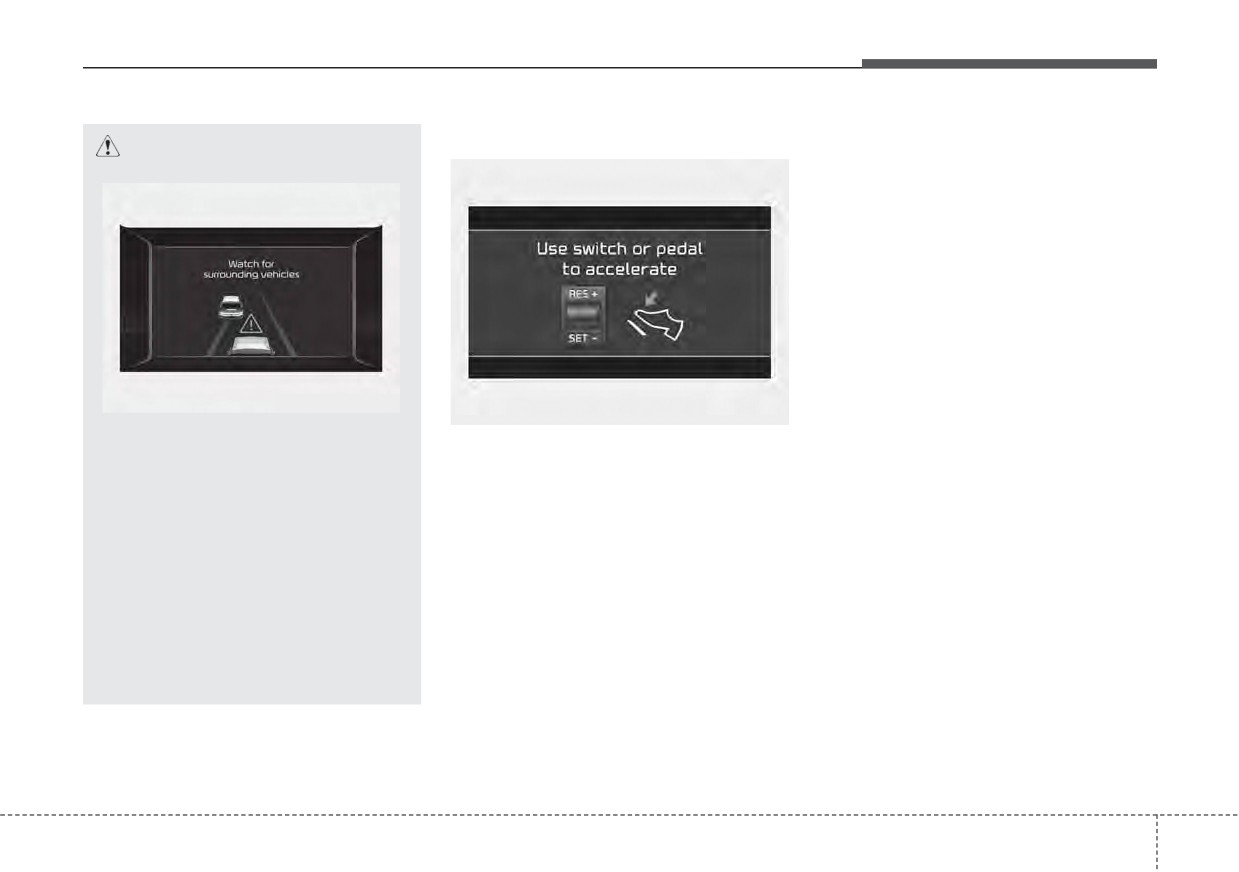
• If you push switch (RES+ or SET-)
CAUTION
while Auto Hold and Smart Cruise
Control is operating the Auto Hold
will be released regardless of
accelerator pedal operation and
the vehicle will start to move. The
AUTO HOLD indicator changes
from green to white. (if equipped
with EPB
(Electronic Parking
Brake))
ODEP059084L
OJF058402L
If the vehicle ahead
(vehicle
Use switch or pedal to accelerate
speed: less than
20 mph (30
• In traffic, your vehicle will stop if the
km/h) disappears to the next
vehicle ahead of you stops. Also, if
lane, the warning chime will
the vehicle ahead of you starts
sound and a message will
moving, your vehicle will start as
appear. Adjust your vehicle
well. However, if the vehicle stops
speed for vehicles or objects
you must depress the accelerator
that can suddenly appear in
pedal or push up the switch
front of you by depressing the
(RES+) to start driving.
brake pedal according to the
road condition ahead and driv-
ing condition.
5
131
Driving your vehicle
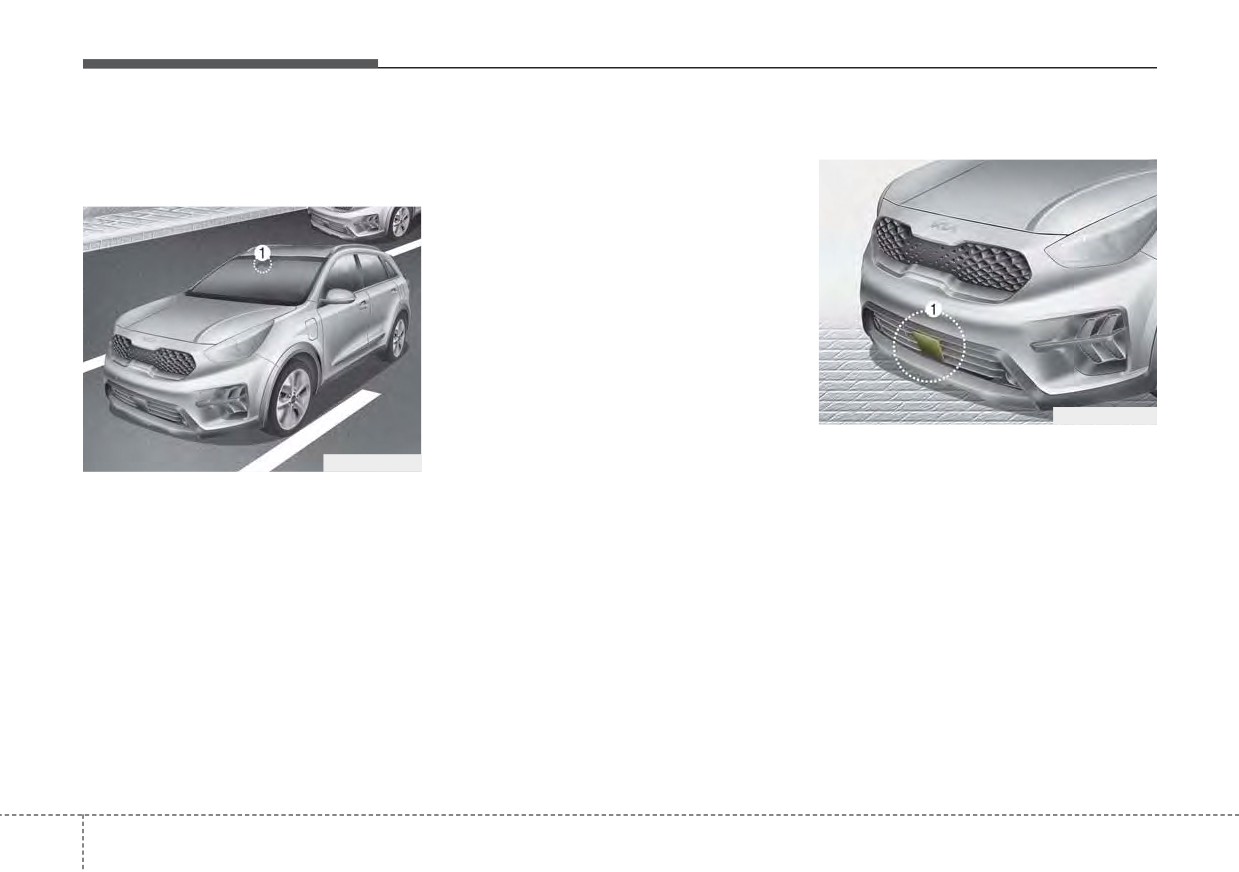
Detecting sensor (Front view
Always keep the area in front of the
Front radar
camera/Front radar)
sensor clean.
For more information of front view
Front view camera
camera, refer to "Lane Keeping
Assist (LKA)"
ODEP051418N
Front radar (1) detects the distance
ODEP051029
to the vehicle ahead.
Front view camera (1) is a sensor for
If the sensor or sensor cover is cov-
detecting lanes and the front vehi-
ered with dirt, snow or other foreign
cles.
matter, the sensor’s detection per-
formance will be degraded and
If the sensor is covered with dirt,
Smart Cruise Control will be tem-
snow or other foreign matter, the
porarily cancelled so that it does not
sensor’s detection performance will
properly work.
be degraded and Smart Cruise
Always keep the area in front of the
Control will be temporarily cancelled
so that it does not properly work.
sensor clean.
5 132
Driving your vehicle
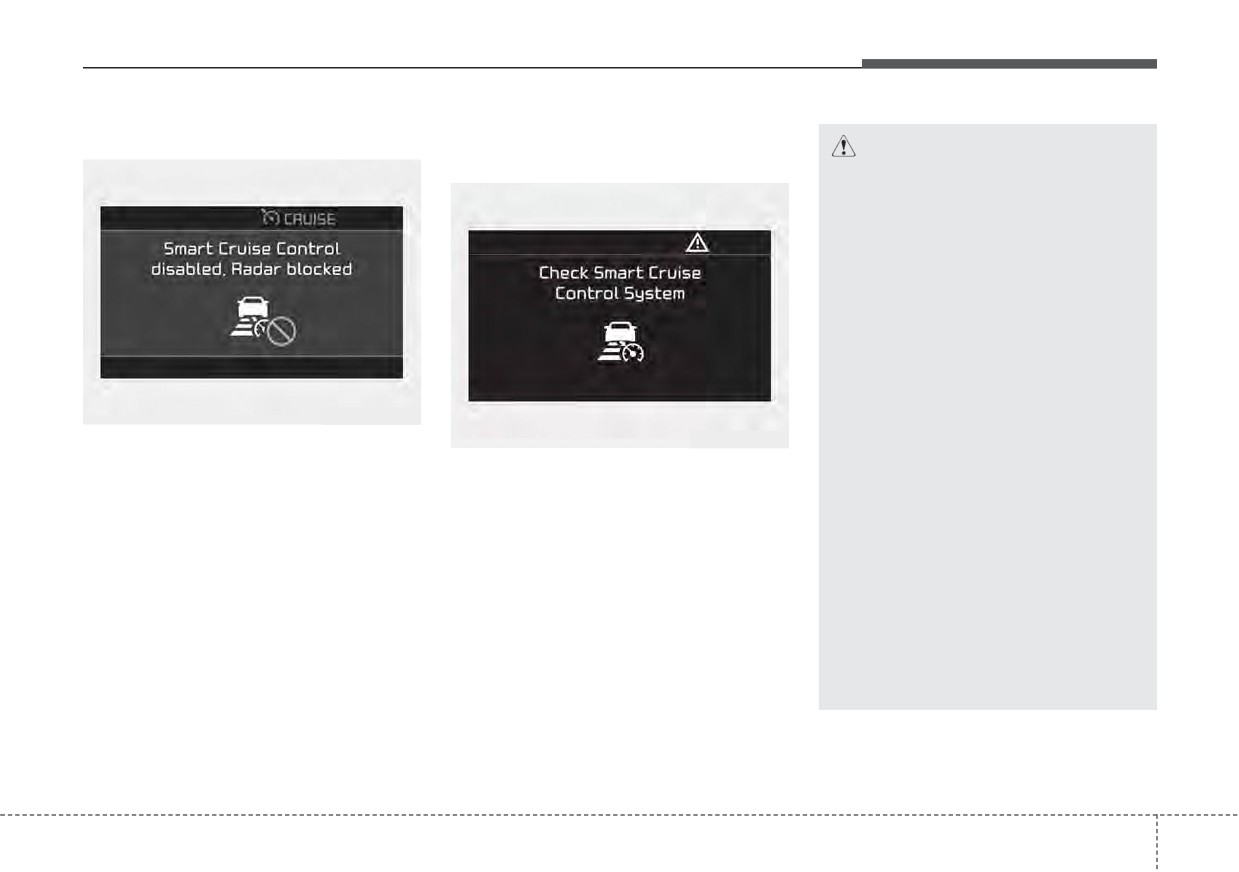
Warning message
Smart Cruise Control malfunction
message
CAUTION
•
Do not install accessories
around the sensor and do not
replace the bumper by your-
self. It may interfere with the
sensor performance.
•
Always keep the sensor and
bumper clean.
•
Use only a soft cloth to wash
the vehicle. Do not spray pres-
surized water directly on the
sensor or sensor cover.
OJF058404L
OJF058406L
•
Be careful not to apply unnec-
When the sensor lens cover is
essary force on the radar sen-
blocked with dirt, snow, or debris,
The message will appear when the
sor or sensor cover. If the sen-
Smart Cruise Control operation may
vehicle distance control function is
sor is forcibly moved out of
stop temporarily. If this occurs, a
not functioning normally.
proper alignment, Smart
warning message will appear on the
Take your vehicle to an authorized
Cruise Control may not oper-
LCD display. Remove any dirt, snow,
Kia dealer and have the function
ate correctly. In this case, a
or debris and clean the radar sensor
checked.
warning message may not be
lens cover before operating Smart
displayed.
Cruise Control. Smart Cruise Control
may not properly activate, if the radar
Have the function checked by
is totally contaminated, or if any sub-
an authorized Kia dealer.
stance is detected after turning ON
(Continued)
the engine (e.g. in an open terrain).
5
133
Driving your vehicle
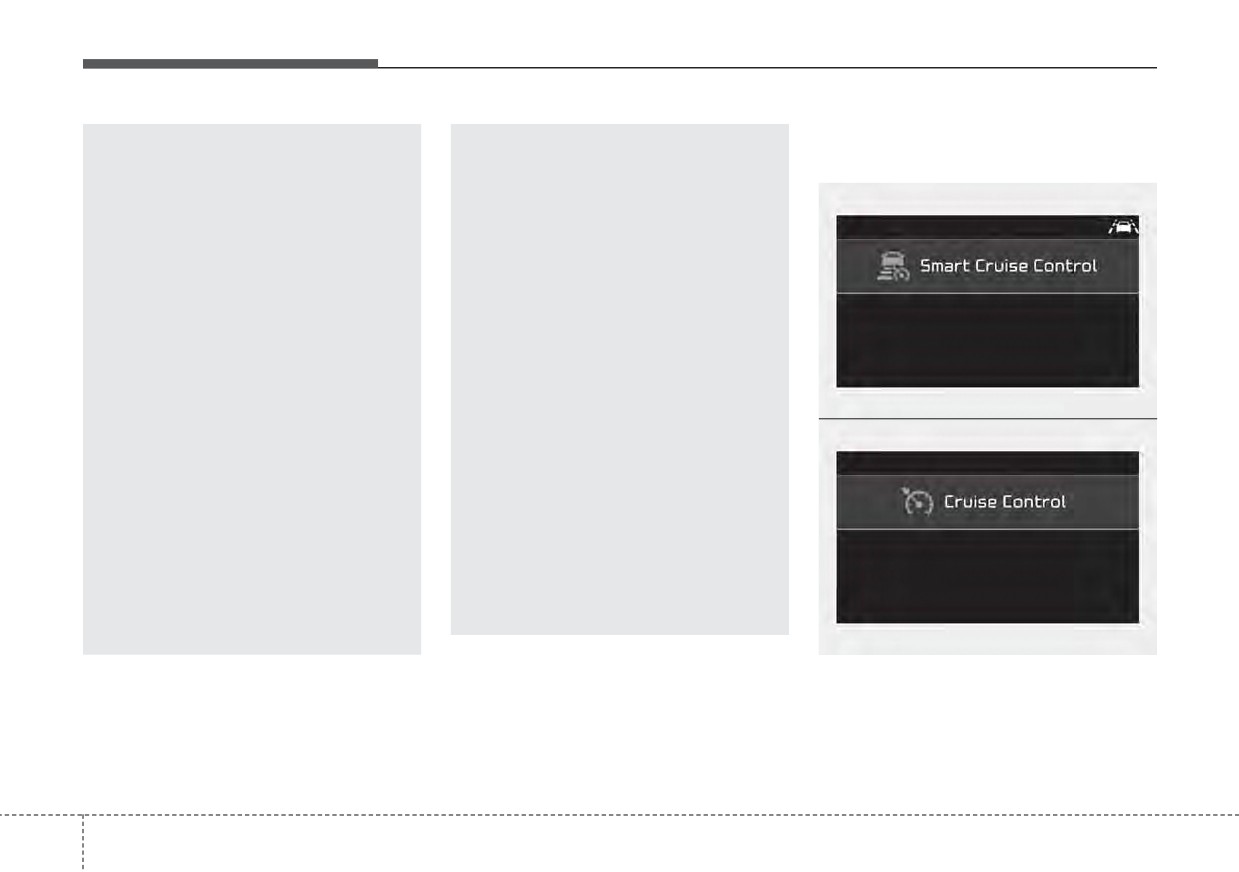
To convert to Cruise Control
(Continued)
(Continued)
mode:
•
Do not damage the sensor or
•
To prevent sensor cover dam-
sensor area by a strong
age from occurring, wash the
impact. If the sensor moves
car with a soft cloth.
slightly off position, Smart
•
Do not tint the window or
Cruise Control will not operate
install stickers, accessories
correctly without any warning
around the inside mirror
or indicator from the cluster.
where the camera is installed.
If this occurs, have your vehi-
•
Make sure the frontal camera
cle checked by an authorized
installation point does not get
Kia dealer as soon as possi-
wet.
ble.
•
Do not place reflective
OJF058400L
•
Use only a genuine Kia sensor
objects(white paper or mirror
cover for your vehicle. Do not
etc.) on the crash pad.
paint anything on the sensor
Forward Collision-Avoidance
cover.
Assist may activate unneces-
•
If the front bumper becomes
sarily due to reflect of the sun-
damaged in the area around
light.
the radar sensor, Smart Cruise
•
Do not impact or arbitrarily
Control may not operate prop-
remove any front view camera
erly.
components.
(Continued)
OJF058399L
The driver may choose to only use
the cruise control mode (speed con-
trol function) by doing as follows:
5
134
Driving your vehicle
1. Turn Smart Cruise Control on (the
Limitations of Smart Cruise
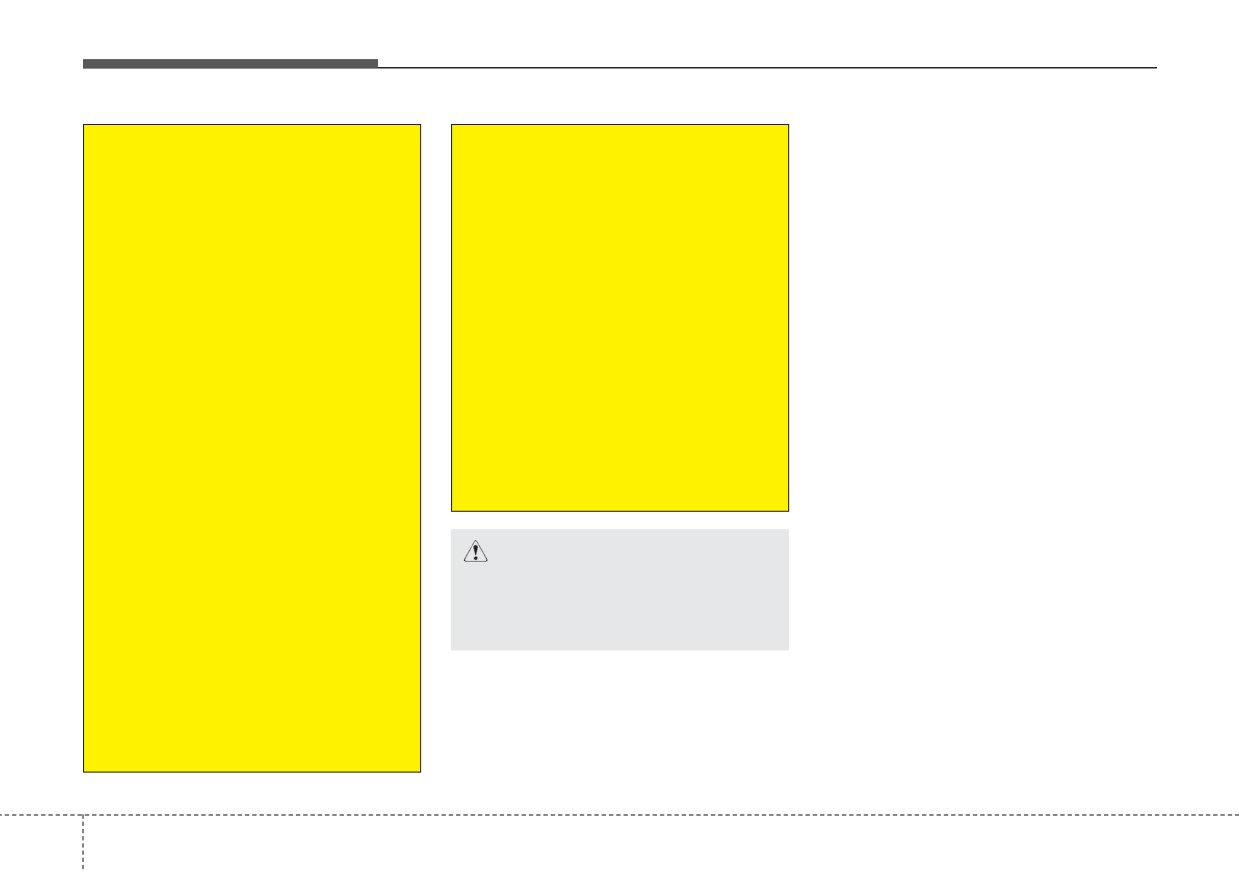
Driving on a curved road
cruise indicator light will be on but
Control
the function will not be activated).
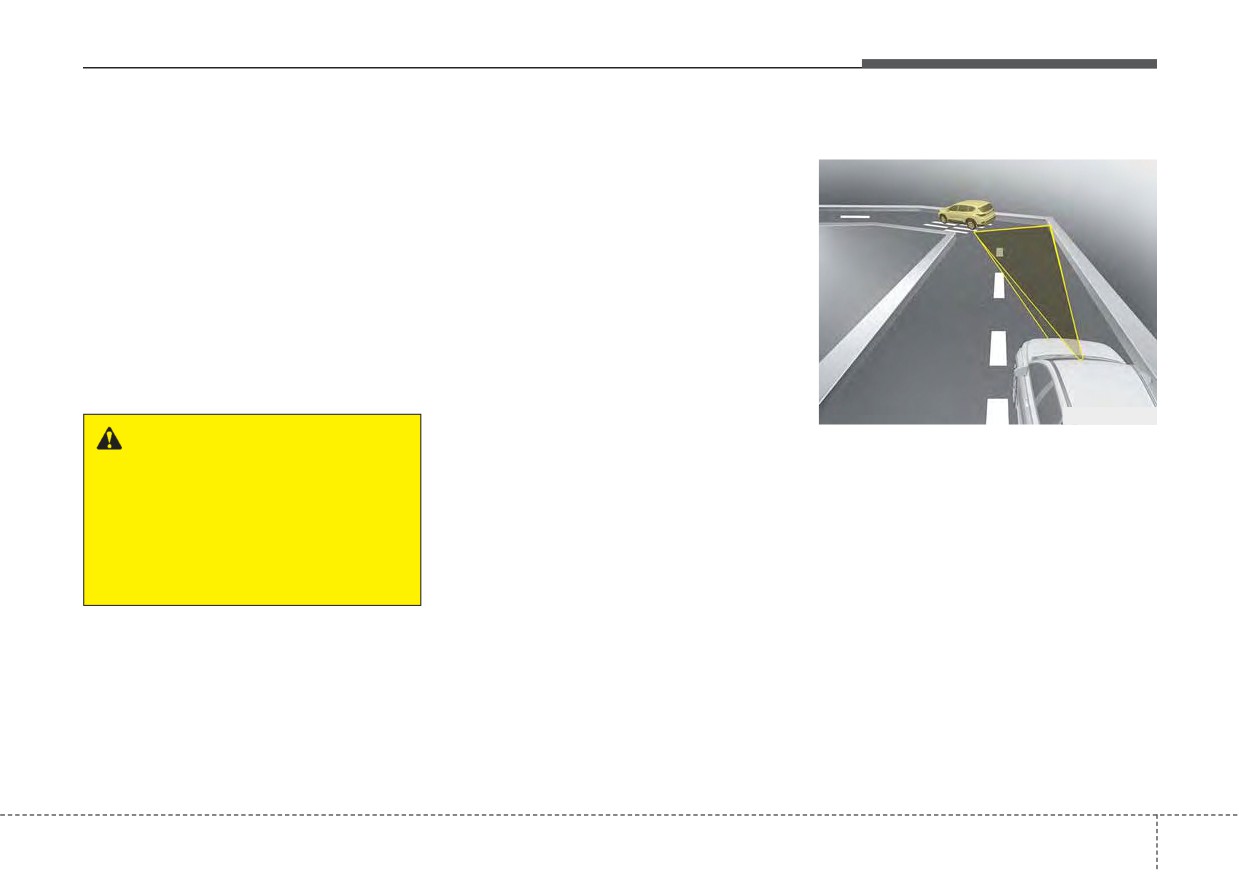
Smart Cruise Control may have lim-
2. Push the distance to distance
its to its ability to detect distance to
switch for more than 2 seconds.
the vehicle ahead due to road and
3. Choose between "Smart Cruise
traffic conditions.
Control" and "Cruise Control".
When the function is canceled using
the Driving Assist button or the
Driving Assist button is used after the
engine is turned on, Smart Cruise
Control mode will turn on.
OHM059349L
WARNING
•
On curves, Smart Cruise Control
When using the Cruise Control
may not detect a moving vehicle in
your lane, and then your vehicle
mode, you must manually
adjust the distance to other
could accelerate to the set speed.
Also, the vehicle speed will rapidly
vehicles as the function will not
automatically brake to slow
slow down when the vehicle ahead
is recognized suddenly.
down for other vehicles.
•
Select the appropriate set speed
on curves and adjust your vehicle
speed by depressing the accelera-
tor or brake pedal according to the
road condition ahead and driving
condition.
5
135
Driving your vehicle
Driving on a sloped road
Changing lanes
OHM059352L
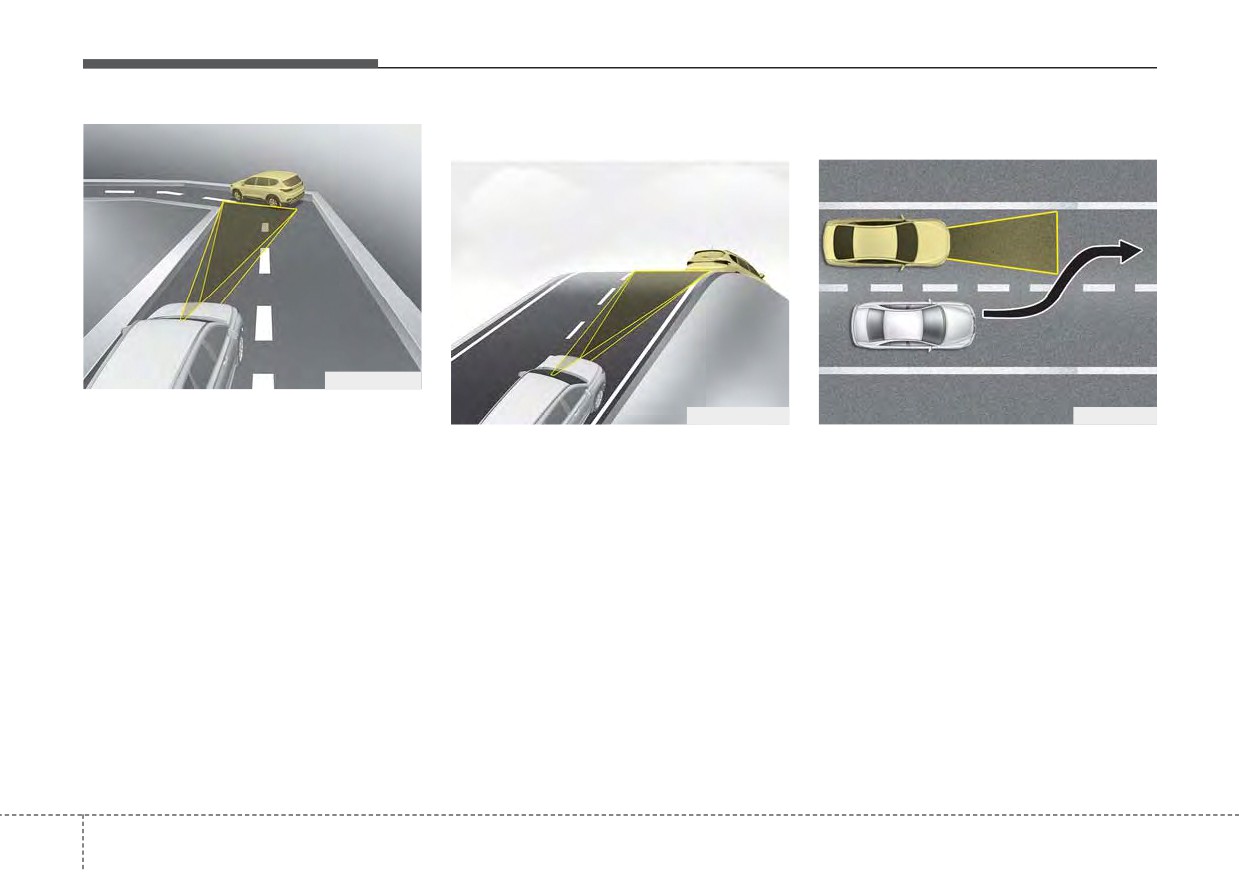
•
Your vehicle speed can be reduced
OHM059355L
OJF055028
due to a vehicle in the adjacent
•
During uphill or downhill driving,
•
A vehicle which moves into your
lane. Adjust your vehicle speed by
Smart Cruise Control may not
lane from an adjacent lane cannot
depressing the brake pedal
detect a moving vehicle in your
be recognized by the sensor until it
according to the road condition
lane, and cause your vehicle to
is in the sensor's detection range.
ahead and driving condition. Apply
accelerate to the set speed. Also,
the accelerator pedal and select
•
The sensor may not detect imme-
the vehicle speed will rapidly down
the appropriate set speed. Check
diately when a vehicle cuts in sud-
when the vehicle ahead is recog-
to be sure that the road conditions
denly. Always pay attention to the
nized suddenly.
permit safe operation of Smart
traffic, road and driving conditions.
Cruise Control.
•
Select the appropriate set speed
•
If a vehicle which moves into your
on inclines and adjust your vehicle
lane is slower than your vehicle,
speed by depressing the accelera-
your speed may decrease to main-
tor or brake pedal according to the
tain the distance to the vehicle
road condition ahead and driving
ahead.
condition.
5
136
Driving your vehicle
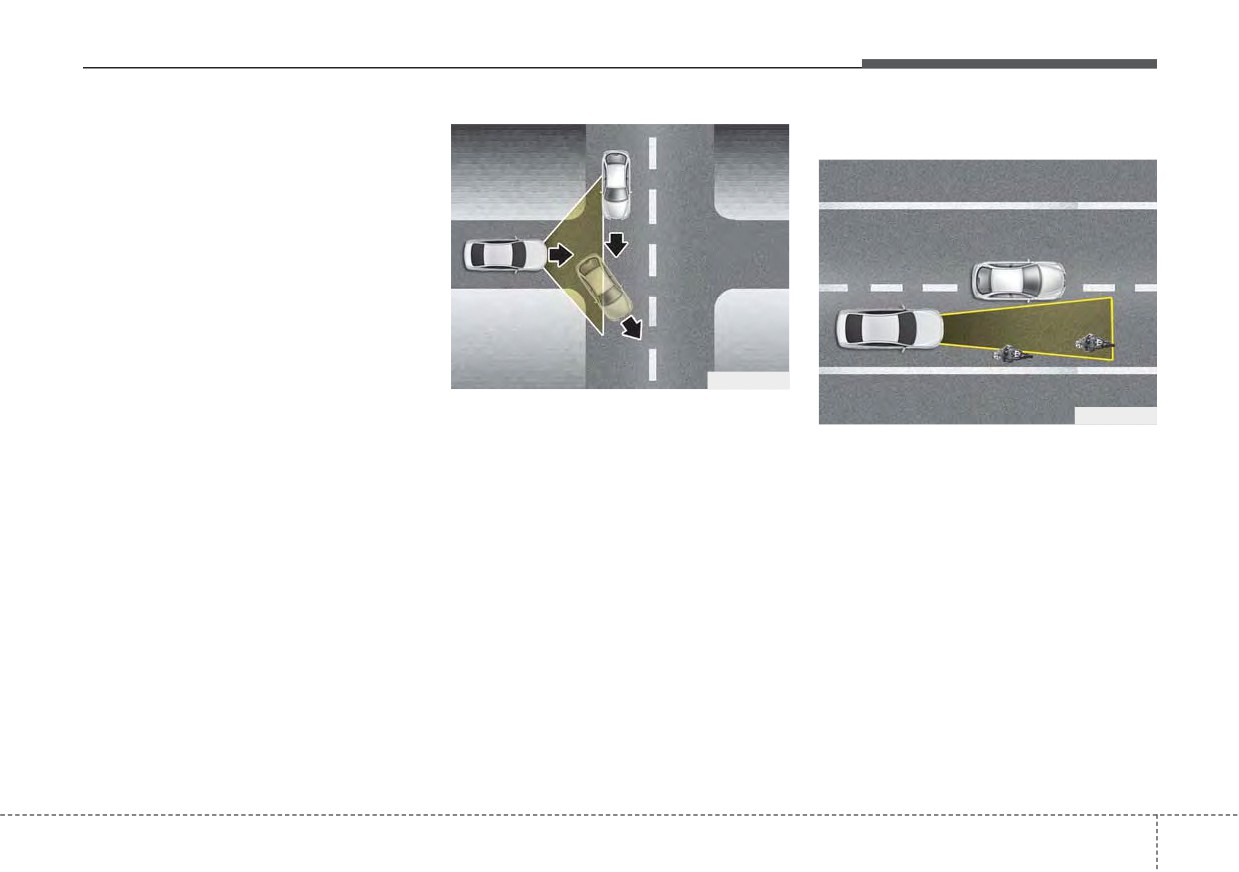
• If a vehicle which moves into your
Recognizing the vehicle
lane is faster than your vehicle,
your vehicle will accelerate to the
selected speed.
OJF055049
• Your vehicle may accelerate when
OJF055048
a vehicle ahead of you disappears.
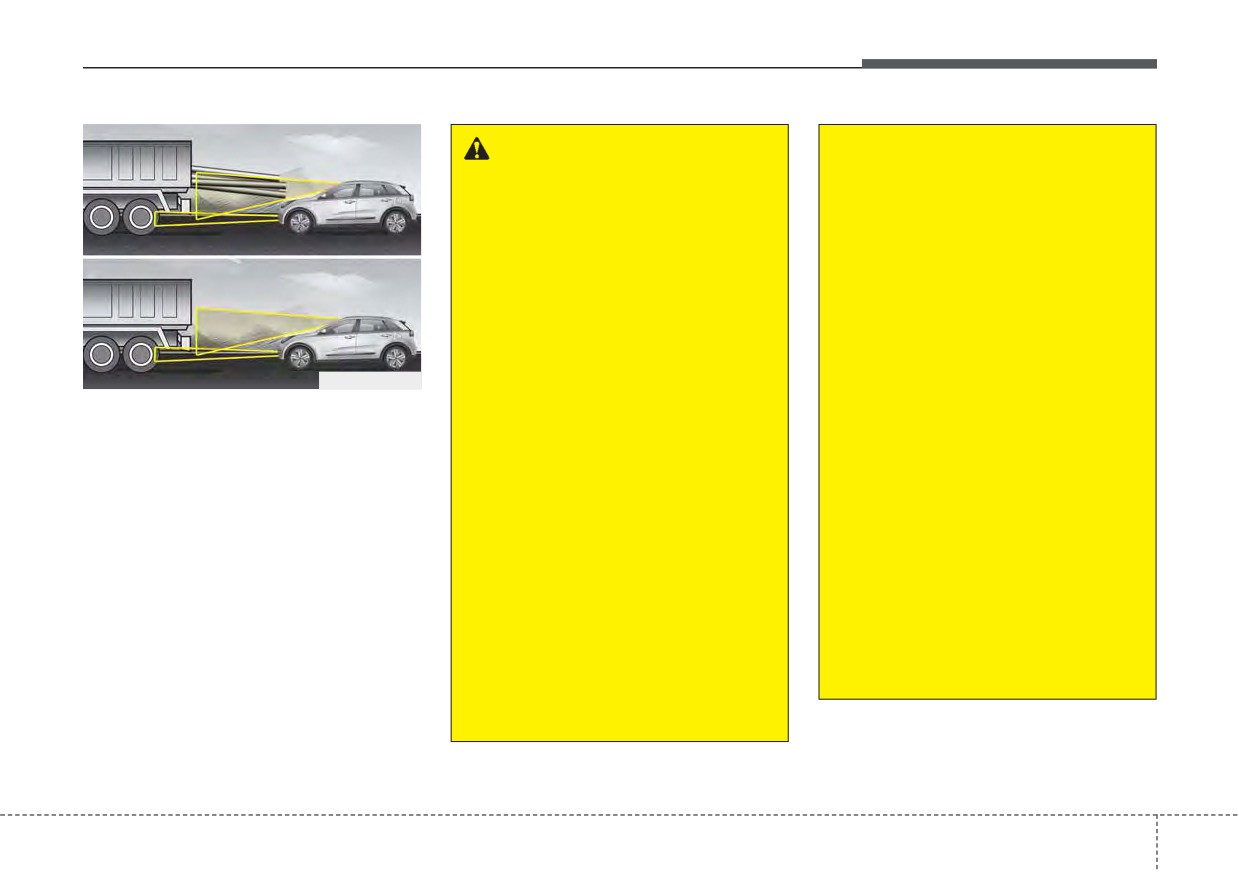
Some vehicles ahead in your lane
• When you are warned that the
cannot be recognized by the sensor
vehicle ahead of you is not detect-
as follows:
ed, drive with caution.
- Narrow vehicles such as motorcy-
cles or bicycles
- Vehicles offset to one side
- Slow-moving vehicles or sudden-
decelerating vehicles
- Stopped vehicles
- Vehicles with small rear profiles
such as trailers with no loads
5
137
Driving your vehicle
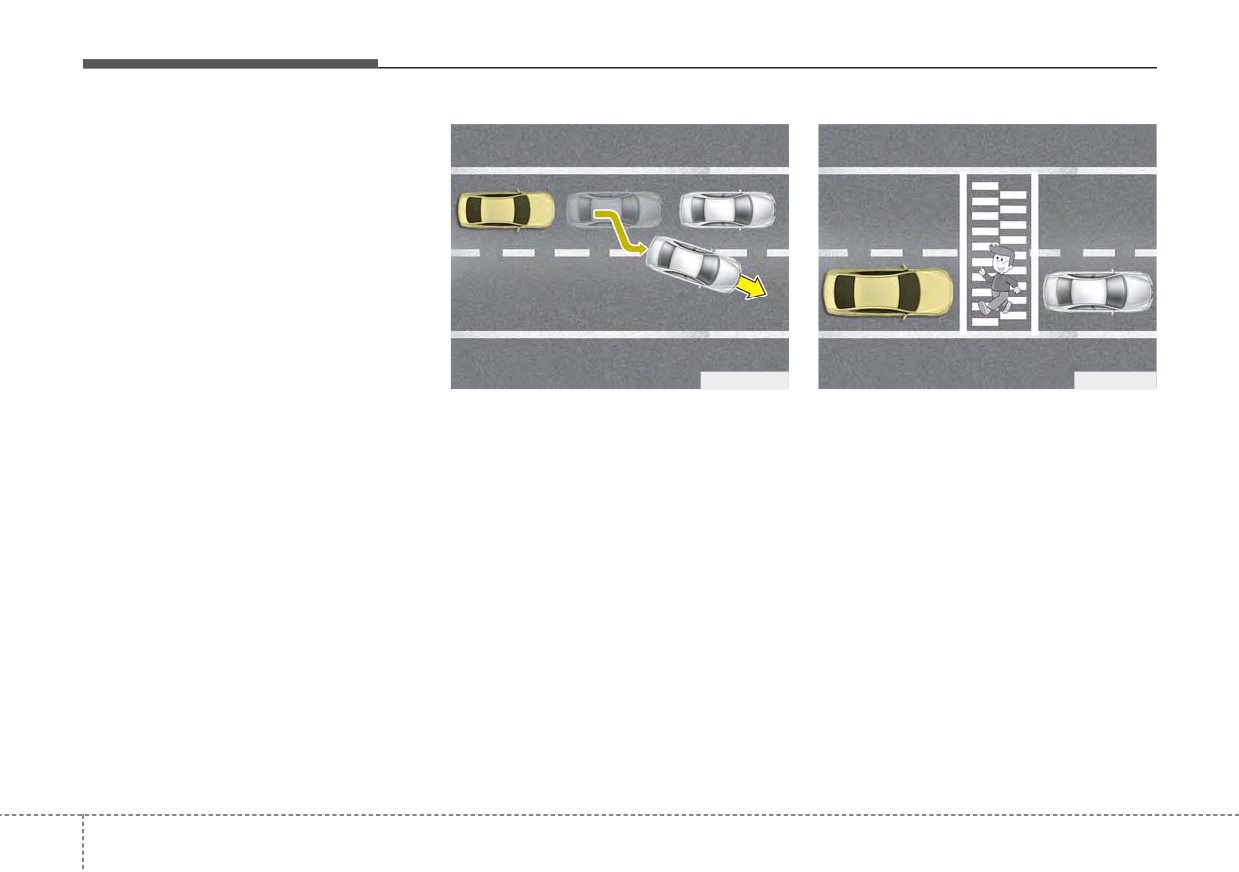
A vehicle ahead cannot be recog-
nized correctly by the sensor if any of
following occurs:
- When the vehicle is pointing
upwards due to overloading in the
liftgate (tailgate)
- While making turns by steering
- When driving to one side of the lane
- When driving on narrow lanes or on
curves
Adjust your vehicle speed by
OJF055029
OJF055050
depressing the brake pedal accord-
•
When vehicles are at a standstill
•
Always look out for pedestrian
ing to the road condition ahead and
and the vehicle in front of you
when your vehicle is maintaining a
driving condition.
changes to the next lane, be care-
distance with the vehicle ahead.
ful when your vehicle starts to
move because it may not recognize
the stopped vehicle in front of you.
In this case, you must maintain a
safe braking distance, and if nec-
essary, depress the brake pedal to
reduce your driving speed in order
to maintain a safe distance.
5
138
Driving your vehicle
(Continued)
WARNING
•
When other vehicles are
•
Smart Cruise Control cannot
changing lanes in front of you
guarantee stopping for every
frequently, Smart Cruise
emergency situation.
Control may not operate
If an emergency stop is nec-
appropriately. Always look
essary, you must apply the
ahead cautiously to react to
brakes.
unexpected and sudden situa-
•
Keep a safe distance accord-
tions.
ing to road conditions and
•
Smart Cruise Control is not a
vehicle speed. If the vehicle
ODEP051328N
substitute for safe driving
distance is too close during
practices but a convenience
•
Always be cautious for vehicles
high-speed driving, a serious
function only. It is the respon-
with higher height or vehicles car-
collision may result.
sibility of the driver to always
rying loads that sticks out to the
•
Smart Cruise Control cannot
check the speed and the dis-
back of the vehicle.
recognize a stopped vehicle,
tance to the vehicle ahead.
pedestrian or an oncoming
•
Always be aware of the select-
vehicle. Always look ahead
ed speed and vehicle dis-
cautiously to react to unex-
tance.
pected and sudden situations.
•
Always maintain sufficient
•
Smart Cruise Control may have
braking distance and deceler-
difficulty in maintaining the
ate your vehicle by applying
correct distance or speed, if
the brakes if necessary.
the vehicle is driving on a
(Continued)
steep incline or towing a trailer.
(Continued)
5
139
Driving your vehicle
This device complies with Part 15
(Continued)
(Continued)
of the FCC rules.
•
As Smart Cruise Control may
•
If the vehicle ahead is no
Operation is subject to the following
not recognize complex driv-
longer detected while you are
three conditions:
ing situations, always pay
driving with the set distance,
1. This device may not cause harmful
attention to driving conditions
the vehicle may accelerate
and control your vehicle
until it reached the set speed.
interference, and
speed.
If this occurs, be cautious and
2. This device must accept any inter-
control your vehicle speed if
ference received, including inter-
•
For safe operation, carefully
needed.
ference that may cause undesired
read and follow the instruc-
operation.
tions in this manual before
•
Be cautious and be careful of
use.
dangerous situations when
3. Changes or modifications not
driving on a slippery road.
expressly approved by the party
•
If another warning sound,
such as the fasten seat belt
•
Beware of dangerous situa-
responsible for compliance could
void the user's authority to operate
warning, is played, Smart
tions as you may quickly pass
Cruise Control warning sound
the vehicle driving in the next
the device.
may not occur.
lane.
•
When driving with Smart
Radio frequency radiation expo-
Cruise Control set, the func-
sure information:
tion may not detect parked
CAUTION
This equipment complies with FCC
vehicles ahead. Be careful if
Smart Cruise Control may not
radiation exposure limits set forth for
this occurs and do not rely
operate temporarily due to elec-
an uncontrolled environment. This
solely on Smart Cruise
trical interference.
equipment should be installed and
Control.
operated with minimum distance of 8
•
Please turn off Smart Cruise
in
(20 cm) between the radiator
Control when the vehicle is
(antenna) and your body.
being towed.
This transmitter must not be colocat-
(Continued)
ed or operating in conjunction with
any other antenna or transmitter.
5
140
Driving your vehicle
NAVIGATION-BASED SMART CRUISE CONTROL (NSCC) (IF EQUIPPED)
Navigation-based Smart Cruise
✽ NOTICE
✽ NOTICE
Control will help automatically adjust
•
Navigation-based Smart Cruise
Navigation-based Smart Cruise
vehicle speed when driving on high-
Control is available only on con-
Control operates on main roads of
ways (or motorways) with speed lim-
trolled access road of certain high-
highways (or motorways), and does
its by using road information from the
ways.
not operate on interchanges or junc-
navigation system while
Smart
❈ Controlled access road indicates
tions.
Cruise Control is operating.
roads with limited entrances
and exits that allow uninter-
rupted high speed traffic flow.
Only passenger cars and motor-
cycles are allowed on controlled
access roads.
Available highway
(Controlled access road)
Select Interstate Highway
USA
and U.S. (Federal) and State
Highways
Select Provincial and
Canada
Territorial Highways
• Additional highways may be
expanded by future navigation
updates.
5
141
Driving your vehicle
Highway Auto Curve
Navigation-based Smart
✽ NOTICE
Slowdown
Cruise Control settings
When there is a problem with
If vehicle speed is high, Highway
Settings
Navigation-based Smart Cruise
Auto Curve Slowdown function will
Control, the function cannot be set
temporarily decelerate your vehicle
from the “User Settings” in the LCD
to help you drive safely on a curved
display.
road, based on the curve information
from the navigation.
ODEP050009N
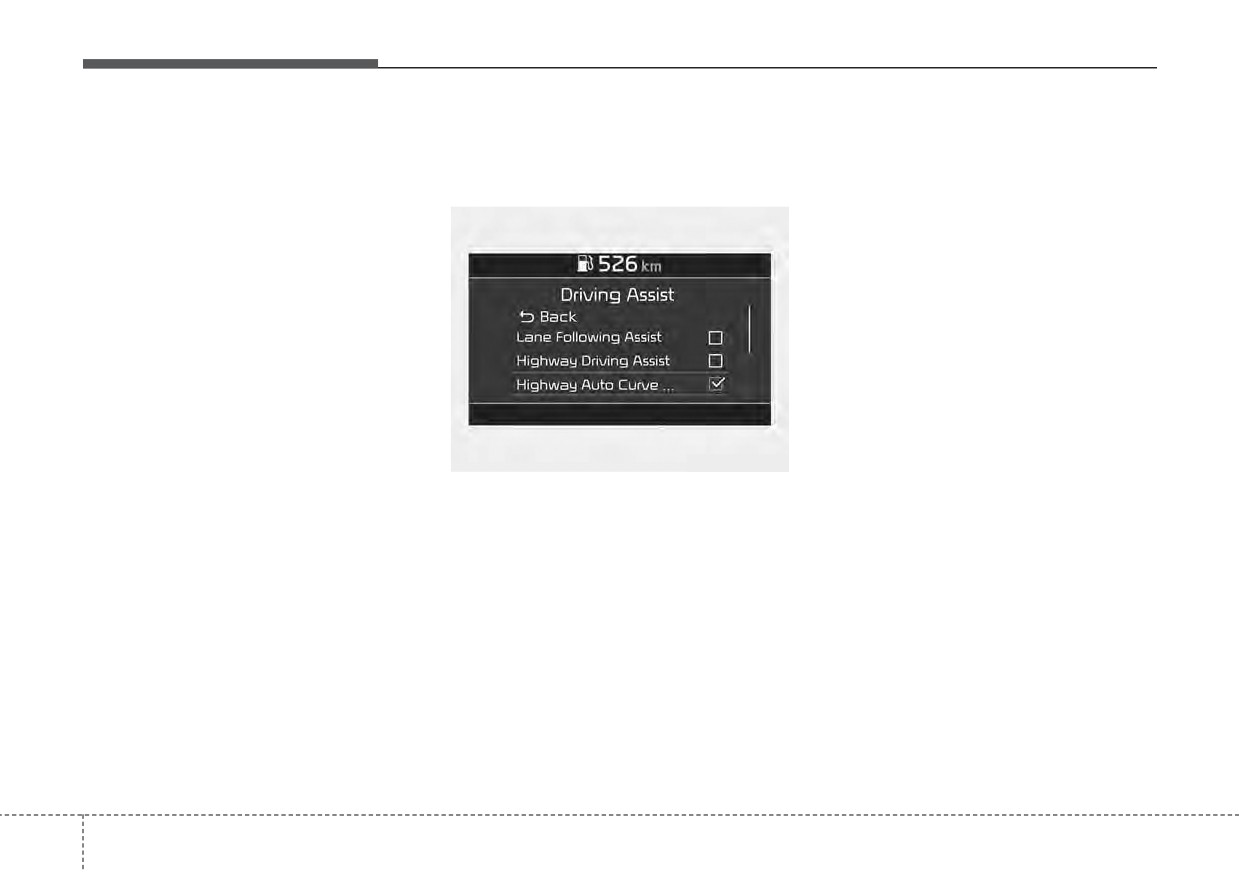
Highway Auto Curve Slowdown
• With the ENGINE START/STOP
button in the ON position, select
“Driver Assist Driving Assist
Highway Auto Curve Slowdown”
from the “User Settings (LCD dis-
play)” to turn on Navigation-based
Smart Cruise Control and deselect
to turn off the function.
5
142
Driving your vehicle
Navigation-based Smart
Display and control
Navigation-based Smart Cruise
Cruise Control operation
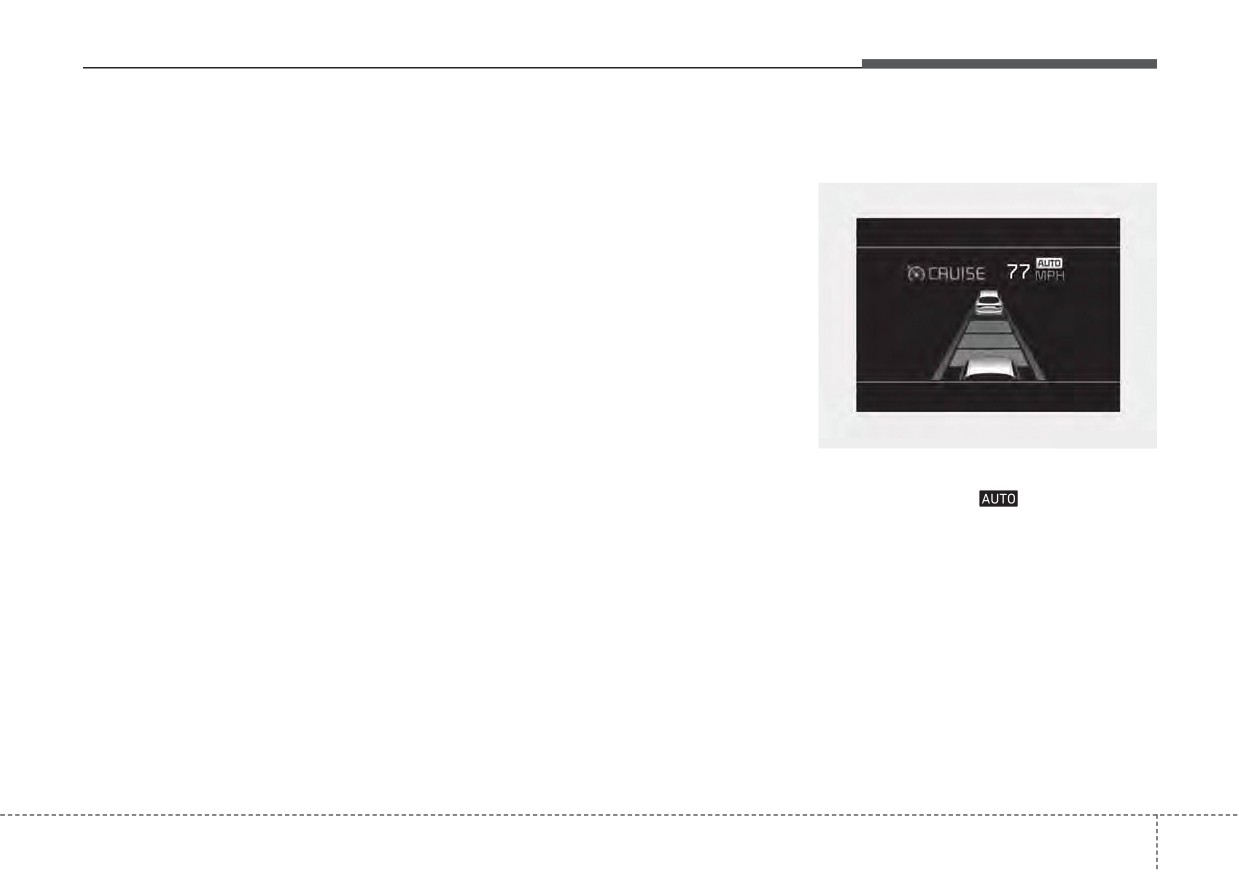
When Navigation-based Smart
Control standby
Cruise Control operates, it will be
Operating conditions
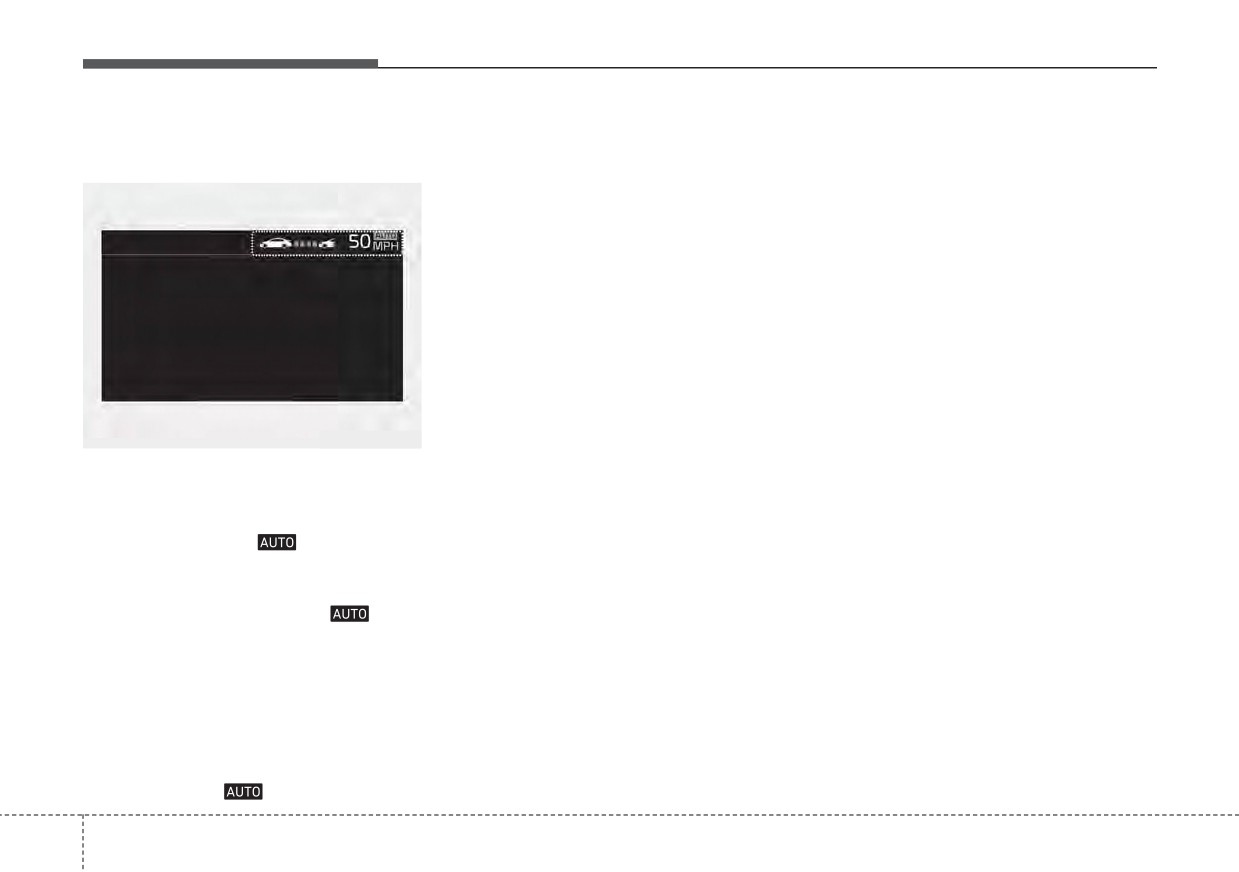
displayed on the cluster as follows:
Navigation-based Smart Cruise
Control is ready to operate if all of
the following conditions are satisfied:
• Smart Cruise Control is operating
• Driving on main roads of highways
(or motorways)
✽ NOTICE
For more details on how to operate
Smart Cruise Control, refer to
ODEP040101N
“Smart Cruise Control (SCC)” in
If the operating conditions are satis-
this chapter.
fied, the white
(
) indicator will
illuminate.
5
143
Driving your vehicle
Navigation-based Smart Cruise
Highway Auto Curve Slowdown
Limitations of Navigation-based
Control operating
Smart Cruise Control
•
Depending on the curve ahead on
the highway
(or motorway), the
Navigation-based Smart Cruise
vehicle will decelerate, and after
Control may not operate normally
passing the curve, the vehicle will
under the following circumstances:
accelerate to Smart Cruise Control
•
The navigation is not working prop-
set speed.
erly.
•
Vehicle deceleration time may dif-
•
The navigation is not updated to
fer depending on the vehicle speed
include the latest information about
and the degree of the curve on the
road curvature and changes.
road. The higher the driving speed,
•
Speed limit and road information in
the faster the vehicle will deceler-
the navigation is not updated
ate.
•
The map information and the actu-
ODEP050010N
al road is different because of real-
time GPS data or map information
If temporary deceleration is required
error
in the standby state and Navigation-
based Smart Cruise Control is oper-
•
The navigation searches for a
ating, the green (
) symbol will
route while driving
illuminate on the cluster.
•
GPS signals are blocked in areas
If the Set Speed Auto Change func-
such as a tunnel
tion operates, the green (
)sym-
•
A road that divides into two or
bol and green set speed will illumi-
more roads and joins again
nate on the cluster, and an audible
•
The driver goes off course the
alarm will sound.
route set in the navigation
✽ NOTICE
•
The route to the destination is
changed or canceled by resetting
Highway Auto Curve Slowdown and
the navigation
(including TPEG
Set Speed Auto Change function
change)
uses the same (
) symbol.
5 144
Driving your vehicle
•
The navigation cannot detect the
•
When the vehicle's driving route is
current vehicle position (ex: elevat-
recognized as the main road by
ed roads including overpass adja-
maintaining the main road instead
cent to general roads or nearby
of the navigation set route,
roads exist in a parallel way)
Highway Auto Curve Slowdown
function will operate. Depending on
•
The vehicle enters a service sta-
the distance to the curve and the
tion or rest area
current vehicle speed, vehicle
•
The speed limit of some sections
deceleration may not be sufficient
changes depending on the road
or may decelerate rapidly.
situations
•
Android Auto or Car Play is operat-
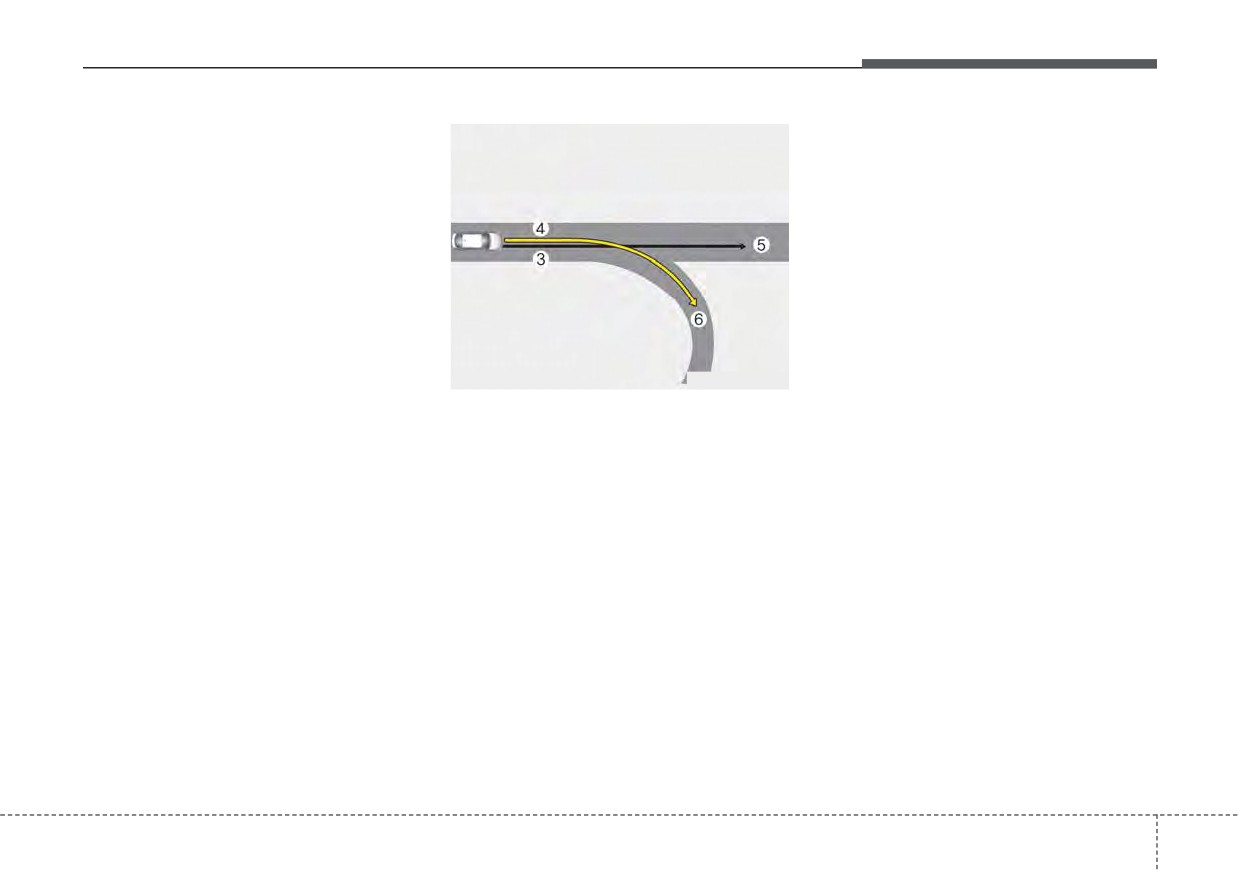
ODEP050001N
ing
[3]: Driving route, [4]: Set route, [5]: Main road,
•
The navigation is being updated
[6]: Branch line
while driving
• When there is a difference
•
The navigation is being restarted
between the navigation set route
while driving
(branch line) and the driving route
•
There is bad weather, such as
(main road), Highway Auto Curve
heavy rain, heavy snow, etc.
Slowdown function may not oper-
•
Driving on a road under construc-
ate until the driving route is recog-
tion
nized as the main road.
•
Driving on a road that is controlled
•
Driving on a road that is sharply
curved
5
145
Driving your vehicle
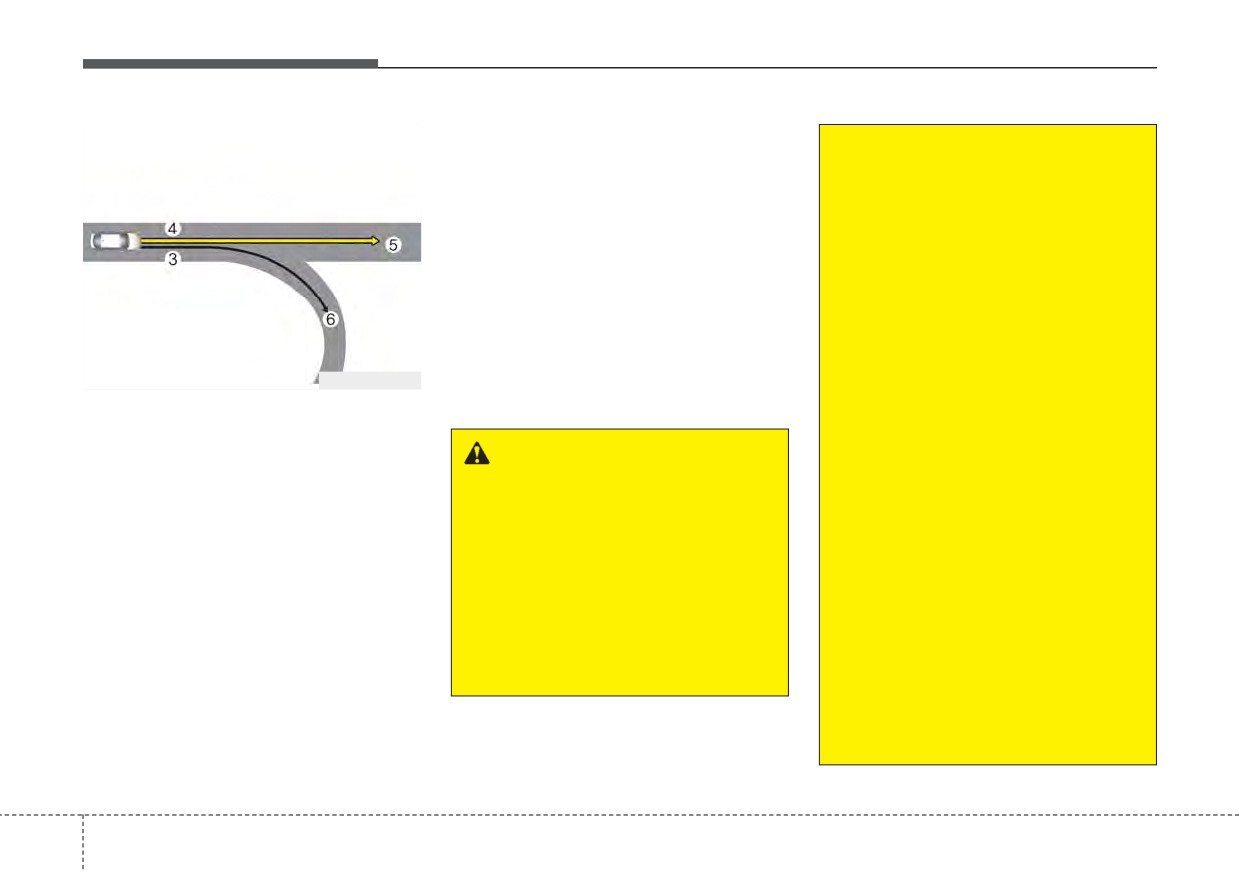
[3]: Driving route, [5]: Main road, [6]: Branch
(Continued)
line
•
The navigation's speed limit
• If there is no destination set on the
information may differ from
navigation, Highway Auto Curve
the actual speed limit informa-
Slowdown function will operate
tion on the road. It is the dri-
based on the curve information on
ver's responsibility to check
the main road.
the speed limit on the actual
• Even if you depart from the main
driving road or lane.
road, Highway Auto Curve
•
Highway
Auto
Curve
Slowdown function may temporari-
Slowdown will automatically
ly operate due to navigation infor-
ODEP050002N
mation of the highway curve sec-
cancel when you leave the
main road of the highway.
[3]: Driving route, [4]: Main road, [5]: Set route,
tion
Always pay attention to road
[6]: Branch line
and driving conditions while
• When there is a difference
WARNING
driving.
between the navigation route
•
Navigation-based
Smart
•
Navigation-based Smart Cruise
(main road) and the driving route
Cruise Control is not a substi-
Control may not operate due to
(branch line), Highway Auto Curve
tute for safe driving practices,
the existence of leading vehi-
Slowdown function may temporari-
but a convenience function.
cles and the driving conditions
ly operate due to the navigation
Always have your eyes on the
of the vehicle. Always pay
information of the highway curve
road, and it is the responsibil-
attention to road and driving
section.
ity of the driver to avoid violat-
conditions while driving.
• When it is judged that you are driv-
ing traffic laws.
•
When you are towing a trailer
ing out of the route by entering the
(Continued)
or another vehicle, we recom-
highway interchange and junction,
mend that Navigation-based
Highway Auto Curve Slowdown
Smart Cruise Control is turned
function will not operate.
off due to safety reasons.
5
146
Driving your vehicle
•
After you pass through a tollgate
✽ NOTICE
This device complies with Part 15
on a highway, Navigation-based
of the FCC rules.
•
When the function is activated, the
Smart Cruise Control operates
vehicle decelerates automatically
Operation is subject to the following
based on the first lane. If you enter
before reaching the curved road
three conditions:
one of the other lanes, the function
according to its curvature, and the
1. This device may not cause harmful
might not properly decelerate.
driving speed returns to the speed
interference, and
•
The vehicle will accelerate if the
set by Smart Cruise Control after
2. This device must accept any inter-
driver depresses the accelerate
passing the curved section.
ference received, including inter-
pedal while Navigation-based
•
The speed information on the clus-
ference that may cause undesired
Smart Cruise Control is operating,
ter and navigation may differ
operation.
and function will not decelerate the
•
The time gap could occur between
vehicle. If not depressing the accel-
the navigation's guidance and
3. Changes or modifications not
erator pedal sufficiently, the vehicle
expressly approved by the party
when Navigation-based Smart
speed may decrease.
Cruise Control operation starts
responsible for compliance could
void the user's authority to operate
•
If the driver accelerates and
and ends.
the device.
releases the accelerator pedal
•
Even if you are driving at a speed
while the Navigation-based Smart
lower than Smart Cruise Control
Cruise Control is operating, the
set speed, acceleration may be lim-
Radio frequency radiation expo-
vehicle may not decelerate suffi-
ited by the speeding cameras and
sure information:
ciently or may rapidly decelerate to
curve sections ahead.
This equipment complies with FCC
a safe speed.
•
If Navigation-based Smart Cruise
radiation exposure limits set forth for
Control is operating while leaving
•
If the curve is too large or too
an uncontrolled environment. This
the main road to enter an inter-
small, Navigation-based Smart
equipment should be installed and
change, junction, rest area, etc.,
Cruise Control may not operate.
operated with minimum distance of 8
the function may operate for a cer-
in
(20 cm) between the radiator
tain period of time.
(antenna) and your body.
•
Deceleration by Navigation-based
Smart Cruise Control may not be
This transmitter must not be colocat-
ed or operating in conjunction with
sufficient due to road conditions
such as uneven road surfaces, nar-
any other antenna or transmitter.
row lanes, etc.
5
147
Driving your vehicle
LANE FOLLOWING ASSIST (LFA) (IF EQUIPPED)
WARNING
CAUTION
•
It is the driver's responsibility
-
Do not attach glass tinting,
to operate the steering wheel
stickers, accessories to the
for safe driving.
windshield where the front
view camera near the indoor
•
Do not turn the steering wheel
mirror is placed.
hastily if Lane Following
Assist is operating.
-
The removal or re-assembly of
the front view camera to
•
Lane Following Assist assists
attach tinting, stickers, acces-
the steering wheel control so
sories may require Lane
that the vehicle can stay in the
ODEP051029
Following Assist to be thor-
center of the lane. Lane
oughly inspected and modi-
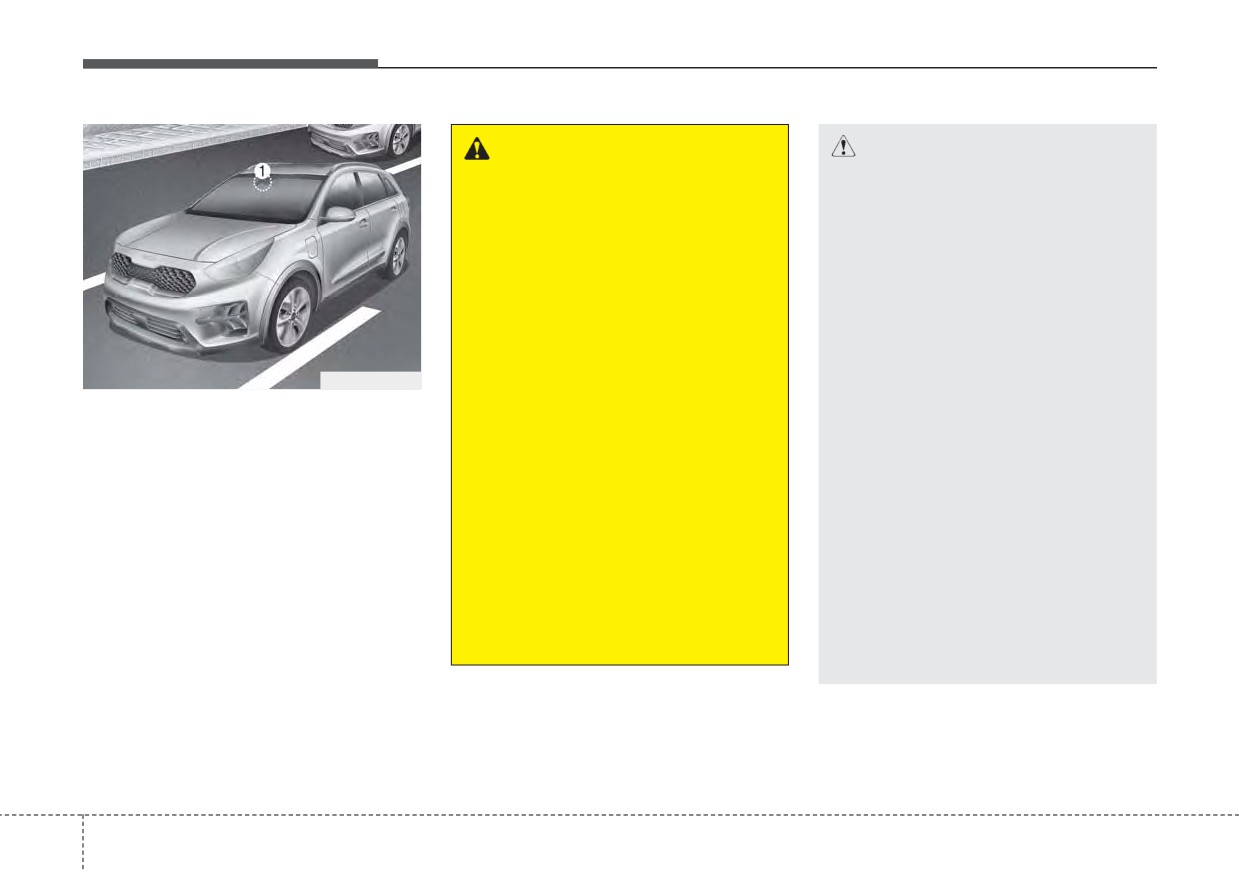
Lane Following Assist is designed to
Following Assist does not
fied. In such case, have your
center the vehicle in the chosen lane
automatically control the
vehicle inspected by an
by using a front view camera (1) on
steering wheel at all times,
authorized Kia dealer.
top of the windshield.
which means the driver must
-
Inspection or modification
It can only become active in combi-
keep hands on the wheel at all
nation with Smart Cruise Control
times while driving.
may be required when replac-
ing parts related to the wind-
and therefore assists the driver in his
•
When using Lane Following
shield or front view camera,
task to control the lateral movement
Assist, always be aware of
steering. we recommend that
of the vehicle.
surroundings and road condi-
the function be checked by an
tions that may interrupt or
* LFA stands for Lane Following
authorized Kia dealer.
stop Lane Following Assist.
Assist.
(Continued)
5
148

Driving your vehicle
Lane Following Assist opera-
(Continued)
(Continued)
tion
-
Depending on your surround-
-
Keeping your hands off the
ings and road conditions,
wheel while driving will trigger
To use Lane Following Assist two
steps are necessary:
Lane Following Assist could
the hands-off warning and
fail to recognize the lane and
deactivate the steering-assist
(1) Lane Following Assist has to be
stop working. In turn, extra
function. Put your hands back
enabled, and
caution is required while driv-
on the wheel, then the steer-
(2) Smart Cruise Control has to be
ing with Lane Following
ing-assist system will be re-
activated
Assist on.
activated.
•
Select or release the setting from
-
Be sure to check the non-
-
When driving at a high speed,
“User setting Driver Assistance
operating conditions and cau-
the steering assist force can
Driving Assist Lane Following
tions for the driver before
become weak and the vehicle
Assist”. Select Lane Following
using Lane Following Assist.
can drive out of its lane. Extra
Assist in the user setting of the
-
Do not place reflective materi-
caution is required, and com-
instrument panel.
ply with the speed limit.
als such as white paper or
•
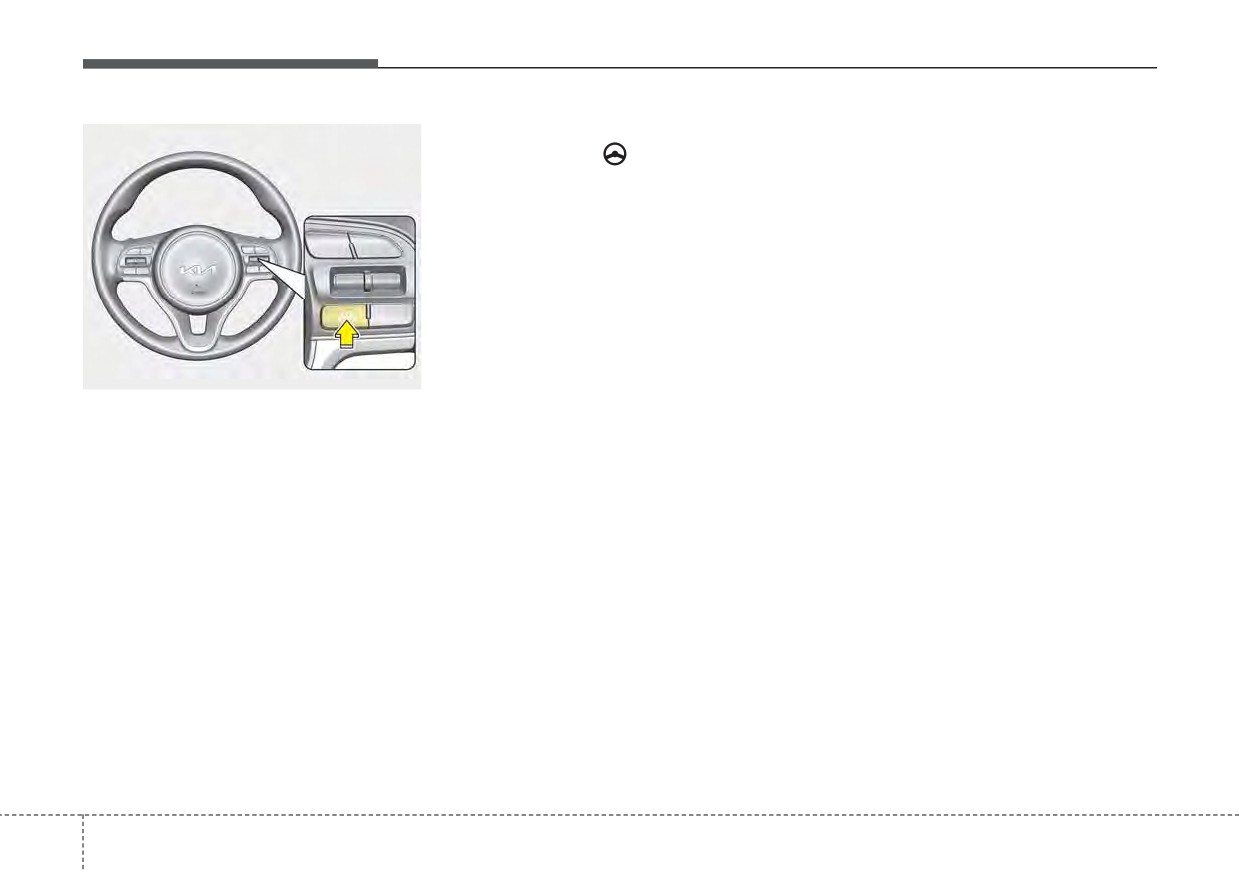
Press the Lane Driving Assist but-
mirror on the crash pad.
-
Attaching an object to the
ton (
) located on the steering
Sunlight reflections can cause
steering wheel could deter
wheel to turn on Lane Following
a malfunction in Lane
steering assistance.
Assist.
Following Assist.
-
Attaching an object to the
-
Too big sound from the sound
steering wheel could deter the
function can interrupt the
hands-off alarming system.
alarming sound from Lane
Following Assist.
(Continued)
5
149
Driving your vehicle
Once the function starts working, the
Lane Following Assist activation
indicator light
(
) comes on the
If the vehicle is inside the lane with
instrument panel.
both lanes recognized by the func-
The indicator light colors according
tion, and there is no steep steering
to the function status are as follows.
made by the driver, Lane Following
Assist changes into steering assist
Green: Active
mode. The indicator light will come
White: Standby
on green, and the function helps the
vehicle stay in line by controlling the
steering wheel.
When the steering wheel is not con-
ODEEV051027
trolled temporarily, the indicator light
Lane Following Assist status is
will flash green and changes to white.
remembered by the function and
When the both lanes are not recog-
therefore does not need to be
nized by the function, the function
enabled again for each new journey.
controls the steering wheel limitedly
whether there is a vehicle in front or
not.
5 150
Driving your vehicle
Warning
CAUTION
WARNING
•
Hands-off warnings may be
Lane Following Assist ensures
delayed depending on road
the vehicle stays in its lane.
conditions. Always keep your
Lane Following Assist does not
hands on the steering wheel
guarantee
100% safety. Make
while driving.
sure you always check road
•
Hold the steering wheel tight.
conditions and drive safely at
Otherwise, Lane Following
all times.
Assist could misjudge that the
Never completely rely on your
driver hands off the wheel,
Lane Following Assist.
and a hands-off warning may
occur.
ODEP051397N
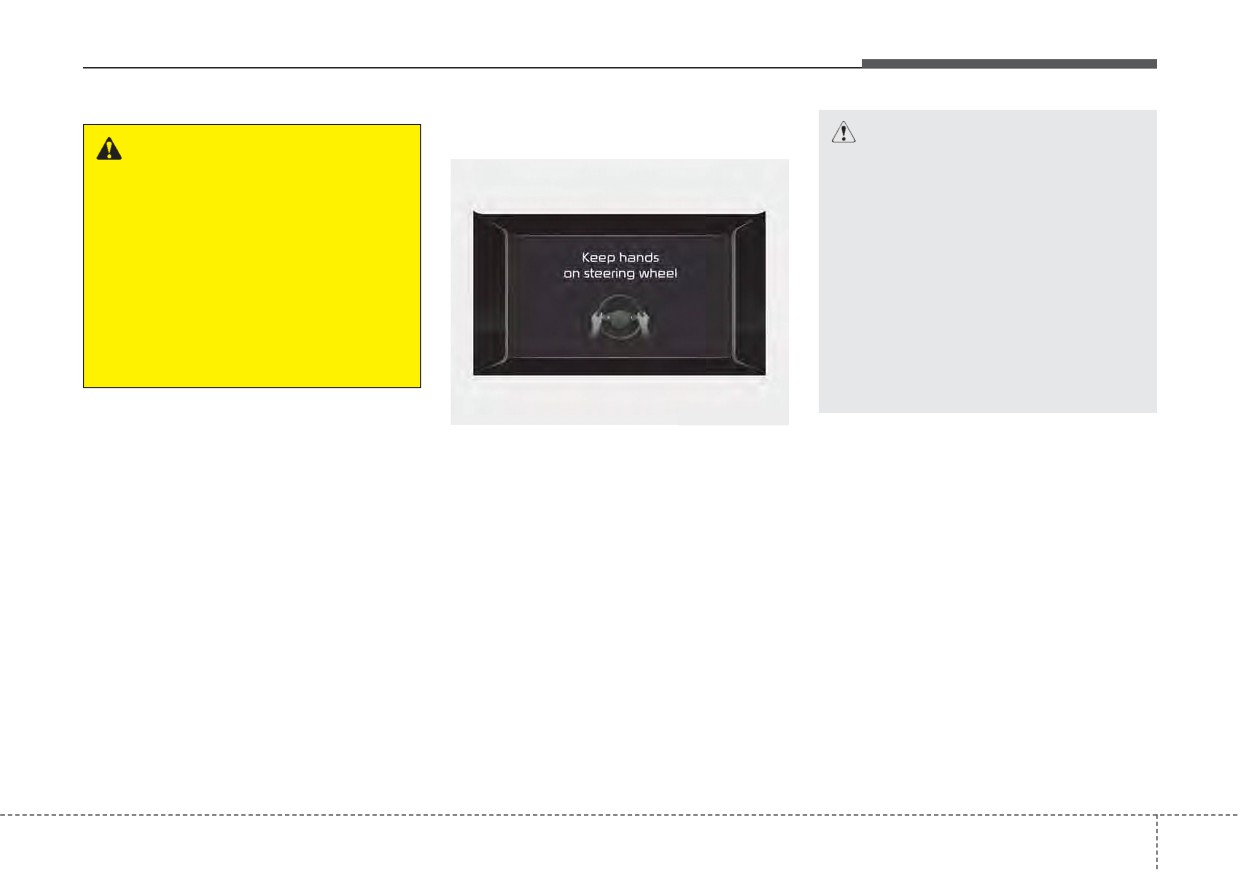
If you keep your hands off the wheel
while driving with Lane Following
Assist assisting the steering, the
hands-off warning will be triggered.
If the driver keeps hands off the
wheel even with the hands-off warn-
ing on, the steering assist is tem-
porarily released automatically.
If you put your hands back on the
wheel with Lane Following Assist
released, the steering assist will re-
start.
5
151
Driving your vehicle
Lane Following Assist mal-
Limitation of Lane Following
CAUTION
function
Assist
•
It is the driver’s responsibility
•
If the driver turns on the turn signal
to operate the steering wheel
light or the emergency warning
while driving.
light to change the lane
•
With Lane Following Assist
- Operate the turn signal light
on, the driver can steer the
switch before changing the lane
vehicle by operating the wheel
- If you change the lane without
on his own.
operating the turn signal lights,
•
We recommend that the driver
steering reaction force of the
turns off Lane Following
wheel may occur.
Assist and operates the steer-
•
Once Lane Following Assist is
ing wheel by himself in the fol-
turned on or the lane is changed,
lowing cases
ODEP059265L
the vehicle should be in the center
- bad weather
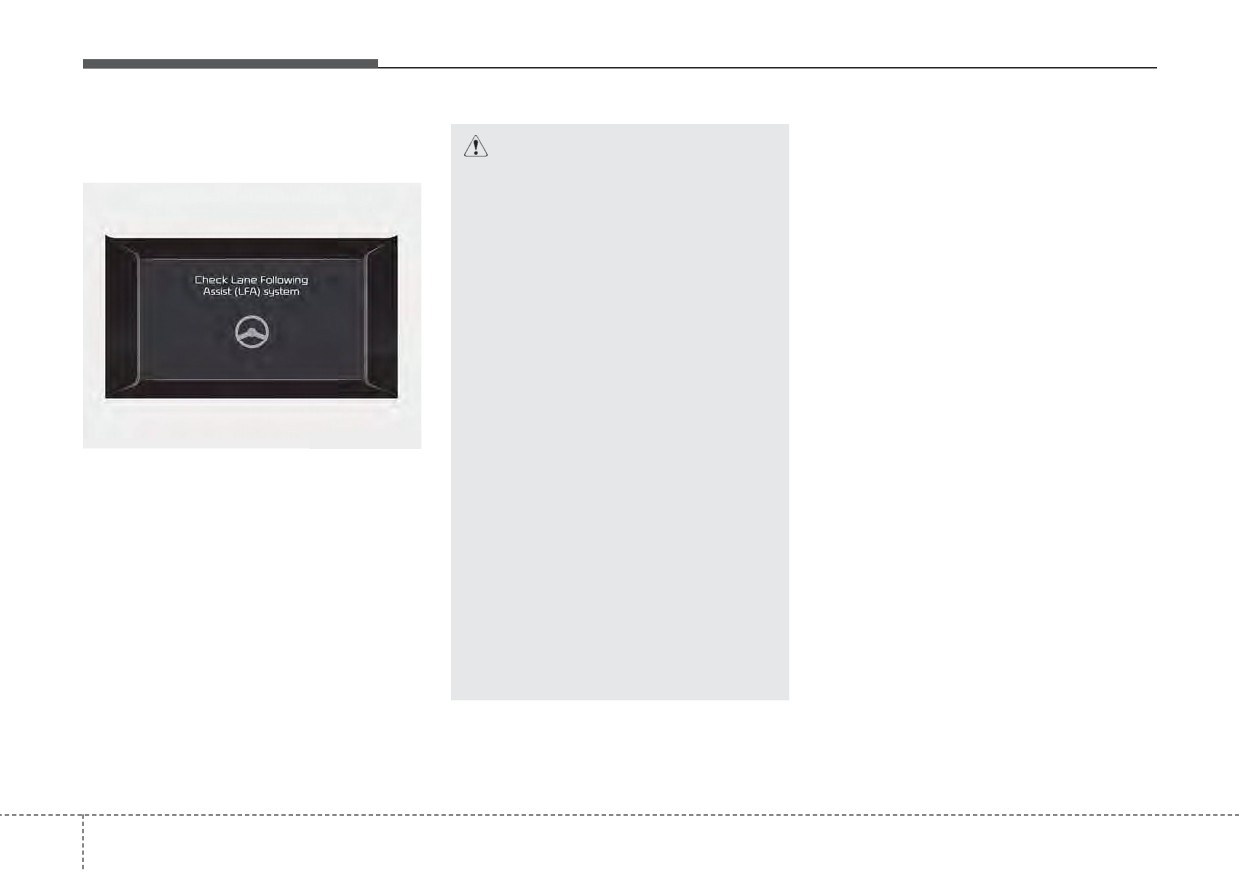
The warning message popped up
of the road to switch to the steering
(turned off after a certain period of
- bad road conditions
assist mode. If the driver keeps
time)means a problem with Lane
- when frequent operation of
driving along the lane, Lane
Following Assist. If this occurs, we
the steering wheel is required
Following Assist will not assist the
recommend that the function be
steering.
- when towing other vehicle or
checked by an authorized Kia dealer.
trailers
•
When the ESC or VSM is activat-
ed, the function does not assist
•
The steering wheel can feel
steering.
heavy or light if Lane
Following Assist is assisting
•
When driving on a curved road at a
the steering.
high speed, steering assist mode
may not work.
•
When driving at a speed faster
than 110 mph (180 km/h), steering
assist mode may not work.
5
152
Driving your vehicle
•
When sudden steering is made,
Cautions for the driver
- If the number of lanes increases
the function could be temporarily
or decreases, or if the lanes inter-
If the lane recognition is difficult or
deactivated.
sect with each other more
limited for Lane Following Assist as
intensely (tollgate entry section,
•
If you change the lane in a hurry,
shown below, the driver may need to
road section
/ joining section,
the function does not assist the
be careful because it may not oper-
etc.)
steering.
ate or may cause unnecessary oper-
ation.
- When there are two or more lane
•
If the vehicle suddenly stops, it
markings such as a construction
does not assist the steering.
section, a designated lane, etc.
•
If the lane is too narrow or too
• Roads or lane markings in bad con-
wide, steering is not assisted.
dition
- When the lane is crowded such
as the construction section or the
•
If the function is not able to recog-
- When The lane is tainted or invisible
lane is replaced by some struc-
nize a vehicle in front and either of
- When the driver cannot see the
tures
the lanes is not recognized, the
lane due to rain, snow, dust,
- If there is a road marking such as
steering is not assisted
sand, oil, puddles, etc
a zigzag lane, crosswalk mark, or
•
If the radius is too small for the
- When roads are set or the colors
road surface milestone
curve
of the lane and road are not dis-
- When a lane suddenly becomes
tinctive
invisible or disappears from an
- If there is a sign other than the
intersection
lane near the lane or a mark sim-
ilar to the lane
• The external environment affecting
- When the lane is not clear or
the function
damaged
- If the outside brightness of the vehi-
- If the road is covered in the shad-
cle suddenly changes, such as
ows of objects around the road,
when entering or exiting the tunnel
such as medians, guard rails,
or passing under the bridge
noise walls, and trees
5
153
Driving your vehicle
- If the vehicle's headlights are not
• When the front view camera has
used at night or in the tunnel, or the
poor visibility
brightness of the headlights is too
- If the windshield of the vehicle
weak
and the camera lens are covered
- If there are boundary structures
with dust, fingerprints, or tinting.
such as tollgate booths and side-
- If the camera has poor visibility
walk blocks
due to bad weather such as fog,
- If it is difficult to distinguish lanes
heavy rain, heavy snow.
due to the reflection on the wet road
- If moisture is not completely
made by sunlight, streetlight, and
removed from the windscreen.
oncoming traffic.
- When placing
objects
on
the
- When the backlight is strongly reflect-
dashboard, etc.
ed in the direction of the vehicle
- When Driving to the left or right lane
by bus lane or on the bus lane
- If there is no enough distance
between the front car or if the lane
is covered by the car ahead of me
- When the lane change is large,
such as a steep curve or a continu-
ous curve
- When passing through speed
bump, sudden up / down or left /
right slope
- If the vehicle is severely shaken
- When the temperature around the
mirror is very high due to direct sun-
light
5
154
Driving your vehicle
HIGHWAY DRIVING ASSIST (HDA) (IF EQUIPPED)
Highway Driving Assist is designed
✽ NOTICE
to control the vehicle distance and
WARNING
•
Highway Driving Assist is avail-
speed of the vehicle when driving on
•
Highway Driving Assist is not
able only on controlled access road
a highway.
a substitute for safe driving
of certain highways.
Highway Driving Assist assists driv-
practices, but a convenience
❈ Controlled access road indi-
ers by receiving information about
function. It is the responsibili-
cates roads with limited
the speed limit of the highway that
ty of the driver to always be
entrances and exits that allow
the vehicle is on and automatically
aware of the surroundings
uninterrupted high speed traf-
changing the set speed of Smart
and drive safely.
fic flow. Only passenger cars
Cruise Control when needed.
•
Highway Driving Assist relies
and motorcycles are allowed on
entirely on the road informa-
controlled access roads.
tion provided by the naviga-
Available highway
tion system. It is the responsi-
(Controlled access road)
bility of the driver to follow
traffic laws and avoid acci-
USA
Select Interstate Highways
dents.
•
Additional highways may be
•
Turn off Highway Driving
expanded by navigation updates.
Assist when the vehicle is
being towed.
•
For your safety, please read
the owner's manual before
using the function.
5
155
Driving your vehicle
Setting and activating
Operating conditions
Highway Driving Assist opera-
Highway Driving Assist
tion
If you activate Highway Driving
With the ignition switch or ENGINE
Assist in the User setting of the
The speed is automatically set in
START/STOP button in the
[ON],
instrument panel. and the following
accordance with the steering control
select or release the setting from
conditions are met, Highway Driving
and the highway speed limit when all
“User Setting Driver Assistance
Assist will be ready to operate, and
the operating conditions are met.
Driving Assist Highway Driving
the indicator light (
) will come
Assist”.
on green in the cluster.
Select Highway Driving Assist in the
User setting of the instrument panel.
•
When driving on the highway main
and the function will operate if the fol-
line.
lowing conditions are met :
•
When Smart Cruise Control is in
If the engine is turned off then on
operation
(Vehicle deceleration
again, the function maintains the last
and acceleration control)
setting.
- Refer to
“Smart Cruise Control
(SCC)” in this chapter.
- If Smart Cruise Control is in
standby mode
(Smart Cruise
Control is on but speed is not set),
Highway Driving Assist will be in
the same mode. The white indica-
tor (
) light will be turned
on.
•
When the vehicle speed is below
95 mph (153 km/h)
5
156
Driving your vehicle
Steering control
When Highway Driving Assist cannot Warning related to steering
provide temporary steering inputs,
wheel
the indicator flashes green and then
changes to white. Even when HDA
cannot provide temporary steering
inputs, it still controls the distance
from other vehicles.
(For information on non-operating
conditions of steering wheel control,
please refer to
“Limitations of
Highway Driving Assist” in this chap-
ODEP059290N
ter.
ODEP051397N
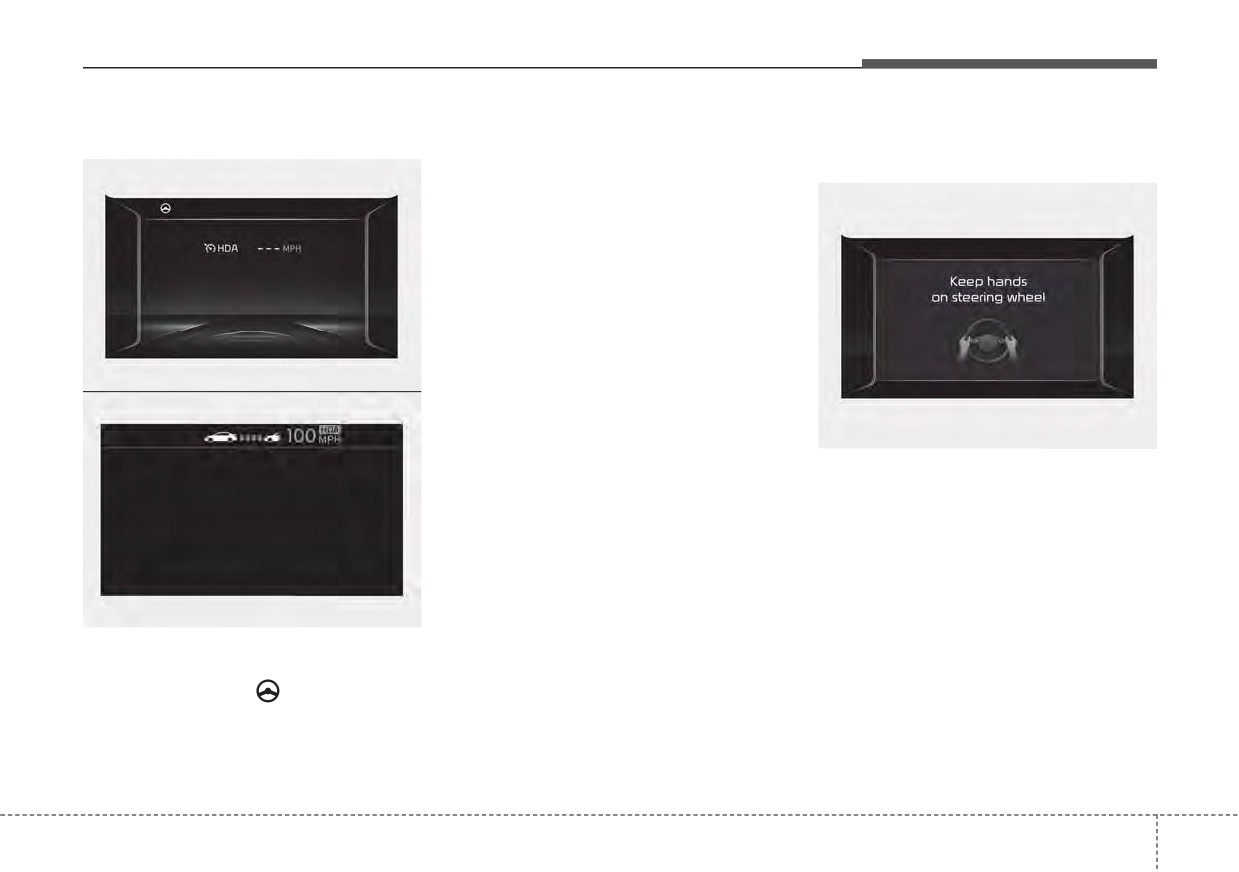
The hands-off warning appears
when the function detects that the
driver's hands are not on the steering
wheel while Highway Driving Assist
is in work.
(First warning: warning message,
Second warning: warning message
ODEP059330N
with warning sound)
If both lanes are recognized properly
(lane color: white), the steering
wheel indicator
(
) lights up in
green and then the steering control
is initiated.
5
157
Driving your vehicle
When the hands-off warning
Highway Driving Assist will not be in
CAUTION
lasts for a certain period of
the ENABLED state and/or the steer-
•
The hands-off warning may be
time
ing wheel will not be assisted when:
delayed depending on road
•
The turn signal is turned on before
conditions. Always keep your
changing a lane. If you change
hands on the steering wheel
lanes without the turn signal on,
while driving.
the steering wheel might be con-
•
If you hold the steering wheel
trolled.
lightly, it may be perceived
•
The vehicle is not driven in the mid-
that the steering wheel is not
dle of the lane when the function is
held at all and trigger
the
turned on or right after changing a
hands-off warning.
lane.
•
ESC (Electronic Stability Control or
VSM
(Vehicle
Stability
Management) is activated.
ODEP051397N
•
The vehicle is driven on a sharp
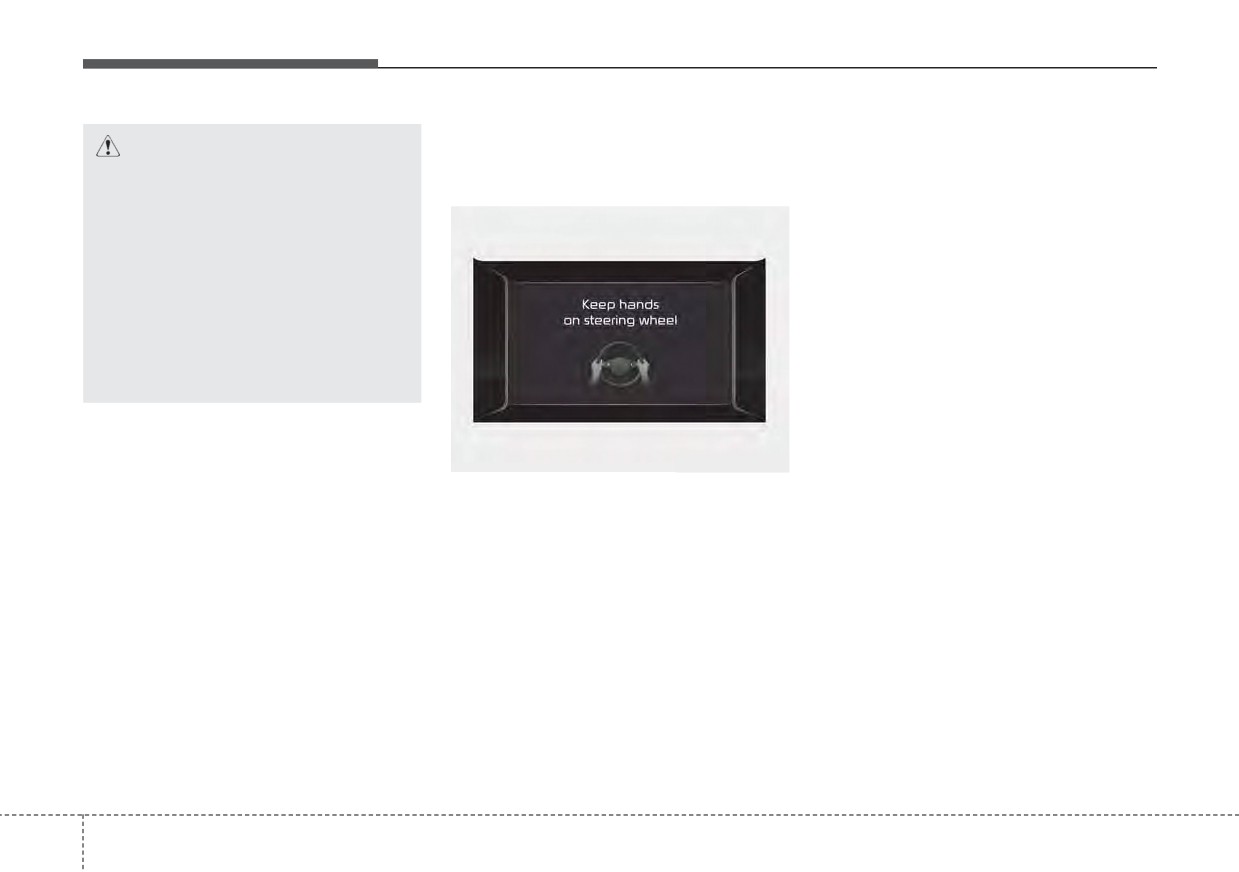
If the driver still does not have their
curve.
hands on the steering wheel after the
message "Keep hands on steering
•
Vehicle speed is over 95 mph (153
wheel", Highway Driving Assist will
km/h)
be canceled. However, if Smart
•
The vehicle makes sharp lane
Cruise Control is reactivated manu-
changes.
ally by the driver, Highway Driving
Assist will reactivate.
To activate Smart Cruise control
refer to "Smart Cruise Control
(SCC)" in this chapter.
5
158
Driving your vehicle
•
The vehicle brakes suddenly.
Automatic speed setting
•
Only one lane marker is detected.
•
The lane is very wide or narrow.
•
There are more than two lane
markers on the road (e.g. construc-
tion area).
•
Radius of a curve is too small.
•
The vehicle is driven on a steep
incline.
•
The steering wheel is turned sud-
denly.
ODEP059292N
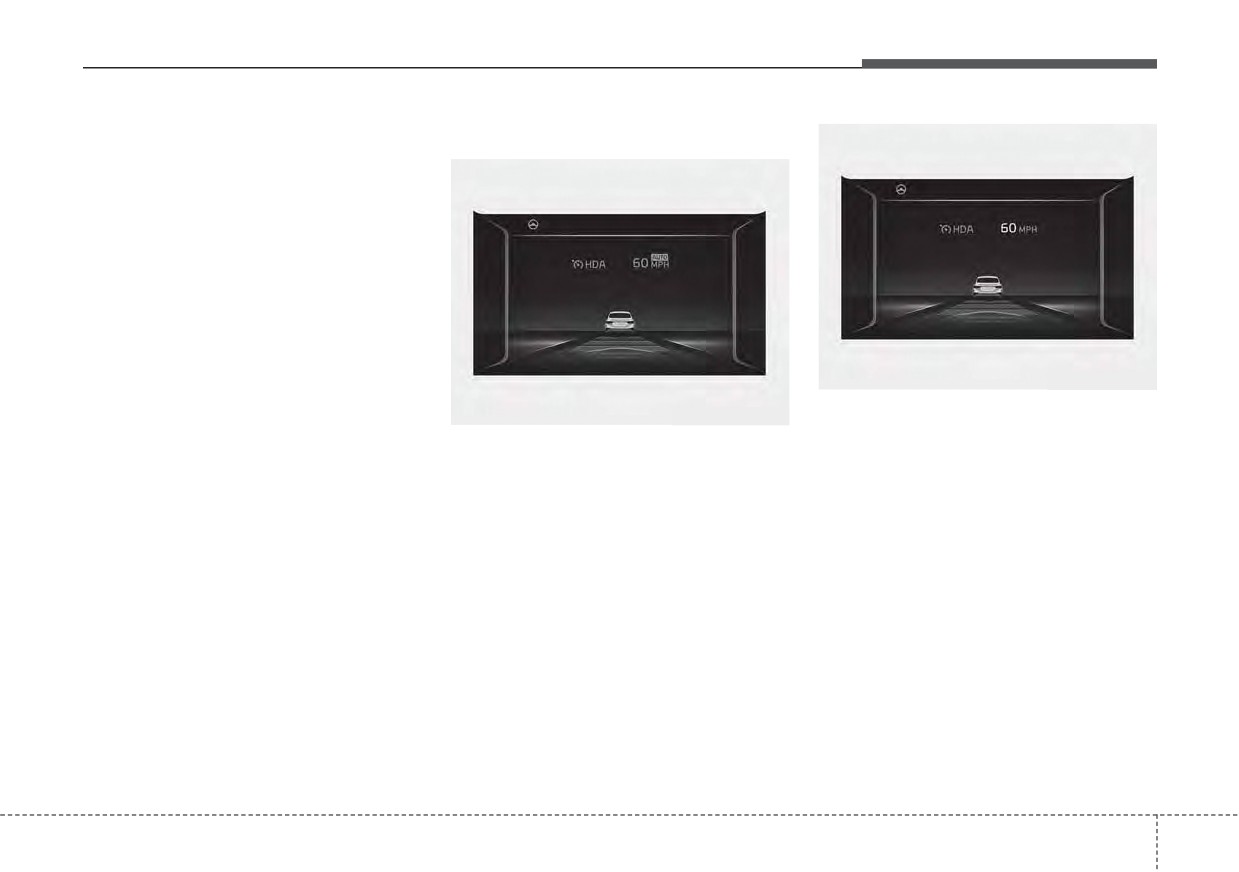
If the driver directly changes the
ODEP059291N
speed, it enters the manual speed
If Highway Driving Assist operating
setting mode and the set speed is
conditions are all met and setting
displayed in white and the “AUTO”
speed matches with the legal high-
symbol will disappear.
way speed limit, Highway Driving
Assist will enter the automatic speed
setting mode. (The set speed and the
"AUTO" symbol will be displayed in
green with an indicative sound) In
the automatic speed setting mode,
the set speed is automatically adjust-
ed to the changing speed limits of
highway sections.
5
159
Driving your vehicle
Highway Driving Assist mal-
✽ NOTICE
(Continued)
function
•
In the automatic speed setting
•
High Driving Assist is limited in
mode, the vehicle automatically
other countries.
accelerates or decelerates when
•
High Driving Assist only operates
the highway speed limit changes.
based on the speed limits of the
•
If your vehicle speed exceeds 95
highway but it does not work with
mph (153 km/h), Highway Driving
the speed cameras.
Assist is automatically canceled.
•
The time gap could occur between
Also, it is converted to Smart
the navigation speed warning and
Cruise Control automatically with
function operation.
a pop-up message on the naviga-
•
The function is not designed to
tion.
work on highways other than
•
If you enter a rest area on the
mentioned as a controlled access
highway
or
a
IC/JC
road. The function automatically
ODEP059331N
(intersection/junction) without a
cancels when you leave the high-
destination set, the function is can-
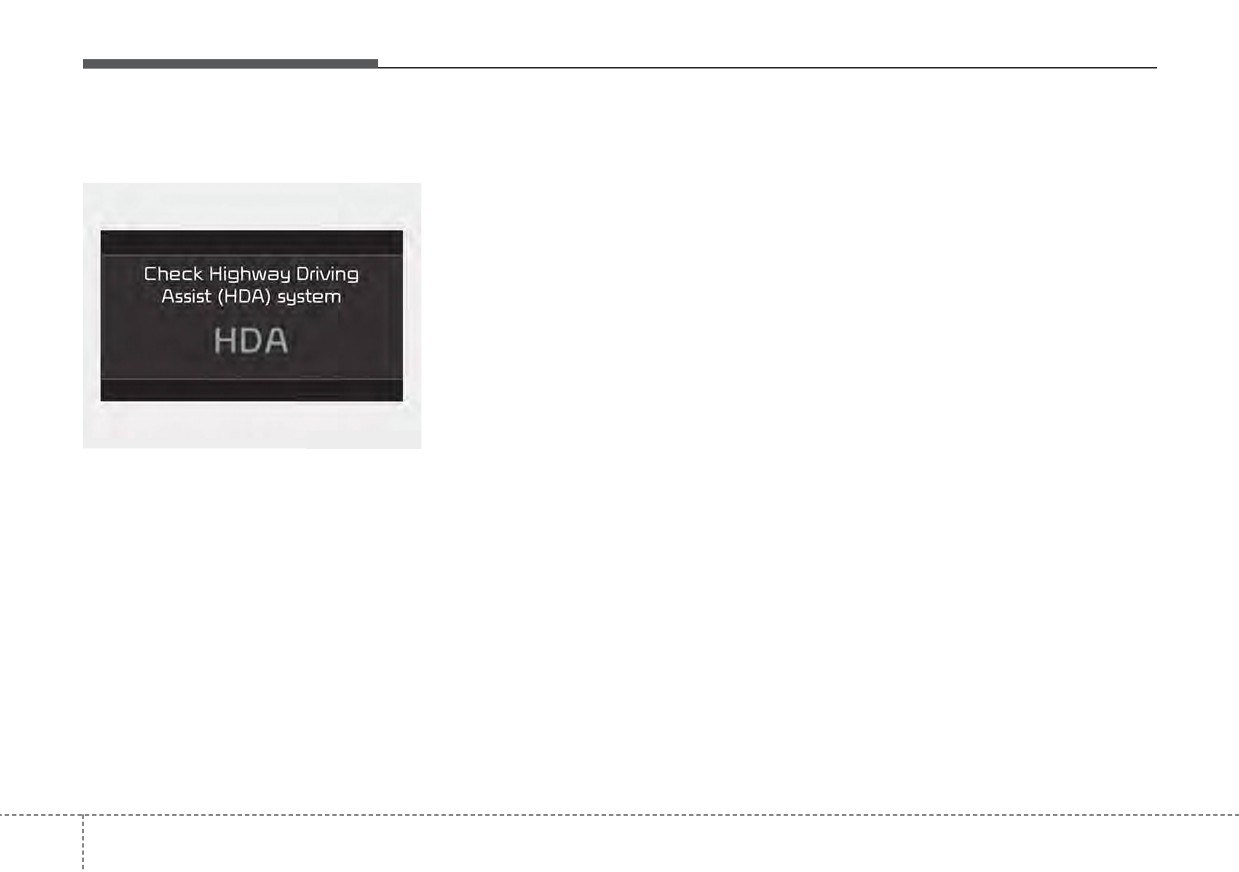
This message shows that there is a
way.
celed later than when the vehicle
problem with Highway Driving Assist,
•
If there is a problem with
actually leaves the highway.
so have your vehicle inspected by an
Highway Driving Assist, the func-
authorized Kia dealer.
tion cannot be activated in the
Infotainment System screen.
•
If your vehicle is 1640 ft. (500 m)
ahead and behind of an open toll-
gate, the function is automatically
canceled. Also, it is converted to
Smart Cruise Control automati-
cally with a pop-up message on the
navigation.
(Continued)
5
160
Driving your vehicle
Refer to
“Smart Cruise Control
(Continued)
CAUTION
(SCC)” in this chapter. for cautions
•
The speed limit of selected
Highway Driving Assist may not
and warnings about vehicle dis-
highway section is changed
function properly in the follow-
tance control and front radar.
due to road conditions.
ing situations:
*
Refer to
“Lane Following Assist
•
Android Auto or Car Play is
•
The navigation is not working
(LFA) “ in this chapter. for cautions
properly.
operating.
and warnings about steering con-
•
The navigation cannot detect
trol and front view camera.
•
The navigation is not updated.
the current vehicle position
•
The real-time GPS or map
(ex: elevated roads including
information provided has
overpass adjacent to general
errors.
roads or nearby roads exist in
•
The navigation is overloaded
a parallel way).
by performing functions such
•
The navigation is being updat-
as route search, video play-
ed while driving.
back, voice recognition, etc.
•
The navigation is being reset
are performing simultaneously.
while driving.
•
The navigation is recalculat-
•
The road is slippery due to
ing the route while driving.
bad weather such as rain or
•
GPS signals are blocked in
snow.
areas such as a tunnel.
•
If your vehicle tows a trailer or
•
The driver goes off course or
another vehicle, you should
the route to the destination is
release Highway Driving
changed or canceled by reset-
Assist. Operating the brake
ting the navigation.
system or steering system
•
The vehicle enters a service
while towing may adversely
station or rest area
affect the safety.
(Continued)
5
161
Driving your vehicle
This device complies with Part 15
Radio frequency radiation
of the FCC rules.
exposure information:
Operation is subject to the following
This equipment complies with FCC
three conditions:
radiation exposure limits set forth for
1. This device may not cause harmful
an uncontrolled environment.
interference, and
This equipment should be installed
2. This device must accept any inter-
and operated with a minimum dis-
ference received, including inter-
tance of 8 in (20 cm) between the
ference that may cause undesired
radio (antenna) and your body.
operation.
This transmitter must not be colocat-
3. Changes or modifications not
ed or operating in conjunction with
expressly approved by the party
any other antenna or transmitter.
responsible for compliance could
void the user's authority to operate
the device.
5
162