Citroen C4 Dag (2013 year). Manual - part 20
 

  Index      Citroen     Citroen C4 Dag - service manual 2013 year in english


Search            


Content   ..  18  19  20  21   ..


Citroen C4 Dag (2013 year). Manual - part 20


04

303

 AUDIO 

       Streaming - Playing audio files via 

Bluetooth 

  Depending on the compatibility of the phone  

  Pair/connect the telephone: see the "USING THE 

TELEPHONE" section.  

  Streaming allows music fi les on a telephone to be heard via the 

vehicle's speakers. 
 The telephone must support the appropriate bluetooth profi les 

(Profi les A2DP / AVRCP).  

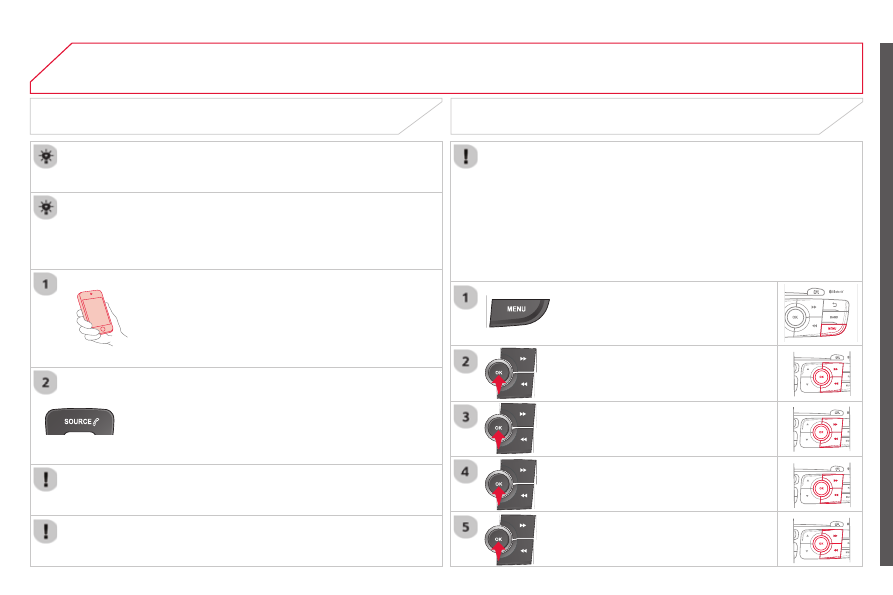
  Activate the streaming source by pressing  SOURCE  or 

 SRC . Control of playback is via the audio system. The 

contextual information can be displayed in the screen.  

  In certain cases, playing of the audio fi les must be initiated from the 

telephone.  

  The audio quality depends on the quality of the transmission from 

the telephone.   

  Play mode 

  The play modes available are: 
   -  

Normal: the tracks are played in order, depending on the 

classifi cation of the selected fi les. 

  -  

Random: the tracks in an album or folder are played in a 

random order. 

  -  

Random all: all of the tracks saved in the media are played in 

random order. 

  -  

Repeat: the tracks played are only those from the current 

album or folder.   

  Press  OK  for access to the contextual 

menu. 
 or 
 Press  MENU .  

  Select " Multimedia " and confi rm.  

  Select " Media parameters " and 

confi rm.  

  Select " Read mode " and confi rm.  

  Select the desired play mode and 

confi rm  OK  to save the modifi cations.   

05

304

 USING THE TELEPHONE 

          Pairing a telephone  
First connection 

  The services offered depend on the network, the SIM card and the compatibility of the Bluetooth telephone used. 
 Consult your telephone's manual and your operator to fi nd out which services are available to you.  

  Activate the telephone's Bluetooth function and 

ensure that it is "visible to all" (refer to the telephone 

user guide).  

  Press  MENU .  

  A window is displayed " Search in progress… "  

  Select the telephone to be connected 

from the list. Only one telephone can 

be connected at a time.  

  Select " Search for a device ".  

  For safety reasons and because they require prolonged attention on the part of the driver, the operations for pairing of the Bluetooth mobile 

telephone with the Bluetooth hands-free system of your audio system must be carried out with the  vehicle stationary  and the ignition on. 
 Visit www.citroen.co.uk for more information (compatibility, additional help, ...).  

  Select " Bluetooth connection " and 

confi rm.  


05

Saisir code authentification

0

1

OK

Del

2

3

4

5

6

7

8

9

_

305

 USING THE TELEPHONE 

  A virtual keypad is displayed on the 

screen: enter a code with at least 

4 digits and conform with  OK .  

  A message is displayed on the screen of the 

telephone: enter the same code and confi rm.  

  A message appears in the screen to confi rm the result of the 

connection.  

  Pairing can also be initiated from the telephone by searching for 

detected Bluetooth devices.  

  Accept the connection to the telephone.  

  If pairing fails, try again; the number of attempts is not limited.  

  The directory and the calls list can be accessed after the 

synchronisation period (if the telephone is compatible). 
 Automatic connection must be confi gured in the telephone to allow 

the connection each time the vehicle is started.   

  In some cases, the reference number of the telephone or the 

Bluetooth address may appear instead of the name of the telephone.  

  Pair/connect the telephone then listen: see the AUDIO section.   

       Streaming - Playing audio files via 

Bluetooth 


05

306

 USING THE TELEPHONE 

  The telephone connection automatically includes hands free operation 

and audio streaming. 
 The ability of the system to connect to just one profi le depends on the 

telephone. Both profi les may connect by default.  

  Press  MENU .  

  Select " Bluetooth connection " and 

confi rm.  

 Indicates connection of the audio steaming profi le. 

  Managing connections 

  Select " Connections management " 

and confi rm. The list of paired 

telephones is displayed.  

  Select a telephone and confi rm.  

 Indicates connection of the hands-free profi le.  

  Then select and confi rm: 
   -  " 

Connect telephone " / " Disconnect 

telephone ": to connect / disconnect 

the telephone or the hands-free 

connection only. 

  -  " 

Connect media player " / 

Disconnect media player ": to 

connect / disconnect only streaming. 

  -  " 

Connect telephone + media 

player " / " Disconnect telephone +

media player ": to connect / 

disconnect the telephone (hands-free 

and streaming). 

  -  " 

Delete connection ": to delete the 

pairing.    

  Indicates that a device is connected. 


05

307

 USING THE TELEPHONE 

  To display the " TELEPHONE " menu: 
   -  

Make along press on  SOURCE  or  SRC . 

  -  

Or, press  OK  to display the 

contextual menu. Select " Call " and 

confi rm. 

  -  

Or, press  MENU , select 

Telephone " and confi rm. Select 

Call " and confi rm.   

  Select " Dial " to enter a number and 

confi rm.  

  To display the " TELEPHONE " menu: 
   -  

Make a long press on  SRC/TEL . 

  -  

Or, press the dial to display the 

contextual menu. Select " Call " and 

confi rm. 

  -  

Or, press  MENU , select " Telephone " 

and confi rm. Select " Call " and 

confi rm.   

  Select  OK  and confi rm to start the 

call.   

  Select " Calls list " and confi rm.  

  Making a call - Dialling 

  Select numbers one at a time using 

the    and    buttons and confi rm.  

  Making a call - Recently called numbers *  

  Select the number and confi rm to 

start the call.  

  The calls list includes calls sent and received in the vehicle using the 

connected telephone.  

  *   Depending on the compatibility of the telephone.  

  Correction allows numbers to be deleted one at a time.  

  It is possible to make a call directly from the telephone; park the 

vehicle fi rst as a safety measure.   


05

308

 USING THE TELEPHONE 

  To display the " TELEPHONE " menu: 
   -  

Make a long press on  SRC/TEL . 

  -  

Or, press the dial to display the 

contextual menu. Select " Call " and 

confi rm. 

  -  

Or, press  MENU , select " Telephone " 

and confi rm. Select " Call " and 

confi rm.   

  Select " Directory " and confi rm.  

  An incoming call is announced by a ring and a superimposed display 

in the multifunction screen.  

 Mobile 
 (depending on the information 

available in the contact records of 

the telephone connected).  

  " YES " to accept the call is selected by 

default. 
 Press  OK  to accept the call. 
 Select " NO " and confi rm to reject the 

call. 
 or 
 Press one of these buttons to accept 

the call.  

  Making a call - From the directory of contacts 

  Select a contact then confi rm.  

  Receiving a call 

  Select the number and confi rm.   

  A long press on  ESC  or on  TEL , 

 SOURCE  or  SRC  also rejects an 

incoming call.   

 Business 

  Home 


05

309

 USING THE TELEPHONE 

  During a call, press  OK  to display the 

contextual menu.  

  Hang up 

  In the contextual menu: 
   -  select 

Micro OFF " to switch off the 

microphone. 

  -  deselect 

Micro OFF " to switch the 

microphone on.   

  Managing calls 

  A long press on one of these buttons 

also ends the call.  

 In the contextual menu, select " Hang 

up " to end the call.  

  Secret - Mute 
 (so that the caller cannot hear)  


05

310

  In the contextual menu: 
   -  select 

Telephone mode " to 

transfer the call to the telephone. 

  -  deselect 

Telephone mode " to 

transfer the call to the vehicle.   

  In certain cases, the combined mode has to activated from the 

telephone. 
 If the contact has been cut off, when you reconnect on returning to 

the vehicle, the Bluetooth connection will be restored automatically 

(depending on the compatibility of the telephone).  

  Combined mode 
 (to leave the vehicle without ending the call)  

 USING THE TELEPHONE 

 From the contextual menu, select 

DTMF tones " and confi rm to use 

the digital keypad to navigate in the 

interactive voice response menu.  

 From the contextual menu, select 

Switch " and conform to return to a call 

left on hold.   

  Interactive voice response 

  Consultation call 


05

311

 USING THE TELEPHONE 

  Directory 

   The system accesses the telephone's contacts directory, depending 

on compatibility, and while the Bluetooth connection with it is 

maintained.  

  With certain telephones connected by Bluetooth you can send a 

contact to the directory of the audio system. 
 Contacts imported in this way are saved in a permanent directory 

visible to all, whatever the telephone connected. 
 The menu for the directory is not accessible if it is empty.   

  To modify the contacts saved in the 

system, press  MENU  then select 

Telephone " and confi rm. 
 Select " Directory management " and 

confi rm. 
 You can: 
   -  " 

Consult an entry ", 

  -  " 

Delete an entry ", 

  -  " 

Delete all entries ".    

  Select " Directory " to see the list of 

contacts.  

  Make a long press on  SOURCE  or  SRC  

for access to the directory  
or press  OK , and  
select " Call " and confi rm.  


06

312

 AUDIO SETTINGS 

  Press    to display the audio settings 

menu.  

  Press    or    to modify the selected 

setting.  

  Screen A 

  Press    or    for the previous or next 

setting in the list.  

  The Ambience, Treble and Bass audio settings are separate and 

independent for each sound source.   

06

313

  Press    to display the audio settings 

menu.  

  The settings available are: 
   -  Ambience, 
  -  Bass, 
  -  Treble, 
  -  Loudness, 
  -  

Distribution: Personalised or Driver, 

  -  

Left / right balance, 

  -  

Fader (front / rear balance), 

  -  Auto. 

volume. 


  Screen C 

  The distribution (or spatialisation using the Arkamys

©

 system), is 

an audio process which allows the sound quality to be improved 

according to the setting chosen, corresponding to the position of the 

listeners in the vehicle.  

 AUDIO SETTINGS 

  Select and confi rm " Other settings… " 

to display the next setting in the list.  

  The Ambience, Treble and Bass audio settings are different and 

independent for each sound source.   

   On-board audio: Arkamys 

©

  Sound Staging.  

With Sound Staging, the driver and passengers are immersed in an 

"audio scene" recreating the natural atmosphere of an auditorium: 

truly a part of the scene and its surroundings.  
This new sensation is made possible by software in the audio 

system which processes the digital signals from the media players 

(radio, CD, MP3…) without changing the audio settings. This 

processing takes account of the characteristics of the passenger 

compartment to produce optimum results. 
 The Arkamys

©

 software installed in your audio system processes 

the digital signal from the media players (radio, CD, MP3, ...) and 

recreates a natural musical scene, with harmonious placement of 

instruments and voices in the space in front of passengers, level 

with the windscreen.   

07

314

         Screen A 

   Normal  

2

 RDS options 

1

 Infotext 

1

 Radiotext  

1

 Français 

1

        MAIN FUNCTION 

   Option A1  

 Option A11   

 Option A 

  Option B...  

1

2

3

1

  RADIO 

  TRIP COMPUTER 

 Diagnostics  

1

  DATE AND TIME  

  MEDIA 

 Read mode 

1

 Random 

2

 Random all   

2

      VEHICLE PARAM *   

 SCREEN MENU MAP(S) 

  LANGUAGES 

   Italiano  

2

  Nederlands  

2

  Portuguès  

2

  Portuguès-brasil  

2

  Deutsch  

2

  English  

2

  Español    

2

  *   Depending on vehicle equipment.  

07

315

 SCREEN MENU MAP(S) 

     Screen C 

   Dial  

 Vehicle diagnosis  

2

1

 Media parameters 

   Choice of playback mode  

 Normal 

1

2

3

 Random 

3

 Random all 

3

 Repeat 

3

  Choice of track listing  

 By folders 

2

3

 By artists 

3

 By genres 

3

 By playlists   

3

 Call 

1

  Directory  

2

  Calls list  

2

  Voice mail box    

2

  Directory management 

   Consult an entry  

1

2

  Delete an entry  

2

  Delete all entries    

2

  Telephone management 

   Telephone status    

1

2

  Hang up  

1

 Connections management 

1

 Search for a device  

1

  MULTIMEDIA  

 TRIP COMPUTER 

  TELEPHONE 

  BLUETOOTH CONNECTION 

  Radio parameters  

1

07

316

 SCREEN MENU MAP(S) 

      PERSONALISATION - 

CONFIGURATION 

 Define the vehicle 

parameters *   

1

  Choice of language 

1

 Display configuration 

   Choice of units  

1

2

  Date and time adjustment  

2

  Display parameters  

2

  Choice of sounds  

1

  Brightness    

2

  *   Depending on vehicle equipment.  

317

 FREQUENTLY ASKED QUESTIONS 

   QUESTION   

   ANSWER   

   SOLUTION   

 There is a difference in 

sound quality between 

the different audio 

sources (radio, CD...). 
  

 For optimum sound quality, the audio settings (Volume, Bass, Treble, 

Ambience, Loudness) can be adapted to the different sound sources, 

which may result in audible differences when changing source (radio, 

CD...). 

 Check that the audio settings (Volume, Bass, 

Treble, Ambience, Loudness) are adapted to 

the sources listened to. It is advisable to set 

the AUDIO functions (Bass, Treble, Front-Rear 

Fader, Left-Right Balance) to the middle position, 

select the musical ambience "None" and set the 

loudness correction to the "Active" position in CD 

mode or to the "Inactive" position in radio mode. 

 When changing the 

settings for treble and 

bass, the ambience 

setting is deselected. 
 When changing the 

ambience setting, treble 

and bass are reset to 

zero. 

 Choosing an ambience imposes settings for treble and bass. Modifying 

one without the other is not possible. 

 Modify the treble and bass settings or the 

ambience setting to obtain the desired sound 

quality. 

 When changing the 

balance setting, 

distribution is deselected. 

 Choosing a distribution setting imposes a balance setting. Modifying one 

without the other is not possible. 

 Modify the balance setting or the distribution 

setting to obtain the desired sound quality. 

 The following tables contain answers to the most frequently asked questions.  

318

 FREQUENTLY ASKED QUESTIONS 

   QUESTION   

   ANSWER   

   SOLUTION   

 The quality of reception 

of the radio station 

listened to gradually 

deteriorates or the stored 

stations do not function 

(no sound, 87.5 MHz is 

displayed...). 

 The vehicle is too far from the transmitter used by the station listened 

to or there is no transmitter in the geographical area through which the 

vehicle is travelling. 

 Activate the RDS function to enable the system 

to check whether there is a more powerful 

transmitter in the geographical area. 

 The environment (hills, buildings, tunnels, basement car parks...) block 

reception, including in RDS mode. 

 This phenomenon is normal and does not indicate 

a failure of the audio equipment. 

 The aerial is absent or has been damaged (for example when going 

through a car wash or into an underground car park). 

 Have the aerial checked by a CITROËN dealer. 

 Sound cut-outs of 1 to 

2 seconds in radio mode. 

 During this brief sound cut-out, the RDS searches for any frequency 

permitting better reception of the station. 

 Deactivate the RDS function if the phenomenon is 

too frequent and always on the same route. 

 The traffi c announcement 

(TA) is displayed. I do 

not receive any traffi c 

information. 

 The radio station does not broadcast traffi c information. 

 Tune to a radio station which broadcasts traffi c 

information. 

 The stored stations are 

not found (no sound, 

87.5 MHz is displayed...). 

 An incorrect waveband is selected. 

 Press the BAND button to return to the waveband 

on which the stations are stored. 


Content   ..  18  19  20  21   ..