DB2 Server for VSE. Operations Guide / Handbooks (2004-2007) - page 3
IBM Confidential
Restart=Y
Channel Name = name of sender channel to the remote MQ Series server.
- Receive queue
(remote system)
This queue must be configured to a GET and/or PUT of messages. In
addition, the USAGE field must be set to Normal.
- Local transmission queue
(remote system)
- Remote admin queue
(remote system)
Refer to Chapter 7 of the DB2 UDB Replication and Event Publishing Guide for
details.
v
Channels
-
Receiver channel for the administration queue
(VSE side)
The following fields must be filled in:
Protocol = T (TCP/IP)
Type=R
Enabled=Y
Sender information is not required
Split Msg=N
On the remote system a corresponding sender channel with the same name as
the receiver channel must be defined.
The connection information must match the sender channel definitions on the
remote system. Pay close attention to the Message Sequence Wrap and Max
Message Size. A connection will not be established if these two values do not
match.
-
Sender channel for the local transmission queue
(VSE side)
The sender channel name = channel name used in the local transmission
queue definition (They two must match)
Protocol = T (TCP/IP)
Type = S (Sender)
Enabled = Y
Sender data:
Defines how to connect to the remote target MQ Series server
The remote TCP/IP port = port number that the remote target MQ Series
server is listening on.
Note: MQ Series for VSE does not accept a port number greater than 32676.
Transmission queue name = the local transmission queue
Connection = IP address or host name of the remote target MQ Series server
Split Msg = N
A receiver channel on the remote target MQ Series server must be defined
with the same name as this sender channel. The maximum message size and
message sequence wrap values must be the same on both systems.
-
Sender channel for administration queue
(remote system)
-
Receiver channel for local transmission queue
(remote system)
Chapter 3. Setting up the Q Capture program on VSE
9
IBM Confidential
Refer to Chapter 7 of the DB2 UDB Replication and Event Publishing Guide for
details.
Setting up replication from sources to targets
In addition to setting up replication on the VSE computer, setup must be done
from the Replication Center for unidirectional replication. This setup includes the
following steps:
v Create control tables
v Create Q subscriptions
Refer to Chapter 8 and 9 of the DB2 UDB Replication and Event Publishing Guide for
information on how to perform this setup. Keep the following items in mind:
v Event publishing is not supported
v Search conditions to filter rows is not supported
10
DB2 DataPropagator Q Capture Supplement
IBM Confidential
Chapter 4. Running the Q Capture program on VSE or VM
Overview
A Q Capture program captures transactions or row-level changes from source
tables that are part of a Q subscription, then sends this transactional data as
messages over WebSphere MQ queues. You can operate a Q Capture program
using the asnqcap system command and you can change the Q Capture operating
parameters in several ways.
Starting a Q Capture program
You can start a Q Capture program to capture transactions or row-level changes
from the DB2 log file for active or new Q subscriptions, and to send the
transactional data as messages over WebSphere MQ queues.
When you first initialize start a Q Capture program without specifying a start
mode, the program uses the default start mode, warmsi. In this mode, the program
tries to read the log at the point where it left off. If this is the initial time that the
program is started, Q Capture switches to a cold start mode and begins processing
Q subscriptions that are in N (new) or A (active) state. Any Q subscriptions that
are in I (inactive) state must be activated for the program to begin capturing
changes in them.
You can start a Q Capture program when no Q subscriptions are in A (active) state.
When you activate the Q subscriptions, the Q Capture program begins capturing
changes.
When you start a Q Capture program, you can specify startup parameter values
and the program will use the new values until you take one of the following
actions:
v You change the parameter values while the program is running.
v You stop and restart the program, which prompts it to read the
IBMQREP_CAPPARMS table and use the values saved there.
Prerequisites
v A WebSphere MQ queue manager, queues, and other necessary objects must be
created and configured on the same system as the Q Capture server, if you are
running Q Capture on VSE or on a remote system or if you are running Q
Capture on VM.
Authorizations
All users who run the Q Capture program must have SQLDBA access to the
database because they must access the system catalog, access and update all
control tables, update all Capture control tables, and run the Q Capture program
packages.
v The control tables must be created for the appropriate Q Capture schema.
v Ensure that the data you want to capture from the source database is being
logged. For example, make sure that the data is not running on non-recoverable
storage pools and is not running with LOGMODE = N
11

IBM Confidential
Procedure
SYNTAX
asnqcap capture_server
= db_name
capture_schema
= schema
n
commit_interval
= n
n
autostop
=
y
logreuse
=
y
n
memory_limit
= n
prune_interval
= n
logstdout
=
y
signal_limit
= n
sleep_interval
= n
warmsa
y
trace_limit
= n
startmode
=
warmns
term
=
warmsi
cold
VM:
asnqcap system command
Invoke the ASNQCAP module from a VM user ID. Keywords must be separated
by one or more blanks:
asnqcap capture_server=server_name capture_schema=schema parameters
Where server_name is the name of the database or subsystem that contains the Q
Capture control tables, schema identifies the Q Capture program that you want to
start, and parameters is one or more parameters that you can specify at startup.
VSE:
Start the Q Capture program in a parition like a batch job. Sample job control
member ASNQ74BD provides an example of how to start the Capture program in
a VSE environment. You can specify ASNQCAP invocations parameters in the
PARM field, separated by one or more blanks. The best method for specifying
invocation parameters when using JCL is to store them in the
IBMQREP_CAPPARMS table. The PARM parameter of the EXEC statement cannot
have subparameters that exceed 100 characters.
To verify whether or not a Q Capture program started, use one of the following
methods:
v Check the IBMQREP_CAPTRACE table for a message that indicates that the
program is capturing changes.
v Examine the console for messages that indicate that the program started.
12
DB2 DataPropagator Q Capture Supplement
IBM Confidential
Considerations when cold starting a Q Capture program
This topic provides information that explains the issues related to starting the Q
Capture program in the cold start mode.
When to cold start a Q Capture program
v When you start a Q Capture program for the first time (required).
v When you want to begin capturing changes from the end of the active log
instead of from the last restart point.
Possible problems that can result from cold starts of the Q
Capture program
When you cold start a Q Capture program after the Q Capture program starts
initially, the Q Capture program starts reading the DB2 log from the end instead of
from the last restart point. The following results can occur:
v The source and target can become unsynchronized, which requires you to load
the target. The Q Capture program might skip over log records for data that it
would otherwise have passed to the Q Apply program. If these records contain
updates or inserts to the source table, the only way to synchronize the source
tables with the target tables is to load the target table (sometimes called a full
refresh).
v Loading the target can cause you to lose historical data. Historical data, which
is kept when you choose to suppress deletes from the source, is a record of
deleted rows in the source. The historical data is lost if the target table is loaded.
v The load operation can take a long time. The load operation requires significant
time and effort for environments that contain many tables or large amounts of
data. For these environments, the full refresh can cause costly outages, especially
on production systems. Use the cold start option as a last resort except when
you start a Q Capture program initially.
Preventing unexpected cold starts of the Q Capture program
To prevent an unexpected cold start:
v Make sure that the cold start mode is not specified in the
IBMQREP_CAPPARMS table. The startmode parameter should not have the
value cold.
v Specify the warmns or warmsi start mode instead of the warmsa start mode to
restart a Q Capture program whenever possible. The Q Capture program will
not cold start if the warm start information is not available.
v Ensure that the DB2 log is large enough to avoid a log wrap before Q Capture
gets to the log and avoid doing COLDLOGs of the DB2 log. If the log has
wrapped before Q Capture reads the log, Q Capture cannot continue to capture
changes made to the source tables and might require a cold start. If a
COLDLOG is performed, all log data is lost and a prior log archive should be
taken.
Related concepts
v
“Loading options” on page 33
Related tasks
v
“Starting a Q Capture program” on page 11
Chapter 4. Running the Q Capture program on VSE or VM
13
IBM Confidential
Parameters of a Q Capture program
Parameters of a Q Capture program - overview
A Q Capture program’s operating parameters govern the way that it starts, the size
of the dataspaces it uses, which queue manager it connects to, and how frequently
it commits messages to queues, among other things.
When you create control tables using the Replication Center, the
IBMQREP_CAPPARMS table is created with a single row that contains default
values for the Q Capture program’s operating parameters. Table 1 shows these
values. You can change the default parameter values to suit your replication
environment by updating the IBMQREP_CAPPARMS table, or by temporarily
overriding the saved values when you start the Q Capture program or while the
program is running.
Note: You supply values for the adminq (administration queue), qmgr (queue
manager), and restartq (restart queue) parameters when you create the
control tables.
Table 1. Default values for the Q Capture operating parameters
Operating parameter
Default value
Column name in
IBMQREP_CAPPARMS
table
adminq
None2
ADMINQ
autostop
N1
AUTOSTOP
capture_schema
ASN3
not applicable
4
capture_server
not applicable
not applicable
commit_interval
10005
COMMIT_INTERVAL
logreuse
N
LOGREUSE
logstdout
N
LOGSTDOUT
memory_limit
326
MEMORY_LIMIT
prune_interval
3007
PRUNE_INTERVAL
qmgr
None2
QMGR
restartq
None2
RESTARTQ
signal_limit
100809
SIGNAL_LIMIT
Sleep_interval
10005
SLEEP_INTERVAL
Startmode
warmsi10
STARTMODE
Term
Y8
TERM
trace_limit
100809
TRACE_LIMIT
11
Userid
not applicable
Not applicable
Notes:
1. No.
2. You must specify this value when you create the Q Capture control tables.
This is not a command parameter. The Q Capture program reads this value
from the IBMQREP_CAPPARMS table.
14
DB2 DataPropagator Q Capture Supplement
IBM Confidential
3. You cannot change the default schema. To use a Q Capture program with a
different schema, you specify the capture_schema start parameter when you
start a Q Capture program.
4. For VM and VSE, there is no default Q Capture server.
5. Milliseconds.
6. Megabytes.
7. Seconds.
8. Yes
9. Minutes.
10. The Q Capture program warm starts. It switches to cold start only if this is
the first time that the program is starting.
11. The user ID and password that are used to connect to the source database.
There are no default values for these parameters.
Descriptions of Q Capture parameters
The following sections describe the Q Capture program’s operating parameters and
discuss reasons that you might want to change the default values based.
The Q Capture program reads parameters from the IBMQREP_CAPPARMS table
when you start the program. You can specify temporary run-time values for some
parameters when you start the program and also while the program is running.
See each parameter description for details. The following list provides the names of
each of the parameters:
v
“adminq”
v
“autostop” on page 16
v
“commit_interval” on page 16
v
“logreuse” on page 17
v
“logstdout” on page 17
v
“memory_limit” on page 17
v
“prune_interval” on page 18
v
“qmgr” on page 18
v
“restartq” on page 19
v
“signal_limit” on page 19
v
“sleep_interval” on page 19
v
“startmode” on page 20
v
“term” on page 21
v
“trace_limit” on page 21
adminq
The adminq parameter defines the Q Capture administration queue. The Q
Capture program uses this queue to receive control messages from the Q Apply
program or a WebSphere MQ message channel agent. On VSE it is a local queue
that is defined on the same system where a Q Capture program and a queue
manager run. On VM, it is a queue defined on a remote system.
The administration queue must be a persistent queue, which means logging is
enabled. Circular logging is recommended for this queue. Choose other attributes
of this queue such as maximum depth (number of messages allowed) based on
your replication.
Chapter 4. Running the Q Capture program on VSE or VM
15
IBM Confidential
You specify the name of an administration queue when you create the Q Capture
control tables. The value is saved in the IBMQREP_CAPPARMS control table. You
can change the value by updating this table. You cannot alter the value when you
start a Q Capture program, or while the program is running.
autostop
Default: autostop=N The autostop parameter controls whether or not a Q Capture
program terminates when it reaches the end of the active DB2 log. By default, a Q
Capture program does not terminate after reaching the end of the log.
Typically, the Q Capture program runs as a continuous process whenever the
source database is active, so in most cases you would keep the default
(autostop=N). Set autostop=Y only when the Q Capture program runs at set
intervals, such as when you synchronize infrequently connected systems, or in test
scenarios.
If you set autostop=Y, the Q Capture program retrieves all eligible transactions and
stops when it reaches the end of the log. You need to start the Q Capture program
again to retrieve more transactions.
You can set the autostop parameter when you start a Q Capture program or while
the program is running. You can also change the saved value of the parameter in
the IBMQREP_CAPPARMS table.
commit_interval
Default: commit_interval=1000 milliseconds The commit_interval parameter
specifies how often, in milliseconds, a Q Capture program commits transactions to
WebSphere MQ. By default, a Q Capture program waits 500 milliseconds (a half
second) between commits. At each interval, the Q Capture program issues an
MQCMIT call. This call signals the WebSphere MQ queue manager to make
messages that were placed on send queues available to the Q Apply program or
other user applications.
All of the DB2 transactions that are grouped within an MQCMIT call are
considered to be a WebSphere MQ unit of work, or transaction. Typically, each
WebSphere MQ transaction contains several DB2 transactions. If a particular DB2
transaction is large, the Q Capture program will not issue an MQCMIT call even if
the commit interval is reached. The Q Capture program will commit only after the
entire large DB2 transaction is put on the send queue.
When the number of committed DB2 transactions that are read by a Q Capture
program reaches 128, the program issues an MQCMIT call regardless of your
setting for commit_interval.
Finding the best commit interval is a compromise between latency (the delay
between the time transactions are committed at the source and target databases)
and CPU overhead associated with the commit process:
v To reduce latency, shorten the commit interval.
Transactions will be pushed through with less delay if the commit interval is
shortened. This timely action is especially important if changes to the source
database are used to trigger events. To judge whether you can reduce latency by
shortening the commit interval, determine if a Q Capture program’s idle time
after processing all transactions is high (check the CAPTURE_IDLE value in the
IBMQREP_CAPMON control table). Also, if the number of transactions
16
DB2
DataPropagator Q Capture Supplement
IBM Confidential
published per commit interval is high (check the TRANS_PUBLISHED value in
the IBMQREP_CAPQMON table), you might want to the Q Capture program to
commit fewer transactions at a time to WebSphere MQ (see ″Procedure for
determining transactions published per commit interval″).
v To reduce CPU overhead, lengthen the commit interval.
A longer commit interval lets you send as many DB2 transactions as possible for
each WebSphere MQ transaction. A longer commit interval also reduces I/O that
is caused by logging messages. If you lengthen the commit interval, you might
be limited by the maximum depth (number of messages) for send queues, and
the queue manager’s maximum uncommitted messages (MAXUMSGS) attribute.
If a Q Capture program waits longer between commits, the publication of some
transactions might be delayed, which could increase latency.
You can set the commit_interval parameter when you start a Q Capture program
or while the program is running. You can also change the saved value of the
parameter in the IBMQREP_CAPPARMS table.
logreuse
Default: logreuse=N Each Q Capture program keeps a log file that tracks its work
history, such as start and stop times, parameter changes, errors, pruning, and the
points where it stopped while reading the DB2 log.
By default, the Q Capture program adds the time when the program restarts to the
existing log file. This default lets you keep a history of the program’s actions. If
you don’t want this history or want to save space, set logreuse=Y. The Q Capture
program clears the log file when it starts, then writes to the blank file.
You can set the logreuse parameter when you start a Q Capture program or while
the program is running. You can also change the saved value of the parameter in
the IBMQREP_CAPPARMS table. In VM the filename is determined by the
FILEDEF that the user set up for ASNQLOG. The file does not exist on VSE and
the parameter is ignored in VSE.
logstdout
Default: logstdout=N By default, a Q Capture program writes its work history only
to the log file. You can change the logstdout parameter if you want to see the
program’s history on the standard output (stdout) and in the log file. The
recommended value for logstdout is Y for VSE & VM.
Error messages and some log messages (initialization, stop, subscription activation,
and subscription deactivation) go to both the standard output and the log file
regardless of the setting for this parameter.
You can set the logstdout parameter when you start a Q Capture program with the
asnqcap command, or while the program is running by using the chgparms
operator command command. You can also change the saved value of the
parameter by updating the IBMQREP_CAPPARMS table. If you use the Replication
Center to start the Q Capture program, this parameter is not applicable.
memory_limit
Default: memory_limit=32 MB The memory_limit parameter specifies the size of
the dataspace that will be created and that the Q Capture program will use to
build DB2 transactions as the DB2 log file is read. By default, a Q Capture program
Chapter 4. Running the Q Capture program on VSE or VM
17
IBM Confidential
creates a 32MB dataspace. When the dataspace allocated by this parameter is filled
up and no new transactions can be stored on it, the Q Capture program will create
another dataspace of the same size.
You can adjust the memory limit based on your needs:
v To improve the performance of a Q Capture program, increase the memory
limit.
If your goal is to obtain higher throughput, maximize the memory limit
whenever possible.
v To conserve system resources, lower the memory limit.
A lower memory limit reduces competition with other system operations.
You can set the memory_limit parameter when you start a Q Capture program or
while the program is running. You can also change the saved value of the
parameter in the IBMQREP_CAPPARMS table.
prune_interval
Default: prune_interval=300 seconds (5 minutes) The prune_interval parameter
determines how often a Q Capture program looks for eligible rows to prune from
the IBMQREP_CAPMON, IBMQREP_CAPQMON, IBMQREP_SIGNAL, and
IBMQREP_CAPTRACE tables. By default, a Q Capture program looks for rows to
prune every 300 seconds (5 minutes). The recommended value for VSE & VM is
the maximum value of 3600 seconds.
Your pruning frequency depends on how quickly these control tables grow, and
what you intend to use them for:
v Lengthen the prune interval for record keeping.
You might want to keep a longer history of a Q Capture program’s performance
by pruning the IBMQREP_CAPTRACE and other tables less frequently.
The prune interval works in conjunction with the trace_limit and signal_limit
parameters, which determine when data is old enough to prune. For example, if
the prune_interval is 300 seconds and the trace_limit is 10080 seconds, a Q
Capture program will try to prune every 300 seconds. If the Q Capture program
finds any rows in the IBMQREP_CAPTRACE table that are older than 10080
minutes (7 days), it prunes them.
You can set the prune_interval parameter when you start a Q Capture program or
while the program is running. You can also change the saved value of the
parameter in the IBMQREP_CAPPARMS table.
qmgr
The qmgr parameter specifies the name of the WebSphere MQ queue manager that
a Q Capture program uses. The queue manager’s job is to manage queues and
messages for the Q Capture program. It must run on the same system as the Q
Capture program. Although client connections to queue managers are supported
by WebSphere MQ, this configuration is not supported for Q Capture.
The queue manager owns the queues that a Q Capture program uses to send data
and informational messages, and to receive control messages. All communication
between Q replication and WebSphere MQ goes through queue managers.
18
DB2 DataPropagator Q Capture Supplement
IBM Confidential
You specify the name of a queue manager when you create the Q Capture control
tables. The value is saved in the IBMQREP_CAPPARMS control table. You can
change the value by updating this table. You cannot alter the value when you start
a Q Capture program, or while the program is running.
restartq
The restartq parameter specifies the restart queue that you want the Q Capture
program to use. The restart queue contains a single message that tells a Q Capture
program where to start reading in the DB2 log file after the Q Capture program
restarts. It is a local queue that is defined on the same system as the Q Capture
program and queue manager run. You must supply the name of this queue when
you create the Q Capture control tables, and a Q Capture program must be able to
connect to this queue to run.
The restart queue must be a persistent queue, which means logging is enabled.
Circular logging is recommended for this queue. Choose other attributes of this
queue based on your replication.
You specify the name of a restart queue when you create the Q Capture control
tables. The value is saved in the IBMQREP_CAPPARMS control table. You can
change the value by updating this table. You cannot alter the value when you start
a Q Capture program, or while the program is running.
signal_limit
Default: signal_limit=10080 minutes (7 days) The signal_limit parameter specifies
how long rows remain in the IBMQREP_SIGNAL table before they can be pruned.
By default, a Q Capture program prunes rows that are older than 10080 minutes (7
days) at each pruning interval.
The IBMQREP_SIGNAL table contains signals inserted by a user or a user
application. It also contains corresponding signals that are inserted by a Q Capture
program after it receives control messages from the Q Apply program or a user
application. The Q Capture program sees the signals when it reads the log record
for the insertion into the IBMQREP_SIGNAL table.
These signals tell a Q Capture program to stop running, to activate or deactivate a
Q subscription, to ignore a DB2 transaction in the log, or to invalidate a send
queue. In addition, the LOADDONE signal tells a Q Capture program that a target
table is loaded.
You can adjust the signal limit depending on your environment.
Lengthen the limit to use this table for record-keeping purposes.
You can set the signal_limit parameter when you start a Q Capture program or
while the program is running. You can also change the saved value of the
parameter in the IBMQREP_CAPPARMS table.
sleep_interval
Default: sleep_interval=1000 milliseconds (1 seconds) The sleep_interval parameter
specifies the number of milliseconds that a Q Capture program waits after reaching
the end of the active log file and assembling any transactions that remain in
memory.
Chapter 4. Running the Q Capture program on VSE or VM
19
IBM Confidential
By default, a Q Capture program sleeps for 1000 milliseconds (1 second). After this
interval, the program starts reading the log file again. You can adjust the sleep
interval based on your environment:
v Lower the sleep interval to reduce latency.
A smaller sleep interval can improve performance by lowering latency (the time
that it takes for a transaction to go from source to target), by reducing idle time,
and by increasing throughput in a high-volume transaction environment.
v Increase the sleep interval to save resources.
A larger sleep interval gives you potential CPU savings in an environment
where the source database has low traffic or where targets do not need frequent
updates.
You can set the sleep_interval parameter when you start a Q Capture program or
while the program is running. You can also change the saved value of the
parameter in the IBMQREP_CAPPARMS table.
startmode
Default: startmode=warmsi The startmode parameter specifies the steps that a Q
Capture program takes when it starts. The program starts in either warm or cold
mode. With a warm start, the Q Capture program continues capturing changes
where it left off after its last run (there are three types of warm start). If you
choose cold start, the program starts reading at the end of the log file. Choose from
one of the four start modes, depending on your environment:
cold start mode
The Q Capture program clears the restart and administration queues, and
starts processing all Q subscriptions that are in N (new) or A (active) state.
With a cold start, the Q Capture program starts reading the DB2 recovery
log file at the end.
Generally, use a cold start only the first time that you start a Q Capture
program. You can use a cold startafter the first time that you start a Q
Capture program, if you want to begin capturing changes from the end of
the active log file instead of from the last restart point. You cannot use a
cold start to force a full refresh (a new load) of targets. The only way to
force a full refresh is to deactivate and then activate a Q subscription that
has a load phase.
Important: To avoid unwanted cold starts, be sure that this start mode is
not specified in the IBMQREP_CAPPARMS table.
warmsi (warm start; that switches to cold start on initial program start) start
mode The Q Capture program starts reading the log file at the point where it left
off, unless this is the first time that you are starting the program. In that
case, the Q Capture program switches to a cold start. The warmsi start
mode ensures that a Q Capture program cold starts only during its initial
startups. Warmsi is the recommended start mode.
warmns (warm start; never switch to cold start) start mode
The Q Capture program starts reading the log file at the point where it left
off. If the program cannot warm start, it does not switch to cold start. Use
this start mode to prevent a Q Capture program from cold starting
unexpectedly. This start mode allows you to repair problems (such as
unavailable databases or table spaces) that prevent a warm start. With
warmns, if a Q Capture program cannot warm start, it shuts down and
leaves all tables intact.
20
DB2
DataPropagator Q Capture Supplement
IBM Confidential
warmsa (warm start if possible; if not, cold start) start mode
If warm start information is available, the Q Capture program starts
reading the log file at the point where it left off. If the Q Capture program
cannot warm start, it switches to a cold start.
During warm starts, the Q Capture program only loads those Q subscriptions that
are in not in I (inactive) state.
You can set the startmode parameter when you start a Q Capture program, or you
can change the saved value of the parameter in the IBMQREP_CAPPARMS table.
You cannot alter this parameter while a Q Capture program is running.
term
Default: term=Y Q Capture for VSE and VM only supports term=Y. term=N cannot
be specified. This means that a Q Capture program automatically stops when DB2
stops or has forced all applications to disconnect.
trace_limit
Default: trace_limit=10080 minutes (7 days) The trace_limit parameter specifies
how long rows remain in the IBMQREP_CAPTRACE table before they can be
pruned.
The Q Capture program inserts all informational, warning, and error messages into
the IBMQREP_CAPTRACE table. By default, rows that are older than 10080
minutes (7 days) are pruned at each pruning interval. Modify the trace limit
depending on your need for audit information.
You can set the trace_limit parameter when you start a Q Capture program or
while the program is running. You can also change the saved value of the
parameter in the IBMQREP_CAPPARMS table.
Changing the Q Capture parameters
Changing the Q Capture parameters - overview
You can change the Q Capture program’s operating parameters when you start the
program, while the program is running, or by updating the IBMQREP_CAPPARMS
control table.
Methods of changing the Q Capture operating parameters
This topic provides a brief description of the three different ways that you can
change the parameters, followed by an example to help clarify the differences.
Changing saved parameters in the IBMQREP_CAPPARMS
table
The Q Capture program’s operating parameters are saved in the
IBMQREP_CAPPARMS control table. After installation, this table is filled with the
shipped default values for the program. A Q Capture program reads the table
when it starts. You can change the parameter values when you start the Q Capture
program or while it is running, but these changes stay only in memory. When you
stop and restart the Q Capture program, it will use the parameter values that are
saved in the IBMQREP_CAPPARMS table. You can update this table by using SQL.
Chapter 4. Running the Q Capture program on VSE or VM
21
IBM Confidential
Setting parameter values at startup
When you start a Q Capture program, you can override the parameter values that
are saved in the IBMQREP_CAPPARMS table. You can use the asnqcap system
command to set values for the operating parameters. Your changes take effect
when the program starts, but they will last only while the program is running.
Dynamically changing parameters while a Q Capture program
is running
You can dynamically change a Q Capture program’s parameter values while
continuing to capture changes from the source. Use the CHGPARMS command to
change values while a Q Capture program is running. Your changes will last only
until the program stops running, or until the next change-parameters request.
Example: Three ways to change Q Capture operating parameters
Assume that you want to increase the default setting for the commit interval of
1000 milliseconds for a Q Capture program identified by schema ASN1:
1. Update the IBMQREP_CAPPARMS table for Q Capture schema ASN1. Set the
commit interval to 1500 milliseconds(1.5 seconds). You can use the following
SQL: update asn1.ibmqrep_capparms set commit_interval=1500.
When you start this Q Capture program in the future, the commit interval will
default to 1500 milliseconds.
2. You want to see the effect of an even longer commit interval on replication
throughput (the number of transactions published for a given period of time).
Rather than change the saved value in the control table, you start the Q
Capture program with the commit interval set to 2000 milliseconds (2 seconds).
You can use asnqcap command:
asnqcap capture_server=srcdb1 capture_schema=″ASN1″ commit_interval=2000
While the program runs using a 2-second commit interval, you monitor its
performance.
3. Based on performance, you decide to lower the commit_interval. Instead of
stopping the Q Capture program, you dynamically change the parameter while
the program is running to 1750 milliseconds, and monitor the change. You can
use the CHGPARMS command:
CHGPARMS commit_interval=1750
You can continue to tune the commit interval parameter using the CHGPARMS
command. When you find the value that meets your requirements, you can
update the IBMQREP_CAPPARMS table (as described in step 1). The next time
you start a Q Capture program, it uses the new value as the default commit
interval.
Activating Q subscriptions
Before the Q Capture program can start replicating or publishing data from source
tables, the Q subscriptions that specify those source tables must be in A (active) or
N (new) state.
By default, newly created Q subscriptions are in N (new) state, and they are
automatically activated when the Q Capture program is started or reinitialized. If
you change this default, you must activate Q subscriptions after you create them.
22
DB2 DataPropagator Q Capture Supplement
IBM Confidential
When Q subscriptions are activated, the Q Capture program starts capturing
source table changes and sending those changes through the WebSphere MQ
queues that you defined in a replication queue map.
Prerequisites:
v The Q Capture program must be running to read the CAPSTART signal or
activate subscription message. If the Q Capture program is stopped when you
activate Q subscriptions, it will process the signal or message only if it is warm
started. The signal or message will be lost if you use cold start.
Procedure:
You can use the Replication Center or SQL to activate Q subscriptions.
Replication Center
Use the Manage Q Subscriptions window to activate a Q subscription. To open the
window, right-click the Q Capture server where the source table for the Q
subscription is located and select Manage -_ Q Subscriptions.
SQL
Use a command prompt or one of the DB2 command line tools to insert a
CAPSTART signal into the IBMQREP_SIGNAL table at the Q Capture server:
insert into schema.IBMQREP_SIGNAL(
SIGNAL_TIME,
SIGNAL_TYPE,
SIGNAL_SUBTYPE,
SIGNAL_INPUT_IN,
SIGNAL_STATE )
values (
CURRENT TIMESTAMP,
’CMD’,
’CAPSTART’,
’subname’,
’P’ );
Where schema identifies a Q Capture program and subname is the name of the Q
subscription that you want to activate.
Deactivating Q subscriptions
You deactivate a Q subscription to instruct the Q Capture program to stop
capturing changes for the Q subscription. Deactivating lets you delete or suspend
activity for Q subscriptions without stopping the Q Capture program.
You can deactivate a Q subscription using the Replication Center or by inserting a
SQL signal into the IBMQREP_SIGNAL table. The Q Capture program stops
capturing changes for the Q subscription and changes its state to I (inactive) in the
IBMQREP_SUBS table.
Prerequisites:
The Q Capture program must be running to read the CAPSTOP signal. If the Q
Capture program is stopped when you deactivate a Q subscription, it will process
the signal only if it is warm started. The signal will be lost if you use cold start.
Chapter 4. Running the Q Capture program on VSE or VM
23
IBM Confidential
Procedure:
You can use the Replication Center or SQL to deactivate Q subscriptions:
Replication Center
Use the Manage Q Subscriptions window to deactivate a Q subscription. To open
the window, right-click the Q Capture server where the source table for the Q
subscription is located and select Manage -_ Q Subscriptions.
SQL
Use a command prompt or one of the DB2 command line tools to insert a
CAPSTOP signal into the IBMQREP_SIGNAL table at the Q Capture server:
insert into schema.IBMQREP_SIGNAL (
SIGNAL_TIME,
SIGNAL_TYPE,
SIGNAL_SUBTYPE,
SIGNAL_INPUT_IN,
SIGNAL_STATE )
values (
CURRENT TIMESTAMP,
’CMD’,
’CAPSTOP’,
’subname’,
’P’ );
Where schema identifies a Q Capture program and subname is the name of the Q
subscription that you want to deactivate.
Stopping a Q Capture program
You can stop a Q Capture program, and it will stop reading from the DB2 log file
and building transactions in memory. Messages that were put on queues will be
committed to WebSphere MQ before the Q Capture program stops. Uncommitted
WebSphere MQ transactions or row changes that were in memory when you
stopped the program will be recaptured from the log file when the Q Capture
program restarts, based on a restart point stored in the restart message.
Tip: You do not need to stop a Q Capture program to add or delete a Q
subscription.
v If you want to add one or two Q subscriptions while the program is running,
create the Q subscriptions so that they do not start automatically, and then
activate them.
v If you want to add a large number of Q subscriptions, create them so that they
start automatically, and then reinitialize the Q Capture program.
v You can delete a Q subscription without stopping the Q Capture program by
deactivating the Q subscription and then deleting it.
Prerequisites:
The Q Capture program that you want to stop must be running.
Procedure:
Use one of the following methods to stop a Q Capture program:
24
DB2
DataPropagator Q Capture Supplement
IBM Confidential
Stop Q Capture Program. stop operator command
Use the STOP operator command on the console to stop a Q Capture program
SQL
Use a command prompt or one of the DB2 command line tools to insert a STOP
signal into the IBMQREP_SIGNAL table at the Q Capture server:
insert into schema.IBMQREP_SIGNAL(
SIGNAL_TIME,
SIGNAL_TYPE,
SIGNAL_SUBTYPE,
SIGNAL_INPUT_IN,
SIGNAL_STATE )
values (
CURRENT TIMESTAMP,
’CMD’,
’STOP’,
’NULL’,
’P’ );
Where schema identifies the Q Capture program that you want to stop.
Operator commands
You can use operator commands to control the following behaviors of the Q
Capture program:
v STOP: Stop a Q Capture program
v REINIT: Reinitialize a Q Capture program
v REINITQ: Reinitialize a send queue
v QRYPARMS/CHGPARMS: Query and change parameter values while a Q
Capture program is running
v PRUNE: Prune control tables
v STATUS: Show status of a Q Capture program
Command - STOP
v Use the STOP command to stop the Q Capture program in an orderly way and
commit the messages that it processed up to that point.
To stop the Capture program for VM:
STOP
To stop the Capture program for VSE:
MSG partition
, DATA
= STOP
The following text shows an example output:
STOP
2004-06-11-15.24.47 ASN0548I ″MQCAP″ : ″ASN″ : The program received an
operator stop command.
DASD 0300 DETACHED
DASD 0301 DETACHED
Chapter 4. Running the Q Capture program on VSE or VM
25
IBM Confidential
DASD 0302 DETACHED
2004-06-11-15.53.18 ASN0573I ″MQCAP″ : ″ASN″ : The program was stopped.
Command - REINIT
v The REINIT command reinitializes the Q Capture program.
To reinitialize the Q Capture program for VM:
REINIT
To reinitialize the Q Capture program for VSE:
MSG partition
, DATA
= REINIT
v Use the REINIT command to have a Q Capture program deactivate and then
activate all Q subscriptions using the latest values in the IBMQREP_SUBS,
IBMQREP_SRC_COLS, and IBMQREP_SENDQUEUES tables. This command
allows you to change some attributes for multiple Q subscriptions while a Q
Capture program is running. This command will not prompt a new load of
targets.
The following text shows an example output:
REINIT
2004-06-11-15.25.34 ASN7008I ″MQCAP″ : ″ASN″ : The program was
successfully reinitialized. ″1″ subscriptions are active. ″0″
subscriptions are inactive. ″0″ subscriptions that were new were
successfully activated. ″0″ subscriptions that were new could not be
activated and are now inactive.
Command - REINITQ
v The REINITQ command obtains the latest settings from the
IBMQREP_SENDQUEUES table.
v Use the REINITQ command to have a Q Capture program refresh one send
queue using the latest attributes from the IBMQREP_SENDQUEUES table. This
command affects all Q subscriptions that use this send queue. Only the
following attributes will be refreshed: ERROR_ACTION,
HEARTBEAT_INTERVAL, MAX_MESSAGE_SIZE.
To re-initialize Q Capture program for VM:
REINTQ queue name
To re-initialize Q Capture program for VSE:
MSG partition
, DATA
= REINTQ queue name
To change attributes of replication queue maps without stopping replication
1. Change the properties of the queue map.
2. Issue REINITQ to pick up the changes.
The following text shows an example output:
26
DB2 DataPropagator Q Capture Supplement
IBM Confidential
REINITQ YPVMDATA
2004-06-11-15.31.43 ASN7046I ″MQCAP″ : ″ASN″ : Send queue ″YPVMDATA″ of
replication queue map ″YPVMDATAMAP″ was successfully reinitialized. The
following attributes were refreshed: ERROR_ACTION is ″I″,
HEARTBEAT_INTERVAL is ″1″, MAX_MESSAGE_SIZE is ″65536″.
Command - QRYPARMS
Use the QRYPARMS command if you want to query the current operational
parameter values for a Q Capture program. They will be written to the console.
QRYPARMS
MSG partition
, DATA
= QRYPARMS
The following text shows an example output:
QRYPARMS
2004-06-11-15.34.32 ASN0521I ″MQCAP″ : ″ASN″ : The QRYPARMS command
response: ″CAPTURE_SERVER″ was set to ″SQLMACYD″ by the following method:
″COMMANDLINE″.
2004-06-11-15.34.32 ASN0521I ″MQCAP″ : ″ASN″ : The QRYPARMS command
response: ″DEBUG″ was set to ″N″ by the following method: ″CHGPARMS
COMMAND″.
2004-06-11-15.34.32 ASN0521I ″MQCAP″ : ″ASN″ : The QRYPARMS command
response: ″CAPTURE_SCHEMA″ was set to ″ASN″ by the following method:
″DEFAULT″.
2004-06-11-15.34.32 ASN0521I ″MQCAP″ : ″ASN″ : The QRYPARMS command
response: ″LOGREUSE″ was set to ″N″ by the following method: ″PARAMETERS
TABLE″.
2004-06-11-15.34.32 ASN0521I ″MQCAP″ : ″ASN″ : The QRYPARMS command
response: ″LOGSTDOUT″ was set to ″Y″ by the following method: ″COMMANDLINE″.
2004-06-11-15.34.32 ASN0521I ″MQCAP″ : ″ASN″ : The QRYPARMS command
response: ″TERM″ was set to ″Y″ by the following method: ″DEFAULT″.
Command - CHGPARMS
Use the CHGPARMS command to change one or more of the operational
parameters of a Q Capture program while it is running:
v autostop
v commit_interval
v logreuse
v logstdout
v memory_limit
v prune_interval
v signal_limit
v sleep_interval
v trace_limit
Chapter 4. Running the Q Capture program on VSE or VM
27
IBM Confidential
You can specify multiple parameters in one CHGPARMS command, and you can
change these parameter values as often as you want. The changes temporarily
override the values in the IBMQREP_CAPPARMS table, but they are not written to
the table. When you stop and restart the Q Capture program, it uses the values in
IBMQREP_CAPPARMS. Starting a Q Capture program includes descriptions of the
parameters that you can override with this command.
CHGPARMS
MSG partition
, DATA
= CHGPARMS
The following text shows an example output:
CHGPARMS COMMIT_INTERVAL=60000
2004-06-11-15.37.49 ASN0523I ″MQCAP″ : ″ASN″ : The CHGPARMS command
response:COMMIT_INTERVAL″ has been set to ″60000″.
Command - PRUNE
Use the PRUNE command to instruct a Q Capture program to prune the
IBMQREP_CAPTRACE and IBMQREP_SIGNAL tables. This pruning is in addition
to any regularly scheduled pruning that is specified by the prune_interval
parameter.
PRUNE
MSG partition
, DATA
= PRUNE
The following text shows an example output:
PRUNE
2004-06-11-15.32.04 ASN0111I ″MQCAP″ : ″ASN″ : The pruning cycle has started
at ″2004-06-11-15.32.04″.
2004-06-11-15.32.04 ASN0567I ″MQCAP″ : ″ASN″ : ″10″ rows were pruned from
table ″IBMQREP_SIGNAL″.
2004-06-11-15.32.04 ASN0567I ″MQCAP″ : ″ASN″ : ″0″ rows were pruned from
table ″IBMQREP_CAPTRACE″.
2004-06-11-15.32.04 ASN0112I ″MQCAP″ : ″ASN″ : The pruning cycle has ended
at ″2004-06-11-15.32.04″.
Command - STATUS
Use the STATUS command to shows various operational values.
STATUS
MSG partition
, DATA
= STATUS
28
DB2 DataPropagator Q Capture Supplement
IBM Confidential
The following text shows an example output:
status
STATUS: Prune interval expires in 290 seconds.
STATUS: Number of Dataspaces = 1
STATUS: Current Dataspace = 0
STATUS: Dataspace size = 33554432 bytes
STATUS: Dataspace name = ’IBMQREP_DATASPACE_0
STATUS: Restart Commit Sequence Number = 40ca:0f2d:0000:0000:0000
STATUS: Last committed transaction = 40ca:0f2d:0000:0000:0000
STATUS: Maximum transaction size = 0 bytes
status
STATUS: Prune interval expires in 194 seconds
STATUS: Number of Dataspaces = 1
STATUS: Current Dataspace = 0
STATUS: Dataspace size = 33554432 bytes
STATUS: Dataspace name = ’IBMQREP_DATASPACE_0
STATUS: Restart Commit Sequence Number = 40ca:0f2d:0000:0000:0000
STATUS: Last committed transaction = 40ca:0f8e:0000:0000:0000
STATUS: Maximum transaction size = 125 bytes
The STATUS command output values have these meanings:
Prune interval expiration
The number of seconds after which a pruning will occur. The prune
interval is defined by a user at Q Capture startup time by the
prune_interval parameter.
Number of Dataspaces
The number of dataspaces that have been created by the Q Capture
program and are being used by it to store the transactions and build the
messages.
Current Dataspace
The number of the dataspace that the Q Capture program is currently
writing to. This is an internally defined number which starts at 0.
Dataspace Size
The size of the dataspace that will be created by the Q Capture program.
This is defined by the user at Q Capture startup time by the memory_limit
parameter.
Dataspace Name
The name of the dataspace that the Q Capture program is currently writing
to. This is an internally defined name.
Restart Commit Sequence
This is the internal sequence number from which the Q Capture program
will start capturing, upon a warm start.
Last Committed Transaction
This is the internal sequence number of the last committed transaction.
Maximum transaction size
This is current the size of the largest DB2 transaction so far.
Signals
Users can insert the following SQL signals manually or through the Replication
Center:
Chapter 4. Running the Q Capture program on VSE or VM
29
IBM Confidential
v CAPSTART: Request that the Q Capture program activate a Q subscription and
start capturing changes.
v CAPSTOP: Request that the Q Capture program deactivate a Q subscription and
stop capturing changes.
v LOADDONE: Notify the Q Capture program that the manual load of the target
table is complete. (The Q Apply program can also insert a LOADDONE signal in
the case of an automatic load).
v REINIT_SUB: Request that the Q Capture program deactivate and then activate
one Q subscription using the latest values in the IBMQREP_SUBS,
IBMQREP_SRC_COLS, and IBMQREP_SENDQUEUES tables. This signal will
not prompt a new load of targets.
Users can insert the following SQL signals manually:
v QINERROR: Execute the error action defined for the send queue in the
IBMQREP_SENDQUEUES table.
v STOP: Stop capturing changes and terminate the Q Capture program
v IGNORETRANS: Ignore the DB2 transaction that contains this signal
Signals - CAPSTOP
The CAPSTOP signal deactivates a subscription. No more changes will be
captured.
Execute the following SQL statement to send a CAPSTOP signal.
INSERT INTO ASN.IBMQREP_SIGNAL(
SIGNAL_TIME,
SIGNAL_TYPE,
SIGNAL_SUBTYPE,
SIGNAL_INPUT_IN,
SIGNAL_STATE )
VALUES (
CURRENT TIMESTAMP,
’CMD’,
’CAPSTOP’,
’MQCAPTURE_TEST4’,
’P’);
The following text shows an example output:
2004-06-11-15.27.20 ASN7019I ″MQCAP″ : ″ASN″ : ″CAPSTOP″ signal was received
and will be processed.
2004-06-11-15.27.20 ASN7013I ″MQCAP″ : ″ASN″ : The Q subscription
″MQCAPTURE_TEST4″ was deactivated.
Signals - CAPSTART
The CAPSTART signal activates a subscription. Changes to the subscribed table
will be captured.
Execute the following SQL statement to send a CAPSTART signal.
INSERT INTO ASN.IBMQREP_SIGNAL(
SIGNAL_TIME,
SIGNAL_TYPE,
SIGNAL_SUBTYPE,
SIGNAL_INPUT_IN,
SIGNAL_STATE )
VALUES (
CURRENT TIMESTAMP,
30
DB2
DataPropagator Q Capture Supplement
IBM Confidential
’CMD’,
’CAPSTART’,
’MQCAPTURE_TEST4’,
’P’);
The following text shows an example output:
2004-06-11-15.29.42 ASN7019I ″MQCAP″ : ″ASN″ : ″CAPSTOP″ signal was received
and will be processed.
2004-06-11-15.29.42 ASN7013I ″MQCAP″ : ″ASN″ : The Q subscription
″MQCAPTURE_TEST4″ was deactivated.
<CAPSTART signal is issued>
2004-06-11-15.29.52 ASN7019I ″MQCAP″ : ″ASN″ : ″CAPSTART″ signal was
received and will be processed.
2004-06-11-15.29.53 ASN7017I ″MQCAP″ : ″ASN″ : The target table
″FVT1.MQ_TEST4″ is ready to be loaded from source table ″SQLDBA.MQ_TEST4″
for Q subscription ″MQCAPTURE_TEST4″.
Signals - REINIT_SUB
Use the REINIT_SUB signal to pick up the of attribute changes for a single Q
subscription without stopping replication.
Execute the following SQL statement to send a REINIT_SUB signal.
INSERT INTO ASN.IBMQREP_SIGNAL(
SIGNAL_TIME,
SIGNAL_TYPE,
SIGNAL_SUBTYPE,
SIGNAL_INPUT_IN,
SIGNAL_STATE )
VALUES (
CURRENT TIMESTAMP,
’CMD’,
’REINIT_SUB’,
’MQCAPTURE_TEST4’,
’P’);
COMMIT;
The following text shows an example output:
2004-06-11-15.30.29 ASN7019I ″MQCAP″ : ″ASN″ : ″REINIT_SUB″ signal was
received and will be processed.
2004-06-11-15.30.29 ASN7012I ″MQCAP″ : ″ASN″ : The Q subscription
″MQCAPTURE_TEST4″ was successfully reinitialized.
Signals - LOADDONE
Use the LOADDONE signal to tell a Q Capture program that a target table is
loaded.
Execute the following SQL statement to send a LOADDONE signal.
INSERT INTO ASN.IBMQREP_SIGNAL(
SIGNAL_TIME,
SIGNAL_TYPE,
SIGNAL_SUBTYPE,
SIGNAL_INPUT_IN,
Chapter 4. Running the Q Capture program on VSE or VM
31
IBM Confidential
SIGNAL_STATE )
VALUES (
CURRENT TIMESTAMP,
’CMD’,
’LOADDONE’,
’MQCAPTURE_TEST4’,
’P’);
COMMIT;
The following text shows an example output:
2004-06-11-15.52.26 ASN7019I ″MQCAP″ : ″ASN″ : ″LOADDONE″ signal was
received and will be processed.
2004-06-11-15.52.26 ASN7010I ″MQCAP″ : ″ASN″ : The program successfully
activated Q subscription ″MQCAPTURE_TEST4″ (send queue ″YPVMDATA″,
replication queue map ″YPVMDATAMAP″) for source table ″SQLDBA.MQ_TEST4″.
Signals - QINERROR
The QINERROR signal deactivates sendq and executes the qerror action specified
for the sendq.
Execute the following SQL statement to send a QINERROR signal.
INSERT INTO ASN.IBMQREP_SIGNAL(
SIGNAL_TIME,
SIGNAL_TYPE,
SIGNAL_SUBTYPE,
SIGNAL_INPUT_IN,
SIGNAL_STATE )
VALUES (
CURRENT TIMESTAMP,
’CMD’,
’QINERROR’,
’YPVMDATA’,
’P’);
The following text shows an example output:
2004-06-12-21.26.45 ASN7019I ″MQCAP″ : ″ASN″ : ″QINERROR″ signal was
received and will be processed.
2004-06-12-21.26.45 ASN7015E ″MQCAP″ : ″ASN″ : The program detected an
unrecoverable WebSphere MQ error for send queue ″YPVMDATA″ of replication
queue map ″YPVMDATAMAP″. The error action specified for the queue map is
″I″.
2004-06-12-21.26.45 ASN8001D ″N/A″ : ″ASN″ : Unexpected return code ″6029″
from routine ″queueInError″.
Signals - IGNORETRANS
The IGNORETRANS signal causes the transaction where the following INSERT
appears to be ignored.
Execute the following SQL statement to send a IGNORETRANS signal.
INSERT INTO SQLDBA.MQ_TEST3 VALUES(’B’, 1, -9999.99);
INSERT INTO ASN.IBMQREP_SIGNAL(
SIGNAL_TIME,
SIGNAL_TYPE,
32
DB2
DataPropagator Q Capture Supplement
IBM Confidential
SIGNAL_SUBTYPE,
SIGNAL_INPUT_IN,
SIGNAL_STATE )
VALUES (
CURRENT TIMESTAMP,
’CMD’,
’IGNORETRANS’,
NULL,
’P’);
COMMIT;
There is no messages on the console. The updates to the table will appeare in the
source table but not in the target table because they are ignored.
Signals - STOP
The STOP signal stops the Q Capture program.
Execute the following SQL statement to send a STOP signal.
INSERT INTO ASN.IBMQREP_SIGNAL(
SIGNAL_TIME,
SIGNAL_TYPE,
SIGNAL_SUBTYPE,
SIGNAL_INPUT_IN,
SIGNAL_STATE )
VALUES (
CURRENT TIMESTAMP,
’CMD’,
’STOP’,
NULL,
’P’);
COMMIT;
The following text shows an example output:
2004-06-11-15.53.18 ASN7019I ″MQCAP″ : ″ASN″ : ″STOP″ signal was received
and will be processed.
DASD 0300 DETACHED
DASD 0301 DETACHED
DASD 0302 DETACHED
2004-06-11-15.53.18 ASN0573I ″MQCAP″ : ″ASN″ : The program was stopped.
Initial load
Loading options
When you create a Q subscription, you can choose among the following options
for loading target tables with data from the source:
Automatic load
The Q Apply program manages the loading of target tables. The
Crossloader utility is used. This option is also known as an internal load.
Manual load
You handle the loading of target tables, and then signal the replication
programs when loading is done. This option is also known as an external
load.
No load
You either do not load target tables, or you load target tables outside the
context of the replication programs.
Chapter 4. Running the Q Capture program on VSE or VM
33
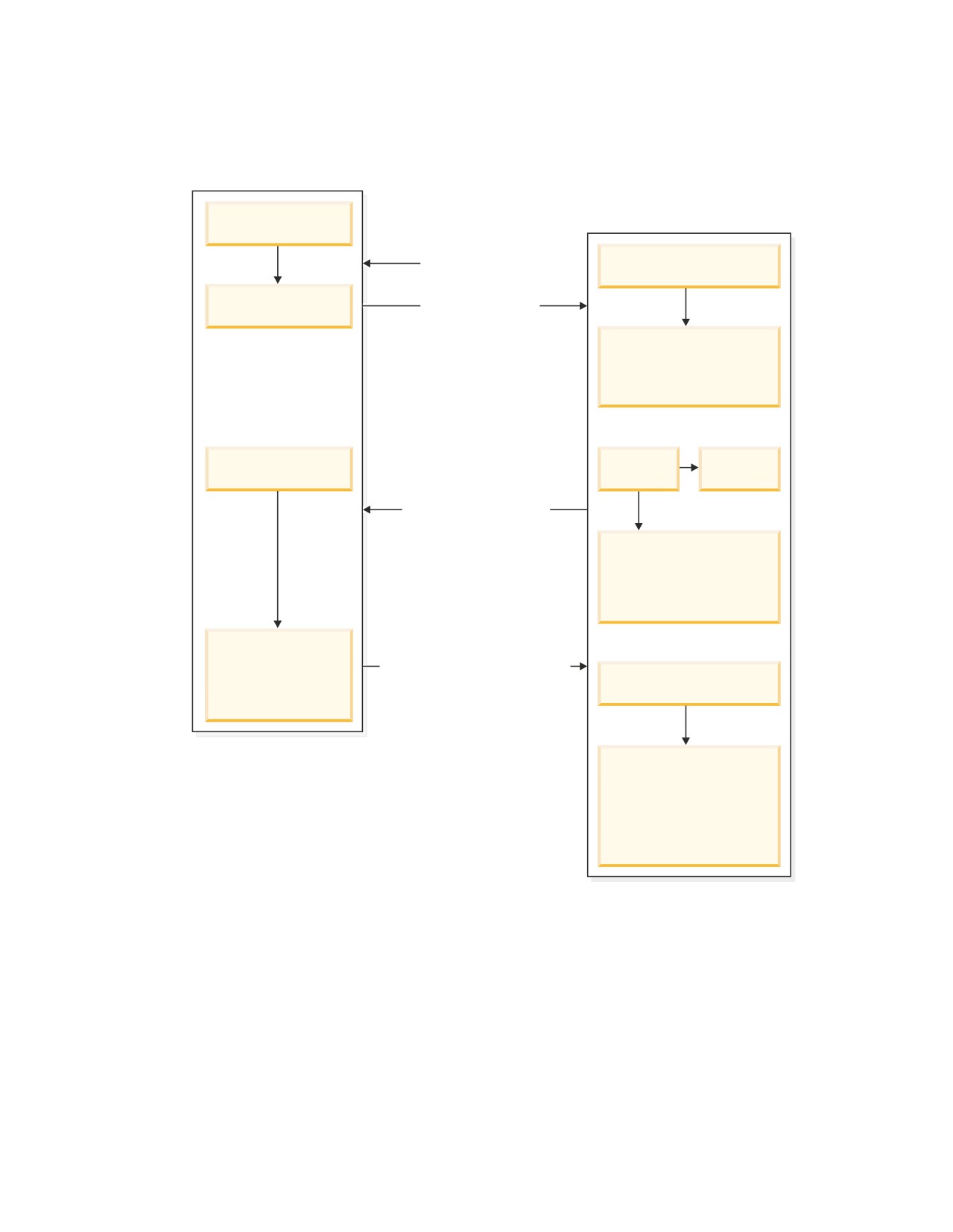
IBM Confidential
Automatic load
QCAPTURE
(has_loadphase=‘I’)
State=‘I’
QAPPLY
1
T : CAPSTART Signal
State=‘I’
State=‘L’
T
2
: Schema Message
State=‘L’
(rows are put to the
SPILLQ but not applied yet)
State=‘L’
State=‘L’
‘D’
T3: LOADDONE Message
State=‘F’
(rows get applied but
SPILLQ won’t be deleted
until LOADDONE message)
State=‘A’
(sending changes
T4: LOADDONE_RCVD Message
regarding to catalog
State=‘F’
parameters)
State=‘A’
(Once SPILLQ is empty
and all transactions before
LOADDONE message
are processed SPILLQ
can be deleted).
Figure 3. Automatic load
When a subscription is activated with the internal load (automatic load)option, the
Q Capture program sends the SUBSCHEMA message to the Q Apply program. The
Q Capture program also starts sending any changes to the table represented by the
subscription. After receiving the SUBSCHEMA message, the Q Apply program
invokes the Crossloader utility, to start loading into the target table, and also starts
spilling the changes sent by the Q Capture program into a SpillQ. A SpillQ is an
MQSeries queue that holds all the messages until the Q Apply program has
finished loading into the target table. When the Load Utility completes loading, the
Q Apply program sends a LOADDONE message to the Q Capture program and
immediately begins applying the changes from the SpillQ. The Q Capture program
then acknowledges by sending a LOADDONE_RCVD message to the Q Apply
34
DB2 DataPropagator Q Capture Supplement
IBM Confidential
program. Once the Q Apply program sees the LOADDONE_RCVD message, it
ensures that all the transactions before the message have been processed and the
SpillQ is empty. The Q Apply program then sets the STATE in the
IBMQREP_TARGETS table to ’A’ (active).
The Crossloader (LOAD from CURSOR) utility uses LOAD utility to move data
from the source table to the target table without creating an intermediate exported
file. The Crossloader utility requires federated database suppport.
The Crossloader utility is supported on DB2 UDB Version 8.1 or later for Linux,
UNIX, and Windows, and for DB2 UDB Version 7.1 for z/OS or later.
When using the Crossloader utility for the LUW platforms, you must create the
nickname for the source table and specify the nickname in the
IBMQREP_TARGETS table.
When using the Crossloader utility for the z/OS platforms, with a 3 part name, a
select statement can be constructed that selects data from a remote platform,
through the DB2 client/server protocol.
If the load utility is not available, , then Q Apply will send an Admin message to
Q Capture to disable the subscription. The state of the subscription on the Q
Capture (in the IBMQREP_SUBS table) and on the Apply (in the
IBMQREP_TARGETS table) will be marked Inactive.
Set up federated system and create a nickname.
Procedure:
1. Connect to the target db.
2. Update the db manager configuration for federated system.
3. Catalog a remote node hosting the remote VM/VSE source database.
4. Catalog a remote database.
5. Create a wrapper.
6. Create a server definition.
7. Create user mapping.
8. Test the connection.
9. Create nicknames.
Chapter 4. Running the Q Capture program on VSE or VM
35
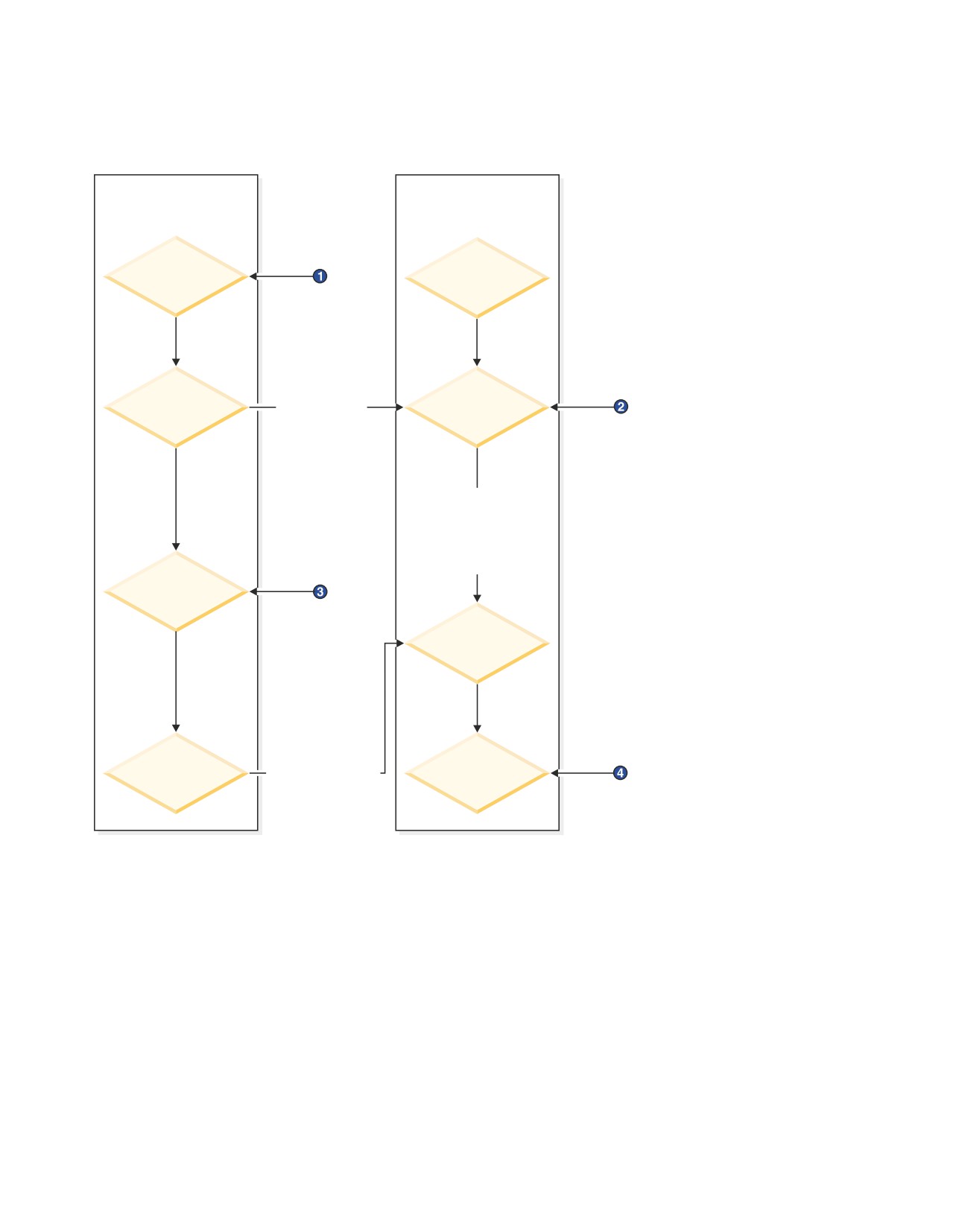
IBM Confidential
Manual load
Q Capture
Q Apply
(All state changes are
(All state changes are
recorded in the
recorded in the
IBMQREP_SUBS table)
IBMQREP_TARGETS table)
State = 1
State = 1
(Inactive) or
(Inactive)
N (New)
Schema message
State = L
(Start sending
State = E
(Loading)
transactions from
(External load)
source table)
The Q Apply program
puts changes from
the source table in a
temporary spill queue
while waiting for the
loading to finish
The Q Apply program
State = L
starts applying
(Loading)
transactions from
the split queue
State = F
(Processing
split queue)
State = A
LOADDONE_RCVD
State = A
(Active)
message
(Active)
Figure 4. Manual load
Notes:
1.
v Use Manage Q Subscriptions window to activate the Q subscription, or;
v Insert a CAPSTART signal in IBMQREP_SIGNAL table
2. Start loading the target table when:
v The Manage Q Subscriptions window ″Requires manual load″, or;
v The IBMQREP_TARGETS table shows state E
3. When target table is loaded, signal the Q Capture program by:
v Using the Manage Q Subscriptions window (click Load done), or;
v Insering a LOADDONE signal in the IBMQREO_SIGNAL table
4. Start using the target table when:
36
DB2 DataPropagator Q Capture Supplement
IBM Confidential
v The Manage Q Subscriptions window shows Active or ASN76061, or;
v The IBMQREP_TARGETS table shows state A and STATE_INFO ASN76061
Procedure:
To perform a manual load, the user needs to perform the following steps
1. On seeing the State is ’E’ in the IBMQREP_TARGETS, column STATE, the user
can start the load utility of choice.
2. After the loading is complete, the user must send a LOADDONE signal to the
Q Capture program. This task can be done either via the Replication Center or
by inserting the LOADDONE signal in the SIGNAL table as follows [the
following corresponds to a signal for subscription named ’SUB1’]:
insert into ASN.IBMQREP_SIGNAL(
SIGNAL_TIME,
SIGNAL_TYPE,
SIGNAL_SUBTYPE,
SIGNAL_INPUT_IN,
SIGNAL_STATE)
values (
CURRENT TIMESTAMP,
’CMD’,
’LOADDONE’,
’SUB1’,
’P’ );
The Q Capture program then sends a LOADDONE_RCVD message to Q Apply.
On seeing the LOADDONE_RCVD message, the Q Apply program starts applying
the changes from the SpillQ queue. Once the SpillQ is empty, the Q Apply
program changes the State to ’A’.
No load
A user can also choose not to have a load phase in the following scenarios:
v When the user is adding a large number of new tables to replication. In this
case, the user selects a down period, such as the weekend, quiesces the source
tables, loads the target tables, and is ready to start the Q Capture and Q apply
programs.
v Users do not care about the inconsistency between the source and target tables.
Recommendations for loading
Applications at the target
v Do not allow applications to update the target tables while the target tables are
being loaded. Data in the tables will be inconsistent while the tables are being
loaded, and the Q Apply program drops referential integrity constraints until the
target table and any other related target tables are loaded.
v Applications can safely use target tables again when the Q Apply program
makes the following changes to the IBMQREP_TARGETS table:
- Sets the STATE column to A (active).
- Sets the STATE_INFO column to ASN7606I, which means that if the target
table had referential integrity constraints, they have been restored.
v If the loading process fails, or if the Q Apply program stops during the load,
any data that was in the target table before the load began is deleted. Changes
that were made to the source table during the load process are not lost, and they
will be applied to the target table after it is successfully loaded.
Chapter 4. Running the Q Capture program on VSE or VM
37
IBM Confidential
Applications at the source
v Load target tables during a time of relative inactivity at the source.
Starting Capture
Starting the Q Capture program on VM
The Q Capture program is invoked by passing arguments to the ASNQCAP
program. For example:
asnqcap capture_server=SQLMACH7 autostop=n
This argument invokes the Q Capture program against SQLMACH7 and picks up
the other parameters from the CAPPARMs table and/or will use the defaults.
Should also have a filedef for the log file:
FILEDEF DISK ASNQLOG FILE A
Starting the Q Capture program on VSE
The Q Capture program is invoked by submitting JCL with the following:
// JOB ASNQ74BD
// LIBDEF
*,SEARCH=(STSPVT.DEVELOP,STSPVT.DB2730,
SPINLIB.ASN74S21,DB2LIB.DB2730C,
PRD2.MQSERIES,PRD2.SCEEBASE)
// EXEC PROC=DB2730RM
*-- DB2 DATABASE ID PROC
// DLBL USERCAT,’VSAMRM.USER.CATALOG’,,VSAM
// DLBL MSGS,’ASNQS001.MESSAGE.FILE’,,VSAM,CAT=USERCAT
// OPTION LOG
// OPTION NODUMP
// SETPARM MQBISRV=’MQDB2RM’
// EXEC ASNQCAP,SIZE=AUTO,PARM=’CAPTURE_SERVER=SQLDS STARTMODE=*
WARMSI USERID=SQLDBA/SQLDBAPW’
The SETPARM is the identifier for the Batch Interface. It corresponds to a setting in
the Batch Interface Setup.
Starting the Q Apply program
Refer to DB2 UDB Replication and Event Publishing Guide for details on starting the
Q Apply program.
38
DB2 DataPropagator Q Capture Supplement
IBM Confidential
Chapter 5. Running the Q Capture program on VM and VSE
(target is a VM or VSE platform)
Overview
This chapter describes the setup required for replicaiton to a VM or VSE target.
This chapter explains the scenario in detail and the resulting replication
configuration which is required. The DB2 UDB federated support is used for this
scneario.
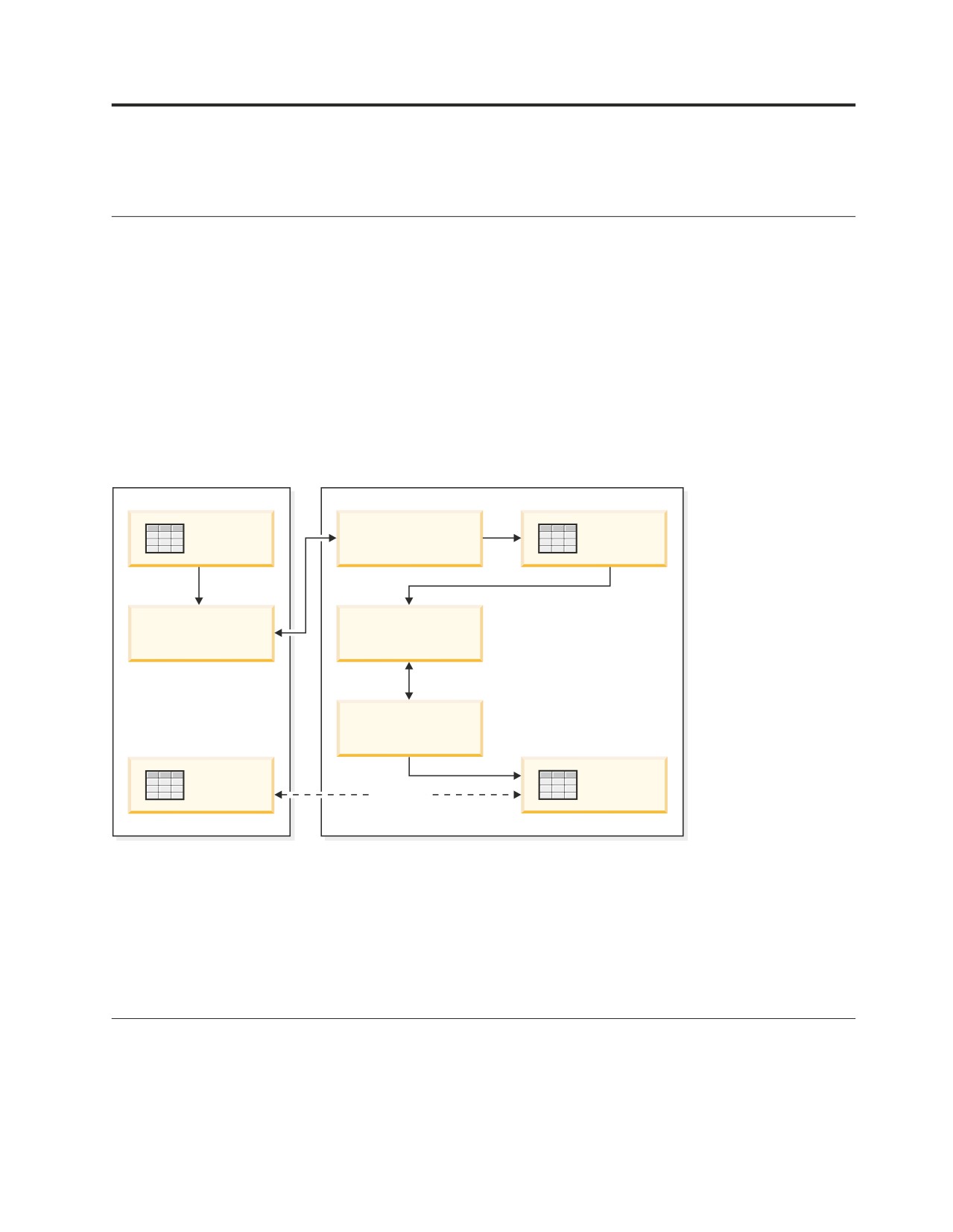
Some customers may want to replicate data from a VM or VSE platform to a VM
or VSE platform. There is no Q Apply program that runs on the VM and VSE
platforms, so replication can occur only by using a mixed environment of Q
replication and SQL replication. The environment would look like the following
diagram:
VM System
UDB System
DB2 VM
DB2 UDB
source table
Q Apply UDB
Interim table
Q Capture VM
SQL Capture UDB
SQL Apply UDB
DB2 VM
DB2 UDB
target table
Nick name
federated
Figure 5. The replication environment
In this setup, the changes to the source table on VM or VSE are captured by the Q
Capture program and applied to an ’interim’ table on DB2 UDB by the Q Apply
program. This ’interim’ table must reside in a database that has federated support.
SQL Capture is set up to capture changes from the ’interim’ table to be applied to
a nick name on DB2 UDB. This nick name points to a VM or VSE target table
through the DB2 UDB federated system.
Setting up the federated system
To set up the federated system
1. Connect to the target database by entering the following command on the
command line:
Connect to dbname user local_userID using local_userPWD
39
IBM Confidential
Example: connect to test1 user db2admin using adminpwd
2.
Update the database manager configuration for a federated system:
Update dbm cfg using federated yes
3.
Catalog the remote node that is hosting the remote VM/VSE source database:
Catalog tcpip node nodename remote hostname server servername
Example: catalog tcpip node torvmcb6 remote torvmcb6.torolab.ibm.com server dbuser1
4.
Catalog the remote database:
Catalog database remotedbname as remotealiasname at node nodename
Example: catalog database dbuser1 as dbuser1 at node torvmcb6
5.
Create the drda wrapper:
Create wrapper wrappername
Example: create wrapper drda
6.
Create the VM or VSE server definition:
Create server servername type typename version versionname wrapper
wrappername authorization remote_auth_ID password remote_auth_PWD
option (node ’nodename’, dbname ’dbname’)
Example: create server dbuser1 type db2/vm version 7.3.0 wrapper drda authorization
user1 password pwd1 options (node ’torvmcb6, dbname ’dbuser1’)
7.
Create the user mapping:
Create user mapping for local_authID server remote_servername
options(remote_authid ’id’, remote_password ’pwd’)
Example: create user mapping for db2admin server dbuser1 options (remote_authid
’user1’, remote_password ’pwd1’)
8.
Test the connection:
Set passthru remote_servername
Select * from remote_schema_name.tablename
Set passthru reset
Example: Set passthru dbuser1
Select * from sqldba.table1
Set passthru reset
9.
Create the nicknames:
Create nickname new_local_name for remote_servername.schema.tablename
Example: create nickname loc_table1 for dbuser1.sqldba.table1
Now the federated environment is set up. You can set up the Q replication from a
VM database to a UDB database as explained in the previous section. The SQL
replication can be set up as described in the Replication Guide.
40
DB2 DataPropagator Q Capture Supplement
IBM Confidential
Chapter 6. Problem diagnosis
Overview
The Q Capture trace facility outputs the data that can be used by IBM support for
problem diagnosis. It outputs information that is intended for IBM support
personnel. The trace facility can be turned on at startup or can be turned on while
the Q Capture program is running.
Tracing
FILEDEFs on VM
The following FILEDEF is required to Run a Q Capture trace on VM:
’FILEDEF ASNQTRC DISK fn ft fm’
where the ddname is ASNQTRC, the output device is DISK and fn, ft, fm can be
whatever you like.
The trace output must be formatted and can either be formatted by you or IBM
support. The FILDEF required for the formatted output is:
’FILEDEF ASNTRFM DISK fn ft fm’
where the ddname is ASNTRFM, the output device is DISK and fn, ft, fm can be
whatever you like.
Turning trace on and off
The Q Capture trace can be turned on by the startup parameter trace_active. The
default value for this parameter is’N’, meaning trace is not turned on. There are
two ways to turn trace on:
TRACE_ACTIVE
Default value ’N’, Trace is OFF.
Turnning trace on
v Turning trace ON at capture startup.
- Specify trace_active=Y as a capture startup parm.
eg. asnqcap capture_server=VMONISG trace_active=Y...
v Turning trace on while capture is running.
- Use the CHGPARMS operator command to turn trace ON.
-chgparms trace_active=Y.
Turning trace off
v Use the CHGPARMS operator command to turn trace OFF.
-chgpamrs trace_active=N
v The STOP operator command will turn trace OFF.
v Capture abend will turn trace OFF.
- Filedef is required to format trace.
41
IBM Confidential
Formatting and reading trace output
Invoke the ASNFMT module to format the trace output. The filedefs mentioned
earlier are required for VM. The following example illustrates trace output:
3183 asnqcap:updateTrace fnc_exit at 2004-06-15-09.08.12.029145
3184 asnqcap:explain_error fnc_entry at 2004-06-15-09.08.12.029260
3185 asnqcap:trlblk fnc_entry at 2004-06-15-09.08.12.029306
3185 asnqcap:trlblk fnc_exit at 2004-06-15-09.08.12.029352
3185 asnqcap:trlblk fnc_entry at 2004-06-15-09.08.12.029398
3185 asnqcap:trlblk fnc_exit at 2004-06-15-09.08.12.029444
3185 asnqcap:trlblk fnc_entry at 2004-06-15-09.08.12.029491
3185 asnqcap:trlblk fnc_exit at 2004-06-15-09.08.12.029536
3185 asnqcap:trlblk fnc_entry at 2004-06-15-09.08.12.029581
3185 asnqcap:trlblk fnc_exit at 2004-06-15-09.08.12. 029626
3184 asnqcap:explain_error fnc_exit at 2004-06-15-09.08.12.029271
3 isParm fnc_entry at 2004-06-15-09.08.20.681751
4 isValidIndex fnc_entry at 2004-06-15-09.08.20.681799
4 isValidIndex fnc_exit at 2004-06-15-09.08.20.681843
3 isParm fnc_exit at 2004-06-15-09.08.20.681884
2 msgtrans:sqlogmsg fnc_exit at 2004-06-15-09.08.20.681927
1 msgtrans:AsnCatgets fnc_exit at 2004-06-15-09.08.20.681972 RC=0
1 asnqcap:wto fnc_entry at 2004-06-15-09.08.20.682032
1 asnqcap:wto fnc_exit at 2004-06-15-09.08.20.682073
1 msgtrans:writeLog fnc_entry at 2004-06-15-09.08.20.682115
1 msgtrans:writeLog fnc_exit at 2004-06-15-09.08.20.682158 RC=0
1 msgtrans:writeDbRec fnc_entry at 2004-06-15-09.08.20.682205
1 msgtrans:ProcessMsg fnc_exit at 2004-06-15-09.08.20.682275 RC=0
0 delmsgtrans fnc_entry at 2004-06-15-09.08.20.682375
0 delmsgtrans fnc_exit at 2004-06-15-09.08.20. 682416
42
DB2 DataPropagator Q Capture Supplement

IBM Confidential
Chapter 7. Important hints and tips
Overview
The following section contains important considerations for running the Q Capture
program in a VSE or VM environment. Read this section thoroughly and apply the
recommendations to your system.
Control table considerations
The DB2 Replication Center by default creates the control tables in a dbspace with
a size of 128 pages.
Default values in control tables
Table 2 shows the fields in the IBMQREP_CAPPARMS table that should be
changed for VSE & VM. When using the Replication Center, you are presented
with the SQL script that will be executed against the database. You may edit that
script and change the values as outlined in Table 2.
Table 2. Values in control table
Field
Default value
VSE & VM recommended
value:
Logstdout
N
Y
trace_limit
10080
(min)
Dependent on dbspace size
prune_interval
300
(secs)
3600
(secs)
commit_interval
500
(secs)
1000
(secs)
The commit_interval default set by the Replication Center is 500 (secs). This value
is not suitable for the Q Capture program for VSE & VM. The Q Capture program
for VSE & VM will not enter the sleep state if the commit_interval is less than 1000
(secs) due to the nature of the internal time function used for calculation. If you do
not change the commit_interval value from 500 (secs), the Q Capture program
recognizes it to be less than 1000 and automatically updates it. You will see a
message that indicates that the value has been changed. The output on the console
looks like the following example:
2004-07-27-22.59.58 ASN0541E ″MQCAP″ : ″ASN″ : An incorrect value ″500″ was
supplied for column ″COMMIT_INTERVAL″ of the program parameter table
″PARAMETERS TABLE″.
Setting COMMIT_INTERVAL to 1000.
The logstdout parameter is by default set to N, which prevents informational
messages, which could be used for diagnostic purposes, to be displayed on the
console. Change this value to Y.
The trace_limit is by default set to 10080 minutes or 7 days. This parameter
defines the number of minutes the data in the IBMQREP_CAPTRACE table is
retained before it is pruned. If the dbspace is created with the default of 128 pages
and pruning is quite frequent, the dbspace could fill up quickely because
2004
43
IBM Confidential
operations such as pruning insert a message in the trace table. As a result, this
trace_limit parameter should be reduced, dbspace size increased, and the
prune_interval decreased.
The prune_interval is the number of seconds that must elapse before attempting to
prune the IBMQREP_SIGNAL and IBMQREP_CAPTRACE tables. The default is
300 seconds. We recommend increasing this value to the maximum of 3600
seconds. Pruning on the other platforms involves cleaning up additional tables
associated with monitoring and those tables should be pruned more frequently.
However, the Q Capture program on VSE & VM does not support monitoring.
Dataspace considerations
memory_limit: The default value is 32 MB. This value represents the size of the
dataspace that will be created by the Q Capture program to store the data as it is
read in the log file. The data on the dataspace is not cleared and reused by the Q
Capture program until it performs an MQ commit. The frequency of an MQ
commit is defined by the commit_interval value.
The Q Capture program will create additional dataspaces of this size when there is
no space left on existing dataspaces. The total size of the dataspaces and the
number of dataspaces is defined on VM by the XCONFIG statements in the
directory of the Q Capture computer (refer to section where we talked about
XCONFIG statements)
The memory_limit value must be set depending on a number of factors:
v The number of active transactions running in the system at one time
v The size of the transactions
v The commit_interval value
A good initial value for this size could be the size of your DB2 log file.
Important Note: The VM computer must be set to XC mode. If the VM computer
is not in XC mode, an operation exception is encountered and the
Q Capture program terminates abnormally.
Storage Considerations
The Q Capture machine in a VM or VSE partition must be set to a minimum of 32
MB for VM and to 15 MB for VSE before it can start. Beyond that, the storage the
Q Capture program needs depends on the number of subscriptions and the size of
the data going onto the MQ queue as the messages are being built.
VSE queue maintenance considerations
In VSE, because there is a VSAM file associated with the queues, it is quite
common for the queue to fill up even though messages are being retrieved from
the queue. When the queues fill up, the steps to follow are outlined in this section.
If the ERROR_ACTION column of the IBMQREP_SENDQUEUES is ’I’, the
subscription is invalidated when a queue fills up, but capture stays up. If the value
is ’S’, capture is stopped when a queue fills up:
Queue maintenance steps:
1. Determine which queue has filled up. Is it a Q Capture queue or an MQ
system queue?
2. If it is a Q Capture queue, stop the Q Capture program.
44
DB2
DataPropagator Q Capture Supplement
IBM Confidential
3. Reorganize the VSAM file for the queue.
4. Start the Q Capture program.
5. Send a signal to the Q Capture program to activate the subscriptions and start
capturing the data again.
The Q Capture queues that could fill up are the Restart queue, Administration
queue, or the local transmission queue for the Send queue. If an MQ system
queue, such as SYSTEM.LOG, fills up, capture continues to work. The Q Capture
program does not have to be stopped in order to reorganize these queues.
Chapter 7. Important hints and tips
45
IBM Confidential
Appendix. Q Capture control tables
The following list shows the Q Capture control tables generated by the Replication
Center:
v IBMQREP_CAPPARMS
v IBMQREP_SENDQUEUES
v IBMQREP_SUBS
v IBMQREP_SRC_COLS
v IBMQREP_SIGNAL
v IBMQREP_CAPTRACE
v IBMQREP_ADMINMSG
v IBMQREP_CAPMON (not used by Q Capture for VSE/VM)
v IBMQREP_CAPQMON (not used by Q Capture for VSE/VM)
v IBMQREP_SRCH_COND (not used by Q Capture for VSE/VM)
v IBMQREP_CAPENQ (not used by Q Capture for VSE/VM)
Underlined column names are the primary key columns of the table
All fields are nullable unless specifically marked as ″NOT NULL″
IBMQCAP_CAPPARMS control table
The IBMQCAP_CAPPARMS control table contains startup parameters for one
instance of the Q Capture program.
When the Replication Center creates the control table, it initializes it with one row
containing the default values.
CREATE TABLE ASN.IBMQREP_CAPPARMS (
QMGR VARCHAR(48) NOT NULL, //MQ Queue Manger name
REMOTE_SRC_SERVER VARCHAR(18), //server name for remote log
//reading
(for future)
RESTARTQ VARCHAR(48) NOT NULL, //name of the MQ queue for
//restart info; must be unique for
//each instance of Q Capture
// see note (3) below
ADMINQ VARCHAR(48) NOT NULL, //name of the queue for receiving
//Qapply msg; must be unique for
//each instance of Q Capture
STARTMODE VARCHAR(6) NOT NULL, //where to start reading log upon
//restart (cold or warm)
MEMORY_LIMIT INTEGER NOT NULL, //maximum size in MB for dataspace;
// default 32MB
COMMIT_INTERVAL INTEGER NOT NULL, //max time in ms between MQ
//commits; see note (1) below
AUTOSTOP CHAR(1) NOT NULL, //Q Capture stops if and when reading
//end of log; default "N"
2004
47
IBM Confidential
MONITOR_INTERVAL INTEGER NOT NULL, //not used by Q Capture VSE/VM
MONITOR_LIMIT INTEGER NOT NULL, //not used by Q Capture VSE/VM
TRACE_LIMIT INTEGER NOT NULL, //number of minutes of trace
//table info to be kept before
//being pruned; see note (1) below
SIGNAL_LIMIT INTEGER NOT NULL, //number of minutes of signal table info in
//captrace table before being pruned
PRUNE_INTERVAL INTEGER NOT NULL, //number of seconds to wait between
//pruning the signal and captrace
//tables; see note (2) below
SLEEP_INTERVAL INTEGER NOT NULL, //number milliseconds that Q Capture
//sleeps when it finishes processing the
//active log; default value 5000ms
LOGREUSE CHAR(1) NOT NULL, //whether capture reuses or appends
//msg to the log file
LOGSTDOUT CHAR(1) NOT NULL, //write message to both console(stout)
// and log file; see note (1) below
TERM CHAR(1) NOT NULL, //determine if Q Capture terminates if
//terminates; see note (2) below
CAPTURE_PATH VARCHAR(1040), //default NULL; not used by Q Capture
//VSE/VM
ARCH_LEVEL CHAR(4) NOT NULL) //the architectural level of the definition
//contained in the row; value "0802"
//stands for version 8.2
IN XXXXXX;
v
The follow index is created for the capparm table:
CREATE UNIQUE INDEX ASN.IX1CQMGRCOL ON
ASN.IBMQREP_CAPPARMS
(QMGR ASC);
v
The following row was inserted to the CAPPARM table when created by the
Replication Center:
INSERT INTO ASN.IBMQREP_CAPPARMS
(qmgr, restartq, adminq, startmode, memory_limit, commit_interval,
autostop, monitor_interval, monitor_limit, trace_limit, signal_limit,
prune_interval, sleep_interval, logreuse, logstdout, term, arch_level)
VALUES
(’SQLDSMQ’, ’MTVMRESTART’, ’MTVMADMIN’, ’WARMSI’, 32, 500, ’N’, 300,
10080, 10080, 10080, 300, 5000, ’N’, ’N’, ’Y’, ’0802’);
v
STARTMODE can have the following values:
- code
- warmsi (default)
- warmns
- warmsa
Code - The Q Capture program sets all subscriptions to INACTIVE state, clear
the restart queue and the admin queue.
Warmsi - The Q Capture program warm starts; unless the Q Capture program is
initializing for the first time. In that case switches to a cold start. The warmsi
start mode ensures that cold starts happen only when you initially start the Q
Capture program.
48
DB2
DataPropagator Q Capture Supplement
IBM Confidential
Warmns - The Q Capture program warm starts. If it can’t warm start, it does not
switch to cold start. The warmns start mode prevents cold starts from occurring
unexpectedly, and it is useful when problems arise (such as unavailable
databases or table spaces) that require repair and that prevent a warm start from
proceeding. When the Q Capture program warm starts, it resumes processing
where it ended. If errors occur after the Q Capture program starts, the Q
Capture program terminates and leaves all tables intact.
Warmsa - If warm start information is available, the Q Capture program resumes
processing where it ended in its previous run. If the Q Capture program cannot
warm start, it switches to a cold start.
Note: During warm starts the Q Capture program only loads those subscriptions
that are not in INACTIVE state)
v COMMIT_INTERVAL: The default set by RC is 500ms. This is not suitable for Q
Capture for VSE/VM. Q Capture for VSE/VM does not go into the sleep state if
the commit_interval is less than 1000ms due to the time function used for
calculation. We have changed the minimum value of the parameter and its
default value to 1000ms. Q Capture for VSE/VM users receive a message if the
commit_interval value is less than 1000ms. The user should manually changes
this value in the script before submitting it when using RC.
v Trace_limit - The default value set by RC is 10080m or 7 days. We consider this
limit is too high for VSE/VM customers especially if the dbspace acquired is
using the UDB default 128pages/dbspace. It is recommended that the VSE/VM
user should adjust this value and the default dbspace value when using RC.
v Prune_interval - The default value set by RC is 300s. We consider this limit is
too frenquent for VSE/VM customers. We recommend that you set the value to
3600s or 1 hour, the maximum value allowed.
v LOGSTDOUT- The default value set by RC is ″N″. We recommend that you set
the value to ″Y″, so that more info will be displayed on the console.
v TERM - The default value is ″Y″. Q Capture for VSE/VM v74 does not support
″N″ for this parameter.
IBMQREP_SENDQUEUES control table
The IBMQREP_SENDQUEUES control table contains the MQ queue information
that is used for sending transactions for a set of subscriptions.
CREATE TABLE ASN.IBMQREP_SENDQUEUES (
PUBQMAPNAME VARCHAR(128) NOT NULL, //publication queue map name
SENDQ VARCHAR(48) NOT NULL , //MQ queue name corresponds to a local queue
//or the local definition of a remote queue.
RECVQ VARCHAR(48), //receive queue name (for the q apply side)
MESSAGE_FORMAT CHARACTER(1) NOT NULL ,
MSG_CONTENT_TYPE CHARACTER(1) NOT NULL, //msg content type; ’T’
//(transaction) or ’R’
//(row); default ’T’
STATE CHARACTER(1) NOT NULL , //status of the queue; default "A"-active
//or "I" - inactive
STATE_TIME TIMESTAMP NOT NULL , //timestamp of the last state change
//default current timestamp
STATE_INFO CHARACTER(8), //additional info regarding the state
Appendix. Q Capture control tables
49