PowerWorld Simulator version 11. Manual - page 20
PowerWorld Simulator Add-on Tools
' Make the ChangeParameters call
Output = SimAuto.ChangeParameters('Sim_Solution_Options', _
ParamList, ValueList)
759
CloseCase Function
The CloseCase function is used to close a load flow case loaded in the Simulator Automation Server. This function
should be called at some point after the OpenCase function.
Function Prototype
CloseCase()
Parameter Definitions
No parameters are passed.
Output
CloseClase returns only one element in Output—any errors which may have occurred when attempting to
close the case.
760
PowerWorld Simulator Add-on Tools
CloseCase Function: Sample Code
Borland® Delphi
Output := SimAuto.CloseCase();
Microsoft® Visual Basic for Applications
Output = SimAuto.CloseCase()
Matlab®
Output = SimAuto.CloseCase
761
GetFieldList Function
Sample Code
The GetFieldList function is used to find all fields contained within a given object type.
Function Prototype
GetFieldList(ObjectType)
Parameter Definitions
ObjectType : String
The type of object for which the fields are requested.
Output
GetFieldList returns two elements of the Output array. The first element, as with the other functions, returns
any errors that might have occurred. The second element of the Output array contains an n x 4 array of
fields. The layout of this array is virtually identical to the output obtained by going to Help -> Export
Object Fields. The first column, corresponding to the (n,0) column in the field array, specifies which fields
are key fields for the object. The second column, (n,1), contains the internal name of the field. The third
column, (n,2), contains the type of data stored in the string (e.g. String, Integer, Real). The fourth column,
(n,3), contains the display-friendly name of the field.
762
PowerWorld Simulator Add-on Tools
GetFieldList Function: Sample Code
Microsoft® Visual Basic for Applications
Dim objecttype As String
' Object type to obtain
objecttype = "branch"
' Make the GetField call
Output = SimAuto.GetFieldList(objecttype)
Matlab®
% Object type to obtain
objecttype = 'branch';
% Make the GetField call
Output = SimAuto.GetFieldList(objecttype);
763
GetParametersSingleElement Function
The GetParametersSingleElement function is used to request the values of specified fields for a particular object in the
load flow case. For returning field values for multiple objects, you can use a loop to make repeated calls to the
GetParametersSingleElement function, and pass the object and desired field information for each object. This function
is identical in setup to the ChangeParameters function, with the exception that the Values array will be updated with
the values for the field variables defined in ParamList.
Function Prototype
GetParametersSingleElement(ObjectType, ParamList, Values)
Parameter Definitions
ObjectType : String
The type of object you are changing parameters for.
ParamList : Variant
A variant array storing strings. This array stores a list of PowerWorld‚ object
field variables, as defined in the section on PowerWorld Object Fields. The
ParamList must contain the key field variables for the specific device, or the
device cannot be identified. The remaining field variables in the array define
which values to retrieve from Simulator.
Values : Variant
A variant array storing variants. This array can store any type of information
(integer, string, etc.) in each array position. Values must be passed for the key
field variables in ParamList, in the same array position. The remaining field
positions in the Values array should be set to zero.
Output
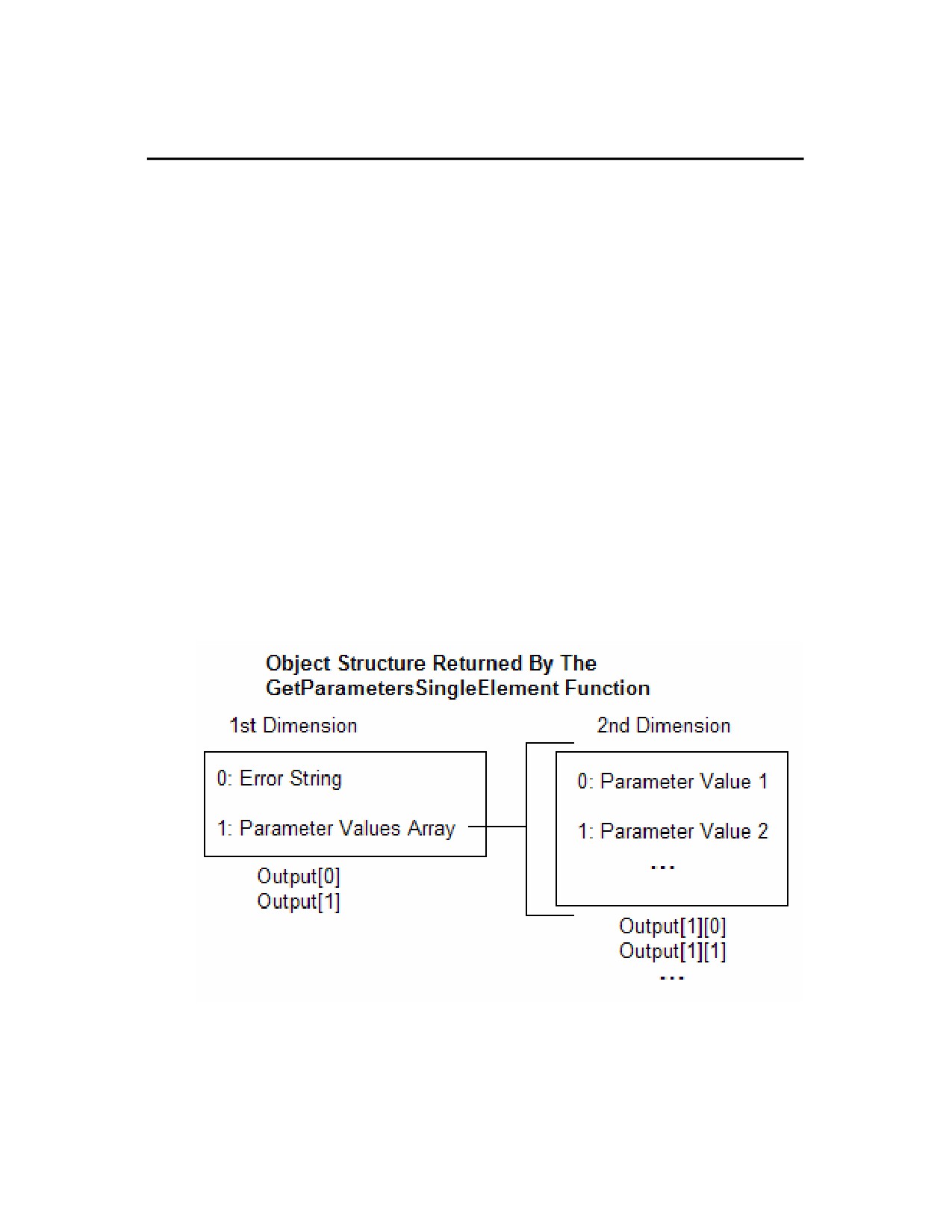
GetParametersSingleElement returns both the first element in Output—containing any errors occurring during
execution of the function—and a second element in Output. The second element returned in the Output
structure is a one dimensional array containing the values corresponding to the fields specified in ParamList.
The Output structure of GetParametersSingleElement is shown in the following figure.
764
PowerWorld Simulator Add-on Tools
GetParametersSingleElement Function: Sample Code Borland® Delphi
// This example retrieves some parameters for bus 2 of the loaded
// case, using the GetParametersSingleElement function, as well as
// the old GetParameters function
procedure TMainForm.RunGPSEClick(Sender: TObject);
var
Output : OLEVariant;
FieldBusArray, ValueBusArray : OLEVariant;
i : Integer;
begin
// Declares fields array to be sent to Excel
FieldBusArray := VarArrayCreate([1,5], varOleStr);
FieldBusArray[1] := 'pwBusNum';
FieldBusArray[2] := 'pwBusname';
FieldBusArray[3] := 'pwBusKVVolt';
FieldBusArray[4] := 'pwBusPUVolt';
FieldBusArray[5] := 'pwBusAngle';
ValueBusArray := varArrayCreate([1,5],varOleStr);
ValueBusArray[1] := 2; // To get parameters for bus 2
ValueBusArray[2] := 0;
ValueBusArray[3] := 0;
ValueBusArray[4] := 0;
ValueBusArray[5] := 0;
// Gets parameters with GetParametersSingleElement function
Output := SimAuto.GetParametersSingleElement('bus', FieldBusArray, ValueBusArray);
if (string(Output[0]) <> '') then
StatusBar1.Panels[1].Text := 'Error: ' + string(Output[0])
else
begin
StatusBar1.Panels[1].Text := 'Parameters got.';
Memo1.Lines.Add('== GetParametersSingleElement ==');
Memo1.Lines.Add('Value : Output[1][i]');
for i := VarArrayLowBound(Output[1],1) to VarArrayHighBound(Output[1],1) do begin
Memo1.Lines.Add(FieldBusArray[i] + ' : ' + string(Output[1][i]));
end;
Memo1.Lines.Add('');
end;
// Gets parameters with old function GetParameters
Output := SimAuto.GetParameters('bus', FieldBusArray, ValueBusArray);
if (string(Output[0]) <> '') then
StatusBar1.Panels[1].Text := 'Error: ' + string(Output[0])
else
begin
StatusBar1.Panels[1].Text := 'Parameters got.';
Memo1.Lines.Add('== GetParameters ==');
765
Memo1.Lines.Add('Value : Output[1][i]');
for i := VarArrayLowBound(Output[1],1) to VarArrayHighBound(Output[1],1) do begin
Memo1.Lines.Add(FieldBusArray[i] + ' : ' + string(Output[1][i]));
end;
Memo1.Lines.Add('');
end;
end;
766
PowerWorld Simulator Add-on Tools
GetParametersSingleElement Function: Sample Code Matlab®
% This example loads all buses in the case, and then gets
% some parameters of the last bus in the list
% validcase is a global variable - check case is open
if validcase
% Gets all buses in the case
output = simauto.ListOfDevices('bus','');
if ~(strcmp(output{1},''))
disp(output{1})
validbusarray = false;
else
% Puts the buses in row vector busarray
for i=size(output{2}{1},1):size(output{2}{1},2)
busarray(i,1) = output{2}{1}(i);
end
disp('Succesful ListOfDevices')
disp(busarray)
validbusarray = true;
end
end
% validbusarray is a global variable - check buses are loaded
if validcase & validbusarray
% Gets parameters for last bus of busarray
fieldarray = {'pw busnum' 'pwbusname' 'pwbusvolt' 'pwbusangle'};
valuearray = [busarray(size(busarray,1)) '0' '0' '0'];
valuelist = num2cell(valuearray);
output = simauto.GetParametersSingleElement('bus',fieldarray,valuelist);
if ~(strcmp(output{1},''))
disp(output{1})
else
% Puts the buses in row vector busparam
paramlist = transpose(output{2});
for i=size(paramlist,1):size(paramlist,2)
busparam(i,1) = paramlist(i);
end
disp('Succesful GetParameters for Bus')
disp(fieldarray)
disp(busparam)
end
end
767
GetParametersSingleElement Function: Sample Code Microsoft® Visual Basic for Excel
Private Sub btnGetParametersSingleElement_Click()
Dim objtype, filter As String
Dim xlWB As Excel.Workbook
Set xlApp = Excel.Application
' Checks connection and open case
' SimAuto and caseopen are global variables
If Not SimAuto Is Nothing And caseopen Then
objtype = "bus"
Dim fieldArray As Variant
fieldArray = Array("pwBusNum", "pwBusName", "pwBusKVVolt", _
"pwBusPUVolt", "pwBusAngle")
Dim ValueArray As Variant
ValueArray = Array(1, 0, 0, 0, 0)
output = SimAuto.GetParameters(objtype, fieldArray, ValueArray)
If output(0) <> "" Then
DisplayErrorMessage output(0)
Else
DisplayMessage "Succesful GetParametersSingleElement"
' Prepares additional worksheet
Set xlWB = xlApp.Workbooks.Add
' Copies list of devices in worksheet
With xlWB
Sheets("sheet2").Activate
Sheets("sheet2").Name = "GetParametersSingleElement"
With Sheets("GetParametersSingleElement")
Dim i As Integer
Range(Cells(1, 5), Cells(200, 7)).Clear
Cells(1, 1) = "List of Devices for " + objtype + ":"
' Setup fields as subheader
For i = LBound(fieldArray) To UBound(fieldArray)
Cells(2, i + 1) = fieldArray(i)
Next i
' Determine number of fields retrieved
Dim lowfld, highfld As Integer
lowfld = LBound(output(1), 1)
highfld = UBound(output(1), 1)
DisplayMessage "Number of Fields: " + Str(lowfld) + Str(highfld)
For i = lowfld To highfld
Cells(j + 3, i + 1) = output(1)(i)
Next i
End With
End With
End If
End If
End Sub
768
PowerWorld Simulator Add-on Tools
GetParametersMultipleElement Function
The GetParametersMultipleElement function is used to request the values of specified fields for a set of objects in the
load flow case. The function can return values for all devices of a particular type, or can return values for only a list of
devices of a particular type based on an advanced filter defined for the loaded case.
Function Prototype
GetParametersMultipleElement(ObjectType, ParamList, FilterName)
Parameter Definitions
ObjectType : String
The type of object you are changing parameters for.
ParamList : Variant
A variant array storing strings. This array stores a list of PowerWorld‚ object
field variables, as defined in the section on PowerWorld Object Fields. The
ParamList must contain the key field variables for the specific device, or the
device cannot be identified. The remaining field variables in the array define
which values to retrieve from Simulator.
FilterName : String
The name of an advanced filter defined in the load flow case open in the
Simulator Automation Server. If no filter is desired, then simply pass an empty
string. If a filter name is passed but the filter cannot be found in the loaded
case, the server will default to returning all objects in the case of type ObjType.
Output
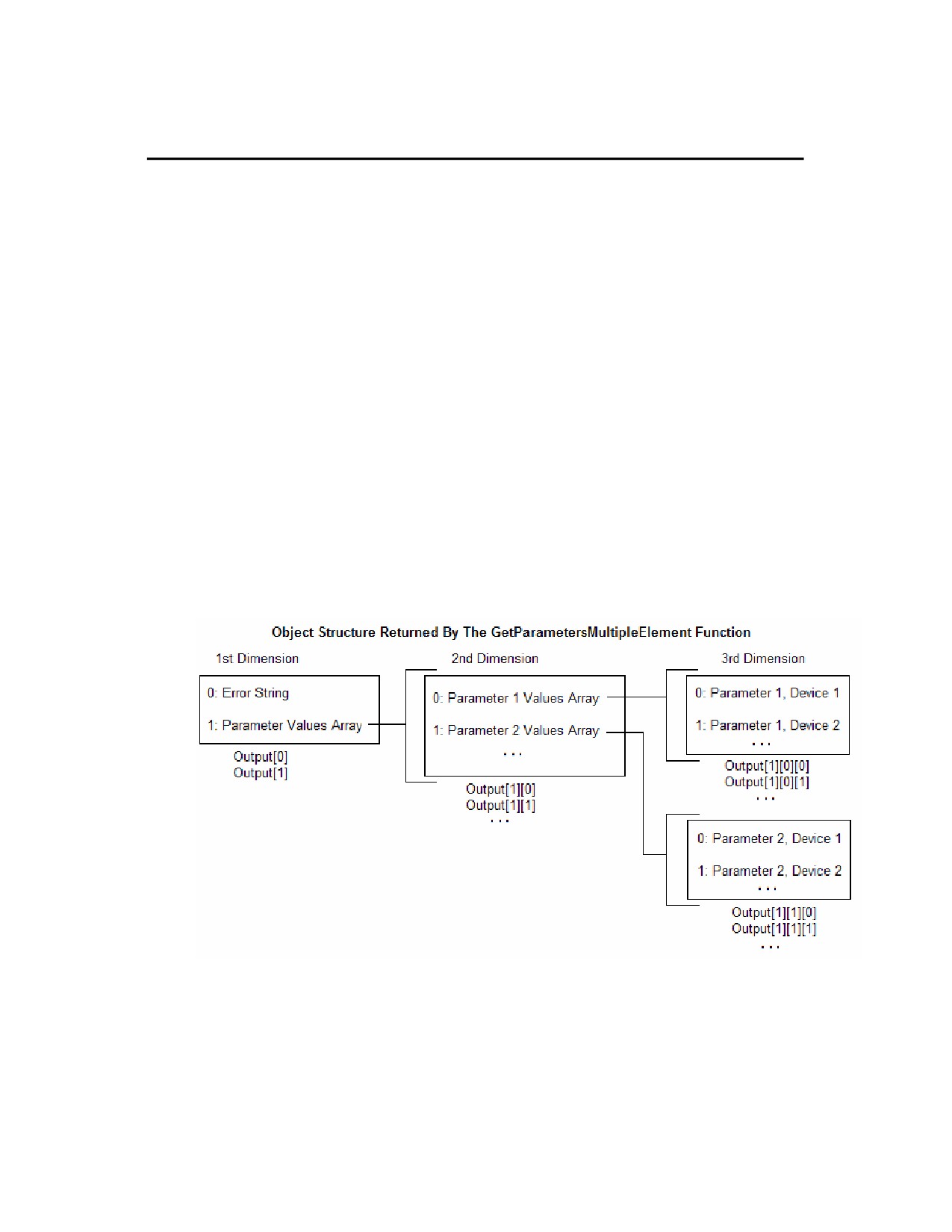
GetParametersMultipleElement returns a set of nested arrays containing the parameter values for the device
type requested. The number of arrays of values returned depends on the number of fields in ParamList.
The Output structure of GetParametersMultipleElement is shown in the following figure.
As you can see, to access the first parameter value for the first device, Output[1][0][0] would be the correct
array index. For example, the bus number for the first bus would be stored at Output[1][0][0] after calling
Output = GetParametersMultipleElement('Bus',fieldarray, ''), and assuming that we have
fieldarray = Array(pwBusnum, pwBusName).
769
GetParametersMultipleElement Sample Code Borland® Delphi
// This example retrieves some parameters for all buses of the
// loaded case, using the GetParametersMultipleElement function
procedure TMainForm.RunGPMEClick(Sender: TObject);
var
FieldBusArray : OLEVariant;
i,j : Integer;
begin
// Declares fields array to be sent to Excel
FieldBusArray := VarArrayCreate([1,5], varOleStr);
FieldBusArray[1] := 'pwBusNum';
FieldBusArray[2] := 'pwBusname';
FieldBusArray[3] := 'pwBusKVVolt';
FieldBusArray[4] := 'pwBusPUVolt';
FieldBusArray[5] := 'pwBusAngle';
// Gets parameters with Multiple Element function
Output := SimAuto.GetParametersMultipleElement('bus', FieldBusArray, '');
if (string(Output[0]) <> '') then
StatusBar1.Panels[1].Text := 'Error: ' + string(Output[0])
else
begin
StatusBar1.Panels[1].Text := 'Parameters got.';
Memo1.Lines.Add('== GetParametersMultipleElement ==');
Memo1.Lines.Add('Value : Output[1][i][j]');
for i := VarArrayLowBound(Output[1],1) to VarArrayHighBound(Output[1],1) do begin
for j := VarArrayLowBound(Output[1][i],1) to VarArrayHighBound(Output[1][i],1)
do begin
Memo1.Lines.Add(FieldBusArray[i] + '(' + IntToStr(j) + ') : ' +
string(Output[1][i][j]));
end;
end;
Memo1.Lines.Add('');
end;
end;
770
PowerWorld Simulator Add-on Tools
GetParametersMultipleElement Function: Sample Code Matlab®
% This example loads all buses in the case, and then gets
% some parameters of such buses
% validcase is a global variable - check case is open
if validcase
% Gets all buses in the case
output = simauto.ListOfDevices('bus', '');
if ~(strcmp(output{1},''))
disp(output{1})
validbusarray = false;
else
% Puts the buses in row vector busarray
for i=size(output{2}{1},1):size(output{2}{1},2)
busarray(i,1) = output{2}{1}(i);
end
disp('Succesful ListOfDevices')
disp(busarray)
validbusarray = true;
end
end
% validbusarray is a global variable - check buses are loaded
if validcase & validbusarray
% Gets parameters for all buses
fieldarray = {'pwbusnum' 'pwbusname' 'pwbusvolt' 'pwbusangle'};
output = simauto.GetParametersMultipleElement('bus', fieldarray,' ');
if ~(strcmp(output{1},''))
disp(output{1})
else
% Puts the buses in matrix busesparam
paramlist = transpose(output{2});
for i=size(paramlist,1):size(paramlist,2)
for j=size(paramlist{i},2):size(paramlist{i},1)
busesparam(j,i) = paramlist{i}(j);
end
end
disp('Succesful GetParametersMultipleElement')
disp(fieldarray)
disp(busesparam)
end
end
771
GetParametersMultipleElement Function: Sample Code Microsoft® Visual Basic for Excel
Private Sub btnGetParametersMultiple_Click()
Dim objtype, filter As String
Dim xlWB As Excel.Workbook
Set xlApp = Excel.Application
' Checks connection and open case
' SimAuto and caseopen are global variables
If Not SimAuto Is Nothing And caseopen Then
objtype = "bus"
filter = ""
Dim fieldArray As Variant
fieldArray = Array("pwBusNum", "pwBusName", "pwBusKVVolt", _
"pwBusPUVolt", "pwBusAngle")
output = SimAuto.GetParametersMultipleElement(objtype, fieldArray, filter)
If output(0) <> "" Then
DisplayErrorMessage output(0)
Else
DisplayMessage "Succesful GetParametersSingleElement"
' Prepares additional worksheet
Set xlWB = xlApp.Workbooks.Add
' Copies list of devices in worksheet
With xlWB
Sheets("sheet2").Activate
Sheets("sheet2").Name = "GetParametersSingleElement"
With Sheets("GetParametersSingleElement")
Dim i, j As Integer
Range(Cells(1, 5), Cells(200, 7)).Clear
Cells(1, 1) = "List of Devices for " + objtype + ":"
' Setup fields as subheader
For i = LBound(fieldArray) To UBound(fieldArray)
Cells(2, i + 1) = fieldArray(i)
Next i
' Determine number of fields retrieved
Dim lowfld, highfld As Integer
lowfld = LBound(output(1), 1)
highfld = UBound(output(1), 1)
' Determine number of objects retrieved
Dim lowobj, highobj As Integer
lowobj = LBound(output(1)(lowkeyf), 1)
highobj = UBound(output(1)(lowkeyf), 1)
DisplayMessage "Number of Fields: " + Str(lowfld) + Str(highfld)
DisplayMessage "Number of objects: " + Str(lowobj) + Str(highobj)
For i = lowfld To highfld
For j = lowobj To highobj
Cells(j + 3, i + 1) = output(1)(i)(j)
772
PowerWorld Simulator Add-on Tools
Next j
Next i
End With
End With
End If
End If
End Sub
773
GetParameters Function
This function is maintained in Simulator version 10 for compatibility with Simulator version 9. This function is replaced
by GetParametersSingleElement. GetParametersMultipleElement.
774

PowerWorld Simulator Add-on Tools
ListOfDevices Function
The ListOfDevices function is used to request a list of objects and their key fields from the Simulator Automation
Server. The function can return all devices of a particular type, or can return only a list of devices of a particular type
based on an advanced filter defined for the loaded case. This function is best used in conjunction with a looping
procedure and the ChangeParameters or GetParametersSingleElement functions to process a group of devices.
Function Prototype
ListOfDevices(ObjType, filterName)
Parameter Definitions
ObjType : String
The type of object for which you are acquiring the list of devices.
FilterName : String
The name of an advanced filter defined in the load flow case open in the
Simulator Automation Server. If no filter is desired, then simply pass an empty
string. If the filter cannot be found, the server will default to returning all objects
in the case of type ObjType.
Output
ListOfDevices returns a set of nested arrays containing the key field values for the device type requested.
The number of arrays of values returned depends on the object type selected. For instance, buses have only
one key field (the bus number) so calling ListOfDevices for buses will return only one array of values —the bus
numbers. On the other hand, calling ListOfDevices for branches will return three arrays of values—the "From"
bus, "To" bus, and ID—for each branch in the case meeting the specified filter.
The arrays containing the key field values for each device are arranged as shown in the following figure.
As you can see, to access the first key field value for the first device, Output[1][0][0] would be the correct
array index. For example, the bus number (which is the bus key field) for the first bus would be stored at
Output[1][0][0] after calling Output
= ListOfDevices('Bus', '').
One unique limitation of the ListOfDevices function from other SimAuto functions is that this is the only
function that returns the output as strongly typed variables. The bus numbers are always returned as Long
775
Integers, and the Circuit ID values are returned as strings . This was actually an oversight during the design of
SimAuto. In all other SimAuto functions, the values are returned as Variant types, with each value within the
variant being a string. This was the intended operation for this function as well. Since the Automation Server
interface was released with the errant inclusion of the ListOfDevices function, it could not be modified.
Therefore, another function, ListOfDevicesAsVariantStrings, has been created. This function returns all
values in variant variables, with each as a string within the variant type.
776
PowerWorld Simulator Add-on Tools
ListOfDevices Function: Sample Code for Borland® Delphi
Sample Code
// Runs Available Transfer Capability Routine
// Executes ATC Calculations among all areas
// and sends results to Excel
procedure TMainForm.RunATCClick(Sender: TObject);
var
i, j, LowB, HighB : Integer;
ValuesAreaArray : OLEVariant;
begin
// Obtain all the areas
Output := SimAuto.ListOfDevices('area', '');
if (string(Output[0]) <> '') then
StatusBar1.Panels[1].Text := 'Error: ' + string(Output[0])
else
begin
ValuesAreaArray := Output[1][0];
LowB := VarArrayLowBound(ValuesAreaArray, 1);
HighB := VarArrayHighBound(ValuesAreaArray, 1);
// Executes loop
for i := LowB to HighB do
for j := LowB to HighB do begin
if (i <> j) then begin
// Runs ATC calculations
OutputATC := SimAuto.RunScriptCommand('entermode(atc); ' +
'atcdetermine([Area ' + IntToStr(ValuesAreaArray[i]) +
'], [Area ' + IntToStr(ValuesAreaArray[j]) + '])');
if (string(OutputATC[0]) <> '') then
StatusBar1.Panels[1].Text := 'Error: ' + string(OutputATC[0])
else begin
// Sends ATC results to Excel
Output := SimAuto.SendToExcel('transferlimiter', '', 'all');
if (string(Output[0]) <> '') then
StatusBar1.Panels[1].Text := 'Error: ' + string(Output[0])
else
StatusBar1.Panels[1].Text := 'ATC calculations done.';
end;
end;
end;
end;
end;
777
ListOfDevices Function: Sample Code for Matlab®
Sample Code
%A list of branches is desired, without using any filter
DeviceType = 'Branch';
FilterName = '';
%Execute the ListOfDevices command
Output = SimAuto.ListOfDevices(DeviceType,FilterName);
%If the first cell in SimAutoOutput ~= '', then that means an error
%occurred.
if ~(strcmp(SimAutoOutput{1},''))
disp(SimAutoOutput{1})
else
%Otherwise, no errors. Display the branch information.
disp('ListOfDevices successful')
%Devicelist1 contains the From: bus number
%Devicelist2 contains the To: bus number
%Devicelist3 contains the Bus identifier
devicelist1 = double(transpose(SimAutoOutput{2}{1}));
devicelist2 = double(transpose(SimAutoOutput{2}{2}));
devicelist3 = SimAutoOutput{2}{3};
%If the device list is greater than 25, don't bother attempting to
%display it on the screen.
if (size(devicelist1,1) > 25)
disp('Device list exceeds 25; use ''devicelist'' to manage list of devices')
else
%Otherw ise, display the branches' information.
disp(DeviceType)
disp('From/To/Identifier')
for counter = 1:size(devicelist1,1)
%num2str converts the numbers within devicelist1 and
%devicelist2 to strings for output with disp(). the char()
%function is called on devicelist3's members because the
%SimAuto object returns a character array (as opposed to a
%properly Matlab-format string) and this array must be
%converted to a Matlab-format string.
disp([num2str(devicelist1(counter)) ' ' ...
num2str(devicelist2(counter)) ' ' ...
char(devicelist3(counter))])
end
end
end
778
PowerWorld Simulator Add-on Tools
ListOfDevices Function: Sample Code for Microsoft® Visual Basic for Excel
Sample Code
Private Sub DisplayMessage(ByVal SentText As String)
TextBox.Text = TextBox.Text + SentText + vbCrLf + vbCrLf
End Sub
Private Sub btnListOfDevices_Click()
Dim objtype, filter As String
Dim xlWB As Excel.Workbook
Set xlApp = Excel.Application
' Checks connection and open case
' SimAuto and caseopen are global variables
If Not SimAuto Is Nothing And caseopen Then
objtype = "branch"
filter = ""
output = SimAuto.ListOfDevices(objtype, filter)
If output(0) <> "" Then
DisplayMessage output(0)
Else
DisplayMessage "Succesful List Of Devices"
' Prepares additional worksheet
Set xlWB = xlApp.Workbooks.Add
' Copies list of devices in worksheet
With xlWB
Sheets("sheet1").Activate
Sheets("sheet1").Name = "ListOfDevices"
With Sheets("ListOfDevices")
Dim i, j As Integer
Range(Cells(1, 5), Cells(200, 7)).Clear
Cells(1, 1) = "List of Devices for " + objtype + ":"
Cells(2, 1) = "From Bus Num"
Cells(2, 2) = "To Bus Num"
Cells(2, 3) = "ID"
' Determine number of key fields retrieved
Dim lowkeyf, highkeyf As Integer
lowkeyf = LBound(output(1), 1)
highkeyf = UBound(output(1), 1)
DisplayMessage "Number of Key Fields: " + Str(lowkeyf) + Str(highkeyf)
' Determine number of objects retrieved
Dim lowobj, highobj As Integer
lowobj = LBound(output(1)(lowkeyf), 1)
highobj = UBound(output(1)(lowkeyf), 1)
DisplayMessage "Number of objects: " + Str(lowobj) + Str(highobj)
For i = lowkeyf To highkeyf
For j = lowobj To highobj
Cells(j + 3, i + 1) = output(1)(i)(j)
Next j
779
Next i
End With
End With
End If
End If
End Sub
780
PowerWorld Simulator Add-on Tools
ListOfDevicesAsVariantStrings Function
This function operates the same as the ListOfDevices function, only with one notable difference. The values returned
as the output of the function are returned as Variants of type String. The ListOfDevices function was errantly released
returning the values strongly typed as Integers and Strings directly, whereas all other SimAuto functions returned data
as Variants of type String. This function was added to also return the data in the same manner. This solved some
compatibility issues with some software languages.
781
ListOfDevicesFlatOutput Function
This function operates the same as the ListOfDevices function, only with one notable difference. The values returned
as the output of the function are returned in a single-dimensional vector array, instead of the multi-dimensional array
as described in the ListOfDevices topic. The function returns the key field values for the device, typically in the order
of bus number 1, bus number 2 (where applicable), and circuit identifier (where applicable). These are the most
common key fields, but some object types do have other key fields as well.
The format of the output array is the following:
[errorString, NumberOfObjectsReturned, NumberOfFieldsPerObject, Ob1Fld1, Ob1Fld2, …, Ob(n)Fld(m-1),
Ob(n)Fld(m)]
The data is thus returned in a single dimension array, where the parameters NumberOfObjectsReturned and
NumberOfFieldsPerObject tell you how the rest of the array is populated. Following the NumberOfObjectsReturned
parameter is the start of the data. The data is listed as all fields for object 1, then all fields for object 2, and so on.
You can parse the array using the NumberOf… parameters for objects and fields.
782
PowerWorld Simulator Add-on Tools
LoadState Function
LoadState is used to load the system state previously saved with the SaveState function. Note that LoadState will not
properly function if the system topology has changed due to the addition or removal of the system elements.
Function Prototype
LoadState()
Parameter Definitions
No parameters are passed.
Output
LoadState returns only one element in Output—any errors which may have occurred when attempting to
execute the function.
783
LoadState Function: Sample Code
Microsoft® Visual Basic for Applications
' Make the LoadState call
Output = SimAuto.LoadState()
Matlab®
% Make the LoadState call
Output = SimAuto.LoadState();
784
PowerWorld Simulator Add-on Tools
OpenCase Function
The OpenCase function will load a PowerWorld‚ Simulator load flow file into the Simulator Automation Server. This is
equivalent to opening a file using the File
-> Open menu in Simulator.
Function Prototype
OpenCase(FileName)
Parameter Definitions
FileName : String
The name of the PowerWorld‚ Simulator case file to be loaded into the
Simulator Automation Server. This string includes the directory location and full
file name.
Output
OpenCase returns only one element in Output—if the file cannot be found or an error occurs while reading the
file.
785
OpenCase Function: Sample Code
Borland® Delphi
Output := SimAuto.OpenCase('c:\simauto\examples\b7opf.pwb');
if (string(Output[0]) <> '') then
StatusBar1.Panels[1].Text := 'Error: ' + string(Output[0]);
else
begin
StatusBar1.Panels[1].Text := 'Open Case successful.';
// Perform activities with opened case
end;
Microsoft® Visual Basic for Applications
Output = SimAuto.OpenCase("c:\simauto\examples\b7opf.pwb")
If output(0) <> "" Then
MsgBox(output(0))
Else
' Perform activities with the opened case
End If
Matlab®
Output = SimAuto.OpenCase('c:\simauto\examples\b7opf.pwb')
%If the first cell in Output ~= '', then that means an error
%occurred.
if ~(strcmp(Output{1},''))
disp(Output{1})
else
%Otherwise, no errors. Perform activities.
disp('Open Case successful')
end
786
PowerWorld Simulator Add-on Tools
ProcessAuxFile Function
The ProcessAuxFile function will load a PowerWorld‚ Auxiliary file into the Simulator Automation Server. This allows
you to create a text file (conforming to the PowerWorld‚ Auxiliary file format) that can list a set of data changes and
other information for making batch changes in Simulator
Function Prototype
ProcessAuxFile(FileName)
Parameter Definitions
FileName : String
The name of the PowerWorld‚ Auxiliary file to be loaded into the Simulator
Automation Server. This string includes the directory location and full file
name.
Output
ProcessAuxFile returns only one element in Output—any errors which may have occurred when attempting to
load the file.
787
ProcessAuxFile Function: Sample Code
Microsoft® Visual Basic for Applications
Dim filename As String
' Setup name of aux file to run
filename = "c:\b7opf_ctglist.aux"
' Make the processAuxFile call
Output = SimAuto.ProcessAuxFile(filename)
Matlab®
% Setup name of aux file to run
filename = 'c:\b7opf_ctglist.aux';
% Make the processAuxFile call
Output = SimAuto.ProcessAuxFile(filename);
788
PowerWorld Simulator Add-on Tools
RunScriptCommand Function
The RunScriptCommand function is used to execute a list of script statements. The script actions are those included
in the script sections of the Auxiliary Files. If an error occurs trying to run a script command, an error will be returned
through EString.
Function Prototype
RunScriptCommand(Statements)
Parameter Definitions
Statements : String
The block of script actions to be executed. Each script statement must end in a
semicolon. The block of script actions should not be enclosed in curly braces.
Output
RunScriptCommand returns only one element in Output—any errors which may have occurred when
attempting to load or run the auxiliary file.
789
RunScriptCommand Function: Sample Code
Microsoft® Visual Basic for Applications
Dim scriptcommand As String
' Set script command to cause Simulator to enter Run Mode
scriptcommand = "EnterMode(RUN)"
' Make the RunScriptCommand call
Output = SimAuto.RunSCriptCommand(scriptcommand);
' Set script command to cause Simulator to perform a single,
' standard solution
scriptcommand = "SolvePowerFlow(RECTNEWT)"
' Make the RunScriptCommand call
Output = SimAuto.RunSCriptCommand(scriptcommand);
Matlab®
% Set script command to cause Simulator to enter Run Mode
scriptcommand = 'EnterMode(RUN)';
% Make the RunScriptCommand call
Output = SimAuto.RunSCriptCommand(scriptcommand);
% Set script command to cause Simulator to perform a single,
% standard solution
scriptcommand = 'SolvePowerFlow(RECTNEWT)';
% Make the RunScriptCommand call
Output = SimAuto.RunSCriptCommand(scriptcommand);
790
PowerWorld Simulator Add-on Tools
SaveCase Function
The SaveCase function is used to save a case previously loaded in the Simulator Automation Server using the
OpenCase function. The function allows you to specify a file name and a format for the save file.
Function Prototype
SaveCase(FileName, EString, FileType, Overwrite)
Parameter Definitions
FileName : String
The name of the file you wish to save as, including file path.
FileType : String
A string indicating the format of the written case file. An empty string will return
an error. The following list is the currently supported list of string identifiers and
the file types they represent.
"PTI23"
PTI version 23 (raw)
"PTI24"
PTI version 24 (raw)
"PTI25"
PTI version 25 (raw)
"PTI26"
PTI version 26 (raw)
"PTI27"
PTI version 27/28 (raw)
"PTI29"
PTI version 29 (raw)
"GE"
GE PSLF (epc)
"IEEE"
IEEE common format (cf)
"PWB70"
PowerWorld Binary version 7.0 (pwb)
"PWB"
PowerWorld Binary (most recent) (pwb)
Overwrite : Boolean
A Boolean value which indicates whether to overwrite a file if FileName already
exists. If Overwrite is set to false and the file specified by FileName already
exists, SaveCase will return an error message and do nothing to the file.
Output
SaveCase returns only one element in Output—any errors which may have occurred when attempting to save
the case.
791
SaveCase Function: Sample Code
Microsoft® Visual Basic for Applications
' Save the case as a PWB file
Output = SimAuto.SaveCase("c:\b7opfcopy.pwb", "PWB", true)
' Save the case as a PTI file
Output = SimAuto.SaveCase("c:\b7opfcopy.raw", "PTI", true)
Matlab®
% Setup name of PWB file to write
filenamepwb = 'c:\b7opfcopy.pwb';
% Setup name of PTI file to write
filenamepti = 'c:\b7opfcopy.raw';
% Make the SaveCase call for the PWB file
Output = SimAuto.SaveCase(filenamepwb, ‘PWB’, true);
% Make the SaveCase call for the PTI file
Output = SimAuto.SaveCase(filenamepti, ‘PWB’, true);
792
PowerWorld Simulator Add-on Tools
SaveState Function
SaveState is used to save the current state of the power system. This can be useful if you are interested in comparing
various cases, much as the Difference Flows feature works in the Simulator application.
Function Prototype
SaveState()
Parameter Definitions
No parameters are passed.
Output
SaveState returns only one element in Output—any errors which may have occurred when attempting to
execute the function.
793
SaveState Function: Sample Code
Microsoft® Visual Basic for Applications
' Make the SaveState call
Output = SimAuto.SaveState()
Matlab®
% Make the SaveState call
Output = SimAuto.SaveState();
794
PowerWorld Simulator Add-on Tools
SendToExcel Function
The SendToExcel function can be called to send data from the Simulator Automation Server to an Excel spreadsheet.
The function is flexible in that you can specify the type of object data you want to export, an advanced filter name for a
filter you want to use, and as many or as few field types as desired that are supported by the type of object. The first
time this function is called, a new instance of Excel will be started, and the data requested will be pasted to a new
sheet. For each subsequent call of this function, the requested data will be pasted to a new sheet within the same
workbook, until the workbook is closed.
Function Prototype
SendToExcel(ObjectType , FilterName, FieldList)
Parameter Definitions
ObjectType : String
A string describing the type of object for which your are requesting data.
FilterName : String
The name of an advanced filter which was previously defined in the case
before being loaded in the Simulator Automation Server. If no filter is desired,
then simply pass an empty string. If a filter name is passed but the filter cannot
be found in the loaded case, no filter is used.
FieldList : Variant
This parameter must either be an array of f ields for the given object or the
string "all". As an array, FieldList contains an array of strings, where each string
represents an object field variable, as defined in the section on PowerWorld
Object Variables. If, instead of an array of strings, the single string "all" is
passed, the Simulator Automation Server will use predefined default fields
when exporting the data.
Output
SendToExcel returns only one element in Output—any errors which may have occurred when attempting to
execute the function.
795
SendToExcel Function: Sample Code
Microsoft® Visual Basic for Applications
Dim FieldList As Variant
' Setup fieldlist to send the bus number, gen id and gen agc to Excel
FieldList = Array("pwBusNum", "pwGenID", "pwGenAGCAble")
' Make the SendToExcel call
' By specifying the parameter FieldList, only the three fields
' for each generator will be returned
Output = SimAuto.SendToExcel("gen", "", "FieldList")
' Sending the string "all" instead of a fieldlist array
' writes all predefined fields to the Excel spreadsheet
Output = SimAuto.SendToExcel("gen", "", "all")
Note: This function call will send the values of the fields in FieldList to an Excel workbook for all the generators in
the load flow case. If a filter name had been passed instead of an empty string, Simulator would have located and
used a pre-defined advanced filter and applied it to the information if it was found.
Matlab®
% Setup fieldlist to send the bus number, gen id and gen agc to Excel
fieldlist = {'pwBusNum' 'pwGenID' 'pwGenAGCAble' };
% Make the SendToExcel call
Output = SimAuto.SendToExcel('gen', '' , FieldList);
% Sending the string 'all' instead of a fieldlist array
% writes all predefined fields to the Excel spreadsheet
Output = SimAuto.SendToExcel('gen', '', 'all');
Note: This function call will send the values of the fields in FieldList to an Excel workbook for all the generators in
the load flow case. If a filter name had been passed instead of an empty string, Simulator would have located and
used a pre-defined advanced filter and applied it to the information if it was found.
796
PowerWorld Simulator Add-on Tools
WriteAuxFile Function
The WriteAuxFile function can be used to write data from the case in the Simulator Automation Server to a
PowerWorld‚ Auxiliary file. The function is flexible in that you can specify the type of object data you want to export,
an advanced filter name for a filter you want to use, and as many or as few field types as desired that are supported by
the type of object. In addition, you can specify a new file name for each call to WriteAuxFile, or you can specify the
same file name and append the data to the file.
Function Prototype
WriteAuxFile(FileName, FilterName, ObjectType, EString, ToAppend, FieldList)
Parameter Definitions
FileName : String
The name of the PowerWorld‚ Auxiliary file you wish to save.
FilterName : String
The name of an advanced filter which was previously defined in the case
before being loaded in the Simulator Automation Server. If no filter is desired,
then simply pass an empty string. If a filter name is passed but the filter cannot
be found in the loaded case, no filter is used.
ObjectType : String
A string describing the type of object for which your are requesting data.
ToAppend : Boolean
If you have given a file name of an auxiliary file that already exists, then the file
will either be appended to or overwritten according to the setting of this
parameter. If ToAppend is False and the file already exists, WriteAuxFile will
return an error message and do nothing to the file.
FieldList : Variant
This parameter must either be an array of fields for the given object or the
string "all". As an array, FieldList contains an array of strings, where each string
represents an object field variable, as defined in the section on PowerWorld
Object Variables. If, instead of an array of strings, the single string "all" is
passed, the Simulator Automation Server will use predefined default fields
when exporting the data.
Output
WriteAuxFile returns only one element in Output—any errors which may have occurred when attempting to
execute the function.
797
WriteAuxFile Function: Sample Code
Microsoft® Visual Basic for Applications
Dim FieldList As Variant
Dim auxfilename As String
' Setup FieldList to send the bus number, gen id and gen agc
FieldList = Array("pwBusNum", "pwGenID", "pwGenAGCAble")
' Aux file to write to
auxfilename = "c:\businfo.aux"
' Make the WriteAuxFile call
' By specifying the parameter FieldList, only the three fields
' for each generator will be returned
Output = SimAuto.WriteAuxFile(auxfilename, "", "gen", true, FieldList)
' Sending the string "all" instead of the FieldList array
' writes all predefined fields to the Excel spreadsheet
Output = SimAuto.SendToExcel(auxfilename, "", "gen", true, "all")
Note: This function call will send the values of the fields in FieldList to an auxiliary file for all the generators in the
load flow case. If a filter name had been passed instead of an empty string, Simulator would have located and used a
pre-defined advanced filter and applied it to the information if it was found.
Matlab®
% Setup FieldList to send the bus number, gen id and gen agc
fieldlist = {'pwBusNum' 'pwGenID' 'pwGenAGCAble' };
% Aux file to write to
auxfilename = 'c:\businfo.aux';
% Make the WriteAuxFile call
Output = SimAuto.WriteAuxFile(auxfilename, '', 'gen', true, FieldList);
% Sending the string 'all' instead of the FieldList array
% writes all predefined fields to the .aux file
Output = SimAuto.WriteAuxFile(auxfilename, '', 'gen', true, 'all');
Note: This function call will send the values of the fields in FieldList to an auxiliary file for all the generators in the
load flow case. If a filter name had been passed instead of an empty string, Simulator would have located and used a
pre-defined advanced filter and applied it to the information if it was found.
798
PowerWorld Simulator Add-on Tools
Simulator Automation Server Properties
The following list of parameters is currently available once the SimulatorAuto object is set in your code. Check the
help sections on these properties to see more detail on the particular property.
ExcelApp
CurrentDir
ProcessID
799