Volvo V70 (2016 year). Manual - part 1
01 Introduction
01
}}
17
Search
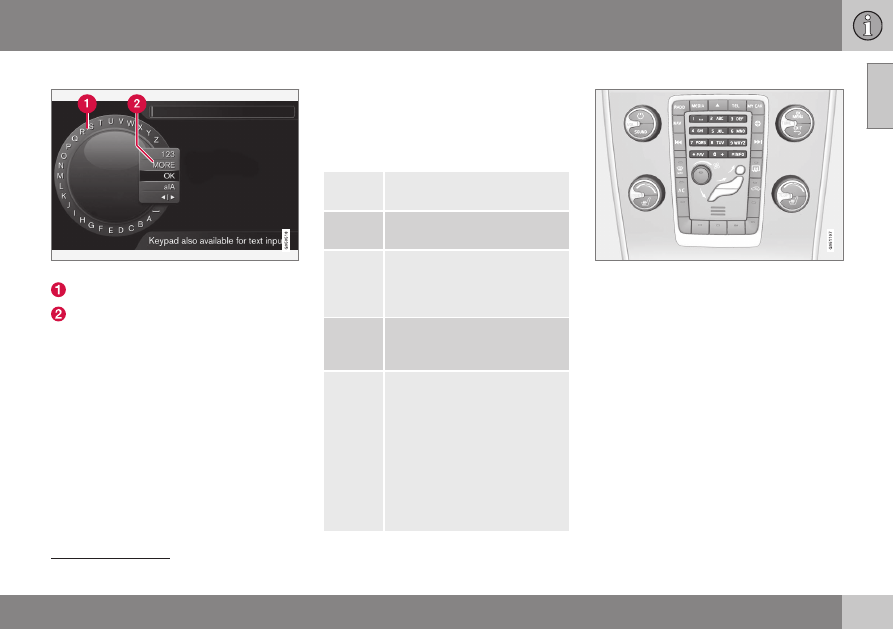
Searching using the character wheel.
Character list.
Changing the input mode (see following
table).
Use the character wheel to enter a search
term, e.g. "seatbelt".
1. Turn TUNE to the desired letter, press
OK/MENU to confirm. The number and
letter buttons on the control panel in the
centre console can also be used.
2. Continue with the next letter and so on.
3. To change the input mode to numbers or
special characters, or to perform a
search, turn TUNE to one of the options
(see explanation in the following table) in
the list for changing the input mode (2),
press OK/MENU.
123
/
AB
C
Change between letters and
numbers with OK/MENU.
MORE
Change to special characters
with OK/MENU.
OK
Perform the search. Turn TUNE
to select a search result article,
press OK/MENU to go to the
article.
a|A
Changes between lowercase
and uppercase letters with OK/
MENU.
| | }
Changes from the character
wheel to the search field. Move
the cursor with TUNE. Delete
any misspelling with EXIT. To
return to the character wheel,
press OK/MENU.
Note that the digit and letter
buttons on the control panel
can be used for editing in the
search field.
Enter with the numerical keyboard
Numerical keyboard.
Another way of entering characters is to use
the centre console's buttons 0-9, * and #.
When e.g. 9 is pressed, a bar appears with all
characters
3
under the button, e.g.
W
,
x
,
y
,
z
and
9
. Quick presses on the button move the
cursor through these characters.
•
Stop with the cursor on the desired char-
acter in order to select it - the character is
shown on the enter line.
•
Delete/undo using EXIT.
To enter a number, hold in the corresponding
number key.
Categories
The articles in the owner's manual are struc-
tured into main categories and subcategories.
3
The character for each button may vary depending on market/country/language.