Toyota Tundra (2019 year). Manual - part 22
 

  Index      Toyota     Toyota Tundra - service manual 2019 year in english


Search            copyright infringement  


Content   ..  20  21  22  23   ..


Toyota Tundra (2019 year). Manual - part 22


337

5-3. Using the audio system

5

Mu
ltim

ed

ia

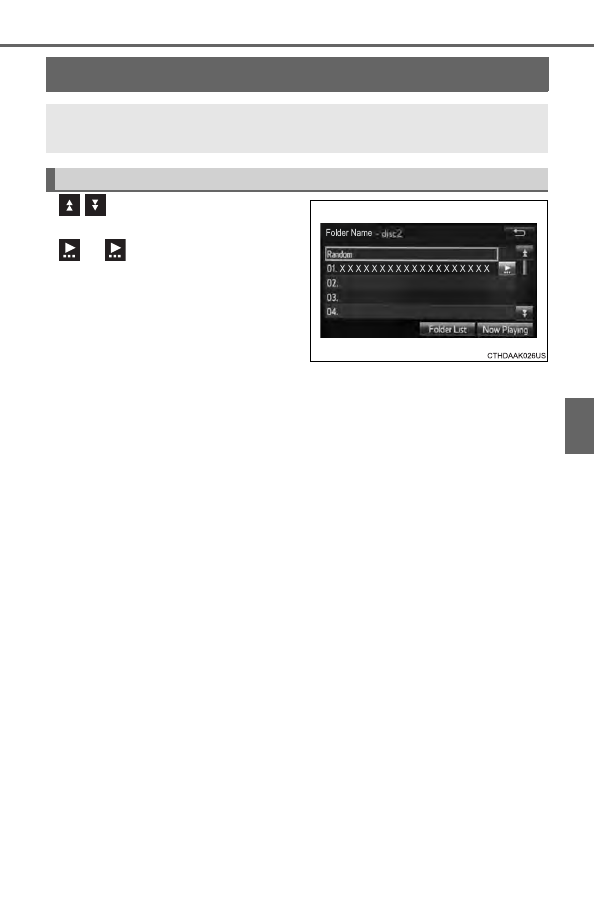
List screen operation


: Select to scroll to the next

or previous page.

: If 

  appears  to  the  right  of

titles,  the  complete  titles  are
too long for the display. Select
this button to scroll the title.

Turn  the  “TUNE·SCROLL”  knob
to move the cursor box to select a
desired  item  from  the  list,  and
press  the  “TUNE·SCROLL”  knob
to  play  it.  The  track  that  is  being
played is highlighted.
To return to the top screen, select “Now Playing” on the list screen.

When  a  list  style  screen  is  displayed,  use  the  appropriate  but-
tons to scroll through the list.

How to scroll

338

5-3. Using the audio system

Selecting a track/file/song
Press  the  “

”  or  “”  button  on  “SEEK/TRACK”  or  turn  the

“TUNE·SCROLL” knob to select the desired track/file/song number.
To fast-forward or reverse, press and hold the “

” or “” button on

“SEEK/TRACK”.

Selecting a track/file/song from the track/file/song list

Select “Browse” or cover art.
Select  the  desired  track/file/
song.

When an MP3/WMA/AAC disc or USB memory device is being used,
the folder can be selected. When a Bluetooth

®

 device or iPod is being

used, the album can be selected.
According to the audio device, the following is displayed.

Selecting, fast-forwarding and reversing tracks/files/songs

1

2

Audio source

List name

Audio CD

Track

MP3/WMA/AAC disc, USB

Folder, File

Bluetooth

®

Album, Track

iPod

Album, Song

339

5-3. Using the audio system

5

Mu
ltim

ed

ia

Sound settings

Select “Sound” on the audio control screen to adjust the sound  set-
tings.

Select “-” or “+” to adjust
the treble, mid or bass to
a level between -5 and 5.

Select  “Front”  or  “Rear”  to
adjust  the  front/rear  audio
balance.
Select “L” or “R” to adjust the
left/right audio balance.

The sound quality level is adjusted individually
The treble, mid and bass levels can be adjusted for each audio mode sepa-
rately.

On  the  “Sound  Settings”  screen,  sound  quality  (Treble/Mid/
Bass), volume balance can be adjusted.

Tone and balance

1

2

3

4

5

6

7

340

5-4. Using the radio

Radio operation

“Select  Audio  Source”  screen
appears
Preset stations
Select  to  display  RBDS  text
messages*
Scanning for receivable station
Select to display a list of receiv-
able stations
Setting the sound (

P. 339)

*: FM only

Tune in to the desired station using one of the following methods.

Seek tuning
Press the “

” or “” button on “SEEK/TRACK”.

The radio will begin seeking up or down for a station of the nearest
frequency and will stop when a station is found.

Manual tuning
Turn the “TUNE·SCROLL” knob.

Preset stations
Select the desired preset station.

Select  “AM”  or  “FM”  on  the  “Select  Audio  Source”  screen  to
begin listening to the radio.

Audio control screen

1

2

3

4

5

6

Selecting a station

341

5-4. Using the radio

5

Mu
ltim

ed

ia

Search for desired stations by turning the “TUNE·SCROLL” knob or
pressing the “

” or “” button on “SEEK/TRACK”.

Select “(add new)”

To change the preset station to a different one, select and hold the preset
station.

Select “Yes”.
Select “OK” after setting the new preset station. 

Refreshing the station list
Select “Refresh” on the “Station List” screen.

To cancel the refresh, select “Cancel Refresh”.

Reception sensitivity
Maintaining perfect radio reception at all times is difficult due to the continu-
ally changing position of the antenna, differences in signal strength and sur-
rounding objects, such as trains, transmitters, etc.

Setting station presets

1

2

3

4

342

5-5. Playing an audio CD and MP3/WMA/AAC discs

CD player operation

“Select  Audio  Source”  screen
appears
Audio CD: 
Displaying the track list 
(

P. 338)

MP3/WMA/AAC: 
Displaying the folder list 
(

P. 338)

Random playback
Repeat play
Pause 
Select 

 to resume play

Setting the sound (

P. 339)

Displaying the title and artist name
If a CD-TEXT disc is inserted, the title of the disc and track will be displayed.

Error messages
If  an  error  message  is  displayed,  refer  to  the  following  table  and  take  the
appropriate measures. If the problem is not rectified, take the vehicle to your
Toyota dealer.

Insert disc or select “CD” on the “Select Audio Source” screen
to begin listening to a CD.

Audio control screen

1

2

3

4

5

6

Message

Cause

Correction procedures

“Check DISC”

• The  disc  is  dirty  or

damaged.

• The  disc  is  inserted

upside down.

• The  disc  is  not  play-

able with the player.

• Clean the disc.
• Insert  the  disc  cor-

rectly.

• Confirm  the  disc  is

playable  with  the
player.

“Disc Error”

There  is  a  malfunction
within the system.

Eject the disc.

“No music files found.”

No  playable  data  is
included on the disc.

Eject the disc.

343

5-5. Playing an audio CD and MP3/WMA/AAC discs

5

Mu
ltim

ed

ia

Discs that can be used
Discs with the marks shown below can be used. 
Playback  may  not  be  possible  depending  on  recording  format  or  disc  fea-
tures, or due to scratches, dirt or deterioration.

CDs with copy-protection features may not play correctly.

CD player protection feature
To protect the internal components, playback is automatically stopped when a
problem is detected.

If  a  disc  is  left  inside  the  CD  player  or  in  the  ejected  position  for
extended periods
Disc may be damaged and may not play properly.

Lens cleaners
Do not use lens cleaners. Doing so may damage the CD player.

MP3, WMA and AAC files
MP3 (MPEG Audio LAYER3) is a standard audio compression format.
Files can be compressed to approximately 1/10 of their original size by using
MP3 compression.
WMA (Windows Media Audio) is a Microsoft audio compression format.
This  product  is  protected  by  certain  intellectual  property  rights  of  Microsoft
Corporation and third parties. Use or distribution of such technology outside
of this product is prohibited without a license from Microsoft or an authorized
Microsoft subsidiary and third parties. 
This format compresses audio data to a size smaller than that of the MP3 for-
mat.
AAC is short for Advanced Audio Coding and refers to an audio compression
technology standard used with MPEG2 and MPEG4.
MP3, WMA and AAC file and media/formats compatibility are limited.

MP3 file compatibility
• Compatible standards 

MP3 (MPEG1 LAYER3, MPEG2 LSF LAYER3)

• Compatible sampling frequencies 

MPEG1 LAYER3: 32, 44.1, 48 (kHz) 
MPEG2 LSF LAYER3: 16, 22.05, 24 (kHz)

• Compatible bit rates (compatible with VBR) 

MPEG1 LAYER3: 32-320 (kbps) 
MPEG2 LSF LAYER3: 8-160 (kbps)

• Compatible channel modes: stereo, joint stereo, dual channel and mon-

aural

344

5-5. Playing an audio CD and MP3/WMA/AAC discs

WMA file compatibility
• Compatible standards 

WMA Ver. 7, 8, 9 (only compatible with Windows Media Audio Standard)

• Compatible sampling frequencies 

32, 44.1, 48 (kHz)

• Compatible bit rates (only compatible with 2-channel playback) 

Ver. 7, 8: CBR 48-192 (kbps) 
Ver. 9: CBR 48-320 (kbps)

AAC file compatibility
• Compatible standards 

MPEG4/AAC-LC

• Compatible sampling frequencies 

11.025/12/16/22.05/24/32/44.1/48 (kHz)

• Compatible bit rates 

16-320 (kbps)

Compatible media
Media that can be used for MP3, WMA and AAC playback are CD-Rs and
CD-RWs.
Playback in some instances may not be possible if the CD-R or CD-RW is
not finalized. Playback may not be  possible or the audio may jump if the
disc is scratched or marked with fingerprints.

Compatible disc formats
The following disc formats can be used.
• Disc formats: CD-ROM Mode 1 and Mode 2 

CD-ROM XA Mode 2, Form 1 and Form 2

• File formats: ISO9660 Level 1, Level 2, (Romeo, Joliet) 

UDF (2.01 or lower)

MP3,  WMA  and AAC  files  written  in  any  format  other  than  those  listed
above may not play correctly, and their file names and folder names may
not be displayed correctly.

Items related to standards and limitations are as follows.
• Maximum directory hierarchy: 8 levels (including the root)
• Maximum length of folder names/file names: 32 characters
• Maximum number of folders: 192 (including the root)
• Maximum number of files per disc: 255

File names
The  only files  that can  be  recognized  as  MP3/WMA/AAC  and  played  are
those with the extension .mp3, .wma or .m4a.

Discs containing multi-session recordings
As the multimedia system is compatible with multi session discs, it is possi-
ble to play discs that contain MP3, WMA and AAC files. However, only the
first session can be played.

345

5-5. Playing an audio CD and MP3/WMA/AAC discs

5

Mu
ltim

ed

ia

ID3, WMA and AAC tags
ID3 tags can be added to MP3 files, making it possible to record the track
title, artist name, etc.
The system is compatible with ID3 Ver. 1.0, 1.1, and Ver. 2.2, 2.3 ID3 tags.
(The number of characters is based on ID3 Ver. 1.0 and 1.1.)
WMA  tags  can  be  added  to  WMA  files,  making  it  possible  to  record  the
track title and artist name in the same way as with ID3 tags.
AAC tags can be added to AAC files, making it possible to record the track
title and artist name in the same way as with ID3 tags.

MP3, WMA and AAC playback
When a disc containing MP3, WMA or AAC files is inserted, all files on the
disc are first checked. Once the file check is finished, the first MP3, WMA or
AAC file is played. To make the file check finish more quickly, we recom-
mend you do not write any files to the disc other than MP3, WMA or AAC
files or create any unnecessary folders.
Discs that contain a mixture of music data and MP3, WMA or AAC format
data cannot be played.

Extensions
If  the  file  extensions  .mp3,  .wma  and  .m4a  are  used  for  files  other  than
MP3, WMA and AAC files, they may be mistakenly recognized and played
as MP3, WMA and AAC files. This may result in large amounts of interfer-
ence and damage to the speakers.

Playback
• To  play  MP3  files  with  steady  sound  quality,  we  recommend  a  fixed  bit

rate of at least 128 kbps and a sampling frequency of 44.1 kHz.

• CD-R  or  CD-RW  playback  may  not  be  possible  in  some  instances,

depending on the characteristics of the disc.

• There is a wide variety of freeware and other encoding software for MP3,

WMA and AAC files on the market, and depending on the status of the
encoding and the file format, poor sound quality or noise at the start of
playback may result. In some cases, playback may not be possible at all.

• When files other than MP3, WMA or AAC files are recorded on a disc, it

may take more time to recognize the disc and in some cases, playback
may not be possible at all.

• Microsoft, Windows, and Windows Media are the registered trademarks

of Microsoft Corporation in the U.S.A. and other countries.

• This system can playback AAC files encorded by iTunes.

346

5-5. Playing an audio CD and MP3/WMA/AAC discs

NOTICE

Discs and adapters that cannot be used
Do not use the following types of CDs. 
Also, do not use 3 in. (8 cm) CD adapters, Dual Discs or printable discs.
Doing so may damage the CD player and/or the CD insert/eject function.

Discs that have a diameter that is not 4.7 in. (12 cm).

Low-quality or deformed discs.

Discs with a transparent or translucent recording area.

Discs  that  have  tape,  stickers  or  CD-R  labels  attached  to  them,  or  that
have had the label peeled off.

Player precautions
Failure to follow the precautions below may result in damage to the discs or
the player itself.

Do not insert anything other than discs into the disc slot.

Do not apply oil to the player.

Store discs away from direct sunlight.

Never try to disassemble any part of the player.

347

5-6. Using an external device

5

Mu
ltim

ed

ia

Listening to an iPod

P. 328

“Select  Audio  Source”  screen
appears
Displays cover art
Selecting the play mode 
Shuffle play
Repeat play
Pause
Select 

 to resume playback

Setting the sound (

P. 339)

Select “Browse” on the “iPod” screen.
Select the desired play mode by selecting the “Playlists”, “Artists”,
“Albums”, “Songs”, “Podcasts”, “Audio books”, “Genres”, “Compos-
ers” or “Video”. Then select a song to begin using the selected play
mode.

Connecting an iPod enables you to enjoy music from the vehicle
speakers.
Select “iPod” on the “Select Audio Source” screen.
When the iPod connected to the system includes iPod video, the
system  can  only  output  the  sound  by  selecting  the  browse
screen.

Connecting an iPod

Audio control screen

1

2

3

4

5

6

Selecting a play mode

7

1

2

348

5-6. Using an external device

About iPod

Use  of  the  Made  for  Apple  badge  means  that  an  accessory  has  been
designed  to  connect  specifically  to  the  Apple  product(s)  identified  in  the
badge, and has been certified by the developer to meet Apple performance
standards. Apple  is  not  responsible  for  the  operation  of  this  device  or  its
compliance with safety and regulatory standards. Please note that the use
of this accessory with an Apple product may affect wireless performance.

iPhone

®

, iPod

®

, iPod classic

®

, iPod nano

®

, iPod touch

®

, and Lightning are

trademarks of Apple Inc., registered in the U.S. and other countries.

The  Lightning  connector  works  with  iPhone  6,  iPhone  6  Plus,  iPhone  5s,
iPhone 5c, iPhone 5, iPod touch (5th generation), and iPod nano (7th gener-
ation).

The 30-pin connector works with iPhone 4s, iPhone 4, iPhone 3GS, iPhone
3G, iPhone, iPod touch (1st through 4th generation), iPod classic, and iPod
nano (1st through 6th generation).

USB works with iPhone 6, iPhone 6 Plus, iPhone 5s, iPhone 5c, iPhone 5,
iPhone  4s,  iPhone  4,  iPhone  3GS,  iPhone  3G,  iPhone,  iPod  touch  (1st
through 5th generation), iPod classic, and iPod nano (1st through 7th gener-
ation).

iPod cover art

Depending on the iPod and songs in the iPod, iPod cover art may be dis-
played.

This function can be changed to on/off. (

P. 332)

It may take time to display iPod cover art, and the iPod may not be operated
while the cover art display is in process.

Only iPod cover art that is saved in JPEG format can be displayed.

349

5-6. Using an external device

5

Mu
ltim

ed

ia

iPod functions

When an iPod is connected and the audio source is changed to iPod mode,
the iPod will resume play from the same point in which it was last used.

Depending  on  the  iPod  that  is  connected  to  the  system,  certain  functions
may not be available. If a function is unavailable due to a malfunction (as
opposed  to  a  system  specification),  disconnecting  the  device  and  recon-
necting it may resolve the problem.

While connected to the system, the iPod cannot be operated with its own
controls. It is necessary to use the controls of the vehicle’s multimedia sys-
tem instead.

When the battery level of an iPod is very low, the iPod may not operate. If
so, charge the iPod before use.

Compatible models (

P. 350)

iPod problems
To  resolve  most  problems  encountered  when  using  your  iPod,  disconnect
your iPod from the vehicle iPod connection and reset it. For instructions on
how to reset your iPod, refer to your iPod Owner’s Manual.

Error messages

Message

Cause/Correction procedures

“Connection  error.  Please
consult your Owner’s Man-
ual for instructions on how
to connect the iPod.”

This indicates a problem in the iPod or its con-
nection.

“There are no songs avail-
able  for  playback.  Please
add  compatible  files  to
your iPod.”

This  indicates  that  there  is  no  music  data  in
the iPod.

“Please  check  the  iPod
firmware version.”

This indicates that the software version is not
compatible.
Please check the compatible models.
(

P. 350)

“iPod  authorization  unsuc-
cessful.”

This indicates that the display multimedia sys-
tem failed to authorize the iPod.
Please check your iPod.

350

5-6. Using an external device

Compatible models
The  following  iPod

®

,  iPod  nano

®

,  iPod  classic

®

,  iPod  touch

®

  and  iPhone

®

devices can be used with this system.

Made for
• iPod touch (5th generation)
• iPod touch (4th generation)
• iPod touch (3rd generation)
• iPod touch (2nd generation)
• iPod touch (1st generation)
• iPod classic
• iPod with video
• iPod nano (7th generation)
• iPod nano (6th generation)
• iPod nano (5th generation)
• iPod nano (4th generation)
• iPod nano (3rd generation)
• iPhone 6 Plus
• iPhone 6
• iPhone 5s
• iPhone 5c
• iPhone 5
• iPhone 4S
• iPhone 4
• iPhone 3GS
• iPhone 3G
• iPhone

This system only supports audio playback.
Depending  on differences between  models or software  versions etc., some
models might be incompatible with this system.

WARNING

While driving
Do not connect an iPod or operate the controls.

NOTICE

To prevent damage to the iPod or its terminals

Do not leave the iPod in the vehicle. The temperature inside the vehicle
may become high, resulting in damage to the iPod.

Do not push down on or apply unnecessary pressure to the iPod while it is
connected.

Do not insert foreign objects into the port.

351

5-6. Using an external device

5

Mu
ltim

ed

ia

Listening to a USB memory device

P. 328

“Select  Audio  Source”  screen
appears
Displays cover art
Displaying the folder list 
(

P. 338)

Random playback
Repeat play
Pause 
Select 

 to resume playback

Setting the sound (

P. 339)

USB memory functions

Depending on the USB memory device that is connected to the system, the
device  itself  may  not  be  operable  and  certain  functions  may  not  be  avail-
able. If the device is inoperable or a function is unavailable due to a mal-
function  (as  opposed  to  a  system  specification),  disconnecting  the  device
and reconnecting it may resolve the problem.

If the USB memory device still does not begin operation after being discon-
nected and reconnected, format the memory.

Error messages for USB memory

Connecting a USB memory device enables you to enjoy music
from the vehicle speakers.
Select “USB” on the “Select Audio Source” screen.

Connecting a USB memory device

Audio control screen

1

2

3

4

5

6

7

Message

Cause/Correction procedures

“Connection  error.  Please

consult  your  Owner’s  Man-

ual for instruction on how to

connect the USB device.”

This indicates a problem with the USB mem-

ory device or its connection.

“There are no files available

for  playback.  Please  add

compatible files to your USB

device.”

This  indicates  that  no  MP3/WMA/AAC  files

are included on the USB memory device.

352

5-6. Using an external device

USB memory

Compatible devices
USB memory device that can be used for MP3, WMA and AAC playback.

Compatible device formats
The following device format can be used:
• USB communication format: USB2.0 HS (480 Mbps) and FS (12 Mbps)
• File system format: FAT16/32 (Windows)
• Correspondence class: Mass storage class 

MP3, WMA and AAC files written to a device with any format other than
those listed above may not play correctly, and their file names and folder
names may not be displayed correctly.

Items related to standards and limitations are as follows:
• Maximum directory hierarchy: 8 levels
• Maximum number of folders in a device: 3000 (including the root)
• Maximum number of files in a device: 9999
• Maximum number of files per folder: 255

MP3, WMA and AAC files
MP3 (MPEG Audio LAYER 3) is a standard audio compression format. 
Files can be compressed to approximately 1/10 of their original size using
MP3 compression.
WMA  (Windows  Media Audio)  is  a  Microsoft  audio  compression  format.
This format compresses audio data to a size smaller than that of the MP3
format. 
AAC is short for Advanced Audio Coding and refers to an audio compres-
sion technology standard used with MPEG2 and MPEG4.
MP3, WMA and AAC file and media/formats compatibility are limited.

MP3 file compatibility
• Compatible standards 

MP3 (MPEG1 AUDIO LAYER3, MPEG2 AUDIO LAYER3)

• Compatible sampling frequencies 

MPEG1 AUDIO LAYER3: 32, 44.1, 48 (kHz) 
MPEG2 AUDIO LAYER3: 16, 22.05, 24 (kHz)

• Compatible bit rates (compatible with VBR) 

MPEG1 AUDIO LAYER3: 32-320 (kbps) 
MPEG2 AUDIO LAYER3: 8-160 (kbps)

• Compatible channel modes: stereo, joint stereo, dual channel and mon-

aural

WMA file compatibility
• Compatible standards 

WMA Ver. 7, 8, 9

• Compatible sampling frequencies 

HIGH PROFILE 32, 44.1, 48 (kHz)

• Compatible bit rates 

HIGH PROFILE 48-320 (kbps, VBR)


Content   ..  20  21  22  23   ..