Skoda Superb (2019 year). Instruction - part 10
Control viewed images
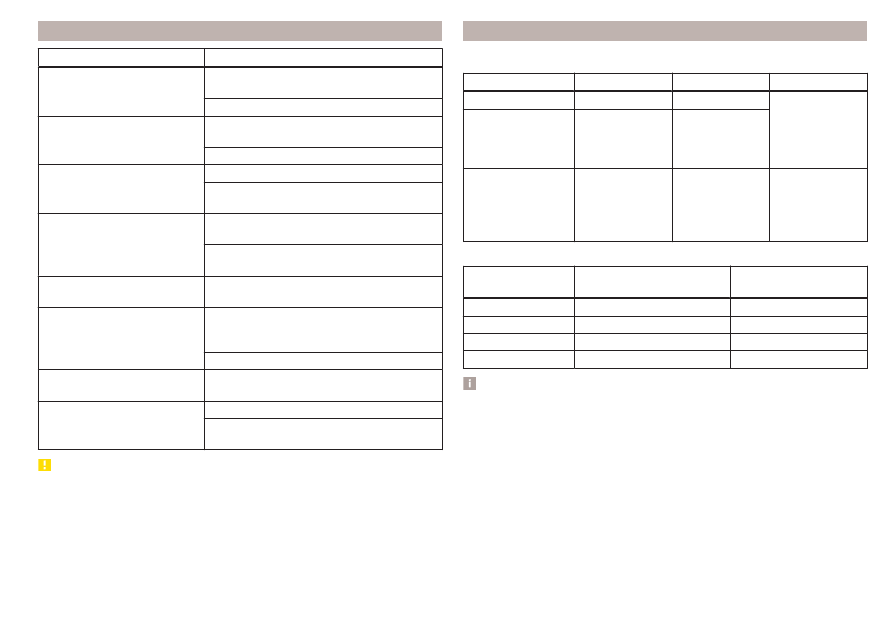
Operation
Action
Display of the next image
Finger motion across the screen to the left
(with initial representation)
Tap
Display the previous image
Finger motion across the screen to the right
(with starting representation)
Tap
Increase the image size
Touch screen using two fingers and pull apart
Turning the knob to the right (not applica-
ble to Infotainment Columbus)
Reduce the image size
Touch screen using two fingers and close to-
gether
Turning the knob to the left (not applica-
ble to Infotainment Columbus)
Moving the image with an en-
larged display
Drag your finger over the screen in the re-
quired direction
Rotate by 90 °
Touch screen using two fingers and move
clockwise or counter clockwise (only availa-
ble with start representation)
Tap or
Maximum magnification of
representation
Double finger tap on the screen
Display the initial image size
while retaining the aspect ratio
Double tap on the screen again
Pressing the knob (not applicable to Info-
tainment Columbus)
CAUTION
Viewing images in the Infotainment screen is not supported by connected Ap-
ple devices.
Supported image file formats and sources
Supported image sources
Source
Type
Specification
File system
SD card
Standard size
SD, SDHC, SDXC
FAT16
VFAT
FAT32
exFAT
NTFS
USB devices
USB stick;
HDD (without
special software)
USB 1.x; 2.x and
3.x or higher with
support of USB
2.x
CD / DVD (Applies
to Infotainment Co-
lumbus)
CD-R / RW (Up
to 700 MB);
DVD±R/RW
ISO9660;
Joliet (Level 1,2,3)
;
UDF 1.x;
UDF 2.x
-
Supported file formats
Codec type
(File formats)
File suffix
Max. resolution
(Megapixels)
BMP
bmp
4
JP (E) G
jpg; jpeg
4; 64
GIF
gif
4
PNG
png
4
Note
■
The max. supported image size is 20 MB.
■
The GPT standards (GUID partition table) method structured image sources
are not supported by Infotainment.
157
Images