Honda Accord Hybrid (2019 year). Manual - part 20
 

  Index      Honda     Honda Accord Hybrid - service manual 2019 year in english


Search            


Content   ..  18  19  20  21   ..


Honda Accord Hybrid (2019 year). Manual - part 20


uu

Audio System Basic Operation

u

Playing SiriusXM® Radio

*

304

Features

While listening to other channel, you can receive sports alerts such as scores from 
your favorite teams.

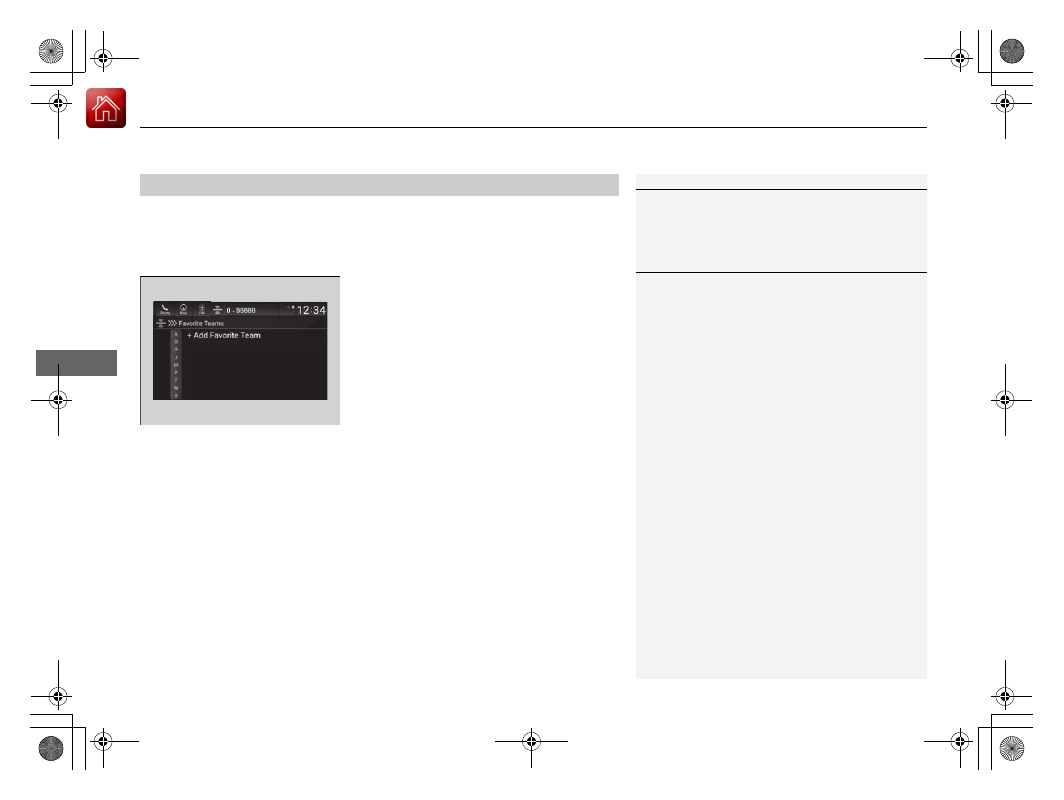
To set up a favorite team

1. Select Settings.
2. Select Sports Notifications Setup.
3. Select Favorite Teams.
4. Select + Add Favorite Team.
5. Select a team.

To set up an alert message

1. Select Settings.
2. Select Sports Notifications Setup.
3. Select Notifications.
4. Select Game Notifications or SportsFlash Game Play Notifications.
5. Select Notifications.
6. Select ON.
7. Select a favorite team.

Live Sports Alert

1

Live Sports Alert

The Pop-up appears and notifies you of a sports alert 
function.

1

To set up a favorite team

Sports alerts cut in only when SiriusXM® mode is on.

Continued

305

uu

Audio System Basic Operation

u

Playing SiriusXM® Radio

*

Features

You can receive traffic and weather information.
1. Select Settings.
2. Select Traffic & Weather Now Setup.
3. Select Selected City.
4. Select the region.

Traffic and Weather Information

1

Traffic and Weather Information

When traffic and weather information is received, a 
notification is displayed in the header area.

Status Area P. 281

uu

Audio System Basic Operation

u

Playing SiriusXM® Radio

*

306

Features

You can view a channel schedule or receive a alert when your favorite program is 
about to start.

To view a channel schedule

1. Select More.
2. Select Channel Schedule.

To set up an alert message

1. Select More.
2. Select Channel Schedule.
3. Select a program.
4. Select Set Program Alert.
5. Select Just Once or Every Time.

Channel Schedule

1

Channel Schedule

Select Keypad to use the on-screen keyboard for 
entering the channel number directly.

1

To set up an alert message

The Pop-up appears and notifies you of an alert 
function.

Selecting Just Once disables the alert feature next 
time you turn the power mode to ON.

If you want to delete the alert, select Remove Alert.

To enable an alert message, change settings for the 
alert function.

To enable the alert function P. 307

307

uu

Audio System Basic Operation

u

Playing SiriusXM® Radio

*

Continued

Features

You can change settings for the alert function.

To enable the alert function

1. Select Settings.
2. Select Manage Program Alerts.
3. Select Notifications.
4. Select ON or OFF.

To remove an alert

1. Select Settings.
2. Select Manage Program Alerts.
3. Select Alerts Set.
4. Select 

 on the alert you want to delete.

u

A confirmation message appears on the 
screen. Select Yes.

Manage Program Alert

uu

Audio System Basic Operation

u

Playing SiriusXM® Radio

*

308

Features

Sample each channel on the selected mode for 10 seconds.
1. Select More.
2. Select Scan.

You can change a scan mode by the following procedure.
1. Select Settings.
2. Select Scan Mode.
3. Select Channel or Preset.

To turn off scan, select Stop.

Scan

1

Scan

The “Scan Songs in Presets” function is based on 
TuneScan

TM

 technology of SiriusXM®.

The “Featured Channels” function is based on 
Featured Favorites

TM

 technology of SiriusXM®.

TuneScan

TM

 and Featured Favorites

TM

 are registered 

trademarks of SiriusXM® Radio, Inc.

309

uu

Audio System Basic Operation

u

Playing SiriusXM® Radio

*

Features

Change the SiriusXM® settings.
1. Select Settings.
2. Select an option.

• TuneMix: Turns multiple channel mix preset on and off.
• Tune Mode: Choose whether to group by category or channel number when 

changing channels.

• Scan Mode: Select the scan mode from all channels or presets.
• Tune Start: Start the currently playing song at the beginning when you switch to 

a music channel preset.

• Sports Notifications Setup: Set to receive sports alerts such as scores from your 

favorite teams.

Live Sports Alert P. 304

• Traffic & Weather Now Setup: Set to receive traffic and weather information.

Traffic and Weather Information P. 305

• Manage Program Alerts: Change settings for the alert function.

Manage Program Alert P. 307

SiriusXM® Settings

310

uu

Audio System Basic Operation

u

Playing an iPod

Features

Playing an iPod

Using your USB connector, connect the iPod to the USB ports, then select the USB 
mode.

USB Port(s) P. 239

 (Back) Button

Press to go back to the previous 
display.

Track Buttons
Press 

 or 

 to change songs.

Select and hold to move rapidly 
within a song.
VOL/

 AUDIO (Volume/Power) Knob

Push to turn the audio system on and off.
Turn to adjust the volume.

Cover Art

Audio/Information Screen

Play/Pause Icon

Sound Icon
Select to display the sound 
settings.

Repeat Icon
Select to repeat the current file.

Track Icons
Select 

 or 

 to change songs.

Select and hold to move rapidly within a song.

Browse Icon
Select to display the menu items.

Shuffle Icon
Select to play all files in the current 
category in random order.

Selector Knob
Turn to change songs.
Press, and then turn to select an 
item. After that, press again to 
make your selection.

Continued

311

uu

Audio System Basic Operation

u

Playing an iPod

Features

1. Select Browse.
2. Select a search category (e.g., Artists, 

Albums, etc.).

3. Continue making selections until you find 

the song of your choice.

How to Select a Song from the Music Search List

1

Playing an iPod

Available operating functions vary on models or 
versions. Some functions may not be available on the 
vehicle’s audio system.

If there is a problem, you may see an error message 
on the audio/information screen.

iPod/USB Flash Drive P. 340

If you operate the music app on your iPhone/iPod 
while the phone is connected to the audio system, 
you may no longer be able to operate the same app 
on the audio/information screen.
Reconnect the device if necessary.

If an iPhone is connected via Apple CarPlay, the iPod/ 
USB source will be unavailable and audio files on the 
phone will be playable only within Apple CarPlay.

uu

Audio System Basic Operation

u

Playing an iPod

312

Features

You can select shuffle and repeat modes when playing a file.

Shuffle/Repeat

Select shuffle or repeat icon repeatedly until a 
desired mode.

To turn off a play mode

Select the mode you want to turn off.

How to Select a Play Mode

1

How to Select a Play Mode

Play Mode Menu Items
Shuffle

 Shuffle off: Shuffle mode to off.
 Shuffle All Songs: Plays all available songs in a 

selected list (playlists, artists, albums, songs, genres, 
or composers) in random order.

Repeat

 Repeat off: Repeat mode to off.
 Repeat Song: Repeats the current song.
 Repeat all: Repeats all available songs in a 

selected list (playlists, artists, albums, songs, genres, 
or composers).

313

uu

Audio System Basic Operation

u

Playing a USB Flash Drive

Continued

Features

Playing a USB Flash Drive

Your audio system reads and plays audio files on a USB flash drive in either MP3, 
WMA, or AAC

*1

 format.

Connect your USB flash drive to the USB ports, then select the USB mode.

USB Port(s) P. 239

*1:Only AAC format files recorded with iTunes are playable on this unit.

 (Back) Button

Press to go back to the previous 
display.

Seek Buttons
Press 

 or 

 to change files.

Select and hold to move rapidly 
within a track.
VOL/

 AUDIO (Volume/Power) Knob

Push to turn the audio system on and off.
Turn to adjust the volume.

Audio/Information Screen

Play/Pause Icon

Sound Icon
Select to display the sound 
settings.

Repeat Icon
Select to repeat the current file.

Track Icons
Select 

 or 

 to change files.

Select and hold to move rapidly within a track.

Browse Icon
Select to display the menu items.

Random Icon
Select to play all files in the current 
category in random order.

Selector Knob
Turn to change files.
Press and turn to select an item, 
then press to set your selection.

uu

Audio System Basic Operation

u

Playing a USB Flash Drive

314

Features

1. Select Browse.
2. Select a search category (e.g., Artists, 

Albums, etc.).

3. Continue making selections until you find 

the song of your choice.

How to Select a File from the Music Search List

1

Playing a USB Flash Drive

Use the recommended USB flash drives.

General Information on the Audio System 

P. 345

WMA files protected by digital rights management 
(DRM) cannot be played.
The audio system displays The selected file cannot 
be played
, then skips to the next file.

If there is a problem, you may see an error message 
on the audio/information screen.

iPod/USB Flash Drive P. 340

315

uu

Audio System Basic Operation

u

Playing a USB Flash Drive

Features

You can select repeat and random modes when playing a file.

Random/Repeat

Select Random or repeat icon repeatedly until 
a desired mode.

To turn off a play mode

Select the mode you want to turn off.

How to Select a Play Mode

1

How to Select a Play Mode

Play Mode Menu Items
Random

 Random off: Random mode to off.

 Random All Tracks: Plays all files in random 

order.

 Random in Folder: Plays all files in the current 

folder in random order.

Repeat

 Repeat off: Repeat mode to off.
 Repeat track: Repeats the current playing file.
 Repeat in Folder: Repeats all files in the 

current folder.

316

uu

Audio System Basic Operation

u

Playing Bluetooth® Audio

Features

Playing Bluetooth® Audio

Your audio system allows you to listen to music from your Bluetooth-compatible 
phone.
This function is available when the phone is paired and connected to the vehicle’s 
Bluetooth® HandsFreeLink® (HFL) system.

Phone Setup P. 429

1

Playing Bluetooth® Audio

Not all Bluetooth-enabled phones with streaming 
audio capabilities are compatible with the system. For 
a list of compatible phones:

U.S.: Visit automobiles.honda.com/handsfreelink 
or call 1-888-528-7876.

Canada: For more information on smartphone 
compatibility, call 1-888-528-7876.

It may be illegal to perform some data device 
functions while driving.

Only one phone can be used with HFL at a time.
When there are more than two paired phones in the 
vehicle, the first paired phone the system finds is 
automatically connected. 

The connected phone for Bluetooth® Audio can be 
different.

If more than one phone is paired to the HFL system, 
there may be a delay before the system begins to 
play.

In some cases, the name of the artist, album, or track 
may not appear correctly.

Some functions may not be available on some 
devices.

If a phone is currently connected via Apple CarPlay or 
Android Auto, Bluetooth® Audio from that phone 
will be unavailable. However, you can have a second 
previously paired phone stream Bluetooth® Audio by 
selecting 

 from the Bluetooth® device list.

Phone Setup P. 429

Audio/Information Screen

 (Back) 

Button
Press to go 
back to the 
previous 
display.

VOL/

 AUDIO (Volume/

Power) Knob
Push to turn the audio 
system on and off.
Turn to adjust the volume.

Selector Knob
Turn to change groups. Press, 
and then turn to select an item. 
After that, press again to make 
your selection.

Play/Pause Icon

Bluetooth Indicator
Appears when your phone is 
connected to HFL.

Track Icons
Select 

 or 

 to change tracks.

Browse Icon
Select to display 
the menu items.

317

uu

Audio System Basic Operation

u

Playing Bluetooth® Audio

Features

1. Make sure that your phone is paired and 

connected to the system.

Phone Setup P. 429

2. Select the Bluetooth® Audio mode.

If the phone is not recognized, another HFL-
compatible phone, which is not compatible 
for Bluetooth® Audio, may already be 
connected.

To pause or resume a file

Select the play/pause icon.

1. Select Browse.
2. Select a search category (e.g., Albums).
3. Select an item.

u

The selection begins playing.

To Play Bluetooth® Audio Files

1

To Play Bluetooth® Audio Files

To play the audio files, you may need to operate your 
phone. If so, follow the phone maker’s operating 
instructions.

Switching to another mode pauses the music playing 
from your phone.

You can change the connected phone by selecting 
Change Device.

Phone Setup P. 429

Searching for Music

1

Searching for Music

Depending on the Bluetooth® device you connect, 
some or all of the lists may not be displayed.

318

uu

Audio System Basic Operation

u

HondaLink®

Features

HondaLink®

HondaLink® connects you to the latest information from Honda. You can connect 
your phone wirelessly through Wi-Fi or Bluetooth®.

Wi-Fi Connection P. 327
Phone Setup P. 429

Use the following procedure to connect to HondaLink®.

To enable the HondaLink® service

You need to allow the consent of the location service to enable the HondaLink® 
service.

Disable: Does not allow this consent.
Enable Once: Allows only one time. (Shows 
again next time.)
Always Enable: Allows anytime. (Never 
show again.)

To Connect to HondaLink®

1

HondaLink®

If your vehicle has a telematics control unit (TCU), you 
can use HondaLink® without connecting the phone.

The HondaLink® connect app is compatible with most 
iPhone and Android phones.

If the system is connected to the HondaLink® connect 
app through Bluetooth® and another Bluetooth® 
audio device is connected, the Bluetooth® 
connection to the HondaLink® connect app will be 
severed. 

Some cell phone carriers charge for tethering and 
smartphone data use. Check your phone’s data 
subscription package.

319

uu

Audio System Basic Operation

u

HondaLink®

Continued

Features

To link with HondaLink®

You may see the connection guide screen 
after launching HondaLink® when there is no 
connection available.

Connect

Displays instruction messages when the vehicle needs service.

Help & Support

Displays tips for vehicle usage, and get support via road side or customer service 
center.

HondaLink® Menu


Content   ..  18  19  20  21   ..