Citroen Jumpy (2016 year). Manual - part 35
 

  Index      Citroen     Citroen Jumpy - service manual 2016 year in english


Search            


Content   ..  33  34  35  36   ..


Citroen Jumpy (2016 year). Manual - part 35


119

.

1

2

3

4

Audio and Telematics

Transversal-Citroen_en_Chap02_RCC-2-2-0_ed01-2016

Level 1

Level 2

Level 3

Comments

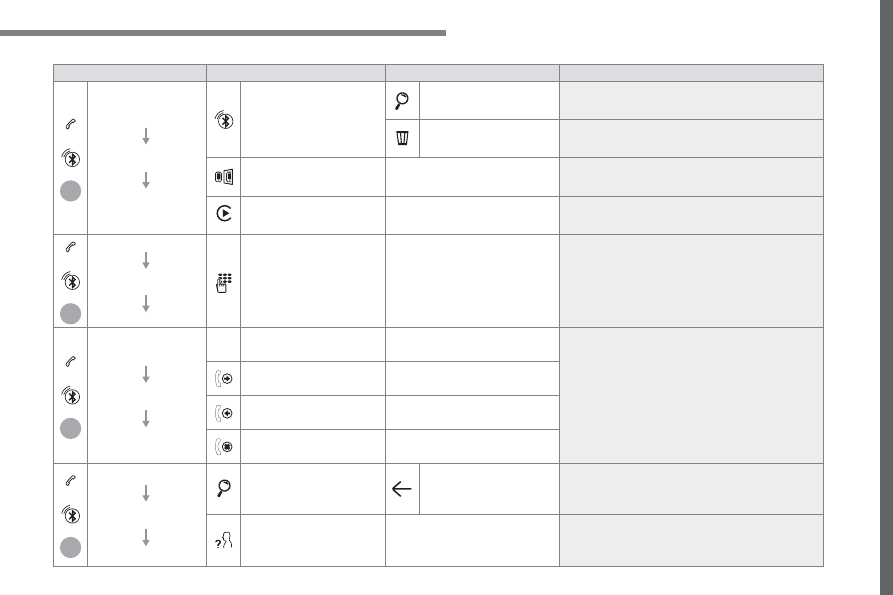
Telephone

Bluetooth  

search

PHONE

Bluetooth connection

Search

Start the search for a device to be connected.

Delete

Delete one or more devices.

MirrorLink

Open the MirrorLink function.

CarPlay

Open the CarPlay function.

Telephone

Bluetooth  

search

Keypad

Enter a telephone number.

Telephone

Bluetooth  

search

Recent calls

All

View the calls according to the presentation 
selected.
Select a contact to make the call.

Outgoing

Missed

Incoming

Telephone

Bluetooth  

search

Contacts

Search

Confirm

Search for a contact in the contacts directory.

Telephone

Go to the details of the contact sheet.

120

5

Audio and Telematics

Transversal-Citroen_en_Chap02_RCC-2-2-0_ed01-2016

Level 1

Level 2

121

.

5

5

5

Audio and Telematics

Transversal-Citroen_en_Chap02_RCC-2-2-0_ed01-2016

Level 1

Level 2

Comments

Telephone

OPTIONS

On hold (auto)

ON - OFF

Activate or deactivate the automatic placing on 
hold of the current conversation.

Telephone

OPTIONS

Sort contacts by name

Sort contacts by 

first name

Sort the contacts by Surname-first name or First 
name-surname.

Telephone

OPTIONS

Ring volume

Adjust the volume of the ringtone.

122

1

Audio and Telematics

Transversal-Citroen_en_Chap02_RCC-2-2-0_ed01-2016

MirrorLink

TM

 smartphone connection

123

.

1

Audio and Telematics

Transversal-Citroen_en_Chap02_RCC-2-2-0_ed01-2016

As a safety measure and because it 
requires the sustained attention of 
the driver, using a smartphone when 
driving is prohibited.
Operation must be with the vehicle 
stationary

.

The synchronisation of a 
smartphone allows applications on a 
smartphone that are adapted to the 
MirrorLink

TM

 technology to be displayed 

in the vehicle's screen.
The principles and standards 
are constantly evolving. For the 
communication process between 
the smartphone and the system to 
work correctly, the smartphone must 
be unlocked; update the operating 
system of your smartphone as 
well as the date and time in the 
smartphone and the system

.

For the list of eligible smartphones, 
connect to the Brand's internet website 
in your country.

The "MirrorLink

TM

" function requires 

a compatible smartphone and 
applications.

There may be a wait for the availability 
of applications, depending on the 
quality of your network.

When connecting a smartphone to the 
system, it is recommended that "Bluetooth"

®


be started on the smartphone

Depending on the smartphone, it may be necessary 
to activate the "MirrorLink

TM

" function.

During the procedure, several screen 
pages relating to certain functions 
are displayed.
Accept to start and end the 
connection.

Connect the USB cable. The 
smartphone charges when 
connected by a USB cable.

Press "MirrorLink

TM

" to start the 

application in the system.

Once connection is established, a page 
is displayed with the applications already 
downloaded to your smartphone and adapted 
to the MirrorLink

TM

 technology.

Access to the different audio sources remains 
accessible in the margin of the MirrorLink

TM


display, using touch buttons in the upper bar.
Access to the menus for the system is possible 
at any time using the dedicated buttons

Telephone not connected by 
Bluetooth

®

Telephone connected by Bluetooth

®

From the system, press "Telephone
to display the primary page.

From the system, press "Telephone
to display the primary page.

As a safety measure, applications 
can only be viewed with the vehicle 
stationary; display is interrupted once 
the vehicle is moving.

Press the "PHONE" button to display 
the secondary page.

Press "MirrorLink

TM

" to start the 

application in the system.

124

Audio and Telematics

Transversal-Citroen_en_Chap02_RCC-2-2-0_ed01-2016

Level 1

Level 2

Level 3

125

.

Audio and Telematics

Transversal-Citroen_en_Chap02_RCC-2-2-0_ed01-2016

Level 1

Level 2

Level 3

Comments

Telephone

MirrorLink

TM

Go to or return to the applications already 
downloaded to your smartphone and adapted to 
the MirrorLink

TM

 technology.

Go to a menu list depending on the application 
chosen.
"Back": abandon the current operation, go up one 
level.
"Home": go to or return to the "Car mode" page on 
your smartphone.

Go to the primary page of the "Telephone" menu.

126

1

Audio and Telematics

Transversal-Citroen_en_Chap02_RCC-2-2-0_ed01-2016

CarPlay

®

 smartphone connection

127

.

1

Audio and Telematics

Transversal-Citroen_en_Chap02_RCC-2-2-0_ed01-2016

As a safety measure and because it 
requires the sustained attention of 
the driver, using a smartphone when 
driving is prohibited.
Operation must be with the vehicle 
stationary

.

The synchronisation of a 
smartphone allows applications on a 
smartphone that are adapted to the 
CarPlay

®

 technology to be displayed 

in the vehicle's screen, having first 
activated the CarPlay

®

 function in the 

smartphone.
As the principles and standards are 
constantly changing, it is recommended 
that you keep your smartphone's 
operating system updated

.

For the list of eligible smartphones, go 
to the Brand's internet website in your 
country.

Connect the USB cable. The 
smartphone charges when 
connected by a USB cable.

Connect the USB cable. The 
smartphone charges when 
connected by a USB cable.

From the system, press Telephone 
to display the Carplay

®

 interface.

Press "CarPlay" to display the 
CarPlay

®

 interface.

On connecting the USB cable, the 
CarPlay

®

 function deactivates the 

system's Bluetooth

®

 mode.

From the system, press Telephone 
to display the primary page.

Press the "PHONE" button to go to 
the secondary page.

Or

If the smartphone is already 
connected by Bluetooth

®

.

You can go to the CarPlay

®


navigation at any time by pressing 
the system's Navigation button.

128

Audio and Telematics

Transversal-Citroen_en_Chap02_RCC-2-2-0_ed01-2016

Pairing a Bluetooth

®

 telephone

As a safety measure and because it 
requires sustained attention by the 
driver, the pairing of a Bluetooth mobile 
telephone with the Bluetooth hands-
free system of your audio system must 
be done with the vehicle stationary 
and the ignition on.

Procedure from the telephone

Select the name of the system in the 
list of devices detected.

In the system, accept the connection request 
from the telephone.

Procedure from the system

Press Telephone to display the 
primary page.

Press "Bluetooth search".
The list of telephones detected is 
displayed.

If the pairing procedure fails, it is recommended 
that you deactivate and then reactivate the 
Bluetooth function in your telephone.

Depending on the type of telephone, 
you may be asked to accept or not 
the transfer of your contacts and 
messages.

Select the name of the chosen 
telephone in the list.

Activate the Bluetooth function on the 
telephone and ensure that it is "visible 
to all" (telephone configuration).

To complete the pairing, whichever 
procedure used (from the telephone or 
from the system), ensure that the code 
is the same in the system and in the 
telephone.

129

.

1

Audio and Telematics

Transversal-Citroen_en_Chap02_RCC-2-2-0_ed01-2016

Press Telephone to display the 
primary page.

Press "Bluetooth connection" to 
display the list of paired devices.

On return to the vehicle, if the last 
telephone connected is present again, 
it is automatically recognised and 
within about 30 seconds of switching 
on the ignition, the connection is 
established without any action on your 
part (Bluetooth activated).

The services available depend on 
the network, the SIM card and the 
compatibility of the Bluetooth devices 
used. Check in your telephone's 
manual and with your service provider 
for the services available to you.

The ability of the system to connect with 
just one profile depends on the telephone.
All three profiles may connect by default.

Go to the Brand's website for more information 
(compatibility, additional help, ...).

To modify the connection profile

:

Automatic reconnection

Press the "details" button of a paired 
device.

Press the "PHONE" button to go to 
the secondary page.

Press "OK" to confirm.

Select one or more profiles.

The profiles compatible with the system 
are HFP, OPP, PBAP, A2DP, AVRCP, 
MAP and PAN.

The system offers to connect the telephone 
with 3 profiles:
- "Telephone" (hands-free kit, telephone 

only),

- "Streaming" (wireless playing of the audio 

files on the telephone),

- "Internet data".

130

1

Audio and Telematics

Transversal-Citroen_en_Chap02_RCC-2-2-0_ed01-2016

Receiving a call

An incoming call is announced by a ring and a 
superimposed display in the screen.

Make a short press on the steering 
mounted PHONE button to accept an 
incoming call.

Make a long press

on the steering mounted PHONE 
button to reject the call.

Or

And

Press "End call".

Press on the name of the telephone 
chosen in the list to disconnect it.
Press again to connect it.

Press the basket at the top right 
of the screen to display a basket 
alongside the telephone chosen.
Press the basket alongside the 
telephone chosen to delete it.

Managing paired telephones

This function allows the connection or 
disconnection of a peripheral device as 
well as the deletion of a pairing.

Press Telephone to display the 
primary page.

Press the "PHONE" button to go to 
the secondary page.

Press "Bluetooth connection" to 
display the list of paired peripheral 
devices.

Deleting a telephone

Using the telephone is not 
recommended while driving.
Park the vehicle.
Make the call using the steering 
mounted controls.

Making a call

Calling a new number

Press Telephone to display the 
primary page.

Enter the phone number using the 
digital keypad.

Press "Call" to start the call.

131

.

4

3

5

Audio and Telematics

Transversal-Citroen_en_Chap02_RCC-2-2-0_ed01-2016

on the steering mounted button.

Calling a contact

Setting the ringtone

Press Telephone to display the 
primary page.

Or make a long press

on the steering mounted PHONE 
button.

Press "Contacts".

Select the desired contact from the list offered.

Press "Call".

Calling a recently used number

Press Telephone to display the 
primary page.

Make a long press

Press "Recent calls".

Select the desired contact from the list offered.

It is always possible to make a call 
directly from the telephone; as a safety 
measure, first park the vehicle.

Or

Press Telephone to display the 
primary page.

Press "Ring volume" to display the 
volume bar.

Press the arrows or move the cursor 
to set the ring volume.

Press the "OPTIONS" button to go to 
the secondary page.

132

3

4

1

2

Audio and Telematics

Transversal-Citroen_en_Chap02_RCC-2-2-0_ed01-2016

Settings

According to version / according to equipment

Level 1

Level 2

Level 3

133

.

1

2

3

4

Audio and Telematics

Transversal-Citroen_en_Chap02_RCC-2-2-0_ed01-2016

Level 1

Level 2

Level 3

Comments

Settings

Brightness

Ambience

Move the cursor to adjust the brightness of the 
screen and/or of the instrument panel.

Settings

Profiles

Profile 1

Select a profile.

Profile 2

Profile 3

Common profile

Name:

Profile name 
modification

Configure the profiles.

Reset the profile

Yes / No

Profile activated

Activate/deactivate the profile selected.

Save the settings.

Settings

Dark

Function which switches off the lit display.
Pressing the screen reactivates it.

134

Audio and Telematics

Transversal-Citroen_en_Chap02_RCC-2-2-0_ed01-2016

According to equipment

Level 1

Level 2


Content   ..  33  34  35  36   ..