Citroen C5 (2017 year). Manual - part 20
 

  Index      Citroen     Citroen C5 - service manual 2017 year in english


Search            


Content   ..  18  19  20  21   ..


Citroen C5 (2017 year). Manual - part 20


.

Audio and Telematics

303

C5_en_Chap10b_SMEGplus_ed01-2016

The services available depend 
on the network, the SIM card and 
the compatibility of the Bluetooth

®


telephone used. Check the telephone 
manual and with your network provider 
for details of the services available to 
you.

The ability of the system to connect 
with only one profile depends on the 
telephone. The three profiles may all 
connect by default.

Visit www.citroen.co.uk for more information 
(compatibility, additional help, ...).

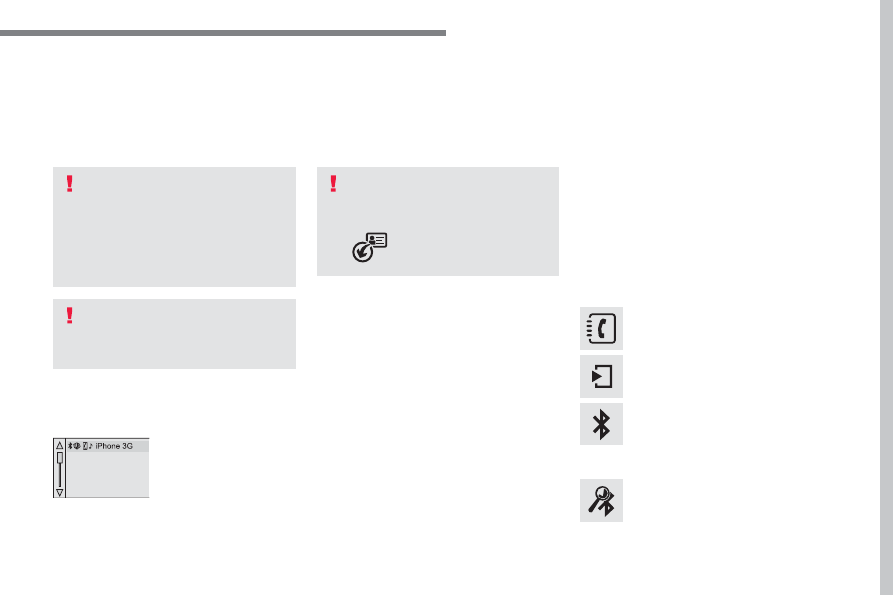
The recognised telephone 
appears in the list.

Depending on your telephone, you may be 
asked to accept automatic connection every 
time the ignition is switched on.

On return to the vehicle, if the last telephone 
connected is present again, it is reconnected 
automatically and within around 30 seconds 
after switching on the ignition the pairing is 
done without any action on your part, with 
(Bluetooth

®

 activated).

To modify the automatic connection mode, 
select the telephone in the list then select the 
desired profile.

Depending on the type of telephone, 
the system will ask you to accept or not 
the transfer of your contacts.

If not, select "Update

".

Connecting a Bluetooth

®


peripheral device

Automatic reconnection

On switching on the ignition, the telephone 
connected when the ignition was last switched 
off is automatically reconnected, if this 
connection mode had been activated during the 
pairing procedure.
The connection is confirmed by the display of a 
message and the name of the telephone.

Manual connection

Press on Telephone to display the 
primary page.

Press on the secondary page.

Select "Bluetooth" to display the list 
of paired peripherals.

Select the peripheral to connect.

Press on "Search for devices

".

The connection is confirmed by the display of a 
message and the name of the telephone.

Audio and Telematics

304

C5_en_Chap10b_SMEGplus_ed01-2016

Managing paired 
telephones

This function allows the connection or 
disconnection of a peripheral device as 
well as the deletion of a pairing.

Using the telephone is not 
recommended while driving.
Park the vehicle.
Make the call using the steering 
mounted controls.

Press on Telephone to display the 
primary page.

Press on the secondary page.

Select "Bluetooth" to display the list 
of paired peripheral devices.

Select the peripheral in the list.

Select "Search for devices"

Or

"Connect / Disconnect" to start or 
end the Bluetooth connection with 
the selected device.

Or

"Delete

" to delete the pairing.

Receiving a call

An incoming call is announced by a ring and a 
superimposed display in the screen.

Make a short press on the steering 
mounted TEL button to accept an 
incoming call.

Make a long press

on the steering mounted TEL button 
to reject the call.

Or

Select "End call

".

Making a call

Calling a new number

Press on Telephone to display the 
primary page.

Enter the phone number using the 
digital keypad.
Press "Call

" to start the call.

Calling a contact

Press on Telephone to display the 
primary page.

Or make a long press

on the steering mounted TEL button.

.

Audio and Telematics

305

C5_en_Chap10b_SMEGplus_ed01-2016

Select "Contacts

".

Select the desired contact from the list offered.

Select "Call

".

Calling a recently used number

Press on Telephone to display the 
primary page.

Select "Call log

".

Select the desired contact from the list offered.

It is always possible to make a call 
directly from the telephone; park the 
vehicle first as a safety measure.

Managing contacts / entries

Press on Telephone to display the 
primary page.

Select "Contacts

".

Select "View

".

Select "Create" to add a new contact, 
observing the "international format".

Or

"Modify

" to edit the selected contact.

Or

"Delete" to delete the selected 
contact.

Or

"Delete all

" to delete all information 

for the selected contact.

Select "By name" to view the list of 
contacts.

Audio and Telematics

306

C5_en_Chap10b_SMEGplus_ed01-2016

The table below gives answers to the most frequently asked questions on your audio system.

QUESTION

ANSWER

SOLUTION

The route calculation is not 
successful.

The navigation settings may conflict with the current location 
(exclusion of toll roads on a toll motorway).

Check the settings in the "Navigation" menu.

The POIs do not appear.

The POIs have not been selected.

Select the POIs in the list of POIs.

The Hazard zone audible 
warning does not work.

The audible warning is not active.

Activate audible warnings in the "Navigation" 
menu.

The system does not 
suggest a detour around an 
incident on the route.

The guidance criteria do not take account of TMC messages.

Select the "Traffic info" function in the list of 
guidance criteria.

I receive a Accident-prone 
area alert which is not on 
my route.

Other than guidance, the system announces all Hazard zone 
positioned in a cone located in front of the vehicle. It may provide an 
alert for a Hazard zone located on nearby or parallel roads.

Zoom in on the map to view the exact position of 
the Accident-prone area. Select "On the route" to 
no longer receive alerts other than guidance or to 
reduce the time for the announcement.

Frequently asked questions

Navigation

.

Audio and Telematics

307

C5_en_Chap10b_SMEGplus_ed01-2016

QUESTION

ANSWER

SOLUTION

Certain traffic jams along 
the route are not indicated 
in real time.

On starting, it is several minutes before the system begins to receive 
the traffic information.

Wait until the traffic information is being received 
correctly (display of the traffic information icons 
on the map).

The filters are too restrictive.

Modify the "Geographic filter" settings.

In certain countries, only major routes (motorways...) are listed for 
the traffic information.

This phenomenon is normal. The system is 
dependent on the traffic information available.

The altitude is not 
displayed.

On starting, the initialisation of the GPS may take up to 3 minutes to 
receive more than 4 satellites correctly.

Wait until the system has completed starting 
up, so that there is GPS coverage of at least 
4 satellites.

Depending on the geographical environment (tunnel...) or the 
weather, the conditions of reception of the GPS signal may vary.

This phenomenon is normal. The system 
is dependent on the GPS signal reception 
conditions.

Audio and Telematics

308

C5_en_Chap10b_SMEGplus_ed01-2016

Radio

QUESTION

ANSWER

SOLUTION

The quality of reception of 
the radio station listened 
to gradually deteriorates 
or the stored stations do 
not function (no sound, 
87.5 Mhz is displayed...).

The vehicle is too far from the transmitter used by the station 
listened to or there is no transmitter in the geographical area 
through which the vehicle is travelling.

Activate the "RDS" function by means of the 
short-cut menu to enable the system to check 
whether there is a more powerful transmitter in 
the geographical area.

The environment (hills, buildings, tunnels, basement car parks...) 
block reception, including in RDS mode.

This phenomenon is normal and does not indicate 
a fault with the audio system.

The aerial is absent or has been damaged (for example when going 
through a car wash or into an underground car park).

Have the aerial checked by a CITROËN dealer.

I cannot find some radio 
stations in the list of 
stations received.

The station is not received or its name has changed in the list.

Press and hold the "List" button at the steering 
mounted controls to update the list of stations 
received or press the "Update list" function in the 
system.

Some radio stations send other information in place of their name 
(the title of the song for example).
The system interprets this information as the name of the station.

The name of the radio 
station changes.

.

Audio and Telematics

309

C5_en_Chap10b_SMEGplus_ed01-2016

Media

QUESTION

ANSWER

SOLUTION

Playback of my USB 
memory stick starts only 
after a very long wait 
(around 2 to 3 minutes).

Some files supplied with the memory stick may greatly slow down 
access to reading the memory stick (multiplication by 10 of the 
catalogue time).

Delete the files supplied with the memory stick 
and limit the number of sub-folders in the file 
structure on the memory stick.

When I connect my iPhone 
as telephone and to the 
USB port at the same time, 
I am unable to play the 
music files.

When the iPhone connects automatically as a telephone, it forces 
the streaming function. The streaming function takes the place of 
the USB function which is then not useable, there is a period without 
sound of the track being played with Apple

®

 players.

Disconnect and reconnect to the USB port 
(the USB function takes priority over streaming).

Some characters in the 
media information are not 
displayed correctly while 
playing.

The audio system does not display some types of characters.

Use standard characters to name tracks and 
folders.

Playing of streaming files 
does not start.

The peripheral device connected does not support automatic play.

Start the playback from the device.

The names of tracks and 
the track length are not 
displayed on the screen 
when streaming audio.

The Bluetooth

®

 profile does not allow the transfer of this information.

Audio and Telematics

310

C5_en_Chap10b_SMEGplus_ed01-2016

QUESTION

ANSWER

SOLUTION

In changing the setting 
of treble and bass the 
equalizer setting is 
deselected.

The selection of an equalizer setting imposes the balance settings.
Modifying one without the other is not possible.

Modify the balance or equalizer settings to obtain 
the desired musical ambience.

In changing the equalizer 
setting, treble and bass 
return to zero.

When changing the 
balance settings, the 
distribution setting is 
deselected.

The selection of a distribution setting imposes the balance settings.
Modifying one without the other is not possible.

Modify the balance or distribution settings to 
obtain the desired musical ambience.

When changing a sound 
distribution setting, 
the balance setting is 
deselected.

Settings

.

Audio and Telematics

311

C5_en_Chap10b_SMEGplus_ed01-2016

QUESTION

ANSWER

SOLUTION

There is a difference in 
sound quality between the 
different audio sources.

For optimum sound quality, the audio settings for Volume, Bass, 
Treble, Equalizer and Loudness can be adapted to the different 
sound sources, which may result in audible differences when 
changing source.

Check that the audio settings for (Volume, Bass, 
Treble, Equalizer, Loudness) are adapted to the 
sources listened to. It is advisable to set the 
audio functions (Bass, Treble, Fr-Re balance, 
Le-Ri balance) to the middle position, select the 
"Linear", musical ambience and set the loudness 
correction to the "Inactive" position in radio mode.

With the engine off, the 
system switches off after a 
few minutes of use.

When the engine is switched off, the system's operating time 
depends on the state of charge of the battery.
The switch-off is normal: the system switches to economy mode and 
switches off to prevent discharging of the vehicle's battery.

Start the vehicle's engine to increase the battery 
charge.

Audio and Telematics

312

C5_en_Chap10b_SMEGplus_ed01-2016

QUESTION

ANSWER

SOLUTION

I cannot connect my 
Bluetooth

®

 telephone.

The telephone's Bluetooth

®

 function may be switched off or the 

telephone may not be visible.

-  Check that your telephone's Bluetooth

®


function is switched on.

-  Check in the telephone settings that it is 

"visible to all".

The Bluetooth

®

 telephone is not compatible with the system.

You can check the compatibility of your telephone 
at www.citroen.co.uk (services).

The volume of the 
telephone connected 
in Bluetooth

®

 mode is 

inaudible.

The volume depends both on the system and on the telephone.

Increase the volume of the audio system, to 
maximum if required, and increase the volume of 
the telephone if necessary.

The ambient noise level has an influence on the quality of telephone 
communication.

Reduce the ambient noise level (close the 
windows, reduce the booster fan speed, slow 
down, ...).

Some contacts are 
duplicated in the list.

The options for synchronizing contacts are synchronizing the 
contacts on the SIM card, the contacts on the telephone, or both. 
When both synchronizations are selected, some contacts may be 
duplicated.

Select "Display SIM card contacts" or "Display 
telephone contacts".

Contacts are not shown in 
alphabetical order.

Some telephones offer display options. Depending on the settings 
chosen, contacts can be transferred in a specific order.

Modify the display setting in the telephone 
directory.

The system does not receive 
SMS text messages.

The Bluetooth

®

 mode does not permit sending SMS text messages 

to the system.

Telephone

.

Audio and Telematics

313

C5_en_Chap10b_SMEGplus_ed01-2016

.

Audio and Telematics

315

C5_en_Chap10c_RD45_ed01-2016

Audio system

Audio system / Bluetooth

®

Contents

First steps 

316

Steering mounted controls 

317

Menus 

318

Radio 

318

Media 

320

Telephone 

324

Screen menu map(s) 

326

Frequently asked questions 

329

Your Audio system is coded in such a way that it will only operate 
in your vehicle.

As a safety measure, the driver must only carry out operations 
which require prolonged attention while the vehicle is stationary.
When the engine is switched off and to prevent discharging of the 
battery, the audio equipment may switch off after a few minutes.

Audio and Telematics

316

C5_en_Chap10c_RD45_ed01-2016

First steps

* Available according to version.

On / Off, volume setting.

Select source:
Radio; USB; AUX; CD; Streaming.

Display the list of local stations.
Long press: CD tracks or MP3 folders 
(CD / USB).

Select the screen display mode:
Date, audio functions, trip computer, 
telephone.

Audio settings:
Front/rear fader, left/right balance, 
bass/treble, loudness, audio 
ambiences.

The DARK button changes the 
screen display for improved driving 
comfort at night.
1

st

 press: upper bar only illuminated.

2

nd

 press: black screen.

3

rd

 press: return to standard display.

Select next frequency down/up.
Select previous/next MP3 folder.
Select previous/next folder / genre / 
artist / playlist (USB).

Abandon the current operation.

Confirm.

Buttons 1 to 6
Select a pre-set radio station.
Long press: pre-set a station.

Automatic frequency search down/
up.
Select previous/next CD, MP3 or 
USB track.

Eject CD.

Display main menu.

TA (Traffic Announcements) on/off.
Long press: PTY* (radio Programme 
TYpe).

Select AM / FM wavebands.

.

Audio and Telematics

317

C5_en_Chap10c_RD45_ed01-2016

Steering mounted controls

Activate/deactivate "Black Panel" - 
black screen mode (night driving).

Telephone: make a call.
Call in progress: access to the 
telephone menu (display the calls 
log).
Telephone, press and hold: reject an 
incoming call.

Radio, rotate: select the previous / 
next preset station.
Media, rotate: select the genre /  
artist / folder in the classification list.
Press: Access to short-cut menus 
depending on the display in the 
screen, confirm a selection.

Abandon the current operation.
Go up one level (menu or folder).

Access to the main menu.

Increase volume.

Decrease volume.

Mute.

Radio: automatic search for a higher 
frequency.
Media: select the next track.
Media, press and hold: fast forward.

Radio: automatic search for a lower 
frequency.
Media: select the previous track.
Media, press and hold: rewind.

Radio: display the list of stations.
Media: display the list of tracks.
Radio, press and hold: update the list 
of stations received.

Audio and Telematics

318

C5_en_Chap10c_RD45_ed01-2016

Menus

Screen C

Audio functions
Radio; CD; USB; AUX.

Trip computer
Enter distances; Alerts; State of 
functions.

Bluetooth

®

: Telephone - Audio

Pairing; Hands-free kit; Streaming.

Personalisation-configuration
Vehicle parameters; Display; 
Languages.

For an overview of the menus available, 
refer to the "Screen menu map" 
section.

Radio

Selecting a station

Press the SOURCE button several 
times in succession and select the 
radio.

Press the BAND AST button to 
select a waveband.

Briefly press one of the buttons to 
carry out an automatic search of the 
radio stations.

Press one of the buttons to carry out 
a manual search up / down for radio 
frequencies.

Press the LIST REFRESH button to 
display the list of stations received 
locally (30 stations maximum).
To update this list, press for more 
than two seconds.


Content   ..  18  19  20  21   ..