Citroen C4 Picasso (2017 year). Manual - part 25
 

  Index      Citroen     Citroen C4 Picasso - service manual 2017 year in english


Search            


Content   ..  23  24  25  26   ..


Citroen C4 Picasso (2017 year). Manual - part 25


32

12:13

18,5

21,5

23 °C

12:13

18,5

21,5

23 °C

12:13

18,5

21,5

23 °C

1

12:13

18,5

21,5

23 °C

12:13

18,5

21,5

23 °C

7

27 28

26

29 30

 Audio and Telematics 

Level 1

Level 2

Level 3

33

.

7

28

27

26

29
30

 Audio and Telematics 

Level 1

Level 2

Level 3

Comments

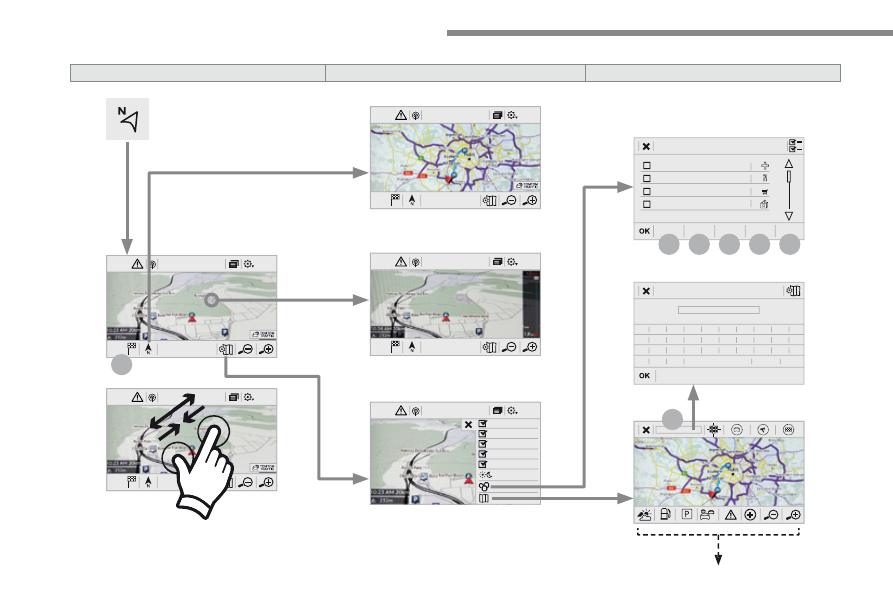
Navigation

 Select the orientation of the map; north up, 
vehicle direction up or perspective. 

Navigation

TOMTOM TRAFFIC

 On connection of the system to a network, 
"TOMTOM TRAFFIC" is displayed instead of 
"TMC", for use of all of the options available, in 
real time. 

Navigation

Weather

 Select the options. 
 The map display the route chosen, depending on 
options. 

Stations
Car park
Traffic
Danger area
Map color

 Select the display mode for the map. 

POI on map

 Commercial 

 Select the POIs available. 

 Geographic 

 Leisure 

 Public 

 Travel 

 Save the options. 

View map

 Modify  city 

 Select or change a city. 

 Zoom out / zoom in using the touch buttons or 
with two fingers on the screen. 

34

31

32

 Audio and Telematics 

Level 3

Level 4

Level 5

35

.

31
32

 Audio and Telematics 

Level 4

Level 5

Comments

 Select  city 

 Select or change a city. 

 Around the vehicle 

 Select or change a city. 

 On the route 

 At the destination 

 Weather 

Weather information

 Display the weather forecast for the day or the 
following days. 

 Filling stations 

 Filling stations around the vehicle 

 Display the list of filling stations and the 
associated information (address, prices, fuels, ...). 

 Filling stations on the route 

 Filling stations at the destination 

By distance

By price

 Car park 

 Car parks around the vehicle 

 Display the list of car parks and the associated 
information (address, distance, spaces available, 
price, ...). 

 Car parks on the route 

 Car parks at the destination 

Sort by distance

Sort by spaces

Sort by price

 Zoom out / zoom in using the touch buttons or 
with two fingers on the screen. 

36

 Audio and Telematics 

Level 3

Level 4

Level 5

37

.

 Audio and Telematics 

Level 3

Level 4

Level 5

Comments

 Traffic 

 Traffic  observed 

 Display traffic information in real time: type, 
description and duration (in minutes). 

 Danger areas 

 List of danger areas 

 Display danger areas (roadworks, breakdowns, 
accidents, ...) in real time. 

 Points of interest 

 Points  of 
interest 

 Select  POI 

 Display the list of POIs for the location selected. 

38

22

23

1

 Audio and Telematics 

  Settings  specific  to 

connected navigation 

  For access to connected navigation, 
you have to select the option: 

Authorise sending information ".  

  Select  " 

Options ".  

  Select  " 

Alerts ".  

    -  

Allow declaration of danger 

areas " 

  -  

Guidance to final destination 

on foot " 

  -  

Authorise sending 

information "   

  Activate  or  deactivate:  

  Activate or deactivate " 

Warn of 

danger zones ".  

  The display of danger zones is 
conditioned by the legislation in force 
and subscription to the service.   

  The temperature displayed at 6 o'clock in the 
morning will be the maximum temperature for the 
day. 
 The temperature displayed at 6 o'clock in the evening 
will be the minimum temperature for the night.   

  Select  " 

Settings ".  

  Press   

Navigation  to display the 

primary page.  

  Press  the  " 

MENU " button to go to the 

secondary page.  

  Display  the  weather 

  Select  " 

Weather ".  

  Press this button to display the first 
level of information.  

  Press this button to display the 
detailed weather information.  

  Select  " 

View map ".  

  Press   

Navigation  to display the 

primary page.  

  Press this button to display the list of 
services.  

39

.

1

 Audio and Telematics 

  To distribute information on the 
declaration of danger zones, you 
should check the option: " 

Allow 

declaration of danger areas ".  

  Declaration  of  "Danger 

areas" 

  Press   

Navigation  to display the 

primary page.  

  Press  the  " 

Declare a new danger 

area " button located in the upper bar 

of the touch screen.  

  Select the option " 

Type " to choose 

the type of "Danger area".  

  Select  the  " 

Speed " option and enter 

it using the virtual keypad.  

  Press  " 

OK " to save and distribute the 

information.   

  You can download the system and map 
updates from the Brand's website. 
 The update procedure can also be 
found on the website.   

  "Danger  areas"  pack 

updates 

  Press   

Settings  to display the primary 

page.  

  Press  the  " 

OPTIONS " button to go to 

the secondary page.  

  Select  " 

System settings ".  

  Select  " 

View " to view the version of 

the various modules installed in the 
system.  

  Select  " 

Update(s) due ".  

  Select  the  " 

System info "  tab.  

40

12:13

18,5

21,5

23 °C

3

2

1

12:13

18,5

21,5

23 °C

 Audio and Telematics 

 Applications 

           According to version / according to equipment  

Level 1

Level 2

Level 3

41

.

2

2

3

 Audio and Telematics 

      Internet  Browser 

  Connectivity 

  Applications 

  Press  " 

Internet Browser " to display 

the browser home page.  

  Select your country of residence.  

  Press  " 

Connectivity " to go to the 

CarPlay

®

  or  

®

®

MirrorLink

TM

   function.   

  Press  " 

Connectivity " to go to the 

Internet Browser "  function.  

  Press  " 

Applications " to display the 

applications home page.   

  Connection to the internet is via one of 
the network connections provided by 
the vehicle or the user.   

  Press   

Applications  to display the 

primary page.  

  Press   

Applications  to display the 

primary page.  

  Press   

Applications  to display the 

primary page.  

  Press  " 

OK " to save and start the 

browser.  

42

12:13

18,5

21,5

23 °C

2

 Audio and Telematics 

      CarPlay 

®

      CarPlay 

      CarPlay    smartphone connection 

®

®

43

.

2

 Audio and Telematics 

  As a safety measure and because it 
requires the sustained attention of 
the driver, using a smartphone when 
driving is prohibited. 
 Operation must be with the  

vehicle 

stationary .  

stationary

stationary

  The synchronisation of a smartphone 
allows applications on a smartphone that 
are adapted to the CarPlay 

®

  technology 

®

®

to be displayed in the vehicle's screen, 
having first activated the CarPlay 

®


function in the smartphone. 
 As the principles and standards are 
constantly changing,  

it is recommended 

that you keep your smartphone's 

operating system updated . 

 For the list of eligible smartphones, go 
to the Brand's internet website in your 
country.  

  Connect a USB cable. The 
smartphone charges when 
connected by a USB cable.  

  Connect a USB cable. The 
smartphone charges when connecte 
d by a USB cable.  

  Press  " 

Telephone " to display the 

CarPlay 

®

   interface.  

®

®

  Press  " 

CarPlay " to display the 

CarPlay 

®

   interface  

®

®

  On connecting the USB cable, the 
CarPlay 

®

  function deactivates the 

®

®

system's Bluetooth 

®

   mode.   

®

®

  In the system, press " 

Applications " 

to display the primary page.  

  Or  

  Press  " 

Connectivity " to go to the 

CarPlay 

®

   function.  

®

®

44

12:13

18,5

21,5

23 °C

2

 Audio and Telematics 

      MirrorLink  

TM

    smartphone  connection   

45

.

 Audio and Telematics 

  As a safety measure and because it 
requires the sustained attention of 
the driver, using a smartphone when 
driving is prohibited. 
 Operation must be with the  

vehicle 

stationary .  

stationary

stationary

  The synchronisation of a 
smartphone allows applications on a 
smartphone that are adapted to the 
MirrorLink 

TM

  technology to be displayed 

in the vehicle's screen. 
 The principles and standards 
are constantly evolving. For the 
communication process between 
the smartphone and the system to 
work correctly, the smartphone must 
be unlocked; 

update the operating 

system of your smartphone as 

well as the date and time in the 

smartphone and the system

 For the list of eligible smartphones, 
connect to the Brand's internet website 
in your country.  

  The  " 

MirrorLink

TM

 " function requires 

the use of a compatible smartphone 
and  applications.  

  There may be a wait for the availability 
of applications, depending on the 
quality of your network.   

  When connecting a smartphone to 
the system, it is recommended that 
Bluetooth 

®

  be started on the smartphone  

®

®

  Depending on the smartphone, it may be 
necessary to activate the " 

MirrorLink

TM

 " 

function.  

  During the procedure, several screen 
pages relating to certain functions 
are displayed. 
 Accept to start and end the 
connection.  

  Connect a USB cable. The 
smartphone charges when 
connected by a USB cable.  

  Press  " 

MirrorLink

TM

 " to start the 

system's  application.  

  Once connection is established, a page 
is displayed with the applications already 
downloaded to your smartphone and adapted 
to MirrorLink 

TM

  technology.  

  Access to the different audio sources remains 
accessible in the margin of the MirrorLink 

TM

display, using touch buttons in the upper bar. 
 Access to the menus for the system is possible 
at any time using the dedicated buttons  

  From the system, press on 

Applications " to display the primary 

page.  

  As a safety measure, applications 
can only be viewed with the vehicle 
stationary; display is interrupted once 
the vehicle is moving.  

  Press  " 

Connectivity " to go to the 

MirrorLink 

TM

   function.  

46

12:13

18,5

21,5

23 °C

 Audio and Telematics 

Level 1

Level 2

Level 3

47

.

 Audio and Telematics 

Level 1

Level 2

Level 3

Comments

Applications

MirrorLink

TM

 Go to or return to the applications already 
downloaded to your smartphone and adapted to 
MirrorLink 

TM

  technology. 

 Go to a menu list depending on the application 
chosen. 
 "Back": abandon the current operation, go up one 
level. 
 "Home": go to or return to the "Car mode" page on 
your smartphone. 

 Go to the primary page of the "Applications" 
menu. 


Content   ..  23  24  25  26   ..