Dodge Charger SRT (2019 year). Instruction - part 27
 

  Index      Dodge     Dodge Charger SRT (2019 year) - instruction in english


Search            copyright infringement  


Content      ..     25      26      27      28     ..


Dodge Charger SRT (2019 year). Instruction - part 27


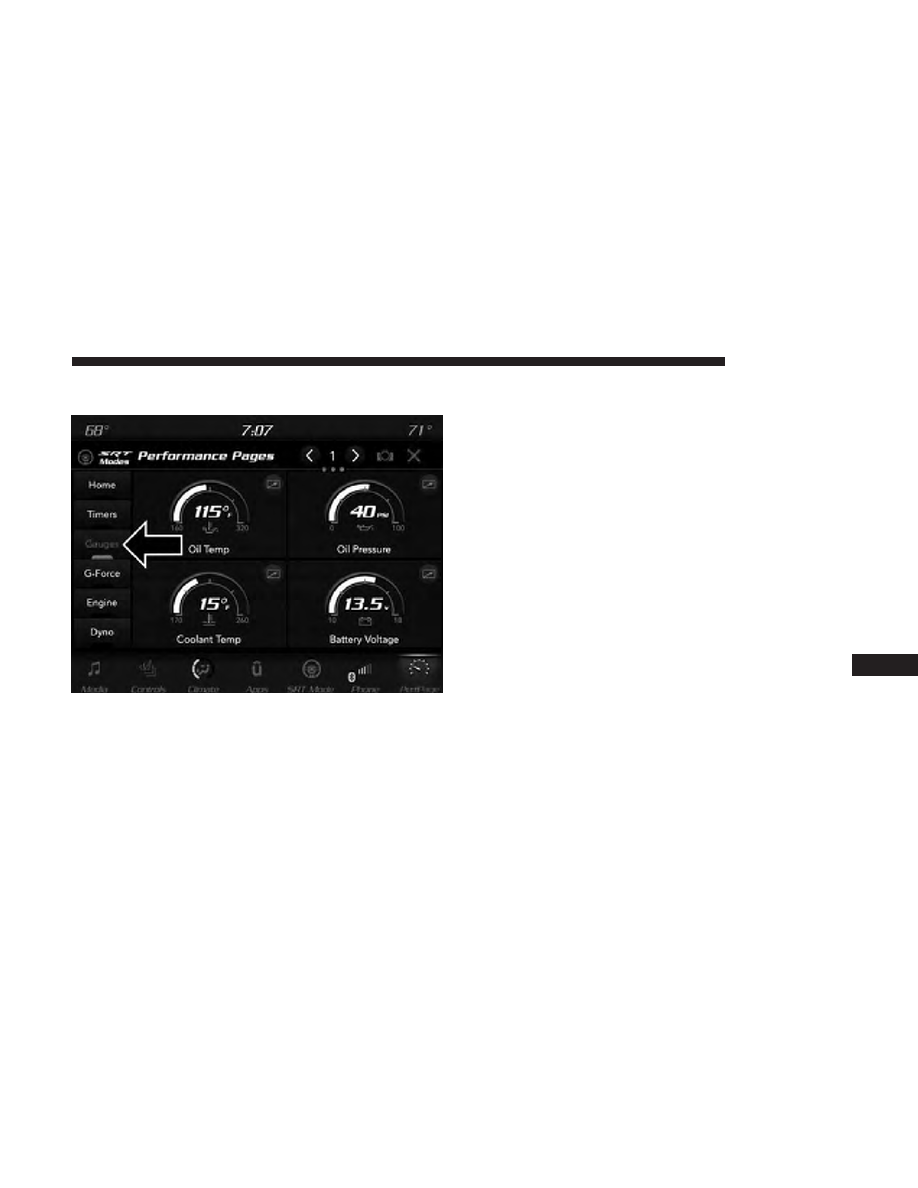
Gauges

When selected, this screen displays the following values:
• Oil Temperature

Shows the actual oil temperature.
• Oil Pressure

Shows the actual oil pressure.

• Coolant Temperature

Shows the actual coolant temperature.
• Battery Voltage

Shows the actual battery voltage
• Trans Oil Temp — If Equipped with an Automatic
Transmission

Shows the actual transmission oil temperature.
• Boost Pressure — If Equipped

Shows actual boost pressure.
• Air Fuel Ratio — If Equipped

Shows current air fuel ratio
• I/C Coolant Temp — If Equipped

Shows actual I/C Coolant temperature.
• Intake Air Temperature

Shows the actual intake air temperature.

If a gauge is selected, the Gauge Detail View page will
appear on the screen. This page shows further information
on the selected gauge.

Performance Pages — Gauges

10

MULTIMEDIA

429

Press the left and right arrows will cycle through the details
for each of the gauges. Pressing the minimize button above
the graph will return to the gauge menu.

G-Force

When selected, this screen displays all four G-Force values
as well as steering angle.

Gauge Detail View Page

G-Force

430

MULTIMEDIA

When G-Force is selected, the following features will be
available:
• Vehicle Speed:

Measures the current speed of the vehicle in either mph
or km/h, starting at zero with no maximum value.
• Front G-Force:

Measures the deceleration force present on the driver
during a braking maneuver.
• Right G-Force:

Measures the force pulling toward the right during a left
turn maneuver.
• Left G-Forces:

Measures the force pulling toward the left during a right
turn maneuver.
• Rear G-Forces:

Measures the acceleration force present on the driver.

NOTE:

Front, Right, Left, and Rear G-Froces are all peak

values. These readings can be reset by clearing peak
G-Force on the instrument cluster

• Steering Wheel Angle:

Steering Wheel Angle utilizes the steering angle sensor to
measure the degree of the steering wheel relative to zero.
The zero degree measurement indicates a steering wheel
straight ahead position. When the steering angle value is
negative, this indicates a turn to the left, and when the
steering angle value is positive, a turn to the right.

The friction circle display shows instantaneous G-Force as
a highlight and previous G-Force as dots within the circle.
The system records previous G-Force for three minutes. If
there are multiple samples at a given point, the color of the
dot will darken from blue to red. Vectors more frequent
will show in red; infrequent vectors will show in blue.

10

MULTIMEDIA

431

Engine

When selected, this screen displays the following values:
• Vehicle Speed

Shows the actual vehicle speed.

• Engine Power

Shows the instantaneous power.
• Engine Torque

Shows the instantaneous torque.
• Gear (Automatic Transmission Only)

Shows the current (or pending) operating gear of the
vehicle.
• Boost Pressure — If Equipped

Shows the actual boost pressure.

Engine

432

MULTIMEDIA

Dynamometer (Dyno)

The system will start drawing graphs for Power and
Torque. The graph will fill to the right side of the page
(based on History time selected). Once the right side of the
page is reached, the graph will scroll with the right side
always being the most recent recorded sample.

The following options can be selected:
• Pressing the STOP button will freeze the graph. Selecting

Play will clear the graph and restart the process over

• Press the “+” or “–” buttons to change the history of the

graph. The selectable options are 30, 60, 90, 120 seconds.
The graph will expand or constrict depending on the
setting selected.

• Select the “Gear” display setting to turn the graph gear

markers on and off.

NOTE:

The Gear on/off feature will only display if your

vehicle is equipped with an Automatic Transmission.

Dyno Page

10

MULTIMEDIA

433

SRT DRIVE MODES

Key Fob 6.2L Supercharged Engine — If Equipped

NOTE:

Your vehicle’s Horsepower may vary based upon

trim levels and calibration, as indicated on the radio screen
by “XXX.” Refer to the chart below for your vehicle’s
specifications:

Vehicle

Horsepower

Charger 6.2L

707

Challenger 6.2L

717

Challenger 6.2L High Output

797

Red Key Fob

434

MULTIMEDIA

If your vehicle is equipped with the 6.2L supercharged engine,
it will support an additional engine power level configuration
as part of SRT Drive Modes. Use of the red key fob unlocks the
full potential of the engine’s output, and allows the driver to
select from two power levels within SRT Mode Set-Up.

Use of the black key fob limits the driver to a reduced engine
output. This information is also available within the SRT Drive
Modes interface, and can be accessed by pressing the “KEY
FOB” button on the touchscreen in the SRT Drive Modes menu.

Drive Modes

Your SRT vehicle is equipped with a Drive Modes feature
which allows for coordinating the operation of various
vehicle systems depending upon the type of driving be-
havior desired. The Drive Modes feature is controlled

Black Key Fob

Drive Modes

10

MULTIMEDIA

435

through the Uconnect system and may be accessed by
performing any of the following:
• Pushing the SRT button on the instrument panel switch

bank.

• Selecting “SRT Modes” from the “Apps” menu.
• Selecting “Drive Modes” from within the Performance

Pages menu.

NOTE:

Not all options listed in this instruction are available

on every vehicle. Refer to the chart below for all available
Drive Mode vehicle configurations.

Engine/

Transmis-

sion

Red Key/

700+ to 717/

797 HP

Black Key/

500 HP

Transmis-

sion

Paddle

Shifters

Suspension

Steering –

If

Equipped

Traction

6.2L MTX

X

X

N/A

N/A

X

X

X

6.2L ATX

X

X

X

X

X

If Equipped

X

The SRT Drive Modes main screen displays the current
drive mode and real-time status of the vehicle’s perfor-
mance configuration. The selectable Drive Modes buttons
are Track, Sport, Custom, or Auto and will be highlighted
when displaying the current configuration. Information
shown below each drive mode button will indicate the
actual status of each system, along with a graphic that
displays the status of the vehicle’s components. The color
red indicates “Track,” orange “Sport,” and yellow “Street.”

If the system status shown does not match the current
drive mode set up, a message will be displayed indicating
which values are not matching the current mode and why.

NOTE:

ESC Full-Off can be activated across all of the Drive

Mode features by pushing and holding the ESC Off button
on the instrument panel switch bank for five seconds.

436

MULTIMEDIA

Listed below are the available Drive Modes:

Track Mode

Pressing the “Track” button on the touchscreen will acti-
vate the configuration for typical track driving. The Trans-
mission, Traction, Steering, and Suspension systems are all
set to their “Track” settings highlighted in red. The Paddle
Shifters are enabled.

Sport Mode

Pressing the “Sport” button on the touchscreen will acti-
vate the configuration for typical enthusiast driving. The
Traction, Transmission, Steering, and Suspension systems
are all set to their “Sport” settings highlighted in orange.
The Paddle Shifters are enabled.

Drive Modes (Track)

Drive Modes (Sport)

10

MULTIMEDIA

437

Auto Mode

This mode is for typical driving conditions where the
Traction and Transmission will be operating in their Street
settings, which cannot be changed while in this mode. The
Steering and Suspension can be configured in either the
“Street,” “Sport,” or “Track” modes and the Paddle Shifters
may be enabled or disabled while in this mode.

NOTE:

If Valet Mode is active, the vehicle will start in Valet

Mode, not Auto Mode.

Custom Mode

Auto Mode

Custom Mode

438

MULTIMEDIA

If your vehicle is equipped with a 6.4L engine, the Custom
Mode may be selected quickly by pushing the SRT button
on the instrument panel switch bank two times, or pressing
the “Custom” button on the touchscreen. Custom Mode
allows you to create a custom configuration that is saved
for quick selection of your favorite settings. While in
Custom Mode, the Power, Traction, Transmission, Steering,
Suspension, and Paddle Shifter settings are shown in their
current configuration.

While in the Custom Drive Mode screen, press the “Cus-
tom Set-Up” button on the touchscreen to access the
selectable options. In the Custom Mode Set-Up screen, the
individual current configuration will be displayed. Select
which mode suits your driving needs for a custom driving
experience.

Custom Mode Set-Up — 6.2L Example

10

MULTIMEDIA

439

Drive Mode Set-Up Info

Within the Drive Modes Set-Up screen, press the left /
right arrows to scroll through all the available Drive Modes
systems giving you a description of their operation and
current configuration. The last page is a description of the
Mode you are currently in.

Power — If Equipped With 6.2L Supercharged
Engine

The screen above modifies the Horsepower between the
two settings based off customer preference.

NOTE:

The higher Horsepower rating is only available

when using the Red Key.

Track Mode Info

Power — 6.2L Supercharged Engine Only

440

MULTIMEDIA

Transmission

• Track

Press the “Track” button on the touchscreen to provide the
fastest shift speeds and will have the highest comfort
trade-off.

• Sport

Press the “Sport” button on the touchscreen to provide
faster shift speeds and will have a moderate comfort
trade-off.
• Street

Press the “Street” button on the touchscreen to provide a
balance of shift speed and comfort for typical daily driving.

Transmission

10

MULTIMEDIA

441

Paddle Shifters

• ON
Press the “ON” button on the touchscreen to enable
steering wheel paddle shifters.
• OFF
Press the “OFF” button on the touchscreen to disable
steering wheel paddle shifters.

Traction

• Track

Press the “Track” button on the touchscreen to modify
traction control to optimize track performance with the
least stability control.

Paddle Shifters

Traction

442

MULTIMEDIA

• Sport

Press the “Sport” button on the touchscreen to turn off
traction control and reduce stability control.
• Street

Press the “Street” button on the touchscreen to provide full
traction control and full stability control.

Suspension

• Track

Press the “Track” button on the touchscreen to provide the
firmest possible suspension stiffness with the highest
amount of comfort trade-off.

Suspension

10

MULTIMEDIA

443

• Sport

Press the “Sport” button on the touchscreen to provide a
firmer suspension stiffness with moderate comfort trade-
off.
• Street

Press the “Street” button on the touchscreen to provide a
balance of suspension stiffness and ride comfort for typical
daily driving.

Steering — If Equipped

• Track
Press the “Track” button on the touchscreen to adjust the
steering effort to the highest level.
• Sport

Press the “Sport” button on the touchscreen to adjust the
steering effort to the higher level.

Steering

444

MULTIMEDIA


Content      ..     25      26      27      28     ..