Airbus A318/A319, A320/A321. Manual (Version 01-03-002) - page 1

AIRBUS A318/A319 A320/A321
Volume 1
The Aerosof Airbus A318/A319 & A320/A321 in FSX STEAM
Version 01-03-002
RECORD OF REVISIONS
revision
Issue date
Release
Descripton
n°
010
April 2, 2015
1.30
Updated to cover SP3
011
April 14, 2015
1.30c
Changed Save State
012
April 27, 2015
1.30d
Added License info.
013
October 21, 2015
1.31
Added informaton on Avatar
014
December 19, 2016
1.31
Updated for STEAM release.
Aerosof
The Airbus A318/A319/A320/A321 In FSX
Vol
01-03-1
Airbus
General guidelines
1
08 February 2017
A318/A319/A320/A321
Although there are several extensive manuals with this
product there is only one manual that really maters and
that is the Step by Step guide. In that manual, all the
aspects of the product are explained in some detail. It is
where your journey with the Aerosof Airbus should
start.
If you ever must contact support the first thing we will
ask will be: “Have you flown the Step by Step flight and
where did it behave differently than expected?” Please do
this flight. It’s important.
One last tp. If you have no experience with flying an
Airbus, it might be a good idea to read Volume 8 of the
manuals. It describes some of the quirks that makes an
Airbus an Airbus.
Aerosof
The Airbus A318/A319/A320/A321 In FSX
Vol
01-03-2
Airbus
General guidelines
1
08 February 2017
A318/A319/A320/A321
CONTENTS
INTRODUCTION
3
THE MANUALS
3
COPYRIGHTS
4
CREDITS
5
SYSTEM REQUIREMENTS
6
CONTACT SUPPORT
6
INSTALLATION AND REMOVAL
6
AFTER LOADING THE AIRCRAFT
6
NAVIGATION DATABASE
7
DEBUG GAUGE
7
SUPPORT FORUMS, RELEASES AND UPDATES
7
VERSION NUMBERS
7
MAKING VIDEOS
7
WEATHER RADAR
8
TERRAIN DISPLAY
8
CONNECTED FLIGHT DECK
9
SAVING AND LOADING MODES
10
TOOLS
11
AIRBUS A320_A321 CONFIGURATOR
11
FLIGHT RECORDER
12
FUEL PLANNER
12
LIVERY MANAGER
13
COMPANY ROUTE EDITOR
13
MCDU INTERFACES
13
MCDU WEB INTERFACE
13
MCDU COMPANY ROUTES
14
PERFORMANCE SHEET PRINTING
14
RIGHT MCDU
15
ACFT STATE (AIRCRAFT STATE)
15
ACFT DOORS (AIRCRAFT DOORS)
15
GND SERVICES (GROUND SERVICES)
15
OPTIONS
15
SOUND
15
VIEWS
16
CHECKLIST
16
FL DATA REC (FLIGHT DATA RECORDER)
16
FLIGHT
16
AICRAFT
17
LOAD/FUEL
17
VIEW SYSTEM
18
ST.ELMO’S FIRE
18
ANIMATIONS
19
MAKING THE TILLER FUNCTIONAL
21
FSX SETTINGS
22
OPTIONS | SETTINGS | DISPLAY
22
OPTIONS | SETTING | AIRCRAFT
22
AIRCRAFT | REALISM SETTING
23
OPTIONS | SETTING | GENERAL
24
OPTIONS | SETTING | CONTROLS | CALIBRATION
24
APPENDIX A: CHECKLIST WAVE NAMES AND CONTENT
26
PF = PILOT FLYING
26
PnF = PILOT NON FLYING
29
APPENDIX B: THE MAKING OFF
33
Aerosof
The Airbus A318/A319/A320/A321 In FSX
Vol
01-03-3
Airbus
General guidelines
1
08 February 2017
A318/A319/A320/A321
INTRODUCTION
The Aerosof Airbus A318/A319/A320/A321 is a follow up project on the previous Airbus Extended projects.
In that project, we created an Airbus aimed at an audience that outgrew the simpler default aircraf and
wanted a more complex simulaton. Almost all code has been rewriten to give you the best experience.
What has been kept is the strong focus on the lef seat, the captains’ seat. The whole project is designed to
be flown from that locaton and you will find the controls at the right side of the cockpit simplified or simple
copies of the lef side. We figured that if you buy a project like this you want to be the captain and not the
co-pilot!
THE MANUALS
There are 9 separate documents that make up the manual.
Readme.txt: Contains the change log, version number informaton and last minute informaton.
Vol1_InFSX.pdf: You are reading it now. Contains informaton on using the aircraf in FSX and
more general informaton.
Vol2_Normal_Procedures.pdf: Contains all the procedures used to fly the Airbus.
Vol3_Procedure_Guide.pdf: Contains the informaton in the Normal_Procedures.pdf in a more
condensed (checklist like) format.
Vol4_Systems.pdf: Contains an in-detail descripton of all systems.
Vol5_Checklist.pdf: Full checklist for use in the cockpit.
Vol6_Step_by_Step.pdf: A flight described in detail for you to follow.
Vol7_Thrust Lever Setup.pdf: Only to be read when you have problems with the Thrust levers in
FSX.
Vol8_Airbus Weird and Wonderful Airbus Logic.pdf: A document that describes some of logic of
Airbus systems. Recommended reading if you come from non-FBW aircraf or have never flown
and Airbus.
Vol9_Connected Flight Deck Flows (some work stll needs to be done on this one)
Also, note that the readme.txt always contains the informaton on the latest updates. Before contactng
support do make sure you installed the latest version!
Aerosof
The Airbus A318/A319/A320/A321 In FSX
Vol
01-03-4
Airbus
General guidelines
1
08 February 2017
A318/A319/A320/A321
COPYRIGHTS
The manual, documentaton, video images, sofware, and all the related materials are copyrighted and
cannot be copied, photocopied, translated or reduced to any electronic medium or machine legible form,
neither completely nor in part, without the previous writen consent of AEROSOFT. THE SOFTWARE IS
FURNISHED «AS IS» AND IT DOES NOT COME FURNISHED WITH ANY GUARANTEE IMPLICIT OR EXPRESS.
THE AUTHOR DECLINES EVERY RESPONSIBILITY FOR CONTINGENT MALFUNCTIONS, DECELERATION, AND
ANY DRAWBACK THAT SHOULD ARISE, USING THIS SOFTWARE.
registered trademarks of the respectve owners. Copyrights are serious stuff. If you find any pirated copies
of this sofware please notfy us at support@aerosof.com. We will make sure reports of copyrights
violaton are rewarded.
Aerosof GmbH
Lindberghring 12
D-33142 Büren
Germany
reserved. Officially licensed by Airbus.
UDT Copyright & License. Copyright (c) 2001 - 2011, The Board of Trustees of the University of Illinois. All rights reserved.
Redistributon and use in source and binary forms, with or without modificaton, are permited provided that the following conditons
are met:
1.
Redistributons of source code must retain the above copyright notce, this list of conditons and the following disclaimer.
2.
Redistributons in binary form must reproduce the above copyright notce, this list of conditons and the following
disclaimer in the documentaton and/or other materials provided with the distributon.
3.
Neither the name of the University of Illinois nor the names of its contributors may be used to endorse or promote
products derived from this sofware without specific prior writen permission.
THIS SOFTWARE IS PROVIDED BY THE COPYRIGHT HOLDERS AND CONTRIBUTORS "AS IS" AND ANY EXPRESS OR IMPLIED WARRANTIES,
INCLUDING, BUT NOT LIMITED TO, THE IMPLIED WARRANTIES OF MERCHANTABILITY AND FITNESS FOR A PARTICULAR PURPOSE ARE
DISCLAIMED. IN NO EVENT SHALL THE COPYRIGHT OWNER OR CONTRIBUTORS BE LIABLE FOR ANY DIRECT, INDIRECT, INCIDENTAL,
SPECIAL, EXEMPLARY, OR CONSEQUENTIAL DAMAGES (INCLUDING, BUT NOT LIMITED TO, PROCUREMENT OF SUBSTITUTE GOODS OR
SERVICES; LOSS OF USE, DATA, OR PROFITS; OR BUSINESS INTERRUPTION) HOWEVER CAUSED AND ON ANY THEORY OF LIABILITY,
WHETHER IN CONTRACT, STRICT LIABILITY, OR TORT (INCLUDING NEGLIGENCE OR OTHERWISE) ARISING IN ANY WAY OUT OF THE USE
OF THIS SOFTWARE, EVEN IF ADVISED OF THE POSSIBILITY OF SUCH DAMAGE.
Aerosof
The Airbus A318/A319/A320/A321 In FSX
Vol
01-03-5
Airbus
General guidelines
1
08 February 2017
A318/A319/A320/A321
CREDITS
Concept:
Aerosof
Modeling/Texturing/Animaton:
Stefan Hoffmann (Aerosof), Holger Sobl
Project Management:
Mathijs Kok (Aerosof), Joshua Che (Aerosof),
Fabian Boulegue (Aerosof)
Manual, documentaton:
Mathijs Kok (Aerosof) & Finn Jacobsen (Aerosof)
Christoph Beck & Kyle Kline
Step by step guide:
Rolf Fritze & Steffen Froemter
MCDU programming:
Baylan Cannol (Aerosof)
XML coding:
Finn Jacobsen (Aerosof) & Joshua Che (Aerosof)
PFD coding:
Scot Printz
ND coding, weather radar:
Frank Wiessman (Aerosof)
Flight modeling:
John Cagle
Sounds:
Turbine Sound Studios , Aerosof,
Steffen Froemter Rolf Fritze Alex Ridge
Installer:
Andreas Mügge
Fuel/Load Planner:
Ross Carlson
Additonal liveries:
Holger Sobl
Digital Flight Data Recorder add-in:
Thomas Molitor
Configurator:
Robert Miroszewski
RAAS add-in:
FS2CREW (see below)
Right MCDU + divers add-ins:
Steffen Froemter & Rolf Fritze
Project Advisor:
Frank Docter, Jaap Korteweg
Pictures:
Nick Churchill
Voices actors:
Rolf Fritze, Kathrin Schauer, Thomas Paganon,
Jonathan Berthier, Werner Gass-Müller, Sylvia Schäfer,
Bob Laylock, Adam Banks, Travis Guy, Lucy Guy, Dave Rodgers
Pushback gauge code:
Arjan Scheffel
Livery Manager:
Hauke Fehr (Fehrware.de)
WebServer tweaks:
Robert Steffens
ISIS & VC Night lightng tweaks:
Emanuel Hagen
The beta testers of this product deserve special mentoning. In this development we experimented extensively with involving them
directly in the producton, they ofen tested code minutes afer it was writen, gave feedback and got new code almost immediate.
Without them the product would not be where it is now.
The RUNWAY AWARENESS AND ADVISORY SYSTEM (RAAS) was developed by FS2Crew (www.fs2crew.com ) with additonal technical
support from Tebin Ulrich and Manuel Ambulo. To purchase an unrestricted version of RAAS Professional that works with every FS9,
FSX and Prepar 3D aircraf (not just the Aerosof Airbus), please click here: htp://www.fs2crew.com/cart/products/FS2Crew%3A-
RAAS-Professional.html
Aerosof
The Airbus A318/A319/A320/A321 In FSX
Vol
01-03-6
Airbus
General guidelines
1
08 February 2017
A318/A319/A320/A321
SYSTEM REQUIREMENTS
Intel Core 2 Duo E6850 CPU (Core 2 Quad recommended)
4 GB RAM (8 GB recommended)
Direct X 9 compatble Graphics Card with minimal 1 Gb (2 Gb recommended)
Microsof FSX STEAM Editon
Windows 7, Windows 8 (fully updated), Windows 10 64 bit versions recommended
note that Windows XP is specifically NOT supported
Adobe Acrobat® Reader 8 minimal to read and print the manual (1)
(1) Available for free, download at: htp://www.adobe.com/prodindex/acrobat/readstep.html
CONTACT SUPPORT
Support for this product is done by Aerosof. We prefer to do support on the support forum for one simple
reason, it is fast and efficient because customers help customers when we are sleeping. It’s also the
difference between one support person reading the queston and 500 people, some of why know a LOT
about the aircraf.
Airbus A 318/A319 forums: htp://forum.aerosof.com/index.php?/forum/664-aerosof-airbus-
a318a319/ (there are version in other languages as well)
There are FAQ in every secton, please check those first
If you prefer support by email: htps://aerosof.zendesk.com/anonymous_requests/new
Please note that email support can be slow when things are busy (shortly afer a major release
form example). We try to get back to you in 24 hours, but if you want an answer fast, got to the
forums.
We feel strongly about support. Buying one of our products gives you the right to waste our tme with
questons you feel might be silly. They are not.
INSTALLATION AND REMOVAL
Installaton is as with any STEAM add-on and fully automated.
At the end of the installaton you are asked if RAASPro and the Aerosof LAUNCHER should be installed.
RAASPro is a fully functonal version of the product with the same name released by FS2Crew (but it is
locked to Aerosof Airbus). Our LAUNCHER (fully optonal) will help with updates, manuals etc.
Removal should never be done manually but only using the sofware removal applet you will find the
Windows Control panel.
AFTER LOADING THE AIRCRAFT
When you load the Airbus (or select another mode) it needs to configure systems and load files. This will
take around 20 to 30 seconds. Just wait, don’t do anything, don’t click, and don’t press any keys untl all is
stabilized. If this is your first start, make sure you got the Step By Step guide open!
Aerosof
The Airbus A318/A319/A320/A321 In FSX
Vol
01-03-7
Airbus
General guidelines
1
08 February 2017
A318/A319/A320/A321
NAVIGATION DATABASE
With this Airbus comes a complete copy of the NavDataPro navigaton database. This database contains the
LIDO data and is the worlds most used navigaton database in aircraf. The database is fully updatable;
check its product page on our websites: www.aerosof-shop.com/products/navdatapro/navdatapro.html
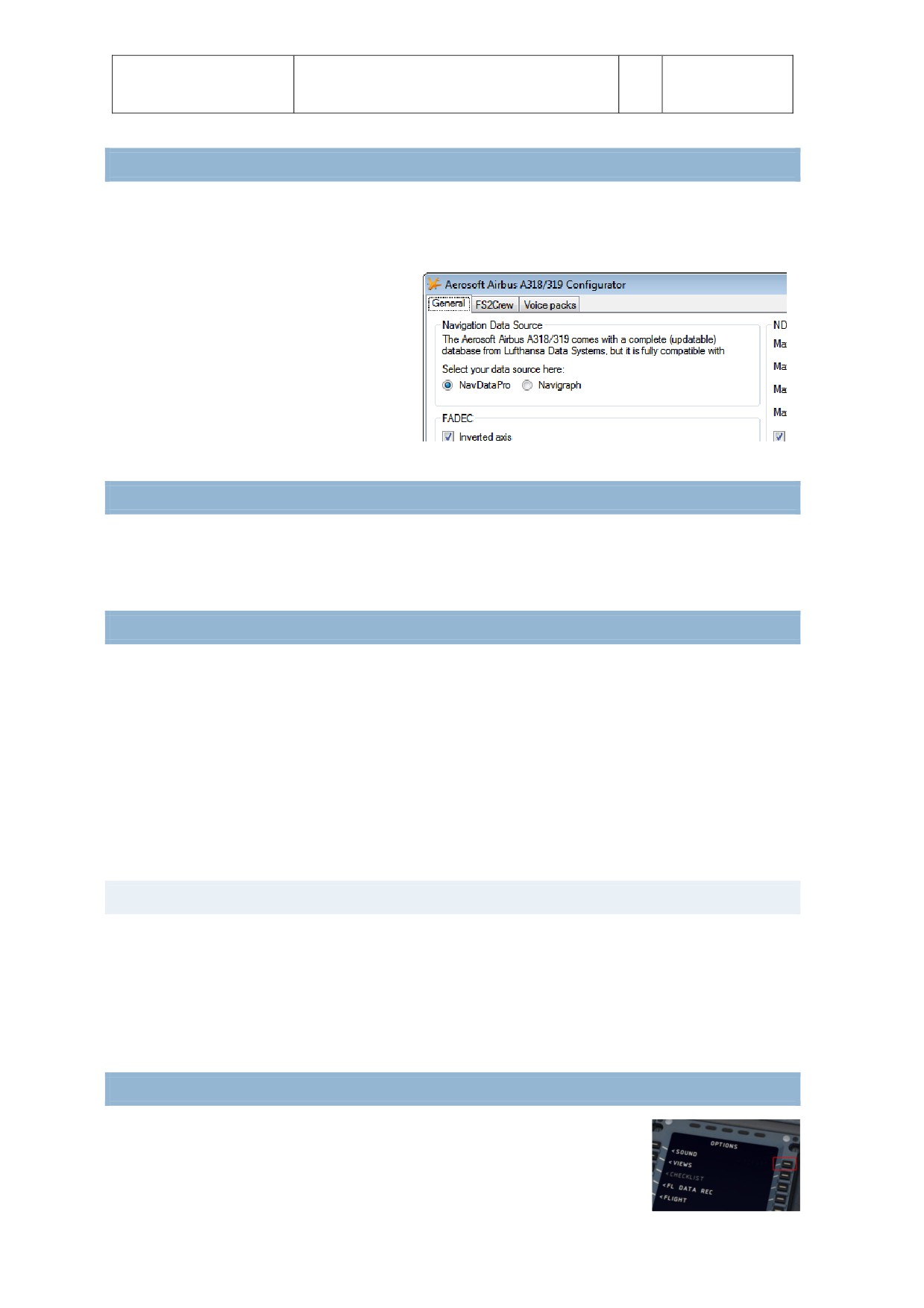
The Airbus is fully compatble with the well-
known Navigraph database. You can use the
configurator to select which database to use.
Although these databases come from a
different source and have some differences
they are basically the same and you should
not see any differences between the two.
DEBUG GAUGE
If you have a problem with the Airbus it helps us a lot to know exactly what the state of all the systems is.
That is why there is a debug gauge ([shif]-[6]. We might ask you to make a screenshot with that gauge
visible to understand exactly what is happening. It ALWAYS helps to see the FMA as well.
SUPPORT FORUMS, RELEASES AND UPDATES
No product is bug free and we don’t claim this one be. What is important is how bugs are handled and we
feel it is important that we explain how we intend to handle that.
Our main communicaton channel to customers is the forum system. There we can discuss the possible
problems, get more informaton from customers when needed and provide quick fixes. We will always try
to maintain forums in several languages but only the English one will be fully up to date.
If you prefer support via email use support@aerosof.com, we can handle support there in English,
German, French, Spanish, Portuguese and Dutch. Keep in mind however that support on the forums is
always faster.
VERSION NUMBERS
The release version number will be 1.00.
A service pack will show in the tens, 1.10 (first service pack) -> new full build
A hotix will show in in the hundreds 1.11 (first hotix to be put on service pack 1)
When there are many hotixes we will also make full new builds. If you are ever in doubt which version you
have, check the product.cfg that you can find in FSXMainFolder\Aerosof\Airbus A318_A319.
MAKING VIDEOS
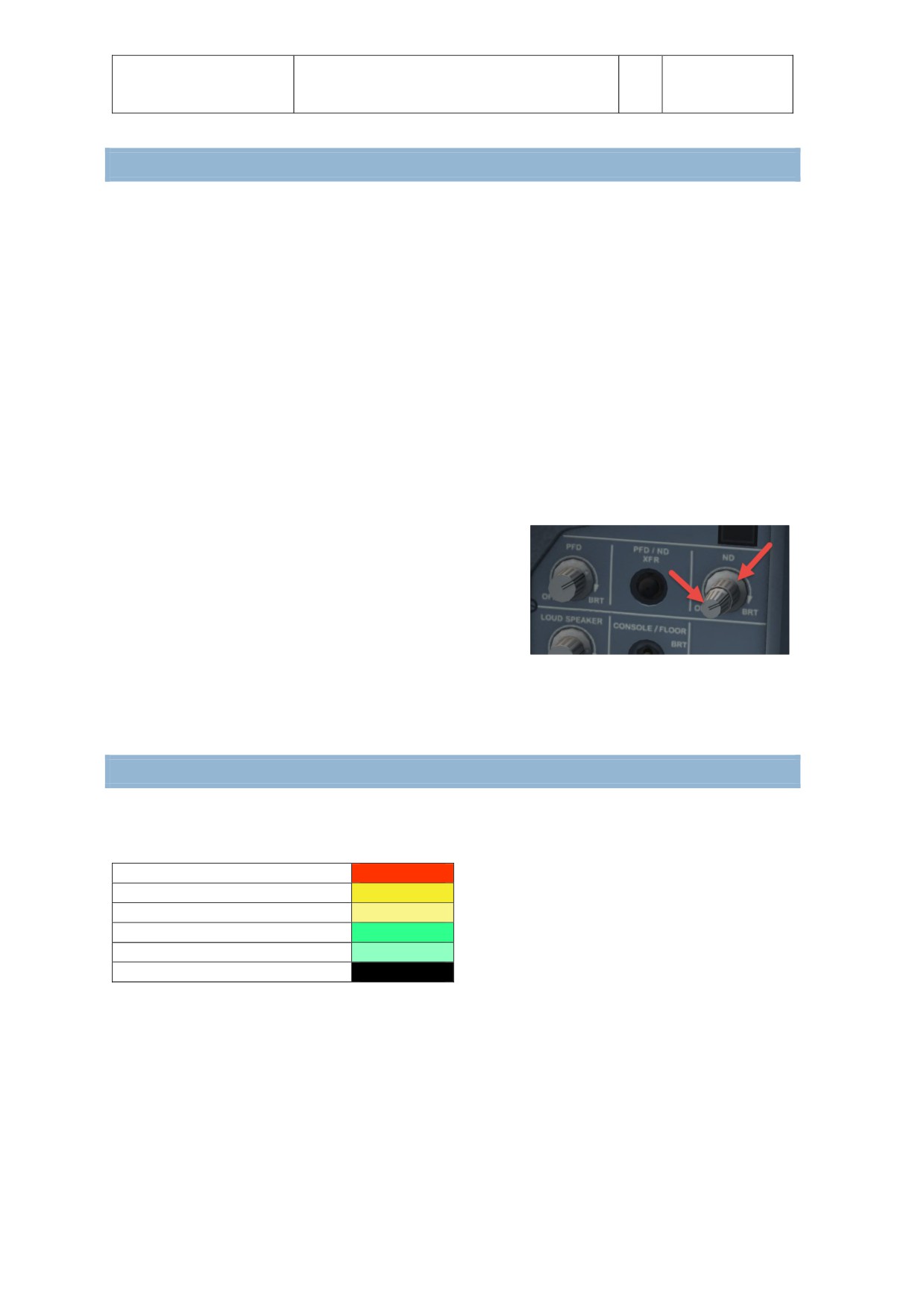
If you make video’s you might see the FBW system show the flight control
surfaces animate where they should not in replay mode (or when using a tool like
FSRecorder. To avoid this you can disable the FWB system for reply using a hidden
opton. In the right MCDU, under Optons, press the LSKR1 buton to actvate. The
aircraf will hardly be flyable with this de-actvated though!
Aerosof
The Airbus A318/A319/A320/A321 In FSX
Vol
01-03-8
Airbus
General guidelines
1
08 February 2017
A318/A319/A320/A321
WEATHER RADAR
As the weather radar is a totally new development and not in this form in any other project it is good to
discuss its virtues and limitatons.
The weather radar in the Aerosof Airbus products works with any weather add-on or even without. It
actually reads the weather conditons in FSX and does not need to link to any weather add-on. However
because it does just that it also shows some of the limitatons of weather in FSX. For example it is always
build up in square blocks. We choose to leave this effect visible because we believe a weather radar should
show where the weather is, not how it should look in an ideal simulator. Because we simulate the actual
working of the weather radar it also means a lot of calculatons need to be done, this can have an effect on
your frame rate. Because wind shear and turbulence cannot correctly be placed in FSX detecton of that is
currently not possible.
As stated, the weather radar works with any weather add-on we have tried. But only the weather they
inserted in FSX is detected. If they have weather that is shown on their own display but that has not yet
been send to FSX it cannot be shown. As this weather is not in FSX it is of course not part of the simulaton
at that moment. In other words, if you can’t see the weather
the weather radar can’t see it. Compatbility with weather
tools that do not adhere to SDK standards is considered but
not guaranteed.
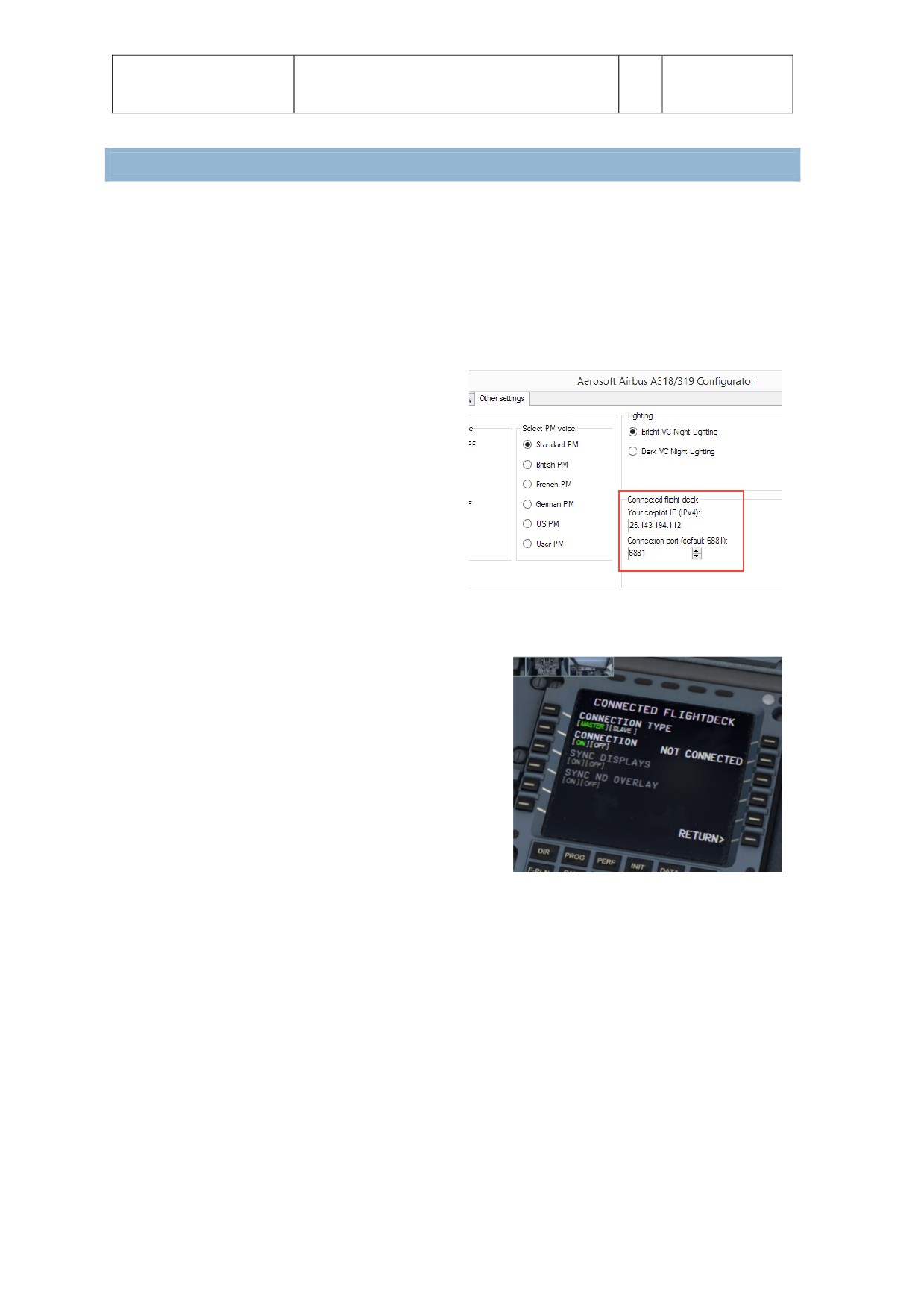
The display of the weather (and terrain) on the Navigaton
Display is controlled by the larger part of the ND control knob.
On a few systems the Weather Radar has shown to cause severe drop in frame rates combined with some
advanced setngs in weather tools. It is now possible to edit some functons via the AB_ND_GDI.ini (to be
found in MyDocuments\Aerosof\Airbus. The optons are explained in the comments in that file.
TERRAIN DISPLAY
Just as the Weather Radar the Terrain Display is an overlay on the Navigaton Display. The terrain is shown
in colors depending on the height of the terrain in relaton to the alttude of the aircraf.
A/C Alttude +2000
50% Red
A/C Alttude + 1000
50% Yellow
A/C Alttude -250 <> +500
25% Yellow
A/C Alttude -1000
50% green
A/C Alttude -2000
16% Green
A/C Alttude >2000
Black
Note that the terrain and weather cannot be displayed at the same tme and that the same control it used
as the weather display to set the transparency of the overlay.
Aerosof
The Airbus A318/A319/A320/A321 In FSX
Vol
01-03-9
Airbus
General guidelines
1
08 February 2017
A318/A319/A320/A321
CONNECTED FLIGHT DECK
Another special feature almost no other add-on has. Connected Flight Deck (CFD from now on) allows you
to connect your computer running the Aerosof Airbus to another computer running the same aircraf.
Using CFD is not complex (not as complex as flying an Airbus anyway and following these steps should help
you getng connected. On our forum you will find a specific support forum for CFD btw.
1.
You will need a voice connecton of course if you are not in the same room. You can use Skype or
free, very reliable and most online pilots already use it.
2.
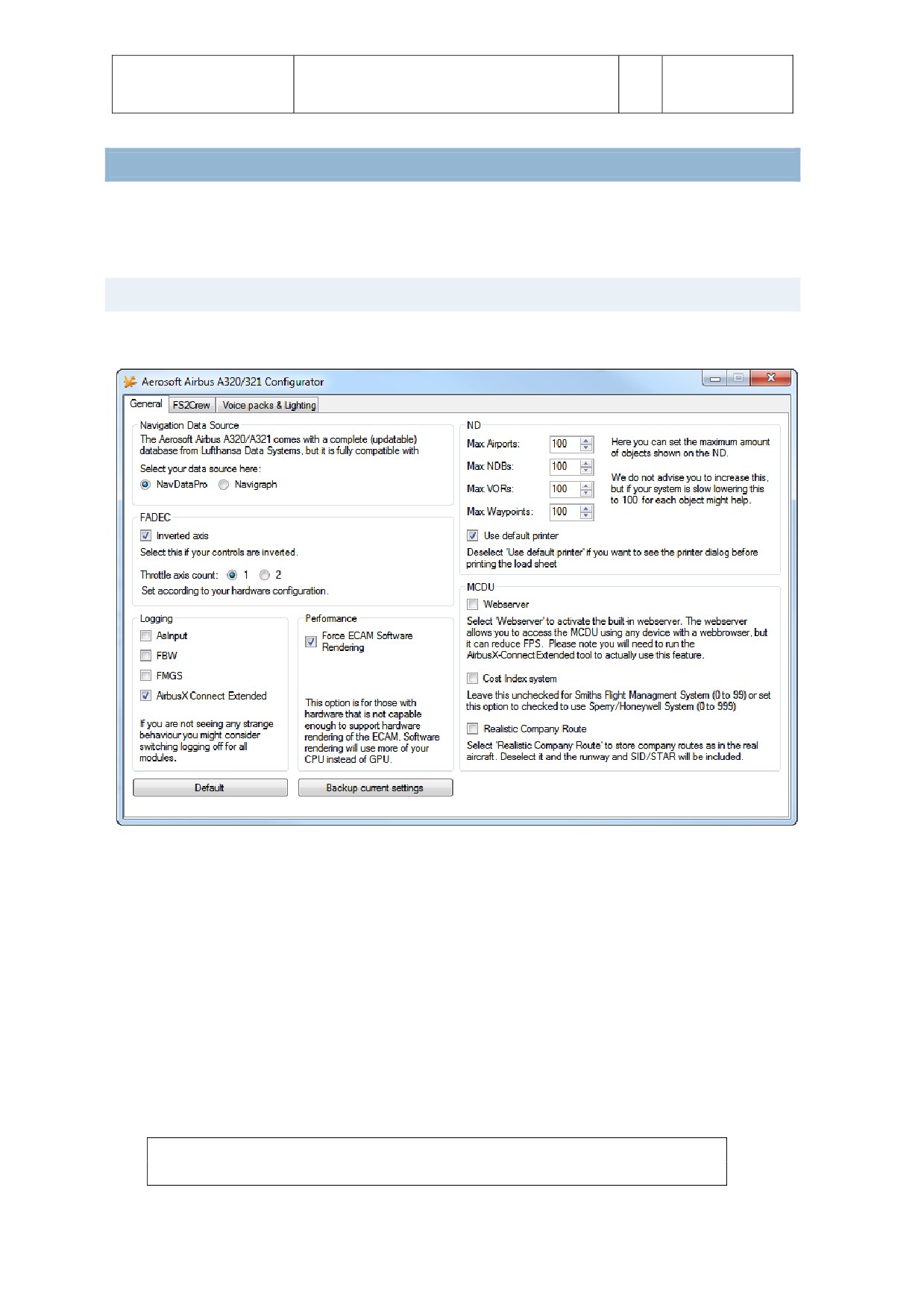
While FS is NOT running edit the IP address
of your friend’s computer using the
Configurator. Leave the port as it is, 6881 is
a good default that will work almost always.
If you have problems with firewall, routers
or anything we recommend Hamachi.
LogMeIn Hamachi is a free service that
allows two computers to be linked at IP level
without any firewalls or other details to be
an issue. Do note this creates an IP
connecton on your system that is probably
not protected by firewalls! You can find it here:
htps://secure.logmein.com/products/hamachi/download.aspx. Note you only need the free
unmanaged version.
3.
When both pilots have done this you can start FSX.
4.
When FSX is started move to the same locaton.
5.
Load the same aircraf.
6.
Make sure you got the same weather.
7.
Select the same tme (this is not highly critcal)
8.
Select the same Aircraf State (this will avoid
problems with the inital synchronizing)
9.
In the right MCDU select CONN FLTDCK.
10.
From this moment on the order of the steps is
important!
a. Captain selects [MASTER] and Connecton [ON]
b. CoPilot selects [SLAVE] and Connecton [ON]
11.
Keep in mind that only the MASTER can fly the aircraf, though both partes can operate all other
instruments.
12.
If you want to switch roles (so the other party becomes MASTER) only one party has to change his
role, the other will be handled automatcally.
13.
SYNC DISPLAYS will synchronize the ND range and mode.
14.
SYNC ND OVERLAY will synchronize the weather overlay. Best set to on even though the SLAVE
might not have the exact same weather in front.
A few things to keep in mind when using CFD:
Use the same weather engine is possible (otherwise make sure the weather is as similar as
possible) as our weather radar will send the WX overlay from the master to the slave computer.
Stability is more important than bandwidth in the connecton, but stll a broadband connecton is
needed.
Aerosof
The Airbus A318/A319/A320/A321 In FSX
Vol
01-03-10
Airbus
General guidelines
1
08 February 2017
A318/A319/A320/A321
You do not to be connected to any online flying service like IVAO or VATSIM but it most certainly is
possible.
You do not need any of FSX standard ways of connecton, this is a fully stand-alone Peer to Peer
connecton.
You can mix and match FSX, FSX:SE, P3D V3 in connecton.
Vol 9 of the manuals contains a complete procedural flow of what is done by each pilot. Unless
you are very experienced it is a good idea to have this on hand.
SAVING AND LOADING MODES
There are so many systems in the Airbus that it is simply not possible to start up the sim and take-off. Many
systems would simply not work. That’s why we include an opton to save AIRCRAFT STATES. In these saved
states all the systems (except the MCDU) are stored. There are 4 predefined states that are most used:
COLD & DARK, TURN AROUND TAXI and TAKE-OFF.
Note: when you used COLD & DARK you will need to actvate the Bateries (or External
Power) to be able to use the right MCDU.
Afer installaton of SP3 it is now possible to save a complete flight (situaton and aircraf state -
including all MCDU2 setngs) just with one click. Just use the FS-menu functon to save the
complete flight. It is not necessary anymore to save the aircraf state separately and therefore
this MCDU2 menu opton has been deleted.
Aerosof
The Airbus A318/A319/A320/A321 In FSX
Vol
01-03-11
Airbus
General guidelines
1
08 February 2017
A318/A319/A320/A321
TOOLS
There are several tools provide with the Airbus. The RAAS is configured from inside FSX (via the ADDON |
RAAS dropdown menu) and the Fuel Planner and the Flight Data Recorder can be started from the
Windows Start Menu |Aerosof | Airbus A318_A319.
AIRBUS A320_A321 CONFIGURATOR
The configuraton allows you to configure the product before startng it.
NAVIGATION DATA SOURCE: Allows you to select either NavDataPro (Lufhansa data) or Navigraph if that
is installed.
FADEC: Please make sure you select the right configuraton here.
LOGGING: While useful for debugging it van affect performance and we suggest to keep it all off unless
requested.
Performance: On some hardware (laptops) the ECAMs will not show. Setng this opton will move the
drawing actons from the GPU to the CPU.
ND (Navigaton Display): Offer opportunites to reduce the amount of drawn elements.
MCDU: Allows configuraton of the MCDU optons
FS2CREW: Allows you to actvate or FS2Crew (assuming it is installed)
Voice Packs & Lightng: Allows you to select the voice for PF (Pilot Flying) and PM (Pilot Monitoring) and
allows the user to change between two VC light levels. The brighter one (default) is easy on the eye and
cheaper monitors, the darker one is a bit more realistc but might be hard to use on non-calibrated
monitors.
Note: If you install a 3rd party livery you will have to remove the
AIRBUSX_V2_VC_MAINPANEL_L file from it or it will overwrite the darker opton!
Aerosof
The Airbus A318/A319/A320/A321 In FSX
Vol
01-03-12
Airbus
General guidelines
1
08 February 2017
A318/A319/A320/A321
FLIGHT RECORDER
Included in the Airbus is a Flight Recorder. This is similar to the Quick Access (Data) Recorder that is part of
most Airbus A320/321 aircraf. The Quick Access (Data) Recorder records flight parameters from the
moment the aircraf is powered up to the moment it is shut down. This is not the same as Flight Data
Recorder (aka Black Box) that is used by investgators afer a crash!
The data in the QAR is used by the airline to study flights and to backtrack what caused problems or
failures. The Airbus includes a QAR that will log many flight parameters and will save them on your hard
disk. These data files can be read and displayed with a tool that is delivered with the Airbus. A far beter
tool to read these files is Flight Simulator Flight Keeper, a tool that is used by dozens of Virtual Airlines and
thousands of serious enthusiasts. In the real aircraf there is no interface for the QAR but in the simulator
you will find the opton to actvate and deactvate this recorder in the right MCDU.
Events the FDR module records:
Block events OUT (Engine on), OFF (TO),
Altmeter
ON (LA), IN (Engines off)
Taxi and Flight Path (invisible on the
Engines On/Off
details dialog as it is only used for KML
Flaps
and FSFK export)
Spoiler
Positon (only if there has been no other
Gear
event triggered - on a regular interval)
Lights
Aircraf Crash
Autopilot On/Off
FDR Test (afer pressing the
Autopilot Mode
corresponding buton)
Autothrotle On/Armed/TOGA/Off
FDR Event (afer pressing the
Transponder Code
corresponding buton)
Pressure
This data is recorded for all events
Alttude
GlideslopeNeedle
GroundAlttude
LocalizerNeedle
IAS
VertcalSpeed
TAS
PitchAngle
GroundSpeed
BankAngle
WindHeading
GForce
WindSpeed
AileronTrim
Fuel
ElevatorTrim
OAT
RuderTrim
TAT
EventTime
Lattude
EventDate
Longitude
EventTimeZone
Heading
EventTimeOfDay
TrueHeading
FramesPerSecond
Aerosof
The Airbus A318/A319/A320/A321 In FSX
Vol
01-03-10
Airbus
General guidelines
1
08 February 2017
A318/A319/A320/A321
With each event tme, speed, heading, trim, fuel, glide slope, localizer, weather and some more data are
recorded. This a powerful tool to see where you can increase your
flying skills.
The recorder is normally always actve, but if you would like to
deactvate it (for example because you use a different data recorder
you can do so in the right MCDU, under OPTIONS|FL DATA REC. On
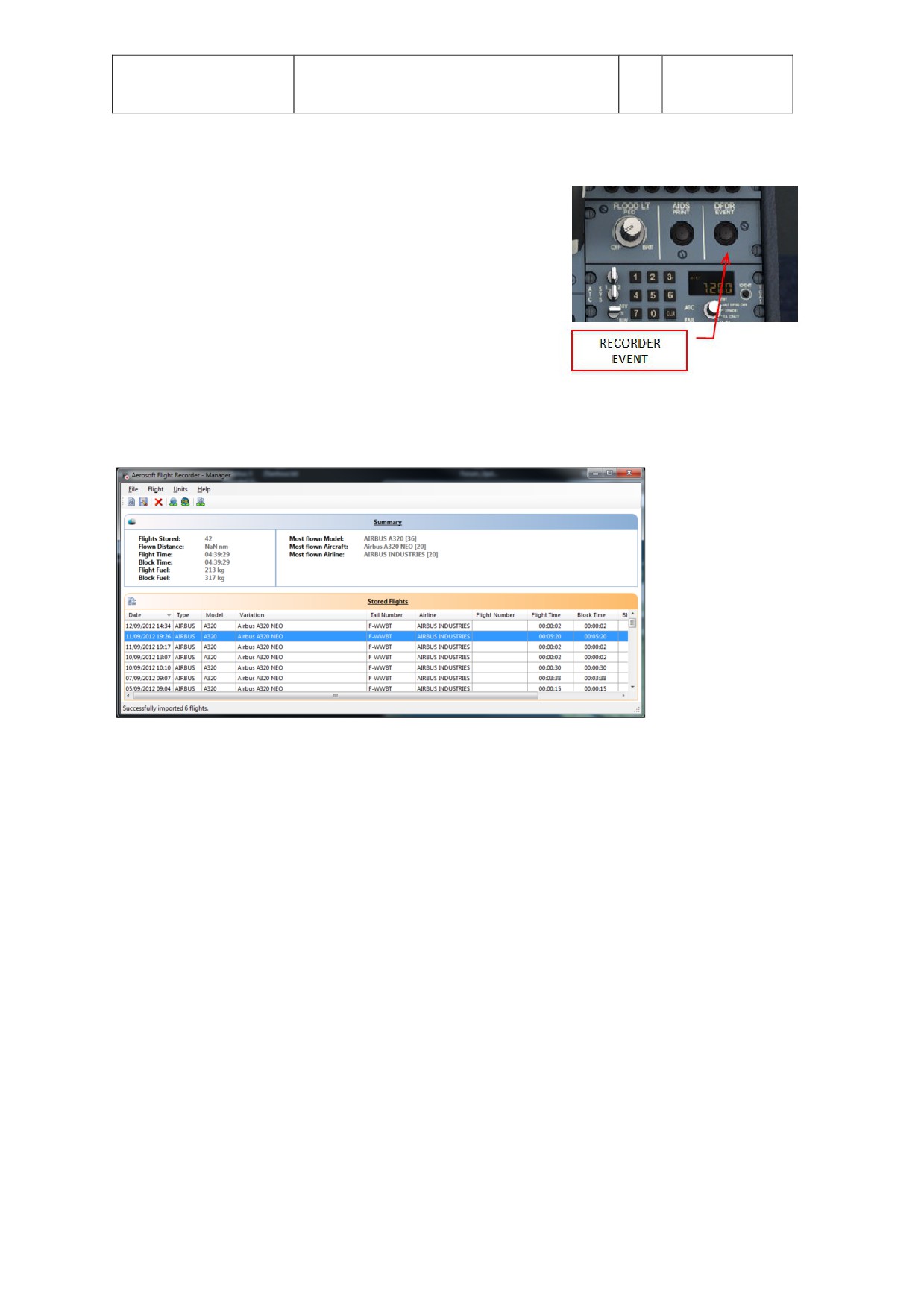
the right side of the center console you will find a DFDR EVENT
buton. If you press that buton a DFDR Event is logged. You can use
this to ‘bookmark’ the log file. This can be useful if have a problem
and want to study that situaton later.
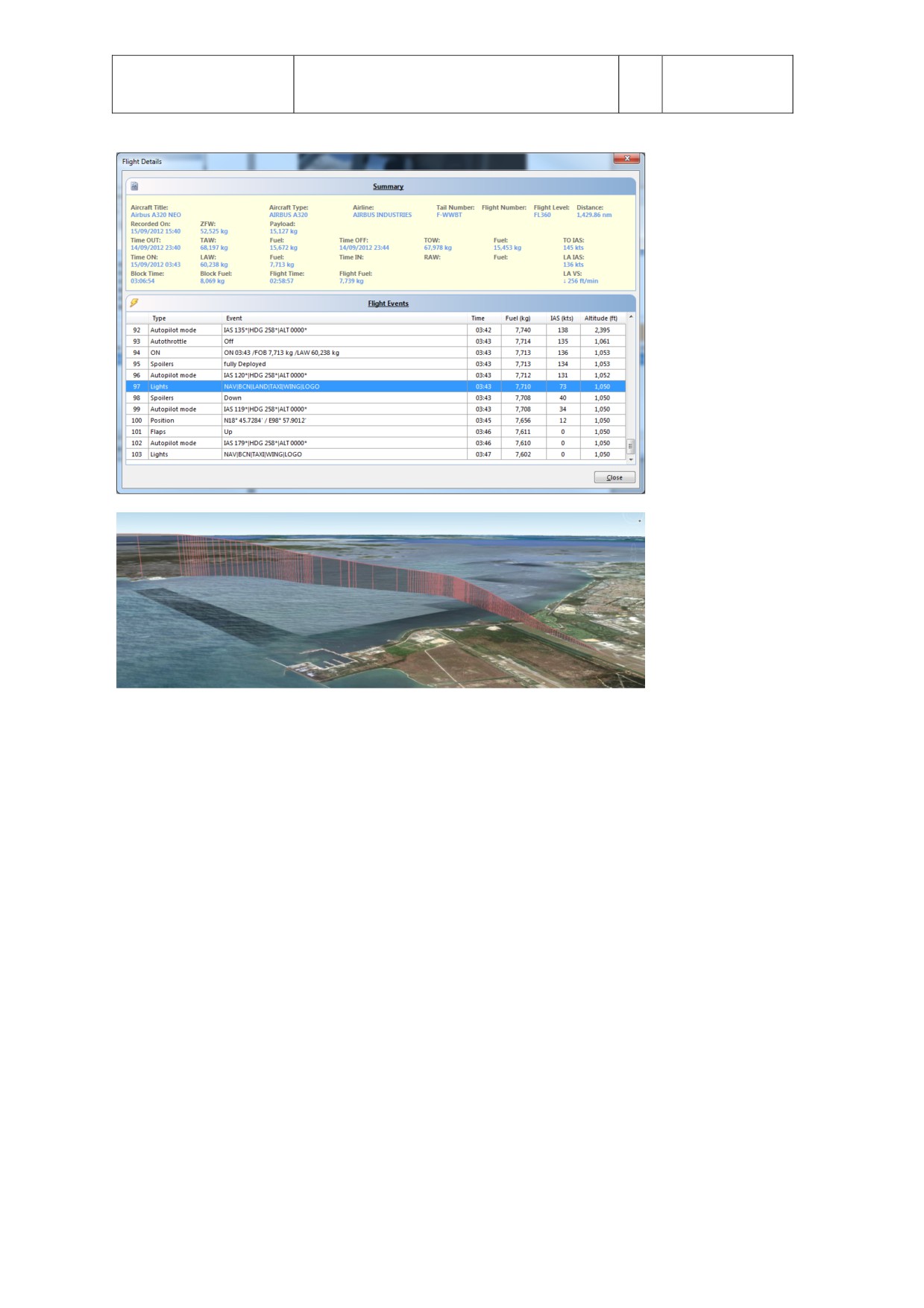
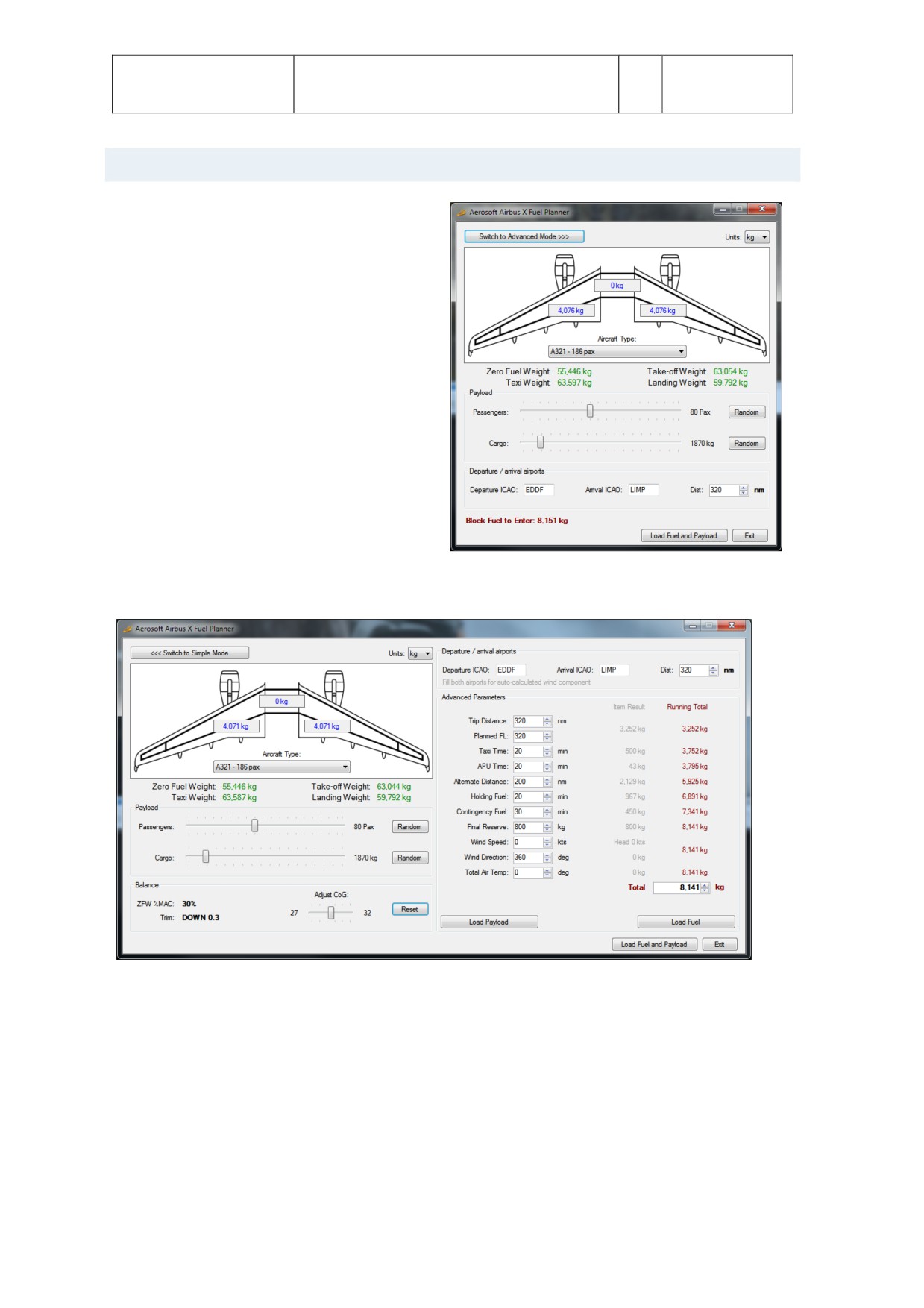
To see your flight log you use the AS_RecorderManager (you can find that in the FSXMainFolder\Aerosof\
Flight Recorder but also via the Windows Start menu). All your flights will be shown there. Double click one
and all events will be displayed.
You will find butons to see your flights in Google Earth (get that here: www.google.com/earth/index.html ),
to open it with FS Flight Keeper, delete a flight, import a flight or to save a flight. A saved file can be shared
with other people, for example your Virtual Airline.
Aerosof
The Airbus A318/A319/A320/A321 In FSX
Vol
01-03-11
Airbus
General guidelines
1
08 February 2017
A318/A319/A320/A321
Please keep in mind that the display tool is just a weak diluton of what Flight Simulator Flight Keeper can
do. Do check it out at: htp://www.aerosof-shop.com/products/fsf/fsf.html.
The recorded flights are stored in \Documents\AerosofFlightRecorder. This path is chosen because we will
add this module to more aircraf models.
Aerosof
The Airbus A318/A319/A320/A321 In FSX
Vol
01-03-12
Airbus
General guidelines
1
08 February 2017
A318/A319/A320/A321
FUEL PLANNER
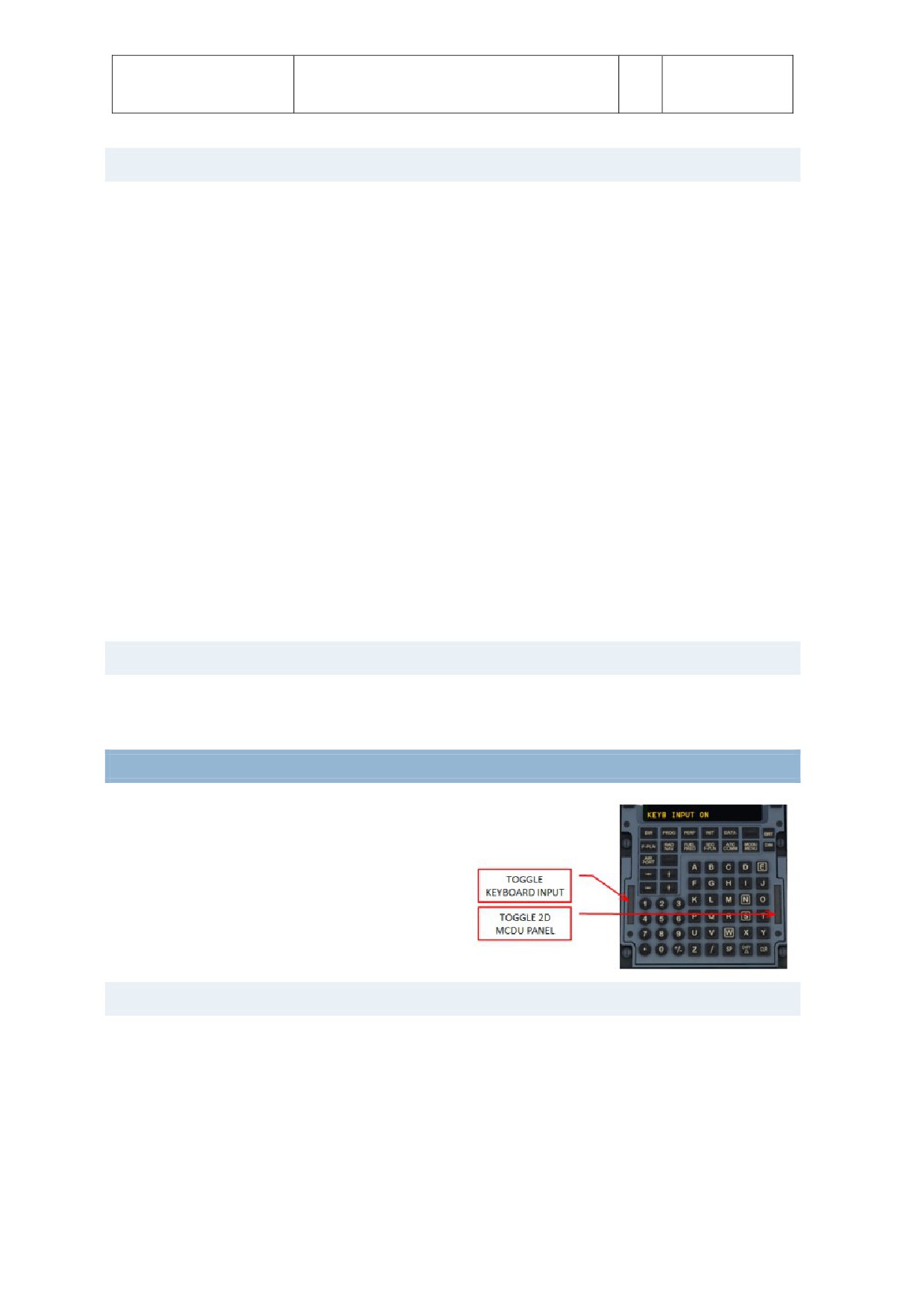
Included with the Airbus A318/A319 is a fuel
planning tool. Actually it does a bit more as it also
allows you to load passengers and cargo. The tool
has two main modes, Simple and Advanced. In the
simple mode you can move sliders and set the
amount of passengers and cargo and set the
departure and destnaton airports.
On normal passenger flights you would most likely
not carry a lot of cargo (the luggage of the
passengers is calculated in the weight of the
passengers). When any of the weights is too high
it will show in red meaning you cannot fly like
that. You will have to loose passengers or cargo!
Keep in mind that flying with a lighter aircraf is
most likely to be more pleasant.
If you want to do a more detailed fuel planning
use the Advanced Mode. Here you got control over far more variables but things are a lot more complex.
Afer setng the variables you have to push “Generate Loadsheet”. There are two ways to load the data
(passengers, cargo and fuel) to the Airbus. Automatcally if “Autoload with aircraf” is tcked or manually
using the MCDU2 LOAD/FUEL menu. The fuel will be loaded correctly, so the center tank will only be used
when the wing tanks are full and the balance of the aircraf will be set correctly.
Note that every airline has got its own layout of seats and additonal equipment and every airline got its
own specific rules about fuel load. Even simple things and the Zero Fuel Weight can vary far more than we
expected. What we used is an average of many airlines and might not be spot on for your preferred airline.
Aerosof
The Airbus A318/A319/A320/A321 In FSX
Vol
01-03-13
Airbus
General guidelines
1
08 February 2017
A318/A319/A320/A321
LIVERY MANAGER
There are hundreds of liveries available for the Airbus A318/A319 and there is a simple livery manager that
will assist you in adding and removing them. You will find the livery manager (AirbusX Extended Livery
Manager.exe) in FSXMainFolder\Aerosof\Airbus A318/A319\AXE Livery Manager. Afer startng it will ask
for the FSX folder.
Installing a livery is as simple as dragging the zip file you downloaded on top of the livery manager. For 90%
of the additonal liveries this will work. All other livery ZIP files that meet the following conditons will be
handled automatc (if this method does not work ask the livery designer to be compliant with our
standards):
There must be a txt-file ("readme.txt" or different name as long as it's the only txt-file) with the
code snippet for the aircraf.cfg included.
The snippet starts with [FLTSIM.X] and ends with a blank line.
In this snippet the line "ui-type=*aircraf_type*" must be contained, otherwise the manager
doesn't know which plane the livery should be added to.
Each ZIP-file can only contain one livery / alternatve versions must be separated into two ZIP files.
The whole file must be a proper ZIP-file containing the file and folder structure on the first level. So
do not zip the folder with the files but only the files themselves.
Beside the text file there needs to be the texture folder with its extension name, containing a
"thumbnail.jpg"
COMPANY ROUTE EDITOR
This simple tool makes it possible to edit, create and save company routes that you can call up in the
MCDU. It’s faster than doing all that in the MCDU!
MCDU INTERFACES
The MCDU has two hidden click zones. One to toggle
keyboard input and one to open the MCDU as a 2D
panel. With the keyboard actvated you can use your
normal keyboard to enter data in the MCDU. Keep in
mind that this disables any keyboard command to FSX!
The 2D MCDU panel can be undocked and moved to
other displays.
MCDU WEB INTERFACE
Because the MCDU is arguably the most complex instrument in the cockpit it makes sense to allow it to be
used as simply as possible. So by using a simple webserver that runs inside FSX (don’t worry it hardly uses
any resources) you are able to connect any device that has a web browser to the Airbus A318/A319 and use
the MCDU on that devise. Ideal are tablets because you will not need a mouse.
To use the web interface start Airbus_WebInterface.exe that is located in
FSXMainFolder\Aerosof\AirbusXConnectExtended.exe. You can do this before startng FSX or later. It will
open a small window showing you the ip address and the port, something like this: 123.123.123.123:4040.
Aerosof
The Airbus A318/A319/A320/A321 In FSX
Vol
01-03-14
Airbus
General guidelines
1
08 February 2017
A318/A319/A320/A321
You can enter this in the address bar of the browser on any device that is connected to the same network.
It will open showing a simple informaton screen. This one is ideal to keep track of your long flights via your
smartphone. Click on MCDU and you can use the lef MCDU it as you would in the aircraf.
MCDU COMPANY ROUTES
The MCDU allows you to store flight plans as ‘company routes’. The saving and loading of company routes
is done via the lef MCDU. Press the MCDU MENU buton to access these optons. These company routes
are very useful when an aircraf flies the same route day afer day. A company route consists of the
departure and arrival airport plus the routng. It does not contain the runway and SID/STAR because those
can differ (for example because of the wind). The route is made up of waypoints and the airway name
between them: AIRPORT > WAYPOINT > ROUTE > WAYPOINT > ROUTE,…., WAYPOINT > AIRPORT
Now an actual flight starts on a runway, then follows a SID (Standard Instrument Departure) before
following airways to the destnaton. Close to the destnaton you follow a STAR (Standard Terminal Arrival
Route) to the runway: RUNWAY > SID > WAYPOINT > ROUTE > WAYPOINT > ROUTE,…., WAYPOINT > STAR
> RUNWAY
The Airbus A318/A319 defaults to the realistc company route format, but if you prefer to save your
company routes with the runways and SID/STAR it will allow you to do so by editng a configuraton file.
Look for the FMGS.ini file in the My Documents\Flight Simulator X Files\ AerosofAirbusExtended folder.
You will find:
[CoRte]
FullRoute=0
Default this is [0] indicatng it will save realistc company routes. Change it to [1] and it will save the
complete but slightly less realistc flight routes.
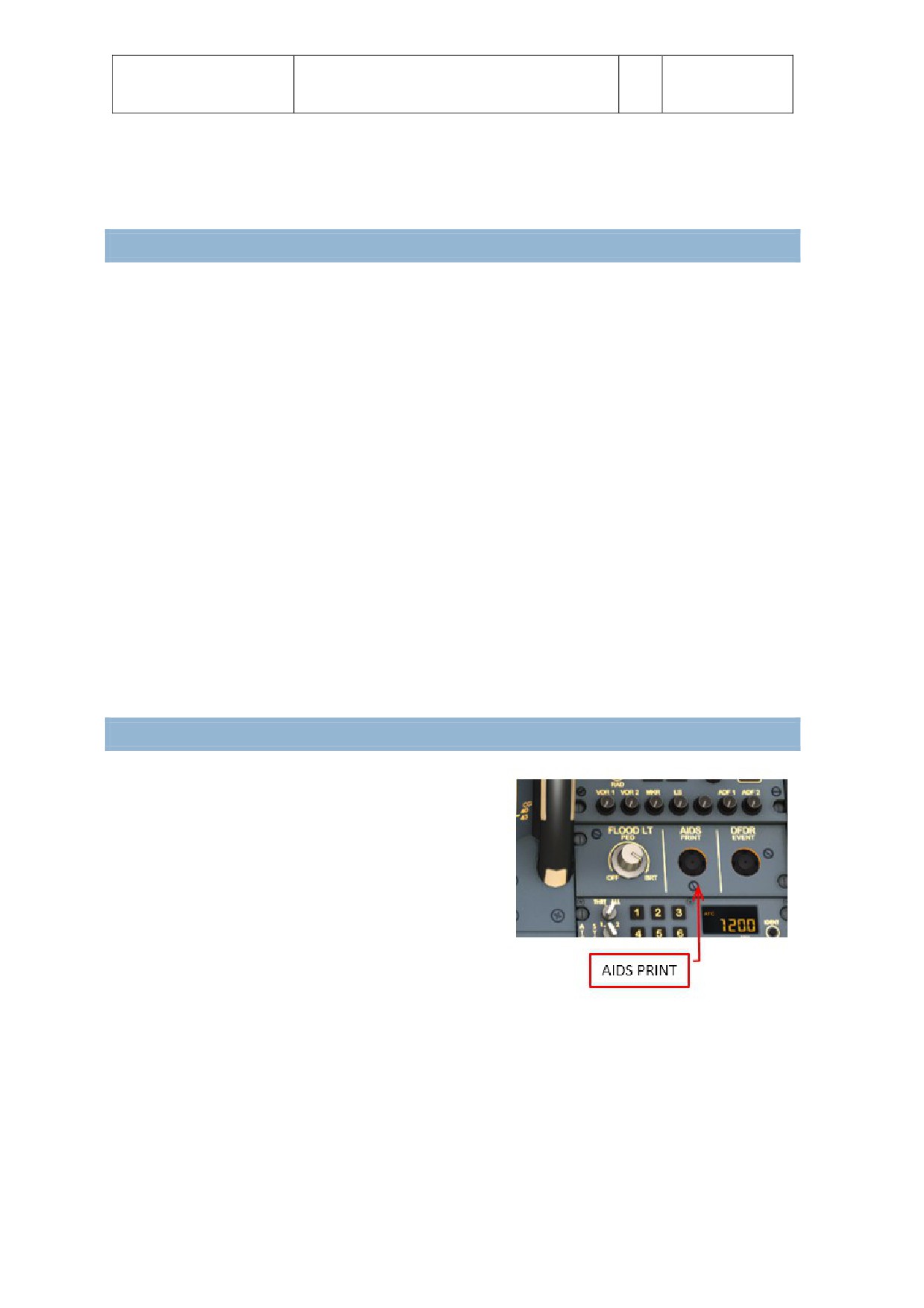
PERFORMANCE SHEET PRINTING
There is a small printer on the center console that is used to
print some reports and datasheets. The most important one
is the performance sheet that contains the data needed for
take-off. Afer you have completed insertng all the data in
the MCDU (so before taxi), press the [AIDS PRINT] buton. If
you have a printer connected to your computer it will now
print the performance sheet.
Aerosof
The Airbus A318/A319/A320/A321 In FSX
Vol
01-03-15
Airbus
General guidelines
1
08 February 2017
A318/A319/A320/A321
RIGHT MCDU
For all the functons that are not part of the actual Airbus cockpit we use the right MCDU. This allows you to
access all these functons inside the simulator without having to open menu’s or pause the simulator.
Spending some tme here will be well worth the effort as it can unlock a lot of features you might now have
expected!
Note: If the right MCDU is dark, click the two batery butons on the overhead!
ACFT STATE (AIRCRAFT STATE)
Under this menu you can find several predefined ‘states’. A state contains the setng for all the systems in
the aircraf. Click the TAKE-OFF STATE and afer a few seconds the aircraf is completely configured for
take-off. If you like to change a state configure the aircraf as you want and use the SAVE USER STATE
buton.
ACFT DOORS (AIRCRAFT DOORS)
Here you will find the opton to open the doors and hatches of the aircraf. Do note the parking brakes have
to be set or chocks have to be put in place and the main engines off to be able to open the doors.
GND SERVICES (GROUND SERVICES)
Under this opton you can toggle the display of cones under the wingtps and tail (to prevent vehicles
driving under the aircraf) and wheel chocks. You can also toggle the display of an External Ground Power
Unit and even toggle the external power opton (so you can configure the aircraf without having to use
bateries or APU). The display of these elements is not advised if you use Airport Enhancement Services or
any other tool that shows external objects close to the aircraf.
The various optons are only available if the following conditons are met:
CHOCKS:
Parking Brake is set to ON
CONES:
Only if CHOCKS are SET
EXT POWER:
Parking Brake is ON or Chocks are SET
OPTIONS
Many optons are available under the subpages of the OPTION menu
SOUND
CABIN CREW: With this opton on you will hear the cabin crew communicatng with you when that
is necessary. We advise you to leave this on.
FLIGHT CREW: You copilot does make noise. He coughs, opens charts etc. Actvatng this opton
will give you some audio feedback on all these things. We advise you to leave this on.
ATC: Toggling ATC on will according to your flight status add random ATC to the sound
environment. This will add some realism if you do not fly online.
ENH GPWS (ENHANCED GROUND PROXIMITY WARNING SYSTEM): Enabling this feature you will
hear various alttude callouts ( p. e. 2500, 1000, 500 etc.) during your landing.
Aerosof
The Airbus A318/A319/A320/A321 In FSX
Vol
01-03-16
Airbus
General guidelines
1
08 February 2017
A318/A319/A320/A321
VOLUME: On the volume control page you can adjust your individual background noises and other
audio elements. Keep in mind that the Airbus Cockpit is a noisy environment. In cruise you will
hardly hear the engines and wind noise over the noise the cooling fans that keep the electronics
cool! Changes made are kept for your next flight. If you like your own default setngs ask us on the
forums and we’ll be glad to assist. VIEWS
VIEWS
VIEW SYSTEM: There is a simple yet effectve way to switch your views using small icons in the
view bar. You open the view bar by clicking the grey triangle in the upper right (or lef) corner. If
you do not like this, or you are using another viewing add-on you can disable the whole viewing
system here.
PANEL BAR: Toggles the viewing selecton of panel views.
WINGVIEW BAR: Toggles the viewing selecton of wing views.
VIEW MODE: Here you can select if the panel views should be seen from a realistc angle or a
straight on, not very realistc, viewpoint.
POSITION: Toggles between a horizontal or vertcal layout.
SOUND: There is a small sound effect added to any view changes, you can disable it here.
CHECKLIST
CHECKLIST: You can toggle the complete checklist system on or off here.
COPILOT: n combinaton with the CHECKLIST functon the “Copilot” works tmely aligned with the
checklist i.e. performs his dutes when the task should be done according to the checklist
INFO BAR: If you want you can get additonal instructons at the top of the screen. Certainly for
beginners we strongly advise this opton actvated.
HOTKEYS: Many of the interactons with the checklists can be done with key command if you so
desire.
AES PUSH: If you own AES you want to use its advanced push back system. If not you can use the
build in push back.
APP SPD LMTR (APPRAOCH SPEED LIMITER): If you want the co-pilot to warn you about high
speeds on approach actvate this opton.
250 KTS LMTR (250 KNOTS LIMITER): If you like to be warned if you exceed 250 Knots IAS below
FL100 actvate this opton.
FL DATA REC (FLIGHT DATA RECORDER)
Included in this product is an advanced Digital Flight Data Recorder that records all your flights (see the
special chapter on that). You can toggle the actvaton of this module here.
FLIGHT
PAUSE AT TOP (PAUSE AT TOP OF DESCENT: Pauses the simulator app. 10 NM before the point the
MCDU switches from cruise to descent mode.
PAUSE AT NEXT WP (PAUSE AT NEXT WAYPOINT): Will pause the simulator the moment you reach
the next waypoint on your flight plan.
Aerosof
The Airbus A318/A319/A320/A321 In FSX
Vol
01-03-17
Airbus
General guidelines
1
08 February 2017
A318/A319/A320/A321
AICRAFT
FLY BY WIRE: Using this menu opton it is possible to switch ON and OFF the “FLY BY WIRE”
functon - OFF maybe necessary for certain video recordings.
ACFT THRUST BUMP (AIRCRAFT THRUST BUMP): This menu opton (set to ON) enables an
"unrealistc feature" where users can get additonal thrust for takeoff p. e. for “high” airports, at
hot temperatures or short runways.
TILLER: If your system does not have a free axis you can disable the innovatve tller opton.
AUTO RUDDER: If you do not have a rudder control (which we STRONGLY RECOMMEND) you can
achieve some of the functonality by setng this opton
LOAD/FUEL
PAX (NUM) (PASSENGER NUMBER): Allows you to set the amount of passengers you want to board
and to start the boarding process.
CARGO (MT) (CARGO METRIC TON): Allows you to set the weight of cargo and start loading it.
FUEL (MT) (FUEL METRIC TON): Allows you to set the fuel amount and start transferring it to (or
from) the aircraf.
TOW (MT) (TAKE OFF WEIGHT): The calculated weight on take-off.
CG (PCT) (CENTER OF GRAVITY): The center of gravity before or af the aero dynamical center of
the aircraf.
INIT LOADSHEET: Push the LSK and the data from the Fuelplanner Loadsheet are automatcally
loaded.
INSTANT: Loads all fuel, cargo and passengers instantaneously.
SETUP: Allows you to set the weight per passenger (only if INIT LOADSHEET functon is not used).
Some airlines use different weights here as on average and American will weigh more than a
Japanese person
Aerosof
The Airbus A318/A319/A320/A321 In FSX
Vol
01-03-18
Airbus
General guidelines
1
08 February 2017
A318/A319/A320/A321
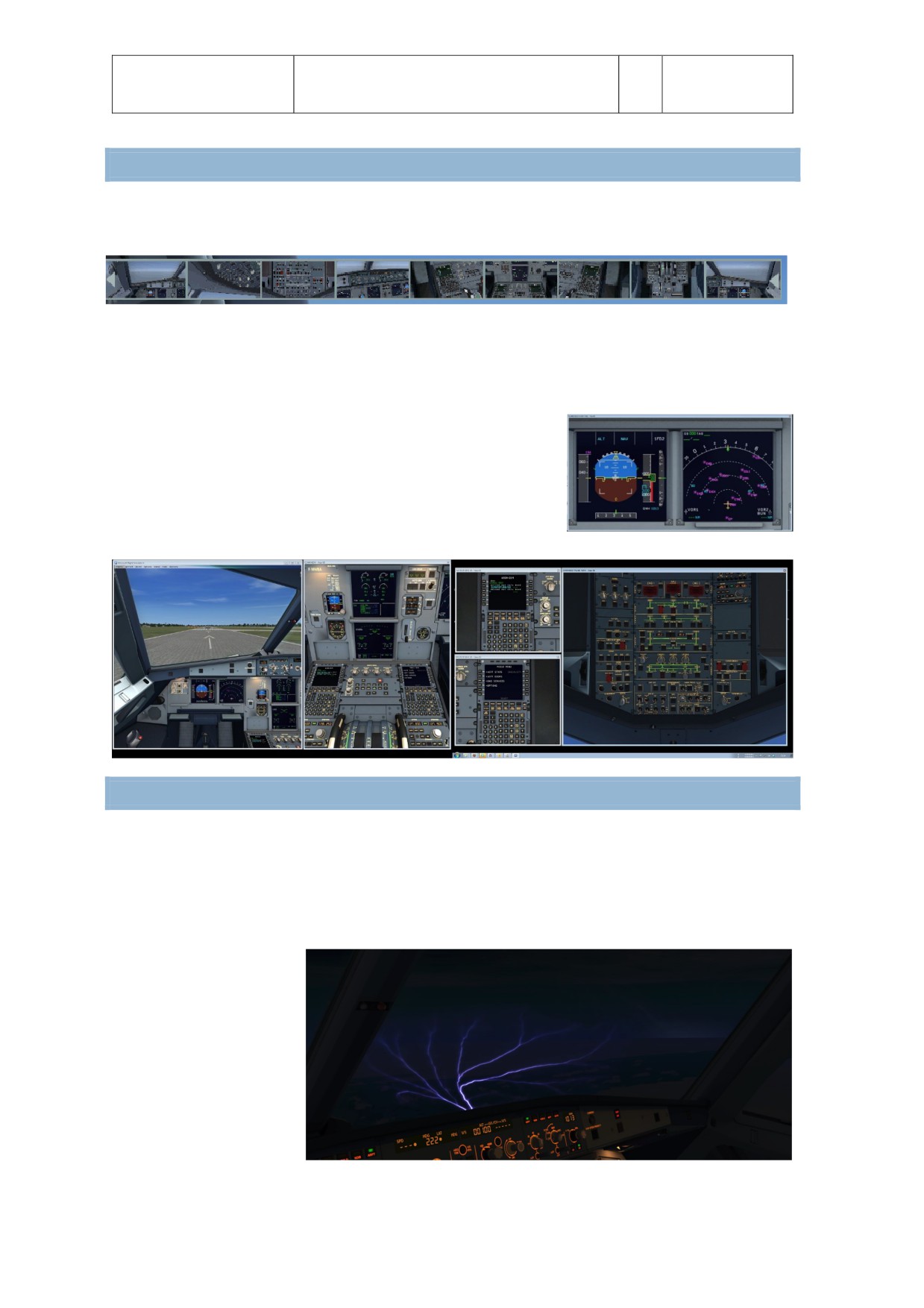
VIEW SYSTEM
As explained in the secton on the right MCDU we included a rather clever view systems that makes it easy
to switch your view to a certain part of the cockpit.
However there is a second way to navigate around the cockpit. We redefined the F9, F10, F11 and F12 keys
to show different views of the cockpit (standard, upper mid console, lower console, and overhead). You will
see that this ofen is the quickest way to navigate your view.
We did not add any 2D panels (except for the lef MCDU) because we
feel it is an outdated system and no longer needed. Using dedicated
VC views allows you to get realistc views angles while getng
realistc lightng and colors. And using the VC system it is not hard to
create any view you want. You can even undock them and move it to
another monitor.
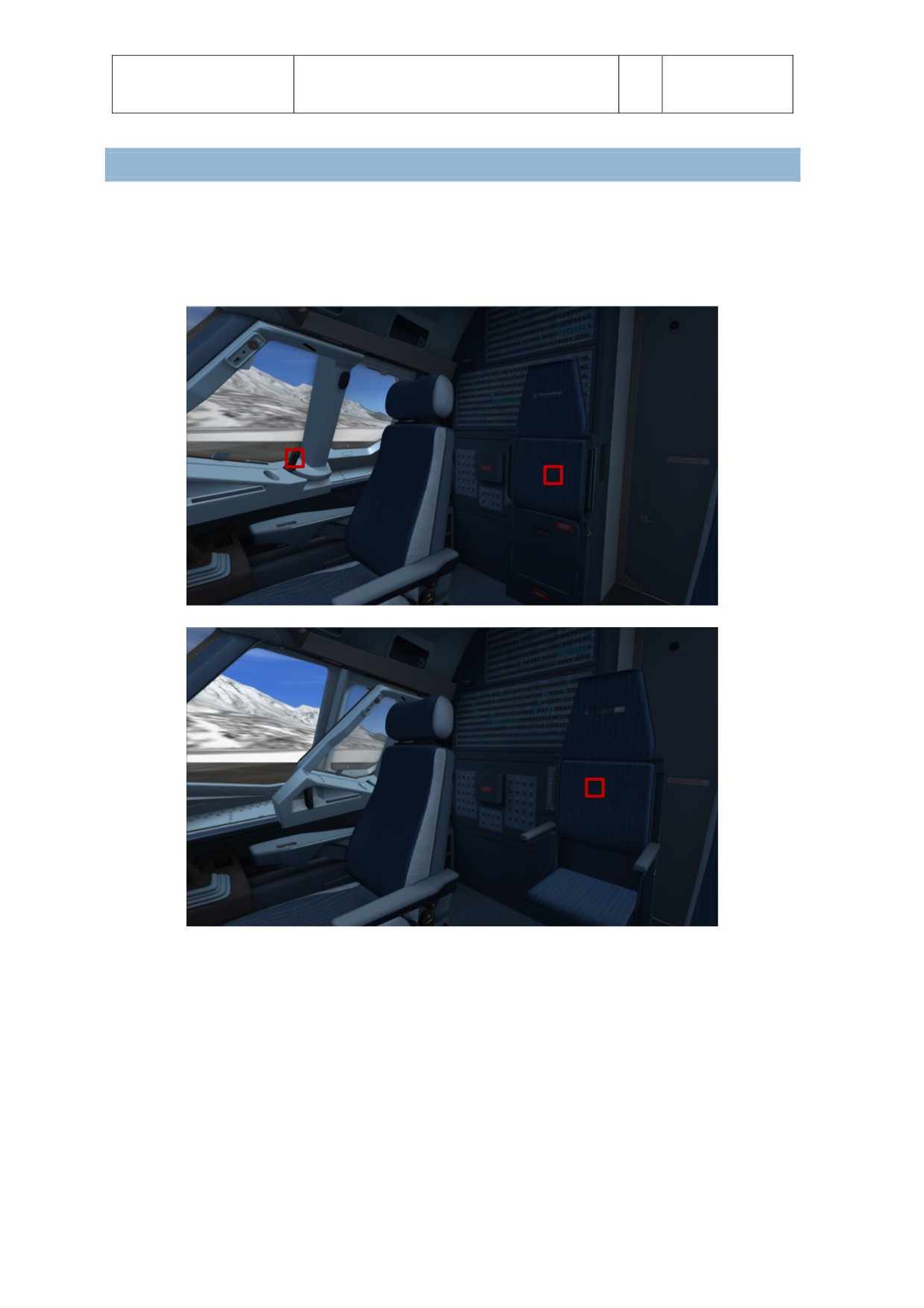
ST.ELMO’S FIRE
St. Elmo’s fire is a spectacular weather effect that is caused by electrostatc discharges that look like small
lightning bolts. They can occur on many places (ships masts for example) but they are now best known by
pilots. As an aircraf moves through the air it creates fricton and that charges the aircraf. When the charge
is too high (around 30,000 volts per centmeter of space) the charged object will discharge its electrical
energy. In the case of an aircraf this is mostly in the form of a spark from the window frames. It’s
spectacular and totally
harmless.
We have included this effect
in the Airbus. You will not
see it ofen but there are
conditons that will cause it
to appear more ofen. Being
close to a thunderstorm is
by far the most obvious, but
also heavy rain and being in
the tropics will make it
more likely.
Aerosof
The Airbus A318/A319/A320/A321 In FSX
Vol
01-03-19
Airbus
General guidelines
1
08 February 2017
A318/A319/A320/A321
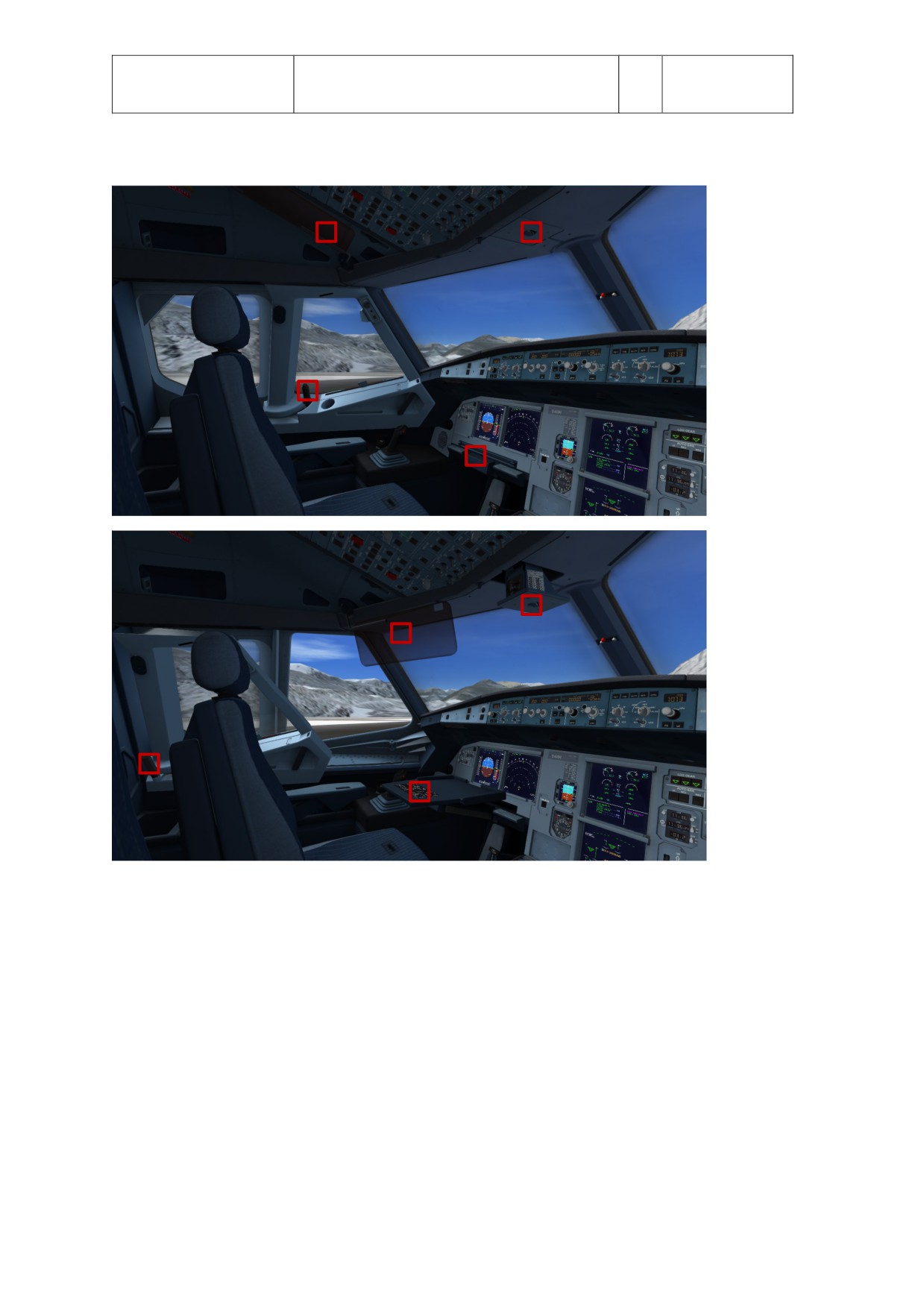
ANIMATIONS
There are many animatons in the Virtual cockpit. As with all elements in the cockpit they open with the lef
mouse buton and close with the right mouse buton. The areas where you can click are shown in the
images. All animatons have their own sound effects. Do not be surprised if some animatons are driven by
events in the cockpit.
Aerosof
The Airbus A318/A319/A320/A321 In FSX
Vol
01-03-20
Airbus
General guidelines
1
08 February 2017
A318/A319/A320/A321
On the external model all the usual flight controls are animated but also smaller elements like the APU air
inlet. The doors and cargo hatches can be opened using controls built into the right MCDU (see AIRCRAFT
DOORS). A special animaton will make the engines rotate in the wind when the aircraf is parked.
Rotatonal heading and speed depends on the wind.
Aerosof
The Airbus A318/A319/A320/A321 In FSX
Vol
01-03-21
Airbus
General guidelines
1
08 February 2017
A318/A319/A320/A321
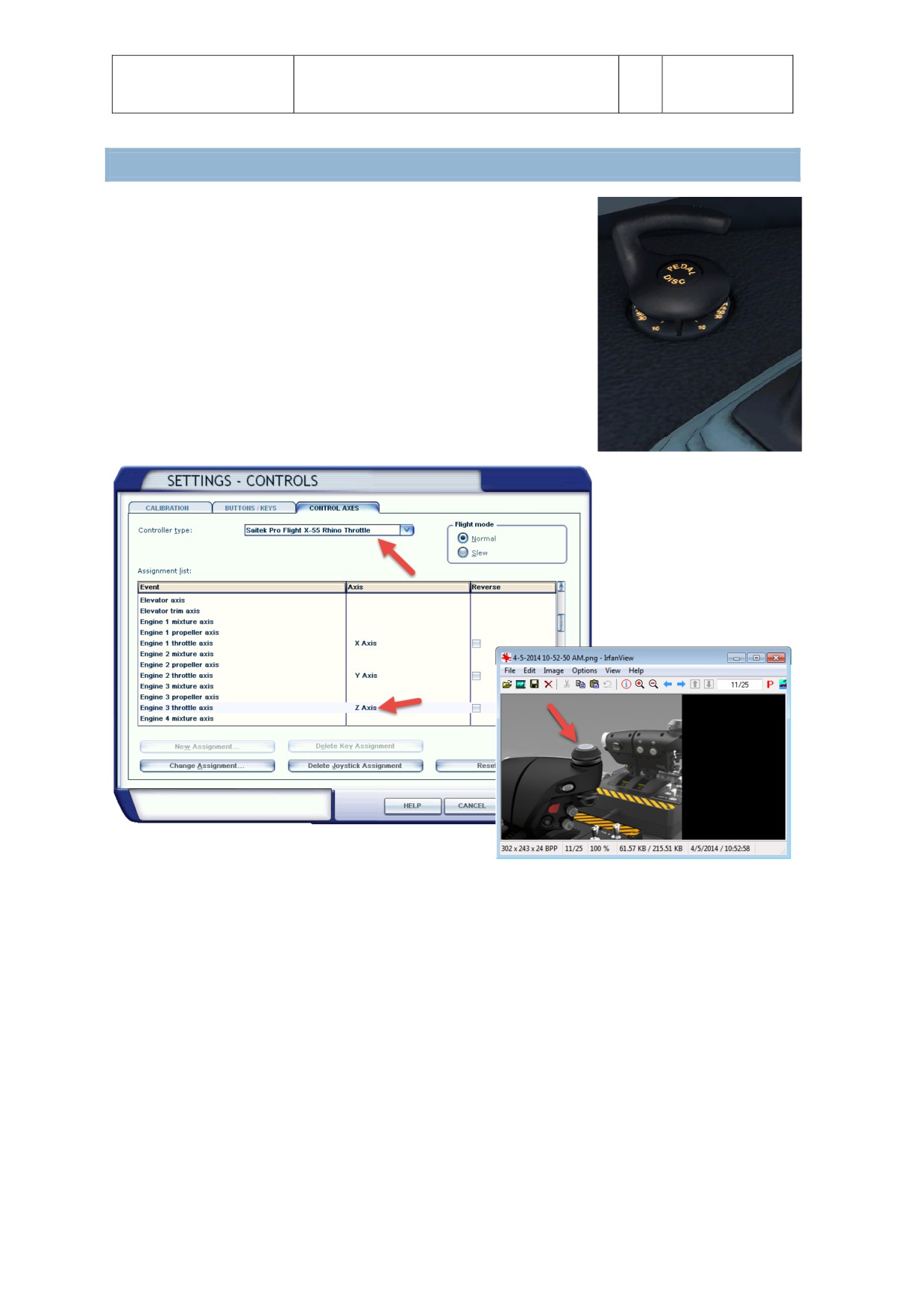
MAKING THE TILLER FUNCTIONAL
On the ground (at speeds under 60 knots) the Airbus is steered with the
‘tller’. This functons the same as a steering wheel in a car. We tried
controlling this with the mouse for additonal realism but where not
happy with the results. So as with all aircraf you use the rudder to steer
the aircraf. However it is now also possible to use a not used control axis
(rotary control) on your steering hardware. The tller axis is connected to
the FSX Engine 3 Throtle axis. You can use the SETTINGS-CONTROLS of
FSX to assign one of the controls on your hardware to this axis.
Pressing the center buton (marked PEDAL DISC) will disconnect the
rudder from the nose wheel. Press it again and the nose wheel will
connect to the rudder again.
Aerosof
The Airbus A318/A319/A320/A321 In FSX
Vol
01-03-22
Airbus
General guidelines
1
08 February 2017
A318/A319/A320/A321
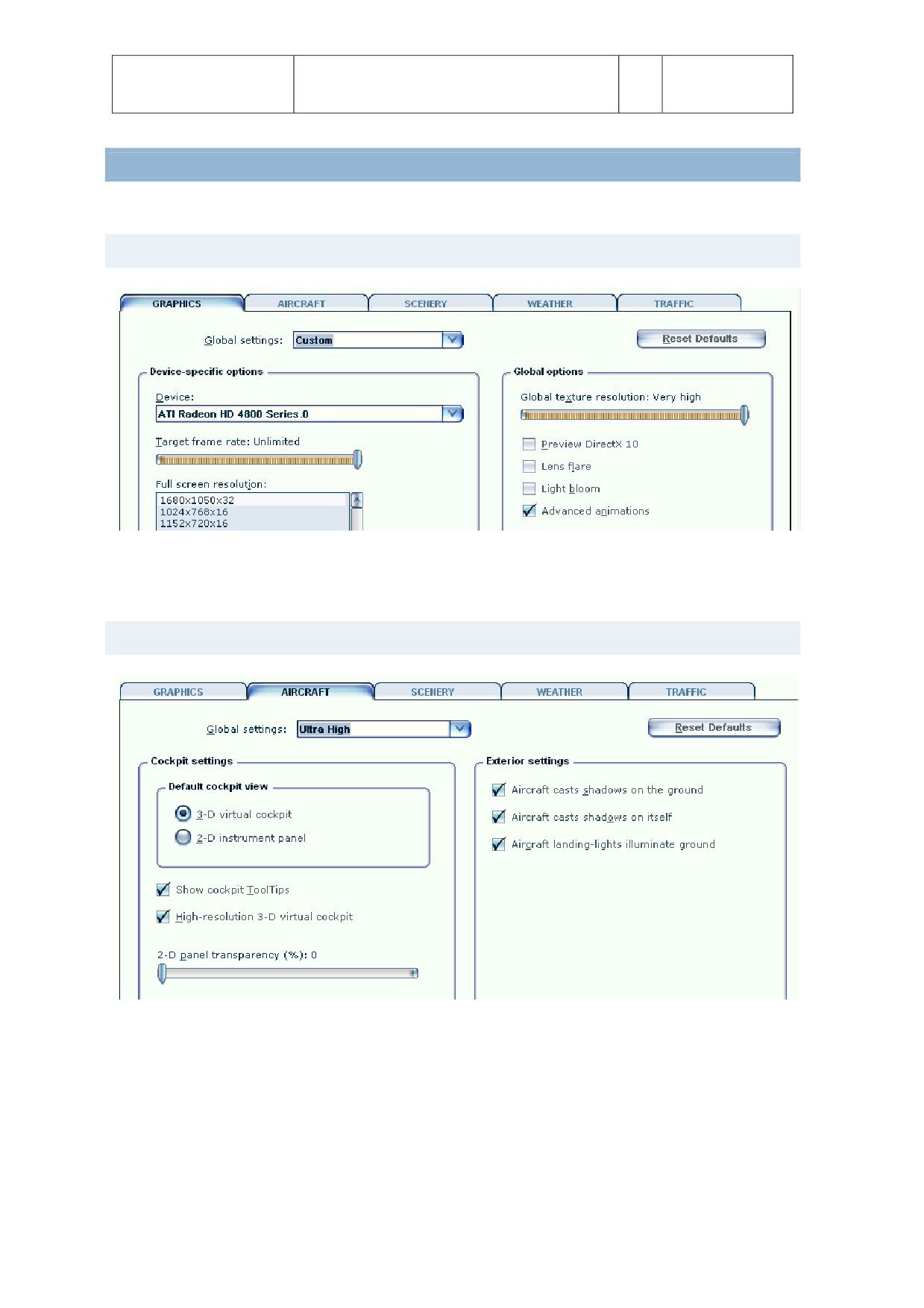
FSX SETTINGS
There are a few setngs that influence this aircraf.
OPTIONS | SETTINGS | DISPLAY
Advanced animatons needs to be ON.
Preview DirectX 10 can be actvate it, but to avoid problems we advise you to keep it OFF.
OPTIONS | SETTING | AIRCRAFT
Aircraf cast shadows on the ground can be lef ON as it will hardly affect frame rate.
Aircraf cast shadows on itself can be ON when you got a fast machine, but it will hurt frame rate
in external views.
High-resoluton 3-D virtual cockpit has to be ON.
Aerosof
The Airbus A318/A319/A320/A321 In FSX
Vol
01-03-23
Airbus
General guidelines
1
08 February 2017
A318/A319/A320/A321
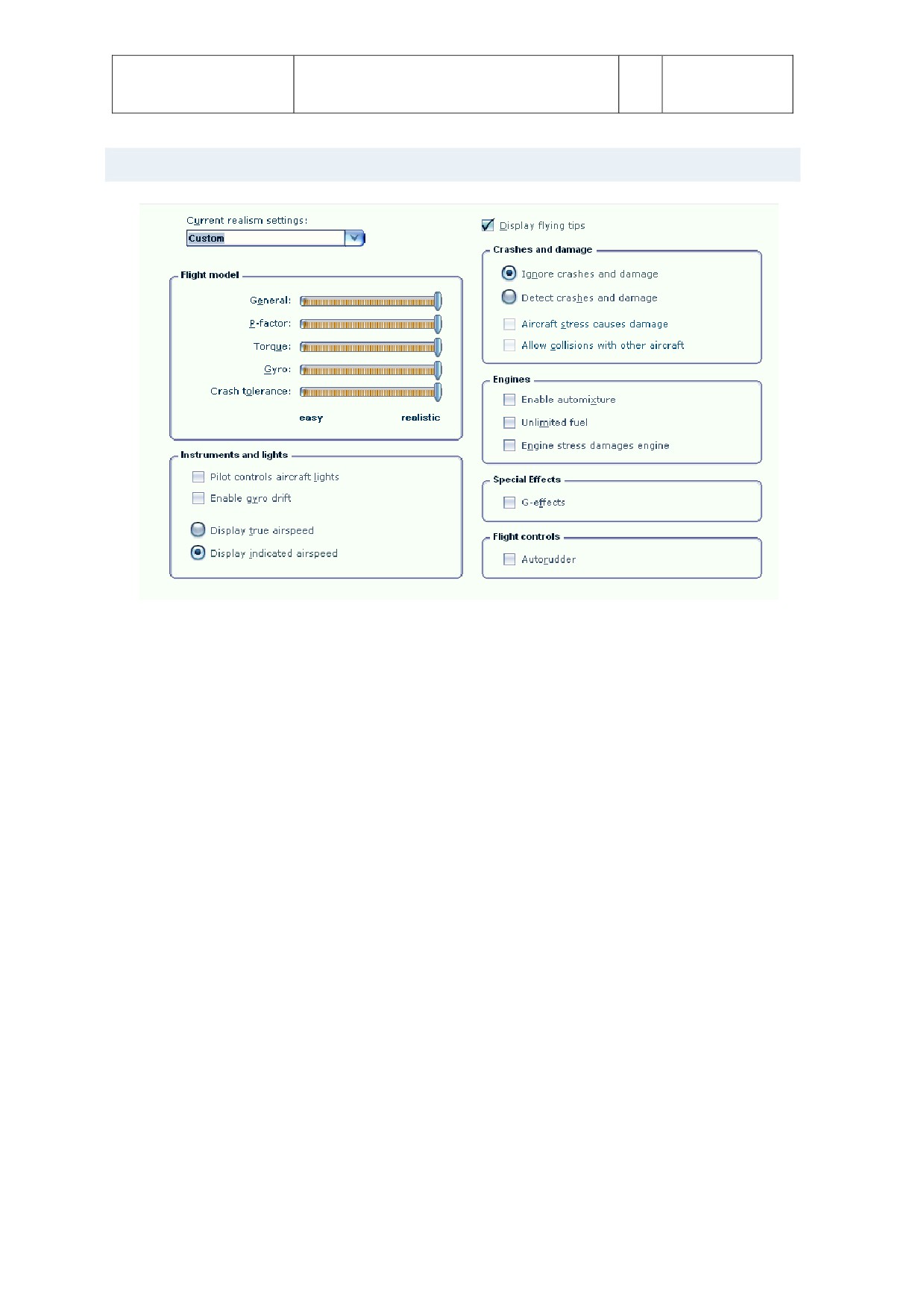
AIRCRAFT | REALISM SETTING
The most important setngs are in the Aircraf setngs: realism dialog.
Flight model: Set it to full realistc. Believe us; it will fly easier that way.
Instrument and lights: You do want to control the lights and the gyro drif. Of course we want
indicated airspeed, true airspeed is totally useless.
Crashes and damage: Not to important. You might gain a bit of FPS setng this all OFF.
Engines: Set as shown, but it does not really mater.
Special effects: Yes, you do want special effects! But if all goes well you never see them in the
Airbus because the Fly By Wire protecton rules will prevent that. Keep it on though.
Flight Controls: Well it’s an Airbus and that has Auto Rudder build in, but to prevent FSX messing
things up best keep this OFF.
Aerosof
The Airbus A318/A319/A320/A321 In FSX
Vol
01-03-24
Airbus
General guidelines
1
08 February 2017
A318/A319/A320/A321
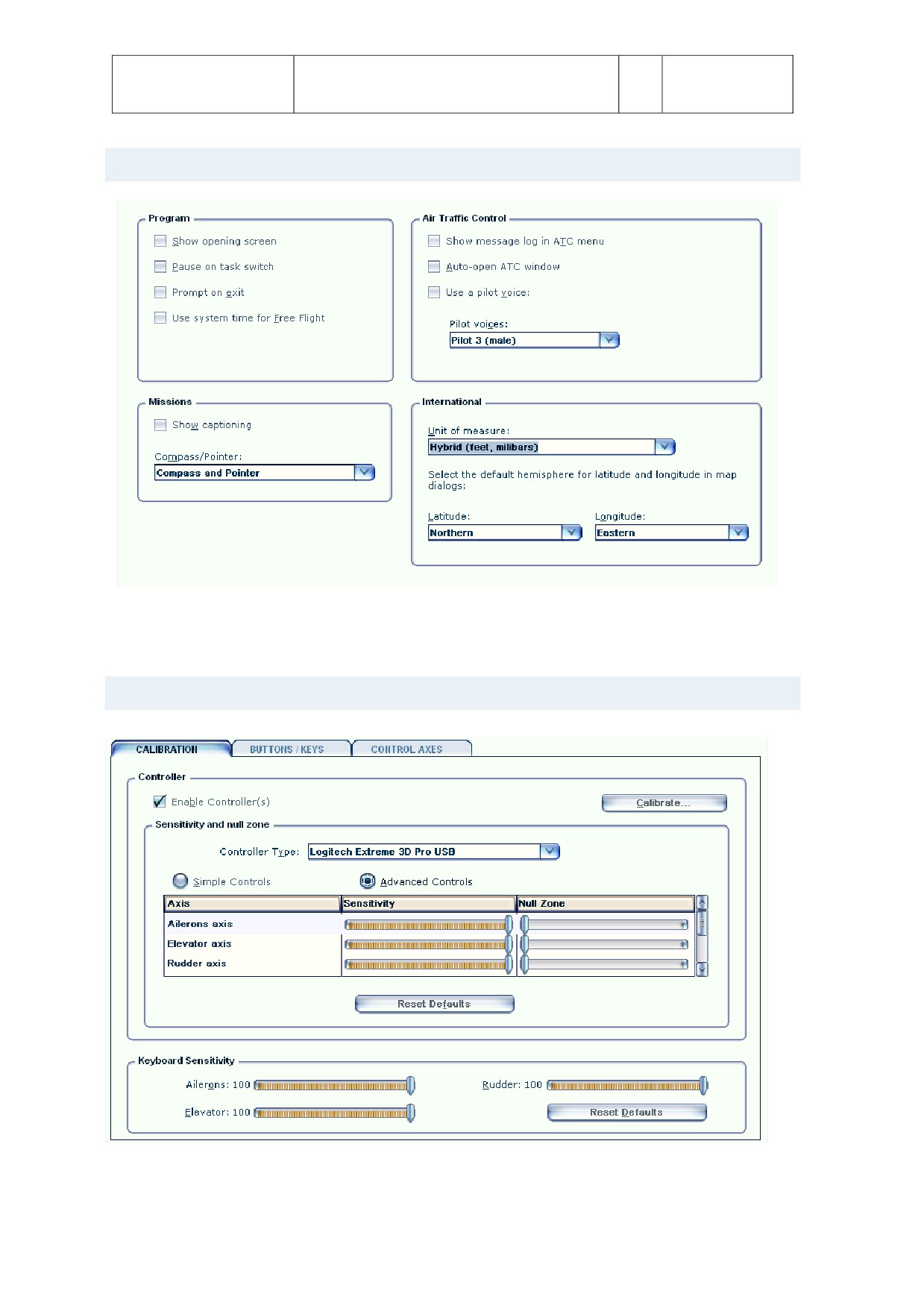
OPTIONS | SETTING | GENERAL
Internatonal is best set at hybrid as the MCDU weight and temperature setngs are in kg and
degree Celsius. To compare values the FSX should be set accordingly.
OPTIONS | SETTING | CONTROLS | CALIBRATION
Aerosof
The Airbus A318/A319/A320/A321 In FSX
Vol
01-03-25
Airbus
General guidelines
1
08 February 2017
A318/A319/A320/A321
To fly the Aerosof Airbus A318/A319 in an optmal way a joystck (like in the real aircraf the sidestck)
should be used. The Aerosof Airbus A318/A319 customized FSX setngs (Optons / Setngs / Controls /
Calibraton) for the joystck in FSX should look as in the above image. Additonally the following „Butons /
Keys” should be assigned to the joystck. This makes it much easier to handle certain functons such as the
critcal take off phase, without having to take your hands off the joystck. The functons that are
recommended to be assigned to the joystck are brakes, views, flaps, spoilers and landing gear.
Switching the Autopilot to ON doesn’t work with assigned butons or keys (only OFF like on the real Airbus
sidestck). The joystck setngs can be changed in the FSX under Optons / Setngs / Controls / Butons /
Keys. Please see also Vol8_ThrotleSetup_EN.pdf for details.

Aerosof
The Airbus A318/A319/A320/A321 In FSX
Vol
01-03-26
Airbus
General guidelines
1
08 February 2017
A318/A319/A320/A321
APPENDIX A: CHECKLIST WAVE NAMES AND CONTENT
Here is the complete text of the wav files that are included in the checklist system. If you like to create
your own versions (in your own language) you can do so with this. Do share it with others!
PF = PILOT FLYING
NO
FILENAME
CONTENT - TEXT
1
ASC_PF_0
Zero
2
ASC_PF_0_sec
Zero
3
ASC_PF_1
One
4
ASC_PF_1_sec
One
5
ASC_PF_2
Two
6
ASC_PF_2_sec
Two
7
ASC_PF_3
Three
8
ASC_PF_3_sec
Three
9
ASC_PF_4
Four
10
ASC_PF_4_sec
Four
11
ASC_PF_5
Five
12
ASC_PF_5_sec
Five
13
ASC_PF_6
Six
14
ASC_PF_6_sec
Six
15
ASC_PF_7
Seven
16
ASC_PF_7_sec
Seven
17
ASC_PF_8
Eight
18
ASC_PF_8_sec
Eight
19
ASC_PF_9
Niner
20
ASC_PF_9_sec
Niner
21
ASC_PF_ADIRSaligned
ADIRS aligned!
22
ASC_PF_ADIRSset
Set to NAV!
23
ASC_PF_AFOff
Auto Flight Off!
24
ASC_PF_aferLanding
And the Afer Landing Checklist please
25
ASC_PF_aferStart
The Afer Start Checklist please
26
ASC_PF_aferTO
And the Afer Takeoff Checklist please
27
ASC_PF_AllOff
Off!
28
ASC_PF_AllOn
On!
29
ASC_PF_AP2On
Second Autopilot is on!
30
ASC_PF_APOff
Autoflight Off!
31
ASC_PF_APOn
Autopilot is going on!
32
ASC_PF_APOn2
Autopilot is on!
33
ASC_PF_Approach
Approach Checklist
34
ASC_PF_APUon
APU on!
35
ASC_PF_AreCheck
Are checked!
36
ASC_PF_Arm
Arm!
37
ASC_PF_AsRequired
And as required!
38
ACC_PF_ATCRecive
OK Ground - we have ATC clearance for push and start now- ah …..
please confirm ground equipment and services are clear!
39
ASC_PF_ATCRecive2
OK Ground - we have ATC clearance for start and the taxi now - so
please confirm ground equipment and services are clear!
40
ASC_PF_Auto
Ah …. Auto!
41
ASC_PF_BaroRefSet
Baro reference set - and cross check!
42
ASC_PF_beforeStart
OK let’s do the Before Start Checklist
43
ASC_PF_beforeTO
Before Takeoff Checklist please

Aerosof
The Airbus A318/A319/A320/A321 In FSX
Vol
01-03-27
Airbus
General guidelines
1
08 February 2017
A318/A319/A320/A321
44
ASC_PF_BothOff
Both off!
45
ASC_PF_BothOn
Ah ….. Both on!
46
ASC_PF_BrakeFansOn
Brake fans on!
47
ASC_PF_Check
Checked!
48
ASC_PF_CheckArm
Checked and armed!
49
ASC_PF_CheckDown
Checked down!
50
ASC_PF_CheckNormal
Checked normal!
51
ASC_PF_CheckOff
Ah ….. Checked off!
52
ASC_PF_CheckOn
Checked on!
53
ASC_PF_CheckPos
Checked positon!
54
ASC_PF_CheckRetr
Checked retracted!
55
ASC_PF_CheckStby
Checked standby!
56
ASC_PF_CheckZero
Checked zero!
57
ASC_PF_ChkNoBlue
Checked ….. and no blue!
58
ASC_PF_ChocksSet
And the chocks are set!
59
ASC_PF_ClimbThrust
Climb thrust!
60
ASC_PF_ClosedLocked
Closed and locked!
61
ASC_PF_CockpitPrep
OK let’s start with the Cockpit Preparaton Checklist
62
ASC_PF_DescentInit
Initatng descent!
63
ASC_PF_DescentPrep
OK let’s go through the Descent Preparaton Checklist
64
ASC_PF_Disarmed
Disarmed!
65
ASC_PF_DiscOff
Disconnected and off!
66
ASC_PF_DownLock3Gr
Down and locked - three green!
67
ASC_PF_Eng1Run
Engine one stabilized!
68
ASC_PF_Eng2Run
Engine two is stabilized!
69
ASC_PF_EXPon
And the External power is on!
70
ASC_PF_FaPrepLnd
Flight atendants - prepare for landing!
71
ASC_PF_FaPrepTo
Flight atendants - seats for takeoff please!
72
ASC_PF_FDtoGnd
Flight deck to ground
73
ASC_PF_Flaps1
Flaps one!
74
ASC_PF_Flaps2
Flaps two!
75
ASC_PF_Flaps3
Flaps three!
76
ASC_PF_FlapsFull
And Flaps full please!
77
ASC_PF_FlapsUp
And Flaps zero!
78
ASC_PF_Flex
MAN FLEX and SRS
79
ASC_PF_Flex_Rwy
MAN FLEX, SRS and RWY
80
ASC_PF_Full
Full!
81
ASC_PF_FullDown
Full down!
82
ASC_PF_FullLef
Full lef!
83
ASC_PF_FullRight
Full right!
84
ASC_PF_FullUp
Full up!
85
ASC_PF_GearDown
Gear down!
86
ASC_PF_GearUp
Gear up!
87
ASC_PF_GearUpLtOff
Gear up - lights off!
88
ASC_PF_GoAround
Go Around - Flaps please!
89
ASC_PF_Idle
Idle!
90
ASC_PF_IsCheck
Is checked!
91
ASC_PF_Landing
Landing Checklist please!
92
ASC_PF_LandingCall
Contnue!
93
ASC_PF_LightsOff
Lights off!
94
ASC_PF_LightsOn
Lights on!
95
ASC_PF_Low
Low!
96
ASC_PF_ManBrake
Manual Brakes!
Aerosof
The Airbus A318/A319/A320/A321 In FSX
Vol
01-03-28
Airbus
General guidelines
1
08 February 2017
A318/A319/A320/A321
97
ASC_PF_Max
Max!
98
ASC_PF_Medium
Medium!
99
ASC_PF_Nav
Navigaton
100
ASC_PF_Neutral
Neutral!
101
ASC_PF_Off
Off!
102
ASC_PF_OK
Is OK!
103
ASC_PF_On
On!
104
ASC_PF_ParkBrakeRel
Parking brakes - released!
105
ASC_PF_ParkBrakeSet
Parking brakes - are set!
106
ASC_PF_Parking
It was a nice flight. So let’s do the Parking Checklist and then we are
done for the day.
107
ASC_PF_PressedPedal
Pedal Pressed!
108
ASC_PF_RadarTilt
Radar tlt!
109
ASC_PF_Recived
Received!
110
ASC_PF_Released
Released!
111
ASC_PF_Review
Reviewed!
112
ASC_PF_Rudder
Rudder!
113
ASC_PF_Set
Set!
114
ASC_PF_SetOff
Set off!
115
ASC_PF_SetOn
Set on!
116
ASC_PF_SetStdCrossChk
Baro reference set and cross check!
117
ASC_PF_Speedbrakes
Speedbrakes!
118
ASC_PF_StartCmpl
And that’s a good start on both engines - all systems are
normal. Thank you for your help and all clear - we see you for
signal on the right please.
119
ASC_PF_StartPush
Start push back!
120
ASC_PF_Std
Standard!
121
ASC_PF_Stow
Stowed!
122
ASC_PF_TA_TiltAbove
TA and tlt above!
123
ASC_PF_TakeOff
Takeoff!
124
ASC_PF_TARA_TiltAbove
TA / RA - tlt above!
125
ASC_PF_Taxi
Taxi!
126
ASC_PF_Taxiing
And the Taxi Checklist
127
ASC_PF_Toga
MAN TOGA and SRS
128
ASC_PF_Toga_Rwy
MAN TOGA, SRS and RWY

Aerosof
The Airbus A318/A319/A320/A321 In FSX
Vol
01-03-29
Airbus
General guidelines
1
08 February 2017
A318/A319/A320/A321
PnF = PILOT NON FLYING
NO
FILENAME
CONTENT - TEXT
1
ASC_PnF_0
Zero
2
ASC_PnF_0_sec
Zero
3
ASC_PnF_1
One
4
ASC_PnF_1_sec
One
5
ASC_PnF_2
Two
6
ASC_PnF_2_sec
Two
7
ASC_PnF_3
Three
8
ASC_PnF_3_sec
Three
9
ASC_PnF_4
Four
10
ASC_PnF_4_sec
Four
11
ASC_PnF_5
Five
12
ASC_PnF_5_sec
Five
13
ASC_PnF_6
Six
14
ASC_PnF_6_sec
Six
15
ASC_PnF_7
Seven
16
ASC_PnF_7_sec
Seven
17
ASC_PnF_8
Eight
18
ASC_PnF_8_sec
Eight
19
ASC_PnF_9
Niner
20
ASC_PnF_9_sec
Niner
21
ASC_PnF_70Knots
Seventy knots!
22
ASC_PnF_100Knots
One hundred knots!
23
ASC_PnF_250kt_Warning1
Captain - we have a speed limit of 250 knots!
24
ASC_PnF_250kt_Warning2
High speed - Captain!
25
ASC_PnF_10000f
Passing ten thousand feet!
26
ASC_PnF_AccuBrakePress
Accu Brake Pressure?
27
ASC_PnF_ADIRS
A-DIRS?
28
ASC_PnF_AirCond
Air conditon?
29
ASC_PnF_Altmeter
Altmeter?
30
ASC_PnF_AntIce
Ant ice?
31
ASC_PnF_AntSkid
Ant skid?
32
ASC_PnF_APU
APU?
33
ACC_PnF_APUBleed
APU bleed?
34
ASC_PnF_APUMaster
APU master?
35
ASC_PnF_APUon
APU on!
36
ASC_PnF_AutoBrake
Auto brakes?
37
ASC_PnF_AutoBrakesOff
Auto brakes off!
38
ASC_PnF_BaroRef
Baro reference?
39
ASC_PnF_Batery
Bateries?
40
ASC_PnF_BeaconLights
Beacon lights?
41
ASC_PnF_BrakeChk
Brake check?
42
ASC_PnF_BrakeFans
Brake fans?
43
ASC_PnF_BrakeTemp
Brake temperature?
44
ASC_PnF_Check
Check!
45
ASC_PnF_Checked
Checked!
46
ASC_PnF_ChecklistCmpl
Checklist complete!
47
ASC_PnF_DH
Baro / Radio!
48
ASC_PnF_ECAMDoor
Ecam door page?
49
ASC_PnF_ECAMRecall
Ecam recall?
50
ASC_PnF_ECAMStat
Ecam status?

Aerosof
The Airbus A318/A319/A320/A321 In FSX
Vol
01-03-30
Airbus
General guidelines
1
08 February 2017
A318/A319/A320/A321
51
ASC_PnF_EFCS
Electronic flight control system?
52
ASC_PnF_ElecPower
Electrical power?
53
ASC_PnF_Electric
Electric panel?
54
ASC_PnF_EmergEquip
Emergency equipment?
55
ASC_PnF_EmergLight
Emergency lights?
56
ASC_PnF_EngMaster
Engine master?
57
ASC_PnF_EngModeSel
Engine mode selector?
58
ASC_PnF_ExtLights
Exterior lights?
59
ASC_PnF_ExtPwr
External power?
60
ASC_PnF_FCUCheck
FCU?
61
ASC_PnF_Flaps
Flaps?
62
ASC_PnF_Flaps1
Speed Check - Flaps one!
63
ASC_PnF_Flaps2
Speed Check - Flaps two!
64
ASC_PnF_Flaps3
Speed Check - Flaps three!
65
ASC_PnF_FlapsFull
Speed Check - Flaps full!
66
ASC_PnF_FlapsUp
Speed Check - Flaps zero!
67
ASC_PnF_Flare
Flare!
68
ASC_PnF_FlightCntr
Flight controls?
69
ASC_PnF_FlightDirector
Flight director?
70
ASC_PnF_FltInstrum
Flight instruments?
71
ASC_PnF_FMACheck
FMA check?
72
ASC_PnF_FuelPumps
Fuel pumps?
73
ASC_PnF_Full
Full!
74
ASC_PnF_GAAlt
Go around alttude?
75
ASC_PnF_GearDown
Gear down!
76
ASC_PnF_GearLever
Landing gear lever?
77
ASC_PnF_GearUp
Gear up!
78
ASC_PnF_GearUpLtOff
Gear is up - lights off!
79
ASC_PnF_GndSpoilers
Ground spoilers?
80
ASC_PnF_GPWSSys
Ground proximity warning system?
81
ASC_PnF_GSAlive
Glide scope alive!
82
ASC_PnF_GSCapt
Glide slope captured!
83
ASC_PnF_HandSig
Hand signal?
84
ASC_PnF_Hydraulics
Hydraulics?
85
ASC_PnF_LandElev
Landing elevaton?
86
ASC_PnF_LandGear
Landing gear?
87
ASC_PnF_LandInfo
Landing informaton?
88
ASC_PnF_LndMemo
Landing memo?
89
ASC_PnF_LOCAlive
Localizer alive!
90
ASC_PnF_LOCCapt
Localizer captured!
91
ASC_PnF_MinSafeAlt
Minimum safe alttude?
92
ASC_PnF_NAVAccur
Nav accuracy?
93
ASC_PnF_NavLights
Navigaton lights?
94
ASC_PnF_NoseLight
Nose light?
95
ASC_PnF_NoSmoking
No smoking signs?
96
ASC_PnF_Off
Off!
97
ASC_PnF_On
On!
98
ASC_PnF_Packs
Packs?
99
ASC_PnF_ParkBrake
Parking brake?
100
ASC_PnF_ParkBrakeChocks
Parking brake and chocks?
101
ASC_PnF_PitchTrim
Pitch trim?
102
ASC_PnF_PosRate
Positve climb!
103
ASC_PnF_PowerSet
Power set!
Aerosof
The Airbus A318/A319/A320/A321 In FSX
Vol
01-03-31
Airbus
General guidelines
1
08 February 2017
A318/A319/A320/A321
104
ASC_PnF_PressPedal
Press pedal!
105
ASC_PnF_ProbeWindowHeat
Probe window heat?
106
ASC_PnF_RadCntrPanel
Radio control panel?
107
ASC_PnF_ReverseGreen
Reverse green!
108
ASC_PnF_Rotate
Rotate!
109
ASC_PnF_RudTrim
Rudder trim?
110
ASC_PnF_SeatBelt
Seat belt signs?
111
ASC_PnF_SetBaroRefCpt
Set baro reference captain!
112
ASC_PnF_SetBelow
Set below!
113
ASC_PnF_Signs
Cabin signs?
114
ASC_PnF_SlideTable
Sliding tables?
115
ASC_PnF_SpeedBrakeLever
Speed brake lever?
116
ASC_PnF_Spoilers
Spoilers?
117
ASC_PnF_StartEng1
Startng number one!
118
ASC_PnF_StartEng2
Startng engine two!
119
ASC_PnF_Stow
Stowed!
120
ASC_PnF_TCAS
TCAS (sprich:T-cas) ?
121
ASC_PnF_ThrustLevers
Thrust levers?
122
ASC_PnF_TOConfig
TO Config?
123
ASC_PnF_ToData
Takeoff data?
124
ASC_PnF_TransAlt
Transiton alttude!
125
ASC_PnF_TransponderMode
Transponder mode?
126
ASC_PnF_V1
V one!
127
ASC_PnF_V2
V two!
128
ASC_PnF_Vent
Ventlaton panel?
129
ASC_PnF_WindowsDoors
Windows and doors?
Aerosof
The Airbus A318/A319/A320/A321 In FSX
Vol
01-03-32
Airbus
General guidelines
1
08 February 2017
A318/A319/A320/A321
Ground Crew
NO
FILENAME
CONTENT - TEXT
1
ASC_GND_GoAhead
Go ahead Sir
2
ASC_GND_PushCmpl
And pushback is complete captain, please set your parking
brakes
3
ASC_GND_RdyTaxi
OK then captain, tow bar is connected, your steering pin is
removed, all clear signal on the right, have a good flight
4
ASC_GND_Readyfor Push
Ground equipment and stairs are clear, doors are closed,
steering pin is positon and we are ready when you are captain
5
ASC_GND_Readyfor Start
Ground equipment and stairs are clear, doors are closed and we
are ready when you are captain
6
ASC_GND_RelParkBrake
Please release the parking brakes
7
ASC_GND_Roger
Roger
8
ASC_GND_StartCmpl
Roger, OK two good starts, all clear, signals on the right
9
ASC_GND_StartPush
Startng pushback, start both engines at your discreton captain
Aerosof
The Airbus A318/A319/A320/A321 In FSX
Vol
01-03-33
Airbus
General guidelines
1
08 February 2017
A318/A319/A320/A321
APPENDIX B: THE MAKING OFF
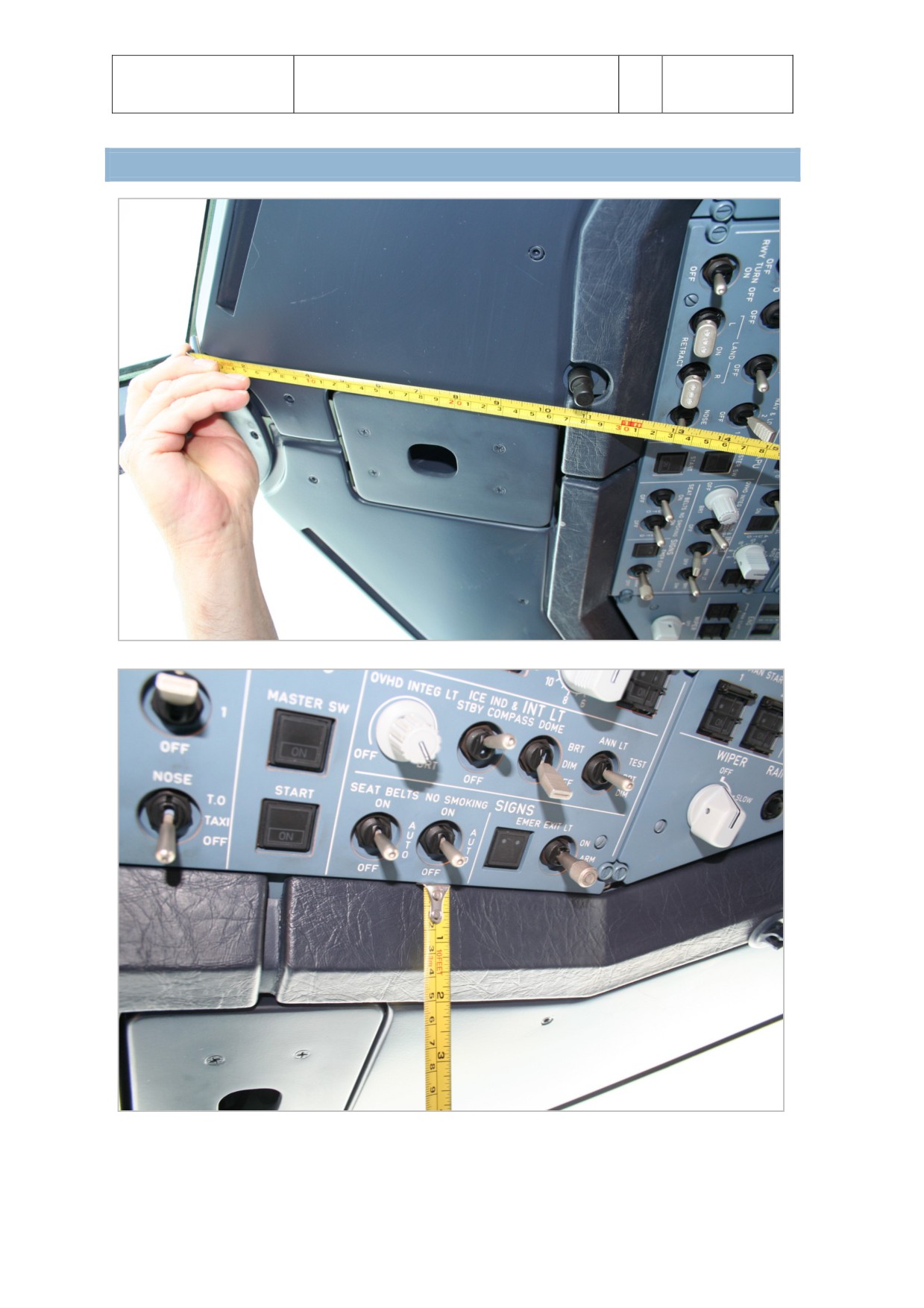
“THE MAKING OF”. Stefan Hoffmann measuring the A321 cockpit to make sure all details are as they
should.

AIRBUS X
Volume 2
Normal Procedures
Version 02-01-001
RECORD OF REVISIONS
revision n°
Issue date
Descripton
001
Aug 20, 2014
completon
Aerosof
Normal Procedures
Vol
02-01-1
Airbus A320/A321
2
28 October 2014
CONTENTS
COCKPIT SAFETY INSPECTION (PNF Duty)
2
PRELIMINARY COCKPIT PREPARATION (PNF Duty)
3
COCKPIT PREPARATION
4
BEFORE START/PUSHBACK
7
ENGINE START
8
AFTER START
9
TAXIING
10
BEFORE TAKE OFF
12
TAKE OFF
13
AFTER TAKE OFF
15
CLIMB
16
CRUISE
17
DESCENT PREPARATION
18
DESCENT / APPROACH
19
FINAL
21
AFTER LANDING
23
SINGLE ENGINE TAXI
24
PARKING
25
LEAVING THE AIRCRAFT
26
STEEP APPROACH
27
SPEEDS GUIDE
28
Aerosof
Normal Procedures
Vol
02-01-2
Airbus A320/A321
2
28 October 2014
COCKPIT SAFETY INSPECTION (PNF DUTY)
MASTER 1 and 2
OFF
MODE SELECTOR
NORM
L/G LEVER
DOWN
WIPERS
OFF
BAT 1 and 2
CHECK OFF
BAT 1 and 2 VOLTAGE
CHECK > 25 V
BAT 1 and 2
ON
Aerosof
Normal Procedures
Vol
02-01-3
Airbus A320/A321
2
28 October 2014
PRELIMINARY COCKPIT PREPARATION (PNF DUTY)
EXT PWR (when AVAIL illuminated)
ON
APU (when rqrd)
START
ECAM
ON
APU MASTER SW
ON
ON lt illuminates.
APU page opens on ECAM.
APU START
ON
FLAP OPEN indicaton shows.
N and EGT rise.
AT 95%
ECAM APU pages shows AVAIL.
On APU panel START ON lt extnguishes, AVAIL lt illuminates.
Afer 10 seconds ECAM DOORS page shows.
EXT PWR
AS RQRD
May be kept on to reduce APU load.
INT LT
AS RQRD
DOCUMENTATION
ABOARD & CHECK
PARKING BRAKE
ON
Check BRAKE PRESS indicator. When required use HYD YELLOW PUMP
to recharge.
FLAPS
CHECK POSITION
Confirm flap handle positon and ECAM display in agreement.
SPEED BRAKE
CHECK RETRACTED
Confirm speed brake handle positon and ECAM display in agreement.
ECAM RCL
DEPRESS
Depress recall buton for 3 seconds to recall and clear all messages
ECAM HYD
CHECK
Check for abnormal indicatons
ECAM ENG
CHECK
Check for abnormal indicatons
APU BLEED
AS RQRD
Select on when needed for air conditoning
X-BLEED
AUTO
ZONE TEMP SELECTORS
AS RQRD
Aerosof
Normal Procedures
Vol
02-01-4
Airbus A320/A321
2
28 October 2014
COCKPIT PREPARATION
PFD and ND
ON PF/PNF
GPWS
TEST PF/PNF
Press GPWS pb and check the GPWS FAULT light is on and aural warnings
are heard
PFD and ND
CHECK PF/PNF
Check for abnormal indicatons
BARO REFERENCE
CHECK PF/PNF
Check barometer setngs and compare alttude indicatons on PFD
FD
CHECK ON PF/PNF
ILS
AS RQRD PF/PNF
ND MODE and RANGE
AS RQRD PF/PNF
It is recommended to display ARC on ND if take off directon is close to
departure directon, otherwise ROSE NAV is recommended.
VOR/ADF SELECTORS
AS RQRD PF/PNF
FCU :
SPD MACH
DASHED PNF
HDG-V/S / TRK-FPA
HDG-V/S PNF
ALT
SET PFN
Set inital expected clearance alttude.
ST BY ASI
CHECK PNF
ST BY ALTI
CHECK PNF
ST BY HORIZON
CHECK PNF
CLOCK
CHECK/ADJUST PNF
A/SKID & N/W STRG
ON PNF
RADIO CONTROL PANEL
ON PF/PNF
COMS FREQ
SET PF/PNF
THRUST LEVERS
CHECK IDLE PNF
ENG MASTER SWITCH
OFF PNF
ENG MODE SELECTOR
NORM PNF
XPNDR
STB PNF
PARKING BRAKE
ON PNF
Aerosof
Normal Procedures
Vol
02-01-5
Airbus A320/A321
2
28 October 2014
EXTERNAL LIGHTS:
STROBE
AUTO PNF
BEACON
OFF PNF
WING, NAV, RWY TURN OFF, LAND NOSE
AS RQRD PNF
SEATBELT SIGN
ON PNF
NO SMOKING
AUTO PNF
EMER EXIT LT
ARM
CABIN PRESS LDG ELEV
AUTO PNF
FUEL PUMPS
ALL ON PNF
TAKE OFF INFORMATION
RECEIVE PNF
TAKE OFF DATA FORM
START TO FILL PNF
FMGS PREPARATION
INIT A
DEPRESS INIT
o Insert departure and arrival airport (FROM/TO)
o Insert flight number (FLT NBR)
o Press ALIGN to get locaton
o Insert Cost Index (COST INDEX)
o Insert Cruise Flight Level (CRZ FL
F-PLN
DEPRESS F_PLN
RADNAV
DEPRESS RADNAV
o Insert all relevant Navigatonal Aids
INIT B
ARROW RIGHT
o Insert TAXI, RTE RSV, FINAL/TIME (optonal)
o Enter Block Fuel (BLOCK)
o Insert Zero Fuel Weight (ZFW)
PERF
DEPRESS PERF
o Enter take off flaps (FLAPS/THS)
o Enter V1, Vr, V2 (entering no data and depressing the
LSKs will insert pre-calculated numbers
o Insert take off flex (TO-FLEX)
o Enter transiton alttude(or leave at 18000)
Check flight plan (assuming FSX flight plan is loaded)
Aerosof
Normal Procedures
Vol
02-01-6
Airbus A320/A321
2
28 October 2014
FUEL QTY
CHECK PF/PNF
PREFLIGHT BRIEFING
PERFORM PF/PNF
COCKPIT CREW CHECKLIST
COMPLETE
Read by PNF and answered accordingly
1. Preflight Briefing
PERFORMED PF/PNF
2. Cabin Signs
ON/AUTO PF
3. Fuel Quantty
________KG PF/PNF
4. Take Off Data
INSERTED PF/PNF
5. Altmeter
CHECKED PF
Aerosof
Normal Procedures
Vol
02-01-7
Airbus A320/A321
2
28 October 2014
BEFORE START/PUSHBACK
ATC CLEARANCE
OBTAIN PNF
WINDOWS and DOORS
CLOSED PF/PNF
Check the red circle on handle is fully visible
Check on ECAM lower display that all doors are closed
START UP and PUSHBACK CLEARANCE
OBTAIN PF/PNF
THR LEVERS
IDLE PNF
Engine will start regardless of thrust lever positon.
if IDLE is not selected thrust will increase rapidly afer start.
PARKING BRAKE
AS RQRD PF
If no pushback rqrd set ON, check ECAM “PARK BRK” memo displayed &
BRAKE PRESS indicaton
If pushback rqrd coordinate parking brakes with ground crew
BEACON
ON PNF
TRANSPONDER
XNPDR PNF
APU BLEED
ON PNF
BEFORE START CHECKLIST
COMPLETE PF/PNF
Read by PNF and answered accordingly
1. Windows/Doors
CLOSED PNF/PF
2. Beacon
ON PF
3. Thrust Lever
IDLE PNF
4. Parking Brake
SET PF
Aerosof
Normal Procedures
Vol
02-01-8
Airbus A320/A321
2
28 October 2014
ENGINE START
CREW COORDINATION
Conditon
PF
PNF
Before start CKL completed
Report “ Before start CKL completed
Ready to start & Ground
ENG MODE to IGN START
crew clearance obtained
ENG MODE Sel - IGN START
Announce ”Engine No #”
ENG MASTER to ON
Engine stabilized
Check N1, N2, EGT and FF on normal ground idle
ENG MODE sel
IGN PF
“ENG 2 START”
ANNOUNCE PF
MASTER sw 2
ON PF
ENGINE PARAMETERS
MONITOR PF
Start valve open,
Bleed pressure indicatng green,
Oil Pressure rise,
N2 increase to 16%,
Igniter A or B,
N2 increase to 22%,
Fuel flow increase,
EGT rise,
N1 increase,
Start valve closing at 50% N2,
Igniter off.
ENGINE IDLE PARAMETERS (ISA sea level)
CHECK PF/PNF
N1
19.5 %
EGT
390° C
N2
58.5 %
FF
275 kg/h
OIL
steady green
“Parameters Stabilized”
ANNOUNCE PNF
MASTER sw 1
ON PF
as for Engine 2
ENG MODE sel
NORM PF
On lower ECAM the ENG page will be replaced with WHEEL page
Aerosof
Normal Procedures
Vol
02-01-9
Airbus A320/A321
2
28 October 2014
AFTER START
APU BLEED
OFF PNF
GROUND SPOILERS
ARM PNF
RUDDER TRIM
ZERO PNF
If not showing zero, press RESET.
FLAPS LEVER
SET PNF
Set FLAPS for take-off.
Check ECAM upper display.
PITCH TRIM
SET PNF
Set TO CG on pitch trim wheel.
ECAM STATUS
CHECK PNF
Check for remaining reminders.
APU MASTER sw
OFF PNF
ENG ANTI ICE
AS RQRD PF
WING ANTI ICE
AR RQRD PF
On ground the ant-ice valves will operate for 30 seconds then close,
they will open automatcally when a/c is airborne.
ECAM DOOR
SELECT PF
Check all slides armed & deselect door page on ECAM.
GROUND CREW CLEARANCE
RECEIVE PF/PNF
Captain acknowledges the clear to move signal from ground crew,
Copilot crosschecks.
PF checks that NW STRG DICS memo message is NOT displayed.
AFTER START CHECKLIST
COMPLETE
Read by PNF and answered accordingly
1. APU
AS RQRD PF
2. Ant-Ice
AS RQRD PF
3. ECAM Status
CHECKED PNF
4. Flaps
FLAPS…. PF/PNF
5. SPOILER
ARMED PF
6. Pitch/Rudder Trim
____/ZERO PF
7. Hand Signal
RECEIVED CPT
Aerosof
Normal Procedures
Vol
02-01-10
Airbus A320/A321
2
28 October 2014
TAXIING
TAXI CLEARANCE
OBTAIN PNF
Always use VHF 1 because it is linked to the emergency bus.
EXT LT
AR RQRD PF
TAXI AREA
CLEAR PF/PNF
CLOCK ET
START PNF
To record block tme move ET selector to Run to start Elapsed Time counter.
PARKING BRAKE
CK/OFF PF
Aircraf in moton:
o PF calls “Brake Check”.
o Gently apply brakes.
o Check BRAKES pressure at zero.
o PNF announces “No Pressure”.
TRUST LEVERS
AS RQRD PF
Litle or no thrust above idle is needed to get in moton.
Maximum speed in straight line below 30 knots and 10 knots in sharp turns.
Do not ride brakes (brake wear is proportonal to duraton, not to applied pressure)
FLIGHT CONTROLS
CHECK PF/PNF
PF applies full deflecton of the stck up, down, neutral, lef, right, neutral.
Note full deflecton needs to be kept for a moment to reach full movement.
PF/PNF checks on F/CTL page for full travel.
PF presses PEDAL DISC PB on nosewheel tller and applies full rudder and
PF/PNF monitor F/CTL page for full moton.
ATC CLEARANCE
RECEIVE PF/PNF
TAKE OFF DATA/CONDITIONS
REVIEW PF/PNF
FCU
SET PNF
Insert cleared alttude.
Preset heading if turn is needed afer take off (NAV will be disarmed
and afer takeoff, RWY TRAK mode will keep centerline heading untl
HDG/TRK selecton knob is pulled.
ATC CODE
CONFIRM/SET PNF
Aerosof
Normal Procedures
Vol
02-01-11
Airbus A320/A321
2
28 October 2014
AUTO BRK
MAX PNF
AUTO BRK can be ‘on’ while on parking brakes. MAX setng will help
to stop the aircraf in case of an aborted takeoff by automatcally applying
maximum brake force when throtles are retarded to idle.
TO CONFIG pb
PRESS PNF
Check “T.O. CONFIG NORMAL” is shown on ECAM upper display.
FLIGHT INSTRUMENTS
CHECK PF/PNF
Check for any abnormal indicaton during the whole taxi period.
TAKE OFF BRIEFING
COMPLETE PF
Take off briefing is an abbreviated version of the preflight briefing done
earlier. It should include runway to be used, runway conditon,
and configuraton of aircraf, departure and weather. V1, VR, V2 should be
memorized so they are available in case of any problem.
Aerosof
Normal Procedures
Vol
02-01-12
Airbus A320/A321
2
28 October 2014
BEFORE TAKE OFF
TAKE OFF LINE UP CLEARANCE
OBTAIN PF/PNF
APPROACH PATH CLEAR OF TRAFFIC
CHECK PF/PNF
TRANSPONDER
TA/TR
TAKEOFF IMMINENT
ANNOUNCE PNF
When take-off clearance has been obtained PNF will announce through
PA system “Cabin crew, prepare for take off.”
ENG MODE sel
AS RQRD PNF
Select IGN when runway has standing water, in heavy rain
or when heavy turbulence is expected directly afer takeoff.
PACKS / APU BLEED
AS RQRD PNF
Deactvatng packs and/or actvatng APU bleed ON can improve
performance (only in TOGA thrust mode) and can reduce maintenance
costs (only at lower power setngs). APU BLEED is not possible when
WING ANTI ICE is used.
EXTERNAL LIGHTS
SET PF
SLIDING TABLE
STOWED PF/PNF
BEFORE TAKE OFF CHECKLIST
COMPLETE PF/PNF
Read by PNF and answered accordingly
1. Engine Mode Selector
AS RQRD PF
2. Packs
ON PF
3. TO Memo
ALL GREEN
“READY FOR TAKE OFF”
ANNOUNCE PF/PNF
Aerosof
Normal Procedures
Vol
02-01-13
Airbus A320/A321
2
28 October 2014
TAKE OFF
Rolling and statc take offs are possible and permited. Do not apply brakes over 50% N1 on start.
THRUST LEVERS
FLX or TO/GA PF
PF advanced throtles from idle to 50% N1.
PF releases brakes (in case of statc take off).
PF advances throtle to take off power.
Stck half forward tll 80 knots to prevent nose up effect
(full forward stck in case of +10 crosswind of af located CG).
PF announces “Take-off thrust tme”.
C/M 1 keeps hand on throtle untl V1 is reached.
C/M2 starts chrono tming.
PFD/ND
SCAN PF/PNF
PF and PNF will check FMA on PFD and abnormal indicaton.
TAKE OFF N1
CHECK PNF
Check that N1 is reached before 80 knots and announce “Take off trust set”.
DIRECTIONAL DISPLAY
BY RUDDER PF
Do not use steering hand wheel above 30 knots.
At 130 knots connecton between nosewheel steering and
rudders is removed, beware of this in case of strong crosswinds.
PFD and ENG indicatons
SCAN PNF
Scan airspeed and engine parameters during whole procedure.
V SPEEDS
ANNOUNCE PF/PNF
PNF will announce 100 knots, V1 and VR
PF will cross check and reply ‘checked” at 100 knots
ROTATION
PERFORM PF
At VR rotate smoothly to a pitch attude of 15° with centralized stck,
afer takeoff follow SRS pitch command bar.
GEAR
RETRACT PF/PNF
PNF ensures that the aircraf is climbing and calls “Positve climb”.
PF cross checks and calls “Gear up”.
PNF confirms with a ‘Gear up” call and moves the gear lever to the UP positon.
PNF calls “Gear up, lights out” when gear is stowed.
TAXIWAY and TURNOFF LIGHTS
OFF PF/PNF
A/P
AS RQRD PF
Aerosof
Normal Procedures
Vol
02-01-14
Airbus A320/A321
2
28 October 2014
AT THRUST REDUCTION ALTITUDE
THRUST LEVERS
CL PF
The levers should be moved to the CL detent at thrust reducton alttude
AT ACCELERATION ALTITUDE
Check FMA changes from SRS to CLB green & ALT blue
Check target speed changes from V2+10 to CLB speed
PACK 1 & 2 (if applicable)
ON PNF
Check/Set PACK 1 ON afer CLB trust reducton
Check/Set PACK 2 ON afer flap retracton
FLAPS
RETRACT PF/PNF
Retract flaps directly afer acceleraton alttude is reached
Check acceleraton to CLB speed
o At F: PF order “FLAPS 1”, PNF checks conditons, confirms with “FLAPS 1”
and moves the flaps lever to 1
o AT S: PF order “FLAPS ZERO”, PNF checks conditons, confirms with “FLAPS ZERO”
and moves the flaps lever to 0
GROUND SPOILERS
DISARM PNF
Aerosof
Normal Procedures
Vol
02-01-15
Airbus A320/A321
2
28 October 2014
AFTER TAKE OFF
APU BLEED
OFF PNF
If the APU has been used to supply air conditoning during takeoff
select APU BLEED to OFF. APU BLEED is not usable over 15,000 f maximum.
APU MASTER
AS RQRD PNF
ENG MODE SELECTOR
AS RQRD PNF
Set IGN in heavy rain or heavy turbulence.
ANTI ICE PROTECTION
AS RQRD PF
When ice conditons are expected or ICE DETECTED is shown on ECAM PF
needs to actvate the ant ice systems. Please note that ENG ANTI ICE will
force the FADEC to switch ENG MODE to contnuous igniton.
SEAT BELTS
AR RQRD PF
BARO REF
SET/X-CK PF/PNF
At transiton alttude (indicated by baro setng flashing on PFD) the PNF
calls “Transiton alttude”.
PF calls “SET STD, cross check at FL***”
PF will call “Top” at FL*** and PNF will crosscheck and confirms with “Checked”
AFTER TAKE OFF CHECKLIST
COMPLETE PNF
Checked by PNF silently and without cross check from PF with the Altmeter line.
PF will respond with altmeter setng on PFD.
1. Engine Mode Selector
AS RQRD PNF
2. Spoilers
DISARMED PNF
3. Flaps
RETRACTED PNF
4. Landing Gear
UP/LTS OUT PNF
5. Exterior Lights
RET/OUT PNF
6. Packs
ON PNF
7. Altmeter
STD PF/PNF
Aerosof
Normal Procedures
Vol
02-01-16
Airbus A320/A321
2
28 October 2014
CLIMB
MCDU
PF to PERF CLB PF
CLIMB SPEED MODIFICATION
ENTER PF
When a speed change is required, select new speed with FCU SPD
selector and pull, Speed target will show in Cyan.
AT 10.000 FEET (OR 18.000 FEET)
LANDING LIGHT
OFF and RETRACT PF
CRZ FL
SET PF
When direct climb to CRZ FL set in INIT A page is not possible,
set CRZ FL manually
ANTI ICE
AS RQRD PF
Aerosof
Normal Procedures
Vol
02-01-17
Airbus A320/A321
2
28 October 2014
CRUISE
ECAM SYS PAGES
REVIEW PNF
Periodically review system pages
(ENG, BLEED, ELEC, HYD, FUEL, COND, FLT CTL)
CABIN TEMP
MONITOR PNF
Adjust when needed during climb.
FLIGHT PROGRESS
MONITOR PF/PNF
At any waypoint check ATO and ETO, track and distance and compare to
printed flight plan.
NAV ACCY
CHECK PF/PNF
Periodically check accuracy of navigaton systems by tuning a VOR,
VOR/DME or ADF, select correct needles on ND and check that needles
are in same positon as blue navaid symbol.
Aerosof
Normal Procedures
Vol
02-01-18
Airbus A320/A321
2
28 October 2014
DESCENT PREPARATION
LANDING INFORMATION
RECEIVED PF/PNF
ALTIMETERS
PRESET/SET PF/PFN
FMGS
SET FOR LANDING PF
RAD NAV
SET (ILS) PF/PNF
MIN SAFE ALTITUDES
CHECK PF/PNF
Determine and cross-check from documents.
APPROACH and LANDING BRIEFING
PERFORM PF
During a low work load phase (but before start of descent) the captain
will outline the planned procedures, weather, relevant NOTAMs and
missed approach procedures.
COMPANY MESSAGES
AS REQUIRED PNF
Inform dispatcher of flight progress, aircraf status and services required.
DESCENT CHECKLIST
COMPLETE PF/PNF
Read by PNF and answered accordingly.
1. Approach and Landing Briefing
PERFORMED PF
2. Minimum Safe Alttude
CKD PF/PNF
3. LDG Elevaton
_______FT PF
4. Altmeters
_____STD PF/PNF
DESCENT CLEARANCE
OBTAIN PNF
On PF request the PNF will obtain descent clearance from ATC. PF will set FL on FCU.
Aerosof
Normal Procedures
Vol
02-01-19
Airbus A320/A321
2
28 October 2014
DESCENT / APPROACH
MCDU
SET PF/PNF
ANTI ICE
AS RQRD PF
With ANTI ICE set to ON the FADEC will increase idle rpm to provide beter protecton
against flame out. This will reduce the descent path angle, something that can be
compensated for with half speed brakes.
SPEED BRAKES
AS RQRD PF
In idle descent the speed brakes can be used to increase the rate of
descent. Avoid use above FL250 for passenger comfort.
NAV ACCY
CHECK PF/PNF
Before reaching the terminal area perform a check of accuracy of the
navigaton systems by comparing positoning of FMGC and VOR, VOR/DME, ADF.
POSITIONING:
When not under ATC control (or following standard procedures) atempt to
be at 9,000 f and 250 kts at 30 NM from touchdown
BARO REF
SET QNH/X-CK
At transiton alttude PNF will announce “Transiton level” and PF will
call for QNH setng and will announce “QNH, cross check at xxx f.” When passing xxx f PNF
will announce “Top”. When the altmeters show. The same alttude the PF will reply
“Checked”.
AT 10.000 FEET (INITIAL APPROACH)
LANDING LIGHTS
ON PF
CABIN SIGNS
ON/AUTO PF
Place SEAT BELTS switch to ON and check NO SMOKING is on AUTO.
CABIN
SECURE FOR LANDING
Inform cabin crew of landing and obtain confirmaton. Cabin crew should
not enter cockpit during the descent except for emergencies.
ENG MODE SEL
AS RQRD PF
Select IGN in case of standing water on runway, severe rain or severe turbulence.
ECAM STATUS
CHECK PNF
Check for remaining status messages in upper ECAM.
LANDING DATA
REVIEW PF/PNF
Revise landing weight, landing configuraton, landing speeds.
ND
SEL ARC or ROSE NAV
Aerosof
Normal Procedures
Vol
02-01-20
Airbus A320/A321
2
28 October 2014
RAD NAVAIDS
CHECK PF/PNF
Ensure the correct radio navaids are tuned and identfied.
ILS pb sw
PRESS PF/PNF
When LOC and Glide Scales are shown on PFD a valid ILS signal is received.
Confirm identficaton, course, frequency and deviaton.
APPROACH PHASE
MONITOR PF
In NAV check that APPR phase actvates automatcally.
In HDG/TRK mode actvate APPR phase 15 nm from touchdown.
Set speed required by ATC when required.
APPROACH CHECKLIST
COMPLETE PF/PNF
Read by PNF and answered accordingly.
1. ECAM Status
CKD PNF
2. Cabin SIGNS
ON/AUTO PF
3. DH/MDA
SET PNF
4. Altmeters
_____STD PF/PNF
5. V Bugs
SET PNF
6. Engine Mode Selector
AS RQRD PF
Aerosof
Normal Procedures
Vol
02-01-21
Airbus A320/A321
2
28 October 2014
FINAL
APP PB
PRESS PF
Press the APP pb (for ILS) only when ATC clears the aircraf for approach.
Check FMA for LOC and G/S indicatons. Note the LOC and/or G/S capture
modes will engage at the earliest 3 sec afer arming.
AP
BOTH ENGAGED PF
Afer selecton of ILS APP mode, both AP should be engaged.
FLAPS 1
SELECT PF/PNF
PF calls “Flaps 1” and PNF checks flap extension conditons, answer “Flaps 1”
and move flaps lever to 1. When flaps indicaton shows the flaps are
extended PNF will announce “Flaps 1 green”. To reduce flaps wear it is
advised to extend flaps at VFE-15 kt.
ILS CAPTURE
MONITOR PF/PNF
X-check VOR/DME and ADF for proper ILS intercept. PNF will call “LOC alive”
and “Glide slope alive” when the indicators start to move.
FLAPS 2
SELECT PF/PNF
PF calls “Flaps 2” and PNF checks flap extension conditons, answer “Flaps 2”
and move flaps lever to 2. When flaps indicaton shows the flaps are
extended PNF will announce “Flaps 2 green”. Monitor deceleraton towards
F speed.
LANDING GEAR
EXTEND PF/PNF
PF calls “Gear down”. PNF will ensure conditons are correct, move the
gear lever down and will acknowledge “Gear down”. When 3 green lights
are on PNF will announce “Gear down, three green”.
ECAM WHEEL PAGE
CHECK PNF
The ECAM WHEEL page will show automatcally when gear is extended
(or below 800 f AGL). PNF checks this page for irregularites.
AUTO BRAKE
AS RQRD PN/PNF
When required the PF will call for autobrake mode. PNF selects the mode,
checks green light and correct indicaton on the ECAM WHEEL page. Use of
autobrake is recommended.
Aerosof
Normal Procedures
Vol
02-01-22
Airbus A320/A321
2
28 October 2014
TAXI LIGHTS and TURN OFF LIGHTS
CHECK ON PF/PNF
FLAPS 3 /FULL
SELECT PF/PNF
PF call “Flaps 3” (or “Flaps full). PNF checks flap extension conditons,
answers “Flaps 3(full)” and moves flaps lever to 3 (full). When flaps indicaton
shows the flaps are extended PNF will announces “Flaps 3 (full) green”.
Monitor deceleraton towards VAPP. Speed brakes should be retracted
before flaps 3 or flaps full extension. FLAPS FULL must be used in possible
wind shear conditons or turbulence.
GROUND SPOILERS
ARM PF
A/THR
CHECK PF
Verify that A/THR mode (SPEED or OFF) and TARGET SPEED are in
agreements with intentons.
GO AROUND ALT
SET PF
The GA alttude is set on FCU when G/S or FINAL APP is green or aircraf
alttude is lower than Go Around alttude
FINAL CHECKLIST
COMPLETE PF/PNF
AT “RETARD RETARD” CALL
THROTTLE
TO IDLE PF
FLARE
PERFORM PF
LANDING ROLL
DIRECTIONAL CONTROL
MAINTAIN PF
Use rudder pedals down to 30 kts.
BRAKES
AS RQRD PF
When autobrake is used monitor deceleraton.
THRUST LEVERS
REVERSE PF
PF applies reverse thrust to decelerate to 70 knots. PNF calls “70 knots”.
THRUST LEVERS
REV IDLE PF
PF smoothly reduces reverse thrust to reverse idle.
THRUST LEVERS
FWD IDLE PF
PF sets thrust levers to forward idle when taxi speed is reached.
PNF will call “Reverse out” when REV indicaton disappears.
Aerosof
Normal Procedures
Vol
02-01-23
Airbus A320/A321
2
28 October 2014
AFTER LANDING
GROUND SPOILERS
DISARM PNF
FLAPS
FULL RETRACT PNF
ENG MODE SELECTORS
NORM PNF
LANDING LIGHTS
RETRACT PF/PNF
On PF request PNF switches off/retracts landing lights .TAXI and RUNWAY
TURN OFF LIGHTS remain on.
ANTI ICE
AS RQRD PNF
APU
START IF RQRD PNF
BRAKE TEMPERATURE
CHECK PF/PNF
Check brake temperature for high or irregular temperatures.
CLOCK CHRONO
STOP PNF
AFTER LANDING CHECKLIST
COMPLETE PF/PNF
Read silently by PNF, upon completon PNF will inform PF.
1. Spoilers
DISARMED
2. Flaps
RETRACTED
3. Engine Mode Selector
NORM
4. Radar
OFF
5. APU
AS RQRD
Aerosof
Normal Procedures
Vol
02-01-24
Airbus A320/A321
2
28 October 2014
SINGLE ENGINE TAXI
APU
ON
Wait 3 minutes and check APU running
ENGINE MASTER 2
OFF
YELLOW ELEC HYD PUMP
ON
Aerosof
Normal Procedures
Vol
02-01-25
Airbus A320/A321
2
28 October 2014
PARKING
PARKING BRAKE
SET PF
PARKING BRAKE handle to ON, check BRAKES PRESS indicaton
before releasing brake pedals.
GROUND CONTACT
ESTABLISH PF
ELECTRICAL POWER
ESTABLISH PNF
When possible use GPU or centralized distributon. When passenger
on board use APU to provide air conditoning.
ENG MASTER 1 and 2
OFF PF
When APU is OFF, set EXT PWR to ON before ENG MASTERS OFF
Check engine parameters wind down
DOORS page will show on lower ECAM
SEAT BELTS
OFF PF
SLIDE DISARMING / DOORS OPENING
INSTRUCT CABIN PF
BEACON
OFF PF
When N2 drops below 20% switch off BEACON.
PARKING BRAKES
OFF PF
When chocks are in place release parking brakes to allow cooling.
CLOCK
STOP PF/PNF
Captain determines on block tme, co-pilot notes it in the operatonal documents.
ANTI ICE
OFF PNF
APU BLEED
AS RQRD PNF
Do not start APU BLEED before engines are shutdown to avoid
exhaust fumes being sucked in.
FUEL PUMPS
OFF PNF
Aerosof
Normal Procedures
Vol
02-01-26
Airbus A320/A321
2
28 October 2014
LEAVING THE AIRCRAFT
To be done when aircraf is lef unatended or in the hands of the ground crew.
APU BLEED
OFF PNF
NO SMOKING
OFF PNF
When switched off the NO SMOKING allows the emergency
bateries to be charged.
APU MASTER SW
OFF PNF
EXT PWR
AS RQRD PNF
BAT 1 and 2
AS RQRD PNF
When no external power is available wait untl APU intake is fully
closed before switching off bateries.
BEFORE LEAVING CHECKLIST
COMPLETE PF/PNF
Read by PNF
1. No Smoking
OFF
2. Lights
OFF
3. APU
AS RQRD
4. Bateries
AS RQRD
5. Beer
COLD & DSRV
Aerosof
Normal Procedures
Vol
02-01-27
Airbus A320/A321
2
28 October 2014
STEEP APPROACH
For specially equipped A318 aircraf a STEEP APPR(OACH) operaton is permited. This allows the
aircraf to descend along -4.5° to -5.5° glide paths using:
CAT1 approaches (LOC+G/S)
LOC without G/S (LOC + FPA or V/S)
Visual approaches (with PAPI or HUD)
In order to increase the descent capability and to cope with the -5.5° angle, the following
aerodynamic configuraton has been chosen:
Gear down
Flaps/Slats fully extended (CONF FULL)
Speed Brake lever FULL (but only spoilers 3 and 4 are extended to 30°
BEFORE DESCENT
8 KNOTS ADDED TO VAPP in PERF APPR PAGE
DONE
STEEP APP PB
PRESSED
STEEP APP indicated in green memo
CHECKED
BRIEVING STEEP APPROACH
DONE
Landing configuraton (STEEP APPR P/B pushed + Gear Down + CONF
FULL + SPD BRKS lever positon FULL)
VLSPFD=VREF+8Kt in steep approach configuraton
Automatc call-outs “Standby / Standby / Flare”
PNF call-out “Flare” at 60f RA for redundancy with automatc “Flare” call-out at 63f
Retard thrust levers to IDLE at flare initaton
INTERMEDIATE APPROACH
AEODYNAMIC CONFIGURATION
SET
STEEPAPPR P/B pushed
Gear Down
CONF FULL
SPD BRKS lever FULL
LANDING CHECKLIST
DONE
LANDING
Flare initated at 55 f (automatc call-out at 63 f)
Retard thrust levers to IDLE at flare initaton
Aerosof
Normal Procedures
Vol
02-01-28
Airbus A320/A321
2
28 October 2014
SPEEDS GUIDE
Flaps/Slats Extended speed
FLAPS
1
1 + F
2
3
FULL
VFE
230
215
200
185
177
VFE - 10
220
205
190
175
167
Landing Gear Speeds VLO/VLE
RETRACTION (GEAR COMING UP)
220
EXTENTION (GEAR GOING DOWN)
250
EXTENDED (OPERATION WITH GEAR DOWN)
280 KIAS / .67 MACH
Maximum Operatng Speed - V MM/VMO
ABSOLUTE MAXIMUM OPERATING SPEED
350 KIAS / .82 MACH
Maximum Alttude (Pressure)
TAKE OFF AND LANDING
9200 FEET
OPERATING
39,100 FEET
Maximum Operatng Alttude
FLAPS
20,000 FEET
GEAR
25,000 FEET
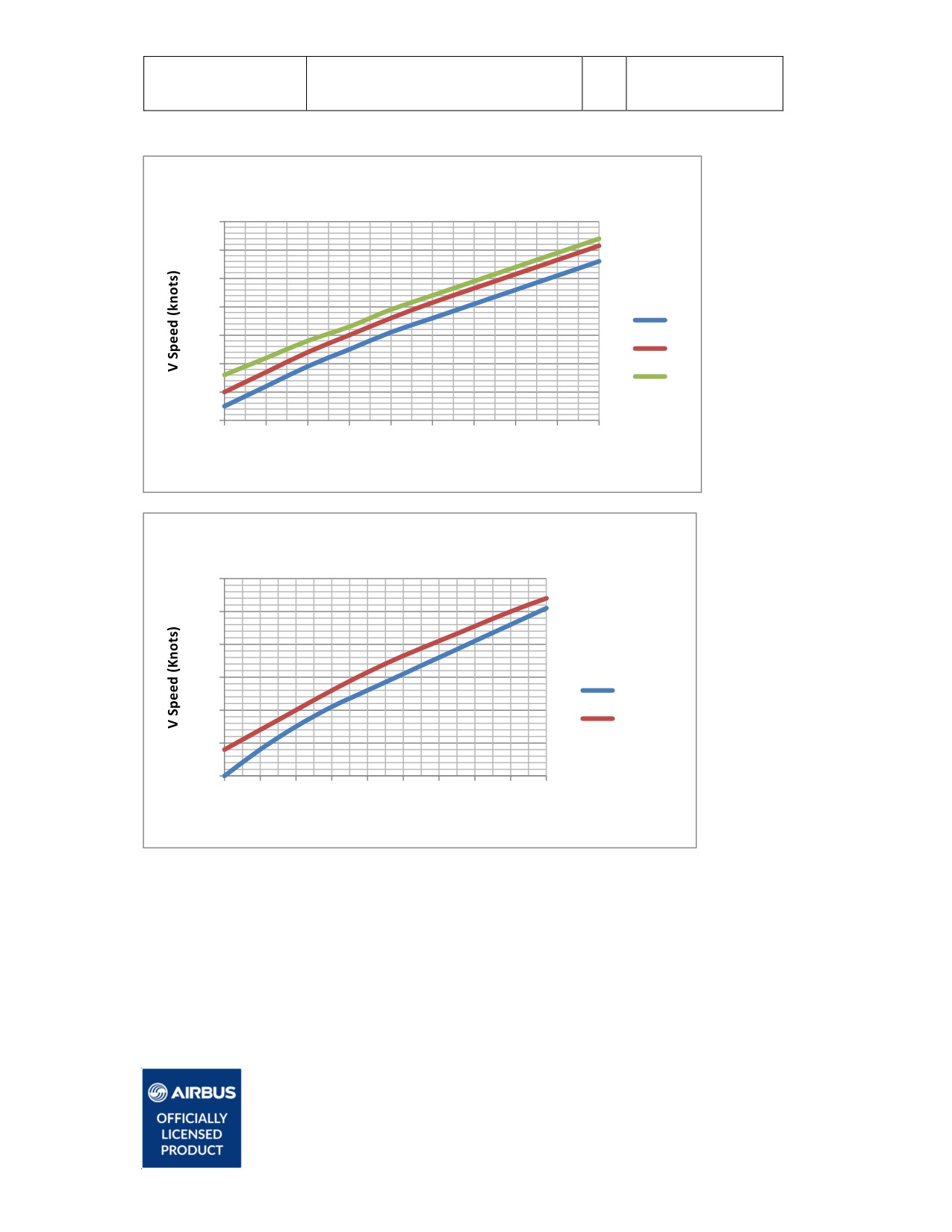
Aerosof
Normal Procedures
Vol
02-01-29
Airbus A320/A321
2
28 October 2014
V SPEED FLAPS 1
170
160
150
140
v1
130
VR
120
V2
110
100
100
110
120
130
140
150
160
170
180
190
Gross Weight LBS
V SPEED FLAPS 2
170
160
150
140
V1 and VR
130
V2
120
110
100
110
120
130
140
150
160
170
180
190
Gross Weight LBS
trademarks of Airbus. All rights reserved. Officially licensed by Airbus.

AIRBUS
Volume 3
The Aerosof Airbus A320/A321 in FSX
Version 01-03-001
RECORD OF REVISIONS
revision n°
Issue date
Release
Descripton
001
Oct 30, 2014
1.00
completon
Aerosof
Vol
03-01-1
Procedure Guide
A320/A31
3
28 October 2014
COCKPIT PREPARATION
FINAL COCKPIT PREPARATION
CONSOLE/FLOOR lights
AS RQRD
TO DATA
X-CHECK/SIGN
PFD/ND
CHECK
MCDU
TO CONFIG
GPWS
TEST
Fuel QTY
CHECK
Baro REF
SET
Preflight Briefing
PERFORM
FD
CHECK ON
Cockpit Crew Checklist
COMPLETE
ILS
AS RQRD
ND Mode/Range
AS RQRD
BEFORE START/PUSHBACK
VOR/ADF Sel
AS RQRD
ATC Clearance
OBTAIN
SPD MACH
DASHED
Windows/Doors
CLOSED
HDG V/S / TRK FPA
HDG V/S
Start up/Pb clearance
OBTAIN
ALT Window
SET EXPECTED
“N WHEEL STEERG DISC”
STBY ASI
CHECK
ECAM Memo
CHECK ON
STBY ALTI
CHECK
Parking Brake
AS RQRD
STBY Horizon
CHECK
THR LEVERS
IDLE
Clock
CHECK/ADJUST
APU BLEED
ON
A/SKID NOSE WHEEL
ON
Before Start Checklist
COMPLETE
Exterior Lights
OFF
SWTG Rotary Sels
ALL NORM
ENGINE START
ECAM STS
DEPRESS
Engine (eng 2 first)
START
Thrust Levers
CHECK IDLE
ENG MODE Sel
IGN
ENG MASTER Sws
CHECK OFF
“ENG START 2”
PF ANNOUNCE
ENG MODE Del
CHECK NORM
MASTER Sw 2
ON
ATC MODE Sel
XPNDR
ENG Parameters
CHECK/MONITOR
PARK BRAKE
AS RQRD
ENG Idle Parameters
CHECK
STROBE Lt
AUTO
“Parameters Stabilized”
PNF ANNOUNCE
BEACON Lt
CHEC OFF
“ENG START 1”
PF ANNOUNCE
WING, NAV, RWY TURN OFF,
MASTER Sw 1
ON
LAND, NOSE Lts
AS RQRD
“Parameters Stabilized”
PNF ANNOUNCE
SEAT BELTS
ON
ENG MODE Sel
NORM
NO SMOKING
AUTO
Cab Press LDG ELEV
AUTO
AFTER START
Pack ECON FLOW
AS RQRD
APU BLEED
OFF
BAT
CHECK CHARGING
Ground Spoilers
ARM
Fuel PUMPS
ALL ON
RUD TRIM
ZERO
TO DATA
FILL
FLAPS Lever
SET
FMGS Inputs
CHECK
Pitch Trim
SET
F-PLN A and B Pages
CHECK
ENG ANTI-ICE
AS RQRD
WING ANTI-ICE
AS RQRD
ECAM DOOR Page
DEPRESS
ECAM STATUS
CHECK
APU MASTER Sw
AS RQRD
Ground Crew Clearance
RECEIVE
Afer Start Checklist
COMPLETE
Aerosof
Vol
03-01-2
Procedure Guide
A320/A31
3
28 October 2014
TAXIING
CLIMB
Taxi Clearance
OBTAIN
MCDU
SET
Taxi Area
CLEAR
EXT LT
AS RQRD
CRUISE
Clock ET
START
ECAM MEMO
REVIEW
THR LEVERS
AS RQRD
ECAM Sys
REVIEW
Brakes
CHECK
Cabin Temp
MONITOR
Flight Controls
CHECK
Flight Progress
CHECK
Flight Instruments
CHECK
NAV ACCY
CHECK
ATC Clearance
RECEIVE
TO Data/Conditons
REVIEW
DESCENT PREPARATION
FCU
SET
Landing Informaton
RECEIVE
ATC Code
CONFIRM/SET
Altmeters
PRESET/SET
TO CONFIG Pb
PRESS
LDG ELEV
CHECK
AUTO BRK
MAX
FMGS
SET FOR LDG
Take Off Briefing
COMPLETE
Min Safe Alttude(s)
CHECK
Cabin Report
OBTAIN
Approach and Ldg Briefing ... PERFORM
Taxiing Checklist
COMPLETE
Descent Checklist
COMPLETE
Descent Clearance
OBTAIN
BEFORE TAKE OFF
TO or Line UP Clearance
OBTAIN
DESCENT / APPROACH
Approach Path Clear
CHECK
MCDU
SET
“Take Off Imminent”
ANNOUNCE
ANTI ICE Protect
AS RQRD
EXT LT
AS RQRD
SPEED BRAKES
AS RQRD
ENG MODE Sel
AS RQRD
NAV ACCY
CK
PACK 1 and 2
AS RQRD
BARO REF
SET QNH
TO MEMO
CK NO BLUE LINE
EXT LTS
AS RQRD
Table
STOWED
Before TO Checklist
COMPLETE
INITIAL APPROACH
“Ready for Take off”
ANNOUNCE
Cabin SIGNS
ON/AUTO
Cabin
SECURE FOR LDG
TAKE OFF
Marker
AUDIO ON
THR LEVERS
FLX OR TO/GA
ECAM STATUS
CHECK
Clock CHRONO
START
Landing Data
REVIEW
Directon Control
MAINTAIN
ND
SELECT MODE
TO N1
CHECK
ENG MODE Sel
AS RQRD
PFD and ENG Indicatons
SCAN
RAD NAV AIDS
CHECK
V Speeds
ANNOUNCE
NAV ACCY
CHECK
Rotaton
PERFORM
ILS Pb
PRESS
Gear
RETRACT
APPR Phase
MONITOR
EXT LT
RETRACT/OFF
Managed Speed
CHECK
A/P
AS RQRD
APPROACH Checklist
COMPLETE
THR LEVERS
CL
PACK 1 and 2
ON
FLAPS
RETRACT
Ground Spoilers
DISARM

Aerosof
Vol
03-01-3
Procedure Guide
A320/A31
3
28 October 2014
FINAL
PARKING
APP Pb On FCU
PRESS
PARKING BRAKE
ON
A/P
BOTH ENGAGED
Ground Contact
ESTABLISH
FLAPS 1
SELECT
Electrical Power
ESTABLISH
ILS CAPTURE
MONITOR
Clock ET
STOP
FLAPS 2
SELECT
ENG MASTER 1 and 2
OFF
Landing Gear
EXTEND
SEAT BELTS
OFF
ECAM WHEEL Page
CHECK
Slides Disarm, Doors Open ... ORDER
AUTO BRAKE
AS RQRD
ANTI ICE
OFF
EXT LTS
SET
APU BLEED
AS RQRD
FLAPS 3 / FULL
SELECT
FUEL PUMPS
ALL OFF
Ground Spoilers
ARM
ECAM STS
DEPRESS
A/THR
CHECK
Parking Checklist
COMPLETE
GO AROUND ALT
SET
Debriefing
PERFORM
LDG MEMO
CK NO BLUE LINE
Final Checklist
COMPLETE
LEAVING THE AIRCRAFT
Lctr/OM/DME Passage
MONITOR
ADIRS (1,2,3)
OFF
Windshield Wipers
AS RQRD
EXT LT
AS RQRD
A/P (if no AUTOLAND)
OFF
APU BLEED
OFF
NO SMOKING
OFF
LANDING ROLL
APU MASTER Sw
AS RQRD
Flare
PERFORM
EXT PWR
AS RQRD
THR LEVERS
IDLE
BAT 1 and 2
AS RQRD
REV
AS RQRD
Leaving the Airplane Cklist ... COMPLETE
Ground Spoilers
CHECK
Nosewheel Contact
ACHIEVE
Directonal Control
MAINTAIN
Brakes
AS RQRD
THR LEVERS
REV IDLE
THR LEVERS
FWD IDLE
AFTER LANDING
Ground Spoilers
DISARM
FLAPS
RETRACT
ENG MODE Sel
NORM
LAND Lights
RETRACT
ANTI ICE
AS RQRD
APU (if rqrd)
START
Brake Temerature
CHECK
Clock CHRONO
STOP
Afer Landing Checklist
COMPLETE
trademarks of Airbus. All rights reserved. Officially licensed by Airbus.
AIRBUS A320/A321
Volume 4
Systems Guide
Version 01-03-001
RECORD OF REVISIONS
revision n°
Issue date
Release
Descripton
001
Oct 30, 2104
1.00
completon
Aerosof
SYSTEMS
Vol
04-03-2
Airbus A320/A321
Systems guide
4
28 October 2014
CONTENTS
INTRODUCTION
5
AIRCRAFT GENERAL
5
AIR CONDITIONING & PNEUMATICS
5
PRESSURIZATION
7
VENTILATION
8
APU
8
GENERAL
8
SYSTEM COMPONENTS
8
AIR BLEED SYSTEM
8
CONTROLS AND DISPLAYS
8
AUTOFLIGHT
9
OVERVIEW
9
PILOT INTERFACES
9
FLIGHT CONTROL UNIT
9
MULTIFUNCTION CONTROL AND DISPLAY UNIT
10
SIDESTICK CONTROLLER
10
THRUST LEVERS
11
FLIGHT PHASES
11
PERFORMANCE
11
AUTOPILOTS
12
ENGAGEMENT
12
DISENGAGEMENT
12
AUTOPILOT & SPEED BRAKES
12
AUTOTHRUST
12
AUTOTHRUST ARMING STATUS
13
AUTOTHRUST ACTIVE STATUS
13
AUTOTHRUST DEACTIVATION
13
AUTOTHRUST MODES
13
AUTOTHRUST/FLIGHT DIRECTOR/AUTOPILOT
13
ALPHA FLOOR
14
FLIGHT AUGMENTATION COMPUTERS
14
FLIGHT ENVELOPE
14
WINDSHEAR
14
LOW ENERGY WARNING
14
FLIGHT GUIDANCE
14
LATERAL GUIDANCE MODES
15
SELECTED HEADING (OR TRACK) MODE
15
MANAGED NAVIGATION MODE
15
LOCALIZER LATERAL MODE
15
VERTICAL MODES
16
CLIMB
16
OPEN CLIMB
17
DESCENT
17
OPEN DESCENT
19
ALTITUDE ACQUIRE
19
ALTITUDE HOLD
19
VERTICAL SPEED - FLIGHT PATH ANGLE
20
COMMON MODES
21
TAKE OFF: SRS
21
TAKE OFF: RUNWAY
21
APPROACH: ILS APPROACH
22
APPROACH: NON ILS APPROACH
23
GO AROUND
24
MANAGES MODE VERSUS SELECTED MODE
25
MANAGED SPEED
25
Aerosof
SYSTEMS
Vol
04-03-3
Airbus A320/A321
Systems guide
4
28 October 2014
SELECTED SPEED
25
MANAGED LATERAL GUIDANCE
26
SELECTED LATERAL GUIDANCE HEADING OR TRACK
26
MANAGED CLIMB
27
OPEN CLIMB
27
SELECTED CLIMB
28
MANAGED DESCENT
28
OPEN DESCENT
29
SELECTED DESCENT
29
VERTICAL GUIDANCE LEVEL OFF
30
COMMUNICATIONS
31
COMMUNICATION RADIOS
31
AUDIO MANAGEMENT SYSTEM
32
DOORS AND WINDOWS
32
ELECTRICAL
33
GENERAL
33
AC GENERATION
33
AC BUSES
33
DC GENERATION
33
PRIORITY LOGIC
34
GROUND POWER
34
ECAM ELEC SYSTEM DISPLAYS
34
ELEC OVERHEAD PANEL
35
EQUIPMENT
36
FLIGHT CONTROLS
36
GENERAL
36
COCKPIT CONTROLS
36
COMPUTERS
36
PITCH CONTROL
37
ROLL CONTROL
37
YAW CONTROL
37
FLARE MODE
37
SPEED BRAKES AND GROUND SPOILER CONTROL
37
OVERHEAD PANEL CONTROLS
37
ECAM F/CTL & WHEEL PAGE
38
PROTECTIONS
38
FLAPS AND SLATS
39
FLIGHT INSTRUMENTS
40
ELECTRONIC FLIGHT INSTRUMENT SYSTEM
40
EFIS CONTROL PANEL
41
ELECTRONIC CENTRALIZED AIRCRAFT MONITOR
41
ECAM CONTROL PANEL
42
STANDBY COMPASS
42
STANDBY HORIZON
42
DDRMI
42
CLOCK
42
VOR/DME RECEIVERS
43
FLIGHT MODE ANNUNCIATOR
43
AUTO THRUST OPERATIONS ANNUNCIATIONS
43
AP/FD VERTICAL MODE ANNUNCIATIONS
44
AP/FD A/THR ENGAGEMENT ANNUNCIATIONS
44
APROACH CAPABILITIES ANNUNCIATIONS
45
APPROACH CAPABILITIES ANNUNCIATIONS
45
FUEL
47
GENERAL
47
TANKS
47
ENGINE FEED
47
Aerosof
SYSTEMS
Vol
04-03-4
Airbus A320/A321
Systems guide
4
28 October 2014
FUEL FEED SEQUENCE
47
CENTRE FUEL TANK TRANSFER
48
OVERHEAD PANEL
48
ECAM FUEL SYSTEM DISPLAY
49
HYDRAULIC SYSTEM
50
GENERAL
50
ECAM HYD PAGE
50
HYD OVERHEAD PANEL
50
ICE AND RAIN PROTECTION
51
WING ANTI-ICE PROTECTION SYSTEM
51
PROBE / WINDOW ANTI-ICE PROTECTION SYSTEM
51
ENGINE ANTI-ICE PROTECTION SYSTEM
52
RAIN REMOVAL
52
LANDING GEAR AND BRAKES
52
GENERAL
52
NOSEWHEEL STEERING
53
MAIN WHEEL BRAKES
53
ANTI-SKID
53
AUTOBRAKES
53
BRAKE-FAN
53
LANDING GEAR LEVER AND INDICATOR PANEL
53
ECAM WHEEL PAGE
53
ACCU-PRESS/BRAKE GAUGE
54
PARKING BRAKE
54
LIGHTING
54
COCKPIT LIGHTING
54
EXTERNAL LIGHTS
54
MASTER CAUTION, MASTER WARNING & AUTOLAND WARNING
55
NAVIGATION
55
ADIRS
55
RADIO NAVIGATION
55
NAVIGATION RADIOS
56
GPWS
56
RUNWAY AWARENESS AND ADVISORY SYSTEM
56
RADIO ALTIMETER / TCAS
57
POWER PLANT
58
FADEC
58
THRUST CONTROL SYSTEM
58
THRUST LEVERS
58
MANUAL MODE
59
RADIO NAVIGATION
59
NAVAID SELECTION ON MCDU PAGES
59
AUTOTUNE VOR
59
AUTOTUNE ADF/DME
59
AUTOTUNE ILS
59
SEATBELT/NO SMOKING
60
WEATHER RADAR
60
AUTO MULTISCAN MODE
60
MAN MULTISCAN MODE
60
CONTROLS
63
WEATHER RADAR DISPLAY
63
OPERATION
63
GLOSSARY
65
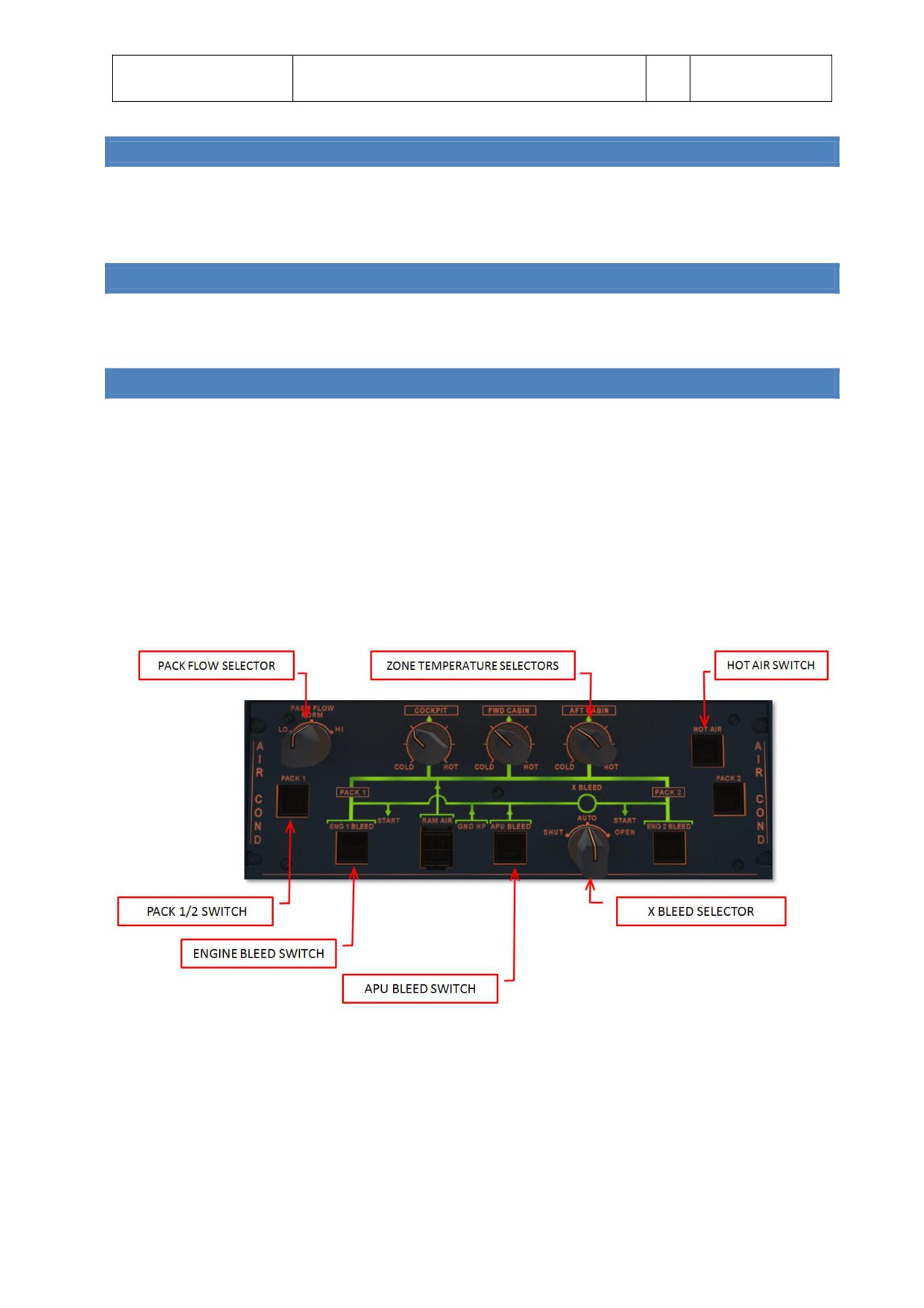
Aerosof
SYSTEMS
Vol
04-03-5
Airbus A320/A321
Systems guide
4
28 October 2014
INTRODUCTION
It is very easy to find actual manuals for the A320 range of aircraf on the internet. For obvious reasons we cannot
include them but even a quick source will lead you to a treasure-trove of informaton. Start your search with
‘A320 FCOM’ to find complete operaton manuals. Almost all you find in there is applicable to this product.
AIRCRAFT GENERAL
The Airbus A320 family includes the A318, A319, A320, and A321, all medium range, subsonic narrow body civil
aviaton aircraf. Powered by two high-powered by-pass turbofan engines they seat up to 220 passengers.
AIR CONDITIONING & PNEUMATICS
The air conditoning system is fully automatc and provides contnuous renewal of conditoned air in three zones:
COCKPIT, FWD CABIN and AFT CABIN. Temperatures in these three zones can be regulated independently. The air
is supplied via the pneumatc systems using:
two pack flow control valves
two packs
the mixing unit that combines air from the packs and the cabin
The cold air from the PACKs is mixed with the hot bleed air (taken from the engines or APU) by a mixing unit that
is controlled by the zone regulator.
All control is done via the AIR COND panel on the overhead panel.
Zone temperature control selectors
o COLD = 18 °C
o CENTER = 24 °C
o HOT = 30° C
HOT AIR pb switch
o ON: hot air pressure is regulated
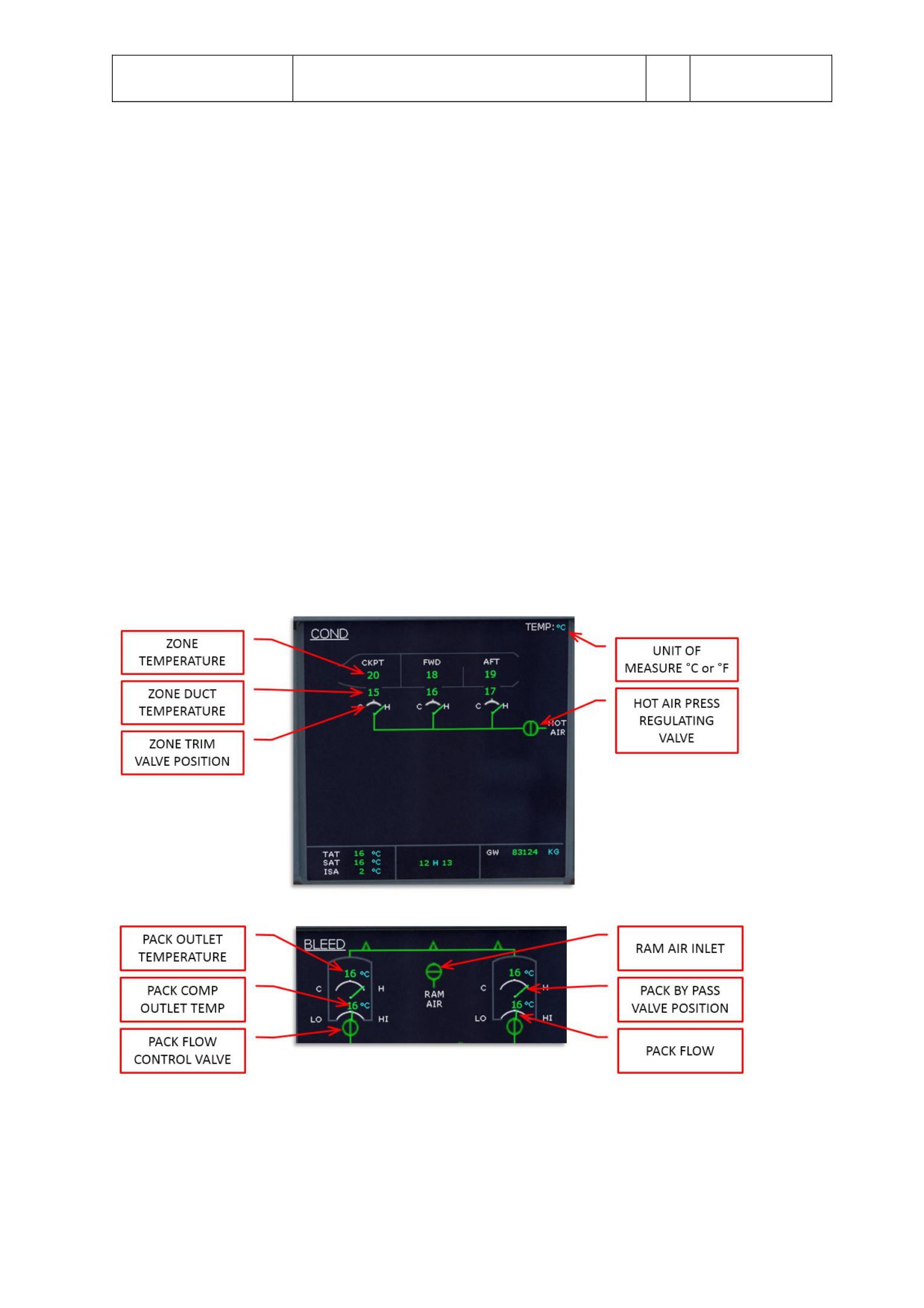
Aerosof
SYSTEMS
Vol
04-03-6
Airbus A320/A321
Systems guide
4
28 October 2014
o OFF: valve closes + trim air valve closes and cabin temperature will drop to external
temperature
o FAULT: (plus ECAM cauton) when duct temperature is above 80°C, resets when temperature is
below 70°C
PACK pb switch
o ON: pack flow control is automatcally controlled (note the pack flow valve is closed during
certain conditons like engine start etc.)
o OFF: pack flow control valves close
o FAULT: (plus ECAM cauton) when valve positon does not match the selected positon
PACK FLOW
o LO: to be used with litle or no passengers
o NORM: to be used with (near to) maximum amount of passengers
o HI: to be used to clear smoke or contaminants or in extreme temperatures (only available if
both engines are running)
ENG x BLEED pb
o ON
o OFF
o FAULT
Feedback on the air conditoning system is given on the ECAM COND page and on the ECAM BLEED page.
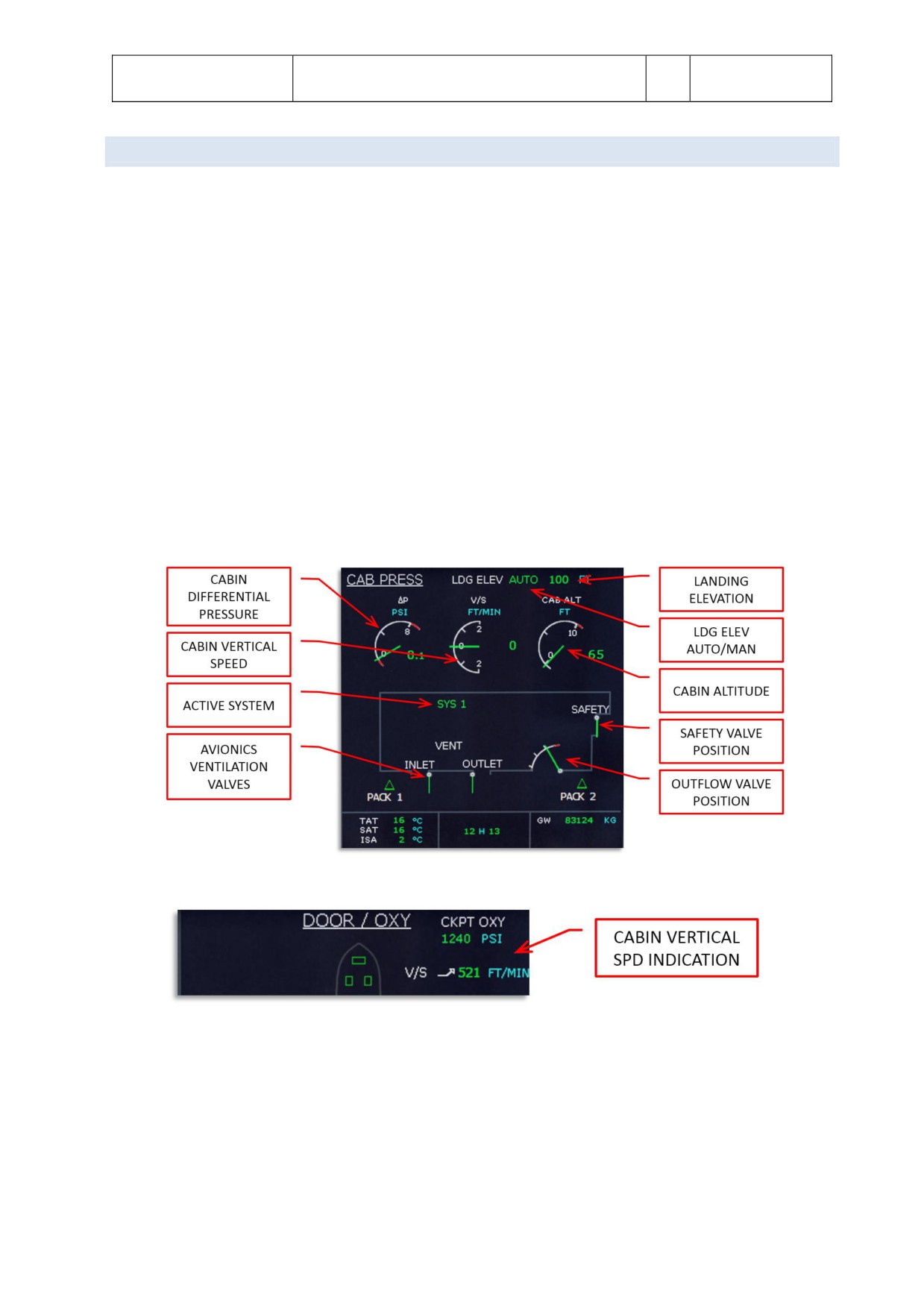
Aerosof
SYSTEMS
Vol
04-03-7
Airbus A320/A321
Systems guide
4
28 October 2014
PRESSURIZATION
Under normal operaton conditons the complete pressurizaton is fully automatc. The system consists of:
two Cabin Pressure Controllers
outlow valve
control panel
two safety valves
In automatc operaton pressurizaton is divided in 6 different modes
Ground: before take-off and 1 minute afer landing the outlow valve is fully open to equalize pressure
with outside pressure.
Take-of: just before take-off the system prepresurizes the cabin to avoid a sudden pressure increase
Climb: cabin alttude is decreased to cruise level using input from vertcal speed and other sensors
Cruise: cabin pressure is maintained
Descent: cabin alttude is increased to cruise level using input from vertcal speed and other sensors
Abort: in case of an aborted take-off the system will prevent the triggered climb mode from startng to
decrease the pressure.
Aerosof
SYSTEMS
Vol
04-03-8
Airbus A320/A321
Systems guide
4
28 October 2014
VENTILATION
The ventlaton of avionics is controlled by the Avionics Equipment Ventlaton Controller (AEVC). It provides
cooling of the avionics compartments using two fans, a heat exchanger that uses the outside skin of the aircraf to
cool the air and an inlet and outlet valve. Only the automated mode is simulated and you can see the ventlaton
valve positon on the CAB PRESS ECAM page. Batery, galley and toilet ventlaton is provided by fans that draws
air from the cabin and vents it overboard via a vent in the aircraf skin.
Do note that the AEVC is very loud and other sounds from the aircraf systems that are heard on other aircraf
types are not heard on the Airbus A320 series.
APU
GENERAL
The Auxiliary Power Unit provides:
Bleed air for engine startng
Bleed air for air conditoning
Electrical power for all the buses
The APU can be used on the ground and in flight with the following limitatons:
100% generator load up to 25,000 feet
Full pneumatc and hydraulic pressure up to 20,000 feet
Can be started using the batery up to 25,000 feet.
SYSTEM COMPONENTS
The APU consists of a gas turbine engine with an APU computer that manages the system. The air intake uses a
electrically operated inlet flap and the exhaust vents in the tail cone. The electrical starter will start the engine
when the inlet flap is fully opened. The fuel is taken from the lef wing tank using a separate fuel pump.
AIR BLEED SYSTEM
Bleed air from the APU is selectable from the overhead panel and has priority over main engine bleed air as long
as the APU BLEED pb is ON. The bleed air can start engines and provide the air conditon system.
CONTROLS AND DISPLAYS
The APU ECAM page displays the parameters of the APU. For the gas turbine engine N (in %) and EGT (in °C) are
available. The APU generator shows load (in %), voltage (in V) and frequency (in HZ) plus the connecton to the
bus (arrow when connected, nothing when not connected). Bleed air shows pressure (in PSI) plus the positon of
the valve (open or closed). All system messages are shown in green while within correct parameters, or amber
when outside correct parameters.
The APU MASTER SW pb on the overhead APU panel is pressed (ON will show) to power up the APU computer,
the fuel pump is actvated and the air inlet is opened. When ON is shown the APU is ready to start.
The APU START pb starts the APU. When pressed it will show ON and the APU computer will command and
control the startup. Aircraf bateries must be selected ON, even when the engine generators are online. When
Aerosof
SYSTEMS
Vol
04-03-9
Airbus A320/A321
Systems guide
4
28 October 2014
the APU is running and bleed air and electrical power are available a green AVAIL will show and the ON will not be
shown. Note the APU needs a 3 minute cool down period afer it has shut down.
On the ELEC panel the APU GEN pb will be dark when the APU generator is ON, and when pressed it will show OFF
as the APU generator is taken of line. When there is any problem an amber FAULT will show and the ECAM will
show more informaton.
On the AIR COND panel the APU BLEED pb will show ON when APU N speed is sufficient. When pushed the pb
will be dark and the bleed air valve will close. When there is any problem an amber FAULT will show and the
ECAM will show more informaton.
AUTOFLIGHT
OVERVIEW
The following components are used by the pilot to interact with the autoflight system:
Flight Control Unit (FCU)
Multfuncton Control and Display Units (MCDUs)
Sidestcks
Thrust levers
Primary Flight Display (PFD)
Navigaton Display (ND)
The autoflight system is part of the Flight Management System (FMS). The FMS (including autopilots and
autothrust system) is made up by two Flight Management Guidance Computers (FMGCs) and two Flight
Augmentaton Computers (FACs).
FLIGHT MANAGEMENT
FACs
FMS
FLIGHT GUIDANCE
FMGCs
FLIGHT AUGMENTATION
Flight Management provides navigaton, performance optmizaton and display management.
Flight Guidance provides autopilot commands (sent to the flight control computers), flight director
commands (sent to the PFD) and thrust commands (sent to the autothrust systems).
Flight Augmentaton provides flight envelope calculatons, turn coordinaton and yaw damping.
PILOT INTERFACES
FLIGHT CONTROL UNIT
The FCU is located in the center of the glareshield and four knobs provide control for:
Airspeed
Heading (or track) or navigaton modes
Climb or descent modes and/or
Vertcal speed (or flight path angle)
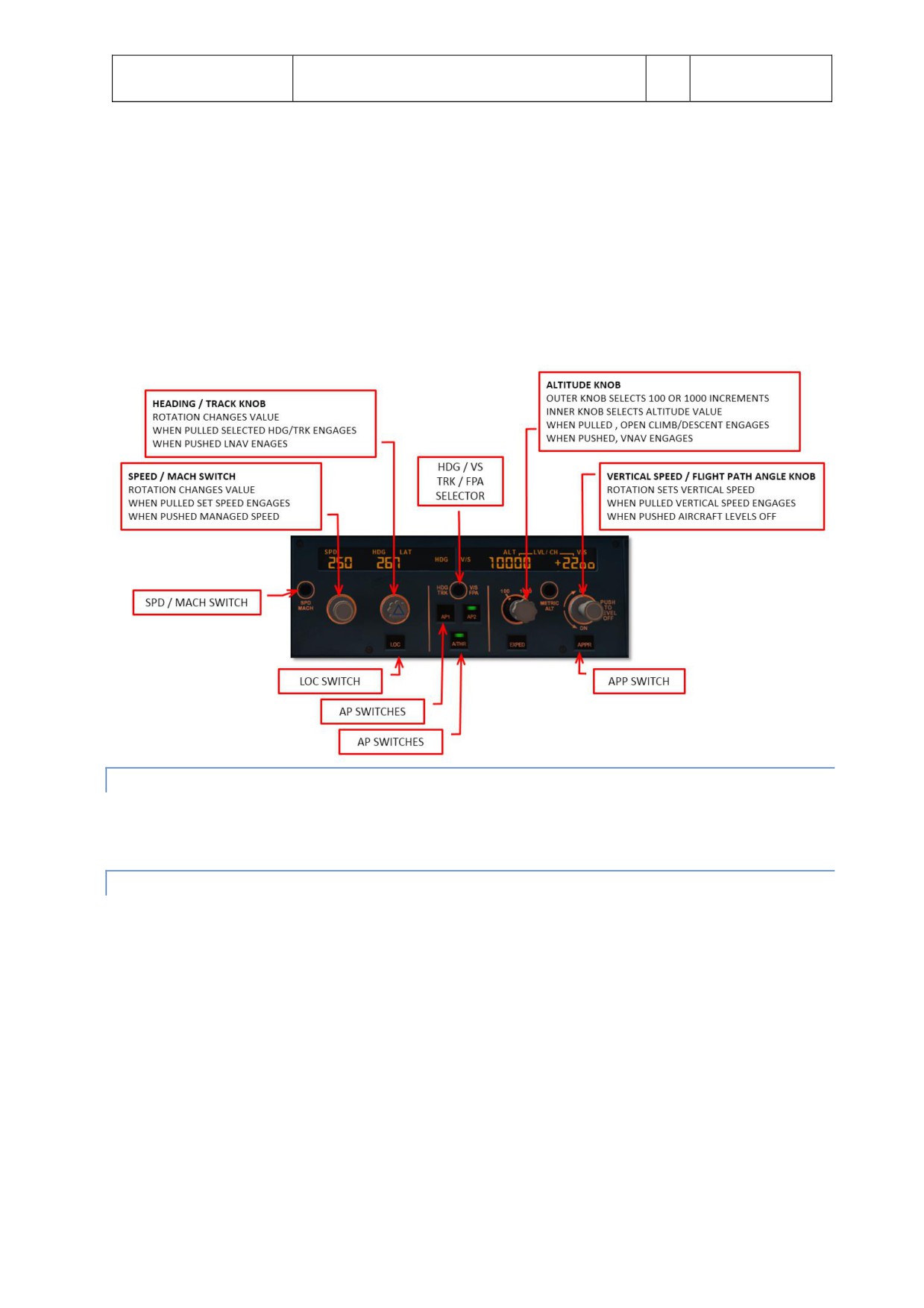
Aerosof
SYSTEMS
Vol
04-03-10
Airbus A320/A321
Systems guide
4
28 October 2014
There are two modes possible for airspeed, heading and vertcal speed. Switching between modes is done by
pulling (right click) the knob.
Selected Functons
o In selected mode the pilot controls speed and lateral/vertcal navigaton. Afer pulling the knob
the pilot can rotate the knob to set the desired value. When the knob is pushed (lef click) the
current value for that functon is inserted.
Managed Functons
o In managed mode the displays are dashed (note the FCU alttude windows is never dashed) and
the control of speed and lateral/vertcal navigaton is managed by the FMS.
MULTIFUNCTION CONTROL AND DISPLAY UNIT
The MCDUs is the primary interface between pilot and FMS (and in our simulaton it is also used to access some
simulaton functons.
SIDESTICK CONTROLLER
The sidestck controllers are used to fly the aircraf manually. Any strong input with these will deactvate the
autopilot.
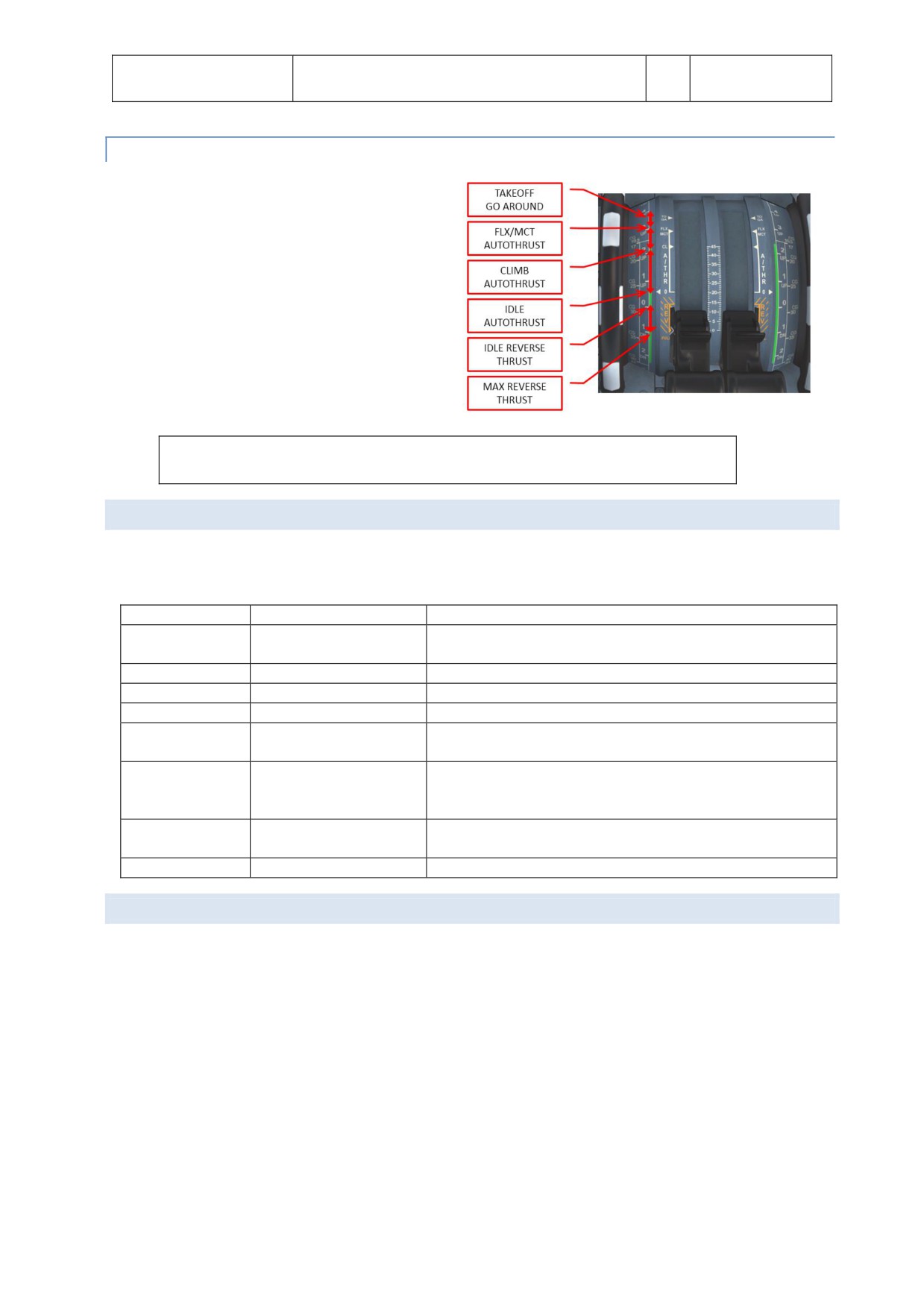
Aerosof
SYSTEMS
Vol
04-03-11
Airbus A320/A321
Systems guide
4
28 October 2014
THRUST LEVERS
The thrust levers are used to manually control thrust
or to select the desired autothrust mode. With both
engines operatng the autothrust range is between
the idle and the FLX/MCT detents. With autothrust
actve the positon of the thrust lever determines the
maximum thrust level.
Normally the thrust levers are positoned in the climb (CL) detent at the thrust reducton
alttude afer takeoff and lef there untl the landing flare.
FLIGHT PHASES
The FMGC divides the complete flight into phases that normally will automatcally switch to the next phase when
certain conditons are met.
Flight Phase
Optmum Speed Profile
Switching conditons to next phase
SRS take off mode engaged +
Preflight
-
N1 > 85% or Ground Speed > 90 kts
Take Of
V2 followed by V2 +10
At ACC ALT (or manually)
Climb
ECON CLB SPD/MACH
At reaching Cruise Flight Level
Cruise
ECON CRZ MACH
At reaching ToD
Overflying Decel waypoint with NAV (or LOC/LOC*) engaged
Descent
ECON DES MACH/SPD
Manually actvatng APPR phase
To Go Around: thrust levers to TOGA
Approach
VAPP (GS Min)
To Done: automatc 30 seconds afer landing
To Climb: insertng new CRZ FL
To Approach: manually select APPR phase
Go Around
VAPP or Current Speed
To Climb: manually select CLMB phase
Done
At depressing INIT or PERF to Preflight
PERFORMANCE
The FMGC will minimize the flight cost through speed optmizaton. Depending on the Cost Index setng it will
compute optmal targets for the following items:
Take off, approach and go around speed are calculated as a functon of the TOW and performance
model. Note that V1, V2 and Vr have to be manually entered (in our aircraf these speeds are calculated
but can be overwriten.
CLB and DES speeds are computed as a functon of the GW, Cost Index, environment (temperature,
wind) and Cruise level. The speeds are NOT recalculated when the mode is actve.
Cruise Mach is computed as the optmal speed and is updated contnuously update to the current
weather conditon and F-PLN modificatons.
Optmum Flight Level is calculated assuming a 5 minute minimum cruise flight. It is contnuously update
in flight.
Aerosof
SYSTEMS
Vol
04-03-12
Airbus A320/A321
Systems guide
4
28 October 2014
AUTOPILOTS
ENGAGEMENT
The autopilot (two identcal systems) are engaged by the AP1 and AP2 pb on the FCU. When engaged a green bar
will show on the pb and the appropriate FMA annunciaton is displayed. When a flight director is on when the
autopilot is engaged, the autopilot engages in appropriate mode (OP CLMB and NAV) otherwise it will engage in
the default guidance modes (HDG and V/S or TRK-FPA).
Either autopilot can be engaged seconds afer takeoff.
DISENGAGEMENT
Disengage the autopilot by depressing the AP1 or AP1 buton.
The autopilot is automatcally disengaged by moving the side stck (or rudder pedals) a certain amount.
This will trigger a master warning.
The autopilot is automatcally disengaged when the throtles are set above FLX/MCT on ground.
The autopilot is automatcally disengaged when a normal law is exceeded or pitch or bank angle are
excessive.
The autopilot is automatcally disengaged during a non-precision approach when the aircraf reaches
MDA minus 50 feet .
AUTOPILOT & SPEED BRAKES
With the autopilot engaged the speed brakes are limited to ½ deflecton. When autopilot is engaged with speed
brakes extended beyond ½ they will retract to ½. Note this will cause a sudden pitch up.
AUTOTHRUST
The autothrust system reduces workload for the pilot, provides additonal comfort for the passengers and
reduces fuel use. Two main modes are included:
Fixed Thrust Modes
o Uses constant thrust; airspeed is controlled with pitch. Normally used for level changes when no
specific vertcal speed is required.
Variable Thrust Modes
o In variable thrust mode the airspeed remains constant by changing the amount of thrust.
Normally used for level flight or when a certain airspeed is required during level change.
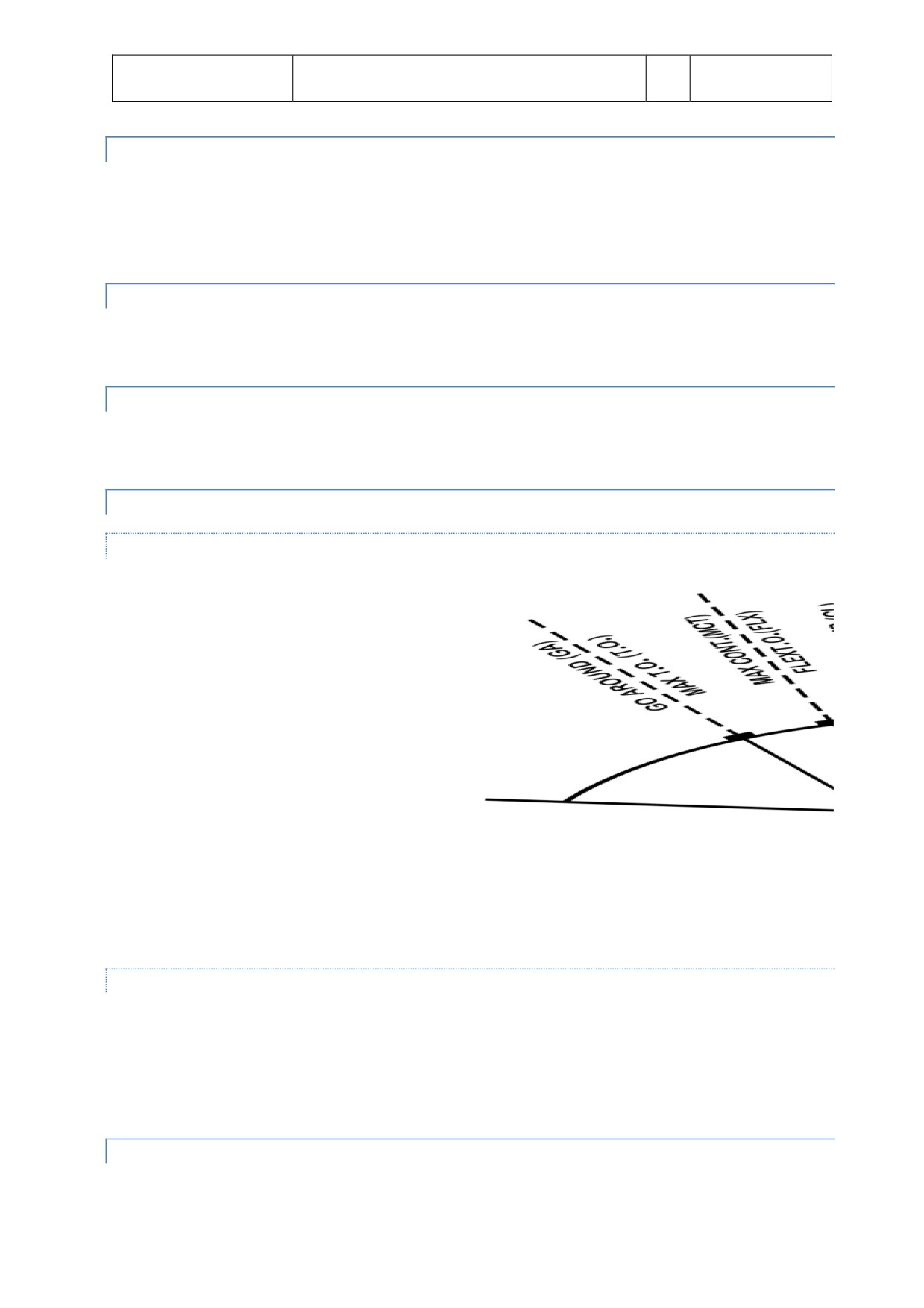
Aerosof
SYSTEMS
Vol
04-03-13
Airbus A320/A321
Systems guide
4
28 October 2014
AUTOTHRUST ARMING STATUS
When autothrust is OFF the thrust is controlled manually and corresponds to the positon of the trust levers.
When autothrust is ARMED and the thrust levers are moved into the A/THR actve the autothrust status changes
to ACTIVE. The status is shown on the FMA (blue indicates armed mode and white indicates actve mode).
Autothrust is automatcally armed during takeoff when thrust levers are in the TOGA or FLX detent.
AUTOTHRUST ACTIVE STATUS
The autothrust system controls thrust only in actve status. Both fixed (MCT, CLB, IDLE, THR) and variable thrust
(SPEED, MACH) modes are available in actve status.
AUTOTHRUST DEACTIVATION
The autothrust system can be disabled by depressing the FCU A/THR pb or by retarding the throtles to the idle
detent. A single chime and a short amber master cauton illuminaton alerts the pilot.
AUTOTHRUST MODES
FIXED THRUST MODES
TOGO: Provides fixed maximum
thrust and is only available when
autothrust status is armed.
FLX: Flex thrust is used for reduced
thrust takeoffs. Thrust is
calculated using the assumed
temperature as set in the MCDU.
MCT: Provides Maximum
Contnuous Thrust at the current
ambient conditons.
CLB: Provides fixed thrust equal to
the climb thrust ratng at current
ambient conditons.
IDLE: Provides fixed idle thrust.
Only available in actve autothrust status. Note the thrust levers can be anywhere in the autothrust
range!
THR: When the thrust is not TOGA, FLX, MCT or CLB the fixed thrust is called THR.
VARIABLE THRUST MODES
SPEED: The autothrust system will provide variable thrust to maintain a set speed or a managed speed in
level flight or when the aircraf follows a programmed flight path. Only available when autothrust is
actve.
MACH: Identcal to speed mode but not available at low alttudes. The speed mode is automatcally
switched to Mach mode (and vice versa) at a preset alttude.
AUTOTHRUST/FLIGHT DIRECTOR/AUTOPILOT
The vertcal guidance modes use pitch to maintain a target speed or a specific vertcal path. If vertcal guidance
modes are used to control a target speed, autothrust uses a fixed thrust mode. If vertcal guidance modes are
Aerosof
SYSTEMS
Vol
04-03-14
Airbus A320/A321
Systems guide
4
28 October 2014
used to control a specific vertcal path, autothrust uses variable thrust to maintain target speed. When manually
flown in fixed autothrust mode the flight director’s pitch command bar indicates the pitch needed to fly the
desired speed.
ALPHA FLOOR
The alpha floor protecton assists the pilot in recovering from dangerous low speed and high angle of atack by
automatcally setng TOGA thrust when:
Excessive angle of atack (alpha)
Excessive high nose up attude
Windshear is detected
When the alpha floor conditons are no longer detected the autothrust system will stay in TOGA lock untl the
pilot disables auto throtle. It is recommended the pilot moves the throtle to the TOGA detent before depressing
the FCU A/THR pb to avoid a power surge. Afer that the pilot can pull the throtle to the CL indent and engage
the autothrust.
FLIGHT AUGMENTATION COMPUTERS
The FACs handle:
Yaw damping and turn coordinaton
Rudder trim
Flight envelope and maneuvering speed computatons
Alpha floor protecton
Windshear detecton
Low energy detecton
FLIGHT ENVELOPE
Many different speeds are calculated by the FACs are used by the autoflight system. These speeds include the
minimum safe speed, maximum speed and never exceed speed. They also calculate the alpha floor speed. Most
of these speeds are shown on the PFD airspeed indicator.
WINDSHEAR
The FACs will try to detect windshear and will warn the pilot of this dangerous conditon. Windshear detecton is
only actve below 1300 feet AGL in configuraton 1 or greater. When detected the flight director will show an
optmal pitch attude and the aural warning “WINDSHEAR” will be heard.
LOW ENERGY WARNING
Between 2000 and 100 feet AGL the FACs will detect a low energy state (based on airspeed, descent angle and
angle of atack) and will warn the pilot with an aural “SPEED SPEED SPEED” warning. Normally this warning will
precede an alpha floor conditon.
FLIGHT GUIDANCE
Aerosof
SYSTEMS
Vol
04-03-15
Airbus A320/A321
Systems guide
4
28 October 2014
Flight guidance is provided for speed control, lateral navigaton and (limited in this project) vertcal navigaton.
There are two types:
Selected Guidance: In this mode the aircraf will fly on autopilot using the setngs on the FCU. You
switch from managed mode to selected mode by pulling (right mouse click) the SPD, HDG and ALT knobs.
Managed Guidance: In this mode the airspeed is calculated by the FMS and differs per flight phase. The
FMS also provides managed lateral and vertcal flight plan guidance following the flight plan that has
been inserted in the MCDU. The FCU will show dashes in managed guidance. You switch from selected
guidance to managed mode by pushing (lef mouse click) the SPD, HDG or ALT knobs.
Please note the FCU alttude window will never be dashed.
When the autopilot is engaged or the flight director is actvated the Flight Mode Annunciator (FMA) (at the
top of the PFD) will also display the actvated setngs.
LATERAL GUIDANCE MODES
The lateral guidance modes keep the aircraf course to its destnaton.
SELECTED HEADING (OR TRACK) MODE
The heading (or track) mode will guide the aircraf on a heading (HDG) or track (TRK) and is the default lateral
mode. The pilot actvates it by pulling (right mouse click) the HDG buton on the FCU. A digital display of the
heading (track) will be shown on the FCU and HDG will be displayed on the FMA. Note this mode cannot be
actvated when LAND mode is actvated.
If the knob is turned to the desired HDG (TRK) and pulled the aircraf will make the shortest turn to the
selected HDG (TRK)
If the HDG knob is pulled but not turned the current HDG (TRK) is selected.
If the HDG knob is pulled first and turned the aircraf will turn in the directon of the turn.
If the HDG knob is turned but not pulled the selected value is cleared afer a period that depends on the
flight mode.
MANAGED NAVIGATION MODE
When a flight plan is available and actvated the managed nav mode will guide the aircraf along the path stored
in the FMS. It is actvated by the pilot by pushing (lef mouse click) the FCU HDG knob. The display will show
dashes and the FMA will display NAV.
LOCALIZER LATERAL MODE
When the FCU LOC pb is pushed the loc lateral guidance mode is armed and the FGS will only use the localizer
signal for lateral guidance. In the FMA LOC will be displayed and the LOC pb will illuminate. It can be used to
intercept and track a localizer while maintaining a selected alttude. Note that a ILS frequency must be tuned and
TAKEOFF and GO-AROUND mode are not selected. To disarm press the LOC pb again.
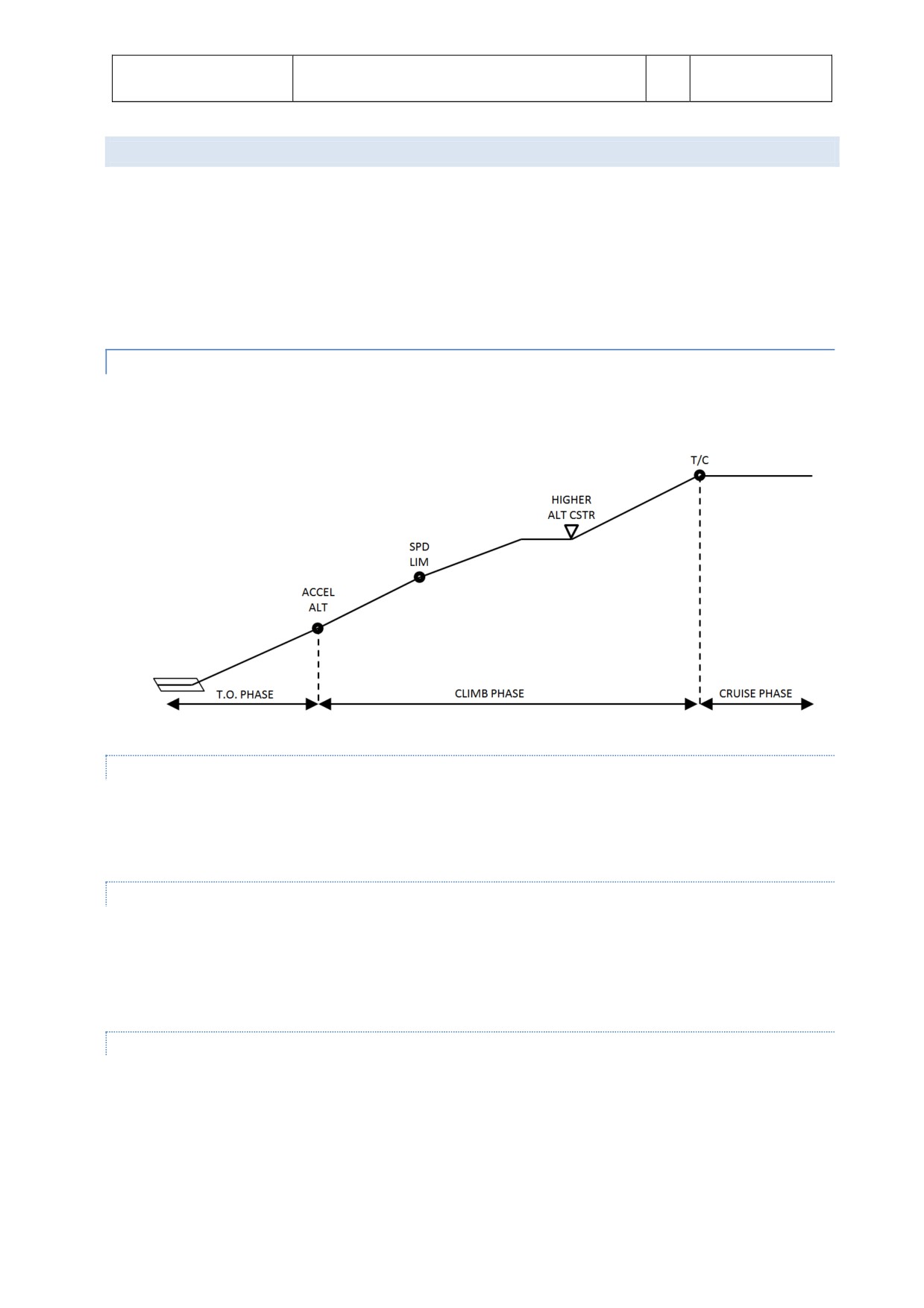
Aerosof
SYSTEMS
Vol
04-03-16
Airbus A320/A321
Systems guide
4
28 October 2014
VERTICAL MODES
The vertcal guidance modes will make the aircraf change alttude. To leave a FCU selected alttude a dual acton
sequence is needed:
Turn the ALT selector to set the new alttude
Pull the ALT selector to select OPEN CLB/DES mode or
Push the ALT selector to engage CLB/DES mode or
Select a target V/S and pull the V/S selector knob to engage V/S mode
CLIMB
CLB mode manages the vertcal guidance towards the FCU selected alttude taking alttude and speed constraints
into account.
ARMING CONDITIONS
On ground or when TAKE OFF or GA modea are engaged as long as no other vertcal modes are selected.
In flight when lateral NAV mode is engaged, FCU selected alttude is higher than aircraf alttude or when
aircraf meets a ALT CSTR
DISARMING CONDITIONS
Engagement of any other vertcal mode
FCU selected mode lower then aircraf alttude
Switching to DES or APP phase
Loss of vertcal flight path validity or loss of ANV mode
ENGAGEMENT CONDITIONS
Aircraf more than 5 seconds in flight
FCU selected alttude above current alttude
Not in descent or approach mode
NAV mode engaged
Not in G/S mode
CLB mode is automatcally selected when
Aerosof
SYSTEMS
Vol
04-03-17
Airbus A320/A321
Systems guide
4
28 October 2014
o ACC ALT is reached
o ALT CSTR is reached with CLB mode armed
CLB mode can be manually selected by pushing the ALT selector knob.
DISENGAGEMENT CONDITIONS
NAV mode lost or disengaged
Selectng another vertcal mode
Setng a lower alttude in FCU than current alttude
GUIDANCE
In standard CLB mode the engine stay at max climb thrust, the speed will be the one calculated by the FMGS and
pitch will vary to keep that speed.
OPEN CLIMB
ENGAGEMENT CONDITIONS
The aircraf must be in flight more than 5 seconds
LAND mode is not engaged
FCU selected alttude is higher than current alttude
OPEN CLIMB is engaged by:
Pulling the ALT selector knob
Acceleraton alttude reached with armed CLM mode and NAV not engaged
When an overspeed conditon is detected (the aircraf will pitch up to loose speed)
DISENGAGEMENT CONDITIONS
Selectng any other vertcal mode
Selectng a lower alttude then the current alttude
GUIDANCE
In OPEN CLB the target Speed / Mach is kept by varying the pitch, thrust is managed by the A / THR or manually,
speed target can be selected or managed. All ALT CSTR are ignored in OPEN CLB.
DESCENT
DES mode provides vertcal guidance following a computed descent profile between Top of Descent to the
Deceleraton point. It uses the data in the F-PLN and the available WIND data. It is divided into three sectons:
Repressurizaton segment (ignored in our simulaton)
Idle Path segment where the engines are at idle and AP / FD controls SPD
Geometric path when the AP / FD controls vertcal path and the A /THR controls the SPD
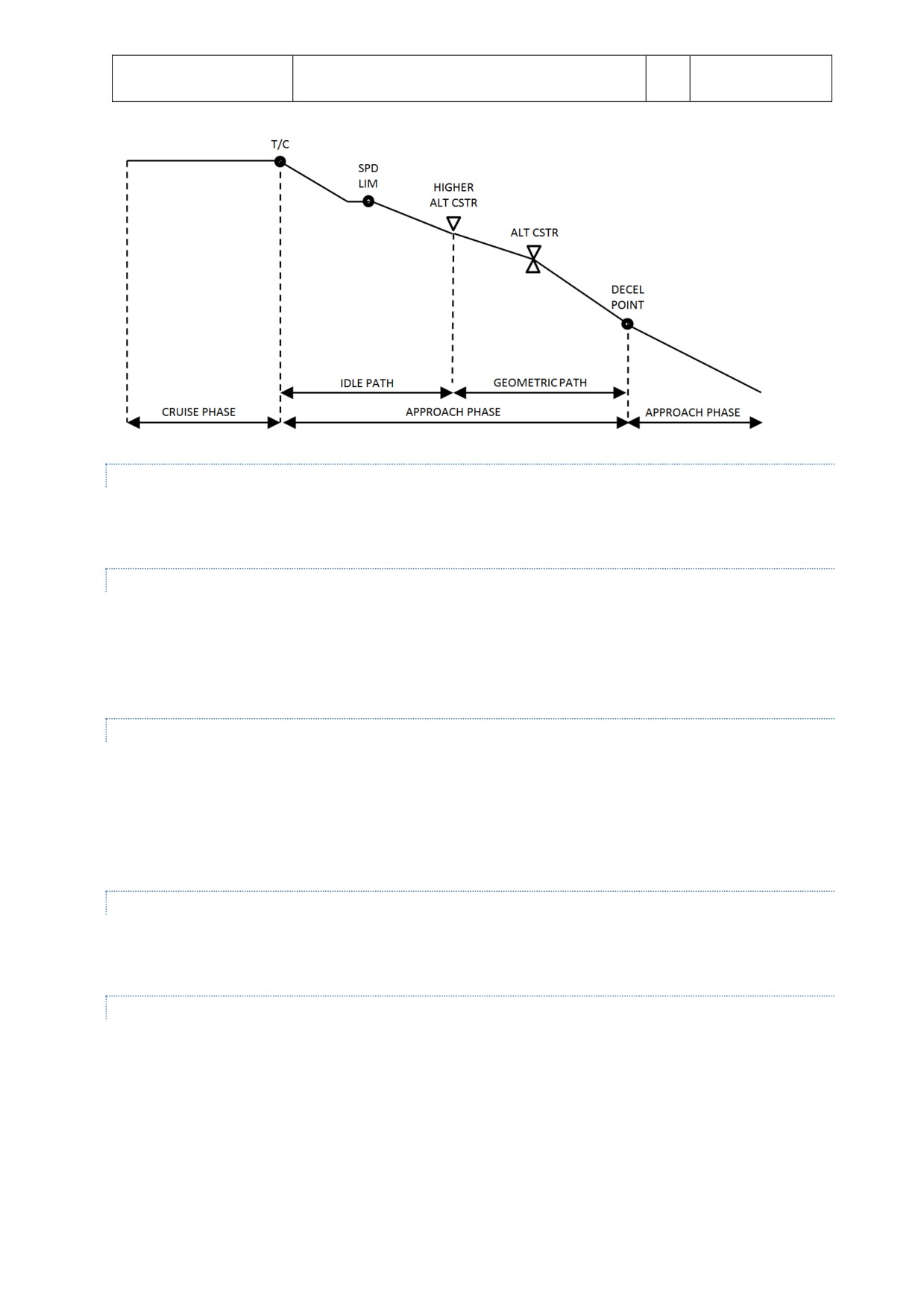
Aerosof
SYSTEMS
Vol
04-03-18
Airbus A320/A321
Systems guide
4
28 October 2014
ARMING CONDITIONS
FCU selected alttude is below current alttude
TAKE OFF, GO AROUND or LAND mode is not engaged
DISARMING CONDITIONS
Selectng any other vertcal mode
FCU selected alttude is above current alttude
Loss of NAV, LOC or vertcal path validity
Selectng GO AROUND mode
ENGAGEMENT CONDITIONS
FCU selected level is below current alttude
NAV, LOC* or LOC is actve
TAKE OFF, GO AROUND, LAND, FINAL not actve
DES mode is engaged automatcally when an alttude constraint is met with DES mode armed.
DES mode is manually engaged by pushing the ALT selector knob
DISENGAGEMENT CONDITIONS
Engagement of any other vertcal mode
Selectng a FCU alttude above current alttude
GUIDANCE
In DES mode the aircraf is guided along the DES PATH. The SPD target can be selected or managed (with the
speed to vary around the calculated optmal nominal descent speed. SPD CSTR is taken into account in the speed
profile.
If the aircraf is above the DES PATH it will pitch down untl the upper limit of the MANAGED SPD RANGE is
reached. That speed will be kept and the aircraf will differentate from the DES PATH. Extending ½ speed brakes
will allow the aircraf to get back on the calculated path.
If the aircraf is below the DES PATH the aircraf will maintain the target speed untl the DES PATH is reached.
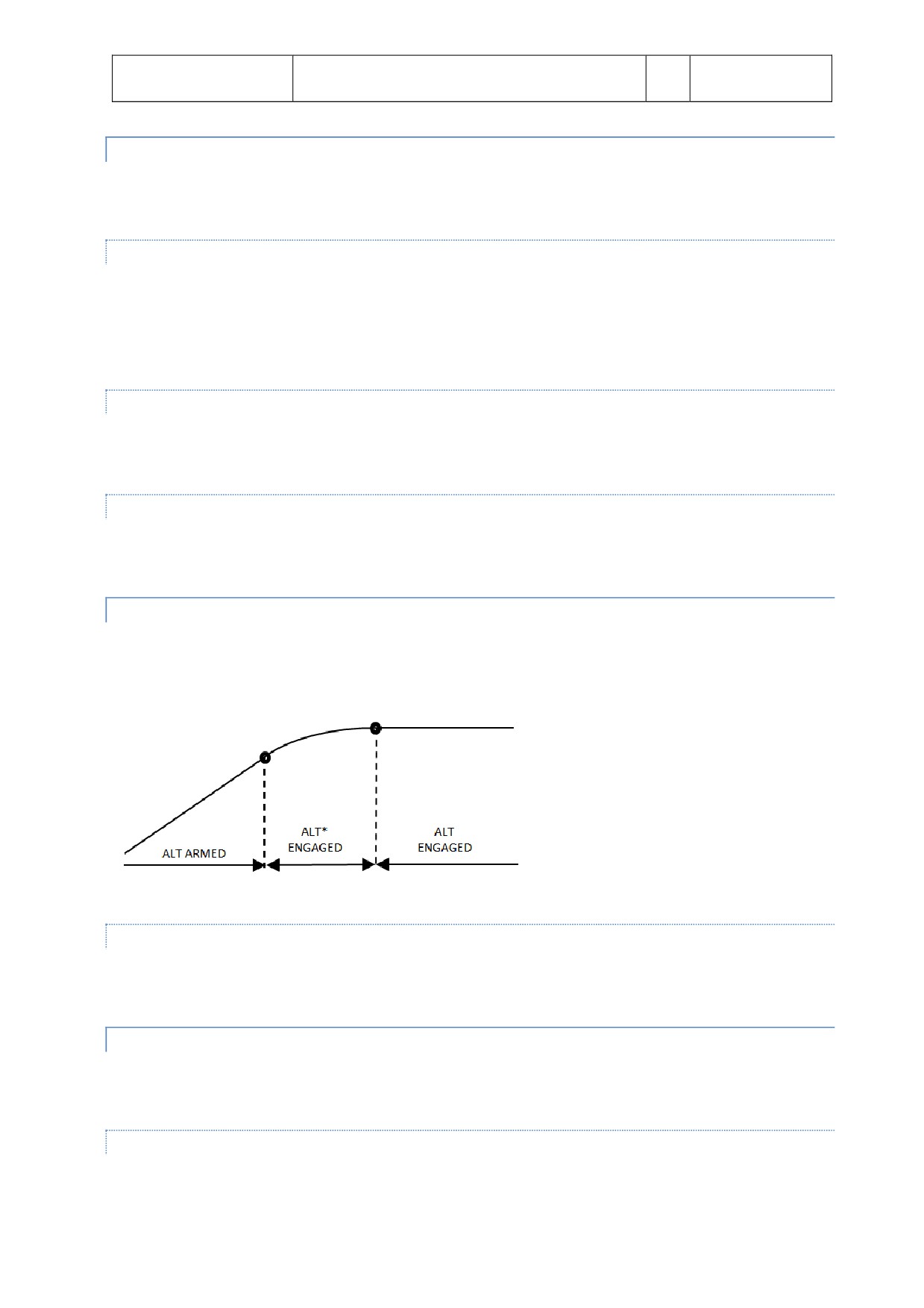
Aerosof
SYSTEMS
Vol
04-03-19
Airbus A320/A321
Systems guide
4
28 October 2014
OPEN DESCENT
In selected descend mode the autothrust system will be set to idle and the set speed will be kept using pitch. This
mode is not useful for final approaches.
ENGAGEMENT CONDITIONS
The aircraf must be in flight more than 5 seconds
LAND mode is not engaged
FCU selected alttude is lower than current alttude
OPEN DESCENT is engaged by pulling the ALT selector knob
DISENGAGEMENT CONDITIONS
Selectng any other vertcal mode
Selectng a higher alttude then the current alttude
GUIDANCE
In OPEN DES the target Speed / Mach is maintained by pitch controls and thrust is maintained by the A / THR or
manually by the pilot. Speed target can be selected or managed.
ALTITUDE ACQUIRE
ALT* will guide the aircraf to the FCU selected alttude, ALT CST* guides the aircraf to an alttude constraint.
Once the set alttude is reached the ALTITUDE HOLD (ALT or ALT CST) mode will engage.
GUIDANCE
In the ALT* and ALT CST* mode the vertcal speed is managed to reduce vertcal speed to ensure a smooth
capture of the set FCU alttude.
ALTITUDE HOLD
ALT mode will keep the aircraf at a set alttude. The alttude can be a FCU set alttude (with ALT engaged) or an
alttude constraint.
ARMING CONDITIONS
ALT mode is automatcally armed when the aircraf climbs or descents to a target alttude.
Aerosof
SYSTEMS
Vol
04-03-20
Airbus A320/A321
Systems guide
4
28 October 2014
ENGAGEMENT CONDITIONS
ALT or ALT CST is automatcally engaged when the aircraf is 20 feet from the target alttude.
DISENGAGEMENT CONDITIONS
ALT or ALT CST is disengaged when any other vertcal mode is selected.
GUIDANCE
The level kept is the level memorized at engagement of the mode.
VERTICAL SPEED - FLIGHT PATH ANGLE
V/S-FPA is a selected mode, it captures and keeps the vertcal speed or the flight path displayed in the V/S - FPA
FCU window.
ENGAGEMENT CONDITIONS
V/S-FPA is automatcally selected:
5 seconds afer lifoff with no other vertcal mode selected
Loss of G/S, G/S*, FINAL, LOC. LOC*, NAV (with DES engaged)
Automatc reversions
V/S-FPA is manually selected by:
V/S-FPA selecton knob pulled
V/S-FPA selecton knob pushed (will engage an immediate level off and set VS=0)
AP engagement with no other vertcal mode set
Selecton of an different alttude (at least 250 f from current alttude) in ALT*
Selecton of an higher alttude in DES or OP DES
Selecton of an lower alttude in CLB or OP CLB
DISENGAGEMENT CONDITIONS
Engagement of other vertcal mode
o Manually by pulling alttude selecton knob or performing a go around
o Automatcally by reaching FCU alttude or G/S* engagement
GUIDANCE
FMGS pitch mode will guide the aircraf to the target V/S (FPA). A/THR mode is SPD or MACH.
V/S-FPA guidance has priority over speed guidance and when reaching the limit of the flight envelope will change
to OPEN mode.
Aerosof
SYSTEMS
Vol
04-03-21
Airbus A320/A321
Systems guide
4
28 October 2014
COMMON MODES
COMMON modes are combinatons of vertcal and lateral modes.
COMMON MODE
VERTICAL
LATERAL
TAKE OFF
Mode: Pitch Take off
Mode: Runway LOC or Runway Track
FMA: SRS
FMA: RWY or RWY TRK
ILS APPROACH
Mode: G/S* or G/S
Mode: LOC* or LOC
FMA: LAND or FLARE or ROLL OUT
FMA: LAND or FLARE or ROLL OUT
NON ILS APPROACH
Mode: Final Descent
Mode: Nav
FMA: FINAL
FMA: APP NAV
GO AROUND
Mode: Pitch Go Around
Mode: Go Around track
FMA: SRS
FMA: GA TRACK
TAKE OFF: SRS
This mode is available during take off and the first 5 seconds of flight. In SRS mode the aircraf will follow pitch
guidance at speeds defines by the speed reference guidance law.
ENGAGEMENT CONDITIONS
V2 is inserted in MCDU
Slats are extended
DISENGAGEMENT CONDITIONS
Manually by engaging any other vertcal mode
Automatcally at acceleraton alttude
GUIDANCE
The aircraf will keep V2 + 10 knots
An attude protecton will prevent a too high nose up during take off
Flight path angle of minimum climb rate of 120 f/min
TAKE OFF: RUNWAY
The RUNWAY mode will provide lateral guidance during take off and immediately thereafer using the LOC signal
(when it is available. The RUNWAY TRK mode will provide lateral guidance on an extended runway center line.
ENGAGEMENT CONDITIONS
SRS engagement conditons
LOC signal received
Aircraf heading within 20 degrees of runway heading
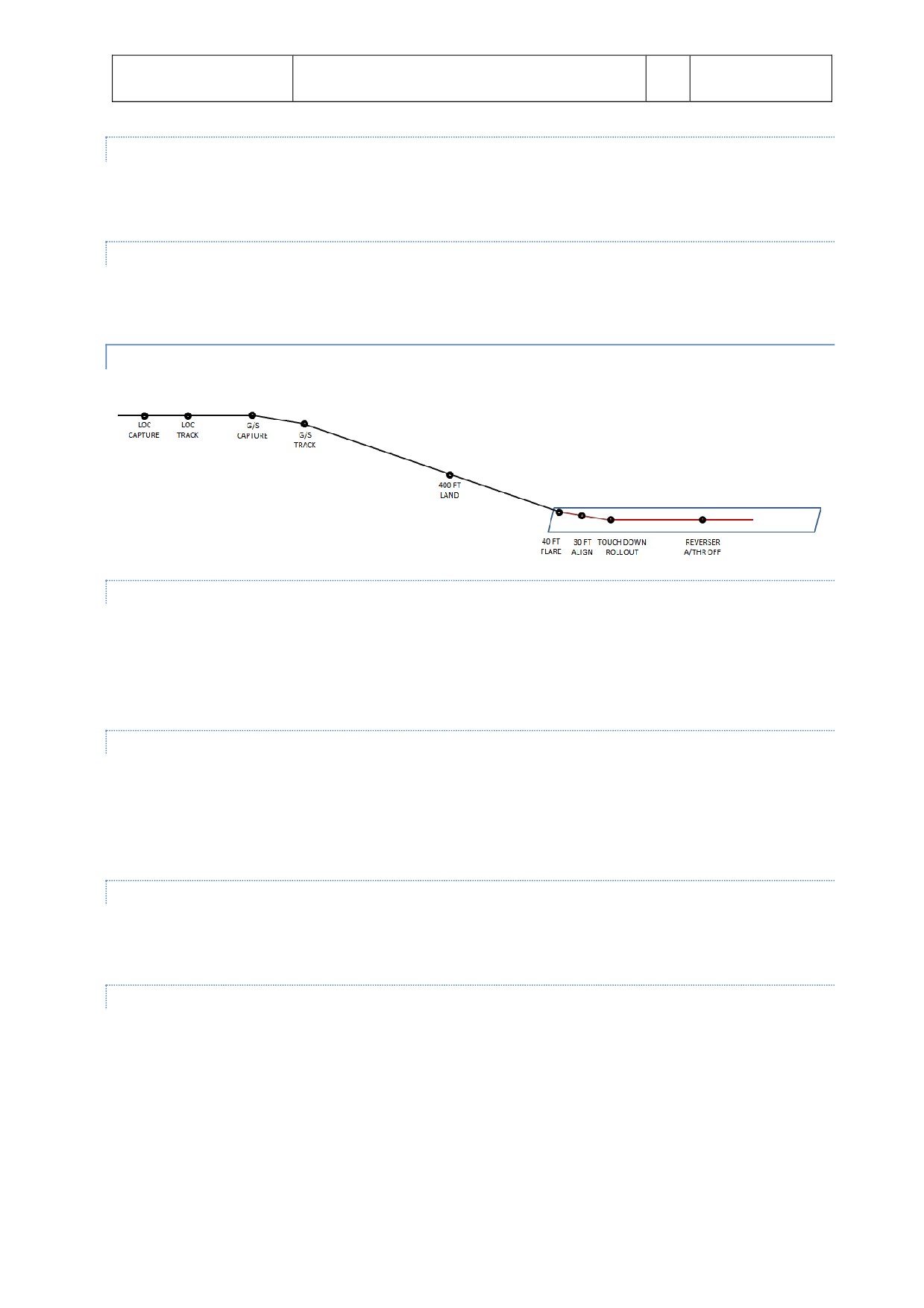
Aerosof
SYSTEMS
Vol
04-03-22
Airbus A320/A321
Systems guide
4
28 October 2014
DISENGAGEMENT CONDITION
Loss of LOC signal
Any other lateral mode selected
GUIDANCE
The RWY mode will guide the aircraf as close as possible to the center runway line and on an extended runway
line in flight in the RWY TRK mode.
APPROACH: ILS APPROACH
ARMING CONDITIONS
Aircraf over 400 f AGL
ILS approach is selected
ILS and RA are available
GA or FINAL mode not selected
DISARMING CONDITIONS
Depressing the APPR pb (both LOC and G/S mode will disarm)
Depressing the LOC pb (only G/S will disarm)
Go AROUND mode selected
Disengaging AP
ENGAGEMENT CONDITIONS
Radio Altmeter actve
LOC* and G/S* mode engage
DISENGAGEMENT CONDITIONS
Depressing the APPR pb (both LOC and G/S mode will disarm)
Depressing the LOC pb (only G/S will disarm)
Pull acton on the V/S/FPA buton
Pull acton on the HDG/TRK buton
Go AROUND mode selected
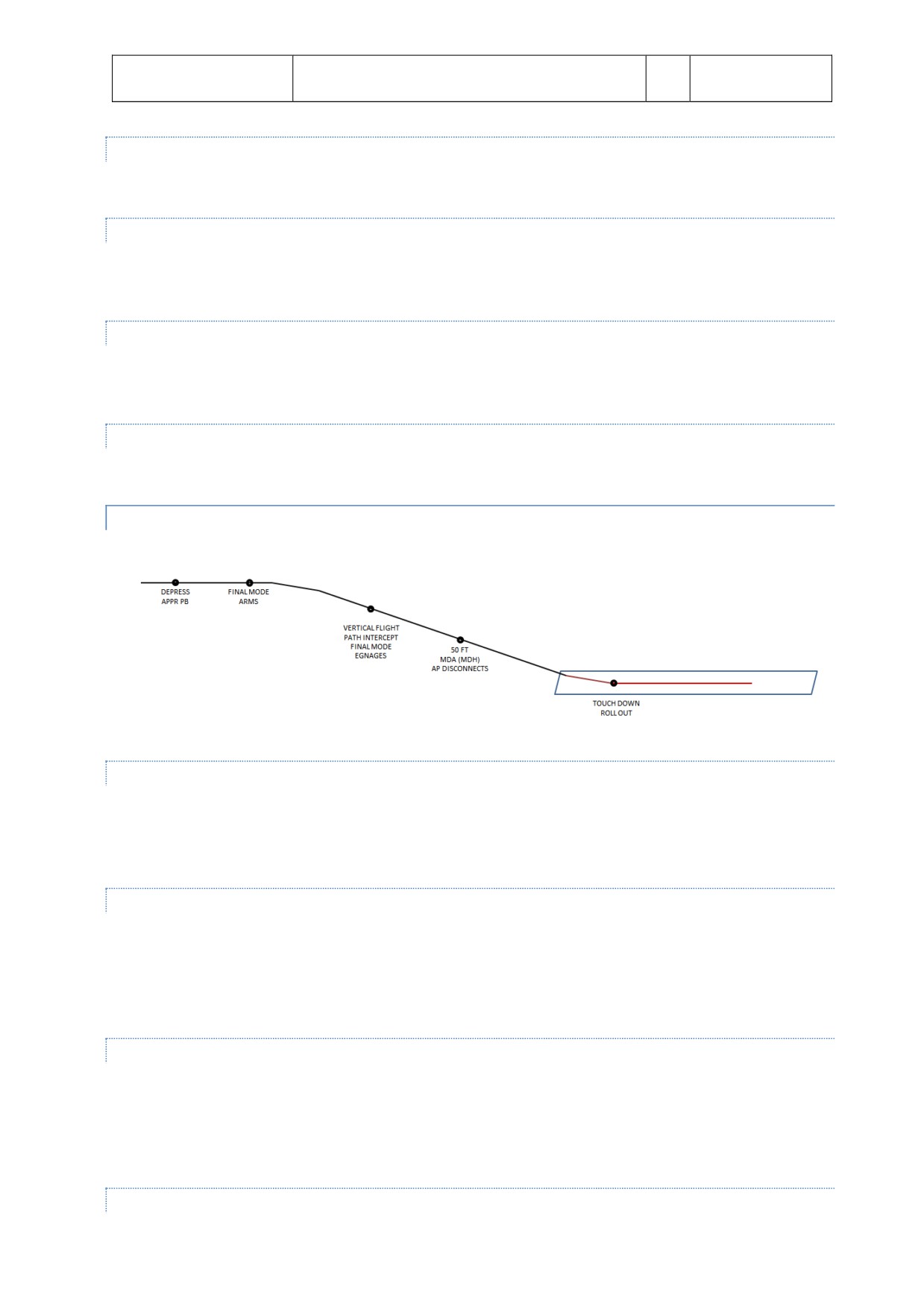
Aerosof
SYSTEMS
Vol
04-03-23
Airbus A320/A321
Systems guide
4
28 October 2014
LAND MODE
LAND mode engages automatcally when the LOC and G/S modes are engaged and aircraf is below 400 AGL.
FLARE MODE
At 40 f RA the FLARE mode automatcally engages. At 30 f AGL the aircraf will align with the runway, will pitch
up and when A/THR is actve the trust reducton (RETARD) will actvate.
ROLL OUT MODE
When load is detected on the main gear the ROLL OUT mode will automatcally be actvated and centerline
guidance is provided.
SPEED CONTROL
A/THR will provide speed control during and ILS approach when speed can be managed or selected.
APPROACH: NON ILS APPROACH
ARMING CONDITIONS
Aircraf over 400 f AGL
NON ILS approach is selected
GA or FINAL mode not selected
DISARMING CONDITIONS
Depressing the APPR pb (both LOC and G/S mode will disarm)
Depressing the LOC pbn (only G/S will disarm)
Go AROUND mode selected
Disengaging AP
ENGAGEMENT CONDITIONS
Radio Altmeter actve
APP phase is actve
APP NAV mode engaged
FINAL is armed
DISENGAGEMENT CONDITIONS
Aerosof
SYSTEMS
Vol
04-03-24
Airbus A320/A321
Systems guide
4
28 October 2014
Depressing the APPR pb
Depressing the LOC pb
Automatcally at MDA (MDH)
Go AROUND mode selected
GUIDANCE
The aircraf is guide down to MDA/MDH where AP is automatcally disconnected.
GO AROUND
This mode is a combinaton of the SRS vertcal and the GA TRK lateral mode.
ENGAGEMENT CONDITIONS
Thrust levers in TOGA detent will engage SRS/GA TRK as long as slats/flaps lever is in positon 1 and the aircraf is
in flight.
DISENGAGEMENT CONDITIONS
Manually engaging another mode
Automatcally at GA ACC ALT
GUIDANCE
SRS is similar to SRS take off. Speed will be kept on speed on engagement or V APP if that is higher. GA TRK guides
the aircraf along the track the aircraf was at engagement.
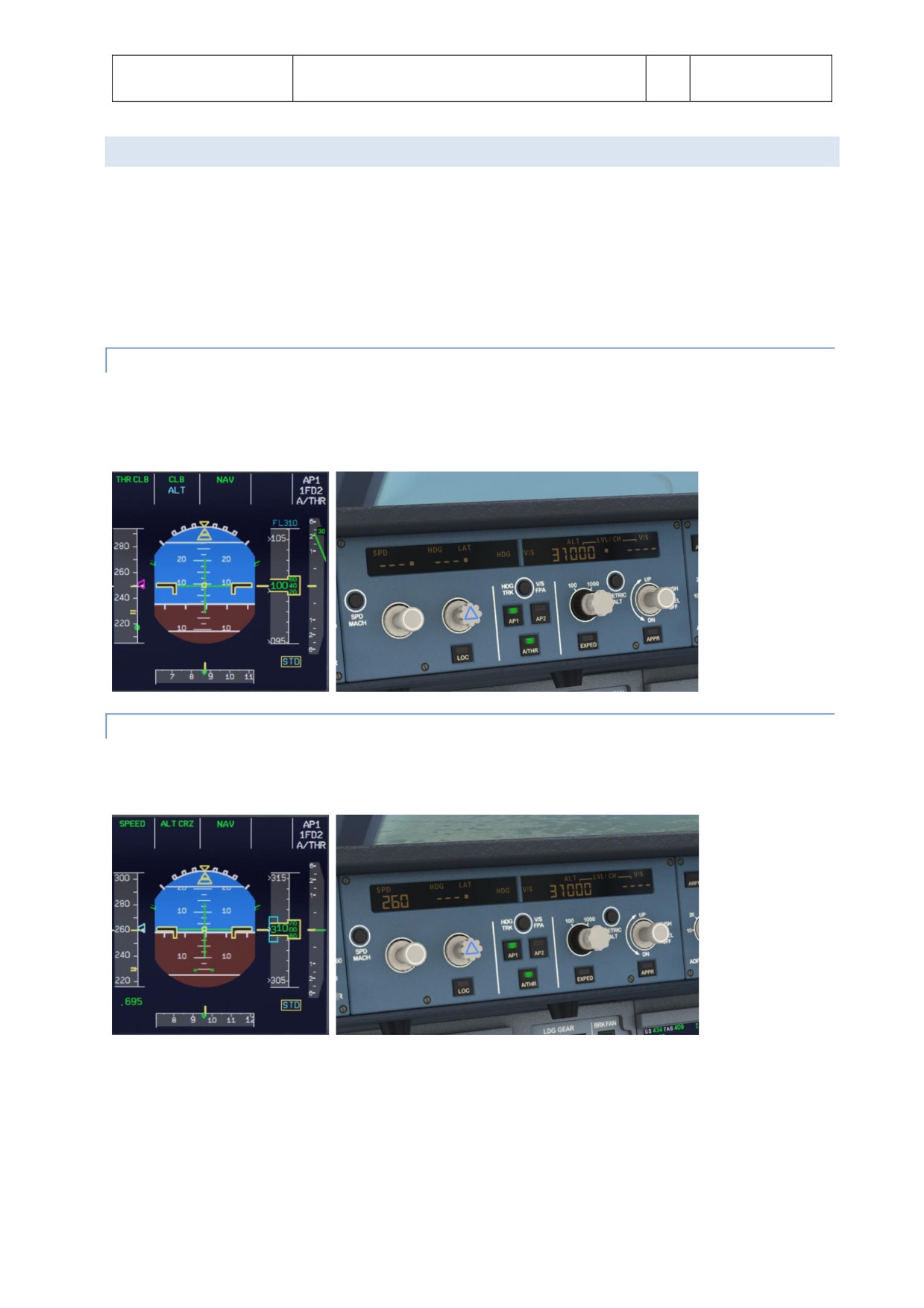
Aerosof
SYSTEMS
Vol
04-03-25
Airbus A320/A321
Systems guide
4
28 October 2014
MANAGES MODE VERSUS SELECTED MODE
In Managed modes the Flight Management Guidance Computer sends informaton to the Autopilot systems so
that it follows the programmed route. This route can include headings, alttudes and even speeds. The pilot
selects this mode by pushing (lef click) the appropriate selector knob on the Flight Control Unit (FCU).
In Selected modes the pilot inserts the informaton and the aircraf will follow his manual input. The pilot selects
this mode by pulling (right click) the appropriate selector knob on the Flight Control Unit and turning it the
required setng.
MANAGED SPEED
On PFD the Target Airspeed shows in magenta
On the FCU the Speed/Mach will show dashes and a white dot
On the MCDU (PERF page) Managed mode is displayed with the target value
SELECTED SPEED
On PFD the Target Airspeed shows in blue
On the FCU the Speed/Mach will display the Target Airspeed
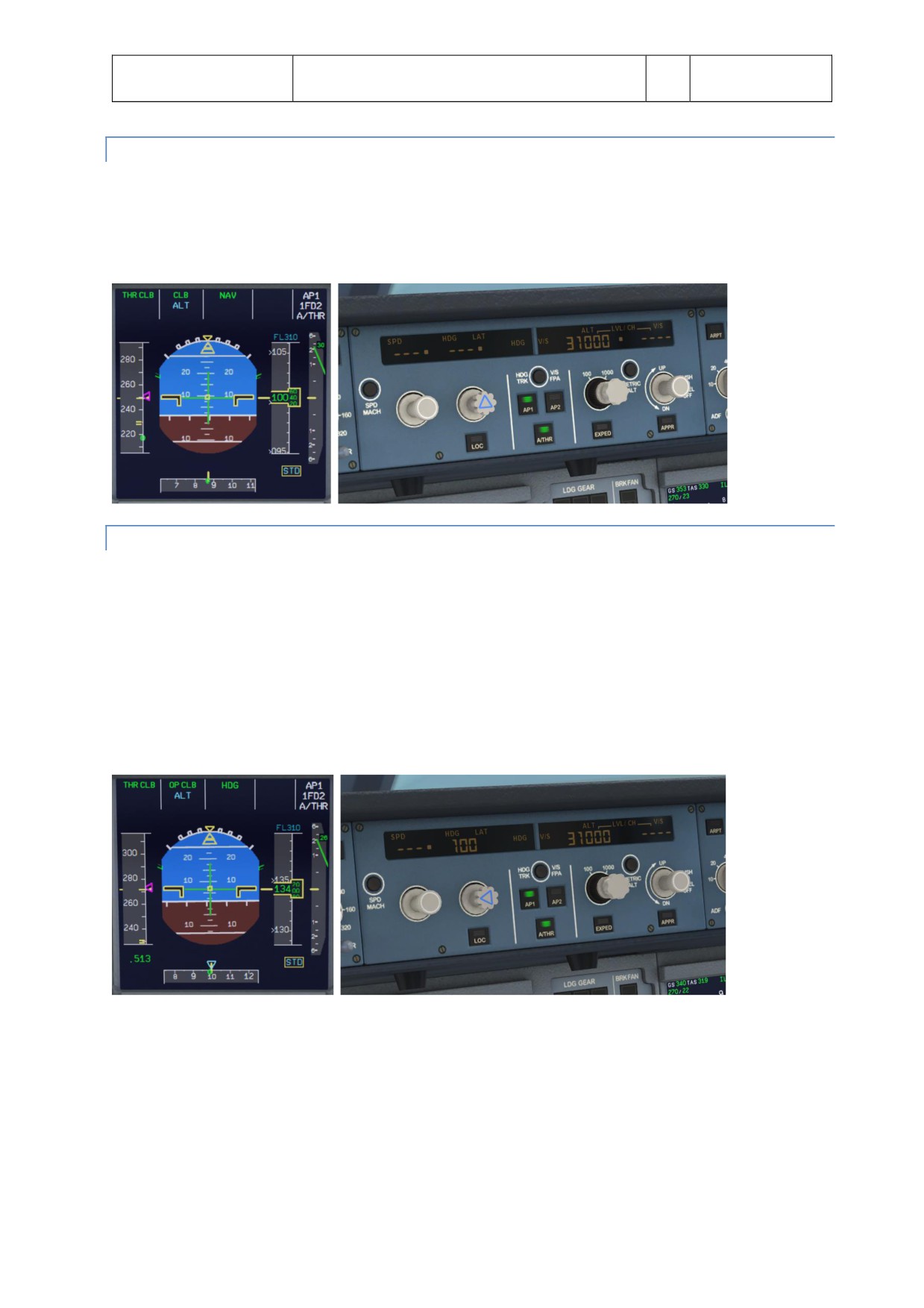
Aerosof
SYSTEMS
Vol
04-03-26
Airbus A320/A321
Systems guide
4
28 October 2014
MANAGED LATERAL GUIDANCE
On the PFD the FMA will display NAV
On the FCU the Heading/Track window will show dashes and a white dot
On the PFD/ND the actual (not selected) heading and actual track is displayed
On the ND the flight plan track is displayed as a contnuous green line
SELECTED LATERAL GUIDANCE HEADING OR TRACK
On the PFD the FMA will display HDG (or TRK)
On the PFD/ND the selected heading or Track Index (blue)
On the ND the flight plan track is displayed as a dashed green line and the actual track by a contnuous
green line
On the FCU the Heading/Track window will show the Target Heading (Track)
(NOTE: In HDG, if in a climb or descent, VNAV will change to OP CLB or OP DES. To reselect NAV and managed
CLB/DES, push HDG FCU knob in [lef click], then push in [lef click] the FCU ALT knob)
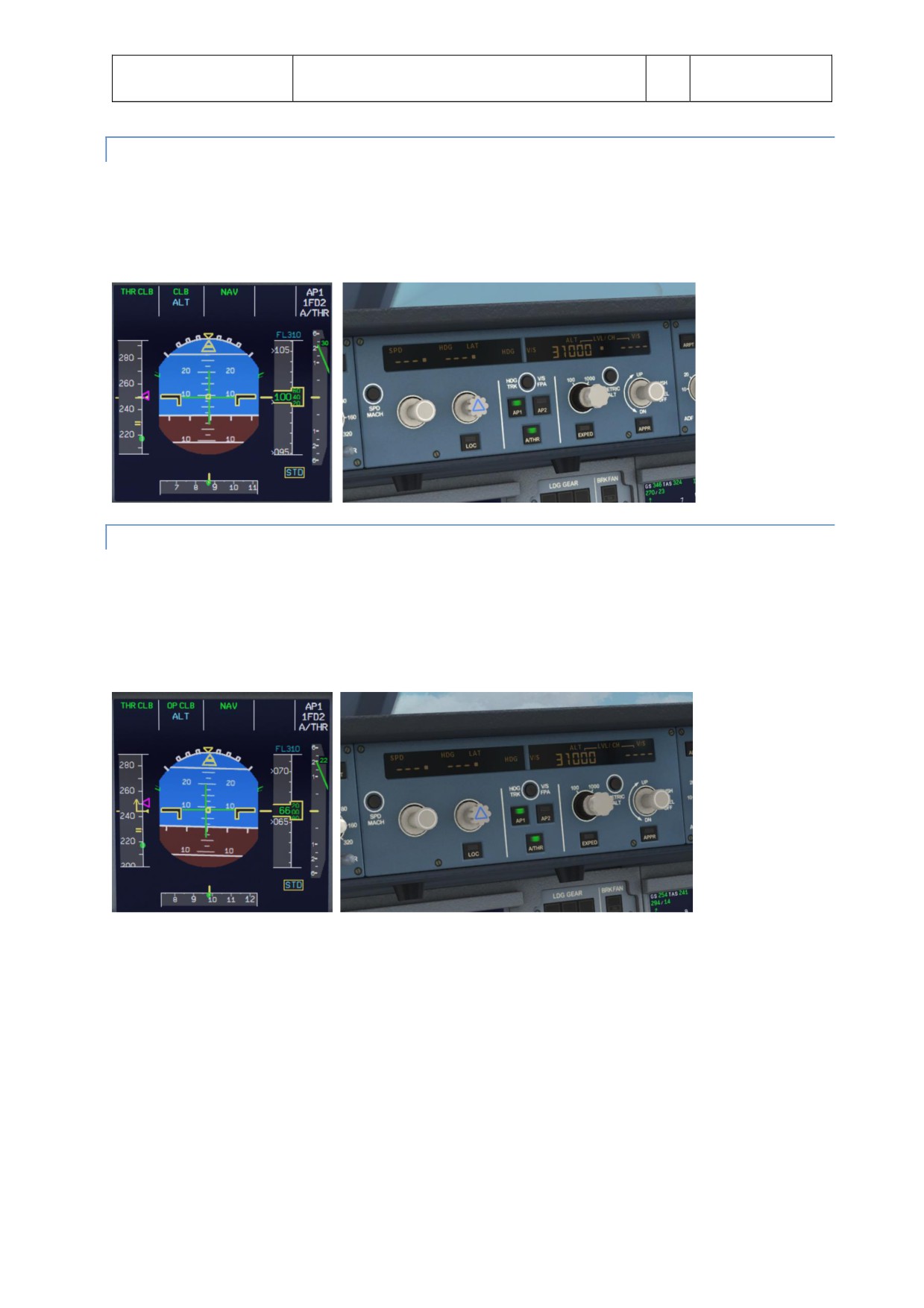
Aerosof
SYSTEMS
Vol
04-03-27
Airbus A320/A321
Systems guide
4
28 October 2014
MANAGED CLIMB
On the PFD the FMA will display a green CLB, with a blue ALT beneath it
On the FCU the alttude will show the dialed value with a white dot to the right of it
On the MCDU (PERF page) will be displayed as the CLB page
OPEN CLIMB
To actvate OP CLB, pull (right click) the FCU ALT knob afer dialing in a higher alttude. In OP CLB, the
FMGS will disregard any alttude constraints and climb straight to the alttude in the FCU.
On the PFD the FMA will show OP CLB
On the FCU the selected alttude will show without a white dot next to it
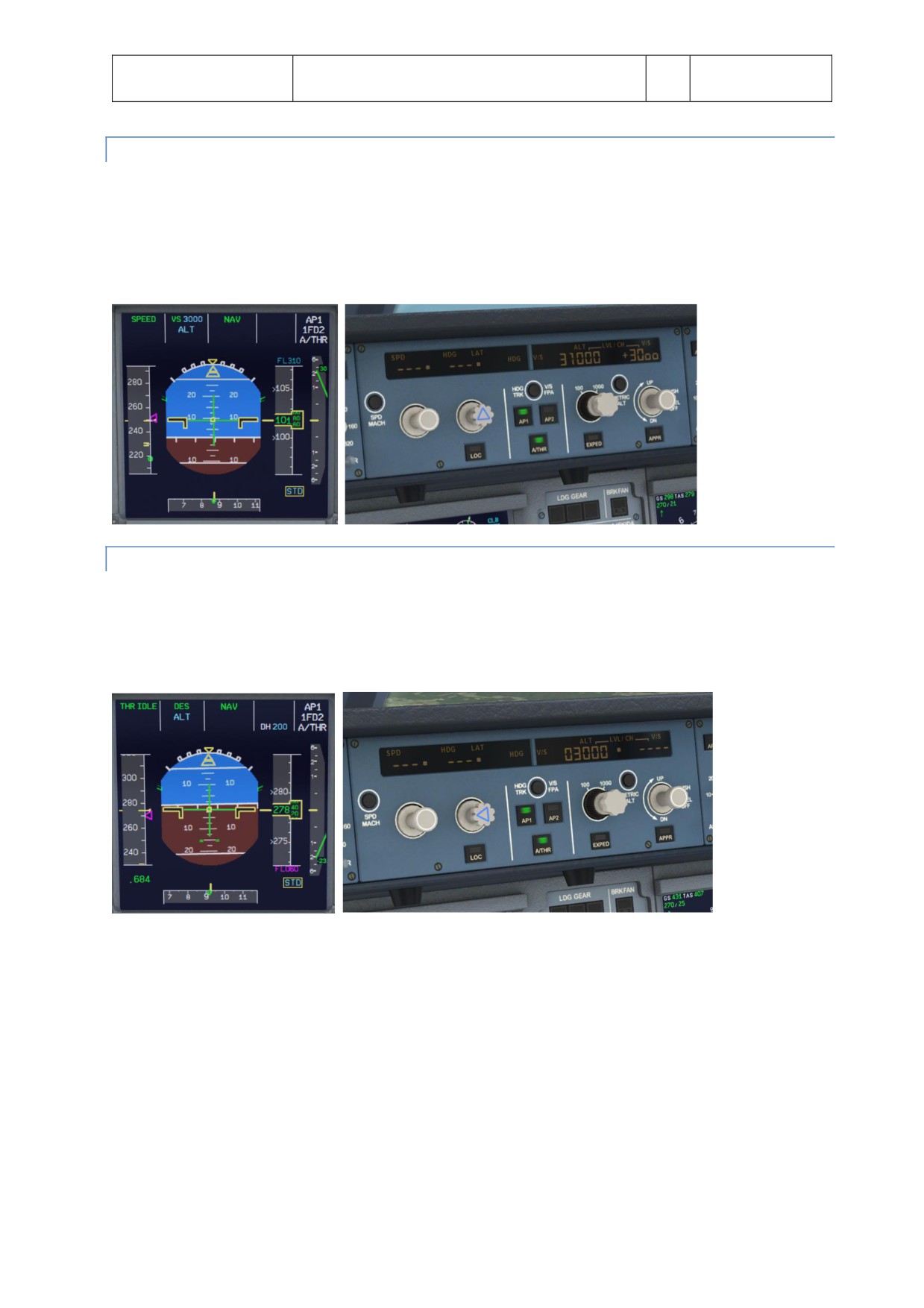
Aerosof
SYSTEMS
Vol
04-03-28
Airbus A320/A321
Systems guide
4
28 October 2014
SELECTED CLIMB
For selected V/S climb, pull (right click) the FCU V/S knob.
On the PFD the FMA will show in green VS and in blue the selected vertcal speed, with a blue ALT
beneath it.
On the FCU you will read the selected V/S with a + sign to the lef of it, and the dialed alttude without a
white dot to the right of it.
MANAGED DESCENT
On the PFD the FMA will display a green DES, with a blue ALT beneath it
On the FCU the alttude will show the dialed value with a white dot to the right of it
On the MCDU (PERF page) will be displayed as the DES page
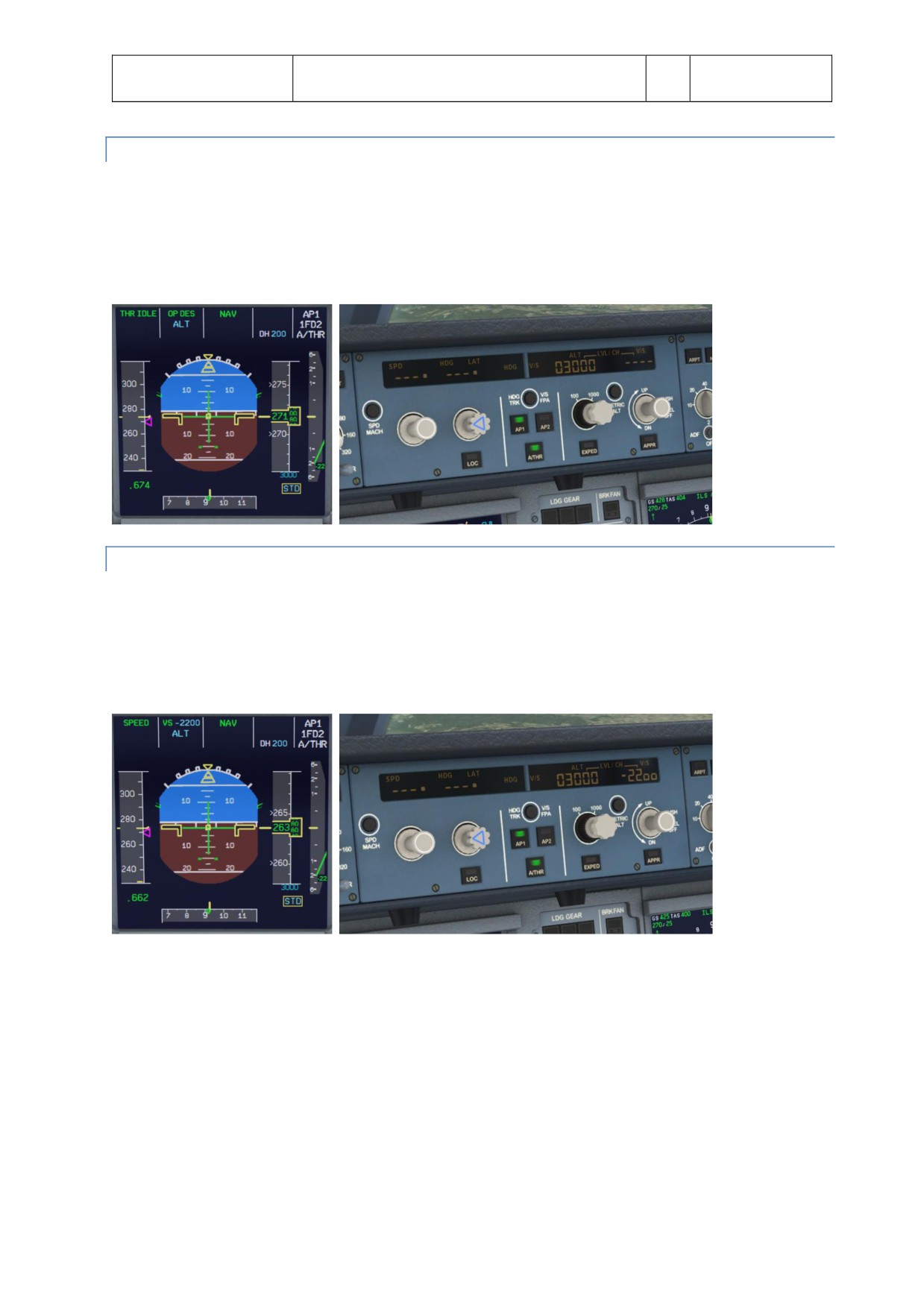
Aerosof
SYSTEMS
Vol
04-03-29
Airbus A320/A321
Systems guide
4
28 October 2014
OPEN DESCENT
To actvate OP DES pull (right click) the FCU ALT knob afer dialing in a lower alttude. OP DES acts similar
to OP CLB, in that it will descend in an idle descent to the alttude dialed in the FCU disregarding any
alttude constraints.
On the PFD the FMA will show OP DES
On the FCU the selected alttude will show without a white dot next to it
SELECTED DESCENT
For selected V/S descent, pull (right click) the FCU V/S knob.
On the PFD the FMA will show in green VS and in blue the selected vertcal speed with a - sign in
between, and a blue ALT beneath it
On the FCU you will show the selected V/S with a - sign to the lef of it, and the dialed alttude without a
white dot to the right of it
//////////////////////////////////////////