Network Intrusions Responder Program (NITRO). Instructor Guide - page 19
Log Searching
Flexibility is important feature for tool used to search through
log files
Wide variety of log files
Require search for different types of values
Tools and techniques must be usable regardless of log type
and search values
U.S. Department of
Homeland Security
United States
Secret Service
GREP
GREP (Global Regular Expressions Print)
Newer version EGREP (The E stands for “Extended”)
Primary applications used for searching and filtering text logs
Use regular expressions to define search parameters
Used because regular expressions are most common method
for defining search parameters, and used in many other
applications, such as PERL, Snort, and EnCase
U.S. Department of
Homeland Security
United States
Secret Service
GREP
GREP typically found in Unix, Linux, and OS X environments
Versions available for Windows operating systems
U.S. Department of
Homeland Security
United States
Secret Service
Findstr
Windows does not natively ship with GREP
Does include Findstr, similar command line utility to find
specific strings of text in log file or other type text file
Typing “findstr /?” at command prompt displays quick help
screen of options and command format
U.S. Department of
Homeland Security
United States
Secret Service
Findstr Options
/I to disable case sensitivity
/S to search all files in current directory and subdirectories
/R to allow use of regular expressions
/N to print line numbers
/G:filename to use a file of key strings to search for
U.S. Department of
Homeland Security
United States
Secret Service
Regular Expressions
Patterns used for executing searches and filters
Accomplished by combining literal text and special characters,
called metacharacters, to create a pattern used to search files
U.S. Department of
Homeland Security
United States
Secret Service
Examples of Set Pattern Items
IP addresses
Dates and time
Phone numbers
URLs
Credit card numbers
Social Security numbers
U.S. Department of
Homeland Security
United States
Secret Service
Regular Expressions
Should understand regular expressions and how to use them
effectively to search or filter text logs
Many tools incorporate regular expression engines into
functionality
Some GNU command line tools, such as grep/egrep, sed and
awk, and many text editors, allow searching and/or
replacement of text through use of regular expressions
Regular Expression engines and syntax may vary slightly from
product to product
U.S. Department of
Homeland Security
United States
Secret Service
Literal Character Searches
Simplest type of regular expression is literal representation of
target value
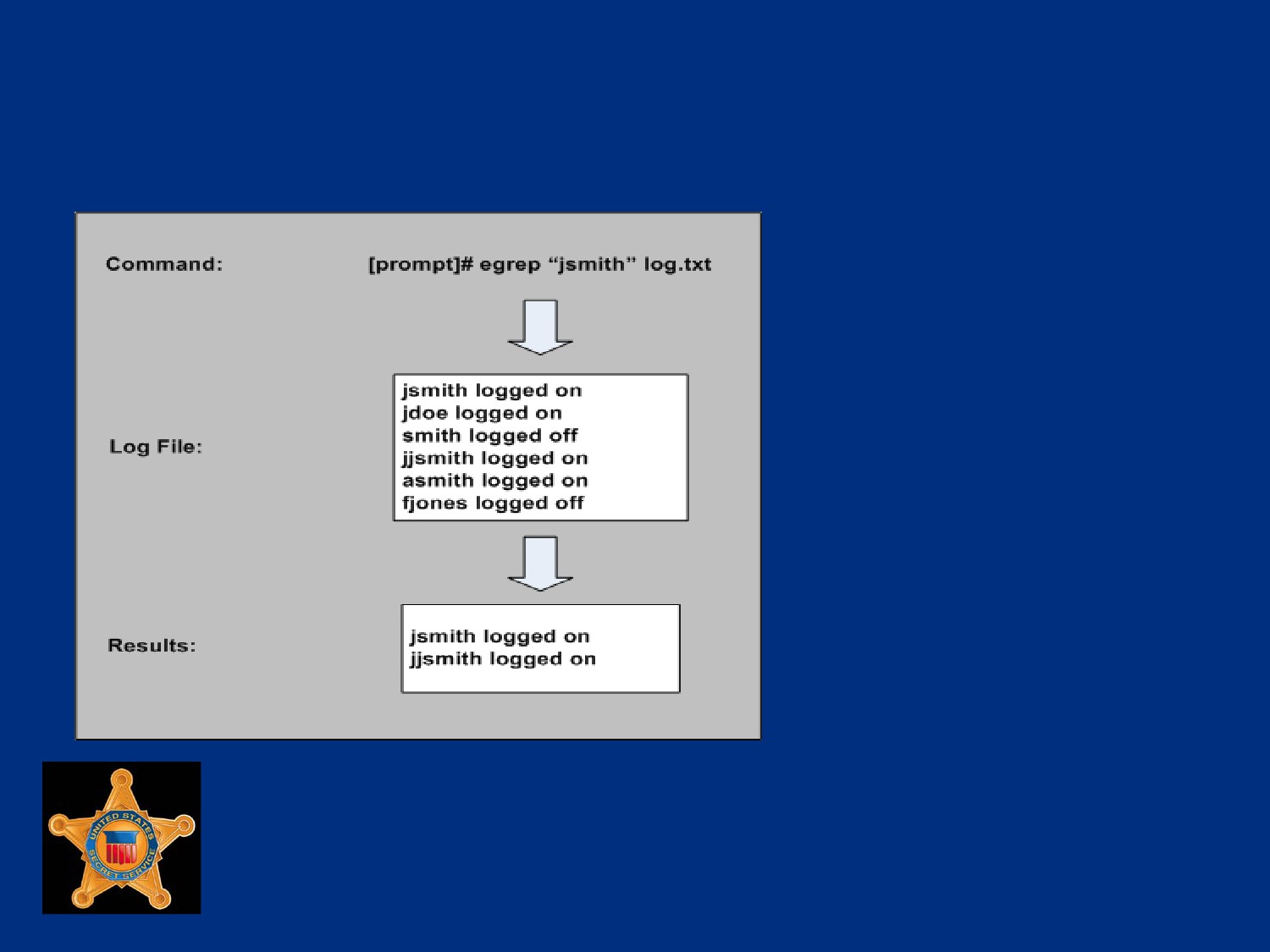
For example, search for “jsmith” in log.txt by simply telling
egrep to search for string “jsmith”
[prompt]# egrep “jsmith” log.txt
Most programs search files one line at a time
Command line above will return each line in file that contains
string “jsmith” to whatever output is specified
U.S. Department of
Homeland Security
United States
Secret Service
Regular Expression Example
Example of a search for a literal string is shown on next slide
Log file searched for string “jsmith” using egrep
Notice, any line that included “jsmith” was matched, even one
that begins with “jjsmith”
It does not matter what is before or after target string, only that
it exists
“jsmith” could be a stand-alone string, or part of a string such
as “jsmithsonian”
U.S. Department of
Homeland Security
United States
Secret Service
Regular Expression Example
U.S. Department of
Homeland Security
United States
Secret Service
Lesson 5 - IDS Logs
IDS Logs
U.S. Department of
Homeland Security
United States
Secret Service
Intrusion Detection Systems
Intrusion Detection Systems (IDS), prolific, found in many
networked environments
Probably find most logs generated by these systems are binary
rather than text
When files encountered, may require use of proprietary
program to view or convert files to text
Some save logs in libpcap format, can use packet sniffer tools
like Wireshark to open, view and export
U.S. Department of
Homeland Security
United States
Secret Service
Snort
Popular IDS and intrusion reporting tool
Free application, allows administrators to flag alerts, on both
live and captured traffic
After parsing traffic, will generate text log displaying alerts of
suspicious traffic encountered
Requires complex set of steps to configure, and configuration
will change with each type of log or capture
By default, Snort’s log files on Linux, Unix, or OS X system,
found in /var/log/snort
U.S. Department of
Homeland Security
United States
Secret Service
U.S. Department of
Homeland Security
United States
Secret Service
Module 14 - Log Analysis
U.S. Department of
Homeland Security
United States
Secret Service
You Will Learn . . .
Binary Traffic Analysis
Manual Log Analysis
Automated Log Analysis Tools
U.S. Department of
Homeland Security
United States
Secret Service
Lesson 1 - Binary Traffic Analysis
Introduction to Wireshark
Converting Binary Logs to Text Format
Filtering and Searching in Wireshark
Colorizing Data Using Filters in Wireshark
Generating Statistics with Wireshark
Exporting Data from Wireshark
U.S. Department of
Homeland Security
United States
Secret Service
Wireshark
Powerful open source protocol analyzer
Opens a variety of binary log formats
Act as a sniffer
Translates, decodes, known protocols from binary to human
readable format
Displays highly detailed information on frame-by-frame basis
Provides search of capture log for frames that match specific
criteria
Automatically reconstruct TCP sessions
U.S. Department of
Homeland Security
United States
Secret Service
Procedure: Importing Logs into
Wireshark
This is a Step / Action exercise in student book.
U.S. Department of
Homeland Security
United States
Secret Service
Viewing Binary Logs in Wireshark
Top Pane: Summary of captured frames, including frame
number, date and time, source IP, destination IP, protocol and
basic description
Middle Pane: Decoded protocol header information, organized
inversely to order of each protocol within OSI model
Bottom Pane: Full frame contents in hexadecimal on left side
with any included clear text displayed on right
U.S. Department of
Homeland Security
United States
Secret Service
Procedure: Creating a Filter with
Wireshark
This is a Step / Action exercise in student book.
U.S. Department of
Homeland Security
United States
Secret Service
Procedure: Creating a Color Filter
with Wireshark
This is a Step / Action exercise in student book.
U.S. Department of
Homeland Security
United States
Secret Service
Binary vs. Text Format
More efficient at times to change binary logs to text format
As text, logs can be manipulated using text log filtering
techniques to quickly find target data
Change binary logs to text format with tcpdump
Default output of tcpdump is text format
U.S. Department of
Homeland Security
United States
Secret Service
Tcpdump Command
[prompt]# tcpdump -r log.cap > log.txt
Command directs tcpdump to read file log.cap, and place a
text interpretation of contents into text file log.txt
By default tcpdump does not print full contents of each packet,
just summary data
U.S. Department of
Homeland Security
United States
Secret Service
Wireshark Binary Log Filtering
Capture filters: Interface used to filter data while being
captured from network; uses tcpdump syntax
Display filters: Interface used to filter currently displayed traffic
Color filters: Interface used to apply colors to certain packets
based upon a filter expression
Find menu: Standard find menu that allows packet to be
searched by hex value or string, can also use to enter display
filters
U.S. Department of
Homeland Security
United States
Secret Service
Procedure: Setting Up Capture Filter
This is a Step / Action exercise in student book.
U.S. Department of
Homeland Security
United States
Secret Service
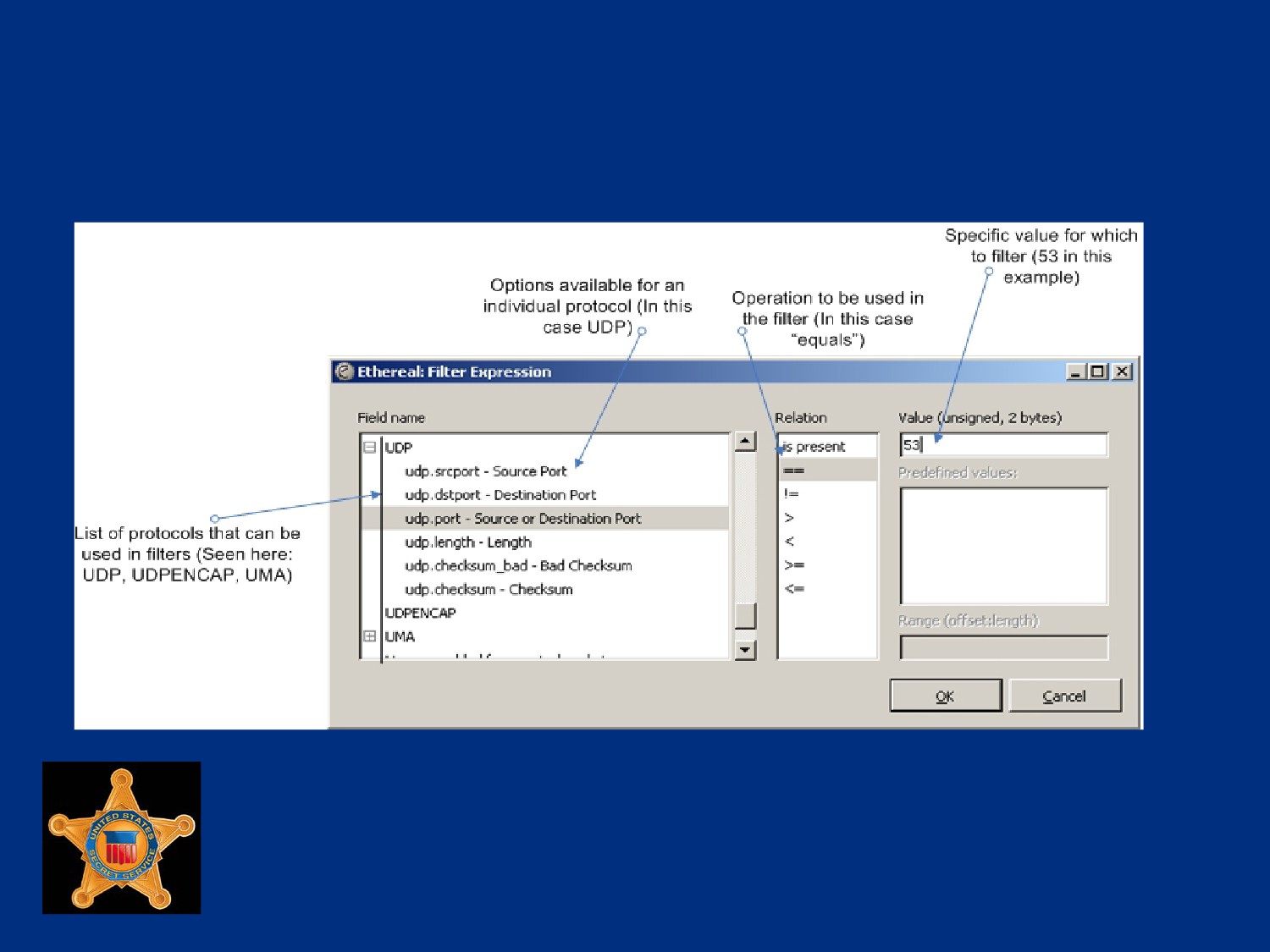
Procedure: Creating a Display Filter
This is a Step / Action exercise in student book.
U.S. Department of
Homeland Security
United States
Secret Service
Creating a Display Filter
U.S. Department of
Homeland Security
United States
Secret Service
Creating Display Filter for Keyword
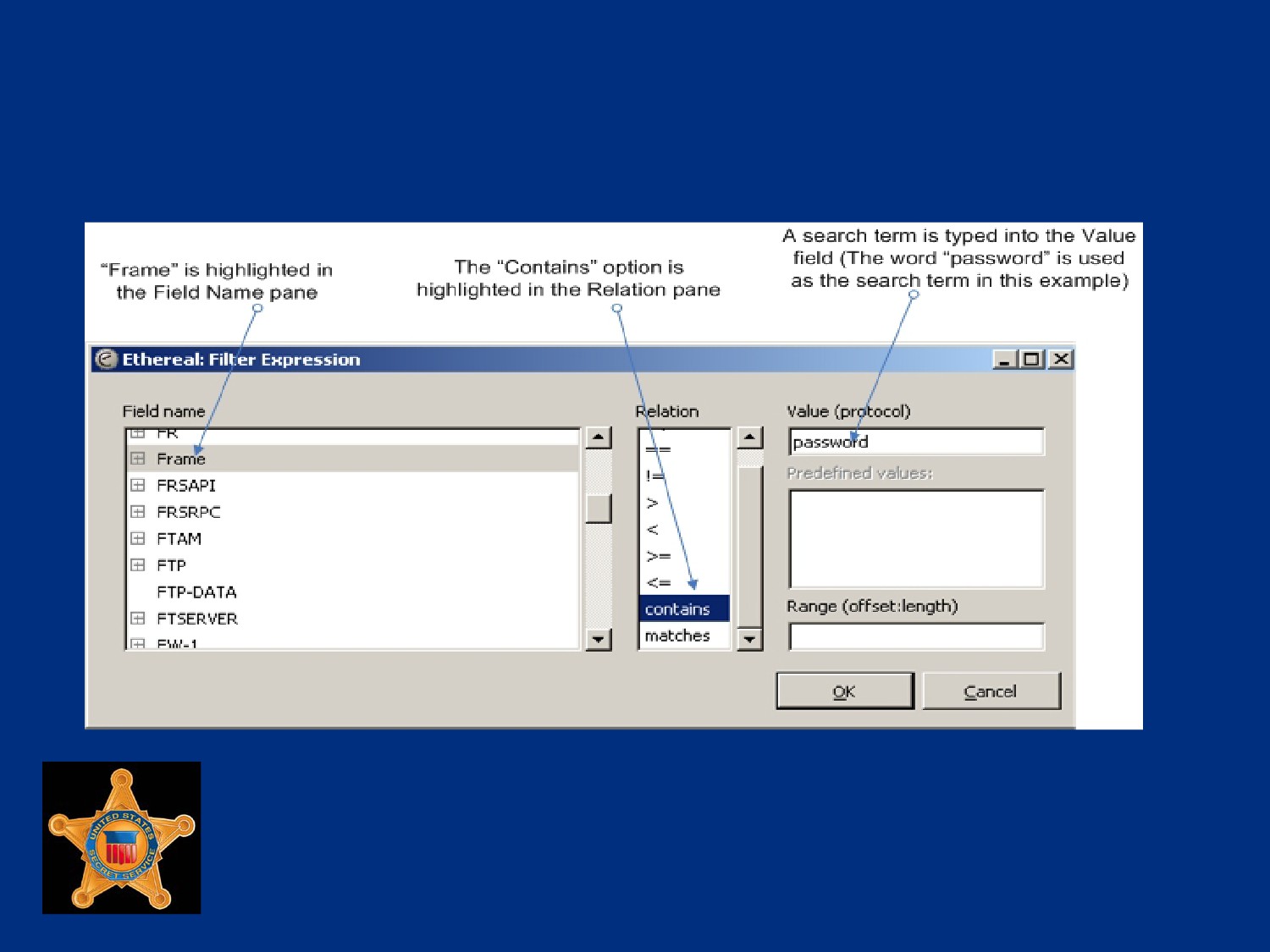
Display filter can be created for a keyword
Displays only packets that contain search term
Done with “frame contains” display filter,
Can be used to filter for presence of keyword anywhere in
packet
The “frame contains” filter can be found through normal display
filter wizard
U.S. Department of
Homeland Security
United States
Secret Service
Display Filter for Keyword
U.S. Department of
Homeland Security
United States
Secret Service
Creating Hex Value Filter Display
The “frame contains” expression syntax also used to filter for
hexadecimal values
Hex value is entered in place of keyword, colons used to
separate value into pairs
U.S. Department of
Homeland Security
United States
Secret Service
Entering Display Filter Expressions
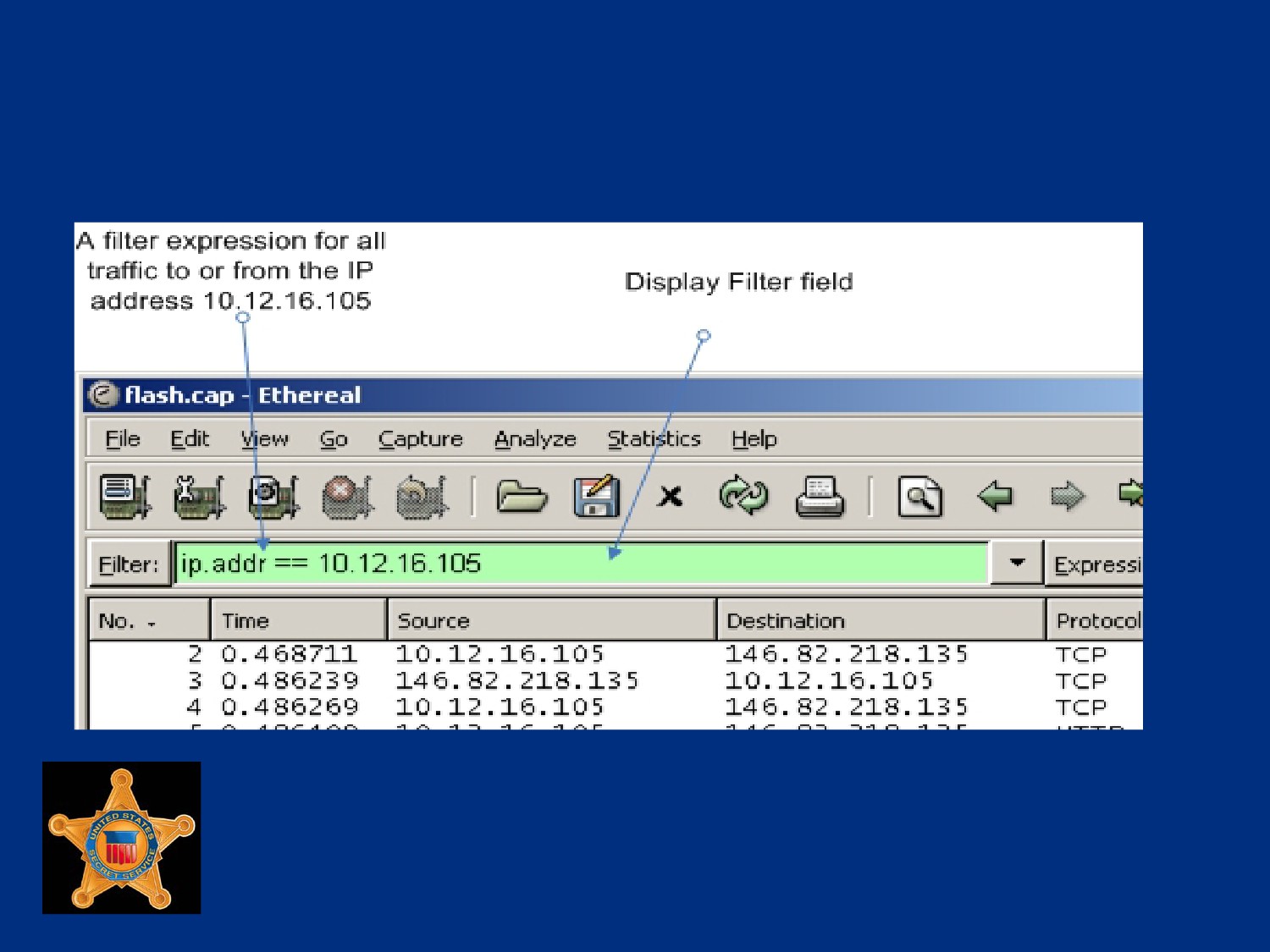
When filter expression created using Display Filter wizard, text
for filter entered in Display Filter field in main window
Filter expressions can be entered directly as text into field
instead of using wizard
When entering display filter, if filter has valid syntax,
backg1round color of display filter field will be green, if not valid
it will be red
U.S. Department of
Homeland Security
United States
Secret Service
Valid Display Filter
U.S. Department of
Homeland Security
United States
Secret Service
Display Filter Syntax
See student book for examples of display filter syntax to
include altering and combing filters.
U.S. Department of
Homeland Security
United States
Secret Service
Procedure: Creating Color Filters
This is a Step / Action exercise in student book.
U.S. Department of
Homeland Security
United States
Secret Service
Procedure: Searching in Wireshark
This is a Step / Action exercise in student book.
U.S. Department of
Homeland Security
United States
Secret Service
Wireshark Statistics Menu
“Statistics” menu in the menu bar for generating various
statistics about log data
U.S. Department of
Homeland Security
United States
Secret Service
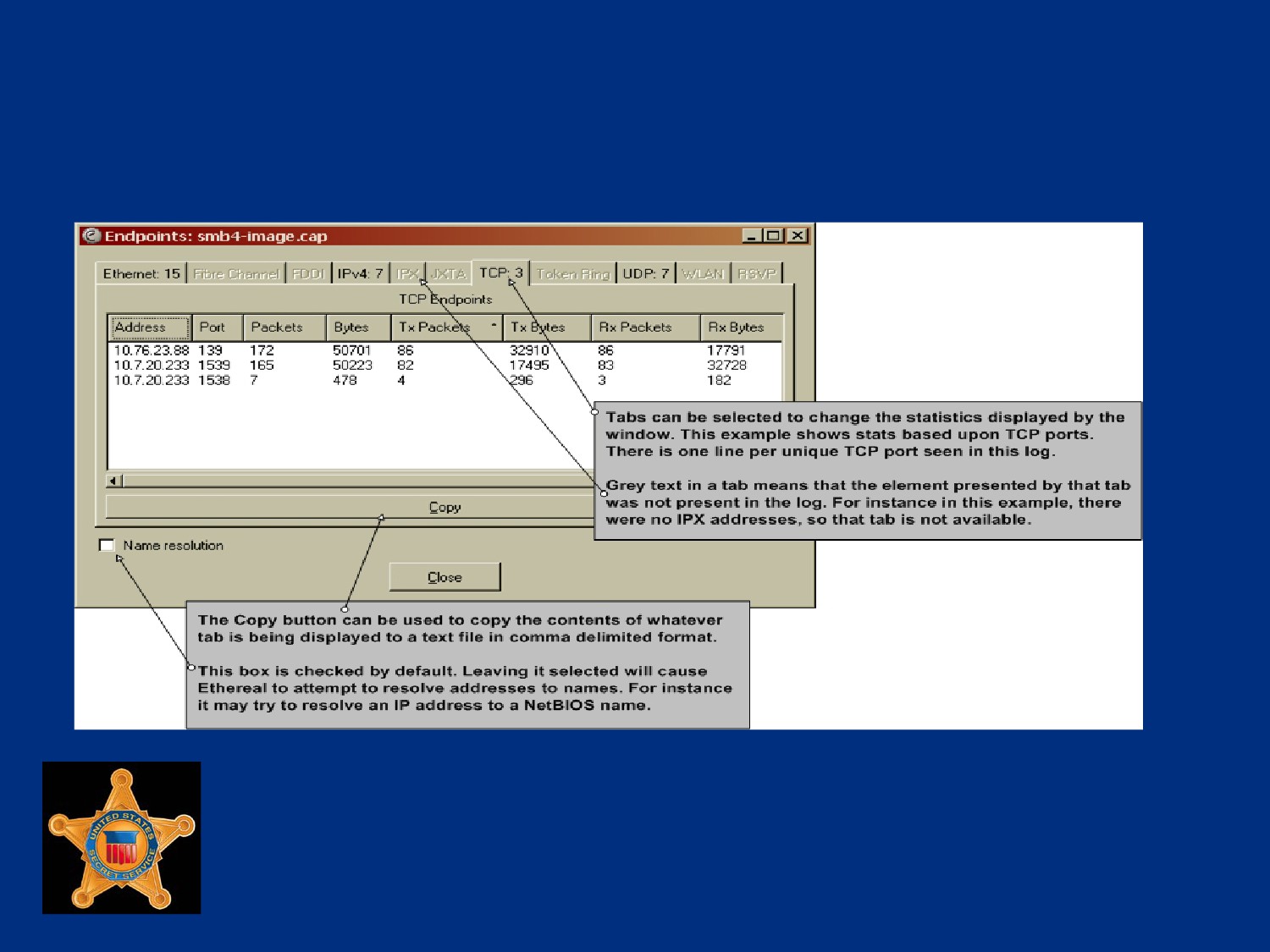
Endpoints List
In the Statistics menu, provides lists of statistics that revolve
around addresses and TCP/UDP ports
Separate window displays statistics
Useful to see what IP addresses and ports are in a given
binary capture
U.S. Department of
Homeland Security
United States
Secret Service
Endpoints Window
U.S. Department of
Homeland Security
United States
Secret Service
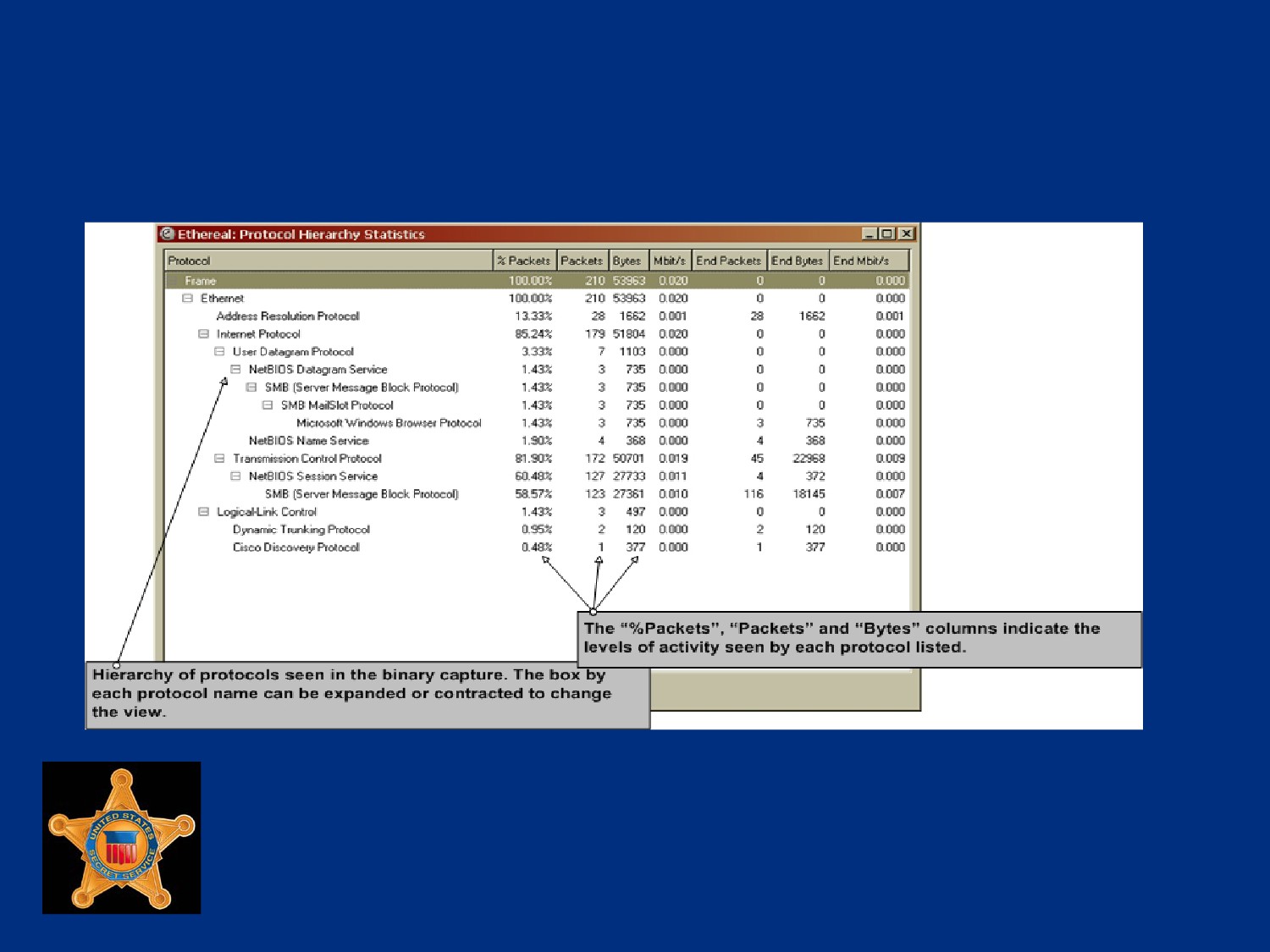
Protocol Hierarchy Statistics
Option in Statistics menu, provides a list of protocols that were
seen in a given capture, and volumes of protocol activity
May be possible to determine applications being used on
network from this information and provide snapshot of activity
Wireshark does not recognize all protocols, and may miss a
protocol used over a non-standard port
U.S. Department of
Homeland Security
United States
Secret Service
Protocol Hierarchy Statistics
U.S. Department of
Homeland Security
United States
Secret Service
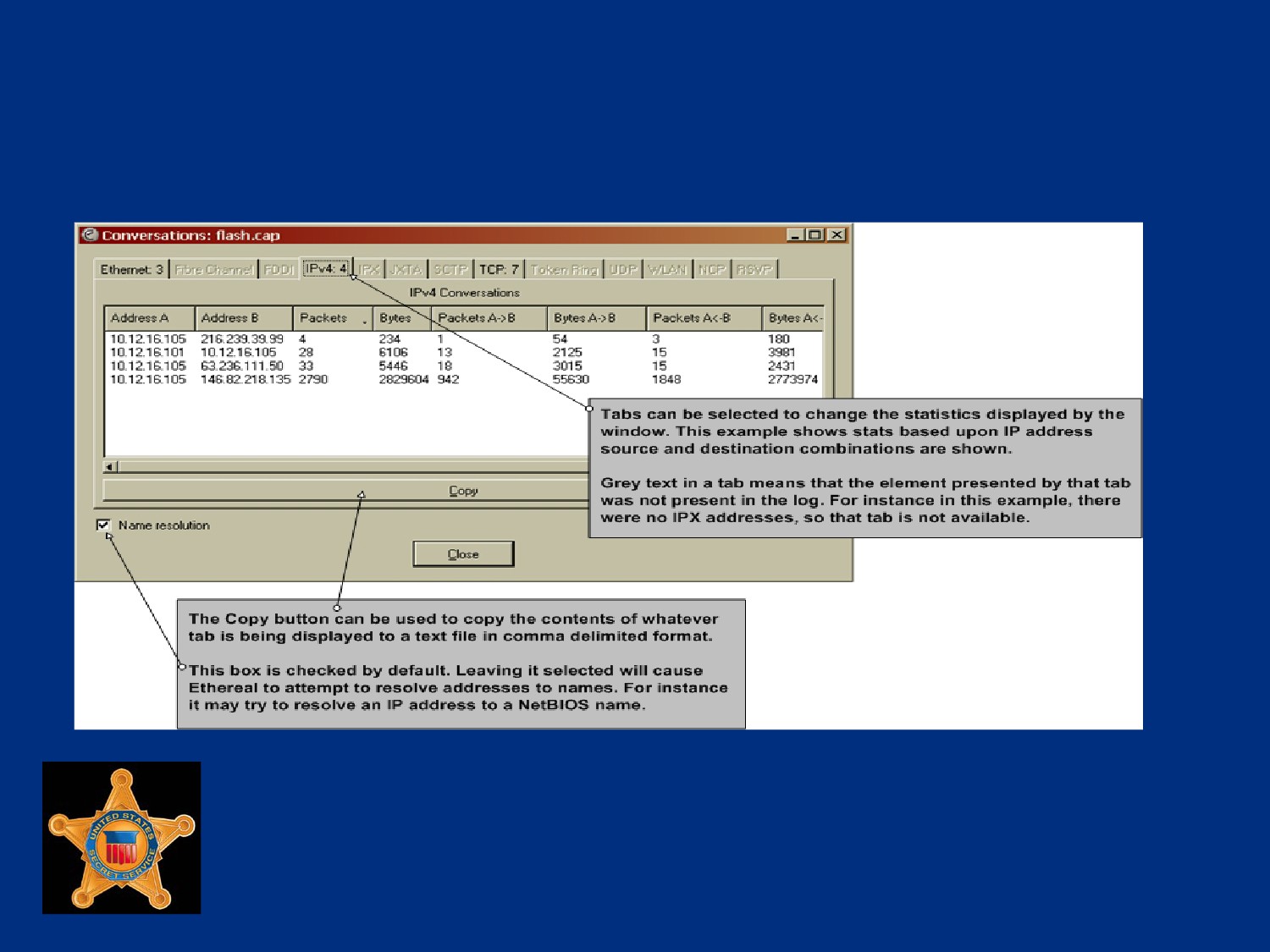
Conversations List
“Conversations” option in Statistics menu offers lists of
source/destination address combinations
Wireshark presents source and destination address
combinations communicating in capture, and number of
packets between each pair
Packet volume is shown for each direction of communication
between pair
U.S. Department of
Homeland Security
United States
Secret Service
Conversations Window
U.S. Department of
Homeland Security
United States
Secret Service
HTTP Requests Stats Tree
Wireshark can create custom list of HTTP get requests based
upon specified display filter
For example, a display filter for a specific IP address, shows all
get requests for that IP
Creating this statistic requires several steps
See student book for HTTP Requests example and steps
U.S. Department of
Homeland Security
United States
Secret Service
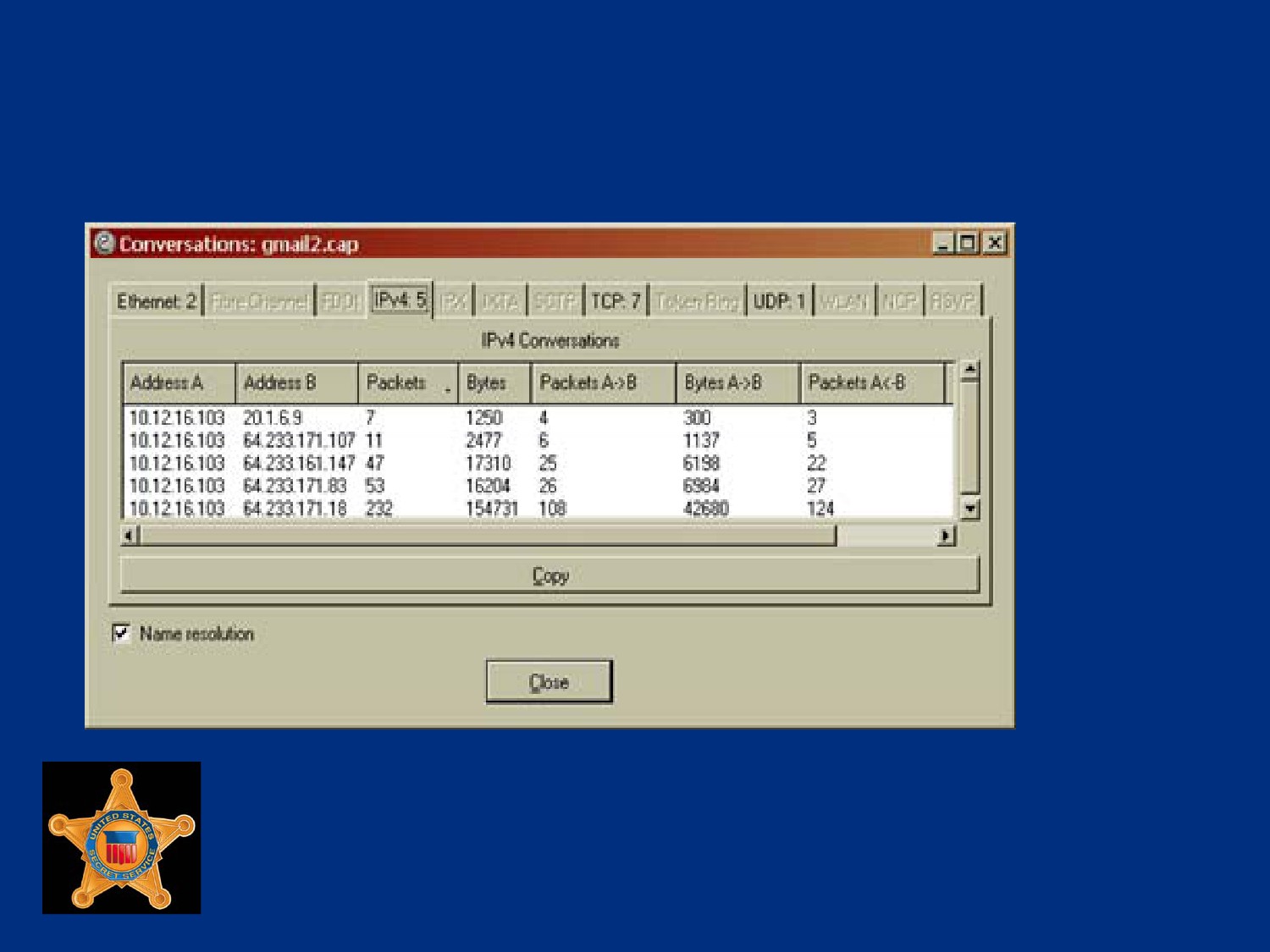
Exporting Statistics
Send copy of any generated statistics to file
Option within some Wireshark statistics windows
Statistics windows capable of exporting data will have “Copy”
button on window
U.S. Department of
Homeland Security
United States
Secret Service
Exporting Statistics
U.S. Department of
Homeland Security
United States
Secret Service
Exporting Statistics
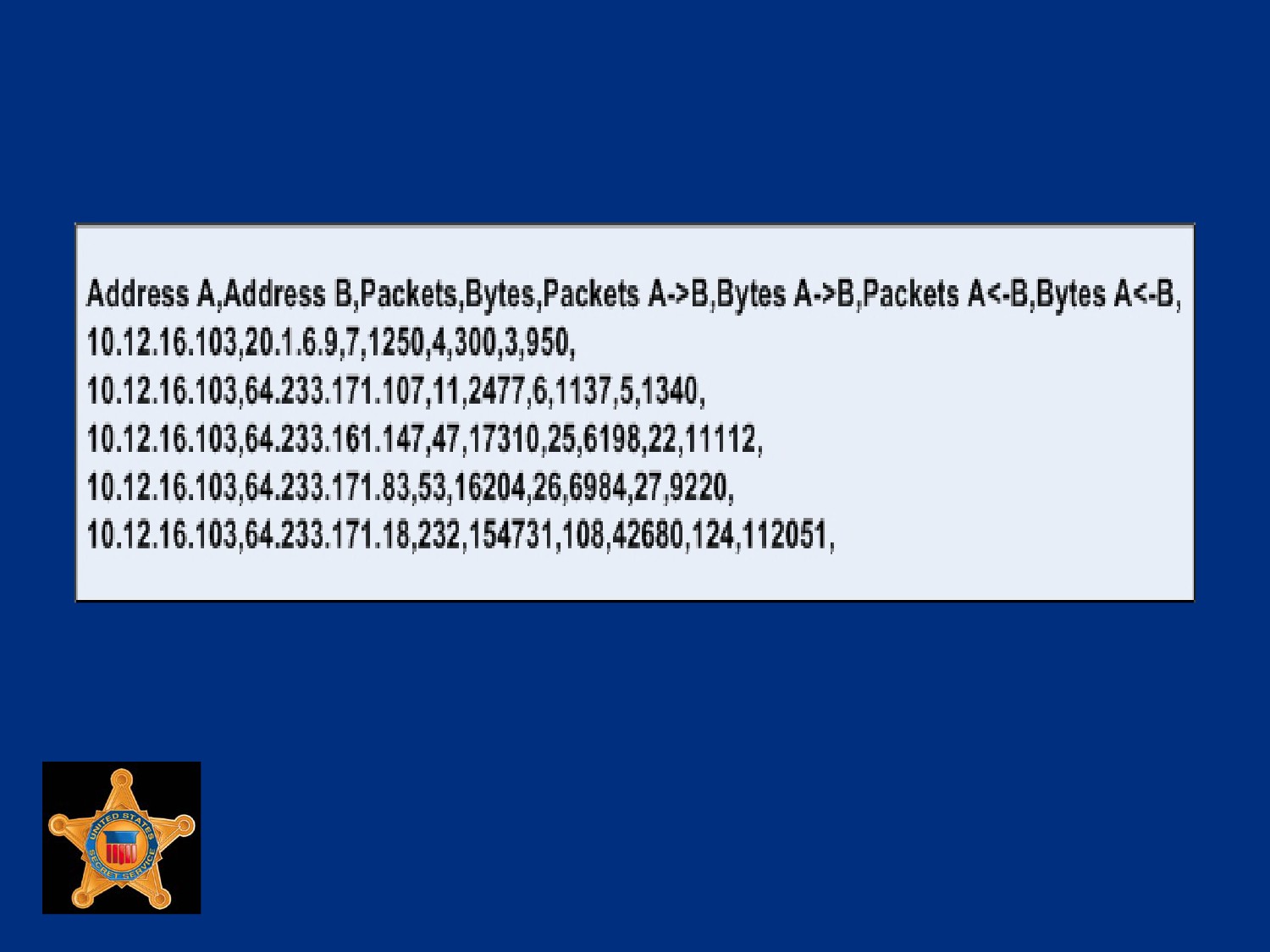
Pressing the copy button only puts the data into the copy
buffer
To save data, paste into a file
Typical text file application such as Notepad will suffice
Data should not be pasted directly into a spreadsheet because
it will be placed into single cell
Pasted data is in comma-delimited format, includes column
headings
Only tab currently displayed in statistic window is copied
U.S. Department of
Homeland Security
United States
Secret Service
Example Pasted Statistics
U.S. Department of
Homeland Security
United States
Secret Service
Lesson 2 - Manual Log Analysis
Filtering and Searching Text Logs
Regular Expressions
Deciding What to Search For
Example Log
U.S. Department of
Homeland Security
United States
Secret Service
Filtering and Searching Text Logs
Identify all log entries with a specific value or range of values
Modify view of one or more log files based upon existence of
an arbitrarily defined parameter
U.S. Department of
Homeland Security
United States
Secret Service
Filtering and Searching Toolset
Flexibility is most important feature for tool used to perform
filtering and searching
Wide variety of log files encountered that will require search for
different types of values
Tools and techniques must be usable regardless of log type
and value for which you are searching
U.S. Department of
Homeland Security
United States
Secret Service
Filtering and Searching Toolset
GREP (Global Regular Expressions Print)
Newer version EGREP (Extended Global Regular Expressions
Print)
Primary application used for searching and filtering text logs
Use regular expressions to define search parameters
Regular expressions are most common method for defining
search parameters, used in other applications, such as PERL,
Snort, and EnCase
U.S. Department of
Homeland Security
United States
Secret Service
Keywords
Need a clear understanding of what you are searching for
Rarely will ‘shotgun’ or broad focused search turn up useable
data
Decide on keywords that might be available in log file and
might produce possible artifacts of intrusion
U.S. Department of
Homeland Security
United States
Secret Service
Sample Keywords for IIS Attack
“Error” or “err”
“Overflow”
“Password” or “Pass”
“Admin”
“Unauthorized”
IP addresses of interest
U.S. Department of
Homeland Security
United States
Secret Service
WordPad is Not Your Friend
A tool like WordPad or Notepad can be used for these types of
searches
Data returned is not easily useable and does not allow filtering
of information returned for clarity or further use
Versions of Grep for Windows operating systems available
from several sites
GUI version, WinGrep, available at http://www.wingrep.com
U.S. Department of
Homeland Security
United States
Secret Service
Example Log
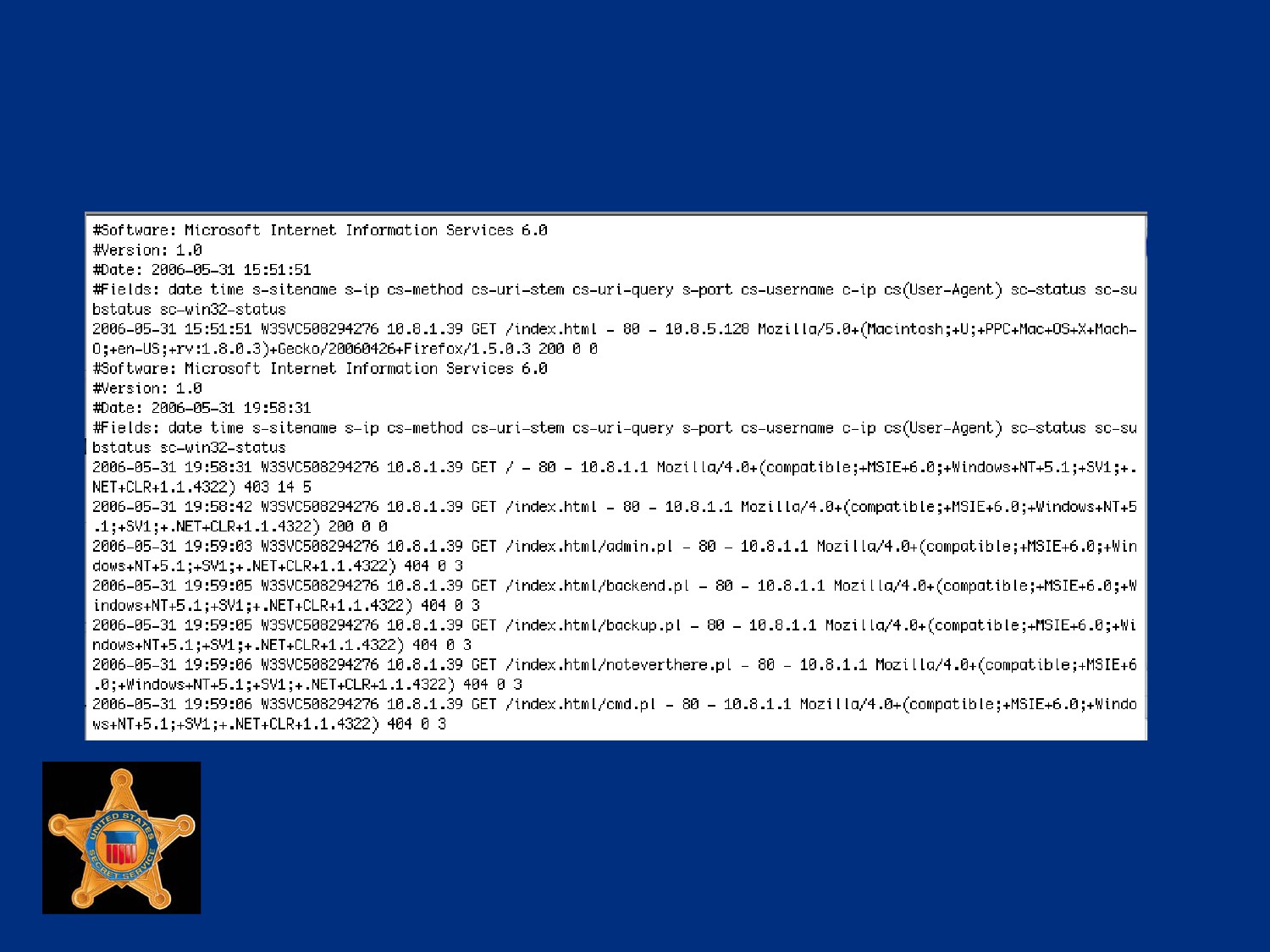
Review the logs from an exploited web server on the next slide
Logs are from the IIS server on the day of the attack
Look at first few lines of log to determine program and version
that created the file, and start and end dates of file
Helpful to know approximate time attack occurred
U.S. Department of
Homeland Security
United States
Secret Service
Example Log
U.S. Department of
Homeland Security
United States
Secret Service
IP Search
Log is from attacked server, searching for server’s IP address
not useful since each entry should have the IP address
If IP address of attacker is known, search for that
In a NAT environment the IP could have been used or reused
by another user in same log
Better to save IP searches for later in order to search for
specific IP and times together
U.S. Department of
Homeland Security
United States
Secret Service
String Search
Attacker used an administrative account to log into server
To do this, would have entered username and password
Good starting point
Using GREP, type: ‘pass’ IIS5211_6.txt
Will search for string “pass” in every line of log file IIS5211_6.tx
Result of such search on next slide
U.S. Department of
Homeland Security
United States
Secret Service
Searching for Password
U.S. Department of
Homeland Security
United States
Secret Service
Searching for Password
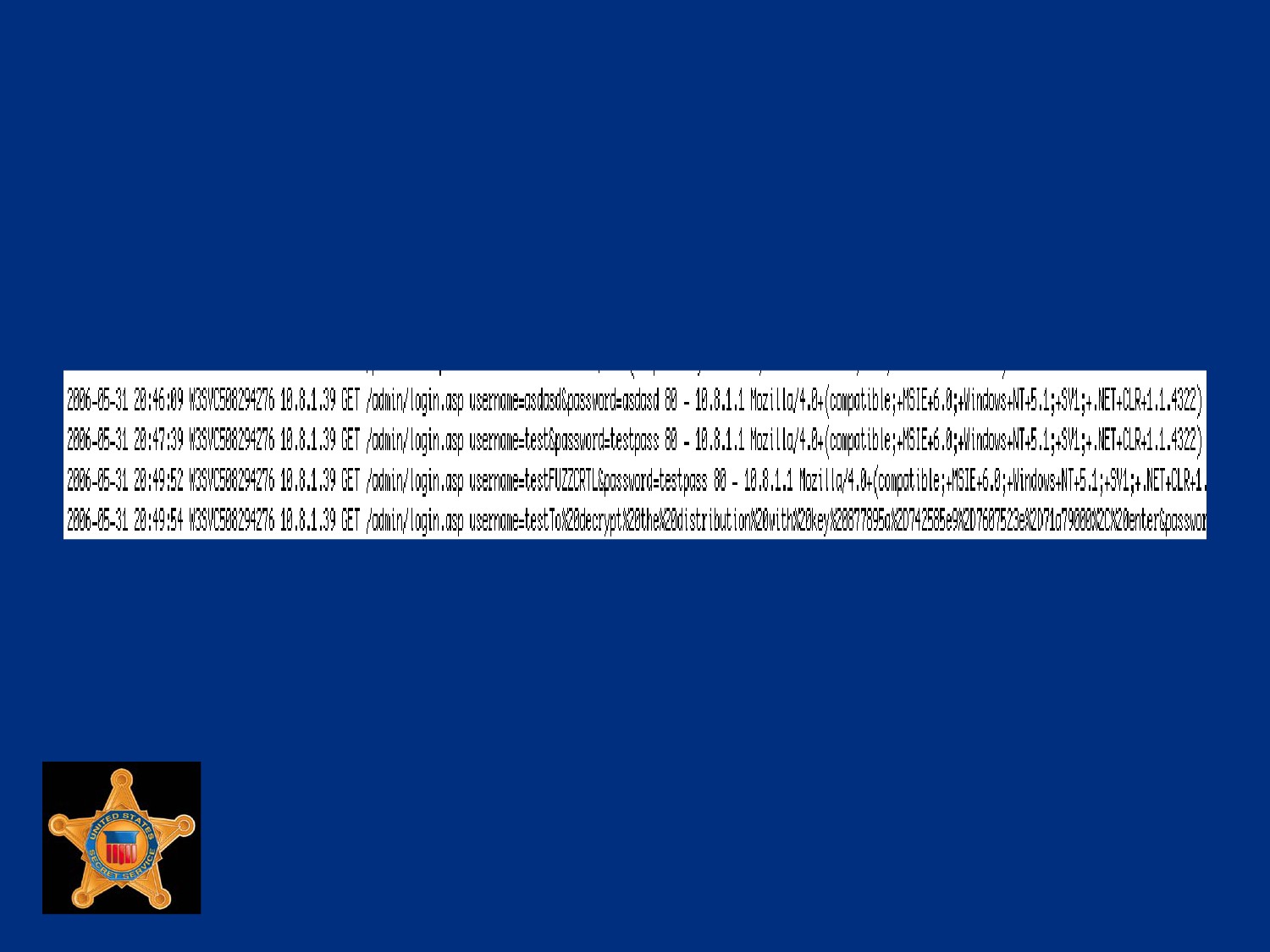
Notice, on previous slide, a series of attempts to guess the
password file for the system
Not normal network traffic
First clue of one method attempted by attacker
Farther down the list is an attempt to get on the login page in
admin directory
The attacker is trying different account names and password
combinations
U.S. Department of
Homeland Security
United States
Secret Service
Searching for Password
U.S. Department of
Homeland Security
United States
Secret Service
Suspicious Text
2006-05-31 20:49:52 W3SVC508294276 10.8.1.39 GET
/admin/login.asp
username=testFUZZCRTL&password=testpass 80
The text FUZZCTRL should appear suspicious
Might be legitimate username or password or might not
Search of Internet for FUZZCTRL finds reference to
vulnerability scanning web proxy called Suru
See examples of server attack that match lines shown
U.S. Department of
Homeland Security
United States
Secret Service
Response
Now correlate known tool with IP address and time frame
Allows you to now proceed with plan to contact ISP for domain
that attacker is coming from
Follow your agencies policy for contacting, serving
preservation letters and obtaining warrants for information on
attacker
U.S. Department of
Homeland Security
United States
Secret Service
Lesson 3 - Automated Log Analysis
Tools
Sawmill
U.S. Department of
Homeland Security
United States
Secret Service
Sawmill
Tool to assist an analyst in parsing network text logs
Processes various text logs generated by a variety of network
security devices
Converts text logs to a cross-linked report that allows analysts
to customize the report according to output requirements
Provides functionality for organizing logs into an easy-to-read
report
U.S. Department of
Homeland Security
United States
Secret Service
Download Information
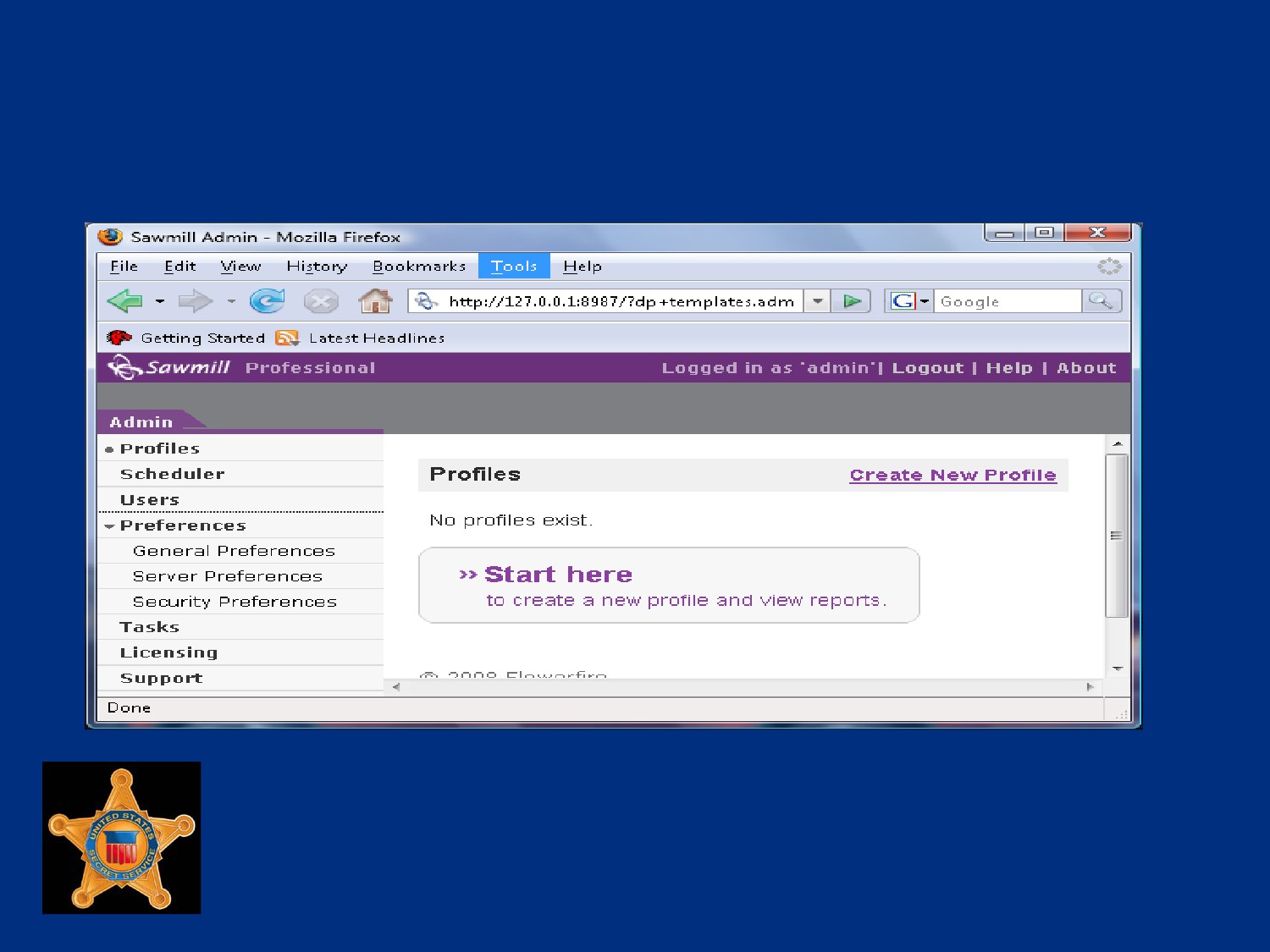
Sawmill can be purchased and downloaded from:
Initial download and installation comes with a 30 day, unlimited
profile license
U.S. Department of
Homeland Security
United States
Secret Service
Procedure: Installing and
Configuring Sawmill
This is a Step / Action exercise in student book.
U.S. Department of
Homeland Security
United States
Secret Service
The Administrative Interface
U.S. Department of
Homeland Security
United States
Secret Service
Procedure: Creating a Report Profile
This is a Step / Action exercise in student book.
U.S. Department of
Homeland Security
United States
Secret Service
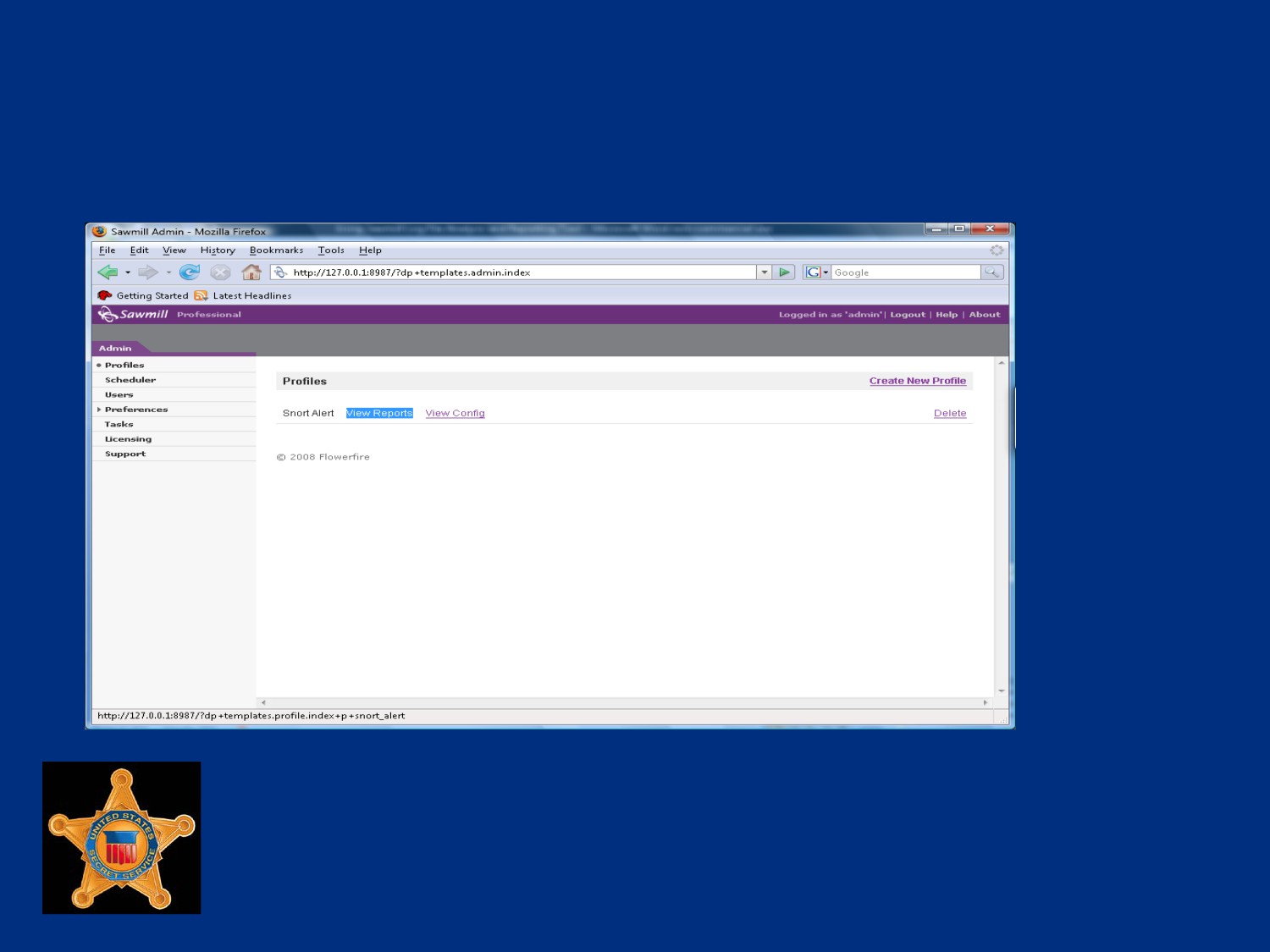
The Report Environment
U.S. Department of
Homeland Security
United States
Secret Service
Report Header
Profile name - Name of active profile which is being displayed
Admin link - Link to administrative functions, such as profile
lists
Logout - A link to log out of Sawmill
Help - Help documentation
U.S. Department of
Homeland Security
United States
Secret Service
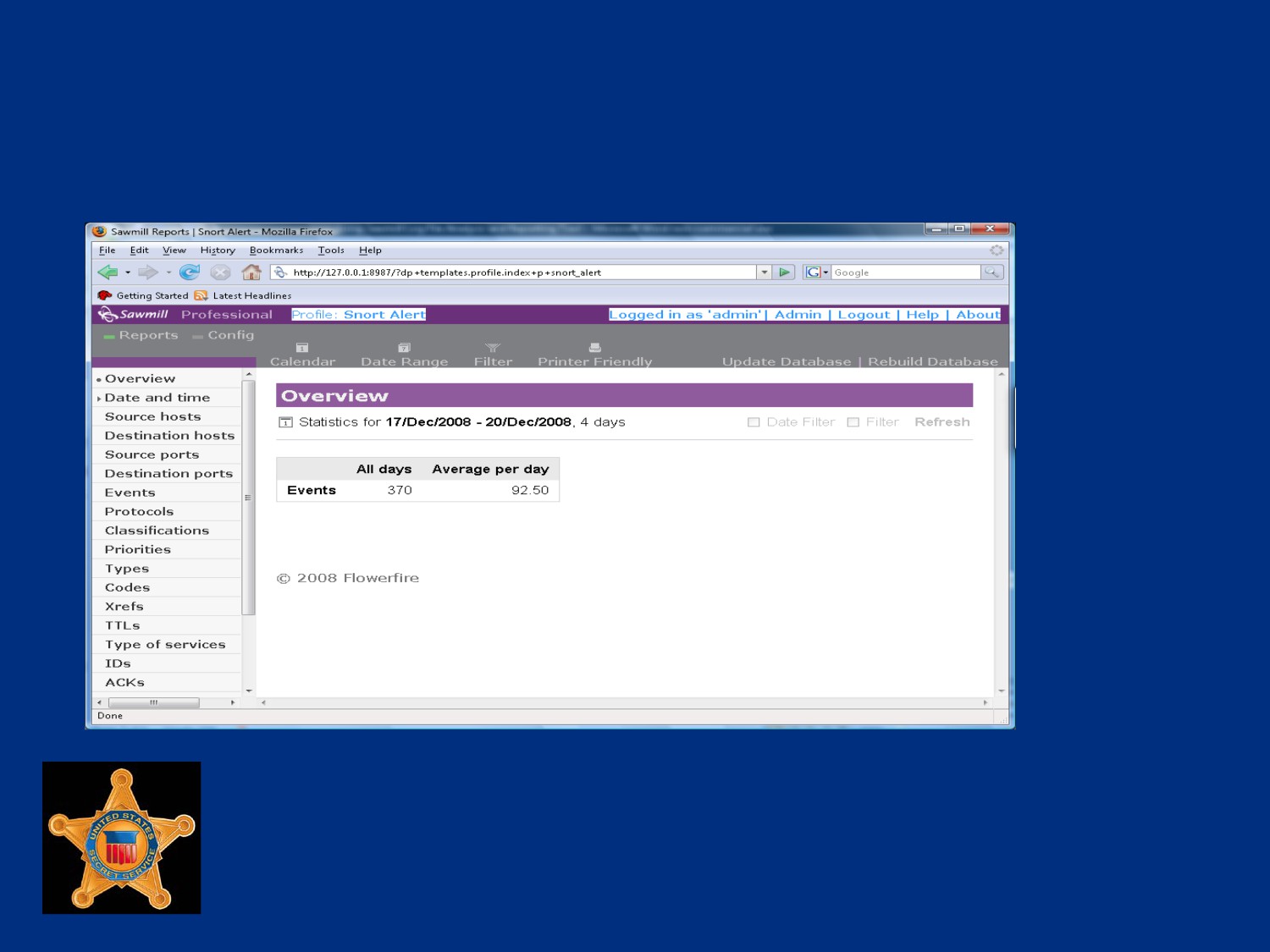
Sawmill’s Administrative Interface
U.S. Department of
Homeland Security
United States
Secret Service
Report Toolbar
Reports - Used to access other loaded reports from current
reports view
Config - Used to change profile options
Calendar - Date/time filter can be set to view single day,
month or year
Date Range - Range of days can be selected to use as
date/time filter
Filter - Used to configure global filter options for any of report
fields, dynamically affect all reports
U.S. Department of
Homeland Security
United States
Secret Service
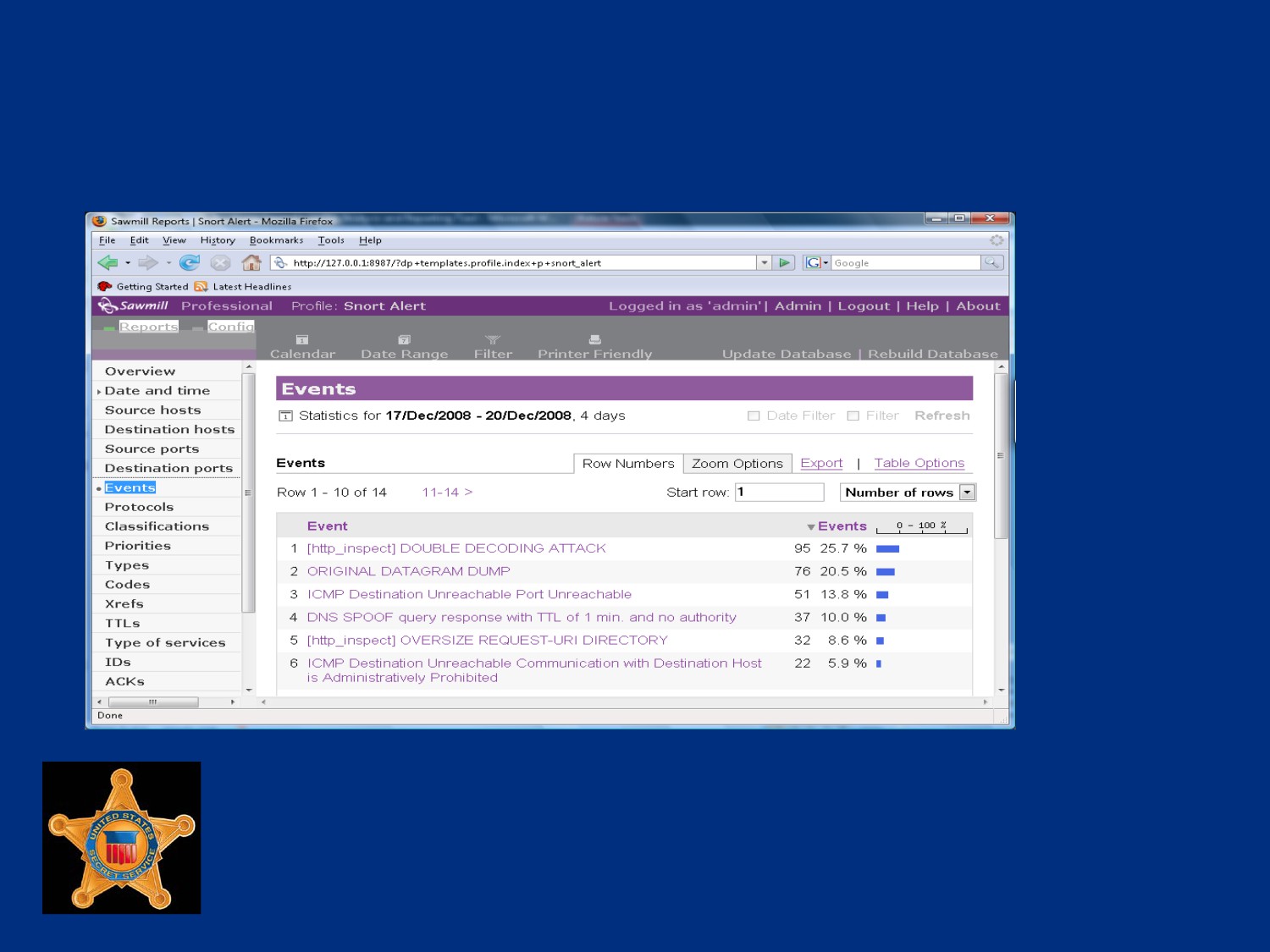
Report Menu
U.S. Department of
Homeland Security
United States
Secret Service
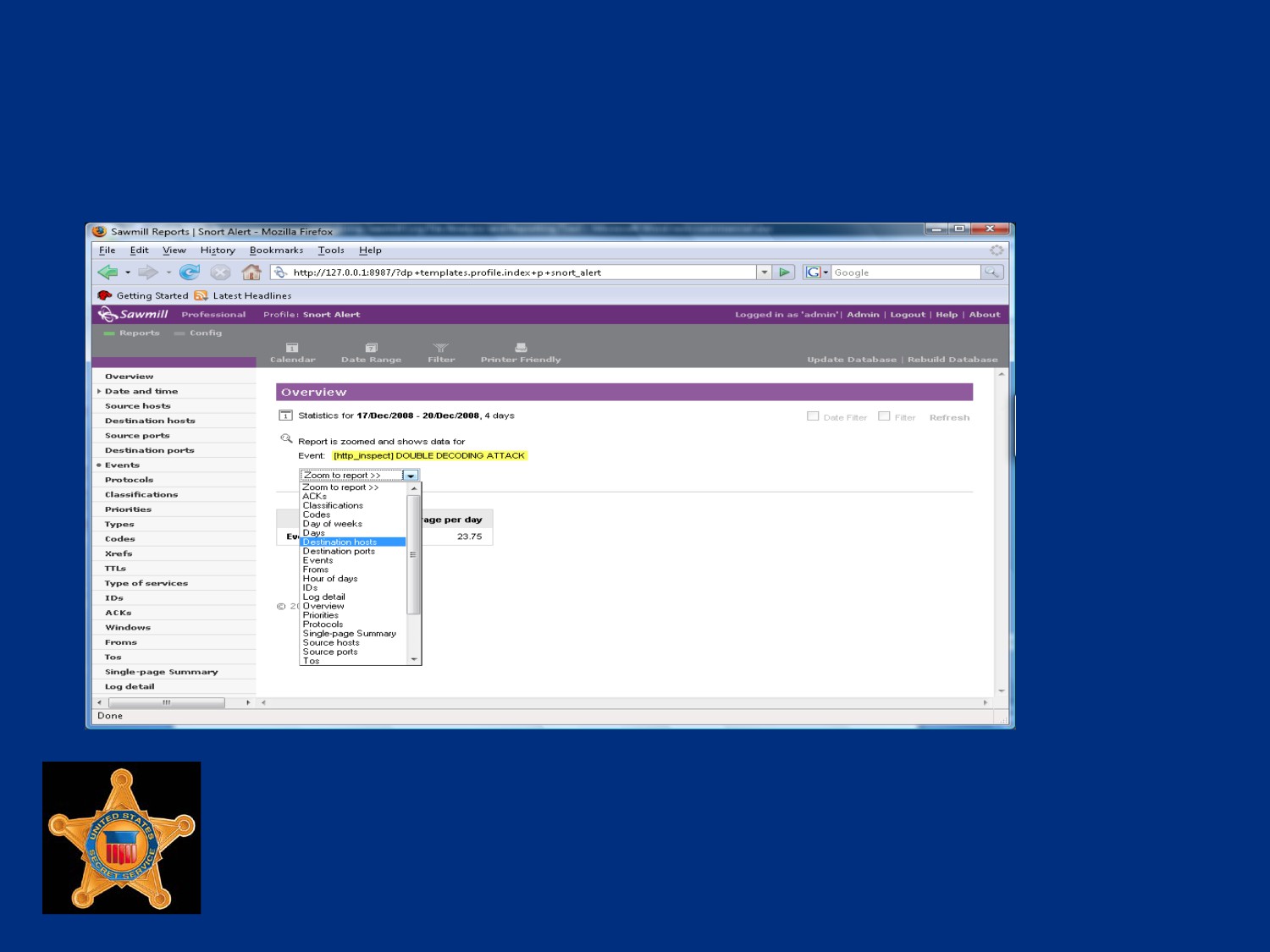
Zoom To Filters
U.S. Department of
Homeland Security
United States
Secret Service
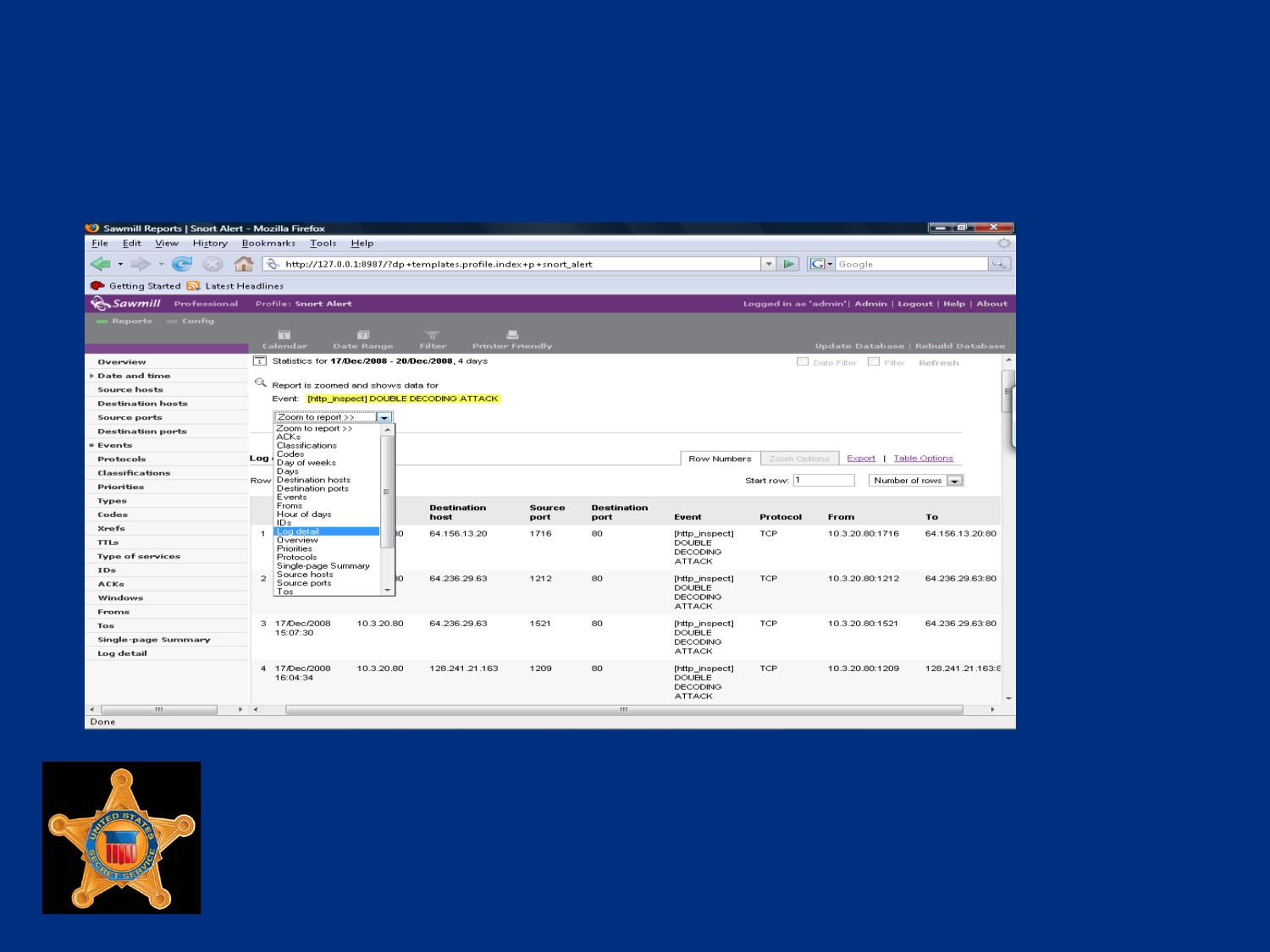
Final Output Report (Log Detail)
U.S. Department of
Homeland Security
United States
Secret Service
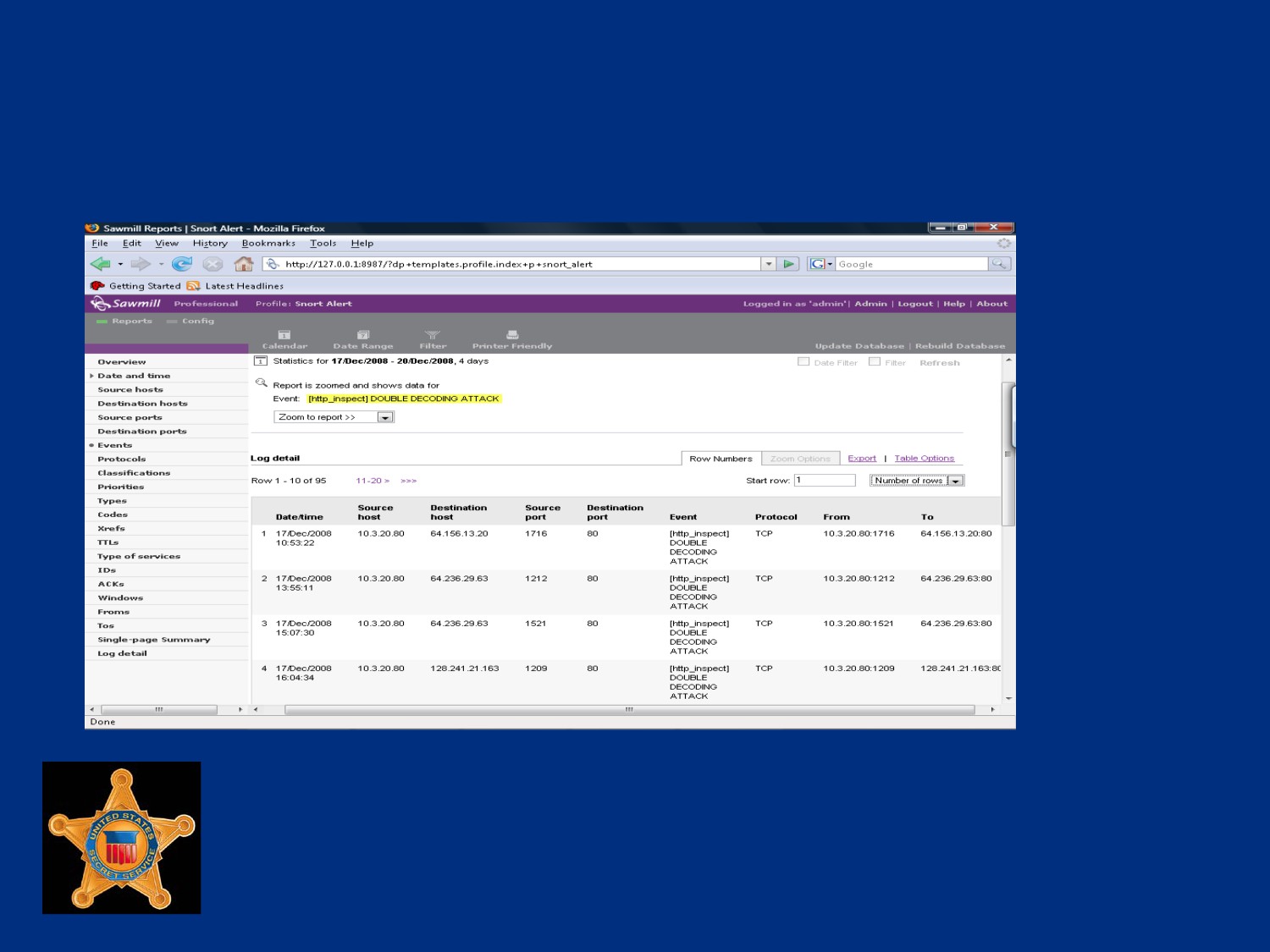
Final Output Report, cont’d
U.S. Department of
Homeland Security
United States
Secret Service
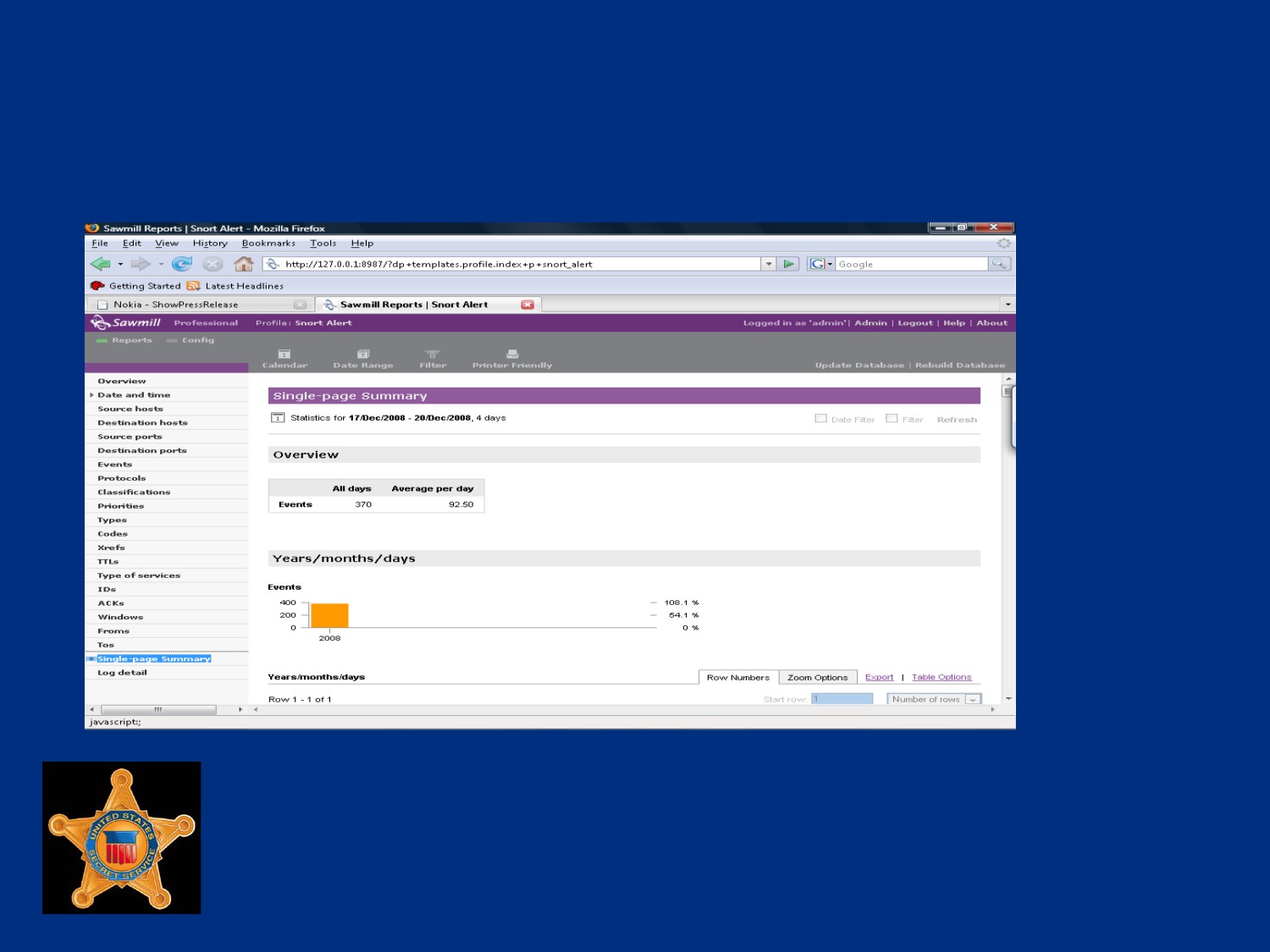
Single Page Summary
U.S. Department of
Homeland Security
United States
Secret Service
Module 15 - Live Data Collection and
Analysis
U.S. Department of
Homeland Security
United States
Secret Service
You Will Learn . . .
Data Collection
Introduction to LiveWire
LiveDiscover
LiveWire - Initial inquiry
LiveWire - Evidence Collection
LiveWire - Malicious Code Analysis
Alternate Data Collection Tools
U.S. Department of
Homeland Security
United States
Secret Service
Lesson 1 - Data Collection
Locating Physical Devices in Server Environment
Attaching Storage Equipment
U.S. Department of
Homeland Security
United States
Secret Service
Network Architecture
Logical topology map shows how devices connected logically,
not necessarily physically
Network architecture indicates where devices are physically
located
Network devices that provide possible path for incident are
considered to be “in-line” to investigation
Devices that carried traffic relating to incident, may hold crucial
information, should be located and analyzed
U.S. Department of
Homeland Security
United States
Secret Service
Logical Assessment
Logical assessment involves obtaining network topologies to
get rough estimate of where sensors can be placed for
investigation
Network topology maps may not exist or be severely outdated
Investigator can update topology through interviews or by
performing a physical assessment
U.S. Department of
Homeland Security
United States
Secret Service
Physical Assessment
Includes tracing wire and cable to physical components on
network to create a wiring diagram
Wiring diagram shows physical connections between devices
onsite and can help determine accuracy of logical assessment
Investigator can use several cable testing devices, like a tone
generator, to verify cable locations
U.S. Department of
Homeland Security
United States
Secret Service
Physical Assessment
In large network environments, servers and network devices
are assigned some form of inventory control, such as bar code
or unique name
May be necessary to search through rows of server racks to
locate an identification tag on server of interest
U.S. Department of
Homeland Security
United States
Secret Service
Physical Site Examination
Examine physical site to determine physical data paths and
relationship to overall physical environment
Understanding relationships provides basis for determining
what is or is not physically possible on network
U.S. Department of
Homeland Security
United States
Secret Service
Physical Site Examination
Physically locate target host
Physically locate device to which target host is connected
Physically locate devices that fall into path of investigation
Verify network documentation (if available)
U.S. Department of
Homeland Security
United States
Secret Service
Verifying Network Configuration
Investigator needs a starting point to verify network setup and
actual location of network devices for an unfamiliar network
Almost every network has connection to Internet or some
external network
External link typically best starting point to begin tracing wire
U.S. Department of
Homeland Security
United States
Secret Service
Verifying Network Configuration
Tracing wire used to determine how devices are physically
connected
If wire cannot be traced other devices like a network tone
generator can be used to determine its termination location
Use of some devices could require unplugging cable and
severing existing connections
Could alert suspect(s) of ongoing investigation
U.S. Department of
Homeland Security
United States
Secret Service
Physically Locating Target Host
Collect all identifying information regarding device from review
of network documentation and interview with system
administrator
Use information and physical assessment of network to locate
device
U.S. Department of
Homeland Security
United States
Secret Service
Physically Locating Nearest Device
Use identifying information obtained during review of network
documentation
Record termination location for each network-capable cable
connected to machine
Could be RJ45 or RJ11 socket on nearest wall, hub or switch,
or some other device
If cable terminates at wall socket, record socket’s ID number
and locate it on patch panel that aggregates cables for that
area of facility
U.S. Department of
Homeland Security
United States
Secret Service
Data Storage
Many investigations result in large evidence files that must be
collected
Sufficient data storage to copy and preserve evidence files is
imperative
Retrieved data should always be redirected to forensically
clean evidence collection drive
Never save output of investigation to local system’s hard drive,
may compromise evidence and could potentially fill computer’s
disk space
U.S. Department of
Homeland Security
United States
Secret Service
Data Storage
Storage equipment can connect to collection machine by many
different connection types
Common types are: USB, Firewire, and eSATA
External hard drives with these configurations come in many
different capacities
General rule is to allocate as much disk space as possible for
each investigation
U.S. Department of
Homeland Security
United States
Secret Service
Wiping and Verification
Evidence should be stored on a forensically clean drive
Evidence storage drive must be thoroughly wiped
Overwriting every bit on drive using known character or set of
characters
Process should be verified to ensure success
Failure to complete process can result in claims of
contaminated evidence, jeopardizing credibility of evidence
U.S. Department of
Homeland Security
United States
Secret Service
Wiping Guidelines
Clearly identify media to be wiped and segregate from other
media
Have only essential media in system during wiping operations
Ensure correct media selected before executing wipe utility
Remove wiped media from machine immediately after wiping
and store separately
Annotate in case notes media wiped prior to use
Label media with software version and command line used
U.S. Department of
Homeland Security
United States
Secret Service
Lesson 2 - Introduction to LiveWire
Live Digital Investigations
LiveWire Installation
LiveDiscover Installation
Updating LiveWire
Updating LiveDiscover
LiveWire Initial Setup
U.S. Department of
Homeland Security
United States
Secret Service
Live Digital Investigations
Traditional computer examinations examine media from a
system that has had power removed, or dead-box
Live Digital Investigations performed on running systems prior
to removal of power
U.S. Department of
Homeland Security
United States
Secret Service
Why Live?
Ever increasing use of memory resident programs and utilities
revert to obfuscated or encrypted state at power off
Becoming necessary to seize information from volatile areas
BEFORE plug is pulled
U.S. Department of
Homeland Security
United States
Secret Service
Reasons for a Live Investigation
Rapid response requires remote investigation
Network size limits flexibility
Encrypted file system requires live capture
System of interest is mobile
Commercial system cannot be shutdown
U.S. Department of
Homeland Security
United States
Secret Service
How LiveWire Works
Complex series of scripts, programs and tools
Uses customized version of Apache web server on
investigation system to provide menus, displays and reports in
a graphic user interface
Includes embedded version of Gargoyle malware detection
software, also a product of Wetstone
Requires administrative privileges to access and retrieve data
from a target system
U.S. Department of
Homeland Security
United States
Secret Service
How LiveWire Works
Uses a Connect-Act-Disconnect model for communicating with
a host on network
Software logs into target, obtains information and logs out of
system
U.S. Department of
Homeland Security
United States
Secret Service
Risks
Use of Livewire can be detected on target
Could compromise clandestine operation
User on target system may notice degradation of network
performance for short period
Use may be noticeable as process running in Task Manager of
target
U.S. Department of
Homeland Security
United States
Secret Service
Minimum Requirements
Microsoft Windows XP
100 Meg Bytes of free disk space
128 Meg Bytes RAM
Pentium 200 Mhz
Network Interface Card
CD ROM Drive for Installation
VGA Resolution Monitor
Mouse
U.S. Department of
Homeland Security
United States
Secret Service
Procedure: LiveWire Installation
This is a Step / Action in student book.
U.S. Department of
Homeland Security
United States
Secret Service
Procedure: Installation of
LiveDiscover
This is a Step / Action in student book.
U.S. Department of
Homeland Security
United States
Secret Service
Procedure: Updating LiveWire
This is a Step / Action in student book.
U.S. Department of
Homeland Security
United States
Secret Service
Procedure: Updating LiveDiscover
This is a Step / Action in student book.
U.S. Department of
Homeland Security
United States
Secret Service
LiveWire Initial Setup
Setup Administrator account
Create an Investigator account
U.S. Department of
Homeland Security
United States
Secret Service
Procedure: LiveWire Setup
This is a Step / Action in student book.
U.S. Department of
Homeland Security
United States
Secret Service
Lesson 3 - LiveDiscover
LiveDiscover Network Scanning
U.S. Department of
Homeland Security
United States
Secret Service
LiveDiscover
Used to rapidly identify and assess resources on network
Information gathered used to enable LiveWire tools to perform
live analysis of machine across a network
Can quickly scan single target or whole range of IP addresses
Performs in-depth scan to include report of vulnerabilities of
systems
Each scan stored and saved in its own database
U.S. Department of
Homeland Security
United States
Secret Service
LiveDiscover Interface
Provides tabbed interface for navigation
Primary tabs displayed horizontally across top of page
Each page displays information or options pertaining to
specific details or configurations
U.S. Department of
Homeland Security
United States
Secret Service
Interface Tabs
Discovery Tab - input for addresses to be scanned, up to four
different network ranges can be scanned at same time
Network Tab - tree structure created showing different devices
discovered for subnet as well as detailed information gathered
about devices
Responses Tab - displays discovered data grouped together,
selecting any options displays all items found matching criteria
U.S. Department of
Homeland Security
United States
Secret Service
Interface Tabs
Reports Tab - facilitates generation of many different report
display formats, reports can contain text as well as colored
graphs
Script Tab - accesses different pre-built discovery scripts
stored in database, customized scripts can be added
Settings Tab - contains configurations used during live
discovery process
Utilities Tab - options for scripts and results from other scans
to be imported into the current database
U.S. Department of
Homeland Security
United States
Secret Service
Performing a LiveDiscovery Network
Scan
This is a Step / Action in student book.
U.S. Department of
Homeland Security
United States
Secret Service
Lesson 4 -Volatile Data Analysis
LiveWire Initial Inquiry
System State
Current User Activity
Active Network State
U.S. Department of
Homeland Security
United States
Secret Service
Initial Inquiry
First part of process when performing investigation or analysis
of system using LiveWire
Will retrieve available information from remote computer at
time of scan
Has potential to degrade performance on target system
Could alert user of activity on his or her system
Advanced user may be able to determine analysis taking place
U.S. Department of
Homeland Security
United States
Secret Service
Performing LiveWire Initial Inquiry
This is a Step / Action in student book.
U.S. Department of
Homeland Security
United States
Secret Service
LiveWire - Display Acquired
System State Summary
This is a Step / Action in student book.
U.S. Department of
Homeland Security
United States
Secret Service
LiveWire - Acquire Physical RAM
and Registry
This is a Step / Action in student book.
U.S. Department of
Homeland Security
United States
Secret Service
LiveWire - Current User Activity
This is a Step / Action in student book.
U.S. Department of
Homeland Security
United States
Secret Service
Display Captured Network Details
This is a Step / Action in student book.
U.S. Department of
Homeland Security
United States
Secret Service
Lesson 5 - Evidence Collection
File System Status
Physical vs. Logical
Collection and Preservation
Hashing
U.S. Department of
Homeland Security
United States
Secret Service
Procedure: Capture Disk Information
This is a Step / Action in student book.
U.S. Department of
Homeland Security
United States
Secret Service
Body File Acquisition
This is a Step / Action in student book.
U.S. Department of
Homeland Security
United States
Secret Service
Physical vs. Logical Image
Physical image is a bit-for-bit duplicate of a media storage
device
A logical image only contains data from the active file system
of a storage device
From forensics standpoint, physical image preferable to logical
image because it may contain more evidence
U.S. Department of
Homeland Security
United States
Secret Service
Physical Images
Contain information from entire physical device or designated
portion of it
Are not file system-specific
Capture all sectors within a designated area of a device, both
in the system and data areas (including all files, unallocated
space, swap space, etc.)
Are typically placed in an Image file (a logical file that
contains the bit-for-bit copy)
U.S. Department of
Homeland Security
United States
Secret Service
Physical Imaging
EnCase
dcfldd
Enables recovery for analysis of deleted data or information
that resided in slack space on original drive
Slack space can contain information from whatever previously
occupied the space
U.S. Department of
Homeland Security
United States
Secret Service
Logical Images
Only contain information from active file system
Contain only enough information to reproduce logical
volumes or parts of them
Are file system-specific
Allow registry and other system files to be backed up, but
only if specifically requested
U.S. Department of
Homeland Security
United States
Secret Service
Logical Images
Do not capture slack space, free space, or partition information
Do not capture files that are open at time of imaging
Do not capture any files that you do not have access to read
Do not capture temporary files, such as pagefile.sys,
win386.swp, etc.
U.S. Department of
Homeland Security
United States
Secret Service
Logical Imaging
Microsoft’s Windows Backup
Creates image files of an entire active file system
Logical image only contains active files
Not possible to recover and analyze any deleted files or slack
space
U.S. Department of
Homeland Security
United States
Secret Service
On-site Imaging Guidelines
May face considerable time and material constraints
May have to perform actions in strange environment with
unknown equipment
Challenges to accomplishing even simple actions, such as
finding appropriate settings in BIOS or gaining access to
inside of machine
Preparation helps mitigate problems
Deviation from general procedures for any reason should be
documented
U.S. Department of
Homeland Security
United States
Secret Service
Physical Disk Imaging
This is a Step / Action in student book.
U.S. Department of
Homeland Security
United States
Secret Service
Collecting Files
This is a Step / Action in student book.
U.S. Department of
Homeland Security
United States
Secret Service
LiveWire Hashing
LiveWire uses MD5 for hashing
MD5 (Message Digest 5) creates a 128-bit message digest
that is “unique” to message
MD5 is currently accepted standard for verification by majority
of computer forensic community
U.S. Department of
Homeland Security
United States
Secret Service
Hashes Defined
Hash (or message digest) is a numerical value generated by
applying a mathematical algorithm against a data set
Hashing algorithms take variable length input and output a
“unique” fixed-length result
Nearly impossible to find two different data sets that naturally
have same hash values
Hash value analogous to fingerprint of file
File hash value can be used to identify file no matter where
found
U.S. Department of
Homeland Security
United States
Secret Service
Hashes Defined
If file’s data does not change in any way, same algorithm can
be applied infinite number of times, resulting alphanumeric
values will never change
If hash value does change, it can be assumed file has been
modified
Comparing hash values is excellent way to check integrity of
files
Hashing algorithms are “one-way” can be created from file or
device data, but cannot recreate data from hash
U.S. Department of
Homeland Security
United States
Secret Service
Generating Hashes for the Inquiry
This is a Step / Action in student book.
U.S. Department of
Homeland Security
United States
Secret Service
Lesson 6 - Malicious Code Analysis
Malicious Program Search
U.S. Department of
Homeland Security
United States
Secret Service
Types of Malicious Programs
Many different types of malicious programs and categories
Many programs may not show that machine was compromised
but could hint about interests or intentions of user
Types of programs on machine could identify personality of
user, could indicate expertise and guide investigator’s search
For instance, if encryption program such as TrueCrypt found,
should raise concern that encrypted volumes may be present
and may be hiding critical evidence
U.S. Department of
Homeland Security
United States
Secret Service
Malicious Code Scans
LiveWire has ability to search many different categories of
malicious code
LiveWire scans compare hash signatures of files on system
against the National Software Reference Library (NSRL)
database
The NSRL is a free database released by National Institute of
Standards and Technology (NIST)
U.S. Department of
Homeland Security
United States
Secret Service
Common Malicious Code Categories
Anti Forensics
Encryption
Key Loggers
P2P Tools
U.S. Department of
Homeland Security
United States
Secret Service
Common Malicious Code Categories
Password crackers
Rootkits
Steganography
Wireless
U.S. Department of
Homeland Security
United States
Secret Service
Malicious Program Search
This is a Step / Action in student book.
U.S. Department of
Homeland Security
United States
Secret Service
Lesson 7 - Alternate Data Collection
Tools
Windows Forensic Toolkit
Helix
U.S. Department of
Homeland Security
United States
Secret Service
Sysinternals - PsTools
Utilities developed by Mark Russinovich
Collection of tools capable of performing many different
analysis functions on local or remote systems
Latest version of collection can be downloaded from
Microsoft.com
U.S. Department of
Homeland Security
United States
Secret Service
psinfo.exe
Retrieves system information on target system
Uptime
Kernel version
Product type
Service pack
Kernel build number
U.S. Department of
Homeland Security
United States
Secret Service
psinfo.exe
Registered organization
Register owner
Install date
IE version
System root
U.S. Department of
Homeland Security
United States
Secret Service
psinfo.exe
Processors
Processor speed
Processor type
Physical memory
Video driver
U.S. Department of
Homeland Security
United States
Secret Service
pslist.exe
Lists processes currently running on remote system
U.S. Department of
Homeland Security
United States
Secret Service
psloggedon.exe
Displays list of currently logged on users on remote system for
both local and remote users
U.S. Department of
Homeland Security
United States
Secret Service
psexec.exe
Advanced utility used to execute commands on remote system
Ability to copy a program from local system to remote target
and execute program interactively
U.S. Department of
Homeland Security
United States
Secret Service
psfile.exe
Used to view files that are opened remotely on target system
U.S. Department of
Homeland Security
United States
Secret Service
psgetsid.exe
Retrieves SID of target system
U.S. Department of
Homeland Security
United States
Secret Service
psloglist.exe
Retrieves logs from target system
By default psloglist.exe will show contents of System event log
Application, security, or other log can be retrieved if specified
U.S. Department of
Homeland Security
United States
Secret Service
psservice.exe
Retrieves list of running services on target system
U.S. Department of
Homeland Security
United States
Secret Service
Helix Live CD
Specially customized distribution of Knoppix created and
maintained by e-fense, Inc.
Geared toward forensics and incident response
Created to be used as internal tool for incident response and
forensics to create forensically sound images
Released to public November 2003
Two different operating modes, Windows and Linux
U.S. Department of
Homeland Security
United States
Secret Service
Helix Windows Mode
Created with Windows executables and contains many tools
for incident response on Windows machines
Runs standard windows applications to gather information from
a “Live” running system
Useful where systems cannot be shut down or where potential
evidence would be destroyed by taking system offline
Helix will make changes to system, exact use should be
documented
U.S. Department of
Homeland Security
United States
Secret Service
Helix Windows Mode
To use, place CD in target system
Click Accept on initial warning screen as displayed on the
following slide
U.S. Department of
Homeland Security
United States
Secret Service
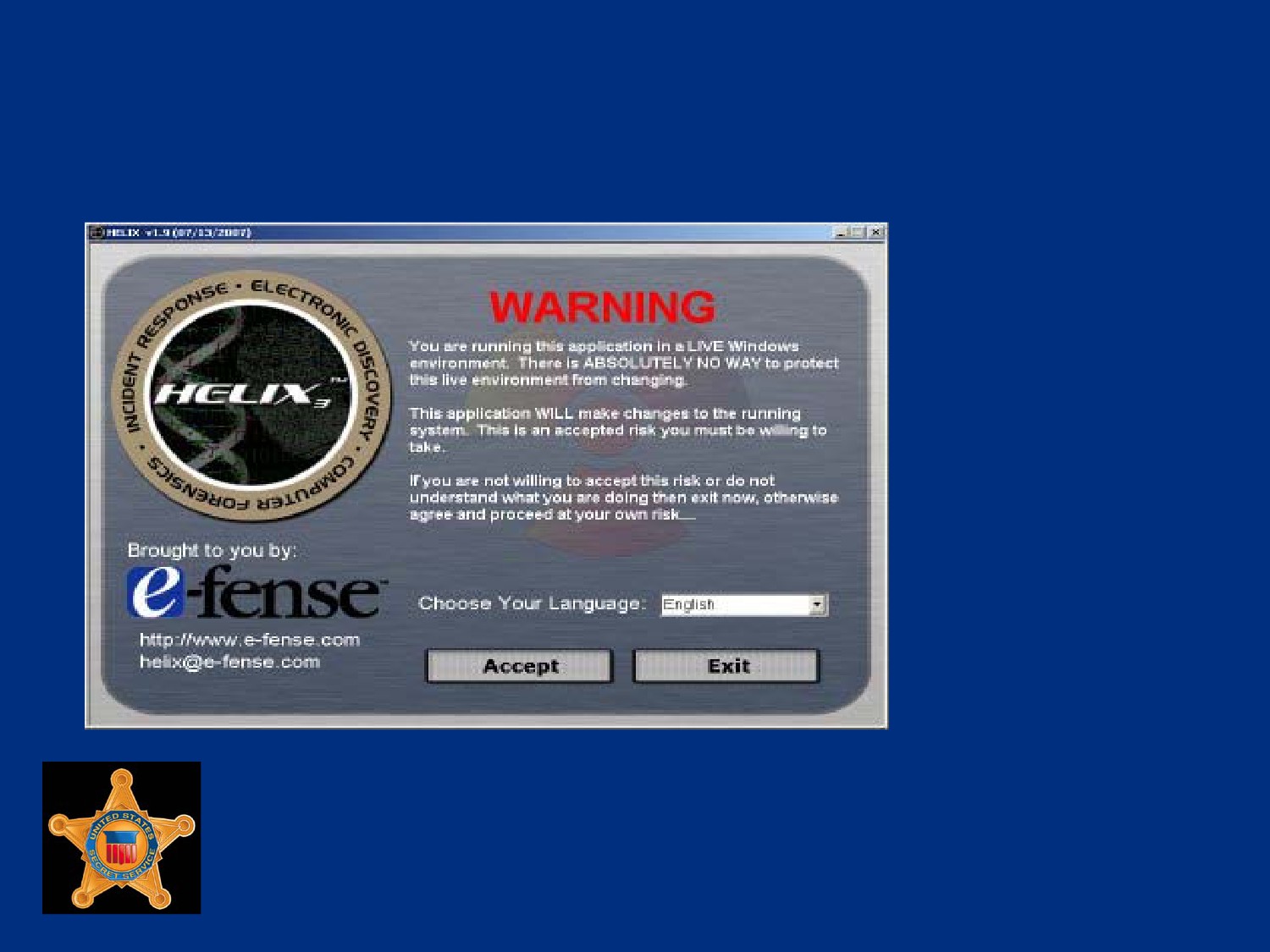
Helix Windows Mode
U.S. Department of
Homeland Security
United States
Secret Service
Helix Windows Mode
After accepting Warning, the screen on the following slide will
be displayed
Icons on left side of window can be selected for use of
associated functions
The toolbar also contains options that will provide access to
data collection functions
Use Quick Launch and Win Audit option on toolbar to acquire
information on Windows system quickly and easily
U.S. Department of
Homeland Security
United States
Secret Service
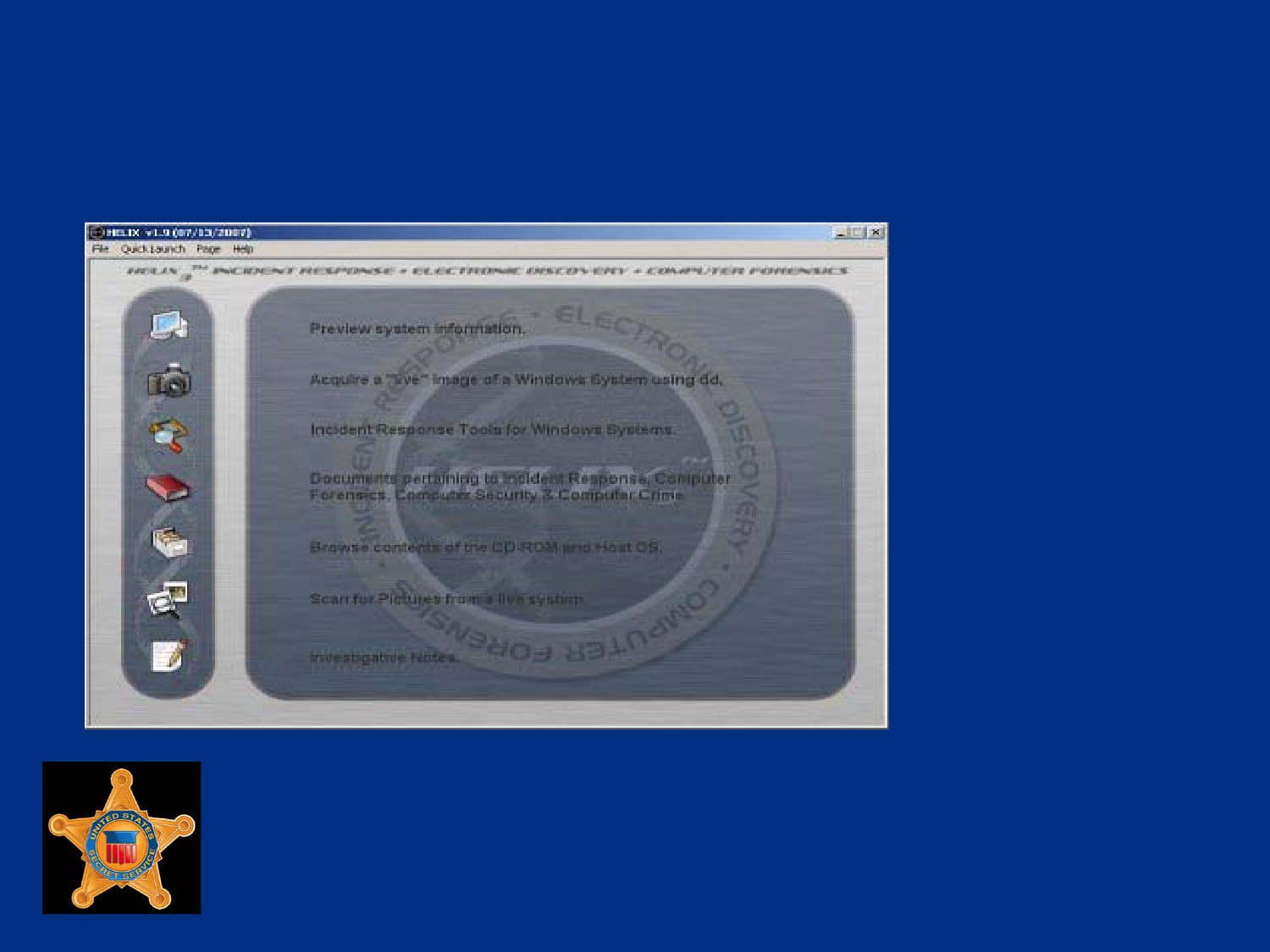
Helix Windows Mode
U.S. Department of
Homeland Security
United States
Secret Service
Helix Windows Mode
Another feature of windows mode is ability to acquire images
of live system
Can be done using Live Acquisition feature of CD
Image physical memory, physical drive, or logical partitions
Save images to attached device, network share or to evidence
capture machine using NetCat
U.S. Department of
Homeland Security
United States
Secret Service
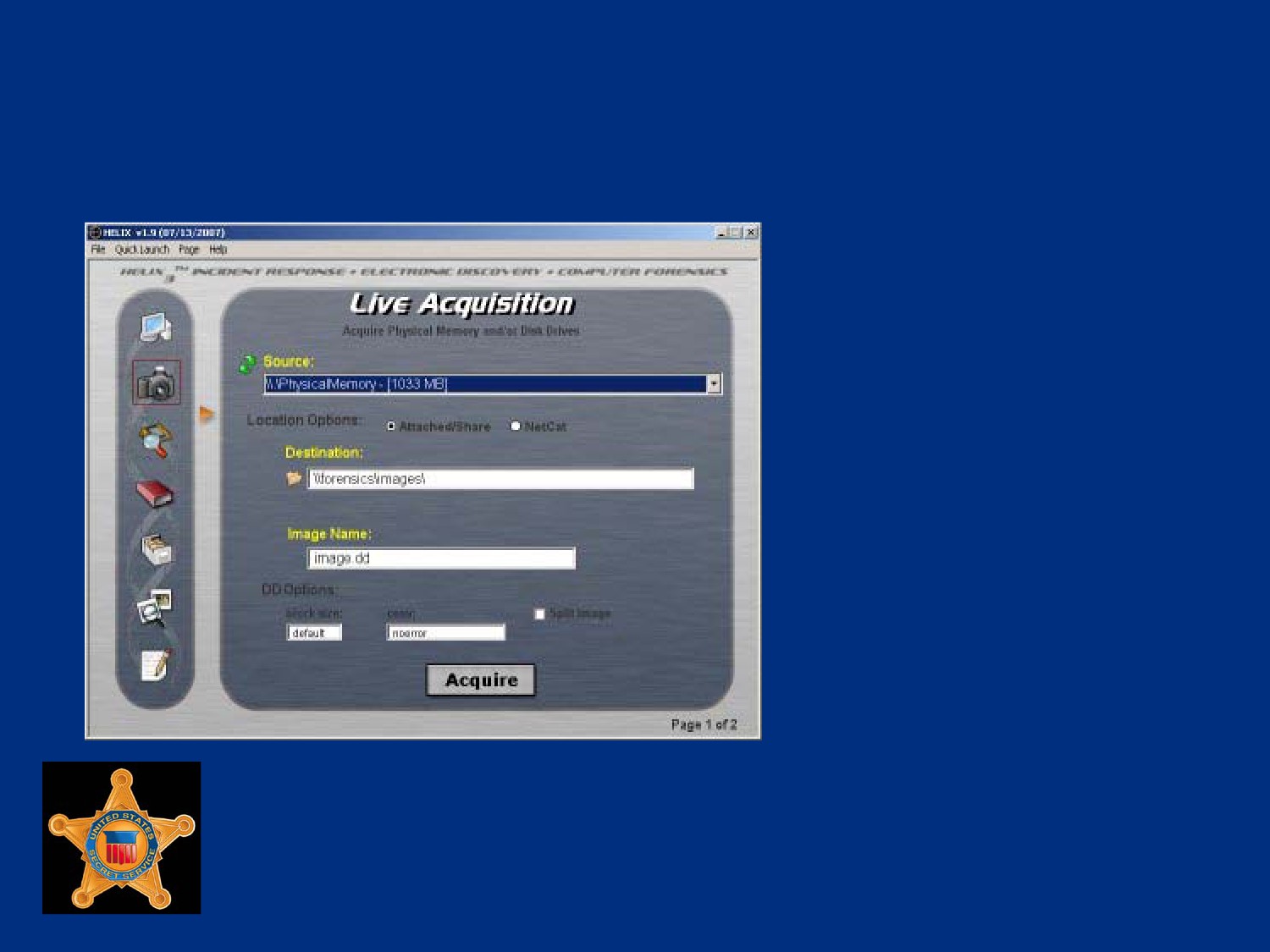
Helix Windows Mode
U.S. Department of
Homeland Security
United States
Secret Service
Helix Windows Mode
FTK Imager also available on CD to create forensic images,
can save in different formats such as raw dd and E01 (encase)
images
Located on menu bar under Quick launch > FTK Imager
FTK Imager allows for imaging physical and logical drives
U.S. Department of
Homeland Security
United States
Secret Service
Helix Windows Mode
Tools Available in Windows Mode
Command Shell
FTK Imager
Sys Info Viewer
Drive Manager
Win Audit
Zero View
Per-Search
WFT
NetCat
VNC Server
PuttySSH
File Recovery
Rootkit Revealer
Screen Capture
Password Viewers
U.S. Department of
Homeland Security
United States
Secret Service
Helix - Linux Live CD Mode
Linux mode of Helix is pure Live CD that allows for “dead box”
forensics
Allows user to investigate computer system without forensically
changing any data on drive
Many tasks can be carried out with Helix, such as forensically
duplicating disks and analyzing the forensic disk images
To start Helix in Linux mode system will need to be booted to
the bootable Helix CD
BIOS on motherboard must be configured properly
U.S. Department of
Homeland Security
United States
Secret Service
Linux Disk Mounting and Imaging
When Helix is booted into Linux mode, it automatically mounts
storage devices in read only mode
Will also mount devices with noatime option, prevents change
to access times of files stored on disk
Helix mounts drives read-only by default, but can be forced to
mount devices read-write by typing:
mount -rw <device> <mount point>
U.S. Department of
Homeland Security
United States
Secret Service
Linux Disk Mounting and Imaging
Once Helix fully booted, screen will appear similar to image on
next slide
Will show a list of all storage media mounted on left side of
screen
Task bar located at bottom of screen
“Start” menu is icon of Helix CD cover
U.S. Department of
Homeland Security
United States
Secret Service
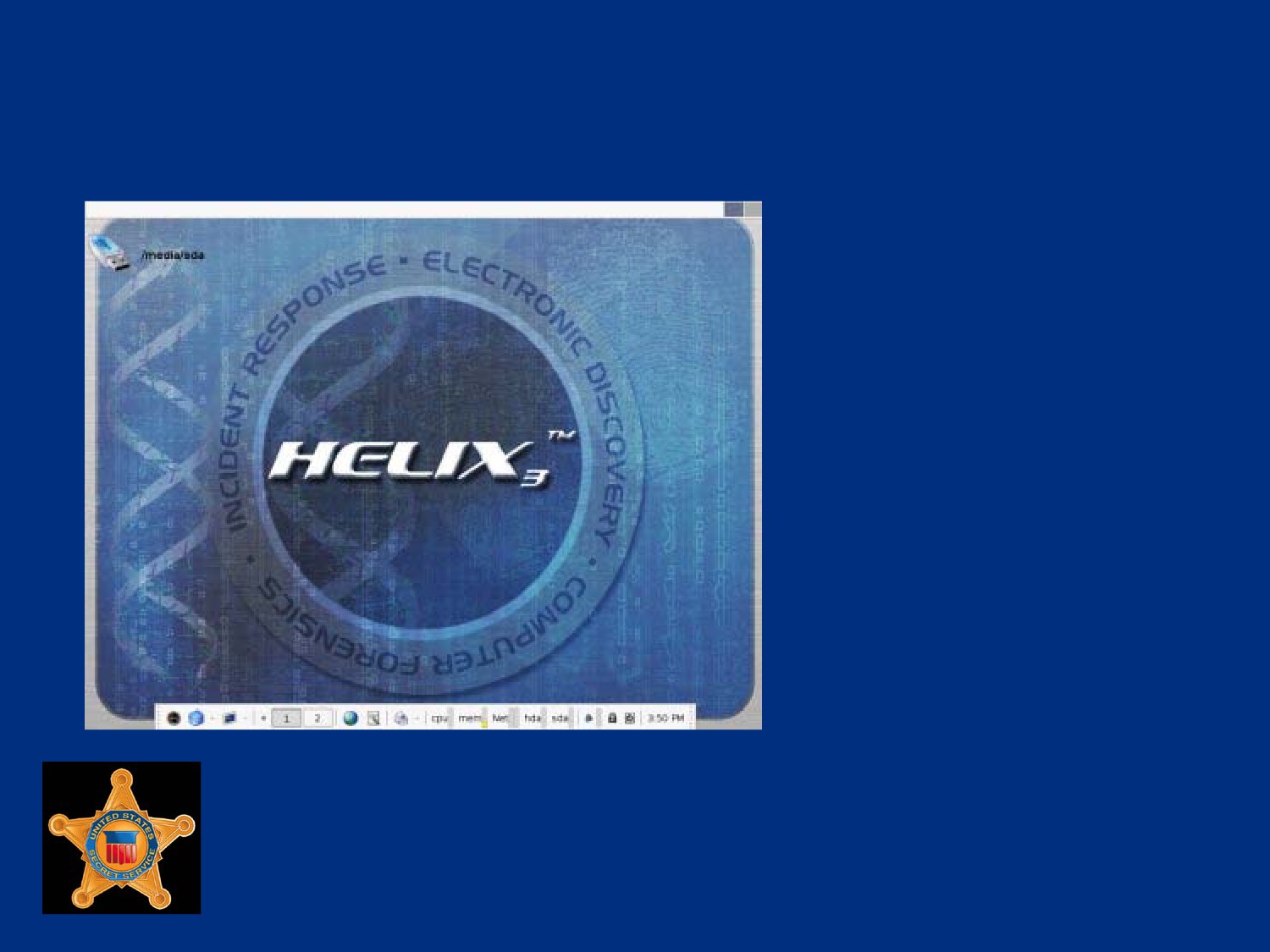
Helix Default Screen
U.S. Department of
Homeland Security
United States
Secret Service
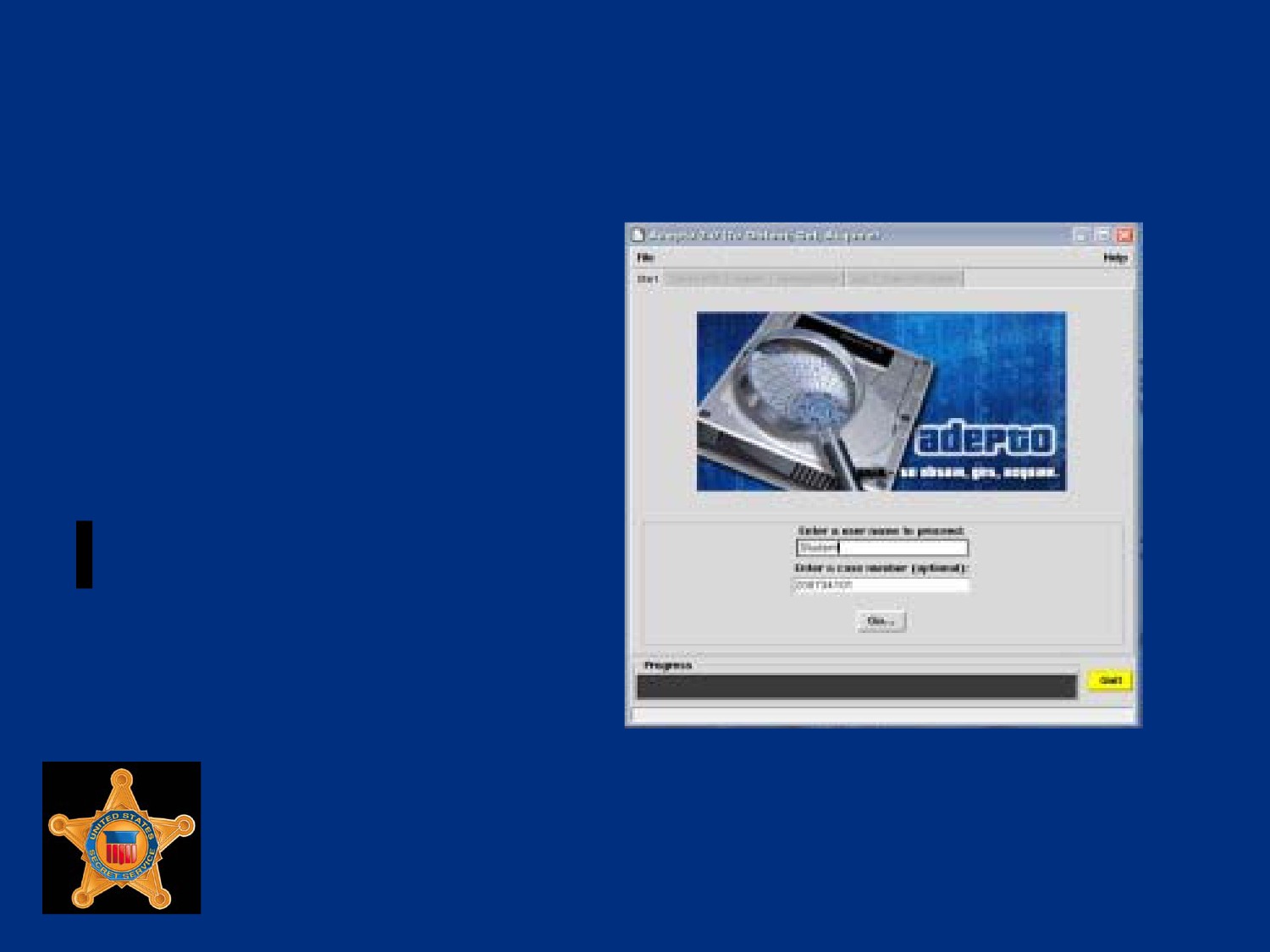
Linux Disk Mounting and Imaging
Several GUI utilities
included on disk for
creating forensically sound
images such as Adepto,
Air, and Linen
U.S. Department of
Homeland Security
United States
Secret Service
Linux Live CD Forensic Tools
Helix provides tools for investigating collected disk images
Autopsy, shown on next slide, is popular Linux tool for viewing
and searching images
Autopsy is GUI interface to suite of command line forensic
tools named The Sleuth Kit
U.S. Department of
Homeland Security
United States
Secret Service
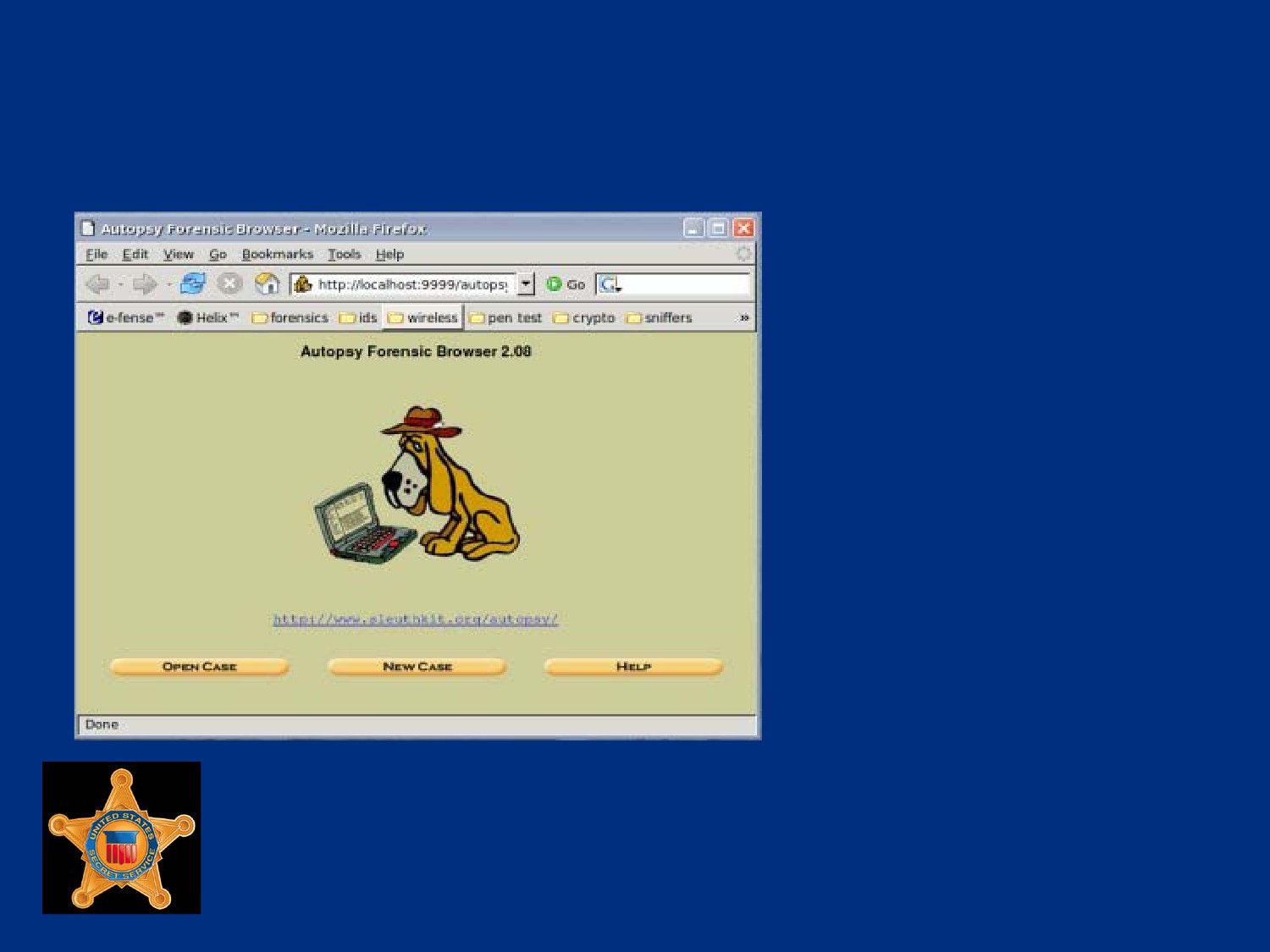
Autopsy Default Screen
U.S. Department of
Homeland Security
United States
Secret Service
Linux Live CD Forensic Tools
Another option available is PyFlag
Fforensic and log analysis application created by Australian
Department of Defense
PyFlag uses backend database to assist managing large
amounts of data, web driven, can be deployed on central
server and used by several users at same time
PyFlag able to examine forensic evidence from disk images,
logs, and network captures
U.S. Department of
Homeland Security
United States
Secret Service
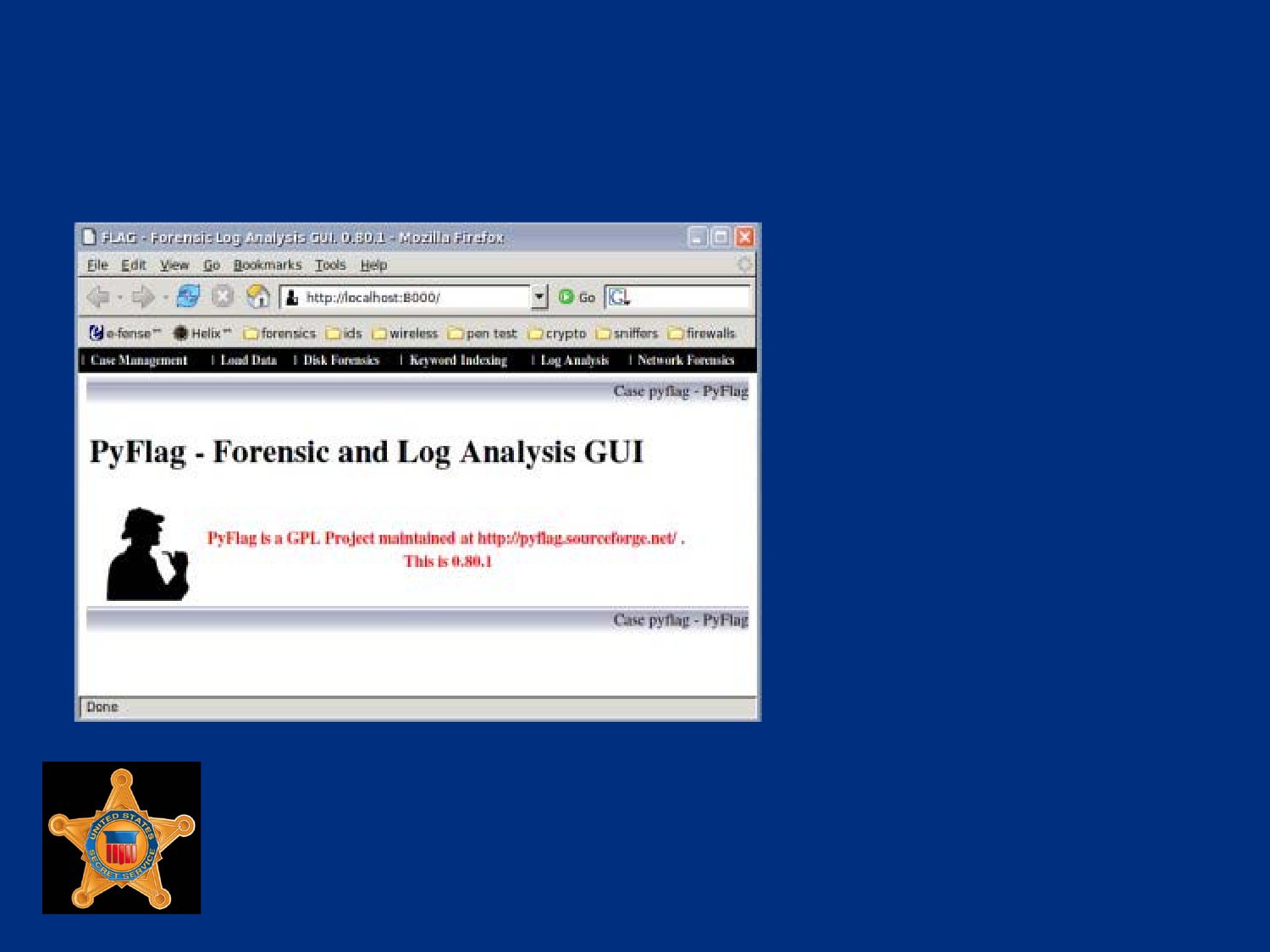
PyFlag Default Screen
U.S. Department of
Homeland Security
United States
Secret Service
Live CD Benefits
Useful for testing, evaluating, or learning without need of
dedicated hardware
Many Linux distributions available as Live CDs, freely
downloaded from Internet, each designed for specific task
Helix just one example of feature rich Live CD created for a
certain purpose, forensics and incident response
Helix provides multiple options for investigations whether
suspect machine turned off or up and running
U.S. Department of
Homeland Security
United States
Secret Service