DB2 Server for VSE System Administration (Version 7 Release 5) - page 4
database manager sets PCTFREE to 1, PCTINDEX to 0, and LOCK to PAGE
(page locking). If you try to specify any of these parameters, your settings
will be ignored.
If no package tables are available in any package dbspace during preprocessing,
SQLCODE -945 is returned, and the DBA must acquire another dbspace for
packages.
If sufficient space is not available in the dbspace where the database manager
attempts to create the package, it returns SQLCODE -946. The user’s response
depends on the availability of package tables in other dbspaces. If some are
available, the user can try to preprocess the program again. (The database manager
does not choose the same dbspace again because it sets FREEPCT=0 when the
preprocess fails.) If no package tables are available, another dbspace for packages
must be acquired.
To get information about unused packages (available and unavailable), issue the
following query:
SELECT * FROM SYSTEM.SYSACCESS WHERE TNAME LIKE ’%AVAILABLE’
To determine which package dbspaces are full because all the space is taken, issue:
SELECT * FROM SYSTEM.SYSDBSPACES WHERE DBSPACENAME LIKE ’SYS0%’
If the FREEPCT value is 0, there is no free space in the dbspace.
To determine which package dbspaces are full because all 255 tables are occupied,
issue:
SELECT DBSPACENO, COUNT(*) -
FROM SYSTEM.SYSACCESS -
WHERE TNAME NOT LIKE ’%AVAILABLE’ -
GROUP BY DBSPACENO
Dbspaces with a count of 255 have no available package tables. (For information
on the syntax of the ACQUIRE DBSPACE and SELECT statements, see the DB2
Server for VSE & VM SQL Reference manual.)
Managing Storage Pools
Typically, you set up your database to be supported by multiple storage pools, so
that you can control what data resides on what devices, and can manage physical
DASD allocations differently for different data. The following sections discuss uses
of storage pools and how to define them.
Design Considerations for Storage Pools
A storage pool consists of a large collection of 4-kilobyte DASD pages, called slots,
for storing allocated public and private dbspace pages and shadow pages (old
copies of dbspace pages that have changed since the last checkpoint). Dbspace
pages that are not allocated are not stored. For internal dbspaces, slots are
occupied only by nonempty pages of data for active logical units of work.
The placement of dbspace pages in storage pool slots is determined by the
database manager; however, you control which pool of slots the dbspace pages are
assigned to. This allows you to control device utilization and the use of different
DASD allocation schemes for different data.
Chapter 7. Managing Database Storage
131
Estimating Storage Requirements
You may often choose to undercommit the actual DASD space available for the
dbspaces. Because a dbspace cannot be extended after it is defined, and because it
is really only a logical allocation of space, many dbspaces are defined to be much
larger than needed. As a result, the actual storage pool slots required are fewer
than the dbspace sizes imply. The number of dbextent pages should be defined to
support the expected number of dbspace pages that will actually be used.
The undercommitting approach to managing storage pools is particularly useful if
the tables involved are expected to grow over time. The sizes of the dbspaces are
set based on how large the tables can grow, while the size of the storage pool is
defined based on current storage requirements. As the tables grow, you can extend
the storage pool by adding dbextents to it.
Undercommitting is also useful for supporting internal dbspaces. It is unlikely that
you will ever need all the pages of all of the internal dbspaces at the same time.
The number of internal dbspaces defined is based on the most the database
manager would need at one time, and the size for each is defined based on the
worst possible situation that could occur. (Note that internal dbspaces are all the
same size.)
If you want to guarantee space availability, or have more dynamic dbspace storage
requirements, you should overcommit the DASD space available for dbspaces. For
example, you might want to do so to handle the storage requirements for private
dbspaces. User requests for more or bigger dbspaces can be relatively frequent.
Rather than repeatedly going through an ADD DBEXTENT operation, you could
overcommit the storage pool for private dbspaces and handle the user requests
through the ADD DBSPACE and ACQUIRE DBSPACE operations. (You may still
have to run the ADD DBEXTENT operation, but not as often.) For overcommitting,
allocate sufficient slots to handle all dbspace pages plus the potential shadow
pages.
Controlling Device and Channel Utilization
Storage pools enable you to control device and channel utilization through one of
two basic approaches:
v Separating highly referenced dbspaces
Two highly active dbspaces can be placed on different devices by assigning them
to different storage pools and defining the dbextents of these storage pools on
different devices.
v Spreading a highly referenced dbspace across devices
A single highly active dbspace can be spread across multiple devices by defining
its storage pool as small, multiple dbextents, each of which is a VSAM data set
defined on a different device.
Controlling Data Location
You can allocate a specific table and all its indexes to a specific device or VSAM
data set. To do this, create the table in a dbspace with no other tables, assign that
dbspace to its own storage pool, and define the dbextents of that pool as the
VSAM data sets on the volume that you want.
Monitoring Storage Pools
Use the SHOW POOL command to display physical storage information about each
storage pool defined, including:
v The total number of pages in the storage pool
132
System Administration
v The number of pages being used
v The percentage of the pages in use
v The number of dbextents defined for that storage pool, in the order in which
they were defined (which is also the order in which they will be searched for a
free page)
v For each dbextent
- The total number of pages
- The number of free pages
v A short-on-storage indicator.
You can issue the SHOW POOL command from either the operator console or from
ISQL. For more information about it, refer to the DB2 Server for VSE & VM
Operation manual. To see information about reusable deleted dbextent numbers,
use the SHOW POOL DELETED command.
Maintaining Storage Pools
To maintain storage pools, you:
v Add storage pools to the database
You add a storage pool to a database by adding a dbextent to a nonexistent
storage pool, using the ADD DBEXTENT process described in “Adding
Dbextents to a Storage Pool.”
v Add storage to existing storage pool
If any of your storage pools are short on storage, you can use the ADD
DBEXTENT process to increase their size.
v Remove storage from storage pools
You can use the DELETE DBEXTENT process to release DASD for other uses.
v Move dbextents to another device
Adding Dbextents to a Storage Pool
Dbextents can be added to a nonexistent storage pool (which defines a new storage
pool), or to an existing storage pool (which increases the size of the storage pool)
using the following two-step process:
1. Define the dbextent VSAM data sets
2. Update the database job control
3. Run ARIS250D procedure to add the dbextents.
These steps are described in more detail below.
Step 1: Define the Dbextent VSAM Data Sets: Run the VSAM IDCAMS program
to define the VSAM data sets. This step allocates the DASD space and establishes
the size of the dbextent. Table 15 shows an example of a job for defining three
dbextents.
Chapter 7. Managing Database Storage
133
Table 15. Example of a Job for Allocating Dbextent Data Sets
// DLBL IJSYSCT,’AMASTCAT’,,VSAM
// EXEC IDCAMS,SIZE=AUTO
DEFINE
SPACE -
(DEDICATE -
VOL(DBDISK7)) -
CAT(SQLCAT01/PASSWORD)
DEFINE
CLUSTER -
(NAME(SQL.DDSK15.DBNAME01.DB) -
CNVSZ(4096) -
CYL(50) -
NONINDEXED -
VOL(DBDISK7) -
CONTROLPW(PASSWORD) -
RECSZ(4089) -
REUSE -
SHR(1)) -
CAT(SQLCAT01/PASSWORD)
DEFINE
SPACE -
(DEDICATE -
VOL(DBDISK8)) -
CAT(SQLCAT01/PASSWORD)
DEFINE
CLUSTER -
(NAME(SQL.DDSK16.DBNAME01.DB) -
CNVSZ(4096) -
CYL(20) -
NONINDEXED -
VOL(DBDISK8) -
CONTROLPW(PASSWORD) -
RECSZ(4089) -
REUSE -
SHR(1)) -
CAT(SQLCAT01/PASSWORD)
DEFINE
CLUSTER -
(NAME(SQL.DDSK17.DBNAME01.DB) -
CNVSZ(4096) -
CYL(30) -
NONINDEXED -
VOL(DBDISK8) -
CONTROLPW(PASSWORD) -
RECSZ(4089) -
REUSE -
SHR(1)) -
CAT(SQLCAT01/PASSWORD)
/*
Note: For minimum space allocation values, see Table
41
on page
342.
In this example, one dbextent data set called SQL.DDSK15.DBNAME01.DB is
defined on volume DBDISK7, and two more, SQL.DDSK16.DBNAME01.DB and
SQL.DDSK17.DBNAME01.DB, are defined on volume DBDISK8.
You can move dbextents between device types as long as the dbextent is not larger
than the size of the device. When you define dbextents, you should keep this in
mind. For example, if you defined a single dbextent of 600000 blocks on a 9335
device, you could not move that dbextent to a 9332 device which is limited to
360032 blocks. However, if you defined three dbextents, each of 200000 blocks, on a
9335
(for a total of 600000 blocks), you could move them to three 9332 devices.
Step 2: Update the Database Job Control: If you are using cataloged procedures
to include the DLBL statements for your database, you must update those
procedures to include the DLBL statements for the new dbextents. For the example
shown in Table 15, you would add the following three DLBL statements:
134
System Administration
// DLBL DDSK15,’SQL.DDSK15.DBNAME01.DB’,,VSAM
// DLBL DDSK16,’SQL.DDSK16.DBNAME01.DB’,,VSAM
// DLBL DDSK17,’SQL.DDSK17.DBNAME01.DB’,,VSAM
Step 3: Run the ADD DBEXTENT operation: Run the ARIS250D procedure to
add dbextents to the storage pool. This step updates the database directory to
include the control information for the dbextents. If the dbextents are being added
to a new storage pool, this procedure also defines the new storage pool as are
being recoverable or nonrecoverable. Multiple dbextents can be defined in one run
of each of these jobs. For a description of this procedure, see “Using the ARIS250D
Procedure” on page 136.
Deleting Dbextents from a Storage Pool
Deleting a dbextent does not delete any data in the database. Data in the deleted
dbextent is first moved to another dbextent in the same pool before it is removed
from the database.
Dbextents can be deleted from a storage pool using the following three-step
process:
1. Run ARIS250D procedure to delete the dbextents
2. Update the database job control
3. Delete the dbextent VSAM data set.
These three steps are described in more detail below.
Step 1: Run the DELETE DBEXTENT operation: Run the ARIS250D procedure to
delete dbextents from the storage pool. This step updates the database directory to
remove the control information for the dbextents. For a description of this
procedure, see “Using the ARIS250D Procedure” on page 136.
Attention
You must not delete the only dbextent from the storage pool that contains the
internal dbspaces.
Step 2: Update the Database Job Control: If you are using cataloged procedures
to hold the DLBL statements for your database, you must remove them for the
deleted VSAM data sets. For the example shown in Figure 59, you would delete
the following three DLBL statements from your job control procedures:
// DLBL DDSK15,’SQL.DDSK15.DBNAME01.DB’,,VSAM
// DLBL DDSK16,’SQL.DDSK16.DBNAME01.DB’,,VSAM
// DLBL DDSK17,’SQL.DDSK17.DBNAME01.DB’,,VSAM
Step 3: Delete the Dbextent VSAM Data Sets: Run the VSAM IDCAMS program
to physically delete the DASD space for the dbextent. Figure 59 shows how to
delete the three VSAM data sets that were defined in Table 15 on page 134.
Chapter 7. Managing Database Storage
135

// JOB DELETE DBEXTENT DATA SET
// DLBL IJSYSCT,’AMASTCAT’,,VSAM
// EXEC IDCAMS,SIZE=AUTO
DELETE (SQL.DDSK15.DBNAME01.DB/PASSWORD)
DELETE (SQL.DDSK16.DBNAME01.DB/PASSWORD)
DELETE (SQL.DDSK17.DBNAME01.DB/PASSWORD)
/*
/&
Figure 59. Example Job Step for Deleting Dbextent Data Sets
Note: You can move a dbextent from one storage pool to another by deleting it
and adding it back to the new pool; however, you cannot delete, add, and
then delete the same dbextent in a single run.
Using the ARIS250D Procedure
A dbextent is added to or deleted from the database using the procedure
ARIS250D shown in Figure 60. This procedure starts the application server in
single user mode (SYSMODE=S) with STARTUP=E. The job control to run this
procedure is shown in Figure 61. The specifications for the dbextents to be added
or deleted are provided in the member ARISADD, shown in Figure 63 on page 137.
***********************************************************
* ARIS250D: ADD AND DELETE DBEXTENTS
THE PROGRAM SCANS THE INPUT TWICE. FIRST PASS
TO CHECK FOR ERRORS, SECOND PASS TO EXECUTE.
***********************************************************
// EXEC ARISQLDS,SIZE=AUTO,PARM=’SYSMODE=S,STARTUP=E’
READ MEMBER ARISADD
/*
READ MEMBER ARISADD
/*
/&
Figure 60. Procedure ARIS250D
The job control to run ARIS250D is shown in the figure below:
// JOB ARIS75HD ADD AND DELETE DBEXTENTS
// LIBDEF PROC,SEARCH=(PRD2.DB2730)
// EXEC PROC=ARIS75PL
*-- PRODUCTION LIBRARY ID PROC
// EXEC PROC=ARIS75DB
*-- DATABASE ID PROC
// EXEC PROC=ARIS250D
*-- ADD AND DELETE DBEXTENT PROC
/&
Figure 61. Example Job Control for ARIS250D procedure
If you are using your own startup job stream instead of ARIS250D, you must code
READ MEMBER ARISADD twice, and separate each line with /*. If you are
coding the control statements in stream, you must code them twice, and separate
them with /* as shown in Figure 62. The ARISQLDS program requires two sets of
identical specifications for efficiency reasons. The first set is for syntax checking,
and the second set is for processing.
136
System Administration

// JOB ADD AND DELETE DBEXTENTS
// LIBDEF PROC,SEARCH=(PRD2.DB2730)
// EXEC PROC=ARIS75PL
// EXEC PROC=ARIS75DB
// EXEC ARISQLDS,SIZE=AUTO,PARM=’SYSMODE=S,STARTUP=E’
POOL
8 NOLOG
DELETE 3 1
DELETE 2 2
ADD
6 8
DELETE 4
ARCHIVE
/*
POOL
8 NOLOG
DELETE 3 1
DELETE 2 2
ADD
6 8
DELETE 4
ARCHIVE
/*
/&
Figure 62. Example Job Control for Adding or Deleting Dbextents
The following figure contains examples of the control statements typically found in
a member such as ARISADD, used by the ARIS250D procedure to add or delete
dbextents.
POOL
8 NOLOG
DELETE 3 1
DELETE 2 2
ADD
6 8
DELETE 4
ARCHIVE
Figure 63. Example ARISADD for Adding or Deleting Dbextents
If the ARCHIVE control statement is specified, it must come last. The valid options
are ARCHIVE (database archive), UARCHIVE (user archive) or NOARCHIVE (no
archive). If you do not specify it, the default (ARCHIVE) is used.
Attention
The database cannot be restored from an archive taken prior to the deletion
of a dbextent after the dbextent is removed from the database. Therefore, the
user should choose ARCHIVE or UARCHIVE to backup the database.
The optional POOL control statements must precede the statements that define the
dbextents. They are required only for defining new nonrecoverable storage pools
with POOL(NOLOG). They are unnecessary if you are adding dbextents to an
existing pool because a storage pool’s status has already been defined as either
nonrecoverable or recoverable. POOL statements are also not necessary for new
recoverable storage pools, because by default, storage pools are recoverable. The
POOL control statement shown in Figure 63 defines storage pool 8 as
nonrecoverable.
You cannot specify pool number 1 on any POOL control statement.
Chapter 7. Managing Database Storage
137

Attention
Once a storage pool is defined as either nonrecoverable or recoverable, you
must not change it from recoverable to nonrecoverable (or from
nonrecoverable to recoverable).
The records following the POOL control statements contain the dbextent
definitions. Each control statement must contain a control word (ADD or DELETE)
and the specification of one dbextent. The first number in the input record is the
number designator of the dbextent. The second number, if specified, is the number
designator of its storage pool. (For the ADD action, if this number is not specified,
the default is storage pool 1; for the DELETE action, the default is the storage pool
where the dbextent resides.) The numbers must be separated by at least one blank.
When you add a dbextent, its number must either be one more than the number of
dbextents currently defined, or the number of any dbextent that was deleted by the
DELETE DBEXTENT operation. The total amount of space allocated in the
directory as the dbextent control area is fixed for a database, and cannot be
changed without regenerating the database. When a dbextent is deleted, the
control area is not compressed. Therefore, you should reuse deleted dbextent
numbers whenever possible so as to reuse the directory control area. Figure 64
shows area the dbextent control in the directory.
Extent number:
1
2
2+
3
4
5
6
7
8
9
10
...unused...
Belongs to
1
1
2
2
1
2
4
pool number:
n
Where
indicates deleted area in directory
Figure 64. Dbextent Control Area in the Database Directory
In this example, a new dbextent can take on the numbers 5, 7 or 8, which are
available for reuse, or 11, which is the next sequential number. The value 2+
indicates that there is empty directory space between dbextents 2 and 3. Because
no dbextent number is associated with this space, you must first delete dbextent 2
or dbextent 3 to reclaim it.
You can determine the number of dbextents currently defined in a database by
using the SHOW POOL operator command. To determine the maximum number of
dbextents or storage pools that can be defined for the database, issue the SHOW
DBCONFIG operator command. For more information, see the DB2 Server for VSE &
VM Operation manual.
You can determine the deleted dbextent numbers that are available to be reused by
using the SHOW POOL DELETED command. There is a maximum size associated with
each deleted dbextent number. The maximum size is determined by the previous
use of the dbextent number. The highest number is an exception; if it is deleted,
the control area it used to occupy will be combined with the rest of the free area
and this number will be treated as if it has never been used.
138
System Administration

For example, if dbextent 10 in Figure 64 on page 138 above is deleted, the control
area in the directory will look like Figure 65.
Extent number:
1
2
2+
3
4
5
6
7
8
9
...unused...
Belongs to
1
1
2
2
1
2
pool number:
Figure 65. Dbextent Control Area in the Directory after Dbextent 10 Is Deleted
When the SHOW POOL DELETED command is issued, dbextent number 10 will not be
listed.
Storage pool numbers can range from 1 to MAXPOOLS, where MAXPOOLS is the
maximum number of storage pools for the database, as specified during the
database generation. Storage pool numbers can be used in any sequence.
Considerations for Adding and Deleting Dbextents: Neither the ADD nor the
DELETE DBEXTENT operation is recorded in the log. Because these operations
update the directory, and not the database itself, you can encounter a problem if
you normally archive the database, and then try to restore it. For an ADD
DBEXTENT operation, suppose the following events occur in the following order:
1. You do a database archive
2. You add dbextents
3. Users use data from those dbextents
4. You do an archive restore using the archive file from number 1 above and, if
you use LOGMODE=L, subsequent log archives.
The directory and the database are not synchronized. The directory was restored
from an archive file that did not reflect the ADD DBEXTENT operation; the
database is also restored from that file however, the use of the changed dbextents
is also restored from updates recorded in the log or log archives. Thus, the
directory does not reflect the changed dbextents, but the database does.
For a DELETE DBEXTENT operation, suppose the following occurs:
1. You do a database archive
2. Later you delete dbextents
3. You attempt to do an archive restore from number 1 above.
The restore operation fails because it attempts to put data on the dbextents that
have been removed.
You can prevent this problem by using the ARCHIVE or UARCHIVE option in the
ADD or DELETE DBEXTENT operation. This will ensure that your current
database archive reflects the changed dbextents.
The same problems occur if you use log archiving and restore the database using a
database archive taken before the ADD or DELETE DBEXTENT operation. That is,
if you use a back-level database archive and subsequent log archives to restore the
database, the database archive that records the changes to the dbextents are
skipped. For ADD DBEXTENT operations, the directory, restored from the
back-level database archive, does not show the changes to the dbextents; the
subsequent log archives, however, do record the use of those dbextents. Restoring
Chapter 7. Managing Database Storage
139
the database from an old database archive and subsequent log archives can thus
put the database out of synchronization with the directory. For DELETE
DBEXTENT operations, the restore fails when it tries to use the removed dbextents.
If a system failure occurs during the ADD or DELETE DBEXTENT operation,
restart the operation after determining and correcting the cause of the failure.
Initialization Parameters for ADD and DELETE Dbextents
Instead of using the procedure ARIS250D, you can choose to run program
ARISQLDS with additional parameters. The initialization parameters that you can
specify for running the ADD or DELETE DBEXTENT operation, are shown in
Table 16.
Table 16. Initialization Parameters for the ADD and DELETE DBEXTENT
Operation
Parameter
Default
Minimum
Maximum
DBNAME=name
SQLDS
---
---
SYSMODE=S
---
---
---
PARMID=name
None
---
---
STARTUP=E
---
---
---
DBPSWD=password
None
---
---
LOGMODE=Y|A|L|N
Y
---
---
DSPLYDEV=L|C|B
L
---
---
DUMPTYPE=P|F|N
P
---
---
TRACDBSS=nnn...
Zeros
Zeros
Twos
TRACRDS=nnnnnn
Zeros
Zeros
Twos
TRACDSC=nn
Zeros
Zeros
Twos
TRACCONV=n
Zero
Zero
Twos
TRACSTG=n
Zero
Zero
Ones
TRACEBUF=n
Zero
Zero
99999
The DBNAME, SYSMODE and STARTUP parameters are required as shown to
define the run as an ADD or DELETE DBEXTENT operation. Also, PASSWORD
will be required if the database VSAM data sets are password protected.
The PARMID parameter can be used to specify a source member that contains
parameter specifications for the ADD or DELETE DBEXTENT operation.
The DSPLYDEV, DUMPTYPE, TRACDBSS, TRACDSC, TRACRDS, TRACCONV,
TRACSTG and TRACEBUF parameters can optionally be specified. For a
description of these parameters, see “Multiple User Mode Initialization
Parameters” on page 47. Because ADD and DELETE DBEXTENT operations can
only be done when the database manager is running in single user mode, the
initialization parameters are the only means of tracing them. (Operator TRACE
commands are only valid when the database manager operates in multiple user
mode).
Moving Dbextents
Sometimes it may be necessary to relocate the dbextents to another device due to
disk migration or to control device utilization. This is done using the VSAM
BACKUP and RESTORE commands after the application server is shut down. See
Figure 68 on page 154 for an example of IDCAMS BACKUP, commands and
Figure 70 on page 160 for IDCAMS RESTORE commands.
140
System Administration
Moving the Log
Sometimes you must relocate the log data set to another device because of disk
migration or to control device utilization. If the following conditions are met,
VSAM BACKUP and RESTORE commands can be used to make an exact copy of
the original log data set and it is not necessary to reformat or reconfigure the new
log data set:
v The target log data set is the identical size as the source data set
v The source log data set is not damaged.
For more information about reconfiguring or reformatting the log data set, see
“Reconfiguring and Reformatting the Logs” on page 171.
Chapter 7. Managing Database Storage
141
142
System Administration
Chapter
8. Making Backups and Recovering from Failures
Database recovery refers to the processing done to correct data when something
goes wrong. This chapter presents a detailed description of basic recovery
concepts, and how to implement them. More advanced recovery topics are
discussed in Chapter 9, “Special Topics in Recovery Design,” on page 167.
The problems that can occur fall into four categories:
Application Error
Occurs when an application (for example, an ISQL command or routine, or
the DBS utility) does not end successfully.
User Logic Error
Occurs when the system or application does the requested function, but
the request itself is in error — that is, the user (or application program) did
not specify the correct function. For example, the user may have
accidentally dropped the wrong table or dbspace.
This is the only type of error where detection is not immediate. Therefore,
it presents more of a problem. Errors in the data can go undetected for
quite some time, making recovery processing very complex.
System Failure
Occurs when the application server ends abnormally. Such failures can
occur because of a severe error involving the operating system, or because
of certain error conditions detected by the database manager, such as a
power failure.
DASD Failure and Database Corruption
Occurs when the database manager cannot read data from or write it to
the DASD where it is stored, because the storage medium is unreadable or
damaged. Such an error (also called a media failure) can occur on the log,
the directory, or a data extent (DBEXTENT).
This manual discusses how to recover from system and DASD failures. Recovery
from application and user logic errors is described in the DB2 Server for VSE & VM
Database Administration manual.
There are two aspects to dealing with system and DASD failures:
v Establishing and maintaining regular recovery procedures, to ensure that you
have the information available to correct the data if something goes wrong.
v Correcting the data.
Understanding Recovery Concepts
To effectively protect your data and recover it in the event of failure, you need to
understand the measures built into this product. Protecting against system failures
involves the LUW, the log, and the checkpoint. Protecting against DASD failures
entails two types of archive: the database archive and the log archive.
What is a Logical Unit of Work?
The data in your database is in a consistent state if no changes are left only
partially completed.
143
Some data changes cannot be expressed in only one SQL statement. For example,
suppose you have a banking program to transfer money between accounts, and
want to transfer $100 from a SAVINGS to a CHECKING account. The program
makes this transfer in two steps:
1. Add $100 to the balance of the CHECKING account.
2. Subtract $100 from the balance of the SAVINGS account.
If the second step fails (for example, because of a system failure), the data is in an
inconsistent state. That is, a deposit has been made to the CHECKING account, but
no withdrawal has been made from the SAVINGS account.
The logical unit of work (LUW) prevents such inconsistencies. An LUW is a sequence
of SQL statements that the system treats as a single entity. Either all the data
changes made during an LUW are performed, or none is performed. In the
example above, the two updates should be placed within a single LUW.
To group several SQL statements into one LUW, one uses the COMMIT WORK
and ROLLBACK WORK commands.
If no problems or errors occur, the user issues the COMMIT WORK command to
save all the changes made. If a problem occurs in the middle of an LUW, the user
can issue the ROLLBACK WORK command to undo all the changes made since
the last COMMIT WORK command.
An LUW can be as small as one SQL statement, or as large as an entire ISQL
session or application execution. ISQL, by default, treats each command as an
LUW, and issues a COMMIT WORK command after each SQL statement that
modifies the database. Users can change this default by issuing the SET
AUTOCOMMIT OFF command. For more information on the use of the
AUTOCOMMIT, COMMIT, and ROLLBACK commands, refer to the DB2 Server for
VSE & VM SQL Reference manual.
What is a Log?
The log is a file maintained on DASD that records all the changes completed by
each LUW. For each change, the log records the old and new values of the updated
object. If any changes to the database must be undone or redone, you can use the
log to restore the data to its proper state.
In addition to the changes made by each logical unit of work, the log also records
when each logical unit of work started and stopped. (It does not record logical
units of work that only read information from the database).
A database must have at least one log. Optionally, you can use alternate logging to
have one active log and one inactive log. If only one log is defined and the
ARCHPCT value is reached, a checkpoint will occur followed by a log archive. If
an inactive log is present, the database manager will attempt to switch to the
inactive log once the checkpoint is complete. For more information, see “Using
Alternate Logging” on page 169.
You can create an exact duplicate of your active log and inactive log by using dual
logging. If dual logging is enabled and a DASD failure occurs on the active or
inactive log, the database manager can continue using the backup copy. For more
information, see “Using Dual Logging” on page 170.
144
System Administration
Larger logs may be needed for tables that are being captured for DataPropagator
because of the increased amount of log data written for UPDATEs to those tables
which specify DATA CAPTURE CHANGES. Tables being captured will log the
entire original row (not just the data that was changed), and the new data that
replaces the old changed data. You should consider increasing the size of the log
dbextent(s) when planning to make extensive use of this function.
What is a Checkpoint?
Checkpoints are taken periodically. During a checkpoint the database manager
stops servicing users, and takes a “snapshot” of the database that includes updates
from completed LUWs as well as from those that are still in progress, and writes
them to DASD. In addition, a special checkpoint record is written to the log to
synchronize the log with the state of the database.
What Happens after a System Failure?
Restart Recovery with a Log
If your system fails, as long as the current log is available, the database will be
automatically recovered to a consistent state when you restart the application
server. This process, called restart recovery, uses the log to ensure that changes
made by LUWs are either committed (if they had successfully finished) or backed
out (if they had not finished successfully).
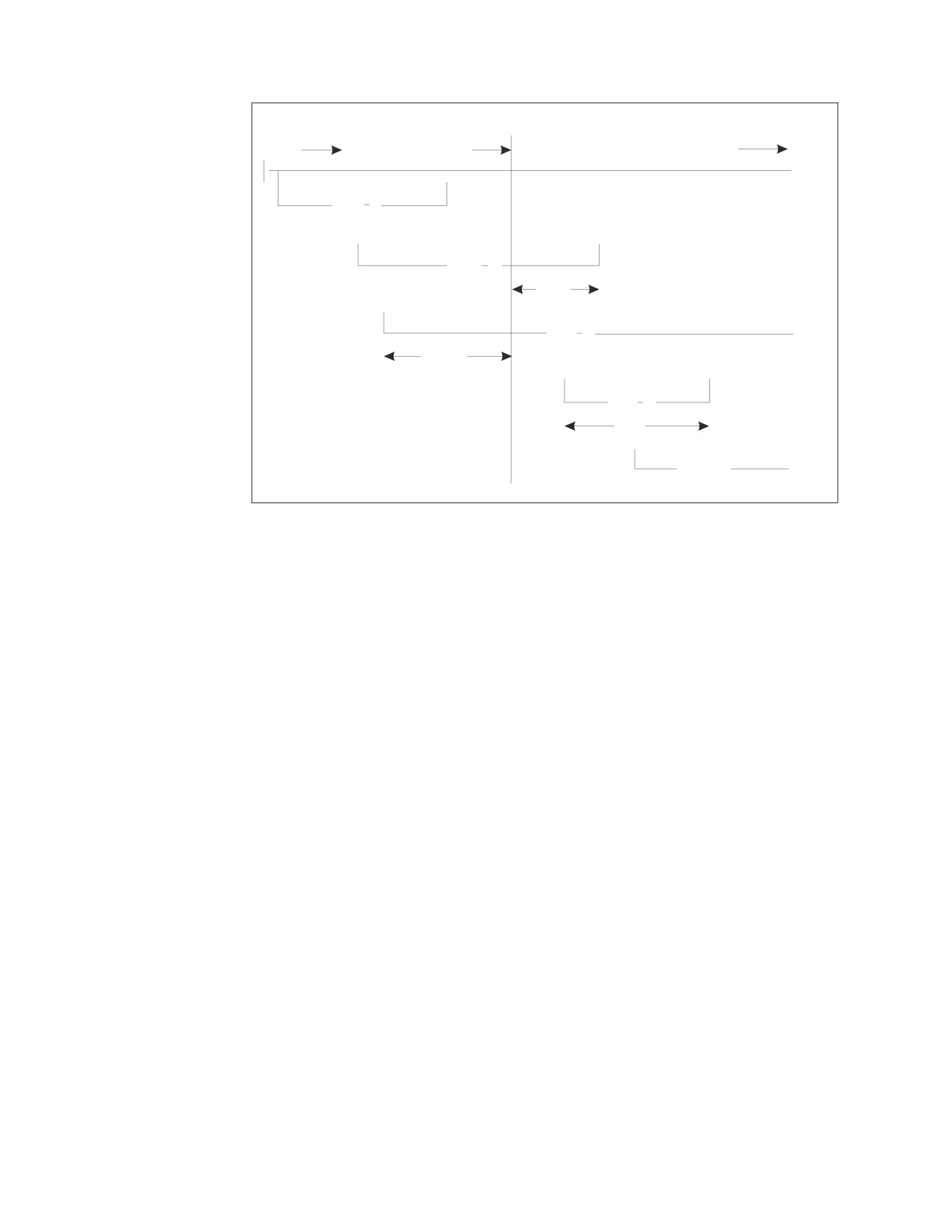
The recovery process determines the state of each LUW; both at the time of failure
and at the time of the last checkpoint before the failure. The following scenarios
are shown in Figure 66 on page 146:
v LUW A: if the LUW starts and ends before the checkpoint, all the updates are
safely reflected in the database at the checkpoint.
v LUW B: if the LUW starts before the checkpoint and commits work after the
checkpoint but before the failure, those updates made after the checkpoint must
be redone, using the log. Those updates made prior to the checkpoint are
reflected in the database.
v LUW C: if the LUW starts before the checkpoint but is not completed before the
failure, those updates made prior to the checkpoint must be undone using the
log. The updates made after the checkpoint are not reflected in the database:
thus all the updates must be re-entered.
v LUW D: if the LUW starts after the checkpoint and commits work before the
failure, all its updates must be redone using the log.
v LUW E: if the LUW starts after the checkpoint and is not completed before the
failure, all its updates must be re-entered since none of them are reflected in the
database.
The following diagram illustrates the LUW Recovery process for the five cases
described above:
Chapter 8. Making Backups and Recovering from Failures
145
Checkpoint
Sys Failure
Time
occurs
occurs
//
//
//
//
LUW A
//
no action required
//
//
//
LUW B
//
no action required
//
redo
//
//
//
LUW C
//
no action required
//
undo
//
//
//
LUW D
//
redo
//
//
//
LUW E
//
no action required
//
Figure 66. LUW Recovery Actions
Restart Recovery Without a Log
If the application server must be restarted without a log (due to the log either
being lost, reformatted, or reconfigured immediately after the failure), the database
cannot be adjusted to complete committed logical units of work or to back out
uncommitted ones. In this situation, to recover the database you will have to
restore a previous database archive, together with any applicable log archives.
If the database manager had been running in single user mode with
LOGMODE=N, the changes made by the application are not logged. However, a
checkpoint would have been taken each time the application issued a COMMIT
WORK (or one was issued for the application), so most changes will have been
effectively committed. Any that were uncommitted at the time of failure will be
discarded when you restart the application server and will need to be re-entered.
What is an Archive?
Archiving facilities enable you to recover your database directory and storage
pools from DASD failures. There are two kinds of archives: database archives and
log archives.
Database Archives
A database archive is a tape copy of the database directory and dbextents. It can be
taken using two types of facilities:
v database manager archiving facilities supplied with this product
v user archiving facilities such as VSE/VSAM Backup/Restore.
If database manager facilities are used, the database manager takes a checkpoint
(the begin-archive checkpoint) and writes a copy of the database directory and the
database to tape, as they were at the checkpoint. (A database archive does not
include a copy of the log.) Users continue to receive service while the archive is
being done.
146
System Administration
A user archive can only be done while the application server is shut down. A user
archive generally takes less time than a database manager archive.
You are not restricted to using one kind of archive for a given database; you can
switch between database manager archives and user archives as often as you like.
There are two situations in which the former facility is required:
v When you migrate a database between two different operating systems (for
example, from VSE to VM)
v When a database archive is needed while users are accessing the database. You
can avoid this situation by using log archiving (LOGMODE=L).
Experience helps you determine which method is best for you. When using any
backup method, the performance improvement will be related to how full your
database is. The fewer pages in your database that are allocated, the less time a
database manager archive takes.
In fact, if the percent of allocated pages is low enough, a database manager archive
will outperform a user archive, because the database manager only archives pages
that actually contain data. User facilities archive all pages, so the time taken does
not vary with the number of pages allocated.
Aside from the performance advantage that user archiving facilities may offer
because they exploit particular device characteristics, consider whether your facility
provides other advantages such as archiving multiple dbextents simultaneously.
For a description of how to carry out these archives, see “Performing Database
Archives With Database Manager Facilities” on page 152 and “Performing
Database Archives With User Facilities” on page 153.
Log Archives
A log archive is a copy of the log on tape. Only database manager archive facilities
can be used to archive the log. Log archives can be taken either when the database
manager is running or at shutdown. Because the log is usually much smaller than
the database, this archive takes less time than a full database archive. For a
description of how to carry it out, refer to “Performing Log Archives” on page 154.
Recovering from DASD Failures that Damage the Database
If a DASD failure occurs on one of your database devices, you can restore the
database by replacing the damaged volume with a working volume (see
“Replacing a Dbextent” on page 164), redefining (or restoring) the data sets on the
volume, and then restoring the data from the archived database and logs (if
applicable.)
There are two ways to do this. One way is to use the database archive and the
active log. By loading the archive and re-applying the changes in the log, you can
bring the database up-to-date because all changes made to the database since the
archive are recorded in the active log. If the restore set for the database archive
includes the active log, you can recover the damaged storage pools instead of the
entire database using the Data Restore Feature. See the DB2 Server for VSE & VM
Data Restore manual for more information on storage pool level recovery.
Alternatively, if you archived the log, you can use the database archive, the log
archives you created since the last database archive, and your active log, to
recreate the database. You would load the database archive, and reapply the
changes in the log archives and the active log. If the restore set for the database
Chapter 8. Making Backups and Recovering from Failures
147
archive includes the active log, you can recover the damaged storage pools instead
of the entire database using the Data Restore Feature. See the DB2 Server for VSE &
VM Data Restore manual for more information on storage pool level recovery.
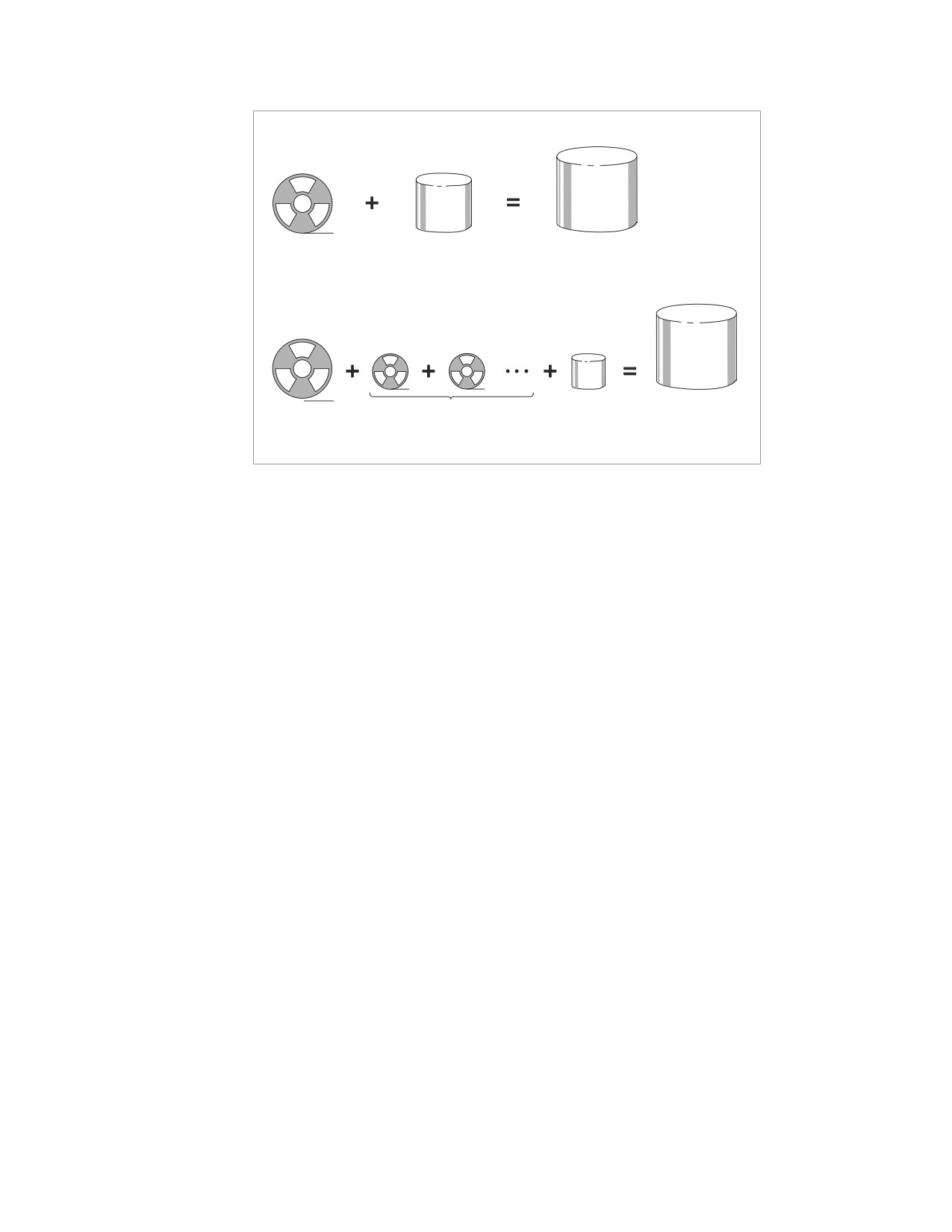
The relationships among the different archives, the active log, and the current
database are shown in Figure 67 on page 150. For more details, see “Restoring the
Database” on page 158.
Recovering from DASD Failures that Damage a Log
If a DASD failure, such as an unresolvable I/O error, occurs on one of the log
devices, there are two possibilities for recovery:
v If you are using single logging or alternate logging, replace the damaged log
data set (see “Replacing a Log” on page 164), and then follow the steps in “Log
Reconfiguration” on page 171. Log data from the damaged log is lost.
v If you are dual logging, replace the damaged log data set with a working data
set (see “Replacing a Log” on page 164), and then start the application server
with the same log mode used before the log data set was damaged. The contents
of the good log data set is copied to the new log data set.
Recovering from DASD Failures that Damage the Database
and Log
If a DASD failure occurs on both a database device and a log device, you can
restore the database by replacing the damaged dbextent with a working data set
(see “Replacing a Dbextent” on page 164), replacing the damaged log data set with
a working data set (see “Replacing a Log” on page 164), and then restoring the
data from the archived database and logs (if applicable) (see “Restoring the
Database” on page 158).
Establishing DASD Recovery Procedures
As the system administrator, you must establish recovery procedures for your
installation. The procedures you put in place will determine the degree of
protection for your database. Naturally, trade-offs exist; when you allocate system
resources to protect against failures, these resources are unavailable to other users.
However, if a failure occurs, the recovery takes less time.
This section discusses some of the options available. Based on this information,
devise a plan that best suits your requirements.
Choosing a Log Mode
One of the first decisions you must make when designing a recovery strategy is
the type of log mode you want. The log mode is an initialization parameter that you
specify when you start the application server. It has four possible values:
LOGMODE=Y
All changes to the database will be recorded in a log, but no archives of
the log or database will be maintained. This value is the default. Use it if
you do not need to protect your data from DASD failures. The application
server will run faster, since it will not require the extra time to create
archives.
LOGMODE=A
All changes to the database will be recorded in a log, and regular archives
148
System Administration
of the database will be maintained. You can either create these archives
yourself, or have them created automatically when the log reaches a
certain threshold level.
LOGMODE=L
All changes to the database will be recorded in a log, and regular archives
of the log will be maintained. You can either create these log archives
yourself, or have them created automatically when the log reaches a
certain threshold level (to prevent it from becoming too full to be effective).
If alternate logging is enabled, an attempt will be made to switch to the
inactive log once the active log hits the threshold. The LARCHIVE
INACTIVE operator command can be used at a later time to archive the
inactive log.
Log archives do not contain data, but only operations that change the
database. If you use this log mode, you must take an occasional database
archive as well. If a failure occurs, you can use the database archive,
subsequent log archives, and the current log to recover the database.
The log archives must be continuous, recording all processing that
occurred since the last database or log archive. If a gap exists, it will be
impossible to restore the database to its current level. (The processing that
occurred during the gap can never be reapplied to the database because it
was never archived.) Gaps can occur in the sequence of log archives when,
for example, you switch from LOGMODE=L to some other log mode. If
the continuity of the log is broken in this manner, the database manager
will force a database archive before you return to LOGMODE=L
processing.
LOGMODE=N
No changes to the database are recorded. This option, which is only
available in single user mode, is not recommended for normal operation
but can be useful in some situations. For example, it may be more efficient
not to log changes if you are loading a large amount of data into a table by
using the DBS utility in single user mode. If a problem occurs while you
are loading, you do not need the log to recover; you can simply start over.
Once you have decided on a log mode, use it whenever you start the application
server. Do not change it without thought and planning. If you must do so, you
may have to carry out additional procedures. For information, refer to “Switching
Log Modes” on page 167.
Deciding between LOGMODE=A or L
Figure 67 on page 150 illustrates the relationships among the archives, the log, and
the database when the log mode is A or L. You should consider several things
before choosing one mode over the other.
Chapter 8. Making Backups and Recovering from Failures
149
When LOGMODE = A
Last database
Current log
Current database
archive
When LOGMODE = L
Last database
Series of log archives
Current log
Current database
archive
Figure 67. Relationships among the Archives, the Log, and the Database
There are three advantages to log archiving (LOGMODE=L):
v
It usually takes less time, because only the log is being archived, not the
directory and dbextents. This is especially helpful when the archive is being
done to free log space when the database manager is running.
v
Once the ARCHPCT is reached and alternate logging is enabled, an attempt will
be made to switch to the inactive log. This will prevent situations where no
work can continue because no one was able to load a tape for the log archive.
Also, an archive of the inactive log can be done at any time via the operator
command LARCHIVE INACTIVE.
v
If the last database archive is unreadable or unavailable, you can bring the
database back to its current status by using a back-level database manager
archive or user archive, and applying to it the changes that were recorded in all
subsequent logs. More recent database archives are ignored when you restore a
back-level database. Two requirements must be met in order for you to use this
method:
- The log archives must be continuous. That is, you cannot have switched log
modes and done a COLDLOG (with STARTUP=L) or a restore since the
back-level archive was created.
Note: You can switch from LOGMODE=L to A and then back again without
breaking the continuity of the log archives, provided that no database
archive was taken while LOGMODE was set to A.
- You have not added dbspaces, added or deleted dbextents, or reconfigured
the logs since the back-level database archive was made. These operations are
recorded in the database directory, so if you have carried any of them out, the
directory will not be synchronized with the database changes.
A disadvantage of archiving the logs is that no logical units of work can be active
during the checkpoint that immediately precedes the log archive or the switch to
the inactive log (if alternate logging is enabled). Concurrent access is allowed once
the checkpoint is complete, but users may experience delays both before and
during the checkpoint.
150
System Administration
Another disadvantage is that it takes longer to restore the database. For example,
suppose you have been taking a database archive every Friday evening and a log
archive on Tuesdays and Thursdays, and on a Friday afternoon there is a media
failure on the DASD that contains the database directory. You must restore the
most recent database archive (from the previous Friday), and then restore the log
archives from Tuesday and Thursday as well as the changes recorded in the log
that was current at the time of the failure. Because only the changes to the
database are stored in the log, restoring the database is similar, in processing time,
to redoing all the work from the week. If there was heavy activity that week,
restoration can take a long time.
Had you used database archives (LOGMODE=A) as intermediate online archives,
you would only need to restore Thursday’s database archive and reapply the
changes on the current log. The restore time is much shorter. On the other hand,
more time would have been spent doing the intermediate archives. Because media
failures are infrequent, it is usually better to take intermediate log archives instead
of intermediate database archives. Depending on your own experience with media
failures, it may even be worthwhile to lengthen the time between database archives
taken at shutdown.
Backing Up the History Area
The database manager uses the history area of the active log to keep track of
recovery events (for example, database archives and log archives). The database
manager can then determine which log archives belong with which database
archives. If the disk containing the active log is damaged or unavailable (offsite
disaster recovery scenarios), you cannot use log archives to recover the database.
To avoid this situation, you should create a backup of the log file after each log
archive. You can then restore this file to rebuild the log history area.
Choosing Dynamic or Static Tape Devices
Database archives or log archives can be either dynamically or statically assigned.
With dynamic tape allocation, only one tape drive can be allocated for archiving. If
the archive exceeds the storage of the tape, and there is no Automatic Cartridge
Loader (ACL) in use, the tape must be rewound, unloaded, and a second tape
must be mounted manually. If an ACL is in use, each tape except for the last one
will be unloaded and the mounting of all tapes except the first is handled by the
automatic loader.
If ARCHTAPE=REW and a log archive occurs followed by a database archive, the
log archive tape is left in the drive and must be unloaded manually. If
ARCHTAPE=UNL, the log archive tape is unloaded upon completion of the log
archive. If an ACL is present, the next tape will be mounted into the tape drive.
With static tape allocation, more than one tape drive can be allocated for archiving.
The tape drives are statically assigned in the start-up JCL. If ARCHTAPE=REW,
each tape of an archive is left in the tape drive and must be manually unloaded.
Otherwise, if ARCHTAPE=UNL, each tape will be unloaded at the end of the tape.
The following is a sample JCL:
// JOB ARCHIVE
// LIBDEF *,SEARCH=(PRD2.DB2730)
// ASSGN SYS005,cuu1
// ASSGN SYS005,cuu2,ALT
// TLBL ARIARCH, ...
// TLBL ARILARC, ...
Chapter 8. Making Backups and Recovering from Failures
151
// TLBL ARILALT,...
// EXEC ARISQLDS,SIZE=AUTO, PARM=’STARTUP=W,LOGMODE=L’
/*
/&
If there is no tape manager in use and TAPEMGR = N, you are prompted with
message ARI0299A. For dynamic tape allocation, respond with the tape address
cuu. If TAPEMGR=Y, the tape manager will handle the assign. For static tape
allocation, respond 1.
Archiving Procedures
This section describes how to create archives to protect your database against
system failure. If a system failure occurs while you are taking an archive, see
“Restarting from a System Failure While Archiving” on page 163.
Performing Database Archives With Database Manager
Facilities
Database archives are tape copies of the directory and dbextents that are carried
out using the database manager archiving facilities:
v
By issuing an SQLEND ARCHIVE operator command, which copies the
database to tape only after all LUWs complete. The copy contains all changes
made by completed LUWs because no LUWs are active when the database
archive is made. Log space is freed after the archive completes successfully. No
changes made by incomplete LUWs are in the database archive copy. This
method is preferred.
Note: Before issuing SQLEND ARCHIVE, you should disable the DB2 Server for
VSE online support by issuing the CIRT transaction. See “Online Support
Considerations” on page 80.
v
By issuing an ARCHIVE operator command, which lets the operator initiate a
database archive at any time without either shutting down the application server
or stopping access to it. The drawback, however, is that if the archive is started
while applications are accessing the database, the archive copy may contain
changes made by incomplete LUWs, and cannot be used for recovery from user
logic errors, unless the log that was current when the database archive was
taken is available. For more information about user logic errors, see the DB2
Server for VSE & VM Database Administration manual.
The ARCHIVE command should be used only when you need to take a database
archive to free log space but cannot afford to shut down the application server.
Thus, you might want to schedule an SQLEND ARCHIVE for every Friday
night, and periodic online archives during the week.
Log space used by completed logical units of work is freed. Log space reflecting
changes that are not completely included in the database archive (as of its
begin-archive checkpoint) cannot be reused until the next database archive that
completely includes the changes.
v
By reaching the ARCHPCT value, in which case a database archive is taken
automatically. The ARCHPCT initialization parameter protects the log from
overflowing. (See “ARCHPCT” on page 64.) When you are running the database
manager with only database archiving active (LOGMODE=A), log space that can
be freed by the archive is determined by the begin-archive checkpoint and freed
by the end-archive checkpoint. Log space that has been used since the longest
running active logical unit of work began cannot be reused until the next
152
System Administration
database archive is taken. If the log becomes filled to the ARCHPCT value, the
database manager forces an online database archive.
Set the ARCHPCT value lower than the SLOGCUSH value, which determines
when the log overflow procedure is started. When the log is filled to the
percentage indicated in SLOGCUSH, the LUW that was running the longest is
backed out. (Although this procedure allows the log space to be reclaimed by
another forced online database archive, it can frustrate the user whose
application was almost finished.)
Ideally, your log should be large enough so that the ARCHPCT value is never
reached. If this value were reached at an inconvenient time (say when the
operator is not at the console), database activity could stop. To prevent this from
happening, you should use the ARCHIVE command to do online database
archives when activity on the system is low.
Also, if you do have a database archive taken because ARCHPCT is reached,
remember you cannot use this archive to recover from user logic errors. Like an
online database archive initiated with the ARCHIVE command, it contains
changes from incomplete LUWs, so you still need the log if this archive is the
source for a restore.
Contention During an Archive
When a database archive is taken online, using database manager facilities only,
other work usually continues. If, however, a condition arises during the archive
that requires a checkpoint to be taken, other work must wait until the archive
process completes. Such conditions include:
v A short-on-storage condition for a storage pool
v A full database log
v A COMMIT or ROLLBACK WORK statement issued during an LUW that
updated data in a nonrecoverable storage pool
v An invocation of the DROP DBSPACE statement.
Note: You can use the SHOW LOG operator command to monitor available log space
to assist you in scheduling database archives. See the DB2 Server for VSE &
VM Operation manual for description of operator commands.
Performing Database Archives With User Facilities
User archives are database archives (LOGMODE=A or L) that are done with user
facilities, such as the VSE/VSAM IDCAMS Backup/Restore feature. User archives
include the database directory and all dbextents, but not the logs.
Because database manager archiving facilities are DASD-independent, they do not
take advantage of particular DASD characteristics to improve performance. Some
user facilities exploit these characteristics, and can archive and restore your
database more quickly in some situations.
To begin archiving your database with user facilities, stop the application server
and issue:
SQLEND UARCHIVE
After all logical units of work have been finished, the database manager indicates
in the log history that a user archive will be taken, then prompts the operator to
take the archive, and ends. (If LOGMODE=L and the log contains information, it
takes a log archive before ending.) When the application server ends, the operator
should take the user archive. The next time the application server is started, it
displays a message to confirm that the user archive was done.
Chapter 8. Making Backups and Recovering from Failures
153
Note: Confirmation of a successful user archive is required at the next startup. If
the operator specifies a restore (STARTUP=R or U) the next time the
application server is started, the system assumes that the user archive was
not taken. If the system does not prompt the operator to confirm that a user
archive was created, this means that the archive was not recognized
(whether or not it was successful), and it must be repeated.
Note: Do not stop the server with SQLEND QUICK and then take a user archive
because the user archive will not contain consistent data.
Figure 68 shows the control statements needed to archive a database using multiple
tape allocations, and using the VSE/VSAM IDCAMS command. The database in
this example, has a directory called BDISK, and seven dbextents called
DDSK1-DDSK7. For information about this command, see the Using VSE/VSAM
Commands and Macros manual.
// JOB USERARCH
// ASSGN SYS005,181
// ASSGN SYS005,182,ALT
// DLBL IJSYSUC,’SQL301C’,,VSAM
// EXEC IDCAMS,SIZE=AUTO
BACKUP (SQL301.BDISK, -
SQL301.DDSK1, -
SQL301.DDSK2, -
SQL301.DDSK3, -
SQL301.DDSK4, -
SQL301.DDSK5, -
SQL301.DDSK6, -
SQL301.DDSK7)
/*
/&
Figure 68. Example of VSE/VSAM BACKUP Command for a User Archive
Freeing Log Space during a User Archive
Log space is freed after a successful user archive has been confirmed at the next
startup. If you take user archives and it becomes necessary to free log space when
the database manager is running, you must use either the log or database
archiving facilities supplied with this product to free the log space.
For log archives, set LOGMODE=L when starting the application server, and for
database archives, set LOGMODE=A. In both cases, this will ensure that database
archives are automatically taken if the log fills to the ARCHPCT value. Or, if you
prefer to schedule your online archives yourself, periodically issue the LARCHIVE
command for log archives, or the ARCHIVE command for database archives.
Note: You can use the SHOW LOG operator command to monitor available log space
to assist you in scheduling user archives.
Performing Log Archives
A log archive is a copy on tape of all the active pages of the database log except
for the last one, the log history area. To use log archiving, set LOGMODE to L. A
log archive can only be performed with database manager facilities supplied with
this product.
154
System Administration
Log archives can be used with database archives taken with either database
manager facilities or user facilities. Each sequence of log archives must be preceded
by at least one database archive.
The log archive process can be started in the following ways:
v
By issuing an SQLEND LARCHIVE operator command, which causes the
database manager to copy the active log to tape when all LUWs are complete. If
alternate logging is enabled, the inactive log will be archived as well, if it was
not archived previously. Log space is freed after the archive completes
successfully.
Note: Before issuing SQLEND LARCHIVE, you should disable the DB2 Server
for VSE online support by issuing the CIRT transaction. For more
information, see “Online Support Considerations” on page 80.
v
By issuing an LARCHIVE command when the database manager is running. If
alternate logging is enabled, LARCHIVE will archive the inactive log as well, if
it was not archived previously. This should be done when you need to take an
archive to free log space but cannot afford to shut down the application server.
For example, you may schedule an SQLEND ARCHIVE or SQLEND LARCHIVE
for every Friday night, and schedule periodic online log archives during the
week. Log space is freed after the archive completes successfully.
v
By issuing an LARCHIVE INACTIVE command. This is only valid if alternate
logging is enabled. This will archive the inactive log if it was not archived
previously.
v
By reaching the ARCHPCT value, in which case a log archive is taken
automatically if single logging is used. With alternate logging, an attempt will be
made to switch to the inactive log. The ARCHPCT initialization parameter
protects the log from overflowing. See “ARCHPCT” on page 64. When you run
the database manager with log archiving active (LOGMODE=L), log space after
the begin-archive checkpoint cannot be reused until the next log archive is taken.
If the log becomes filled to the ARCHPCT value, the database manager forces an
online log archive. This archive cannot begin until all active logical units of work
have been either committed or backed out.
Set the ARCHPCT value lower than the SLOGCUSH value, which determines
when the log overflow procedure is run and thereby protects the log from
overflowing. (see “SLOGCUSH” on page 63.) When the log is filled to the
percentage indicated in SLOGCUSH, the LUW that was running the longest is
backed out. (Although this procedure allows the log space to be reclaimed by
the online log archive, it can also frustrate the user whose application almost
completed.)
Because a log archive finishes faster than a database archive, it has less
performance impact if it is done when the database manager is running. If log
archives are occurring at inopportune times, however, you may want to
periodically issue LARCHIVE when activity on the database manager is low. Be
sure the log is large enough so the ARCHPCT limit is not reached before your
scheduled log archive.
v
By doing an explicit database archive while LOGMODE=L by issuing SQLEND
ARCHIVE, SQLEND UARCHIVE, or ARCHIVE. Before archiving the database,
the database manager does an implicit log archive (if information is in the log).
If alternate logging is enabled and the inactive log was not archived yet, it will
be archived at this point. Note that the database manager never does an implicit
database archive.
Chapter 8. Making Backups and Recovering from Failures
155
v By restoring the database. This causes the database manager to do a log archive
(if there is information in the current log) before beginning the database restore.
If alternate logging is enabled and the inactive log was not archived previously,
it will be archived during the restore.
v By running a COLDLOG (STARTUP=L) when alternate logging is enabled and
the inactive log has not been archived. The archive is required to ensure that the
inactive log information is not lost.
Contention During an Archive
When an online log archive is requested, the database manager allows any LUWs
that are active to finish, but prevents any new ones from starting. A message is
displayed that tells how many LUWs are active. When they are complete, the
database manager takes a checkpoint and creates the log archive if single logging
is used. If alternate logging is enabled, a checkpoint will occur followed by a
switch to the inactive log. During the checkpoint, access to the database is disabled
and any users or applications that try to start a new LUW will be in a lock wait.
You can monitor the locking contention caused by the online log archive
checkpoint by using the SHOW operator commands from the operator’s console.
However, you cannot issue SHOW commands from ISQL to monitor the lock
contention.
In most situations, only a slight delay occurs before the checkpoint is taken, but if
there are long-running LUWs, it can be longer. In a worst-case scenario, a
long-running LUW can delay the log archive checkpoint long enough so that the
SLOGCUSH value is reached, and the database manager must roll back the
longest-running LUW to free log space.
If you find that users are experiencing long delays because the database manager
is trying to take a checkpoint, you can issue the SHOW operator commands to
determine which user is delaying the start of the checkpoint, and then issue the
FORCE command to end that user’s LUW.
During the creation of the log archive of the active log, normal access to the
database is usually resumed. If, however, a condition arises during the archive that
requires a checkpoint to be taken, other work must wait until the archive process
completes. Such conditions include:
v A short-on-storage condition for a storage pool
v A full database log
v A COMMIT or ROLLBACK WORK statement issued during an LUW that
updated data in a nonrecoverable storage pool.
Note: You can use the SHOW LOG operator command to monitor available log space
to assist you in scheduling log archives.
Labeling Your Archive Tapes
Because there are different types of archives, and each may require multiple tape
volumes, it is a good idea to label the tapes externally in case you have to restore
the database.
When the database manager prompts the operator to mount the tape to record the
archive, it also displays a message that includes the date, time, and type of archive
(database or log). For example:
156
System Administration
ARI0239I External labeling of this archive is:
Type:
log archive
Timestamp: 12-09-92
14:41:00
ARI0252I
Medium:
tape
183
The timestamp and type of archive provide identifying information about this
archive, and should be written on the external label of each tape reel or cartridge.
The label information is provided by the database manager for the first volume of
the archive. If your archive requires more than one tape volume, add your own
sequential identification to each label (for example, Tape1 of 2, Tape2 of 2).
When the database is restored, the database manager checks if there are any log
archives associated with the database archive. If log archives exist, a list of them is
displayed, and the time and date of each is provided. The information on the
external label can be matched against this list to find the correct tapes to use for
the restore.
Recovery Procedures
A system failure is any failure that causes the database manager to end
abnormally. Such failures could occur because of an abnormal end of the VSE
system, or because of error conditions in the database partition.
As long as the current log is available, recovery from system failures is automatic.
Even if you are running the database manager in single user mode (SYSMODE=S)
with no logging (LOGMODE=N), it can recover any committed updates by using
the current log. Restart recovery is performed the next time the application server
is started.
If there is a system failure while you are restoring the database, see “Restarting
from Failure of a Database Restore” on page 161.
Restarting Procedures
To perform restart recovery procedures, the operator starts the application server
with STARTUP set to one of the following values:
W Warm start
R
Restoring from a database manager archive
F
Restoring from a database manager archive without reformatting the
database data sets
U
Restoring from a user archive
S
Adding dbspaces
E
Adding or deleting dbextents
I
Reorganizing the catalog indexes
M Catalog migration.
P
Releasing empty pages.
For all these settings, the log is checked at startup to see whether the last run of
the database manager left any LUWs in progress. If it did, restart recovery
processing starts and the changes made by those LUWs are backed out. Restart
recovery processing also ensures that changes made by completed LUWs are, in
fact, made.
Chapter 8. Making Backups and Recovering from Failures
157
Restart recovery procedures will not be performed if STARTUP is set to either C
(for database generation) or L (for log reformatting or reconfiguration, called a
COLDLOG operation).
For both of these settings, the database manager does not check the log, and the
LUW recovery processing does not occur.
Restoring the Database
If an unresolvable I/O error occurs on any of the devices that contain the directory
or dbextents, the application server ends abnormally. It may be necessary to
replace the damaged volume, redefine the VSAM data sets on the new volume,
and then restore the database from the most recent archive tapes.
Selecting the Archive Copy to Use
Locate the last successful archive of the database. If the DASD failure occurred
while the most recent archive was being taken, then the last successful database
archive would be the previous archive copy, not the copy interrupted by the
failure.
If you are restoring from the most recent archive and the log dataset (or at least
one of the log datasets in the case of dual logging) is not damaged, do not perform
a COLDLOG before restoring. The active log is required for recovery. After
restoring the database, follow the procedures in “Log Reconfiguration” on page
171 to recover the damaged log dataset in the case of dual logging.
If you are using a back-level database archive and LOGMODE had not been set to
L when that archive was taken, or if the physical extents of the log have been
changed (regardless of what LOGMODE was set to), you must run a COLDLOG
with LOGMODE=Y before restoring in order to reformat the logs. Do not use
LOGMODE=N.
You may have to redefine the directory and log datasets (or both logs in the case of
dual logging) at the same time due to an I/O error. If you are restoring from a
user archive, perform a COLDLOG to reformat the logs before continuing with the
restore. If there is a problem with both the directory and the log, the database will
have to be restored before doing the COLDLOG whether it is a DB2 Server for VSE
archive or a user archive. The restore will fail when the database manager tries to
read the log. After the restore fails, do a COLDLOG to reformat the logs.
If you are restoring the database by using a database archive and subsequent log
archives (LOGMODE=L), locate all the necessary log archives. If the failure
occurred during the archiving of the log, do not use that final log archive tape. The
database manager will automatically take another log archive when it is started for
the restore.
The steps to be followed to restore your database differ, depending on whether the
database had been archived using database manager or user facilities.
Restoring from a Database Manager Archive
Start the application server, with STARTUP=R and LOGMODE=A or L to restore
the database using an archive created with database manager facilities. The
database manager prompts the operator to mount the database archive tape, and to
specify on which unit (cuu) the tape is mounted. It then dynamically assigns and
opens the tape, and restores the database directory and dbextents from it.
158
System Administration
Figure 69 shows an example of doing a startup to restore a database that had been
archived using database manager facilities supplied with this product.
// JOB RESTORE
// EXEC PROC=DBNAME01
// EXEC PROC=ARIS75PL
// TLBL ARIARCH, ...
// TLBL ARILARC, ...
// TLBL ARILALT, ...
// EXEC ARISQLDS,SIZE=AUTO,PARM=’STARTUP=R,LOGMODE=L’
/*
/&
Figure 69. Starting with STARTUP=R to Restore a Database
Note: The ARIARCH, ARILALT, and ARILARC TLBL job control statements are
not required if you have included them in your cataloged procedure for the
database (DBNAME01).
It is recommended that you do not specify a VOLID parameter on TLBL
statements for log archiving. Multiple log archive files can be created on a single
run of the database manager. You would want these files to have different VOLIDs.
In this example, LOGMODE is set to L because the user normally uses log
archiving.
Restoring from a User Archive
Shut down the application server, and restore the database using the same user
facilities that created the archive.
Do not restore the database logs. If you accidentally restore the logs, the history
area and all the changes to the database recorded in the log, are lost. The database
manager uses the history area to track which log archives go with which database
archives. For more information, see “History Area” on page 173. Even if you have
been using log archiving, all changes made since the last database archive are lost.
Because the history area is lost, no existing log archive can be used. To recover
from accidentally restoring the log, start the application server with STARTUP=L,
to do a COLDLOG to reconfigure the logs before proceeding.
After restoring the database directory and dbextents, start the application server
with STARTUP=U and LOGMODE=A or L. The operator is asked whether the user
restore completed successfully. If the answer is yes, then if LOGMODE=A, the
changes in the log are applied to the database; if LOGMODE=L, the database
manager takes an archive of the active log, and then restores the log archive tape
files that are associated with the user archives. If the operator responds that the
user restore was not done, the application server ends, and the operator must take
the necessary action to resolve the problem.
Figure 70 shows an example of the control statements needed to perform a user
restore using the VSE/VSAM Restore feature.
Chapter 8. Making Backups and Recovering from Failures
159
// JOB USERREST
// ASSGN SYS004,181
// DLBL IJSYSUC,’SQL301C’,,VSAM
// EXEC IDCAMS,SIZE=AUTO
RESTORE OBJECTS ((SQL301.BDISK) -
(SQL301.DDSK1) -
(SQL301.DDSK2) -
(SQL301.DDSK3) -
(SQL301.DDSK4) -
(SQL301.DDSK5) -
(SQL301.DDSK6) -
(SQL301.DDSK7))
/*
/&
Figure 70. Example of VSE/VSAM RESTORE Command for a User Archive
In this example, VSE/VSAM restores a database having a directory (BDISK) and
seven dbextents (DDSK1-DDSK7). For information about the VSE/VSAM
RESTORE command, see the Using VSE/VSAM Commands and Macros manual.
When to Use LOGMODE=A
For both database restores (STARTUP=R) and user restores (STARTUP=U), specify
LOGMODE=A when you start the application server to have the database manager
restore the database without using log archive tape files. When the database is
restored, the database manager applies only the changes in the active log to the
database. (This is the reason you need to do a COLDLOG if you are not using the
most recent database archive, or if you accidentally restored the logs during a user
restore: the log does not apply to the older archive.) After completing the restore,
the database manager runs with LOGMODE=A.
The database manager still checks whether there are any log archives associated
with the database archive. If there are, message ARI0247D is displayed prompting
the operator either to keep LOGMODE=A and restore the database without using
the log archives, or to switch to LOGMODE=L and use the log archives during the
restore. If the decision is made to switch to LOGMODE=L, the database manager
runs as if it had been intended to do the restore with LOGMODE=L all along.
When the restore set is complete, the archive that is restored becomes the database
archive for the current restore set. A restore set consists of a database archive and
the log archives associated with it in the history area -- that is, those log archives
that occurred between the database archive and the next restore or COLDLOG or
change of log mode.
When to Use LOGMODE=L
Specify LOGMODE=L if you want the database to be restored using log archives.
The database manager first restores the database archive and then takes a log
archive if information is in the log that was being used when the system failed or
was shut down immediately prior to the restore. It then restores the log archives
that were taken after the database archive you restored. When the restore is
complete, the database manager runs with LOGMODE=L.
Before restoring the database archive and each log archive, the operator is
prompted to continue, stop the application server, or end the restore. Usually, the
operator responds CONTINUE.
If the operator responds STOP SYSTEM, the application server ends. The next time
the application server is warm-started, it will continue restoring the database using
160
System Administration
the next log archive. If it is restarted to do a restore instead of a warm start, it
ignores the first restore, which was stopped, and begins a new one. If it is restarted
with STARTUP=C, the application server does the equivalent of an END RESTORE
(see below) and then a COLDLOG. (All subsequent log archives are no longer
usable.)
The STOP SYSTEM response is used primarily for filtered log recovery. This allows
you to stop the application server in the middle of a restore, change the EXTEND
input file commands used for filtered log recovery, and continue the restore. For
information about filtered log recovery, see the discussion on starting the
application server to recover from a DBSS error in the DB2 Server for VSE & VM
Diagnosis Guide and Reference manual.
The END RESTORE response is used primarily for ending a restore before
processing a log archive tape that is unusable. A secondary use is to end a restore
before processing a log archive that contains a user error.
Attention: If you end a restore, you may lose the ability to use subsequent log
archives on a future restore.
For example, suppose you have taken a database archive and six subsequent log
archives. If you discover a user error that was recorded in the fourth log archive,
restore the database archive and the first three log archives. Enter END RESTORE
to avoid processing the fourth, fifth, and sixth log archives. When you end the
restore, it may be impossible to restore the database again using the fourth, fifth,
and sixth log archives. This would be unfortunate if you had made a mistake and,
in fact, should have restored the fourth log archive as well. Thus, before you
respond END RESTORE, be sure you have processed the correct number of log
archives.
If a situation like the one above occurs, the only way to recover the lost log
archives is to restore a back-level database archive. The log archives associated
with that database archive must include the ones that were lost. That is, the old
database archive must have continuous log archives to the point of the END
RESTORE. If it does not, you cannot recover the lost logs. For more information,
see “How the History Area is Used” on page 173.
After the restore set is complete, the database archive and log archives that were
just restored become the current restore set, unless the restore ended before all log
archives in the restore set were applied. As a final step, the active log is restored if
it directly followed the restored log archives.
Restarting from Failure of a Database Restore
Three types of errors can cause a failure of a database restore operation:
1. System failures, such as power interruptions, or operator or equipment errors
that can be corrected. For example, the database manager can end because the
wrong tape volume was mounted or a tape drive malfunctioned.
In these error situations, after taking corrective action, you can restart the
restore process as follows:
v If you have received message ARI0260I (displayed at the beginning of log
recovery), warm-start the application server (STARTUP=W and LOGMODE
set to the value used previously). If you are using LOGMODE=L, the
database manager continues with the log archive file it was processing when
Chapter 8. Making Backups and Recovering from Failures
161
the failure occurred. A warm start saves you processing time for reading and
recovering from database and log (if LOGMODE=L) archive files that have
already been successfully processed.
v If you have not received message ARI0260I (or are unsure whether you have
received it), restart the restore process specifying the same STARTUP and
LOGMODE values you used to initiate the database restore process.
2.
A log archive error that can be corrected, or a failure during UNDO/REDO
processing.
To deal with a log error that can be bypassed or corrected, refer to the section
on recovering from DBSS errors in the DB2 Server for VSE & VM Diagnosis
Guide and Reference manual, especially the discussions on UNDO and REDO
processing failures during a restore.
3.
A database or log archive input file error that cannot be corrected, such as a
damaged archive tape volume. One of the following situations applies:
v
You were using log archiving (LOGMODE=L), and the damaged file is a
database archive.
In this situation, you can reset the database to its current state by using a
previous database archive and the subsequent log archives (if there are any).
You can do this only if the following conditions are met:
- The log archives must be continuous. That is, you have not switched log
modes and have not done a COLDLOG (STARTUP=L) since the previous
database archive.
Note: You can switch from LOGMODE=L to A and then back to L again
without breaking the continuity of the log archives, as long as you
do not take a database archive while LOGMODE is set to A. For
example, suppose you accidentally start the application server with
LOGMODE=A instead of L. If you immediately shut down the
application server without taking a database archive, the continuity
of the log archives is preserved.
- You must not have added dbspaces, added dbextents, or reconfigured the
log since the back-level database archive was made. If you have, these
changes are not recorded in the log or the log archives, but are recorded in
the database directory; thus, if you use the back-level database archive
and subsequent log archives to restore the database, the directory will not
be synchronized with the database changes, and the restore will fail.
To reset the database using database manager facilities, restart the application
server and restore the back-level database using STARTUP=R or F with
LOGMODE set to L. In response to the request to mount the archive tape,
mount the tape created by the previous database manager archive. When the
database archive tape is restored, the operator is prompted for the
subsequent log archives.
To reset the database using user facilities, restore the database using the tape
file from the previous user archive. Then start the application server with
STARTUP=U and LOGMODE=L. The operator is prompted for the
subsequent log archives.
v
You were using log archiving (LOGMODE=L), and the damaged file is a log
archive.
In this situation, the most current level of the database that you can restore
to depends on the last undamaged log archive.
To reset the database, restart the application server with STARTUP=W and
LOGMODE set to L. The database manager tries to continue the restore by
requesting the log archive that had caused the failure. (The database
162
System Administration
manager determines where it was interrupted.) Instead of responding
CONTINUE, respond END RESTORE to the prompt in message ARI0250D.
v You were not using log archiving. The damaged tape is a database archive
tape.
Restart the application server with STARTUP=L and LOGMODE=Y
(COLDLOG to reformat the logs). Then restart the restore job using a
previous database archive tape.
Note: This previous database archive must have been created by an
SQLEND ARCHIVE, SQLEND UARCHIVE, or ARCHIVE command
known to have been issued when no application program was
accessing the database.
In these situations, all changes made to the database since the
database archive was taken are lost. You can reset the database to the
consistent state that existed when that database archive tape file was
created.
Restarting from a System Failure While Archiving
The procedure to recover from a system failure that occurs when the database
manager is taking either a log or database archive is essentially the same as any
other restart. Because it did not finish, however, the archive that was being written
at the time of the failure cannot be used.
Restart the application server with STARTUP=W. If LOGMODE had been set to A
or L, specify the same value; if LOGMODE had been set to Y, specify
LOGMODE=A.
If the archive in-process had been an automatic archive (started by ARCHPCT),
another automatic archive will be initiated immediately when the application
server is started again. If it had been started by an ARCHIVE, LARCHIVE,
SQLEND ARCHIVE, or SQLEND LARCHIVE command, you must reissue the
command when restarting the application server. If it had been an implicit log
archive created by issuing SQLEND UARCHIVE with LOGMODE set to L, reissue
the SQLEND UARCHIVE command after restarting the application server with
LOGMODE=L.
Restarting from Failure of a Database Generation or
COLDLOG Operation
If a system failure occurs during database generation or COLDLOG processing,
restart the operation after determining and correcting the cause of the failure.
In some cases, storage may need to be reclaimed before continuing processing. For
example, an LUW is processing a DROP TABLE statement, a checkpoint is taken
during this processing, and a COLDLOG operation immediately follows. If a
media failure occurred before the COLDLOG, there is a possibility of rows from
the dropped table still existing. However, the entry in the SYSTEM.SYSDROP
catalog table no longer exists. To reclaim this storage, the dbspace containing this
“dropped” table must be dropped before continuing processing.
Relocating the Database Manager
You can move the database manager between system DASD in two ways:
Chapter 8. Making Backups and Recovering from Failures
163
v Use VSE/VSAM Backup/Restore feature to move the database manager. For
examples, see Figure 68 on page 154 and Figure 69 on page 159.
v Archive the database on the original system and restore it on the new system.
For more information, see “Replacing a Dbextent.”
Replacing a Dbextent
You may want to replace a dbextent because:
v You want to move your dbextents to a different device type.
If you are replacing all the database dbextents (as you might when moving the
database to a different device type), replace the log dbextents first. Follow the
procedures in “Log Reconfiguration” on page 171.
v The dbextent is damaged because of an unrecoverable DASD error.
You may need to replace the database directory or dbextents, because one or
both were damaged. In this situation, if you are running with dual logging and
only one of the logs is damaged, replace the database directory or dbextents first
by following the steps below. Then replace the log dataset by following the
procedures in “Log Reconfiguration” on page 171, and finally, restore the
database by following the procedures in “Restoring the Database” on page 158.
v You want to balance your DASD workload.
Use the instructions below if you are moving the database directory or
dbextents. If you are moving your logs, refer to “Log Reconfiguration” on page
171.
To move, replace, or change a dbextent:
1. Take a database manager archive or a user archive of the database. (See
“Archiving Procedures” on page 152.) The archive is required for the steps
below.
2. Define the new data sets for the directory and dbextents on the new device
type. Be careful when calculating their size. They should be slightly larger than
the original ones, because of rounding that occurs in the space allocation
algorithms. If you define the new datasets approximately equivalent in size to
the old ones, the restore will probably fail.
3. Restore the database from the archive you took in Step 1. (See “Restoring the
Database” on page 158.)
Replacing a Log
If you are relocating the log data sets to another device because of disk migration
or to control device utilization, and the target log data set is the identical device
type and size as the source log data set and the source log data set is not
damaged, you can use VSE/VSAM BACKUP and RESTORE to move the log data
set. See “Moving the Log” on page 141 for more information.
This section describes how to replace a log data set (DLBL LOGDSK1, LOGDSK2,
ALTLGD1, and ALTLGD2). You would replace a log data set if:
1. The data set is damaged by an unrecoverable DASD error.
2. You want to change the size of your logs.
3. You want to move your data sets to a different device type.
To replace log data sets:
1. If you are replacing the active log (for single logging), either the active or
inactive log (for alternate logging), or the active log and dual log (for dual
164
System Administration
logging), take a database archive if you are running with LOGMODE=A or L,
because the contents of the log, including the history area, will be lost. If you
are dual logging and you are only replacing one log, the archive is not lost.
2. If you are replacing the active log (for single logging), the active or inactive log
(for alternate logging), or the active log and dual log (for dual logging), follow
the procedures on “Log Reconfiguration” on page 171.
3. If dual logging and you are only replacing one log, use the IDCAMS command
to delete and redefine the VSAM data set for the log to be replaced. For a
description of the job control statements, see Figure 86 on page 215.
Recovering to a Secondary System
To be able to recover in cases where the original database data sets are not
available (for example, in an offsite disaster recovery situation), you should make a
VSE/VSAM BACKUP copy of the log data set after every log archive or database
archive. You would then recover to a secondary system. The secondary system
must have the same dbextent configuration and number of logs as the original
system.
If you have been running with LOGMODE=A and need to recover to a secondary
system, do a log reconfiguration to initialize the log (see “Log Reconfiguration” on
page 171), then restore the most recent archive on the secondary system.
If you have been running with LOGMODE=L and need to recover to a secondary
system:
1. Do a log reconfiguration to initialize the log ( “Log Reconfiguration” on page
171)
2. Use VSE/VSAM RESTORE to restore the copy of the log data set that you took
after the latest database or log archive of the original system. Restore it onto
the secondary system.
3. Restore the most recent archive on the secondary system.
Chapter 8. Making Backups and Recovering from Failures
165
166
System Administration
Chapter 9. Special Topics in Recovery Design
This chapter describes how to switch log modes, how to use dual logging, how to
reconfigure and reformat the logs, and how to use nonrecoverable storage pools.
Switching Log Modes
In general, you should not switch indiscriminately between log modes Y, N, L, and
A: pick one mode and stick to it. However, switching to another mode may at
times be required. (See “Choosing a Log Mode” on page 148 for description of log
modes.)
From LOGMODE=A
To switch to LOGMODE=Y or N:
1.
Issue either an SQLEND ARCHIVE or an SQLEND UARCHIVE command.
With SQLEND ARCHIVE, a database archive is automatically taken, then the
application server shuts down; with SQLEND UARCHIVE, the application
server shuts down immediately, then you take the user archive (using your
own facilities).
2.
Start the application server with STARTUP=L and LOGMODE=Y to perform a
COLDLOG to reformat the log.
3.
Start the application server with STARTUP=W and LOGMODE=Y or N.
To switch to LOGMODE=L:
1.
Issue either an SQLEND ARCHIVE or an SQLEND UARCHIVE command.
With SQLEND ARCHIVE, a database archive is automatically taken, then the
application server shuts down; with SQLEND UARCHIVE, the application
server shuts down immediately, then you take the user archive. In either case,
this database archive serves as the starting point for subsequent log archives.
You do not have to take this database archive under either of the following two
conditions:
v You have already taken one, and have been running with LOGMODE=A
since that archive.
v You have done a restore that finished without interruption, and have done
nothing to break the continuity of the restore set. (For information on how
the continuity of the restore set can be broken, see “History Area” on page
173.)
In either of these situations, the database archive you took (or restored) is in
the current restore set.
2.
Start the application server with STARTUP=W and LOGMODE=L.
From LOGMODE=L
To switch to LOGMODE=Y or N:
1. Shut down the application server by issuing an SQLEND LARCHIVE operator
command to save the log.
2. Start the application server with STARTUP=L and LOGMODE=Y to perform a
COLDLOG to reformat the log. If alternate logging is enabled and the inactive
log has not been archived, you will be forced to archive the inactive log before
you can reformat the logs.
167

3. Start the application server with STARTUP=W and LOGMODE=Y or N.
To switch to LOGMODE=A:
1. Shut down the application server by issuing an SQLEND LARCHIVE operator
command to save the log.
2. Start the application server with STARTUP=W and LOGMODE=A.
You will be warned that the continuity of the log archives will be broken.
Switching the log mode when you have been using log archiving will interrupt the
continuity of the log archives, unless all you do is switch from LOGMODE=L to A
and then back again without taking a database archive. (This protects you from
losing a sequence of log archives if you accidentally set LOGMODE to A.) If the
continuity is broken and work is done on the database, you will not be able to
restore the database to its current level by using database and log archives taken
prior to the break. Figure 71 shows this situation:
Database
Log
Log
Log
Database
Log
Log
Archive
Archive Archive Archive
Archive
Archive Archive
LOGMODE=A,Y,N
A
B
C
D
(LOGMODE=L)
(Switch LOGMODE)
(Switch back to LOGMODE=L)
Figure 71. Log Archive Continuity
In the above diagram:
v D is the current database status.
v If you use the database archive taken at A and subsequent log archives, you can
restore the database only to point B. All changes between points B and D are
lost.
v If you use the database archive taken at C and subsequent log archives, you can
restore the database to point D.
From LOGMODE=Y or N
To switch to LOGMODE=A:
1. Start the application server with STARTUP=W, LOGMODE=Y, and
SYSMODE=M.
2. Issue either an SQLEND ARCHIVE or an SQLEND UARCHIVE command.
With SQLEND ARCHIVE, a database archive is automatically taken, then the
application server shuts down; with SQLEND UARCHIVE, the application
server shuts down immediately, then you take the user archive (using your
own facilities).
3. Start the application server with STARTUP=W and LOGMODE=A.
To switch to LOGMODE=L:
1. Start the application server with STARTUP=W, LOGMODE=Y, and
SYSMODE=M.
168
System Administration
2. Issue either an SQLEND ARCHIVE or an SQLEND UARCHIVE command.
With SQLEND ARCHIVE, a database archive is automatically taken, then the
application server shuts down; with SQLEND UARCHIVE, the application
server shuts down immediately, then you take the user archive.
The continuity of the log archives will have been interrupted by any work that
was done while LOGMODE was set to Y or N, so you must take a new
database archive. This database archive will serve as the starting point for
subsequent log archives.
3. Start the application server with STARTUP=W and LOGMODE=L.
Using Alternate Logging
The alternate logging option (initialization parameter ALTLOG=Y) allows the
database to switch to an inactive log when the active log is full. The switch will
only occur if LOGMODE=L.
Without alternate logging, log archives can be initiated because the ARCHPCT
initialization parameter is reached. This will force the operator to take an
immediate log archive. However, if the operator could not respond to the prompt
(for example, ARCHPCT was reached during offshift hours), no database activity
can occur. Alternate logging will prevent situations like this. Here is a typical
alternate logging scenario:
1. The value defined in the ARCHPCT initialization parameter is reached for the
active log (call it LOGDSK1).
2. A checkpoint is taken (see “What is a Checkpoint?” on page 145). No activity
can occur while the checkpoint is taking place.
3. Instead of forcing a log archive to occur immediately, we switch from the active
log (LOGDSK1) to the inactive log (call it ALTLGD1). An entry is made in the
history area of both the active and inactive log to document the switch. We can
only switch to the inactive log if it was previously archived. If it was not
archived, the database manager will immediately request an archive of both the
inactive and active log disk.
4. A checkpoint is taken once the switch is complete. Once the checkpoint is
complete, normal database activity can continue.
5. LOGDSK1 can be archived with the LARCHIVE INACTIVE command. The
archive will not force a checkpoint. LARCHIVE INACTIVE will update the
history area of both the active and inactive log to keep track of the archive of
the inactive log. Also, if LOGDSK1 was not archived, the commands
LARCHIVE, ARCHIVE, SQLEND LARCHIVE, SQLEND ARCHIVE, and
SQLEND UARCHIVE will all archive LOGDSK1 before ALTLGD1. A restore
will also force LOGDSK1 to be archived before ALTLGD1.
To establish an alternate log at database generation time, you must define two
VSAM clusters of equal size for the logs. The DLBL file name for the first log must
be LOGDSK1, and for the second log ALTLGD1. If dual logging is used, 2 other
VSAM clusters will be needed. See “Using Dual Logging” on page 170 for further
details. When starting the application server to perform database generation,
specify the initialization parameter ALTLOG=Y. Later, when starting the
COLDLOG operation, specify it again.
If just one log was defined at database generation time, you can use the
COLDLOG operation to establish the second log to the database. Define this log to
be the same size as the first, and name it ALTLGD1 on the DLBL statement.
Chapter 9. Special Topics in Recovery Design
169

If you have been running with LOGMODE=A or L, take a database archive or log
archive before starting the COLDLOG operation. (The COLDLOG operation
reformats the original log, thus erasing all the existing log data.) An example of the
job control statements for starting the COLDLOG operation to create an alternate
log is shown in Figure 72. Note that the LOGMODE is set to Y for a COLDLOG.
// JOB COLDLOG
// EXEC PROC=DBNAME01
// EXEC PROC=ARIS73PL
// EXEC ARISQLDS,SIZE=AUTO,PARM=’STARTUP=L,SYSMODE=S,ALTLOG=Y,LOGMODE=Y’
/*
/&
Figure 72. Example of a Job Control to Start the COLDLOG Operation
Using Dual Logging
With dual logging, updates are recorded in the active log data set and its dual
copy. If alternate logging is used, a dual copy of the alternate log data set is also
maintained. It is unlikely that an unrecoverable DASD failure will occur on both
log data sets at the same time, so this option protects you from log failures. The
database manager continues running as long as it can read from and write to one
of the logs. With single logging, any I/O error on the log would cause it to end.
To establish dual logging at database generation time, you must define two VSAM
clusters of equal size for the logs. To establish both dual logging and alternate
logging at generation time, you must define four VSAM clusters of equal size for
the logs. The following table gives the required DLBL File Name for each log data
set.
Table 17. Required DLBL File Name For Each Log Data Set
Log Data Set
DLBL File Name
Required When?
First log
LOGDSK1
Always Required
Dual Copy of LOGDSK1
LOGDSK2
DUALLOG=Y
Alternate log of LOGDSK1
ALTLGD1
ALTLOG=Y
Dual Copy of ALTLGD1
ALTLGD2
DUALLOG=Y & ALTLOG=Y
For the rest of this section, it will be assumed that ALTLOG=N.
When starting the application server to perform database generation, specify the
initialization parameter DUALLOG=Y. Later, when starting the COLDLOG
operation, specify it again.
If just one log was defined at database generation time, you can use the
COLDLOG operation to establish the second log to the database. Define this log to
be the same size as the first, and name it LOGDSK2 on the DLBL statement.
If you have been running with LOGMODE=A or L, take a database archive or log
archive before starting the COLDLOG operation. (The COLDLOG operation
reformats the original log, thus erasing all the existing log data.) An example of the
job control statements for starting the COLDLOG operation to create a dual log is
shown in Figure 73 on page 171. Note that the LOGMODE is set to Y for a
170
System Administration

COLDLOG.
// JOB COLDLOG
// EXEC PROC=DBNAME01
// EXEC PROC=ARIS75PL
// EXEC ARISQLDS,SIZE=AUTO,PARM=’STARTUP=L,SYSMODE=S,DUALLOG=Y,LOGMODE=Y’
/*
/&
Figure 73. Example of a Job Control to Start the COLDLOG Operation
Reconfiguring and Reformatting the Logs
During the life of a database, you may occasionally need to change the physical
configuration of the logs. Such reconfigurations are necessary if, for example, you
need to move logs from one DASD device to another.
At other times, you will need to reset the contents of the log logically. This is
referred to as log reformatting and is required, for example, when you switch from
LOGMODE=A or L to LOGMODE=Y or N.
log reconfiguration and reformatting
In this section, the term log reconfiguration means that the history area has
been erased. Log reformatting means that history area has not been erased.
Both erase the current database updates saved in the log.
The operation that performs log reformatting is called a COLDLOG, and is done
by setting the initialization parameters STARTUP=L and LOGMODE=Y. Log
reconfiguration will include the log reformatting step.
If the last shutdown was abnormal, bringing up the database using STARTUP=L
and LOGMODE=Y will result in warning message ARI2010I, indicating that the
current log is required for warm start or database recovery. If you have already
reconfigured the log, this warning will be too late, since the log data will have
been erased already.
Log Reconfiguration
Log reconfiguration erases the history area of the log. You should consider
reconfiguring your log if you are using the database manager archive facility
(LOGMODE=A or L) and want to do any of the following:
v Switch from single logging or alternate logging to dual logging (DUALLOG=Y)
- this involves defining logs the same size as the first one.
v Define or remove the alternate log.
v Increase the size of your logs
- this involves deleting the current logs and defining new, larger logs. (Note
that you cannot use this process to decrease the size of your logs.)
v Change the location of your logs
- this involves deleting the current logs and defining a set on the new devices.
To reconfigure the logs:
Chapter 9. Special Topics in Recovery Design
171
1. Take a database archive if you are running with LOGMODE=A or L, because
the contents of the log (including the history area) will be erased.
2. Use the IDCAMS command to delete/redefine the VSAM data sets used for the
logs, as indicated above. For a description of the job control statements
involved, see Figure 86 on page 215.
3. Start the COLDLOG operation to reformat the log.
4. Take a new database archive, thus reflecting the new log definitions in the
archive.
5. Restart the application server for normal operation.
Archiving Considerations
The continuity of log archives is broken whenever a COLDLOG reconfigure is
done, so log archives taken prior to a log reconfiguration cannot be used in a
restore. You should create a new archive copy of the database immediately after
you complete the COLDLOG operation. This action will ensure that the archive
copy of the database correctly reflects the size of the logs and whether or not dual
or alternate logging is in effect.
If you use log archiving, note that a database archive, not a log archive, is needed.
Reconfiguring the log breaks the continuity of the log archives, so the database
archive is needed to serve as a new starting point for the log archives. (See
Figure 71 on page 168.)
To create the new archive:
1. Start the application server in multiple user mode, specifying the initialization
parameters STARTUP=W and SYSMODE=M. (Both of these are default values.)
Set LOGMODE as you normally would (A or L).
2. After startup is complete, issue either an SQLEND ARCHIVE or an SQLEND
UARCHIVE command. With SQLEND ARCHIVE, a database archive is
automatically taken, then the application server shuts down; with SQLEND
UARCHIVE, the application server shuts down immediately, then you take the
user archive.
Log Reformatting
You must reformat the logs if you do any of the following:
v When you switch from LOGMODE=A or L to Y or N
v When you cannot do a warm start because of a logical error in the current log
v When you want to avoid log recovery in restoring a database from a back-level
database archive.
v When you switch from dual logging to single logging.
To reformat the logs:
1. Take an archive if you are running with LOGMODE=A or L, because the
contents of the log will be erased (but not the history area). If you are
switching from LOGMODE=L to Y or N, you can take either a log archive or a
database archive. If you are switching from dual logging to single logging and
you use LOGMODE=L, you can take a log archive. For other log reformatting
situations, take a database archive.
2. Start the application server with STARTUP=L and LOGMODE=Y to perform a
COLDLOG reformat on the log.
172
System Administration
History Area
The distinction between a log reconfiguration and log reformatting is the effect
each has on an internally used portion of the log known as the history area. This is
a portion of the log that the database manager uses to keep track of recovery
events such as database archives, log archives, restores, COLDLOGs, and the
switching of log modes. Log reconfiguration causes the history area to be erased;
log reformatting does not.
Be aware that whenever you move the log, change its size, or delete the VSAM
data set used for it, its history area is erased. If this happens, the database manager
cannot tell which log archives belong with which database archives, or if the
continuity of log archiving was broken. In fact, it cannot tell whether you were
using log archiving at all, so it cannot allow you to restore the database using a
database archive and subsequent log archives.
You can always restore the database from a back-level database archive or a
current database archive, but if you lose the history area, you lose the ability to
restore using any log archive that was taken before this loss. Also, if the database
archive was taken online (with the ARCHIVE command), the database may be
restored to an inconsistent state. For example, a LUW could have made changes
before the archive was taken, and then been rolled back after the archive finished.
When the database archive is restored, the changes made before the archive was
taken will be in the database, but any changes made after the archive will be lost.
How the History Area is Used
The following description is not intended to be comprehensive; it only provides
general background information about log archive recovery processes using the
history area.
Suppose that you take a database archive (using either database manager or user
facilities), followed by four log archives. The history area of the log would contain
one record for each of these events:
Database Archive 1
Log Archive 1
Log Archive 2
Log Archive 3
Log Archive 4
The records in the history area itself are in an internal (unreadable) format. For
ease of description, they are shown here in an externalized form.
If you now request another database archive, then because the database manager is
running with LOGMODE=L, it first takes another log archive of the active log (Log
Archive 5 in the example below). If alternate logging is enabled and the inactive
log was not previously archived, the inactive log will be archived before the active
log. For the rest of this example ALTLOG=Y. If you then take three subsequent log
archives, the history area would contain the following records:
Database Archive 1
Log Archive 1
Log Archive 2
Log Archive 3
Log Archive 4
Log Archive 5
Database Archive 2
Log Archive 6
Log Archive 7
Log Archive 8
Chapter 9. Special Topics in Recovery Design
173
When you take an archive, the database manager generates identification
information based on the processor’s time-of-day clock. When you restore the
database, the database manager reads this information in the database archive tape
file before it looks at the history area.
During a restore, you may be prompted to take a log archive of the active log to
save the changes up to the point of the restore. When you restore the database
from the restore set containing this log archive (and actually restore the log
archive), it is erased from the log history’s restore set since it is put back into the
active log.
When the database manager identifies the database archive tape that is being
restored, it writes a record in the history area to indicate that a restore is being
done. Next, it looks for the corresponding database archive record in the history
area.
For example, suppose you start the application server with STARTUP=R, and
mount the Database Archive 2 tape file. The database manager looks for the
corresponding record in the history area, by searching in reverse chronological
order, from the most recent to the least recent entries. When it finds it, it
determines the log archives associated with the database archive by reading
forward in the history area until the RESTORE record is reached. Log Archive 9 is
taken before the restore set is determined. This set of records is referred to as the
restore set.
Read back to the
Read forward to
Database Archive
identify associated
Write a RESTORE record: Record:
log records:
RESTORE
RESTORE
RESTORE
Database Archive 1
Database Archive 1
Database Archive 1
Log Archive 1
Log Archive 1
Log Archive 1
Log Archive 2
Log Archive 2
Log Archive 2
Log Archive 3
Log Archive 3
Log Archive 3
Log Archive 4
Log Archive 4
Log Archive 4
Log Archive 5
Log Archive 5
Log Archive 5
Database Archive 2
Database Archive 2
<--- Database Archive 2
<---
Log Archive 6
Log Archive 6
Log Archive 6
<---
Log Archive 7
Log Archive 7
Log Archive 7
<---
Log Archive 8
Log Archive 8
Log Archive 8
<---
Log Archive 9
Log Archive 9
Log Archive 9
<---
The database manager copies the restore set records after the RESTORE record.
Database Archive 1
Log Archive 1
Log Archive 2
Log Archive 3
Log Archive 4
Log Archive 5
Database Archive 2
<---
Log Archive 6
<---
Restore set
Log Archive 7
<---
Log Archive 8
<---
Log Archive 9
<---
RESTORE
Database Archive 2
<---
Log Archive 6
<---
Restore set copied forward
Log Archive 7
<---
Log Archive 8
<---
Log Archive 9
<---
174
System Administration
It then displays the restore set to the console using messages. If you restore all the
log archives associated with the database archive, the history area remains as
shown above, except that Log Archive 9 is erased from the restore set copied
forward when it is restored to the current log. If, however, you respond END
RESTORE to one of the prompts, the database manager deletes the remaining log
archive records from the history area. For example, suppose you responded END
RESTORE after only two of the log archives had been processed. The final two log
archives in the history area are deleted:
Database Archive 1
Log Archive 1
Log Archive 2
Log Archive 3
Log Archive 4
Log Archive 5
Database Archive 2
Log Archive 6
Log Archive 7
Log Archive 8
Log Archive 9
RESTORE
Database Archive 2
Log Archive 6
<--- Only two log archives are restored
Log Archive 7
<---
When the restore is ended, processing continues and two more log archives are
taken. Now the history area looks like this:
Database Archive 1
Log Archive 1
Log Archive 2
Log Archive 3
Log Archive 4
Log Archive 5
Database Archive 2
Log Archive 6
Log Archive 7
Log Archive 8
Log Archive 9
RESTORE
Database Archive 2
Log Archive 6
Log Archive 7
Log Archive 10
<--- New log archives
Log Archive 11
<---
If you must again restore the database and use Database Archive 2, the restore set
will contain Log Archives 6, 7, 10, and 11. Because the database manager
determines the restore set by scanning backwards in the history area until it finds a
corresponding database archive record, the original Database Archive 2 record (the
one before the RESTORE) is never reached. Consequently, it is impossible to use
Log Archive 8 or 9 when restoring the database from Database Archive 2.
The only way to restore Log Archive 8 or 9 after you responded END RESTORE is
to restore from a back-level database archive. This archive must have continuous
log archives to the log archive you want to restore.
In our example, to restore the database to its status immediately before the restore,
start the application server to do a restore, and restore Database Archive 1. The
database manager scans backwards to the first occurrence of a Database Archive 1
record. (There is only one occurrence.) When it finds the record, it then scans
forward in the history area until it either reaches the end of the history area or
until it finds:
Chapter 9. Special Topics in Recovery Design
175
v A record that indicates that a COLDLOG was taken
v A record that indicates that LOGMODE was switched to N
v A record that indicates that LOGMODE was switched to Y
v A RESTORE record
v Two database archive records in a row (no log archive records in between)
v Records that indicate that LOGMODE was switched to A and that a database
archive had been taken while LOGMODE=A. (When the database is archived,
the log is reclaimed without a log archive. This breaks the continuity of the log
archives.)
These records indicate a break in the continuity of the log archives. If you restore
Database Archive 1 in our example, the restore set copied forward in the history
area includes Log Archive 8:
Database Archive 1
<---
Log Archive 1
<--- New
Log Archive 2
<--- Restore
Log Archive 3
<--- Set
Log Archive 4
<---
Log Archive 5
<---
Database Archive 2
<---
Log Archive 6
<---
Log Archive 7
<---
Log Archive 8
<---
Log Archive 9
<---
RESTORE
<--- Indicates end of restore set
Database Archive 2
Log Archive 6
Log Archive 7
Log Archive 10
Log Archive 11
RESTORE
Database Archive 1
<---
Log Archive 1
<---
Log Archive 2
<---
Log Archive 3
<---
Log Archive 4
<---
Log Archive 5
<---
Restore Set Copied Forward
Log Archive 6
<---
Log Archive 7
<---
Log Archive 8
<---
Log Archive 9
<---
During the actual restore, only the log archives are applied. Database Archive
2
is
skipped, because all the change activity is recorded in the continuous log archives.
When the database is restored, it reverts back to the state it was in before the first
restore. The changes recorded in Log Archives 10 and 11 are lost.
The important points about the history area are:
1. You can issue the SHOW LOGHIST command to determine what log archives will
be restored. To determine the restore set, scan backwards in the command
output until the appropriate database archive is reached; then scan forward to
determine what log archives are associated with that database archive. When
you reach a recovery event that breaks the continuity of the log archives, you
have reached the end of the restore set.
2. If you have responded END RESTORE and later want to restore the subsequent
log archives, you must restore a back-level database archive whose associated
log archives include those that were skipped by the issuing of the END
RESTORE.
176
System Administration
If the database manager cannot find the database archive in the current history
area, a message is displayed saying the database archive is unknown. You are
given the opportunity to do a COLDLOG (if one has not yet been done) to
reformat the log. The COLDLOG is necessary because since the database manager
cannot determine a recovery set, none of the log archive records in the history area
applies, and hence the database manager cannot confirm that the current log
applies.
The lack of a database archive record in the history area implies either that the
database archive is very old, or that you have mounted the wrong database
archive tape file. If you are intentionally restoring an old database archive, you
must do a COLDLOG to avoid applying changes recorded in the active log.
Nonrecoverable Storage Pools
You can define storage pools that are not recoverable. Changes made to user data
in nonrecoverable storage pools are not logged, which eliminates much of the
overhead required for recovery operations described earlier in this chapter.
Recovery is the responsibility of the user.
For some applications, the benefit derived from the reduced overhead far
outweighs the effort of having to do your own recovery. The applications that
benefit the most are those that do massive updating of a specific set of tables in the
database. Such applications include:
v User programs that perform massive updates, using SQL INSERT, PUT,
DELETE, and UPDATE statements.
v DBS utility DATALOAD and RELOAD operations involving thousands or
millions of records.
If normal recovery procedures were in place, these applications would generate
many log records. These not only cause processing overhead, but require a larger
log, because the log must be large enough to hold all the records generated during
the long-running LUW (along with the records of all other concurrent LUWs).
Further, if you use archiving, the increased log activity causes more frequent
archives.
For applications that cause excessive logging or archiving, you have two
alternatives:
1. Run the application in single user mode with LOGMODE=N.
2. Place the tables that the application accesses in dbspaces that are assigned to
nonrecoverable storage pools.
The first of these methods is usually preferable. For example, suppose you have an
application that loads thousands of new records into an existing table. These
records are the names and addresses of subscribers to a new monthly service that
your company is offering. The data for new subscribers is loaded into the tables
once a month. Between runs, users perform updates on the table using ISQL (for
example, changing the address of an existing subscriber).
Now suppose you decide to run the application in single user mode with
LOGMODE=N. The advantage is that after the application runs successfully and
you create a database archive, the ISQL users have the benefit of full database
recovery. The disadvantages are:
1. You must stop the application server to run in single user mode.
Chapter 9. Special Topics in Recovery Design
177
2. You must create a log or a database archive before running the application, and
a database archive afterwards.
3. If LOGMODE is L, you lose the potential to restore the database to its current
level by using a back-level database archive and subsequent log archives,
because you have broken the continuity of the log archives.
Consider, though, the alternative of placing the data in a nonrecoverable storage
pool. By doing so, you avoid having to create the archives, and you can run the
application in multiple user mode and so avoid interrupting other users. However,
the data is nonrecoverable. The decision depends on whether your ISQL or DBSU
utility users can work without recovery. If the answer is no, or if you are not
certain you can foresee all possible recovery situations, use LOGMODE=N instead.
Characteristics of Dbspaces in Nonrecoverable Storage Pools
The following discussion provides the basis for you to determine whether it is
feasible to store the data for a given application in a dbspace in a nonrecoverable
storage pool, and what recovery procedures you will need for such data.
There is one situation where nonrecoverable and recoverable dbspaces have the
same characteristics: when the database manager is running in single user mode
with LOGMODE=N. In this situation, for both types of dbspaces, if there is a
failure, all updates that were committed at the time of the failure are in the
database; all those that were not committed are not. This applies to any ISQL or
DBS utility command that updates the database. Note that commitment includes
both an explicit COMMIT command and any implicit commitment (as described
earlier in this chapter).
In any mode other than LOGMODE=N, the following characteristics apply to
nonrecoverable dbspaces:
v
Archiving nonrecoverable dbspaces
When you take a database archive, nonrecoverable dbspaces are archived the
same way as the recoverable ones. Logging is performed differently, however,
because changes to user data in nonrecoverable dbspaces are not logged.
v
Locking and concurrency
Same as for recoverable dbspaces.
v
Preprocessing
DB2 Server for VSE preprocessors never update data in nonrecoverable
dbspaces.
v
Atomicity of operations
Not supported. For more information, see the discussion on the SQL statements
that affect multiple rows on page 180.
v
Committing work
The database manager forces a checkpoint whenever there is an implicit or
explicit COMMIT of a LUW that updated data in a nonrecoverable dbspace, to
ensure that all updates in that LUW are really in the database. The checkpoint
will only occur if data is modified, such as by an INSERT, UPDATE, or DELETE
statement. It will not occur for LUWs that do not update data, or for data
administration operations such as creating or dropping indexes or altering
tables. These operations are logged and are thus recoverable.
Thus, except when restoring from an archive (see below), a user can be sure that
committed updates are in the database, and will survive a system failure or an
178
System Administration
application failure. They do not, however, survive a DASD failure unless you
archive the database after the updates are made.
Note: Checkpoints cause significant system overhead and increase response time
for interactive users. Thus, avoid a high frequency of LUWs that update
data in nonrecoverable dbspaces. Also, a checkpoint that occurs during a
database or log archive causes the database manager to end all concurrent
activity until the archive is completed, so users must wait. Plan your
updates to nonrecoverable dbspaces so that they do not coincide with an
archive operation.
v
Rolling back work
When an LUW is rolled back (either implicitly or explicitly), the database
manager does not undo successful SQL INSERT, PUT, DELETE, and UPDATE
statements. Instead, it forces a checkpoint (after it rolls back any changes made
to recoverable data during that LUW). This means that the nonrecoverable data
appears just as though the LUW had been committed at the point when the
rollback occurred.
If you want to return the data to the state it was in before the LUW, you must
undo the INSERTs, PUTs, DELETEs, and UPDATEs manually. Until you do,
other users can see the uncommitted updates.
The database manager does a checkpoint to ensure that you know what changes
were made (so that you can undo them). If the checkpoint was not done, and
the database manager failed before the next checkpoint, it would be difficult to
tell what changes (if any) were made to the database. The checkpoint is done to
make it easier for you to undo the changes.
There are two situations where the database manager does not force a
checkpoint for rollbacks of LUWs that update nonrecoverable data:
- When it rolls back LUWs during a warm start after a system failure.
The database manager uses the log to determine the LUWs that were in
progress at the time of the failure. These LUWs are normally rolled back.
Changes to nonrecoverable data are not rolled back, because they were never
recorded in the log in the first place.
There is no forced checkpoint because when the system fails, all changes
made since the last checkpoint are lost. (They are not in the database.) For
nonrecoverable data, in this situation, there is nothing to record at a
checkpoint. For more information, see the discussion on recovering from
processing failures, below.
- When it rolls back LUWs when applying log changes during an archive
restore.
Here again, the updates are not in the log, so there is nothing to record at a
checkpoint. In fact, all changes to nonrecoverable data made after the archive
are lost. For more information, see the discussion on restoring from an
archive, below.
Usually the EXEC CICS ROLLBACK rolls back updates made to multiple
resources, but the CICS transactions that use the two-phase syncpoint (TPSP)
protocol cannot rely on this when nonrecoverable data is involved. You must
make other provisions for such transactions.
v
Recovering from processing failures
Logical units of work that are in-process when a system failure occurs lose the
automatic rollback that normally is done the next time the application server is
started. In this situation, the state of these updates depends on when the last
checkpoint occurred before the failure. Updates that were completed before the
checkpoint occurred are in the database; those done after the checkpoint are not.
Chapter 9. Special Topics in Recovery Design
179
You must undo only the updates made by an in-process LUW that occurred
before the last checkpoint. This procedure resets the data to its state before the
LUW that was interrupted by the system failure.
This process applies only to nonrecoverable data. If you are also updating
recoverable data in that same LUW, the normal recovery rules apply for that
data.
v
Restoring from an archive
If you are restoring the database from an archive copy, all data updates to
nonrecoverable dbspaces done after that archive was taken are lost. You must
redo all updates since the archive to bring those dbspaces to the current level.
Because row updates (INSERT, PUT, DELETE, UPDATE) are not recorded in the
log, the filtered log recovery ROLLBACK COMMITTED WORK command does
not apply. It does apply, however, for recoverable SQL statements and for the
DBS utility command REORGANIZE INDEX (see below), because they are
logged. For information about filtered log recovery, see the discussion on
starting the application server to recover from a DBSS error in the DB2 Server for
VSE & VM Diagnosis Guide and Reference manual.
v
Recoverable statements and commands
The following SQL statements are always recoverable, even if they involve
nonrecoverable dbspaces:
- ACQUIRE DBSPACE
- ALTER DBSPACE
- ALTER TABLE
- CREATE INDEX
- CREATE TABLE
- DROP DBSPACE
- DROP INDEX
- DROP TABLE
The DBS utility command REORGANIZE INDEX is also recoverable.
The reason these are recoverable is that the database manager does not suppress
logging for them. They are logged to ensure the integrity of the database catalog
tables, which always refer only to objects that exist.
If an LUW fails to commit (implicitly or explicitly) after successfully doing any
of the above statements or the command, the recovery procedures will
automatically undo the statement or command. For example, suppose the
following actions are in a LUW:
1. CREATE TABLE
2. INSERT into that table.
If this LUW fails to be committed, the table, all its rows, and its indexes are
automatically dropped from the database. Because the above statements are
logged, if an LUW is committed after successfully processing the statements,
they can be restored from the archive.
v
Partial row updates
Except for long strings, the problem never occurs of a single row being only
partially updated (inserted, deleted, or modified). The database manager always
ensures that either all processing for updating a row is in the database, or that
none is. (You can get partial row updates for long strings because more than one
update is needed internally for each row update you request.)
v
SQL statements that affect multiple rows
An SQL statement that causes multiple rows to be inserted, deleted, or updated
can fail between row modifications, due to an error condition or a system
180
System Administration