ISO 32000-1 Document management — Portable document format — Part 1: PDF 1.7 - page 11
Table 170 - Additional entries specific to markup annotations (continued)
Key
Type
Value
ExData
dictionary
(Optional; PDF 1.7) An external data dictionary specifying data that shall
be associated with the annotation. This dictionary contains the following
entries:
Type
(optional) If present, shall be ExData.
Subtype
(required) a name specifying the type of data that the markup
annotation shall be associated with. The only defined value is
Markup3D. Table 298 lists the values that correspond to a
subtype of Markup3D.
In PDF 1.6, a set of annotations may be grouped so that they function as a single unit when a user interacts
with them. The group consists of a primary annotation, which shall not have an IRT entry, and one or more
subordinate annotations, which shall have an IRT entry that refers to the primary annotation and an RT entry
whose value is Group.
Some entries in the primary annotation are treated as “group attributes” that shall apply to the group as a
whole; the corresponding entries in the subordinate annotations shall be ignored. These entries are Contents
(or RC and DS), M, C, T, Popup, CreationDate, Subj, and Open. Operations that manipulate any annotation
in a group, such as movement, cut, and copy, shall be treated by conforming readers as acting on the entire
group.
NOTE 3
A primary annotation may have replies that are not subordinate annotations; that is, that do not have an RT
value of Group.
12.5.6.3
Annotation States
Beginning with PDF 1.5, annotations may have an author-specific state associated with them. The state is not
specified in the annotation itself but in a separate text annotation that refers to the original annotation by means
of its IRT (“in reply to”) entry (see Table 173). States shall be grouped into a number of state models, as shown
in Table 171.
Table 171 - Annotation states
State model
State
Description
Marked
Marked
The annotation has been marked by the user.
Unmarked
The annotation has not been marked by the user (the default).
Review
Accepted
The user agrees with the change.
Rejected
The user disagrees with the change.
Cancelled
The change has been cancelled.
Completed
The change has been completed.
None
The user has indicated nothing about the change (the default).
Annotations shall be thought of as initially being in the default state for each state model. State changes made
by a user shall be indicated in a text annotation with the following entries:
•
The T entry (see Table 170) shall specify the user.
•
The IRT entry (see Table 173) shall refer to the original annotation.
•
State and StateModel (see Table 172) shall update the state of the original annotation for the specified
user.
393

Additional state changes shall be made by adding text annotations in reply to the previous reply for a given
user.
12.5.6.4
Text Annotations
A text annotation represents a “sticky note” attached to a point in the PDF document. When closed, the
annotation shall appear as an icon; when open, it shall display a pop-up window containing the text of the note
in a font and size chosen by the conforming reader. Text annotations shall not scale and rotate with the page;
they shall behave as if the NoZoom and NoRotate annotation flags (see Table 165) were always set. Table 172
shows the annotation dictionary entries specific to this type of annotation.
Table 172 - Additional entries specific to a text annotation
Key
Type
Value
Subtype
name
(Required) The type of annotation that this dictionary describes; shall be
Text for a text annotation.
Open
boolean
(Optional) A flag specifying whether the annotation shall initially be
displayed open. Default value: false (closed).
Name
name
(Optional) The name of an icon that shall be used in displaying the
annotation. Conforming readers shall provide predefined icon
appearances for at least the following standard names:
Comment, Key, Note, Help, NewParagraph, Paragraph, Insert
Additional names may be supported as well. Default value: Note.
The annotation dictionary’s AP entry, if present, shall take precedence
over the Name entry; see Table 168 and 12.5.5, “Appearance Streams.”
State
text string
(Optional; PDF 1.5) The state to which the original annotation shall be set;
see 12.5.6.3, “Annotation States.”
Default: “Unmarked” if StateModel is “Marked”; “None” if StateModel is
“Review”.
StateModel
text string
(Required if State is present, otherwise optional; PDF 1.5) The state
model corresponding to State; see 12.5.6.3, “Annotation States.”
EXAMPLE
The following example shows the definition of a text annotation.
22 0 obj
<<
/Type /Annot
/Subtype /Text
/Rect [ 266 116 430 204 ]
/Contents ( The quick brown fox ate the lazy mouse . )
>>
endobj
12.5.6.5
Link Annotations
A link annotation represents either a hypertext link to a destination elsewhere in the document (see 12.3.2,
“Destinations”) or an action to be performed (12.6, “Actions”). Table 173 shows the annotation dictionary
entries specific to this type of annotation.
Table 173 - Additional entries specific to a link annotation
Key
Type
Value
Subtype
name
(Required) The type of annotation that this dictionary describes; shall be
Link for a link annotation.
A
dictionary
(Optional; PDF 1.1) An action that shall be performed when the link
annotation is activated (see 12.6, “Actions”).
394

Table 173 - Additional entries specific to a link annotation (continued)
Key
Type
Value
Dest
array, name or
(Optional; not permitted if an A entry is present) A destination that shall
byte string
be displayed when the annotation is activated
(see
12.3.2,
“Destinations”).
H
name
(Optional; PDF 1.2) The annotation’s highlighting mode, the visual effect
that shall be used when the mouse button is pressed or held down
inside its active area:
N
(None) No highlighting.
I
(Invert) Invert the contents of the annotation rectangle.
O
I(Outline) Invert the annotation’s border.
P
(Push) Display the annotation as if it were being pushed
below the surface of the page.
Default value: I.
PA
dictionary
(Optional; PDF 1.3) A URI action (see 12.6.4.7, “URI Actions”) formerly
associated with this annotation. When Web Capture (14.10, “ Web
Capture”) changes an annotation from a URI to a go-to action (12.6.4.2,
“Go-To Actions”), it uses this entry to save the data from the original URI
action so that it can be changed back in case the target page for the go-
to action is subsequently deleted.
QuadPoints
array
(Optional; PDF 1.6) An array of
8 × n numbers specifying the
coordinates of n quadrilaterals in default user space that comprise the
region in which the link should be activated. The coordinates for each
quadrilateral are given in the order
x
y1 x2 y2 x3 y3 x4 y4
1
specifying the four vertices of the quadrilateral in counterclockwise
order. For orientation purposes, such as when applying an underline
border style, the bottom of a quadrilateral is the line formed by (x1 , y1)
and (x2 , y2).
If this entry is not present or the conforming reader does not recognize
it, the region specified by the Rect entry should be used. QuadPoints
shall be ignored if any coordinate in the array lies outside the region
specified by Rect.
BS
dictionary
(Optional; PDF 1.6) A border style dictionary (see Table 166) specifying
the line width and dash pattern to be used in drawing the annotation’s
border.
The annotation dictionary’s AP entry, if present, takes precedence over
the BS entry; see Table 164 and 12.5.5, “Appearance Streams”.
EXAMPLE
The following example shows a link annotation that jumps to a destination elsewhere in the document.
93 0 obj
<<
/Type /Annot
/Subtype /Link
/Rect [ 71 717 190 734 ]
/Border [ 16 16 1 ]
/Dest [ 3 0 R /FitR -4 399 199 533 ]
>>
endobj
12.5.6.6
Free Text Annotations
A free text annotation (PDF 1.3) displays text directly on the page. Unlike an ordinary text annotation (see
12.5.6.4, “Text Annotations”), a free text annotation has no open or closed state; instead of being displayed in a
pop-up window, the text shall be always visible. Table 174 shows the annotation dictionary entries specific to
395

this type of annotation. 12.7.3.3, “Variable Text” describes the process of using these entries to generate the
appearance of the text in these annotations.
Table 174 - Additional entries specific to a free text annotation
Key
Type
Value
Subtype
name
(Required) The type of annotation that this dictionary describes; shall be
FreeText for a free text annotation.
DA
string
(Required) The default appearance string that shall be used in formatting
the text (see 12.7.3.3, “Variable Text”).
The annotation dictionary’s AP entry, if present, shall take precedence
over the DA entry; see Table 168 and 12.5.5, “Appearance Streams.”
Q
integer
(Optional; PDF 1.4) A code specifying the form of quadding (justification)
that shall be used in displaying the annotation’s text:
0
Left-justified
1
Centered
2
Right-justified
Default value: 0 (left-justified).
RC
text string
(Optional; PDF 1.5) A rich text string (see 12.7.3.4, “Rich Text Strings”)
or text
that shall be used to generate the appearance of the annotation.
stream
DS
text string
(Optional; PDF 1.5) A default style string, as described in 12.7.3.4, “Rich
Text Strings.”
CL
array
(Optional; meaningful only if IT is FreeTextCallout; PDF 1.6) An array of
four or six numbers specifying a callout line attached to the free text
annotation. Six numbers [ x1 y1 x2 y2 x3 y3 ] represent the starting,
knee point, and ending coordinates of the line in default user space, as
shown in Figure 8.4. Four numbers [ x1 y1 x2 y2 ] represent the starting
and ending coordinates of the line.
IT
name
(Optional; PDF
1.6) A name describing the intent of the free text
annotation (see also the IT entry in Table 170). The following values shall
be valid:
FreeText
The annotation is intended to function as a plain
free-text annotation. A plain free-text annotation
is also known as a text box comment.
FreeTextCallout
The annotation is intended to function as a
callout. The callout is associated with an area on
the page through the callout line specified in CL.
FreeTextTypeWriter The annotation is intended to function as a click-
to-type or typewriter object and no callout line is
drawn.
Default value: FreeText
BE
dictionary
(Optional; PDF 1.6) A border effect dictionary (see Table 167) used in
conjunction with the border style dictionary specified by the BS entry.
396
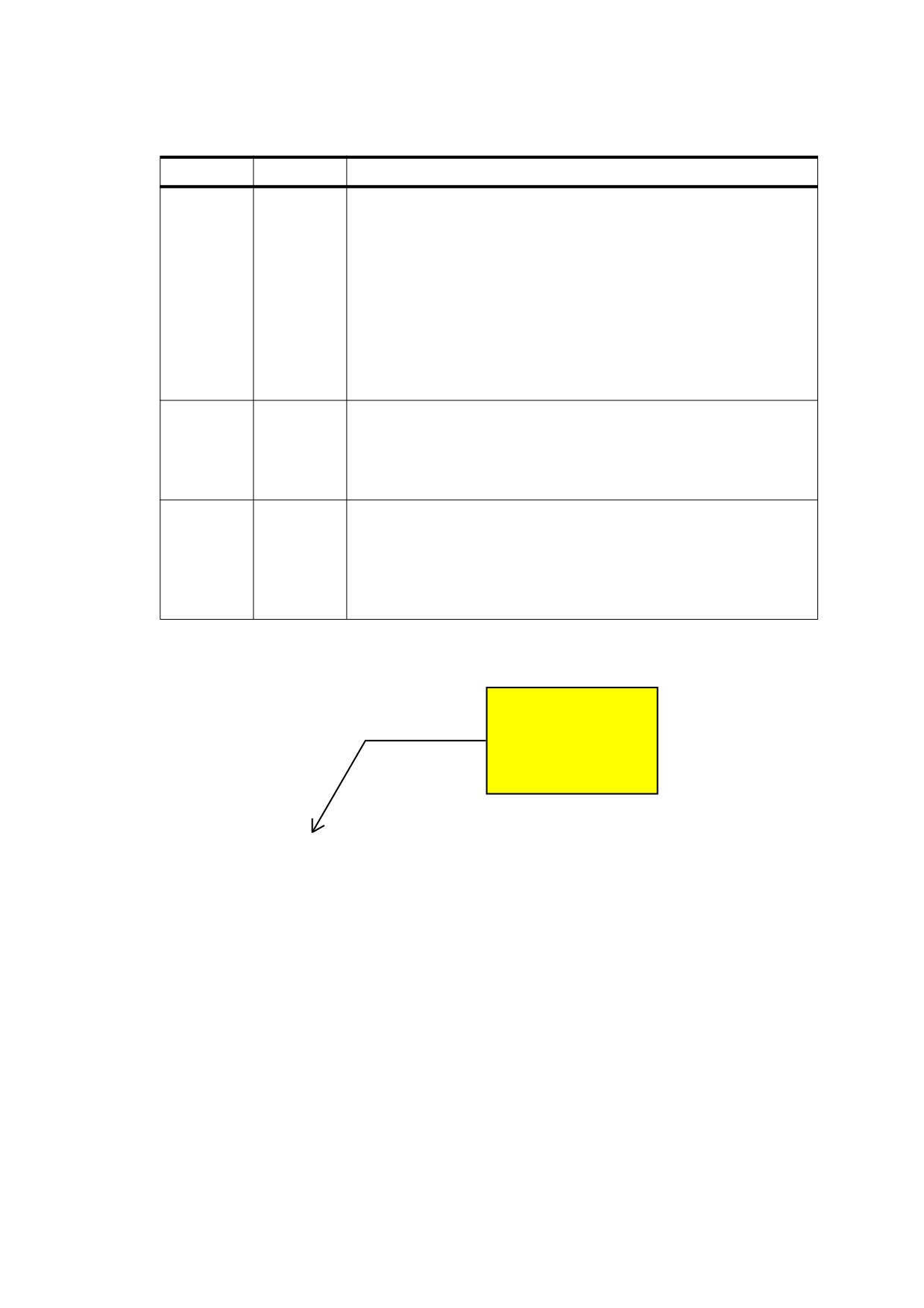
Table 174 - Additional entries specific to a free text annotation (continued)
Key
Type
Value
RD
rectangle
(Optional; PDF 1.6) A set of four numbers describing the numerical
differences between two rectangles: the Rect entry of the annotation and
a rectangle contained within that rectangle. The inner rectangle is where
the annotation’s text should be displayed. Any border styles and/or border
effects specified by BS and BE entries, respectively, shall be applied to
the border of the inner rectangle.
The four numbers correspond to the differences in default user space
between the left, top, right, and bottom coordinates of Rect and those of
the inner rectangle, respectively. Each value shall be greater than or
equal to 0. The sum of the top and bottom differences shall be less than
the height of Rect, and the sum of the left and right differences shall be
less than the width of Rect.
BS
dictionary
(Optional; PDF 1.6) A border style dictionary (see Table 166) specifying
the line width and dash pattern that shall be used in drawing the
annotation’s border.
The annotation dictionary’s AP entry, if present, takes precedence over
the BS entry; see Table 164 and 12.5.5, “Appearance Streams”.
LE
name
(Optional; meaningful only if CL is present; PDF 1.6) A name specifying
the line ending style that shall be used in drawing the callout line specified
in CL. The name shall specify the line ending style for the endpoint
defined by the pairs of coordinates (x1, y1). Table 176 shows the possible
line ending styles.
Default value: None.
Free text with callouts
x2, y2
x3, y3
x1, y1
Figure 59 - Free text annotation with callout
12.5.6.7
Line Annotations
The purpose of a line annotation (PDF 1.3) is to display a single straight line on the page. When opened, it shall
display a pop-up window containing the text of the associated note. Table 175 shows the annotation dictionary
entries specific to this type of annotation.
397

Table 175 - Additional entries specific to a line annotation
Key
Type
Value
Subtype
name
(Required) The type of annotation that this dictionary describes; shall be
Line for a line annotation.
L
array
(Required) An array of four numbers,
[x1 y1 x2 y2 ], specifying the
starting and ending coordinates of the line in default user space.
If the LL entry is present, this value shall represent the endpoints of the
leader lines rather than the endpoints of the line itself; see Figure 60.
BS
dictionary
(Optional) A border style dictionary (see Table 166) specifying the width
and dash pattern that shall be used in drawing the line.
The annotation dictionary’s AP entry, if present, shall take precedence
over the L and BS entries; see Table 168 and 12.5.5, “Appearance
Streams.”
LE
array
(Optional; PDF 1.4) An array of two names specifying the line ending
styles that shall be used in drawing the line. The first and second
elements of the array shall specify the line ending styles for the endpoints
defined, respectively, by the first and second pairs of coordinates, (x1 , y1 )
and (x2 , y2 ), in the L array. Table 176 shows the possible values. Default
value: [ /None /None ].
IC
array
(Optional; PDF 1.4) An array of numbers in the range 0.0 to 1.0 specifying
the interior color that shall be used to fill the annotation’s line endings
(see Table 176). The number of array elements shall determine the colour
space in which the colour is defined:
0
No colour; transparent
1
DeviceGray
3
DeviceRGB
4
DeviceCMYK
LL
number
(Required if LLE is present, otherwise optional; PDF 1.6) The length of
leader lines in default user space that extend from each endpoint of the
line perpendicular to the line itself, as shown in Figure 60. A positive value
shall mean that the leader lines appear in the direction that is clockwise
when traversing the line from its starting point to its ending point (as
specified by L); a negative value shall indicate the opposite direction.
Default value: 0 (no leader lines).
LLE
number
(Optional; PDF 1.6) A non-negative number that shall represents the
length of leader line extensions that extend from the line proper 180
degrees from the leader lines, as shown in Figure 60.
Default value: 0 (no leader line extensions).
Cap
boolean
(Optional; PDF 1.6) If true, the text specified by the Contents or RC
entries shall be replicated as a caption in the appearance of the line, as
shown in Figure 61 and Figure 62. The text shall be rendered in a manner
appropriate to the content, taking into account factors such as writing
direction.
Default value: false.
IT
name
(Optional; PDF 1.6) A name describing the intent of the line annotation
(see also Table 170). Valid values shall be LineArrow, which means that
the annotation is intended to function as an arrow, and LineDimension,
which means that the annotation is intended to function as a dimension
line.
398
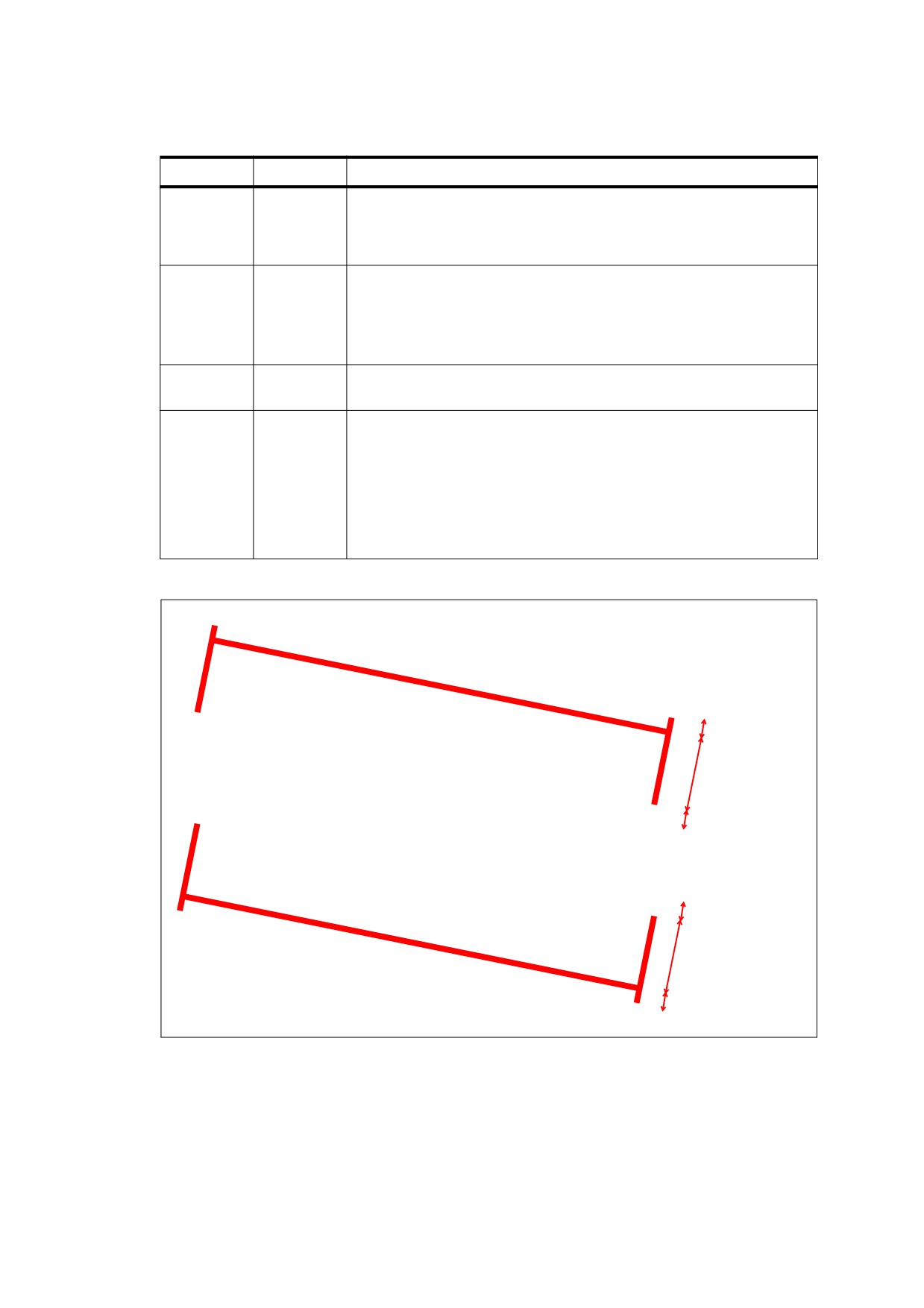
Table 175 - Additional entries specific to a line annotation (continued)
Key
Type
Value
LLO
number
(Optional; PDF 1.7) A non-negative number that shall represent the
length of the leader line offset, which is the amount of empty space
between the endpoints of the annotation and the beginning of the leader
lines.
CP
name
(Optional; meaningful only if Cap is true; PDF 1.7) A name describing the
annotation’s caption positioning. Valid values are Inline, meaning the
caption shall be centered inside the line, and Top, meaning the caption
shall be on top of the line.
Default value: Inline
Measure
dictionary
(Optional; PDF 1.7) A measure dictionary (see Table 261) that shall
specify the scale and units that apply to the line annotation.
CO
array
(Optional; meaningful only if Cap is true; PDF 1.7) An array of two
numbers that shall specify the offset of the caption text from its normal
position. The first value shall be the horizontal offset along the annotation
line from its midpoint, with a positive value indicating offset to the right
and a negative value indicating offset to the left. The second value shall
be the vertical offset perpendicular to the annotation line, with a positive
value indicating a shift up and a negative value indicating a shift down.
Default value: [0, 0] (no offset from normal positioning)
/LLE 10 -- 10 point leader
line extension
/LL 50 -- 50 point leader line
/LLO 10 -- 10 point leader
line offset
/LLO 10 -- 10 point leader
line offset
/LL -50 -- 50 point inverse
leader line
/LLE 10 -- 10 point leader
line extension
Figure 60 - Leader lines
399
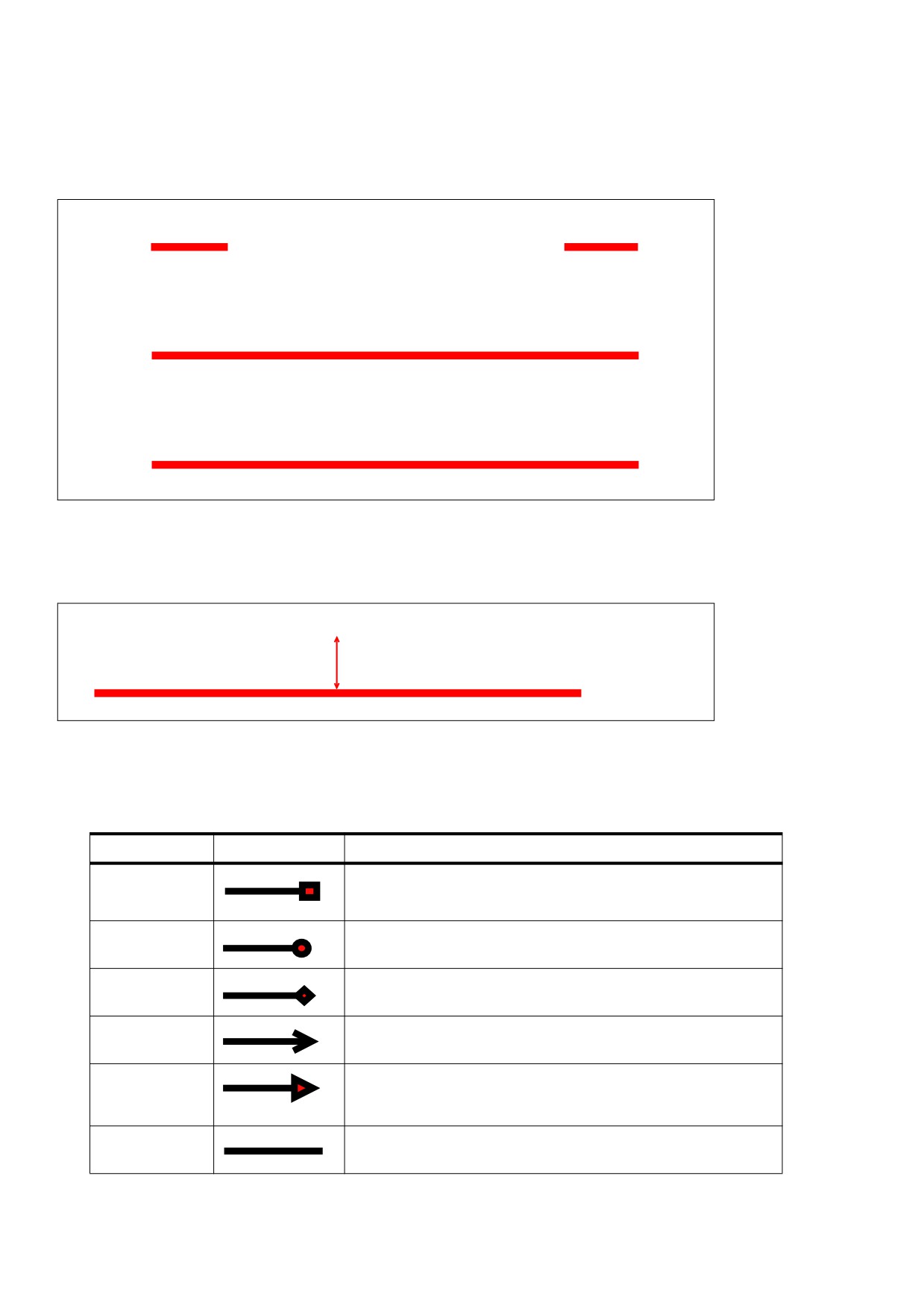
Figure 61 illustrates the effect of including a caption to a line annotation, which is specified by setting Cap to
true.
This is an inside caption
This is a top caption
This is a caption that is longer than the line
Figure 61 - Lines with captions appearing as part of the line
Figure 62 illustrates the effect of applying a caption to a line annotation that has a leader offset.
This is an offset caption
/CO [30, 15] -- 30 point horizontal offset along the annotation line
and 15 point vertical offset perpendicular to the annotation line
Figure 62 - Line with a caption appearing as part of the offset
Table 176 - Line ending styles
Name
Appearance
Description
Square
A square filled with the annotation’s interior color, if any
Circle
A circle filled with the annotation’s interior color, if any
Diamond
A diamond shape filled with the annotation’s interior color, if any
OpenArrow
Two short lines meeting in an acute angle to form an open
arrowhead
ClosedArrow
Two short lines meeting in an acute angle as in the OpenArrow style
and connected by a third line to form a triangular closed arrowhead
filled with the annotation’s interior color, if any
None
No line ending
400
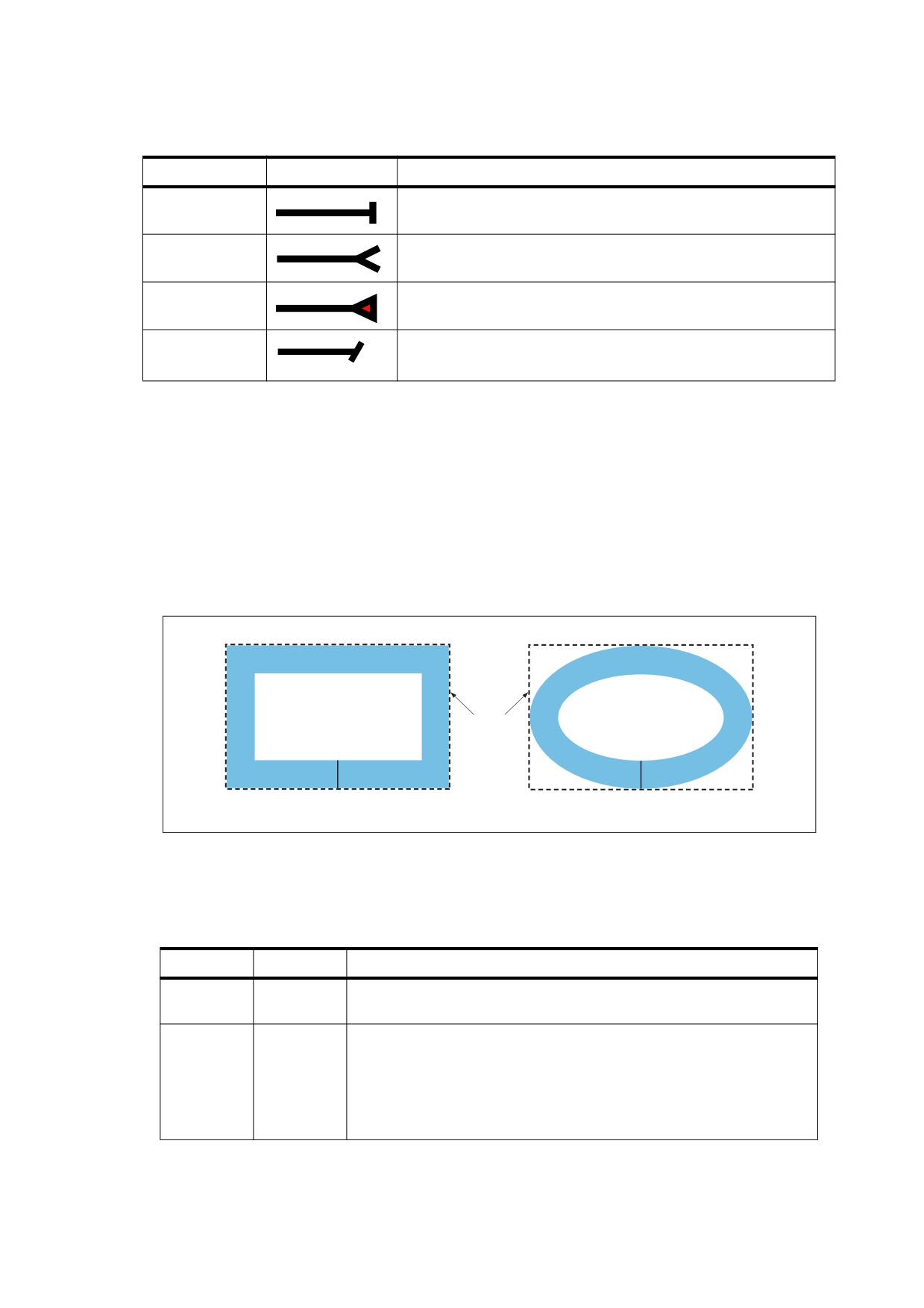
Table 176 - Line ending styles (continued)
Name
Appearance
Description
Butt
(PDF 1.5) A short line at the endpoint perpendicular to the line itself
ROpenArrow
(PDF 1.5) Two short lines in the reverse direction from OpenArrow
RClosedArrow
(PDF 1.5) A triangular closed arrowhead in the reverse direction
from ClosedArrow
Slash
(PDF 1.6) A short line at the endpoint approximately 30 degrees
clockwise from perpendicular to the line itself
12.5.6.8
Square and Circle Annotations
Square and circle annotations (PDF 1.3) shall display, respectively, a rectangle or an ellipse on the page. When
opened, they shall display a pop-up window containing the text of the associated note. The rectangle or ellipse
shall be inscribed within the annotation rectangle defined by the annotation dictionary’s Rect entry (see
Table 168).
Figure 63 shows two annotations, each with a border width of 18 points. Despite the names square and circle,
the width and height of the annotation rectangle need not be equal. Table 177 shows the annotation dictionary
entries specific to these types of annotations.
Rect
18 pt
18 pt
Square annotation
Circle annotation
Figure 63 - Square and circle annotations
Table 177 - Additional entries specific to a square or circle annotation
Key
Type
Value
Subtype
name
(Required) The type of annotation that this dictionary describes; shall be
Square or Circle for a square or circle annotation, respectively.
BS
dictionary
(Optional) A border style dictionary (see Table 166) specifying the line
width and dash pattern that shall be used in drawing the rectangle or
ellipse.
The annotation dictionary’s AP entry, if present, shall take precedence
over the Rect and BS entries; see Table 168 and 12.5.5, “Appearance
Streams.”
401
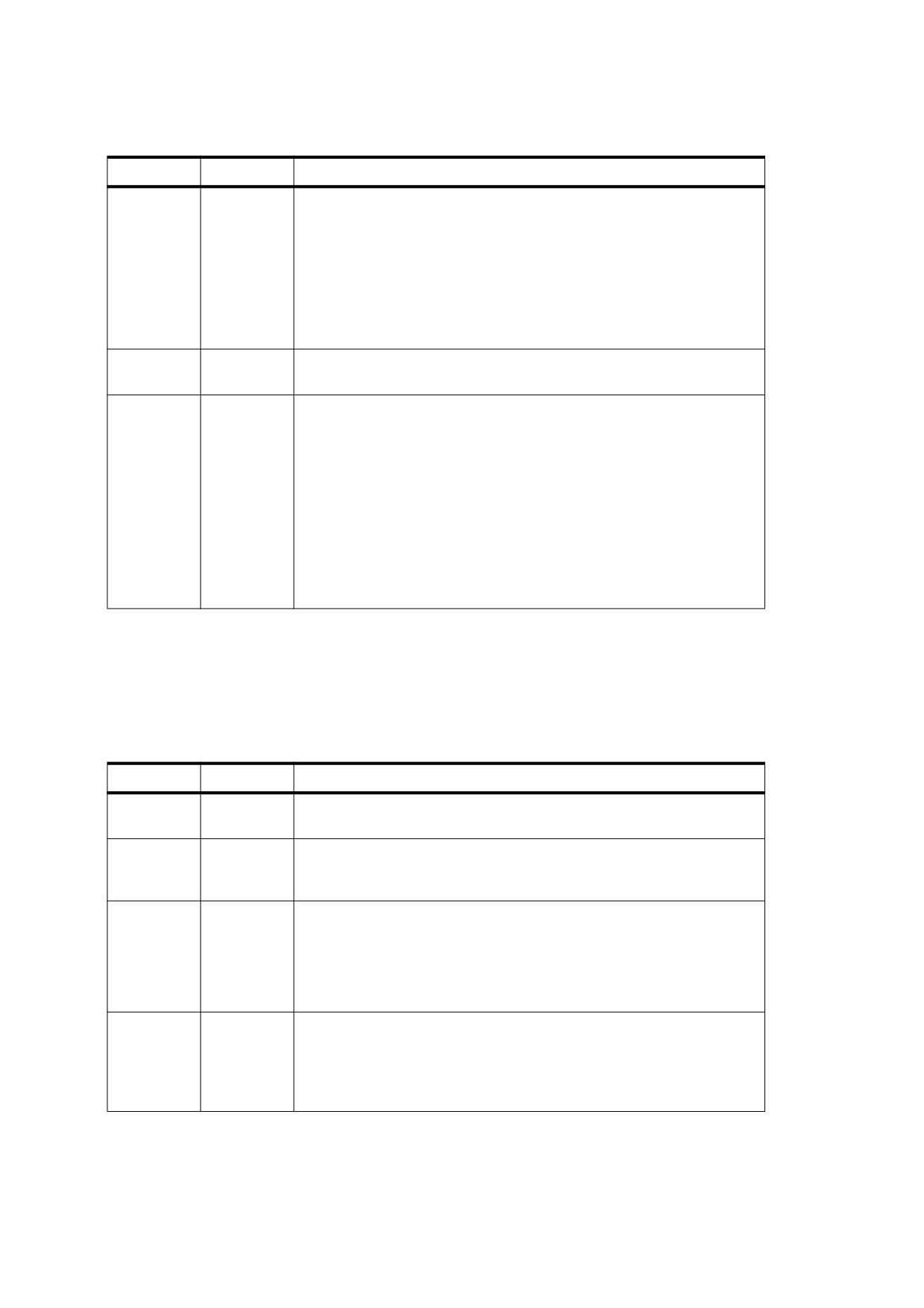
Table 177 - Additional entries specific to a square or circle annotation (continued)
Key
Type
Value
IC
array
(Optional; PDF 1.4) An array of numbers that shall be in the range 0.0 to
1.0 and shall specify the interior color with which to fill the annotation’s
rectangle or ellipse. The number of array elements determines the colour
space in which the colour shall be defined:
0
No colour; transparent
1
DeviceGray
3
DeviceRGB
4
DeviceCMYK
BE
dictionary
(Optional; PDF 1.5) A border effect dictionary describing an effect applied
to the border described by the BS entry (see Table 167).
RD
rectangle
(Optional; PDF
1.5) A set of four numbers that shall describe the
numerical differences between two rectangles: the Rect entry of the
annotation and the actual boundaries of the underlying square or circle.
Such a difference may occur in situations where a border effect
(described by BE) causes the size of the Rect to increase beyond that of
the square or circle.
The four numbers shall correspond to the differences in default user
space between the left, top, right, and bottom coordinates of Rect and
those of the square or circle, respectively. Each value shall be greater
than or equal to 0. The sum of the top and bottom differences shall be
less than the height of Rect, and the sum of the left and right differences
shall be less than the width of Rect.
12.5.6.9
Polygon and Polyline Annotations
Polygon annotations (PDF 1.5) display closed polygons on the page. Such polygons may have any number of
vertices connected by straight lines. Polyline annotations (PDF 1.5) are similar to polygons, except that the first
and last vertex are not implicitly connected.
Table 178 - Additional entries specific to a polygon or polyline annotation
Key
Type
Value
Subtype
name
(Required) The type of annotation that this dictionary describes; shall be
Polygon or PolyLine for a polygon or polyline annotation, respectively.
Vertices
array
(Required) An array of numbers (see Table 174) specifying the width and
dash pattern that shall represent the alternating horizontal and vertical
coordinates, respectively, of each vertex, in default user space.
LE
array
(Optional; meaningful only for polyline annotations) An array of two
names that shall specify the line ending styles. The first and second
elements of the array shall specify the line ending styles for the endpoints
defined, respectively, by the first and last pairs of coordinates in the
Vertices array. Table 176 shows the possible values. Default value: [ /
None /None ].
BS
dictionary
(Optional) A border style dictionary (see Table 166) specifying the width
and dash pattern that shall be used in drawing the line.
The annotation dictionary’s AP entry, if present, shall take precedence
over the Vertices and BS entries; see Table 168 and
12.5.5,
“Appearance Streams.”
402
Table 178 - Additional entries specific to a polygon or polyline annotation (continued)
Key
Type
Value
IC
array
(Optional; PDF 1.4) An array of numbers that shall be in the range 0.0 to
1.0 and shall specify the interior color with which to fill the annotation’s
line endings (see Table 176). The number of array elements determines
the colour space in which the colour shall be defined:
0
No colour; transparent
1
DeviceGray
3
DeviceRGB
4
DeviceCMYK
BE
dictionary
(Optional; meaningful only for polygon annotations) A border effect
dictionary that shall describe an effect applied to the border described by
the BS entry (see Table 167).
IT
name
(Optional; PDF 1.6) A name that shall describe the intent of the polygon
or polyline annotation (see also Table 170). The following values shall be
valid:
PolygonCloud
The annotation is intended to function as a cloud
object.
PolyLineDimension
(PDF 1.7) The polyline annotation is intended to
function as a dimension.
PolygonDimension
(PDF 1.7) The polygon annotation is intended to
function as a dimension.
Measure
dictionary
(Optional; PDF 1.7) A measure dictionary (see Table 261) that shall
specify the scale and units that apply to the annotation.
12.5.6.10
Text Markup Annotations
Text markup annotations shall appear as highlights, underlines, strikeouts (all PDF 1.3), or jagged (“squiggly”)
underlines (PDF 1.4) in the text of a document. When opened, they shall display a pop-up window containing
the text of the associated note. Table 179 shows the annotation dictionary entries specific to these types of
annotations.
Table 179 - Additional entries specific to text markup annotations
Key
Type
Value
Subtype
name
(Required) The type of annotation that this dictionary describes; shall
be Highlight, Underline, Squiggly, or StrikeOut for a highlight,
underline, squiggly-underline, or strikeout annotation, respectively.
QuadPoints
array
(Required) An array of 8 × n numbers specifying the coordinates of n
quadrilaterals in default user space. Each quadrilateral shall
encompasses a word or group of contiguous words in the text
underlying the annotation. The coordinates for each quadrilateral shall
be given in the order
x1 y1 x2 y2 x3 y3 x4 y4
specifying the quadrilateral’s four vertices in counterclockwise order
(see Figure 64). The text shall be oriented with respect to the edge
connecting points (x1 , y1) and (x2 , y2).
The annotation dictionary’s AP entry, if present, shall take precedence
over QuadPoints; see Table 168 and 12.5.5, “Appearance Streams.”
403

(x3
, y3
)
(x2, y2)
(x4
, y4
)
(x1
, y1
)
Figure 64 - QuadPoints specification
12.5.6.11
Caret Annotations
A caret annotation (PDF 1.5) is a visual symbol that indicates the presence of text edits. Table 180 lists the
entries specific to caret annotations.
Table 180 - Additional entries specific to a caret annotation
Key
Type
Value
Subtype
name
(Required) The type of annotation that this dictionary describes; shall be
Caret for a caret annotation.
RD
rectangle
(Optional; PDF
1.5) A set of four numbers that shall describe the
numerical differences between two rectangles: the Rect entry of the
annotation and the actual boundaries of the underlying caret. Such a
difference can occur. When a paragraph symbol specified by Sy is
displayed along with the caret.
The four numbers shall correspond to the differences in default user
space between the left, top, right, and bottom coordinates of Rect and
those of the caret, respectively. Each value shall be greater than or equal
to 0. The sum of the top and bottom differences shall be less than the
height of Rect, and the sum of the left and right differences shall be less
than the width of Rect.
Sy
name
(Optional) A name specifying a symbol that shall be associated with the
caret:
P
A new paragraph symbol (¶) should be associated with the
caret.
None
No symbol should be associated with the caret.
Default value: None.
12.5.6.12
Rubber Stamp Annotations
A rubber stamp annotation (PDF 1.3) displays text or graphics intended to look as if they were stamped on the
page with a rubber stamp. When opened, it shall display a pop-up window containing the text of the associated
note. Table 181 shows the annotation dictionary entries specific to this type of annotation.
404
Table 181 - Additional entries specific to a rubber stamp annotation
Key
Type
Value
Subtype
name
(Required) The type of annotation that this dictionary describes; shall be
Stamp for a rubber stamp annotation.
Name
name
(Optional) The name of an icon that shall be used in displaying the
annotation. Conforming readers shall provide predefined icon
appearances for at least the following standard names:
Approved, Experimental, NotApproved, AsIs, Expired
,
NotForPublicRelease, Confidential, Final,
Sold,
Departmental,
ForComment, TopSecret, Draft, ForPublicRelease
Additional names may be supported as well. Default value: Draft.
The annotation dictionary’s AP entry, if present, shall take precedence
over the Name entry; see Table 168 and 12.5.5, “Appearance Streams.”
12.5.6.13
Ink Annotations
An ink annotation (PDF 1.3) represents a freehand “scribble” composed of one or more disjoint paths. When
opened, it shall display a pop-up window containing the text of the associated note. Table 182 shows the
annotation dictionary entries specific to this type of annotation.
Table 182 - Additional entries specific to an ink annotation
Key
Type
Value
Subtype
name
(Required) The type of annotation that this dictionary describes; shall be
Ink for an ink annotation.
InkList
array
(Required) An array of n arrays, each representing a stroked path. Each
array shall be a series of alternating horizontal and vertical coordinates in
default user space, specifying points along the path. When drawn, the
points shall be connected by straight lines or curves in an
implementation-dependent way.
BS
dictionary
(Optional) A border style dictionary (see Table 166) specifying the line
width and dash pattern that shall be used in drawing the paths.
The annotation dictionary’s AP entry, if present, shall take precedence
over the InkList and BS entries; see Table 168 and 12.5.5, “Appearance
Streams.”
12.5.6.14
Pop-up Annotations
A pop-up annotation (PDF 1.3) displays text in a pop-up window for entry and editing. It shall not appear alone
but is associated with a markup annotation, its parent annotation, and shall be used for editing the parent’s text.
It shall have no appearance stream or associated actions of its own and shall be identified by the Popup entry
in the parent’s annotation dictionary (see Table 174). Table 183 shows the annotation dictionary entries specific
to this type of annotation.
405

Table 183 - Additional entries specific to a pop-up annotation
Key
Type
Value
Subtype
name
(Required) The type of annotation that this dictionary describes; shall
be Popup for a pop-up annotation.
Parent
dictionary
(Optional; shall be an indirect reference) The parent annotation with
which this pop-up annotation shall be associated.
If this entry is present, the parent annotation’s Contents, M, C, and T
entries (see Table 168) shall override those of the pop-up annotation
itself.
Open
boolean
(Optional) A flag specifying whether the pop-up annotation shall
initially be displayed open. Default value: false (closed).
12.5.6.15
File Attachment Annotations
A file attachment annotation (PDF 1.3) contains a reference to a file, which typically shall be embedded in the
PDF file (see 7.11.4, “Embedded File Streams”).
NOTE
A table of data might use a file attachment annotation to link to a spreadsheet file based on that data; activating
the annotation extracts the embedded file and gives the user an opportunity to view it or store it in the file
system. Table 184 shows the annotation dictionary entries specific to this type of annotation.
The Contents entry of the annotation dictionary may specify descriptive text relating to the attached file.
Conforming readers shall use this entry rather than the optional Desc entry (PDF 1.6) in the file specification
dictionary (see Table 44) identified by the annotation’s FS entry.
Table 184 - Additional entries specific to a file attachment annotation
Key
Type
Value
Subtype
name
(Required) The type of annotation that this dictionary describes; shall
be FileAttachment for a file attachment annotation.
FS
file specification
(Required) The file associated with this annotation.
Name
name
(Optional) The name of an icon that shall be used in displaying the
annotation. Conforming readers shall provide predefined icon
appearances for at least the following standard names:
GraphPushPin
PaperclipTag
Additional names may be supported as well. Default value: PushPin.
The annotation dictionary’s AP entry, if present, shall take precedence
over the Name entry; see Table 168 and
12.5.5,
“Appearance
Streams.”
12.5.6.16
Sound Annotations
A sound annotation (PDF 1.2) shall analogous to a text annotation except that instead of a text note, it contains
sound recorded from the computer’s microphone or imported from a file. When the annotation is activated, the
sound shall be played. The annotation shall behave like a text annotation in most ways, with a different icon (by
default, a speaker) to indicate that it represents a sound. Table 185 shows the annotation dictionary entries
specific to this type of annotation. Sound objects are discussed in 13.3, “Sounds.”
406
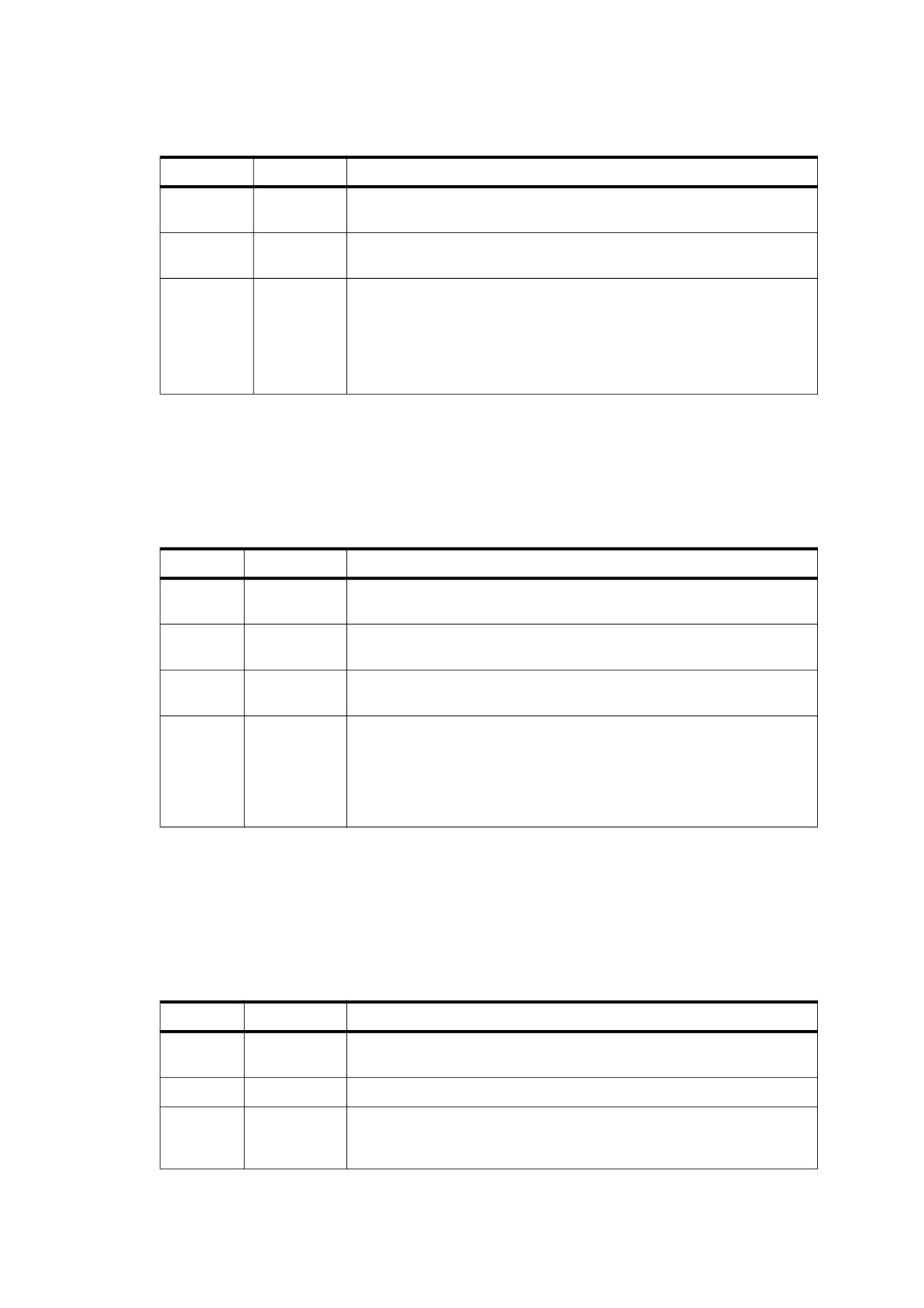
Table 185 - Additional entries specific to a sound annotation
Key
Type
Value
Subtype
name
(Required) The type of annotation that this dictionary describes; shall be
Sound for a sound annotation.
Sound
stream
(Required) A sound object defining the sound that shall be played when
the annotation is activated (see 13.3, “Sounds”).
Name
name
(Optional) The name of an icon that shall be used in displaying the
annotation. Conforming readers shall provide predefined icon
appearances for at least the standard names Speaker and Mic. Additional
names may be supported as well. Default value: Speaker.
The annotation dictionary’s AP entry, if present, shall take precedence
over the Name entry; see Table 168 and 12.5.5, “Appearance Streams.”
12.5.6.17
Movie Annotations
A movie annotation (PDF 1.2) contains animated graphics and sound to be presented on the computer screen
and through the speakers. When the annotation is activated, the movie shall be played. Table 186 shows the
annotation dictionary entries specific to this type of annotation. Movies are discussed in 13.4, “Movies.”
Table 186 - Additional entries specific to a movie annotation
Key
Type
Value
Subtype
name
(Required) The type of annotation that this dictionary describes; shall be
Movie for a movie annotation.
T
text string
(Optional) The title of the movie annotation. Movie actions (12.6.4.9,
“Movie Actions”) may use this title to reference the movie annotation.
Movie
dictionary
(Required) A movie dictionary that shall describe the movie’s static
characteristics (see 13.4, “Movies”).
A
boolean or
(Optional) A flag or dictionary specifying whether and how to play the
dictionary
movie when the annotation is activated. If this value is a dictionary, it shall
be a movie activation dictionary (see 13.4, “Movies”) specifying how to
play the movie. If the value is the boolean true, the movie shall be played
using default activation parameters. If the value is false, the movie shall
not be played. Default value: true.
12.5.6.18
Screen Annotations
A screen annotation (PDF 1.5) specifies a region of a page upon which media clips may be played. It also
serves as an object from which actions can be triggered. 12.6.4.13, “Rendition Actions” discusses the
relationship between screen annotations and rendition actions. Table 187 shows the annotation dictionary
entries specific to this type of annotation.
Table 187 - Additional entries specific to a screen annotation
Key
Type
Value
Subtype
name
(Required) The type of annotation that this dictionary describes; shall be
Screen for a screen annotation.
T
text string
(Optional) The title of the screen annotation.
MK
dictionary
(Optional) An appearance characteristics dictionary (see Table 189). The
I entry of this dictionary provides the icon used in generating the
appearance referred to by the screen annotation’s AP entry.
407

Table 187 - Additional entries specific to a screen annotation (continued)
Key
Type
Value
A
dictionary
(Optional; PDF 1.1) An action that shall be performed when the
annotation is activated (see 12.6, “Actions”).
AA
dictionary
(Optional; PDF 1.2) An additional-actions dictionary defining the screen
annotation’s behaviour in response to various trigger events (see 12.6.3,
“Trigger Events”).
In addition to the entries in Table 187, screen annotations may use the common entries in the annotation
dictionary (see Table 164) in the following ways:
•
The P entry shall be used for a screen annotation referenced by a rendition action. It shall reference a valid
page object, and the annotation shall be present in the page’s Annots array for the action to be valid.
•
The AP entry refers to an appearance dictionary (see Table 168) whose normal appearance provides the
visual appearance for a screen annotation that shall be used for printing and default display when a media
clip is not being played. If AP is not present, the screen annotation shall not have a default visual
appearance and shall not be printed.
12.5.6.19
Widget Annotations
Interactive forms (see 12.7, “Interactive Forms”) use widget annotations (PDF 1.2) to represent the appearance
of fields and to manage user interactions. As a convenience, when a field has only a single associated widget
annotation, the contents of the field dictionary (12.7.3, “Field Dictionaries”) and the annotation dictionary may
be merged into a single dictionary containing entries that pertain to both a field and an annotation.
NOTE
This presents no ambiguity, since the contents of the two kinds of dictionaries do not conflict.
Table 188 shows the annotation dictionary entries specific to this type of annotation; interactive forms and fields
are discussed at length in 12.7, “Interactive Forms.”
Table 188 - Additional entries specific to a widget annotation
Key
Type
Value
Subtype
name
(Required) The type of annotation that this dictionary describes; shall be
Widget for a widget annotation.
H
name
(Optional) The annotation’s highlighting mode, the visual effect that shall
be used when the mouse button is pressed or held down inside its active
area:
N
(None) No highlighting.
I
(Invert) Invert the contents of the annotation rectangle.
O
(Outline) Invert the annotation’s border.
P
(Push) Display the annotation’s down appearance, if any (see
12.5.5, “Appearance Streams”). If no down appearance is defined,
the contents of the annotation rectangle shall be offset to appear
as if it were being pushed below the surface of the page.
T
(Toggle) Same as P (which is preferred).
A highlighting mode other than P shall override any down appearance
defined for the annotation. Default value: I.
MK
dictionary
(Optional) An appearance characteristics dictionary (see Table 189) that
shall be used in constructing a dynamic appearance stream specifying
the annotation’s visual presentation on the page.
The name MK for this entry is of historical significance only and has no
direct meaning.
408
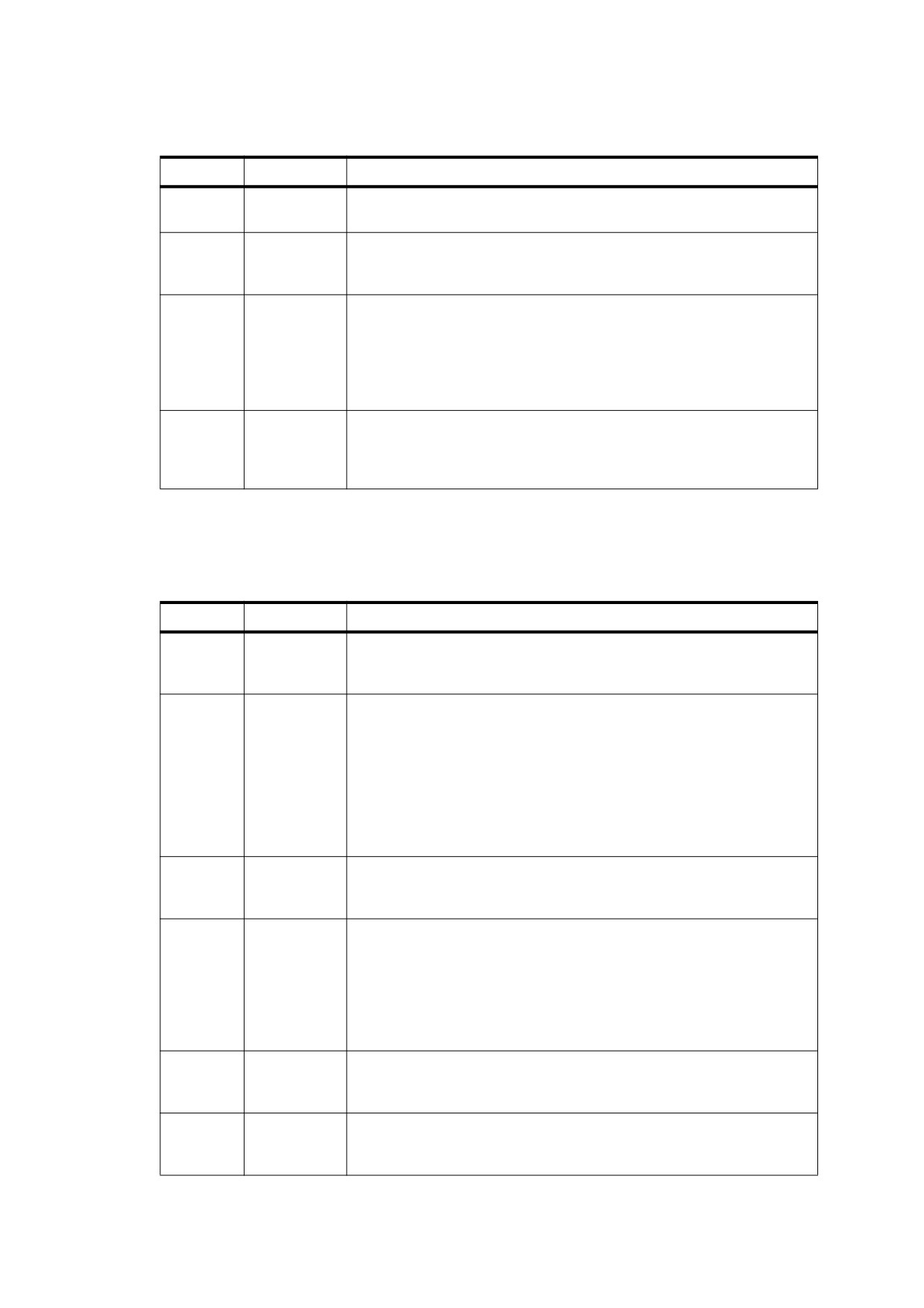
Table 188 - Additional entries specific to a widget annotation (continued)
Key
Type
Value
A
dictionary
(Optional; PDF 1.1) An action that shall be performed when the
annotation is activated (see 12.6, “Actions”).
AA
dictionary
(Optional; PDF 1.2) An additional-actions dictionary defining the
annotation’s behaviour in response to various trigger events (see 12.6.3,
“Trigger Events”).
BS
dictionary
(Optional; PDF 1.2) A border style dictionary (see Table 166) specifying
the width and dash pattern that shall be used in drawing the annotation’s
border.
The annotation dictionary’s AP entry, if present, shall take precedence
over the L and BS entries; see Table 168 and 12.5.5, “Appearance
Streams.”
Parent
dictionary
(Required if this widget annotation is one of multiple children in a field;
absent otherwise) An indirect reference to the widget annotation’s parent
field. A widget annotation may have at most one parent; that is, it can be
included in the Kids array of at most one field
The MK entry may be used to provide an appearance characteristics dictionary containing additional
information for
constructing the annotation’s appearance stream. Table 189 shows the contents
of
this
dictionary.
Table 189 - Entries in an appearance characteristics dictionary
Key
Type
Value
R
integer
(Optional) The number of degrees by which the widget annotation shall
be rotated counterclockwise relative to the page. The value shall be a
multiple of 90. Default value: 0.
BC
array
(Optional) An array of numbers that shall be in the range 0.0 to 1.0
specifying the colour of the widget annotation’s border. The number of
array elements determines the colour space in which the colour shall be
defined:
0
No colour; transparent
1
DeviceGray
3
DeviceRGB
4
DeviceCMYK
BG
array
(Optional) An array of numbers that shall be in the range 0.0 to 1.0
specifying the colour of the widget annotation’s background. The number
of array elements shall determine the colour space, as described for BC.
CA
text string
(Optional; button fields only) The widget annotation’s normal caption,
which shall be displayed when it is not interacting with the user.
Unlike the remaining entries listed in this Table, which apply only to
widget annotations associated with pushbutton fields (see Pushbuttons in
12.7.4.2, “Button Fields”), the CA entry may be used with any type of
button field, including check boxes (see Check Boxes in 12.7.4.2, “Button
Fields”) and radio buttons (Radio Buttons in 12.7.4.2, “Button Fields”).
RC
text string
(Optional; pushbutton fields only) The widget annotation’s rollover
caption, which shall be displayed when the user rolls the cursor into its
active area without pressing the mouse button.
AC
text string
(Optional; pushbutton fields only) The widget annotation’s alternate
(down) caption, which shall be displayed when the mouse button is
pressed within its active area.
409

Table 189 - Entries in an appearance characteristics dictionary (continued)
Key
Type
Value
I
stream
(Optional; pushbutton fields only; shall be an indirect reference) A form
XObject defining the widget annotation’s normal icon, which shall be
displayed when it is not interacting with the user.
RI
stream
(Optional; pushbutton fields only; shall be an indirect reference) A form
XObject defining the widget annotation’s rollover icon, which shall be
displayed when the user rolls the cursor into its active area without
pressing the mouse button.
IX
stream
(Optional; pushbutton fields only; shall be an indirect reference) A form
XObject defining the widget annotation’s alternate (down) icon, which
shall be displayed when the mouse button is pressed within its active
area.
IF
dictionary
(Optional; pushbutton fields only) An icon fit dictionary (see Table 247)
specifying how the widget annotation’s icon shall be displayed within its
annotation rectangle. If present, the icon fit dictionary shall apply to all of
the annotation’s icons (normal, rollover, and alternate).
TP
integer
(Optional; pushbutton fields only) A code indicating where to position the
text of the widget annotation’s caption relative to its icon:
0
No icon; caption only
1
No caption; icon only
2
Caption below the icon
3
Caption above the icon
4
Caption to the right of the icon
5
Caption to the left of the icon
6
Caption overlaid directly on the icon
Default value: 0.
12.5.6.20
Printer’s Mark Annotations
A printer’s mark annotation (PDF 1.4) represents a graphic symbol, such as a registration target, colour bar, or
cut mark, that may be added to a page to assist production personnel in identifying components of a multiple-
plate job and maintaining consistent output during production. See 14.11.3, “Printer’s Marks,” for further
discussion.
12.5.6.21
Trap Network Annotations
A trap network annotation (PDF 1.3) may be used to define the trapping characteristics for a page of a PDF
document.
NOTE
Trapping is the process of adding marks to a page along colour boundaries to avoid unwanted visual artifacts
resulting from misregistration of colorants when the page is printed.
A page shall have no more than one trap network annotation, whose Subtype entry has the value TrapNet and
which shall always be the last element in the page object’s Annots array (see 7.7.3.3, “Page Objects”). See
14.11.6, “Trapping Support,” for further discussion.
12.5.6.22
Watermark Annotations
A watermark annotation (PDF 1.6) shall be used to represent graphics that shall be printed at a fixed size and
position on a page, regardless of the dimensions of the printed page. The FixedPrint entry of a watermark
annotation dictionary (see Table 190) shall be a dictionary that contains values for specifying the size and
position of the annotation (see Table 191).
410
Watermark annotations shall have no pop-up window or other interactive elements. When displaying a
watermark annotation on-screen, conforming readers shall use the dimensions of the media box as the page
size so that the scroll and zoom behaviour is the same as for other annotations.
NOTE
Since many printing devices have non printable margins, such margins should be taken into consideration
when positioning watermark annotations near the edge of a page.
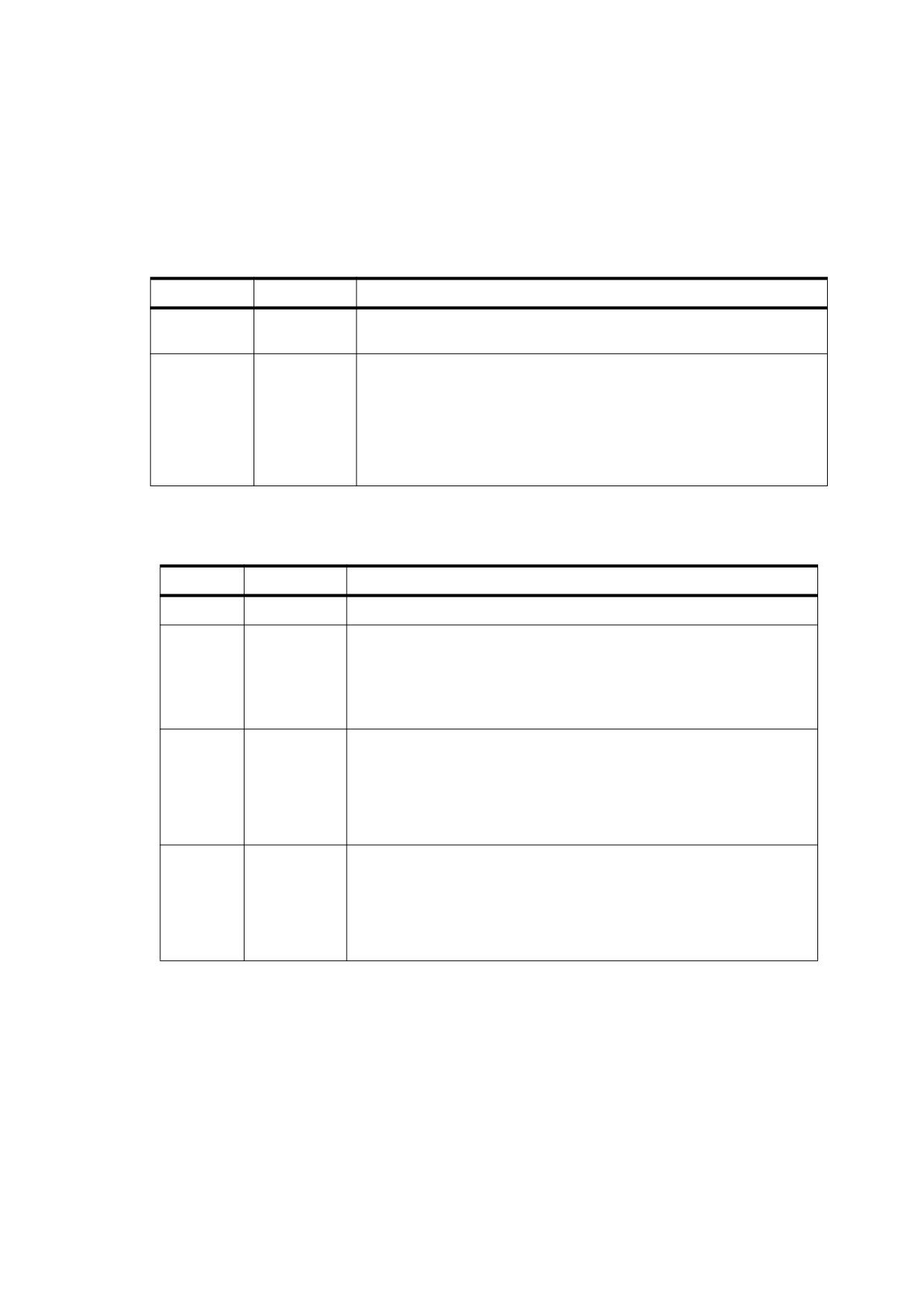
Table 190 - Additional entries specific to a watermark annotation
Key
Type
Value
Subtype
name
(Required) The type of annotation that this dictionary describes; shall be
Watermark for a watermark annotation.
FixedPrint
dictionary
(Optional) A fixed print dictionary (see Table 191) that specifies how this
annotation shall be drawn relative to the dimensions of the target media. If
this entry is not present, the annotation shall be drawn without any special
consideration for the dimensions of the target media.
If the dimensions of the target media are not known at the time of
drawing, drawing shall be done relative to the dimensions specified by the
page’s MediaBox entry (see Table 30).
Table 191 - Entries in a fixed print dictionary
Key
Type
Value
Type
name
(Required) Shall be FixedPrint.
Matrix
array
(Optional) The matrix used to transform the annotation’s rectangle before
rendering.
Default value: the identity matrix [ 1
0 0 1 0 0 ].
When positioning content near the edge of a page, this entry should be
used to provide a reasonable offset to allow for nonburnable margins.
H
number
(Optional) The amount to translate the associated content horizontally, as
a percentage of the width of the target media (or if unknown, the width of
the page’s MediaBox). 1.0 represents 100% and 0.0 represents 0%.
Negative values should not be used, since they may cause content to be
drawn off the page.
Default value: 0.
V
number
(Optional) The amount to translate the associated content vertically, as a
percentage of the height of the target media (or if unknown, the height of
the page’s MediaBox). 1.0 represents 100% and 0.0 represents 0%.
Negative values should not be used, since they may cause content to be
drawn off the page.
Default value: 0.
When rendering a watermark annotation with a FixedPrint entry, the following behaviour shall occur:
•
The annotation’s rectangle (as specified by its Rect entry) shall be translated to the origin and transformed
by the Matrix entry of its FixedPrint dictionary to produce a quadrilateral with arbitrary orientation.
•
The transformed annotation rectangle shall be defined as the smallest upright rectangle that encompasses
this quadrilateral; it shall be used in place of the annotation rectangle referred to in steps 2 and 3 of
"Algorithm: Appearance streams".
In addition, given a matrix B that maps a scaled and rotated page into the default user space, a new matrix shall
be computed that cancels out B and translates the origin of the printed page to the origin of the default user
space. This transformation shall be applied to ensure the correct scaling and alignment.
411
EXAMPLE
The following example shows a watermark annotation that prints a text string one inch from the left and
one inch from the top of the printed page.
8 0 obj
% Watermark appearance
<<
/Length ...
/Subtype /Form
/Resources ...
/BBox ...
>>
stream
BT
/F1 1 Tf
36 0 0 36 0 -36 Tm
(Do Not Build) Tx
ET
endstream
endobj
9 0 obj
% Watermark annotation
<<
/Rect ...
/Type /Annot
/Subtype /Watermark
/FixedPrint 10 0 R
/AP <</N 8 0 R>>
>>
% in the page dictionary
/Annots [9 0 R]
10 0 obj
% Fixed print dictionary
<<
/Type /FixedPrint
/Matrix [1 0 0 1 72 -72]
% Translate one inch right and one inch down
/H 0
/V 1.0
% Translate the full height of the page vertically
>>
endobj
In situations other than the usual case where the PDF page size equals the printed page size, watermark
annotations with a FixedPrint entry shall be printed in the following manner:
•
When page tiling is selected in a conforming reader (that is, a single PDF page is printed on multiple
pages), the annotations shall be printed at the specified size and position on each page to ensure that any
enclosed content is present and legible on each printed page.
•
When n-up printing is selected (that is, multiple PDF pages are printed on a single page), the annotations
shall be printed at the specified size and shall be positioned as if the dimensions of the printed page were
limited to a single portion of the page. This ensures that any enclosed content does not overlap content
from other pages, thus rendering it illegible.
12.5.6.23
Redaction Annotations
A redaction annotation (PDF 1.7) identifies content that is intended to be removed from the document. The
intent of redaction annotations is to enable the following process:
a) Content identification. A user applies redact annotations that specify the pieces or regions of content that
should be removed. Up until the next step is performed, the user can see, move and redefine these
annotations.
412

b) Content removal. The user instructs the viewer application to apply the redact annotations, after which the
content in the area specified by the redact annotations is removed. In the removed content’s place, some
marking appears to indicate the area has been redacted. Also, the redact annotations are removed from
the PDF document.
Redaction annotations provide a mechanism for the first step in the redaction process (content identification).
This allows content to be marked for redaction in a non-destructive way, thus enabling a review process for
evaluating potential redactions prior to removing the specified content.
Redaction annotations shall provide enough information to be used in the second phase of the redaction
process (content removal). This phase is application-specific and requires the conforming reader to remove all
content identified by the redaction annotation, as well as the annotation itself.
Conforming readers that support redaction annotations shall provide a mechanism for applying content
removal, and they shall remove all traces of the specified content. If a portion of an image is contained in a
redaction region, that portion of the image data shall be destroyed; clipping or image masks shall not be used
to hide that data. Such conforming readers shall also be diligent in their consideration of all content that can
exist in a PDF document, including XML Forms Architecture (XFA) content and Extensible Metadata Platform
(XMP) content.
Table 192 - Additional entries specific to a redaction annotation
Key
Type
Value
Subtype
name
(Required) The type of annotation that this dictionary describes; shall
be Redact for a redaction annotation.
QuadPoints
array
(Optional) An array of 8 x n numbers specifying the coordinates of n
quadrilaterals in default user space, as described in Table 175 for text
markup annotations. If present, these quadrilaterals denote the
content region that is intended to be removed. If this entry is not
present, the Rect entry denotes the content region that is intended to
be removed.
IC
array
(Optional) An array of three numbers in the range
0.0 to
1.0
specifying the components, in the DeviceRGB colour space, of the
interior colour with which to fill the redacted region after the affected
content has been removed. If this entry is absent, the interior of the
redaction region is left transparent. This entry is ignored if the RO
entry is present.
RO
stream
(Optional) A form XObject specifying the overlay appearance for this
redaction annotation. After this redaction is applied and the affected
content has been removed, the overlay appearance should be drawn
such that its origin lines up with the lower-left corner of the annotation
rectangle. This form XObject is not necessarily related to other
annotation appearances, and may or may not be present in the AP
dictionary. This entry takes precedence over the IC, OverlayText,
DA, and Q entries.
OverlayText
text string
(Optional) A text string specifying the overlay text that should be
drawn over the redacted region after the affected content has been
removed. This entry is ignored if the RO entry is present.
Repeat
boolean
(Optional) If true, then the text specified by OverlayText should be
repeated to fill the redacted region after the affected content has been
removed. This entry is ignored if the RO entry is present. Default
value: false.
DA
byte string
(Required if OverlayText is present, ignored otherwise) The
appearance string to be used in formatting the overlay text when it is
drawn after the affected content has been removed (see 12.7.3.3,
“Variable Text”). This entry is ignored if the RO entry is present.
413

Table 192 - Additional entries specific to a redaction annotation (continued)
Key
Type
Value
Q
integer
(Optional) A code specifying the form of quadding (justification) to be
used in laying out the overlay text:
0 Left-justified
1 Centered
2 Right-justified
This entry is ignored if the RO entry is present. Default value: 0 (left-
justified).
12.6
Actions
12.6.1
General
In addition to jumping to a destination in the document, an annotation or outline item may specify an action
(PDF 1.1) to perform, such as launching an application, playing a sound, changing an annotation’s appearance
state. The optional A entry in the annotation or outline item dictionary (see Tables 168 and 153) specifies an
action performed when the annotation or outline item is activated; in PDF 1.2, a variety of other circumstances
may trigger an action as well (see 12.6.3, “Trigger Events”). In addition, the optional OpenAction entry in a
document’s catalogue (7.7.2, “Document Catalog”) may specify an action that shall be performed when the
document is opened. PDF includes a wide variety of standard action types, described in detail in 12.6.4, “Action
Types.”
12.6.2
Action Dictionaries
An action dictionary defines the characteristics and behaviour of an action. Table 193 shows the required and
optional entries that are common to all action dictionaries. The dictionary may contain additional entries specific
to a particular action type; see the descriptions of individual action types in 12.6.4, “Action Types,” for details.
Table 193 - Entries common to all action dictionaries
Key
Type
Value
Type
name
(Optional) The type of PDF object that this dictionary describes; if
present, shall be Action for an action dictionary.
S
name
(Required) The type of action that this dictionary describes; see
Table 194 for specific values.
Next
dictionary or array
(Optional; PDF 1.2) The next action or sequence of actions that
shall be performed after the action represented by this dictionary.
The value is either a single action dictionary or an array of action
dictionaries that shall be performed in order; see the Note for
further discussion.
NOTE 1
The action dictionary’s Next entry (PDF 1.2) allows sequences of actions to be chained together. For example,
the effect of clicking a link annotation with the mouse might be to play a sound, jump to a new page, and start
up a movie. Note that the Next entry is not restricted to a single action but may contain an array of actions,
each of which in turn may have a Next entry of its own. The actions may thus form a tree instead of a simple
linked list. Actions within each Next array are executed in order, each followed in turn by any actions specified
in its Next entry, and so on recursively. Conforming readers should attempt to provide reasonable behavior in
anomalous situations. For example, self-referential actions should not be executed more than once, and
actions that close the document or otherwise render the next action impossible should terminate the execution
sequence. Applications should also provide some mechanism for the user to interrupt and manually terminate
a sequence of actions.
PDF 1.5 introduces transition actions, which allow the control of drawing during a sequence of actions; see
12.6.4.14, “Transition Actions.”
414

NOTE 2
No action should modify its own action dictionary or any other in the action tree in which it resides. The effect of
such modification on subsequent execution of actions in the tree is undefined.
12.6.3
Trigger Events
An annotation, page object, or (beginning with PDF 1.3) interactive form field may include an entry named AA
that specifies an additional-actions dictionary (PDF 1.2) that extends the set of events that can trigger the
execution of an action. In PDF 1.4, the document catalogue dictionary (see 7.7.2, “Document Catalog”) may
also contain an AA entry for trigger events affecting the document as a whole. Tables 194 to 197 show the
contents of this type of dictionary.
PDF 1.5 introduces four trigger events in annotation’s additional-actions dictionary to support multimedia
presentations:
•
The PO and PC entries have a similar function to the O and C entries in the page object’s additional-
actions dictionary (see Table 194). However, associating these triggers with annotations allows annotation
objects to be self-contained.
EXAMPLE
Annotations containing such actions can be copied or moved between pages without requiring page
open/close actions to be changed.
•
The PV and PI entries allow a distinction between pages that are open and pages that are visible. At any
one time, while more than one page may be visible, depending on the page layout.
NOTE 1
For these trigger events, the values of the flags specified by the annotation’s F entry (see 12.5.3, “Annotation
Flags”) have no bearing on whether a given trigger event occurs.
Table 194 - Entries in an annotation’s additional-actions dictionary
Key
Type
Value
E
dictionary
(Optional; PDF 1.2) An action that shall be performed when the cursor enters
the annotation’s active area.
X
dictionary
(Optional; PDF 1.2) An action that shall be performed when the cursor exits the
annotation’s active area.
D
dictionary
(Optional; PDF 1.2) An action that shall be performed when the mouse button is
pressed inside the annotation’s active area.
U
dictionary
(Optional; PDF 1.2) An action that shall be performed when the mouse button is
released inside the annotation’s active area.
For backward compatibility, the A entry in an annotation dictionary, if present,
takes precedence over this entry (see Table 168).
Fo
dictionary
(Optional; PDF 1.2; widget annotations only) An action that shall be performed
when the annotation receives the input focus.
Bl
dictionary
(Optional; PDF 1.2; widget annotations only) (Uppercase B, lowercase L) An
action that shall be performed when the annotation loses the input focus.
PO
dictionary
(Optional; PDF 1.5) An action that shall be performed when the page containing
the annotation is opened.
EXAMPLE 1
When the user navigates to it from the next or previous page
or by means of a link annotation or outline item.
The action shall be executed after the O action in the page’s additional-actions
dictionary (see Table 195) and the OpenAction entry in the document Catalog
(see Table 28), if such actions are present.
415
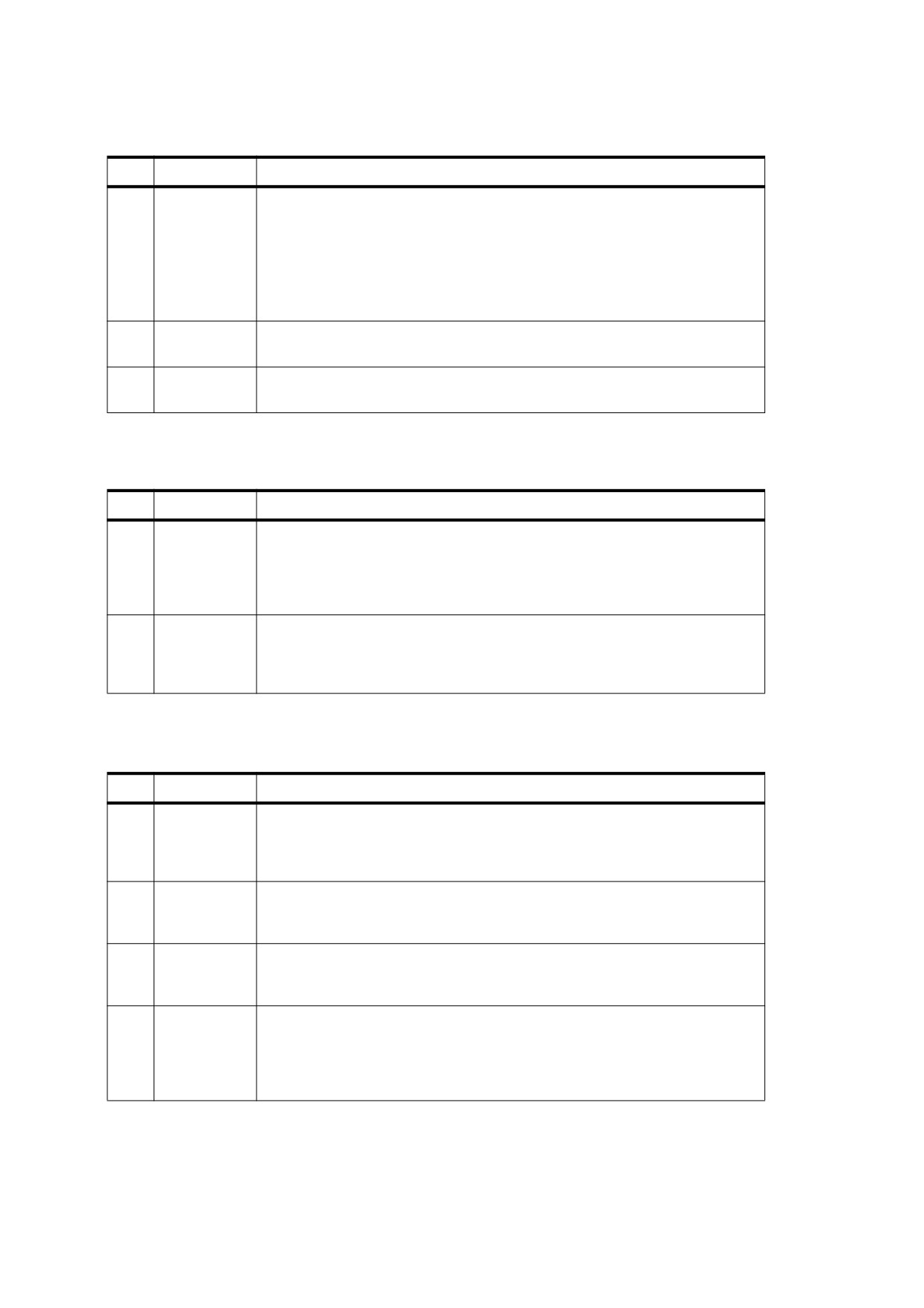
Table 194 - Entries in an annotation’s additional-actions dictionary (continued)
Key
Type
Value
PC
dictionary
(Optional; PDF 1.5) An action that shall be performed when the page containing
the annotation is closed.
EXAMPLE 2
When the user navigates to the next or previous page, or
follows a link annotation or outline item.
The action shall be executed before the C action in the page’s additional-
actions dictionary (see Table 195), if present.
PV
dictionary
(Optional; PDF 1.5) An action that shall be performed when the page containing
the annotation becomes visible.
PI
dictionary
(Optional; PDF 1.5) An action that shall be performed when the page containing
the annotation is no longer visible in the conforming reader’s user interface.
Table 195 - Entries in a page object’s additional-actions dictionary
Key
Type
Value
O
dictionary
(Optional; PDF 1.2) An action that shall be performed when the page is opened
(for example, when the user navigates to it from the next or previous page or by
means of a link annotation or outline item). This action is independent of any
that may be defined by the OpenAction entry in the document Catalog (see
7.7.2, “Document Catalog”) and shall be executed after such an action.
C
dictionary
(Optional; PDF 1.2) An action that shall be performed when the page is closed
(for example, when the user navigates to the next or previous page or follows a
link annotation or an outline item). This action applies to the page being closed
and shall be executed before any other page is opened.
Table 196 - Entries in a form field’s additional-actions dictionary
Key
Type
Value
K
dictionary
(Optional; PDF 1.3) A JavaScript action that shall be performed when the user
modifies a character in a text field or combo box or modifies the selection in a
scrollable list box. This action may check the added text for validity and reject or
modify it.
F
dictionary
(Optional; PDF 1.3) A JavaScript action that shall be performed before the field
is formatted to display its value. This action may modify the field’s value before
formatting.
V
dictionary
(Optional; PDF 1.3) A JavaScript action that shall be performed when the field’s
value is changed. This action may check the new value for validity. (The name
V stands for “validate.”)
C
dictionary
(Optional; PDF 1.3) A JavaScript action that shall be performed to recalculate
the value of this field when that of another field changes. (The name C stands
for “calculate.”) The order in which the document’s fields are recalculated shall
be defined by the CO entry in the interactive form dictionary (see 12.7.2,
“Interactive Form Dictionary”).
416

Table 197 - Entries in the document catalog’s additional-actions dictionary
Key
Type
Value
WC
dictionary
(Optional; PDF 1.4) A JavaScript action that shall be performed before closing a
document. (The name WC stands for “will close.”)
WS
dictionary
(Optional; PDF 1.4) A JavaScript action that shall be performed before saving a
document. (The name WS stands for “will save.”)
DS
dictionary
(Optional; PDF 1.4) A JavaScript action that shall be performed after saving a
document. (The name DS stands for “did save.”)
WP
dictionary
(Optional; PDF 1.4) A JavaScript action that shall be performed before printing
a document. (The name WP stands for “will print.”)
DP
dictionary
(Optional; PDF 1.4) A JavaScript action that shall be performed after printing a
document. (The name DP stands for “did print.”)
Conforming readers shall ensure the presence of such a device, or equivalent controls for simulating one, for
the corresponding actions to be executed correctly. Mouse-related trigger events are subject to the following
constraints:
•
An E (enter) event may occur only when the mouse button is up.
•
An X (exit) event may not occur without a preceding E event.
•
A U (up) event may not occur without a preceding E and D event.
•
In the case of overlapping or nested annotations, entering a second annotation’s active area causes an X
event to occur for the first annotation.
NOTE 2
The field-related trigger events K (keystroke), F (format), V (validate), and C (calculate) are not defined for
button fields (see 12.7.4.2, “Button Fields”). The effects of an action triggered by one of these events are
limited only by the action itself and can occur outside the described scope of the event. For example, even
though the F event is used to trigger actions that format field values prior to display, it is possible for an action
triggered by this event to perform a calculation or make any other modification to the document.
These field-related trigger events can occur either through user interaction or programmatically, such as in
response to the NeedAppearances entry in the interactive form dictionary (see 12.7.2, “Interactive Form
Dictionary”), importation of FDF data
(12.7.7,
“Forms Data Format”), or JavaScript actions
(12.6.4.16,
“JavaScript Actions”). For example, the user’s modifying a field value can trigger a cascade of calculations and
further formatting and validation for other fields in the document.
12.6.4
Action Types
12.6.4.1
General
PDF supports the standard action types listed in Table 198. The following sub-clauses describe each of these
types in detail.
Table 198 - Action types
Action type
Description
Discussed in sub-clause
GoTo
Go to a destination in the current document.
12.6.4.2, “Go-To Actions”
GoToR
(“Go-to remote”) Go to a destination in another
12.6.4.3, “Remote Go-To Actions”
document.
GoToE
(“Go-to embedded”; PDF 1.6) Go to a destination in
12.6.4.4, “Embedded Go-To Actions”
an embedded file.
417
Table 198 - Action types (continued)
Action type
Description
Discussed in sub-clause
Launch
Launch an application, usually to open a file.
12.6.4.5, “Launch Actions”
Thread
Begin reading an article thread.
12.6.4.6, “Thread Actions”
URI
Resolve a uniform resource identifier.
12.6.4.7, “URI Actions”
Sound
(PDF 1.2) Play a sound.
12.6.4.8, “Sound Actions”
Movie
(PDF 1.2) Play a movie.
12.6.4.9, “Movie Actions”
Hide
(PDF 1.2) Set an annotation’s Hidden flag.
12.6.4.10, “Hide Actions”
Named
(PDF 1.2) Execute an action predefined by the
12.6.4.11, “Named Actions”
conforming reader.
SubmitForm
(PDF 1.2) Send data to a uniform resource locator.
12.7.5.2, “Submit-Form Action”
ResetForm
(PDF 1.2) Set fields to their default values.
12.7.5.3, “Reset-Form Action”
ImportData
(PDF 1.2) Import field values from a file.
12.7.5.4, “Import-Data Action”
JavaScript
(PDF 1.3) Execute a JavaScript script.
12.6.4.16, “JavaScript Actions”
SetOCGState
(PDF 1.5) Set the states of optional content groups.
12.6.4.12, “Set-OCG-State Actions”
Rendition
(PDF 1.5) Controls the playing of multimedia content.
12.6.4.13, “Rendition Actions”
Trans
(PDF 1.5) Updates the display of a document, using
12.6.4.14, “Transition Actions”
a transition dictionary.
GoTo3DView
(PDF 1.6) Set the current view of a 3D annotation
12.6.4.15, “Go-To-3D-View Actions,”
NOTE
The set-state action is considered obsolete and should not be used.
12.6.4.2
Go-To Actions
A go-to action changes the view to a specified destination (page, location, and magnification factor). Table 199
shows the action dictionary entries specific to this type of action.
Table 199 - Additional entries specific to a go-to action
Key
Type
Value
S
name
(Required) The type of action that this dictionary describes; shall be GoTo
for a go-to action.
D
name,
(Required) The destination to jump to (see 12.3.2, “Destinations”).
byte string,
or array
NOTE
Specifying a go-to action in the A entry of a link annotation or outline item (see Table 173 and Table 153) has
the same effect as specifying the destination directly with the Dest entry. For example, the link annotation
shown in the Example in 12.6.4.12, “Set-OCG-State Actions,” which uses a go-to action, has the same effect
as the one in the following Example, which specifies the destination directly. However, the go-to action is less
compact and is not compatible with PDF 1.0; therefore, using a direct destination is preferable.
418

EXAMPLE
93 0 obj
<<
/Type /Annot
/Subtype /Link
/Rect [ 71 717 190 734 ]
/Border [ 16 16 1 ]
/A << /Type /Action
/S /GoTo
/D [ 3 0 R /FitR -4 399 199 533 ]
>>
>>
endobj
12.6.4.3
Remote Go-To Actions
A remote go-to action is similar to an ordinary go-to action but jumps to a destination in another PDF file
instead of the current file. Table 200 shows the action dictionary entries specific to this type of action.
NOTE
Remote go-to actions cannot be used with embedded files; see 12.6.4.4, “Embedded Go-To Actions.”
Table 200 - Additional entries specific to a remote go-to action
Key
Type
Value
S
name
(Required) The type of action that this dictionary describes; shall be
GoToR for a remote go-to action.
F
file specification
(Required) The file in which the destination shall be located.
D
name,
(Required) The destination to jump to (see 12.3.2, “Destinations”). If
byte string, or
the value is an array defining an explicit destination (as described
array
under 12.3.2.2, “Explicit Destinations”), its first element shall be a page
number within the remote document rather than an indirect reference
to a page object in the current document. The first page shall be
numbered 0.
NewWindow
boolean
(Optional; PDF 1.2) A flag specifying whether to open the destination
document in a new window. If this flag is false, the destination
document replaces the current document in the same window. If this
entry is absent, the conforming reader should behave in accordance
with its preference.
12.6.4.4
Embedded Go-To Actions
An embedded go-to action (PDF 1.6) is similar to a remote go-to action but allows jumping to or from a PDF file
that is embedded in another PDF file (see 7.11.4, “Embedded File Streams”). Embedded files may be
associated with file attachment annotations (see 12.5.6.15, “File Attachment Annotations”) or with entries in the
EmbeddedFiles name tree (see 7.7.4, “Name Dictionary”). Embedded files may in turn contain embedded
files. Table 201 shows the action dictionary entries specific to embedded go-to actions.
Embedded go-to actions provide a complete facility for linking between a file in a hierarchy of nested
embedded files and another file in the same or different hierarchy. The following terminology shall be used:
•
The source is the document containing the embedded go-to action.
•
The target is the document in which the destination lives.
•
The T entry in the action dictionary is a target dictionary that locates the target in relation to the source, in
much the same way that a relative path describes the physical relationship between two files in a file
system. Target dictionaries may be nested recursively to specify one or more intermediate targets before
reaching the final one. As the hierarchy is navigated, each intermediate target shall be referred to as the
current document. Initially, the source is the current document.
419

NOTE
It is an error for a target dictionary to have an infinite cycle (for example, one where a target dictionary refers to
itself). Conforming readers should attempt to detect such cases and refuse to execute the action if found.
•
A child document shall be one that is embedded within another PDF file.
•
The document in which a file is embedded shall be its parent.
•
A root document is one that is not embedded in another PDF file. The target and source may be contained
in root documents or embedded documents.
Table 201 - Additional entries specific to an embedded go-to action
Key
Type
Value
S
name
(Required) The type of action that this dictionary describes; shall be
GoToE for an embedded go-to action.
F
file
(Optional) The root document of the target relative to the root
specification
document of the source. If this entry is absent, the source and target
share the same root document.
D
name,
(Required) The destination in the target to jump to
(see
12.3.2,
byte string,
“Destinations”).
or array
NewWindow
boolean
(Optional) If true, the destination document should be opened in a new
window; if false, the destination document should replace the current
document in the same window. If this entry is absent, the conforming
reader should act according to its preference.
T
dictionary
(Optional if F is present; otherwise required) A target dictionary (see
Table 202) specifying path information to the target document. Each
target dictionary specifies one element in the full path to the target and
may have nested target dictionaries specifying additional elements.
Table 202 - Entries specific to a target dictionary
Key
Type
Value
R
name
(Required) Specifies the relationship between the current document
and the target (which may be an intermediate target). Valid values are
P (the target is the parent of the current document) and C (the target is
a child of the current document).
N
byte string
(Required if the value of R is C and the target is located in the
EmbeddedFiles name tree; otherwise, it shall be absent) The name of
the file in the EmbeddedFiles name tree.
P
integer or
(Required if the value of R is C and the target is associated with a file
byte string
attachment annotation; otherwise, it shall be absent) If the value is an
integer, it specifies the page number
(zero-based) in the current
document containing the file attachment annotation. If the value is a
string, it specifies a named destination in the current document that
provides the page number of the file attachment annotation.
A
integer or text
(Required if the value of R is C and the target is associated with a file
string
attachment annotation; otherwise, it shall be absent) If the value is an
integer, it specifies the index (zero-based) of the annotation in the
Annots array (see Table 30) of the page specified by P. If the value is a
text string, it specifies the value of NM in the annotation dictionary (see
Table 164).
T
dictionary
(Optional) A target dictionary specifying additional path information to
the target document. If this entry is absent, the current document is the
target file containing the destination.
420
EXAMPLE
The following example illustrates several possible relationships between source and target. Each object
shown is an action dictionary for an embedded go-to action.
1 0 obj
% Link to a child
<< /Type /Action
/S /GoToE
/D (Chapter 1)
/T
<< /R /C
/N (Embedded document) >>
>>
endobj
2 0 obj
% Link to the parent
<< /Type /Action
/S /GoToE
/D (Chapter 1)
/T << /R /P >>
>>
endobj
3 0 obj
% Link to a sibling
<< /Type /Action
/S /GoToE
/D (Chapter 1)
/T <<
/R /P
/T <<
/R /C
/N (Another embedded document) >>
>>
>>
endobj
4 0 obj
% Link to an embedded file in an external document
<< /Type /Action
/S /GoToE
/D (Chapter 1)
/F (someFile.pdf)
/T <<
/R /C
/N (Embedded document) >>
>>
endobj
5 0 obj
% Link from an embedded file to a normal file
<< /Type /Action
/S /GoToE
/D (Chapter 1)
/F (someFile.pdf)
>>
endobj
6 0 obj
% Link to a grandchild
<< /Type /Action
/S /GoToE
/D (Chapter 1)
/T <<
/R /C
/N (Embedded document)
/T << /R /C
/P (A destination name)
/A (annotName)
>>
>>
>>
endobj
7 0 obj
% Link to a niece/nephew through the source’s parent
421

<< /Type /Action
/S /GoToE
/D (destination)
/T <<
/R /P
/T << /R /C
/N (Embedded document)
/T <<
/R /C
/P 3
/A (annotName)
>>
>>
>>
>>
endobj
12.6.4.5
Launch Actions
A launch action launches an application or opens or prints a document. Table 203 shows the action dictionary
entries specific to this type of action.
The optional Win, Mac, and Unix entries allow the action dictionary to include platform-specific parameters for
launching the designated application. If no such entry is present for the given platform, the F entry shall be
used instead. Table 203 shows the platform-specific launch parameters for the Windows platform. Parameters
for the Mac OS and UNIX platforms are not yet defined at the time of publication.
Table 203 - Additional entries specific to a launch action
Key
Type
Value
S
name
(Required) The type of action that this dictionary describes; shall be
Launch for a launch action.
F
file specification
(Required if none of the entries Win, Mac, or Unix is present) The
application that shall be launched or the document that shall be
opened or printed. If this entry is absent and the conforming reader
does not understand any of the alternative entries, it shall do nothing.
Win
dictionary
(Optional) A dictionary containing Windows-specific launch
parameters (see Table 204).
Mac
(undefined)
(Optional) Mac OS-specific launch parameters; not yet defined.
Unix
(undefined)
(Optional) UNIX-specific launch parameters; not yet defined.
NewWindow
boolean
(Optional; PDF 1.2) A flag specifying whether to open the destination
document in a new window. If this flag is false, the destination
document replaces the current document in the same window. If this
entry is absent, the conforming reader should behave in accordance
with its current preference. This entry shall be ignored if the file
designated by the F entry is not a PDF document.
Table 204 - Entries in a Windows launch parameter dictionary
Key
Type
Value
F
byte string
(Required) The file name of the application that shall be launched or
the document that shall be opened or printed, in standard Windows
pathname format. If the name string includes a backslash character (\),
the backslash shall itself be preceded by a backslash.
This value shall be a simple string; it is not a file specification.
422
Table 204 - Entries in a Windows launch parameter dictionary (continued)
Key
Type
Value
D
byte string
(Optional) A bye string specifying the default directory in standard
DOS syntax.
O
ASCII string
(Optional) An ASCII string specifying the operation to perform:
open Open a document.
print Print a document.
If the F entry designates an application instead of a document, this
entry shall be ignored and the application shall be launched. Default
value: open.
P
byte string
(Optional) A parameter string that shall be passed to the application
designated by the F entry. This entry shall be omitted if F designates a
document.
12.6.4.6
Thread Actions
A thread action jumps to a specified bead on an article thread (see 12.4.3, “Articles”), in either the current
document or a different one. Table 205 shows the action dictionary entries specific to this type of action.
Table 205 - Additional entries specific to a thread action
Key
Type
Value
S
name
(Required) The type of action that this dictionary describes; shall be
Thread for a thread action.
F
file specification
(Optional) The file containing the thread. If this entry is absent, the
thread is in the current file.
D
dictionary, integer, or
(Required) The destination thread, specified in one of the following
text string
forms:
An indirect reference to a thread dictionary (see 12.4.3, “Articles”). In
this case, the thread shall be in the current file.
The index of the thread within the Threads array of its document’s
Catalog (see 7.7.2, “Document Catalog”). The first thread in the array
has index 0.
The title of the thread as specified in its thread information dictionary
(see Table 160). If two or more threads have the same title, the one
appearing first in the document Catalog’s Threads array shall be
used.
B
dictionary or integer
(Optional) The bead in the destination thread, specified in one of the
following forms:
An indirect reference to a bead dictionary (see 12.4.3, “Articles”). In
this case, the thread shall be in the current file.
The index of the bead within its thread. The first bead in a thread has
index 0.
12.6.4.7
URI Actions
A uniform resource identifier (URI) is a string that identifies (resolves to) a resource on the Internet—typically a
file that is the destination of a hypertext link, although it may also resolve to a query or other entity. (URIs are
described in Internet RFC 2396, Uniform Resource Identifiers (URI): Generic Syntax; see the Bibliography.)
A URI action causes a URI to be resolved. Table 206 shows the action dictionary entries specific to this type of
action.
423

Table 206 - Additional entries specific to a URI action
Key
Type
Value
S
name
(Required) The type of action that this dictionary describes; shall be URI for a
URI action.
URI
ASCII
(Required) The uniform resource identifier to resolve, encoded in 7-bit ASCII.
string
IsMap
boolean
(Optional) A flag specifying whether to track the mouse position when the URI
is resolved (see the discussion following this Table). Default value: false.
This entry applies only to actions triggered by the user’s clicking an
annotation; it shall be ignored for actions associated with outline items or with
a document’s OpenAction entry.
If the IsMap flag is true and the user has triggered the URI action by clicking an annotation, the coordinates of
the mouse position at the time the action has been triggered shall be transformed from device space to user
space and then offset relative to the upper-left corner of the annotation rectangle (that is, the value of the Rect
entry in the annotation with which the URI action is associated).
EXAMPLE 1
If the mouse coordinates in user space are (xm , ym ) and the annotation rectangle extends from (llx , lly ) at
the lower-left to (urx , ury ) at the upper-right, the final coordinates (xf , yf ) are as follows:
(
xf
=
xm llx
)
yf
=
ury – ym
If the resulting coordinates (xf , yf ) are fractional, they shall be rounded to the nearest integer values. They shall
then be appended to the URI to be resolved, separated by COMMAS (2Ch) and preceded by a QUESTION
MARK (3Fh), as shown in this example:
EXAMPLE 2
http : / / www. adobe . com /intro ?100 , 200
NOTE 1
To support URI actions, a PDF document’s Catalog (see 7.7.2, “Document Catalog”) may include a URI entry
whose value is a URI dictionary. Only one entry shall be defined for such a dictionary (see Table 207).
Table 207 - Entry in a URI dictionary
Key
Type
Value
Base
ASCII
(Optional) The base URI that shall be used in resolving relative URI
string
references. URI actions within the document may specify URIs in partial form,
to be interpreted relative to this base address. If no base URI is specified,
such partial URIs shall be interpreted relative to the location of the document
itself. The use of this entry is parallel to that of the body element <BASE >, as
described in the HTML 4.01 Specification (see the Bibliography).
NOTE 2
The Base entry allows the URI of the document to be recorded in situations in which the document may be
accessed out of context. For example, if a document has been moved to a new location but contains relative
links to other documents that have not been moved, the Base entry could be used to refer such links to the
true location of the other documents, rather than that of the moved document.
424

12.6.4.8
Sound Actions
A sound action (PDF 1.2) plays a sound through the computer’s speakers. Table 208 shows the action
dictionary entries specific to this type of action. Sounds are discussed in 13.3, “Sounds.”
Table 208 - Additional entries specific to a sound action
Key
Type
Value
S
name
(Required) The type of action that this dictionary describes; shall be
Sound for a sound action.
Sound
stream
(Required) A sound object defining the sound that shall be played (see
13.3, “Sounds”).
Volume
number
(Optional) The volume at which to play the sound, in the range −1.0 to
1.0. Default value: 1.0.
Synchronous
boolean
(Optional) A flag specifying whether to play the sound synchronously
or asynchronously. If this flag is true, the conforming reader retains
control, allowing no further user interaction other than canceling the
sound, until the sound has been completely played. Default value:
false.
Repeat
boolean
(Optional) A flag specifying whether to repeat the sound indefinitely. If
this entry is present, the Synchronous entry shall be ignored. Default
value: false.
Mix
boolean
(Optional) A flag specifying whether to mix this sound with any other
sound already playing. If this flag is false, any previously playing
sound shall be stopped before starting this sound; this can be used to
stop a repeating sound (see Repeat). Default value: false.
12.6.4.9
Movie Actions
A movie action (PDF 1.2) can be used to play a movie in a floating window or within the annotation rectangle of
a movie annotation (see 12.5.6.17, “Movie Annotations” and 13.4, “Movies”). The movie annotation shall be
associated with the page that is the destination of the link annotation or outline item containing the movie
action, or with the page object with which the action is associated.
NOTE
A movie action by itself does not guarantee that the page the movie is on will be displayed before attempting to
play the movie; such page change actions shall be done explicitly.
The contents of a movie action dictionary are identical to those of a movie activation dictionary (see Table 296),
with the additional entries shown in Table 209. The contents of the activation dictionary associated with the
movie annotation provide the default values. Any information specified in the movie action dictionary overrides
these values.
Table 209 - Additional entries specific to a movie action
Key
Type
Value
S
name
(Required) The type of action that this dictionary describes; shall be Movie
for a movie action.
Annotation
dictionary
(Optional) An indirect reference to a movie annotation identifying the movie
that shall be played.
T
text string
(Optional) The title of a movie annotation identifying the movie that shall be
played.
The dictionary shall include either an Annotation or a T entry but not both.
425

Table 209 - Additional entries specific to a movie action (continued)
Key
Type
Value
Operation
name
(Optional) The operation that shall be performed on the movie:
PlayStart playing the movie, using the play mode specified by the
dictionary’s Mode entry (see Table 296). If the movie is currently paused, it
shall be repositioned to the beginning before playing (or to the starting point
specified by the dictionary’s Start entry, if present).
Stop
Stop playing the movie.
Pause
Pause a playing movie.
Resume Resume a paused movie.
Default value: Play.
12.6.4.10
Hide Actions
A hide action (PDF 1.2) hides or shows one or more annotations on the screen by setting or clearing their
Hidden flags (see 12.5.3, “Annotation Flags”). This type of action can be used in combination with appearance
streams and trigger events (Sections 12.5.5, “Appearance Streams,” and 12.6.3, “Trigger Events”) to display
pop-up help information on the screen.
NOTE
The E (enter) and X (exit) trigger events in an annotation’s additional-actions dictionary can be used to show
and hide the annotation when the user rolls the cursor in and out of its active area on the page. This can be
used to pop up a help label, or tool tip, describing the effect of clicking at that location on the page.
Table 210 shows the action dictionary entries specific to this type of action.
Table 210 - Additional entries specific to a hide action
Key
Type
Value
S
name
(Required) The type of action that this dictionary describes; shall be Hide for
a hide action.
T
dictionary,
(Required) The annotation or annotations to be hidden or shown, shall be
text string, or
specified in any of the following forms:
array
An indirect reference to an annotation dictionary
A text string giving the fully qualified field name of an interactive form field
whose associated widget annotation or annotations are to be affected (see
12.7.3.2, “Field Names”)
An array of such dictionaries or text strings
H
boolean
(Optional) A flag indicating whether to hide the annotation (true) or show it
(false). Default value: true.
12.6.4.11
Named Actions
Table 211 lists several named actions (PDF 1.2) that conforming readers shall support; further names may be
added in the future.
Table 211 - Named actions
Name
Action
NextPage
Go to the next page of the document.
PrevPage
Go to the previous page of the document.
FirstPage
Go to the first page of the document.
LastPage
Go to the last page of the document.
426

NOTE
Conforming readers may support additional, nonstandard named actions, but any document using them is not
portable. If the viewer encounters a named action that is inappropriate for a viewing platform, or if the viewer
does not recognize the name, it shall take no action.
Table 212 shows the action dictionary entries specific to named actions.
Table 212 - Additional entries specific to named actions
Key
Type
Value
S
name
(Required) The type of action that this dictionary describes; shall be Named for a
named action.
N
name
(Required) The name of the action that shall be performed (see Table 211).
12.6.4.12
Set-OCG-State Actions
A set-OCG-state action (PDF 1.5) sets the state of one or more optional content groups (see 8.11, “Optional
Content”). Table 213 shows the action dictionary entries specific to this type of action.
Table 213 - Additional entries specific to a set-OCG-state action
Key
Type
Value
S
name
(Required) The type of action that this dictionary describes; shall be
SetOCGState for a set-OCG-state action.
State
array
(Required) An array consisting of any number of sequences beginning with a
name object (ON, OFF, or Toggle) followed by one or more optional content
group dictionaries. The array elements shall be processed from left to right;
each name shall be applied to the subsequent groups until the next name is
encountered:
ON
sets the state of subsequent groups to ON
OFF
sets the state of subsequent groups to OFF
Toggle reverses the state of subsequent groups.
PreserveRB
boolean
(Optional) If true, indicates that radio-button state relationships between
optional content groups (as specified by the RBGroups entry in the current
configuration dictionary; see Table 101) should be preserved when the
states in the State array are applied. That is, if a group is set to ON (either by
ON or Toggle) during processing of the State array, any other groups
belonging to the same radio-button group shall be turned OFF. If a group is
set to OFF, there is no effect on other groups.
If PreserveRB is false, radio-button state relationships, if any, shall be
ignored.
Default value: true.
When a set-OCG-state action is performed, the State array shall be processed from left to right. Each name
shall be applied to subsequent groups in the array until the next name is encountered, as shown in the
following example.
EXAMPLE 1
<< /S /SetOCGState
/State [/OFF 2 0 R 3 0 R /Toggle 16 0 R 19 0 R /ON 5 0 R]
>>
A group may appear more than once in the State array; its state shall be set each time it is encountered, based
on the most recent name. ON, OFF and Toggle sequences have no required order. More than one sequence in
the array may contain the same name.
EXAMPLE 2
If the array contained [/OFF 1 0 R /Toggle 1 0 R], the group’s state would be ON after the action was
performed.
427

NOTE
While the specification allows a group to appear more than once in the State array, this is not intended to
implement animation or any other sequential drawing operations. PDF processing applications are free to
accumulate all state changes and apply only the net changes simultaneously to all affected groups before
redrawing.
12.6.4.13
Rendition Actions
A rendition action (PDF 1.5) controls the playing of multimedia content (see 13.2, “Multimedia”). This action
may be used in the following ways:
•
To begin the playing of a rendition object (see 13.2.3, “Renditions”), associating it with a screen annotation
(see 12.5.6.18, “Screen Annotations”). The screen annotation specifies where the rendition shall be played
unless otherwise specified.
•
To stop, pause, or resume a playing rendition.
•
To trigger the execution of a JavaScript script that may perform custom operations.
Table 214 lists the entries in a rendition action dictionary.
Table 214 - Additional entries specific to a rendition action
Key
Type
Value
S
name
(Required) The type of action that this dictionary describes; shall be Rendition
for a rendition action.
R
dictionary
(Required when OP is present with a value of 0 or 4; otherwise optional) A
rendition object (see 13.2.3, “Renditions”).
AN
dictionary
(Required if OP is present with a value of 0, 1, 2, 3 or 4; otherwise optional) An
indirect reference to a screen annotation
(see
12.5.6.18,
“Screen
Annotations”).
OP
integer
(Required if JS is not present; otherwise optional) The operation to perform
when the action is triggered. Valid values shall be:
0
If no rendition is associated with the annotation specified by AN, play the
rendition specified by R, associating it with the annotation. If a rendition
is already associated with the annotation, it shall be stopped, and the
new rendition shall be associated with the annotation.
1
Stop any rendition being played in association with the annotation
specified by AN, and remove the association. If no rendition is being
played, there is no effect.
2
Pause any rendition being played in association with the annotation
specified b y AN. If no rendition is being played, there is no effect.
3
Resume any rendition being played in association with the annotation
specified by AN. If no rendition is being played or the rendition is not
paused, there is no effect.
4
Play the rendition specified by R, associating it with the annotation
specified by AN. If a rendition is already associated with the annotation,
resume the rendition if it is paused; otherwise, do nothing.
JS
text string
(Required if OP is not present; otherwise optional) A text string or stream
or stream
containing a JavaScript script that shall be executed when the action is
triggered.
Either the JS entry or the OP entry shall be present. If both are present, OP is considered a fallback that shall
be executed if the conforming reader is unable to execute JavaScripts. If OP has an unrecognized value and
there is no JS entry, the action is invalid.
428

In some situations, a pause (OP value of 2) or resume (OP value of 3) operation may not make sense or the
player may not support it. In such cases, the user should be notified of the failure to perform the operation.
EXAMPLE
A JPEG image
Before a rendition action is executed, the conforming reader shall make sure that the P entry of the screen
annotation dictionary references a valid page object and that the annotation is present in the page object’s
Annots array (see Table 30).
A rendition may play in the rectangle occupied by a screen annotation, even if the annotation itself is not visible;
for example, if its Hidden or NoView flags (see Table 165) are set. If a screen annotation is not visible because
its location on the page is not being displayed by the viewer, the rendition is not visible. However, it may
become visible if the view changes, such as by scrolling.
12.6.4.14
Transition Actions
A transition action (PDF 1.5) may be used to control drawing during a sequence of actions. As discussed in
12.6.2, “Action Dictionaries,” the Next entry in an action dictionary may specify a sequence of actions.
Conforming readers shall normally suspend drawing when such a sequence begins and resume drawing when
it ends. If a transition action is present during a sequence, the conforming reader shall render the state of the
page viewing area as it exists after completion of the previous action and display it using a transition specified
in the action dictionary (see Table 215). Once this transition completes, drawing shall be suspended again.
Table 215 - Additional entries specific to a transition action
Key
Type
Value
S
name
(Required) The type of action that this dictionary describes; shall be Trans
for a transition action.
Trans
dictionary
(Required) The transition to use for the update of the display
(see
Table 162).
12.6.4.15
Go-To-3D-View Actions
A go-to-3D-view action (PDF 1.6) identifies a 3D annotation and specifies a view for the annotation to use (see
13.6, “3D Artwork”). Table 216 shows the entries in a go-to-3D-view action dictionary.
Table 216 - Additional entries specific to a go-to-3D-view action
Key
Type
Value
S
name
(Required) The type of action that this dictionary describes; shall be
GoTo3DView for a transition action.
TA
dictionary
(Required) The target annotation for which to set the view.
V
(various)
(Required) The view to use. It may be one of the following types:
A 3D view dictionary (see 13.6.4, “3D Views”).
An integer specifying an index into the VA array in the 3D stream (see
Table 300).
A text string matching the IN entry in one of the views in the VA array (see
Table 304).
A name that indicates the first (F), last (L), next (N), previous (P), or default
(D) entries in the VA array; see discussion following this Table.
The V entry selects the view to apply to the annotation specified by TA. This view may be one of the predefined
views specified by the VA entry of the 3D stream (see Table 300) or a unique view specified here.
429

If the predefined view is specified by the names N (next) or P (previous), it should be interpreted in the following
way:
•
When the last view applied was specified by means of the VA array, N and P indicate the next and previous
entries, respectively, in the VA array (wrapping around if necessary).
•
When the last view was not specified by means of VA, using N or P should result in reverting to the default
view.
12.6.4.16
JavaScript Actions
Upon invocation of a JavaScript action, a conforming processor shall execute a script that is written in the
JavaScript programming language. Depending on the nature of the script, various interactive form fields in the
document may update their values or change their visual appearances. Mozilla Development Center’s Client-
Side JavaScript Reference and the Adobe JavaScript for Acrobat API Reference (see the Bibliography) give
details on the contents and effects of JavaScript scripts. Table 217 shows the action dictionary entries specific
to this type of action.
Table 217 - Additional entries specific to a JavaScript action
Key
Type
Value
S
name
(Required) The type of action that this dictionary describes; shall be
JavaScript for a JavaScript action.
JS
text string or
(Required) A text string or text stream containing the JavaScript script to
text stream
be executed.
PDFDocEncoding or Unicode encoding (the latter identified by the
Unicode prefix U+ FEFF) shall be used to encode the contents of the
string or stream.
To support the use of parameterized function calls in JavaScript scripts, the JavaScript entry in a PDF
document’s name dictionary (see 7.7.4, “Name Dictionary”) may contain a name tree that maps name strings to
document-level JavaScript actions. When the document is opened, all of the actions in this name tree shall be
executed, defining JavaScript functions for use by other scripts in the document.
NOTE
The name strings associated with individual JavaScript actions in the name dictionary serve merely as a
convenient means for organizing and packaging scripts. The names are arbitrary and need not bear any
relation to the JavaScript name space.
12.7
Interactive Forms
12.7.1
General
An interactive form (PDF 1.2)—sometimes referred to as an AcroForm—is a collection of fields for gathering
information interactively from the user. A PDF document may contain any number of fields appearing on any
combination of pages, all of which make up a single, global interactive form spanning the entire document.
Arbitrary subsets of these fields can be imported or exported from the document; see 12.7.5, “Form Actions.”
NOTE 1
Interactive forms should not be confused with form XObjects (see 8.10, “Form XObjects”). Despite the
similarity of names, the two are different, unrelated types of objects.
Each field in a document’s interactive form shall be defined by a field dictionary
(see
12.7.3,
“Field
Dictionaries”). For purposes of definition and naming, the fields can be organized hierarchically and can inherit
attributes from their ancestors in the field hierarchy. A field’s children in the hierarchy may also include widget
annotations (see 12.5.6.19, “Widget Annotations”) that define its appearance on the page. A field that has
children that are fields is called a non-terminal field. A field that does not have children that are fields is called a
terminal field.
430

A terminal field may have children that are widget annotations (see 12.5.6.19, “Widget Annotations“) that define
its appearance on the page. As a convenience, when a field has only a single associated widget annotation, the
contents of the field dictionary and the annotation dictionary (12.5.2, “Annotation Dictionaries”) may be merged
into a single dictionary containing entries that pertain to both a field and an annotation. (This presents no
ambiguity, since the contents of the two kinds of dictionaries do not conflict.) If such an object defines an
appearance stream, the appearance shall be consistent with the object’s current value as a field.
NOTE 2
Fields containing text whose contents are not known in advance may need to construct their appearance
streams dynamically instead of defining them statically in an appearance dictionary; see 12.7.3.3, “Variable
Text.”
12.7.2
Interactive Form Dictionary
The contents and properties of a document’s interactive form shall be defined by an interactive form dictionary
that shall be referenced from the AcroForm entry in the document catalogue (see 7.7.2, “Document Catalog”).
Table 218 shows the contents of this dictionary.
Table 218 - Entries in the interactive form dictionary
Key
Type
Value
Fields
array
(Required) An array of references to the document’s root fields
(those with no ancestors in the field hierarchy).
NeedAppearances
boolean
(Optional) A flag specifying whether to construct appearance
streams and appearance dictionaries for all widget annotations
in the document (see 12.7.3.3, “Variable Text”). Default value:
false.
SigFlags
integer
(Optional; PDF 1.3) A set of flags specifying various document-
level characteristics related to signature fields (see Table 219,
and 12.7.4.5, “Signature Fields”). Default value: 0.
CO
array
(Required if any fields in the document have additional-actions
dictionaries containing a C entry; PDF 1.3) An array of indirect
references to field dictionaries with calculation actions, defining
the calculation order in which their values will be recalculated
when the value of any field changes (see 12.6.3,
“Trigger
Events”).
DR
dictionary
(Optional) A resource dictionary
(see
7.8.3,
“Resource
Dictionaries”) containing default resources
(such as fonts,
patterns, or colour spaces) that shall be used by form field
appearance streams. At a minimum, this dictionary shall contain
a Font entry specifying the resource name and font dictionary of
the default font for displaying text.
DA
string
(Optional) A document-wide default value for the DA attribute of
variable text fields (see 12.7.3.3, “Variable Text”).
Q
integer
(Optional) A document-wide default value for the Q attribute of
variable text fields (see 12.7.3.3, “Variable Text”).
XFA
stream or array
(Optional; PDF
1.5) A stream or array containing an XFA
resource, whose format shall be described by the Data Package
(XDP) Specification. (see the Bibliography).
The value of this entry shall be either a stream representing the
entire contents of the XML Data Package or an array of text
string and stream pairs representing the individual packets
comprising the XML Data Package.
See 12.7.8, “XFA Forms,” for more information.
431

The value of the interactive form dictionary’s SigFlags entry is an unsigned 32-bit integer containing flags
specifying various document-level characteristics related to signature fields (see 12.7.4.5, “Signature Fields”).
Bit positions within the flag word shall be numbered from 1 (low-order) to 32 (high-order). Table 219 shows the
meanings of the flags; all undefined flag bits shall be reserved and shall be set to 0.
Table 219 - Signature flags
Bit position
Name
Meaning
1
SignaturesExist
If set, the document contains at least one signature field. This flag
allows a conforming reader to enable user interface items (such as
menu items or pushbuttons) related to signature processing without
having to scan the entire document for the presence of signature
fields.
2
AppendOnly
If set, the document contains signatures that may be invalidated if
the file is saved (written) in a way that alters its previous contents,
as opposed to an incremental update. Merely updating the file by
appending new information to the end of the previous version is
safe (see H.7, “Updating Example”). Conforming readers may use
this flag to inform a user requesting a full save that signatures will
be invalidated and require explicit confirmation before continuing
with the operation.
12.7.3
Field Dictionaries
12.7.3.1
General
Each field in a document’s interactive form shall be defined by a field dictionary, which shall be an indirect
object. The field dictionaries may be organized hierarchically into one or more tree structures. Many field
attributes are inheritable, meaning that if they are not explicitly specified for a given field, their values are taken
from those of its parent in the field hierarchy. Such inheritable attributes shall be designated as such in the
Tables 220 and 221. The designation (Required; inheritable) means that an attribute shall be defined for every
field, whether explicitly in its own field dictionary or by inheritance from an ancestor in the hierarchy. Table 220
shows those entries that are common to all field dictionaries, regardless of type. Entries that pertain only to a
particular type of field are described in the relevant sub-clauses in Table 220.
Table 220 - Entries common to all field dictionaries
Key
Type
Value
FT
name
(Required for terminal fields; inheritable) The type of field that this
dictionary describes:
Btn
Button (see 12.7.4.2, “Button Fields”)
Tx
Text (see 12.7.4.3, “Text Fields”)
Ch
Choice (see 12.7.4.4, “Choice Fields”)
Sig
(PDF 1.3) Signature (see 12.7.4.5, “Signature Fields”)
This entry may be present in a non-terminal field
(one whose
descendants are fields) to provide an inheritable FT value. However, a
non-terminal field does not logically have a type of its own; it is merely
a container for inheritable attributes that are intended for descendant
terminal fields of any type.
Parent
dictionary
(Required if this field is the child of another in the field hierarchy;
absent otherwise) The field that is the immediate parent of this one
(the field, if any, whose Kids array includes this field). A field can have
at most one parent; that is, it can be included in the Kids array of at
most one other field.
432